The dashboard is the first page you see in Osmos. It shows what needs your attention today and how your sales are going. To open it, click Dashboard in the left-hand menu.
From top to bottom, you find:
Quick actions and calendar shortcuts
Quote Actions, your daily follow-up list
Your list of activities
Level Up your Osmos Account (Super Admins only)
How are my sales?
Your current quotes in a funnel
Sales Benchmark (Super Admins only)
Your widgets
Quick Actions
Use the buttons at the top of the page:
New Quote starts a new quote.
New Contact adds a contact.
New Task adds a task.
Quote Calendar and Sales Order Calendar open the Agenda.

The + button at the top right opens Add Widget. See Widgets.

Quote Actions: Your Daily Follow-Up List
This box, under Daily Action List, lists your own quotes that need attention. The number beside the title is how many quotes are in the list.
1. Click “Build My List”
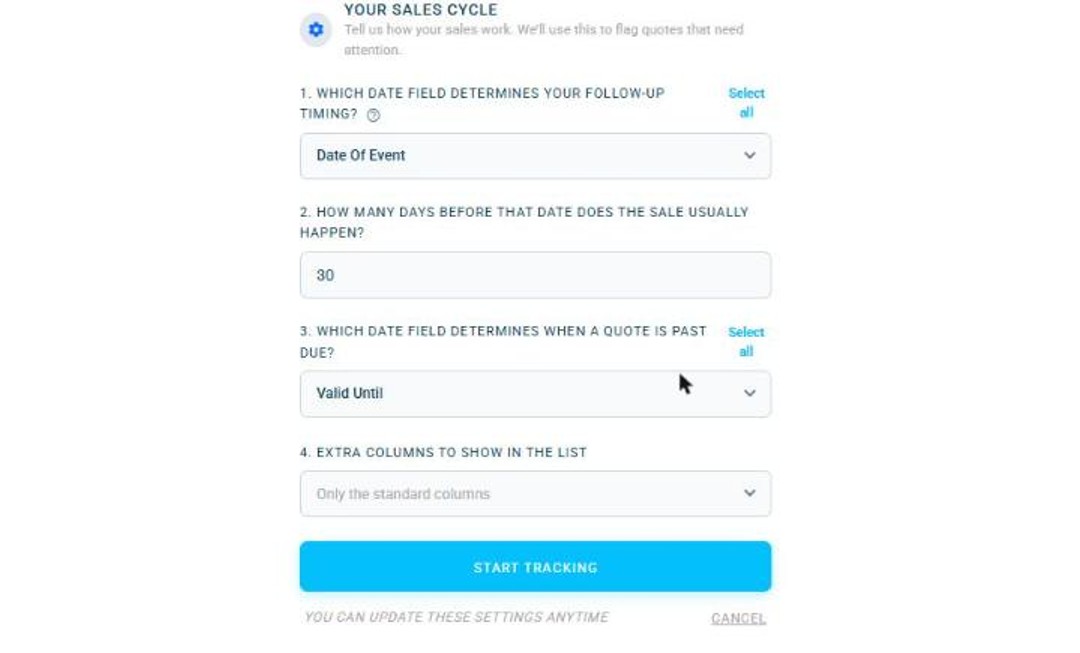
The first time, answer a few questions. To change your answers later, click Edit Settings.
2. Answer the questions
Which date field determines your follow-up timing? Pick one of the date fields from your quote templates.
How many days before that date does the sale usually happen? A quote appears for follow-up when its date is this close.
Which date field determines when a quote is past due?
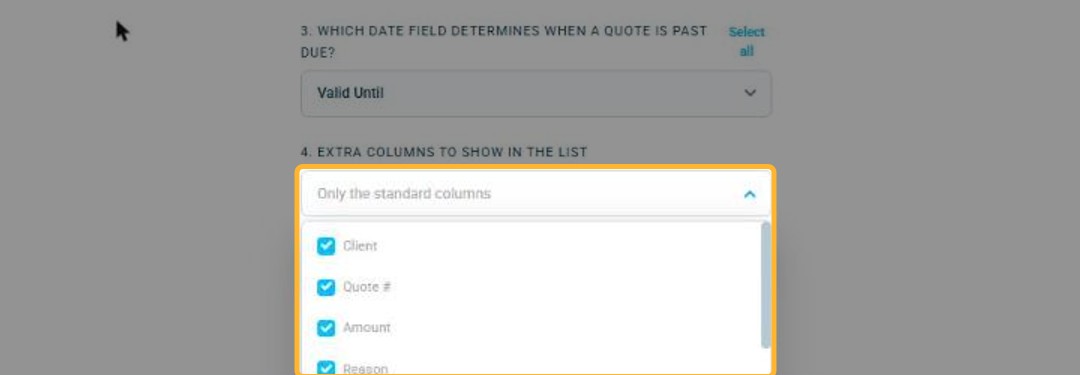
Extra columns to show in the list (optional). For example, add your event date.
Click “Start Tracking”
3. Read the list
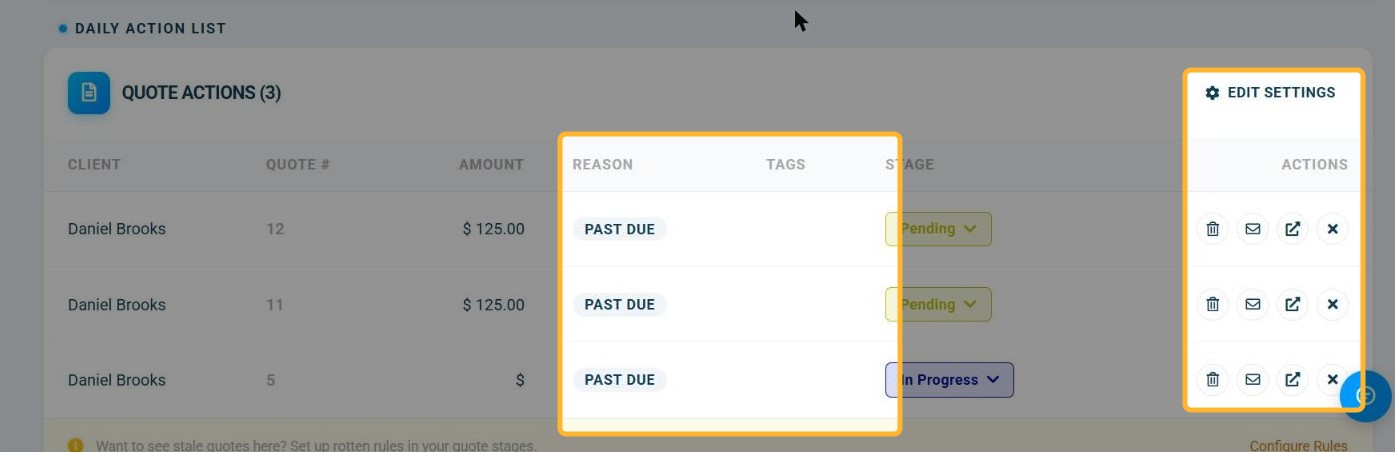
Each row shows the client, quote number, amount, reason, tags and stage. The Reason column shows why a quote is there:
Follow-up: the follow-up date is close.
Rotten: it stayed too long in its stage. If you have no rotten rules yet, click Configure Rules.
Past Due: the date has passed.
Accepted and rejected quotes, sales orders and invoices are not listed.
4. Act on a quote
Change its stage in the Stage column. The icons under Actions are, from left to right:
Trash can: void the quote.
Envelope: send an email.
Arrow: open the quote.
✕: dismiss it from the list.
Your List of Activities
This box shows what is new and what you still have to do. The number beside the title is how many items you have.
Tasks and reminders: click Mark as complete when you finish a task.
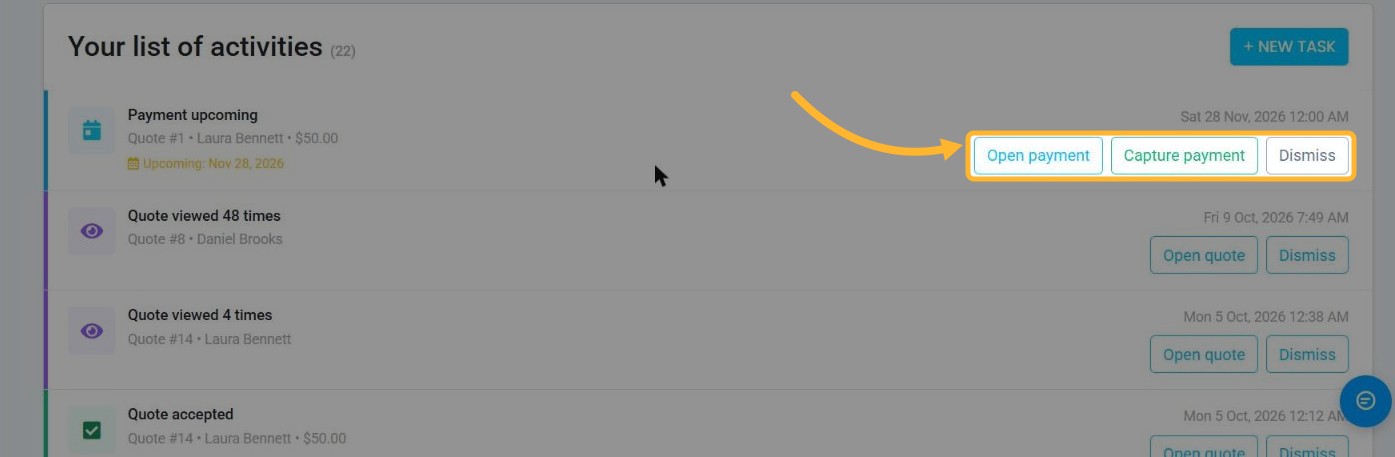
Payments from sales orders and invoices: Payment past due, Payment due today or Payment upcoming (next 7 days). Click Open payment or Capture payment.
Quotes: accepted, rejected, or viewed by your client, with how many times. Click Open quote.
New eQuotes and payments received.
Click Dismiss to remove an item you have seen. Click + New Task to add a task.
Use Previous and Next to move between pages. When nothing is waiting, the box says All clear!

Level Up Your Osmos Account
Only Super Admins see this box. It is a checklist of setup steps, with the share you have completed.
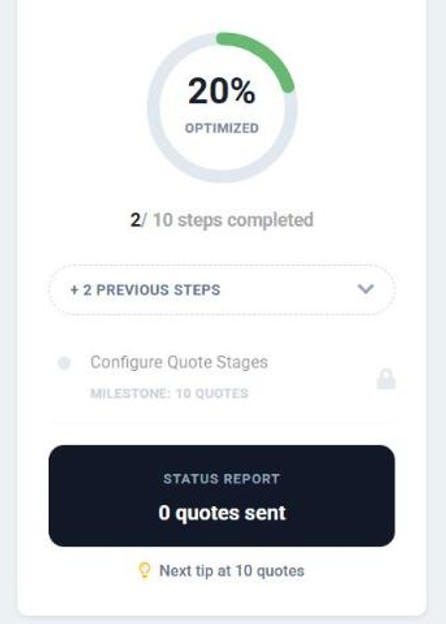
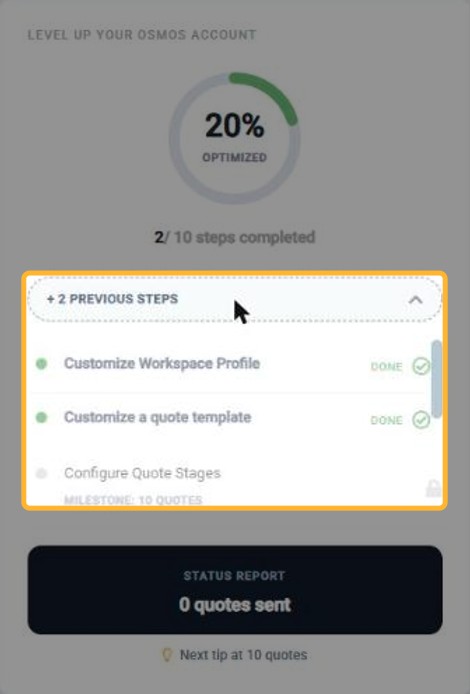
Click Previous steps to see the steps you already finished, marked Done.
A step with a lock opens once you have sent the number of quotes shown under it.
Click an open step to read what to do and go to the right screen.
Status report shows how many quotes you have sent and when the next tip arrives.
How Are My Sales?
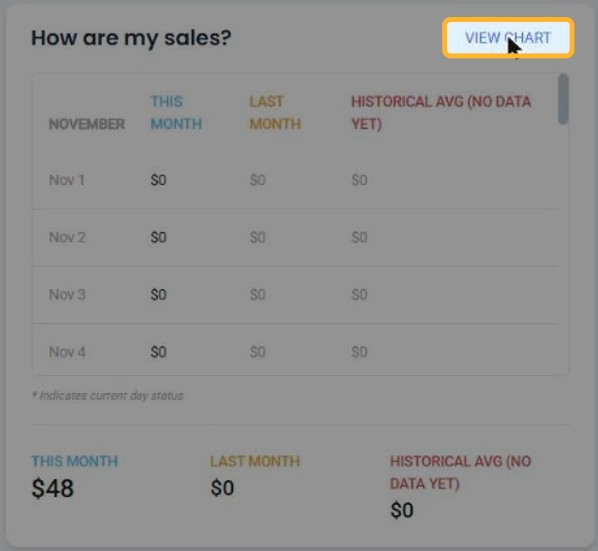
The chart compares This month, Last month and the Historical avg of past years. It counts sales orders on the day the quote became a sales order. Voided sales orders are not counted. Click View Table to see the numbers, and View Chart to go back.
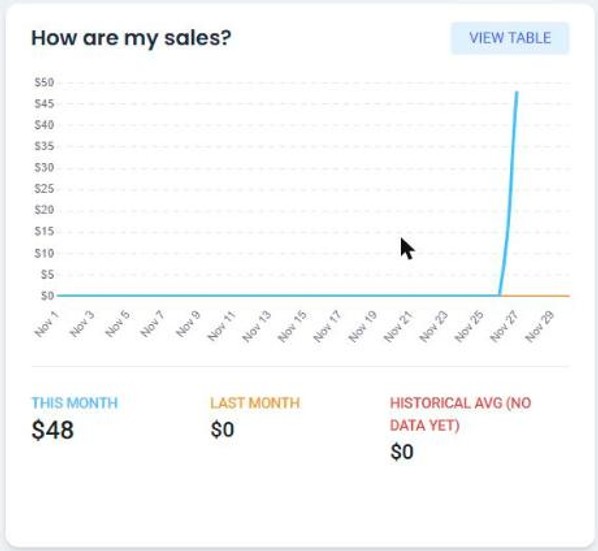
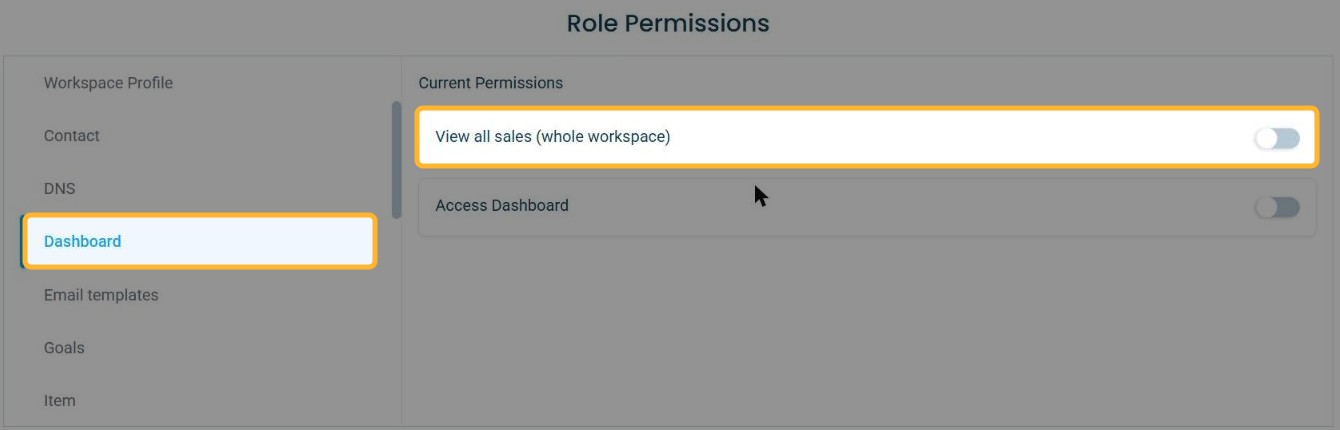
The workspace owner sees the whole workspace. Other members see their own sales orders. To show a member all sales, give their role View all sales (whole workspace). See Roles.
Until you have a sales order, the box asks you to convert a quote into one.
Your Current Quotes in a Funnel
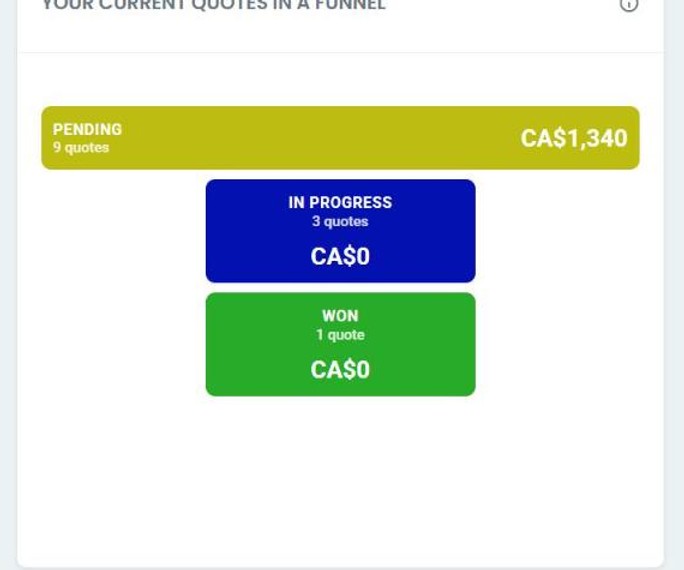
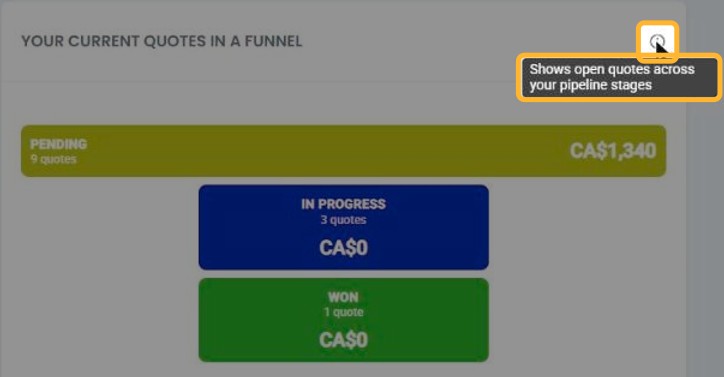
Each bar is a quote stage, with the number of your quotes and their total value.
Point to the i icon for a short explanation. If you have no quotes yet, the box shows a Create Quote button.
Sales Benchmark
Only Super Admins see this box. It compares how you sold before Osmos with how you sell now.
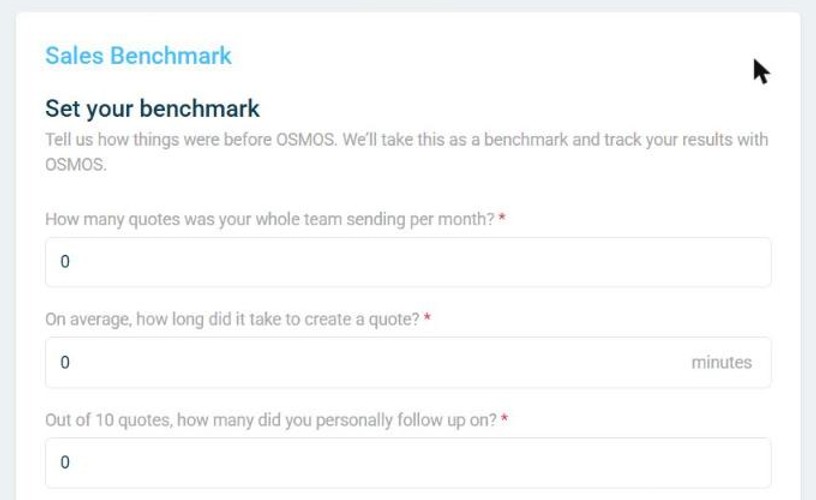
1. Answer four questions
How many quotes your whole team sent per month
How long it took to create a quote, in minutes
Out of 10 quotes, how many you followed up on
Out of 10 quotes, how many your team closed
Then click Start Tracking.
2. Send quotes
The bar counts your progress towards 50 quotes.
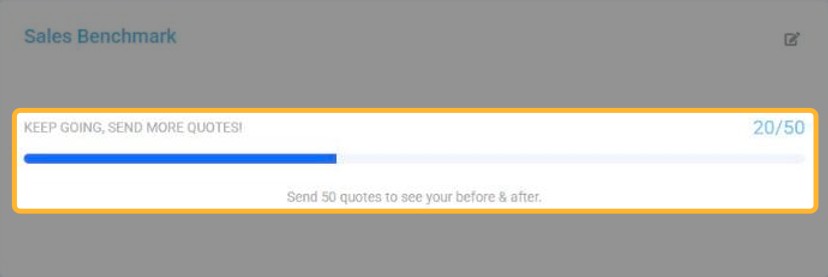
3. Compare before and now
After 50 quotes, the box compares quotes per month, time per quote, follow-up rate and closing rate. Click the pencil icon to change your answers.
Your Widgets
Widgets you add show at the bottom of the dashboard. Use Filter to change the period, the refresh icon to update a widget that has one, and the red trash can to remove it.

Learn how to add widgets.