Osmos can create the same quote or invoice again on a schedule. You choose how often, when it ends, and whether each new one is emailed or saved as a draft.
You need permission to create quotes (for quote schedules) or to create invoices (for invoice schedules).
Repeat a Quote
1. Open a saved quote
It cannot be voided, and cannot already be a sales order or invoice.
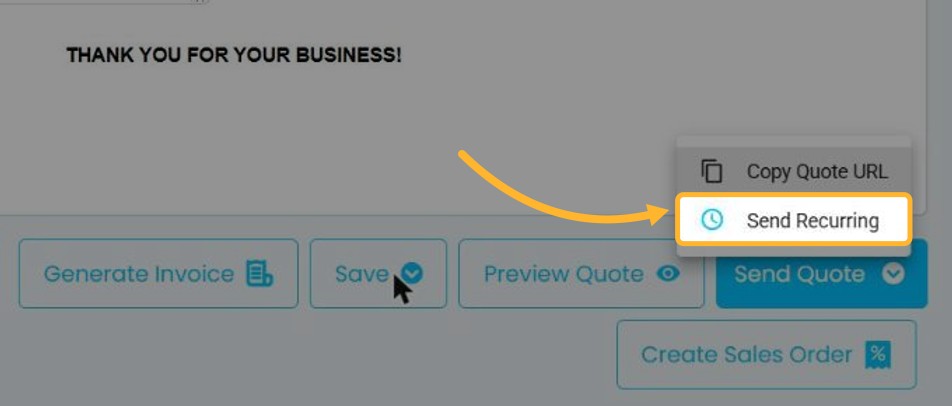
2. Click the arrow on “Send Quote” and choose “Send Recurring”
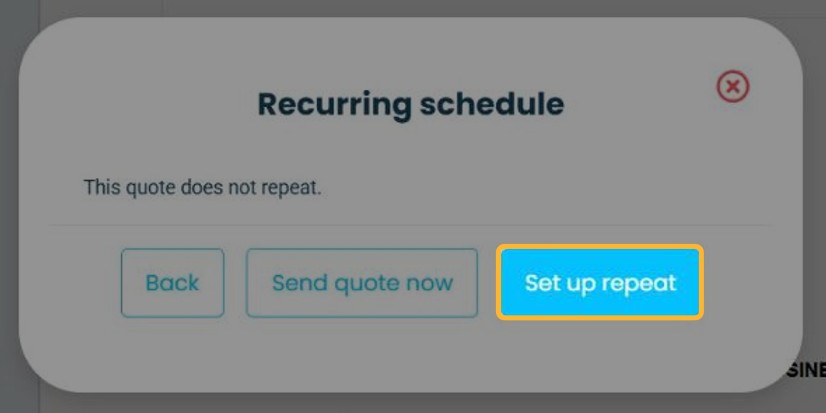
3. Click “Set up repeat”
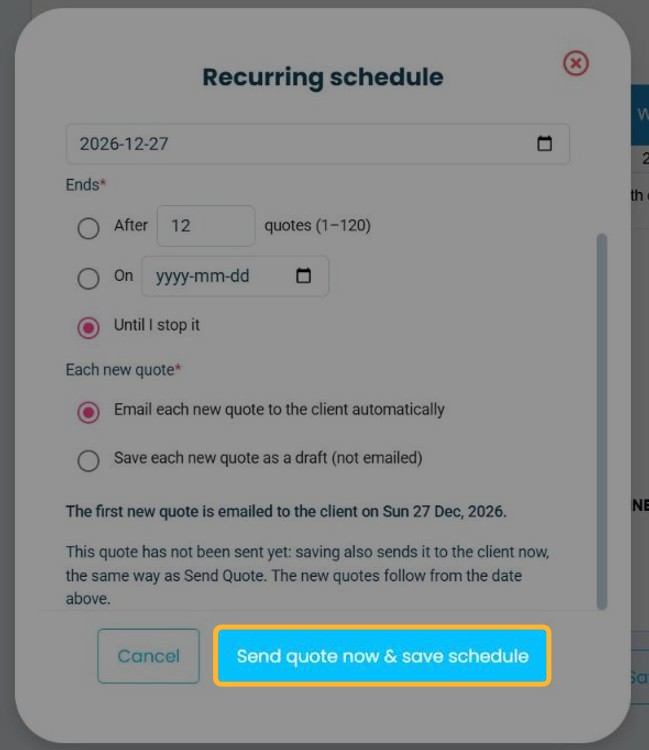
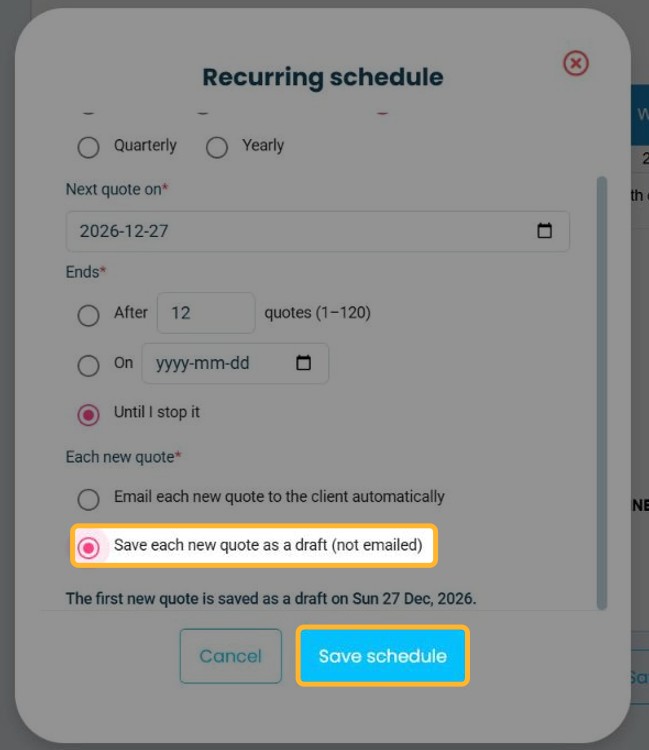
4. Fill in the schedule
How often: Weekly, Every two weeks, Monthly, Quarterly or Yearly.
Next quote on: the date of the first new quote.
Ends: After a number of quotes (1 to 120), On a date, or Until I stop it.
Each new quote: Email each new quote to the client automatically or Save each new quote as a draft (not emailed).
5. Click “Save schedule”
Osmos saves your quote first. If this quote was never sent and you chose to email new quotes, the button reads Send quote now & save schedule. It sends this quote today, so the next date must be later than today.
Repeat an Invoice
1. Open a quote and click “Generate Invoice”
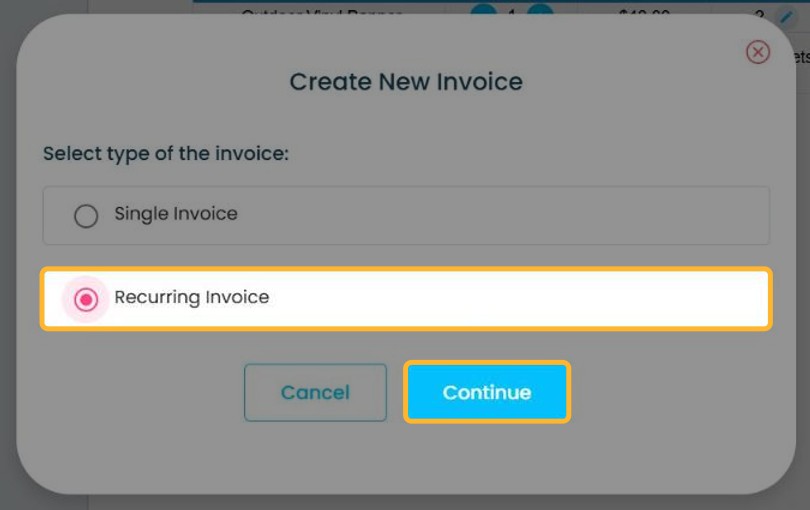
2. Choose “Recurring Invoice” and click “Continue”
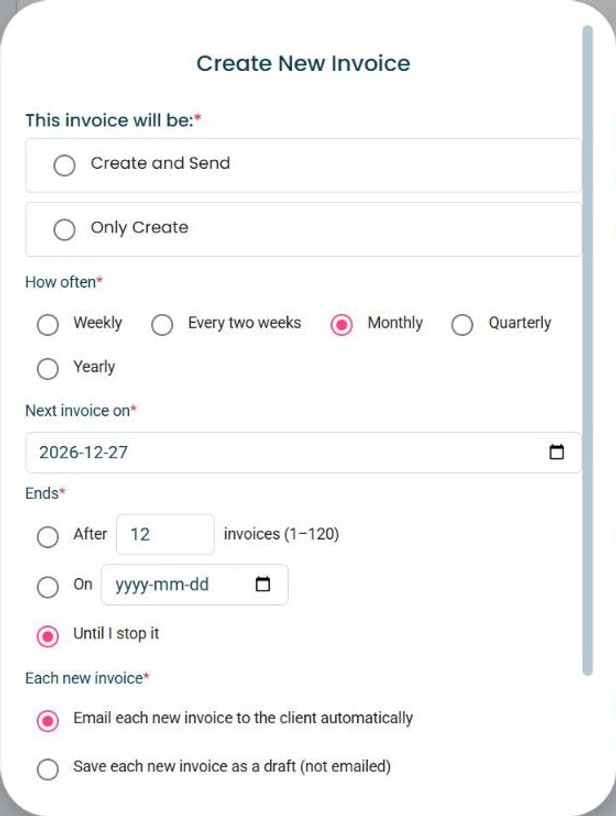
3. Under “This invoice will be:” choose “Create and Send” or “Only Create”
4. Fill in the schedule
The fields are the same as for quotes (How often, Next invoice on, Ends, Each new invoice). The next invoice date must be after today.
5. Click “Create Invoice”
To add or change a schedule later, open the invoice and click Recurring schedule.
When New Ones Are Created
Each new quote or invoice is created on its date, from about 7:00 AM in the time zone of the computer used to set up the schedule. A monthly schedule that starts on the 31st uses the last day of shorter months.
Each copy is made from the original as it is saved at that moment. So if you edit the original, later copies follow.
It gets its own number and its own client link.
Payment dates move forward by the same number of days, and every payment starts as unpaid.
Dates you typed on the document, such as an event date or Valid Until, are copied unchanged.
Stage history, commissions, custom field values, automations and tags are not copied. A copied quote also starts without any signature or acceptance.
IMPORTANT: A copied Valid Until date does not move forward, so a repeated quote can arrive already expired. Leave that date empty on a quote you repeat.
Automatic emails use the standard Osmos quote email with your business name. Your custom quote email message is not used. The quote’s History shows who it was sent to, but not whether it was delivered or opened.
Find Repeating Quotes and Invoices
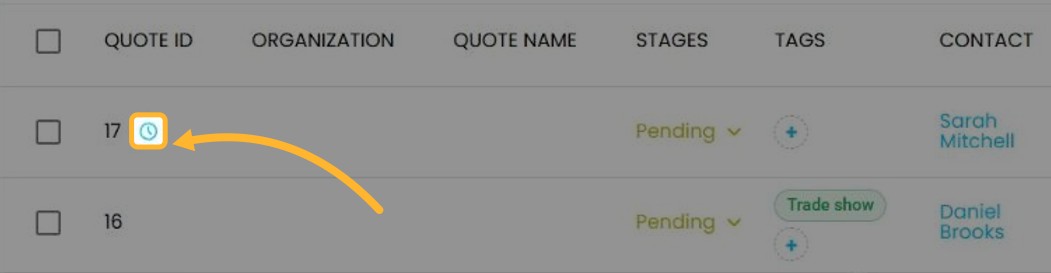
A blue clock appears beside the ID in the quote list and inside the quote. Click the clock in the list to open the schedule.
Change or Stop a Schedule
Open the Recurring schedule window: use the clock in the list, Recurring schedule under the Send Quote arrow, or the Recurring schedule button on an invoice. It shows whether the schedule is Active, Stopped or Finished, the next dates and what was created.
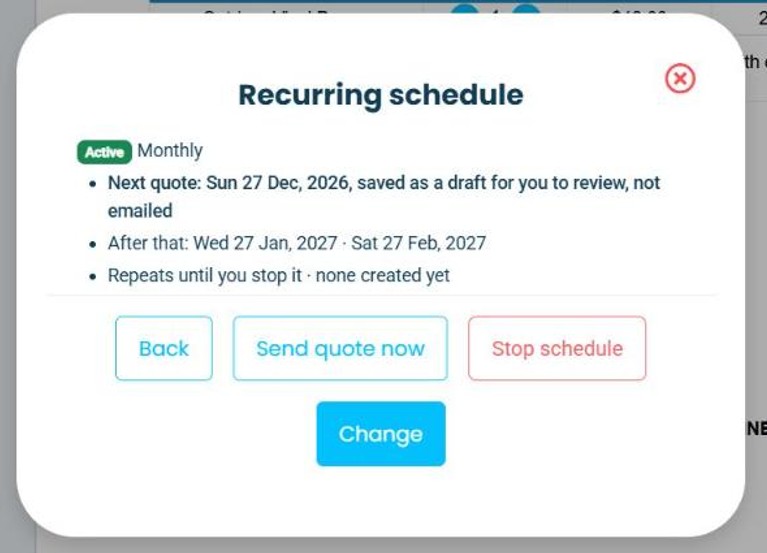
Click Change to edit it, then Save schedule.
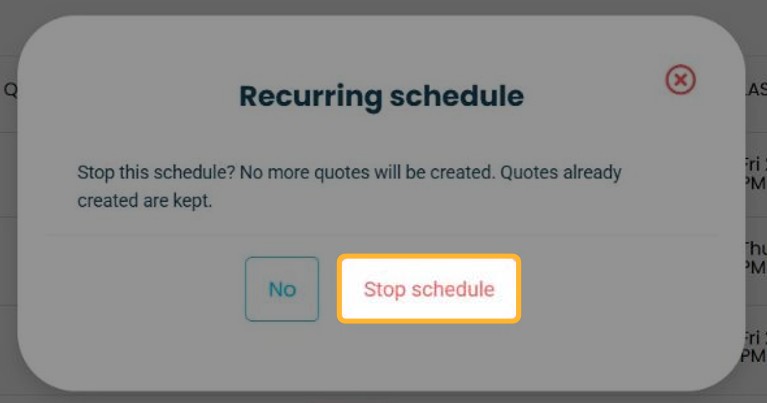
Click Stop schedule and confirm. No more are created. The ones already created are kept.
A copy says that it was created automatically by a recurring schedule. Use Open the original quote to change or stop it.
If Something Was Not Created or Sent
The Quotes created (or Invoices created) list shows Created and emailed, Created as draft, Created, not emailed or Not created, with the reason. For example, the client has no email address. If the original is deleted or voided, or a repeating quote becomes an invoice, the schedule stops.
NOTE: Recurring invoices set up before 6 October 2026 no longer repeat by themselves. Set up the repeat again.
Learn more about invoices.