In the "Sales Activities" section, you can add, edit, and manage activities within Osmos. This will help you record interactions with prospects and customers, optimizing the tracking of business opportunities.
Some examples of these activities include:
Meetings
Phone Calls
Appointments
Demonstrations
Sending Quotes
Agreements
In this guide, you will learn how to add, edit, and manage sales activities in Osmos.
Adding an Activity
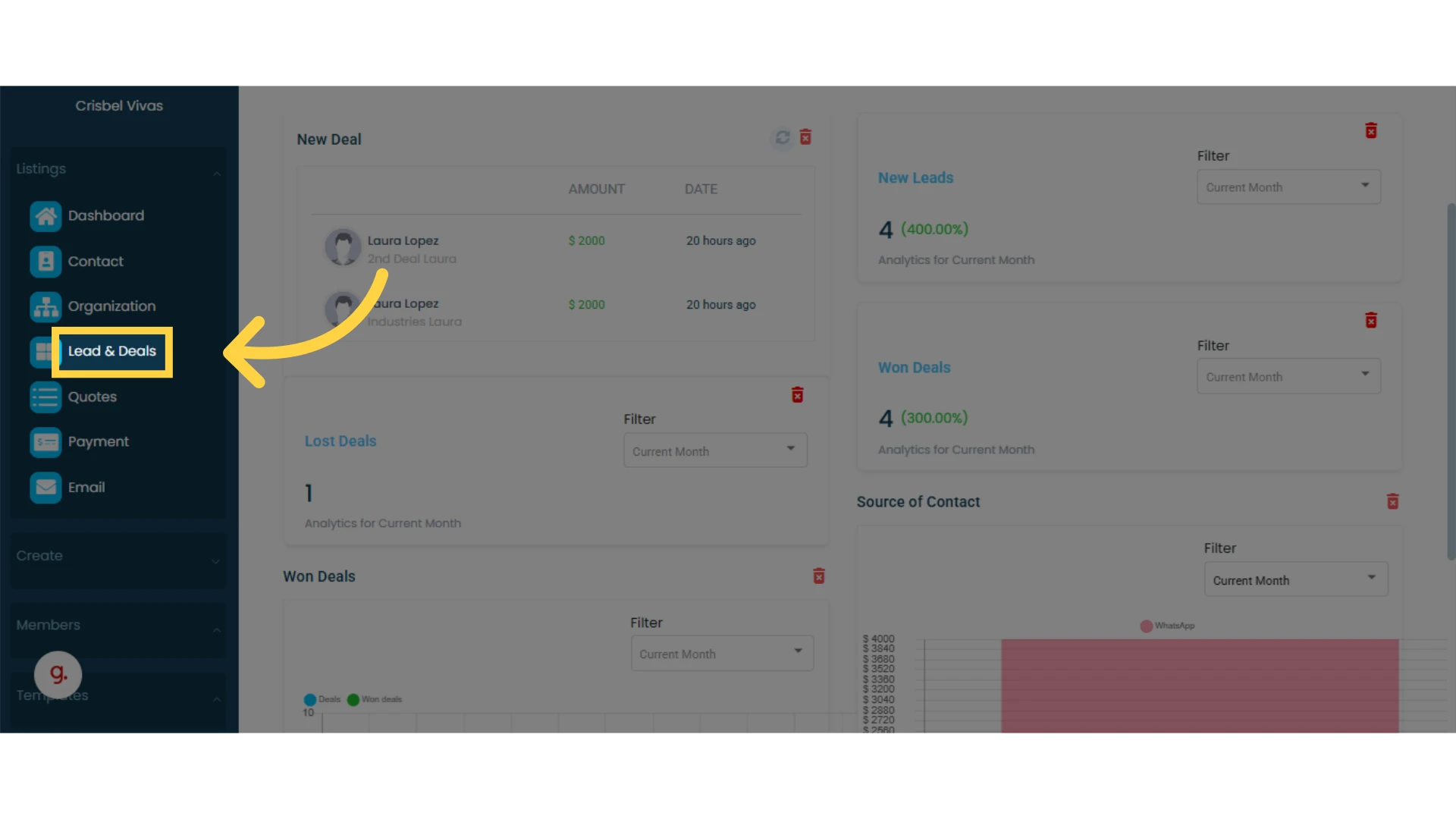
1. Click on "Lead & Deals" in the main left menu
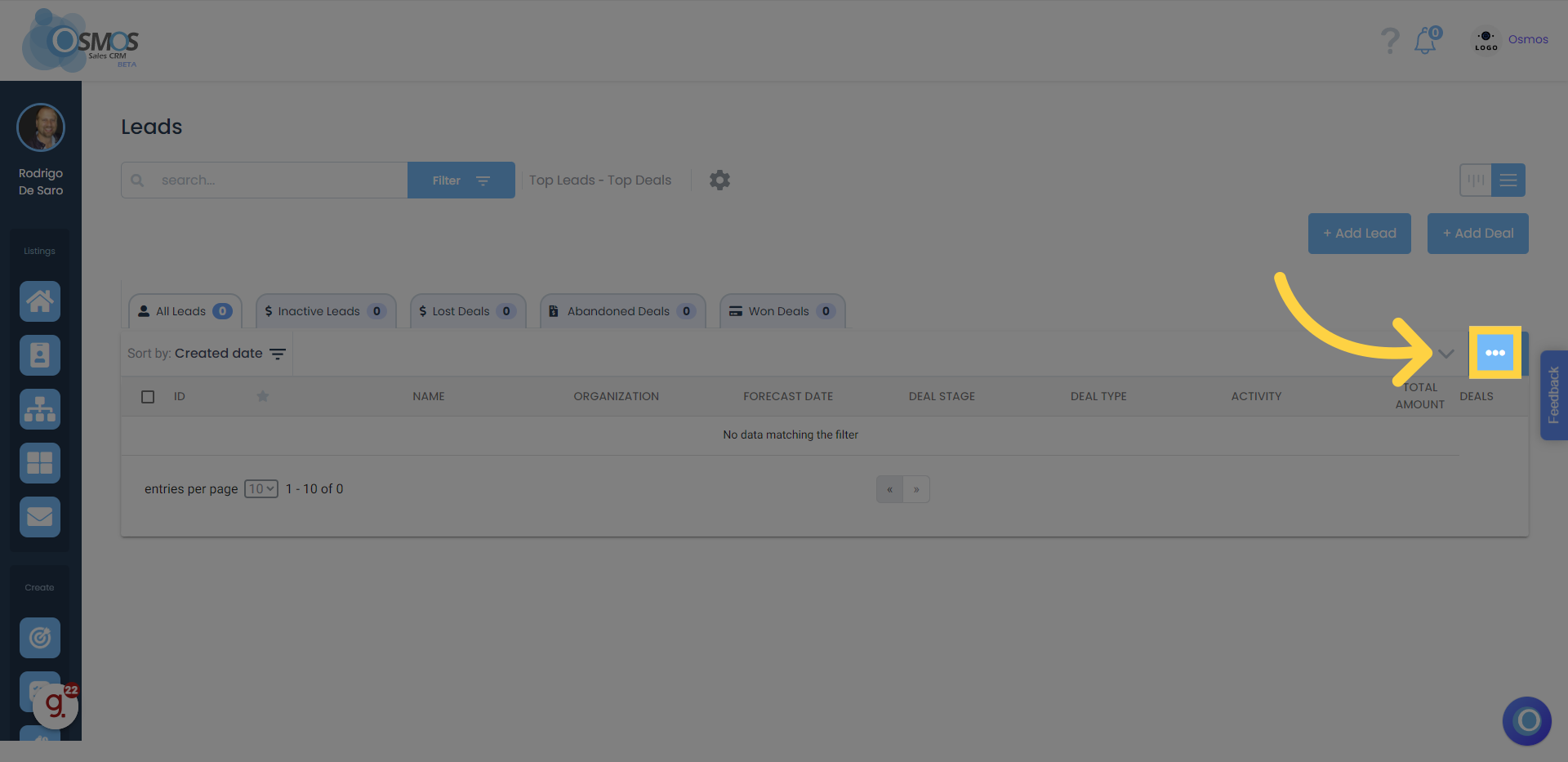
2. Click on the three-dot menu on the right side of the lead list screen
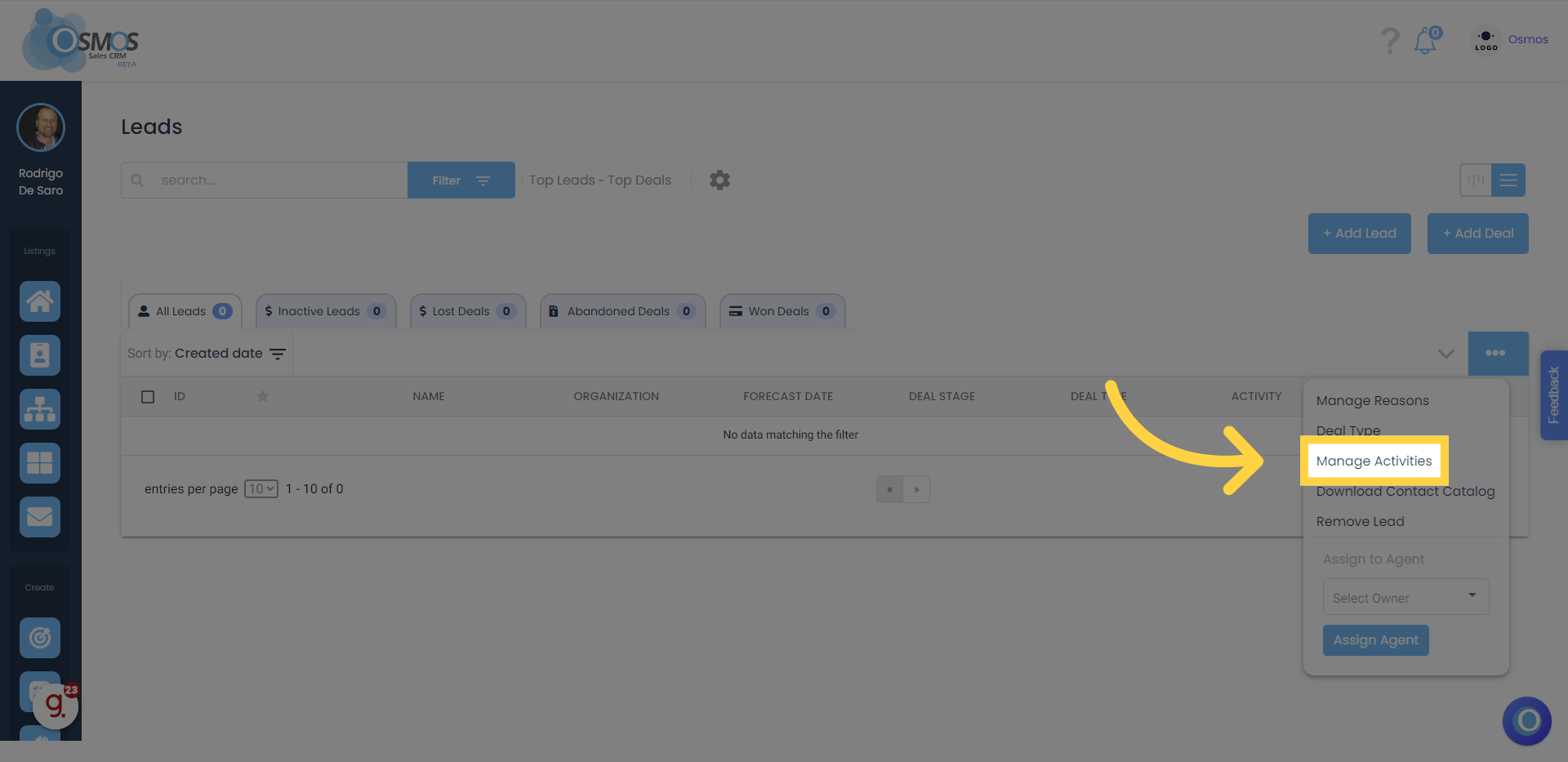
3. Click on "Manage Activities" in the dropdown menu
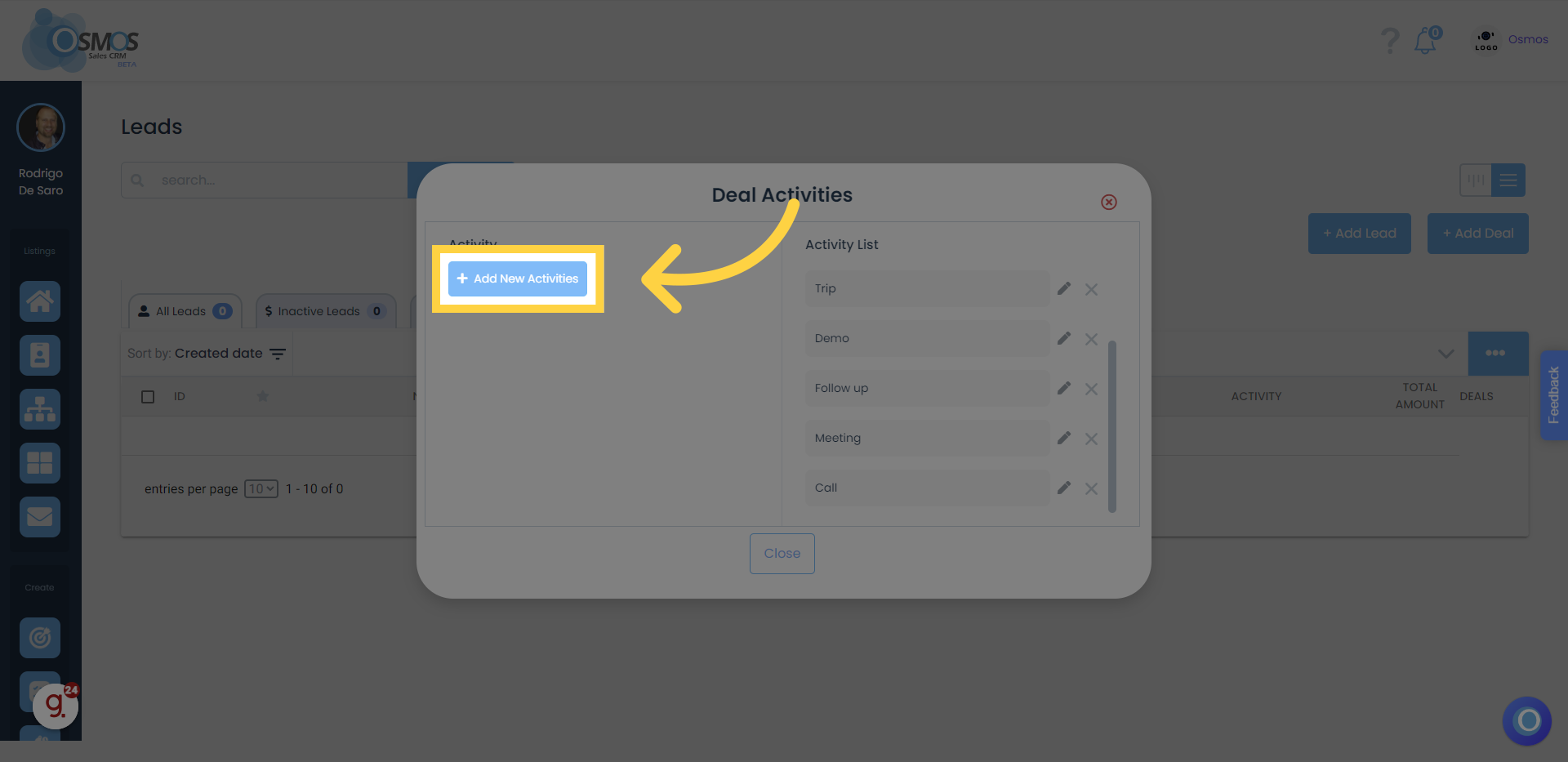
4. Click on the "+ Add Activities" button
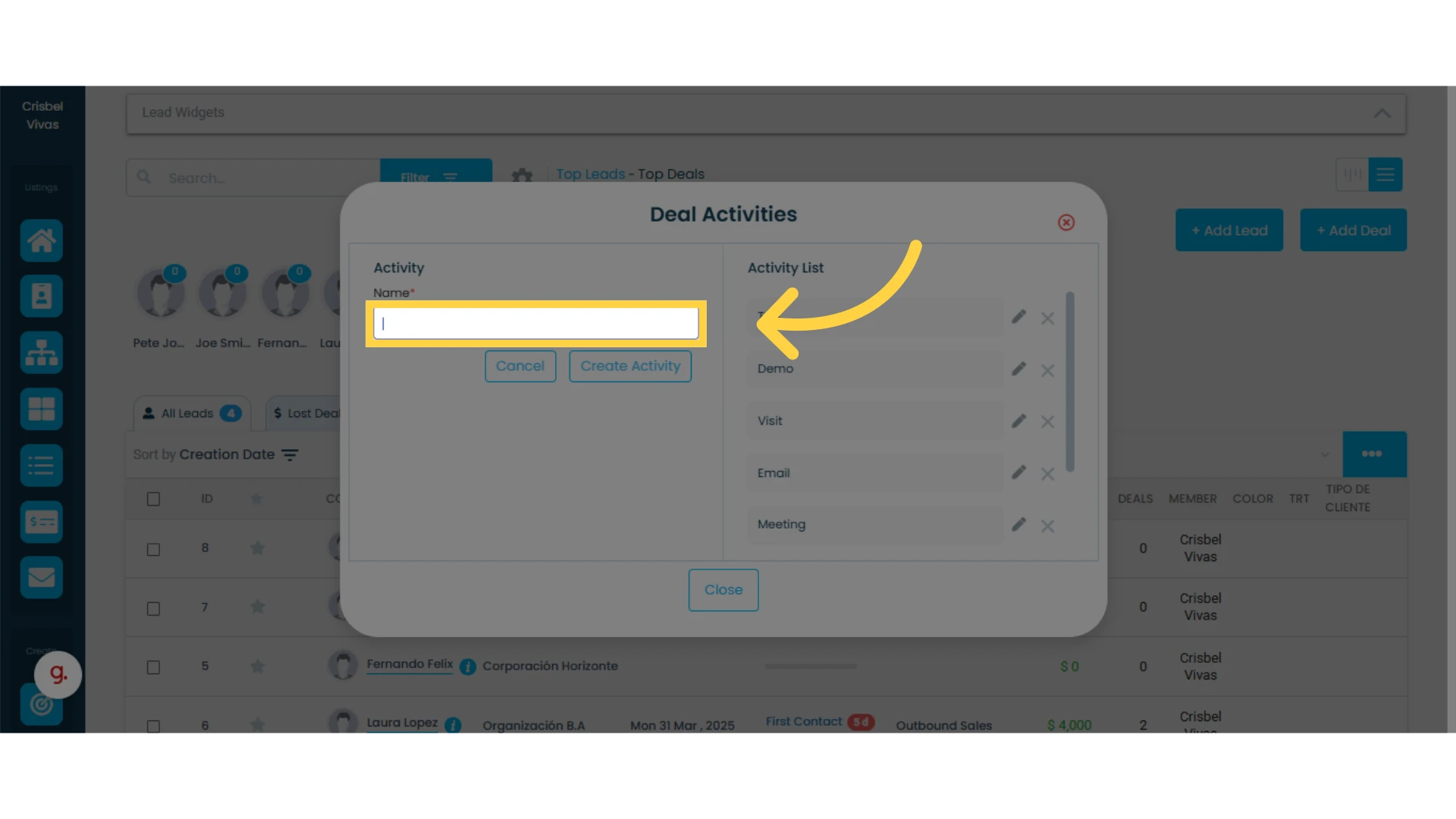
5. Click on the empty field under the "Name" label and enter the name of the new activity
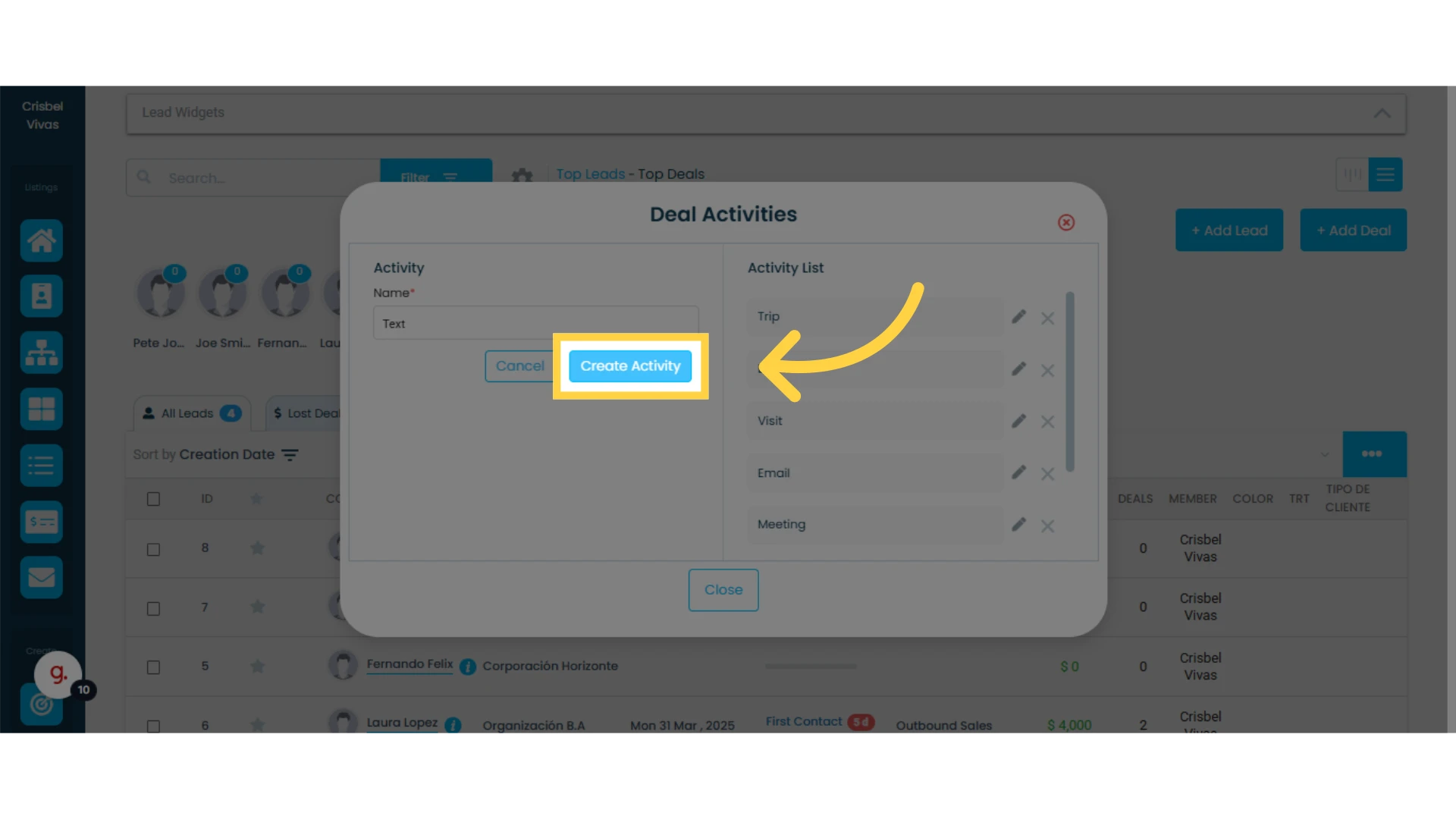
6. Click on "Create Activity"
The new activity will appear in the list of activities on the right side of the window.
Editing an Existing Activity
Locate the activity you want to edit in the list and follow these steps:
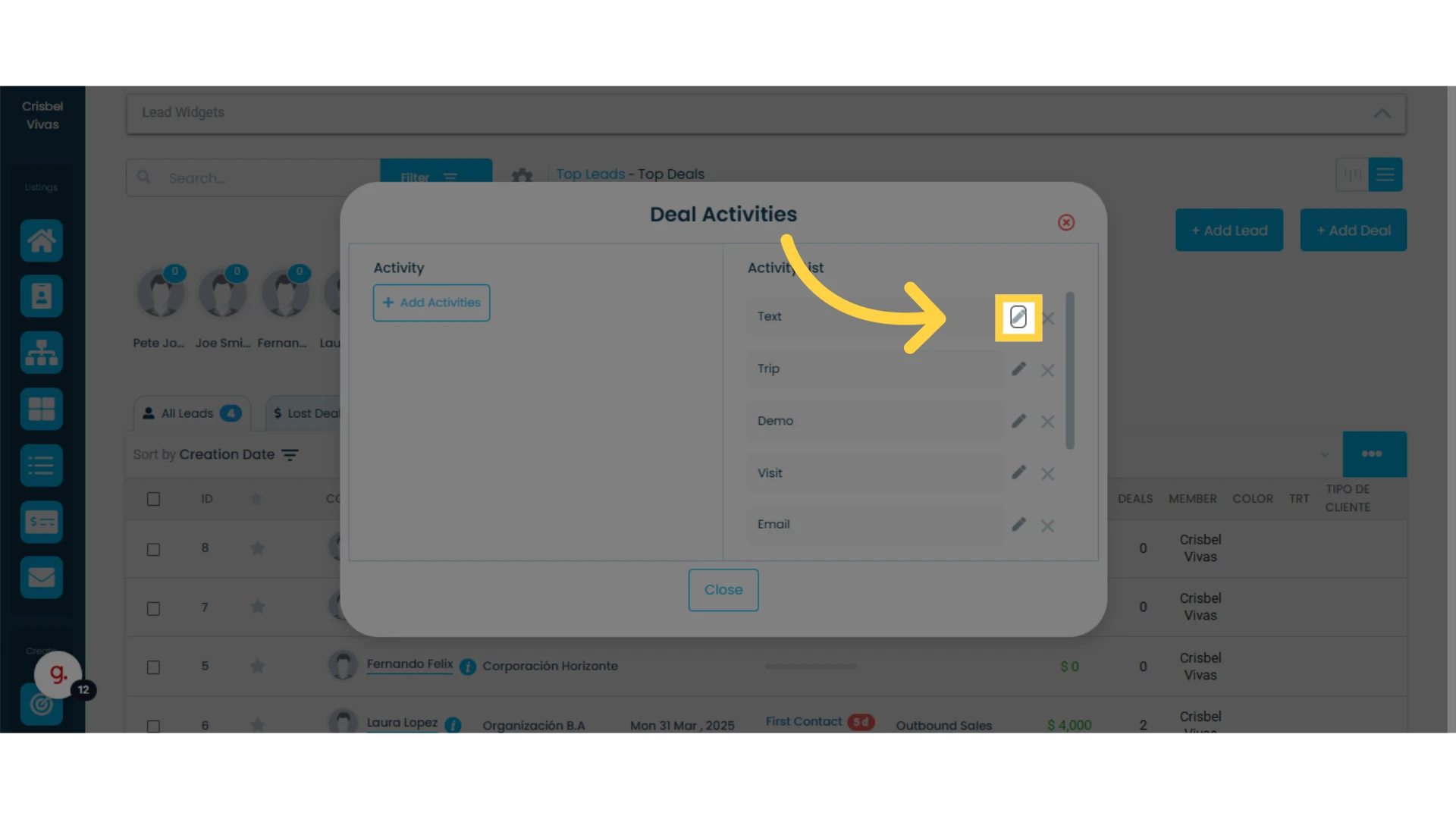
1. Click on the pencil icon corresponding to the activity you want to edit
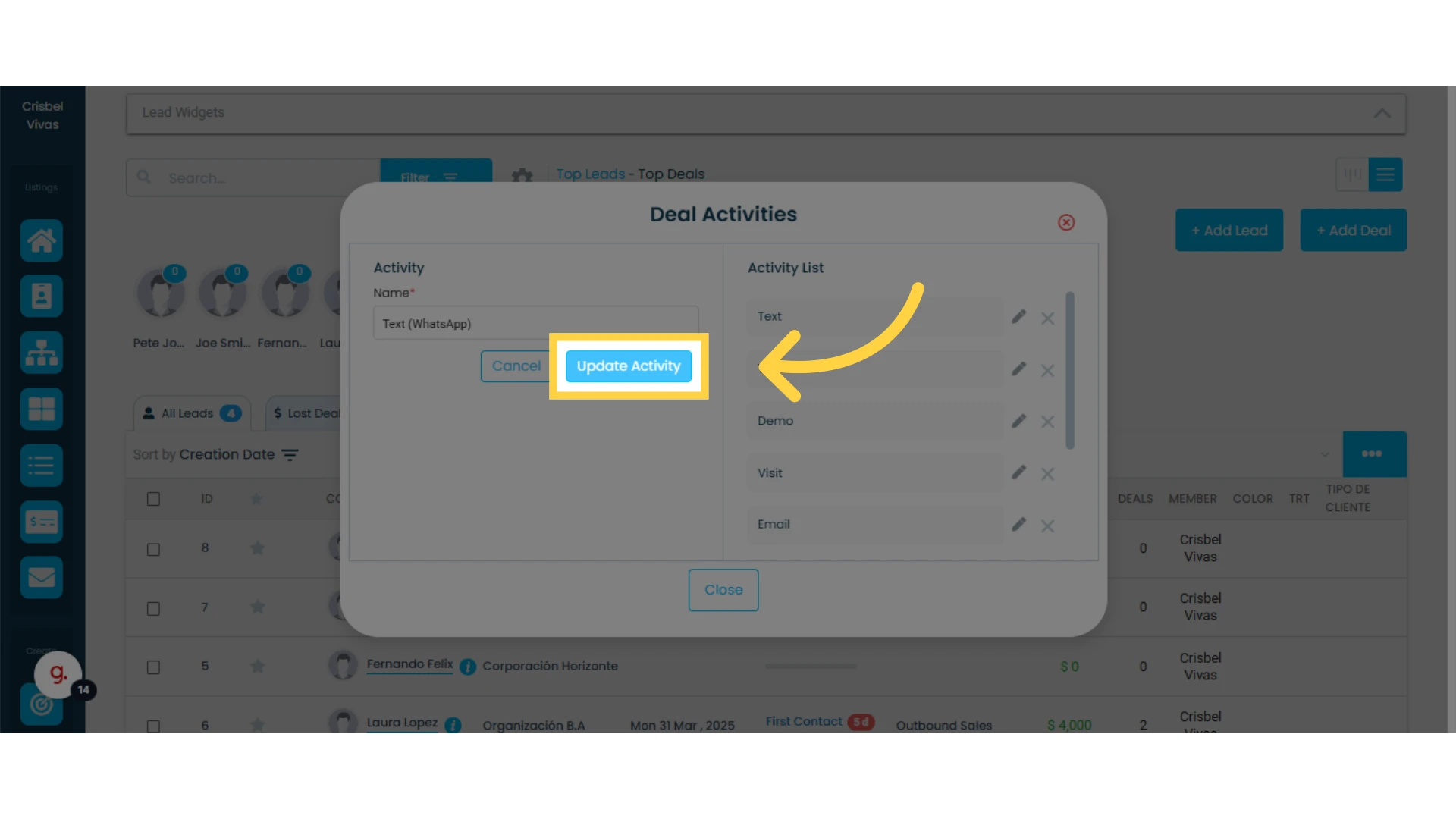
2. Click on the empty field under the "Name" label and enter the new name for the activity
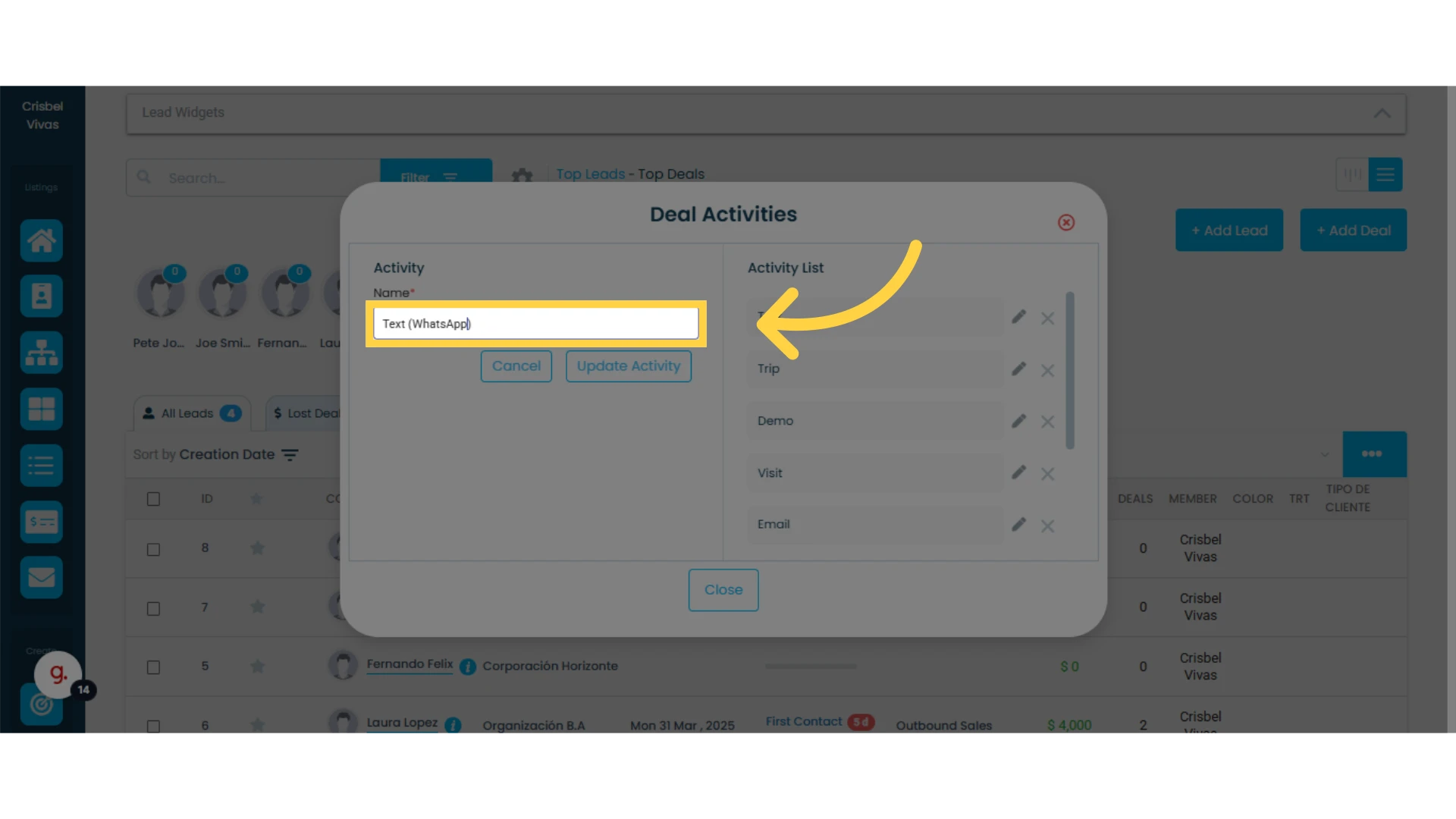
3. Click on "Update Activity"
Deleting a Sales Activity
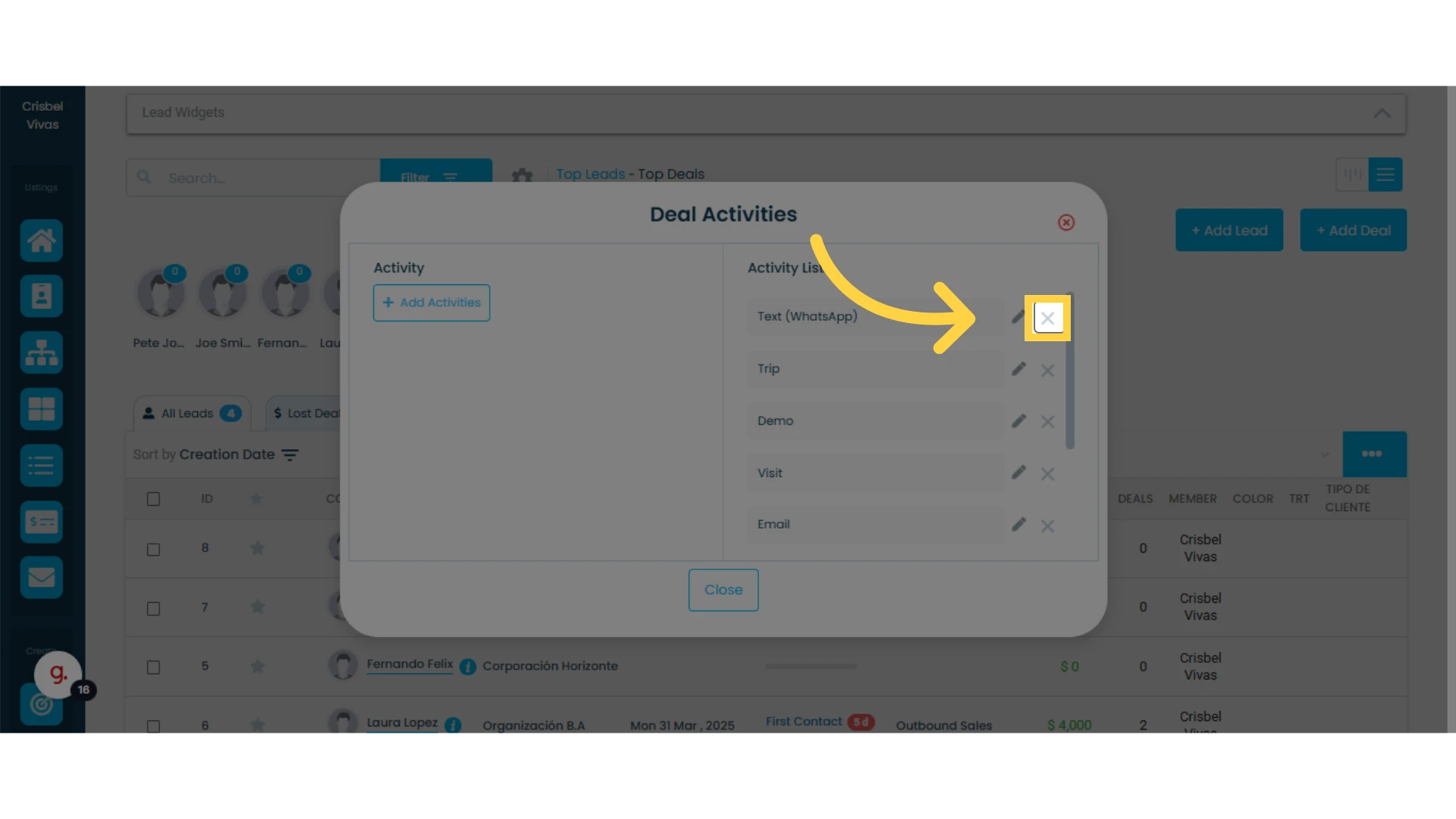
1. Click on the "X" icon next to the activity you want to delete
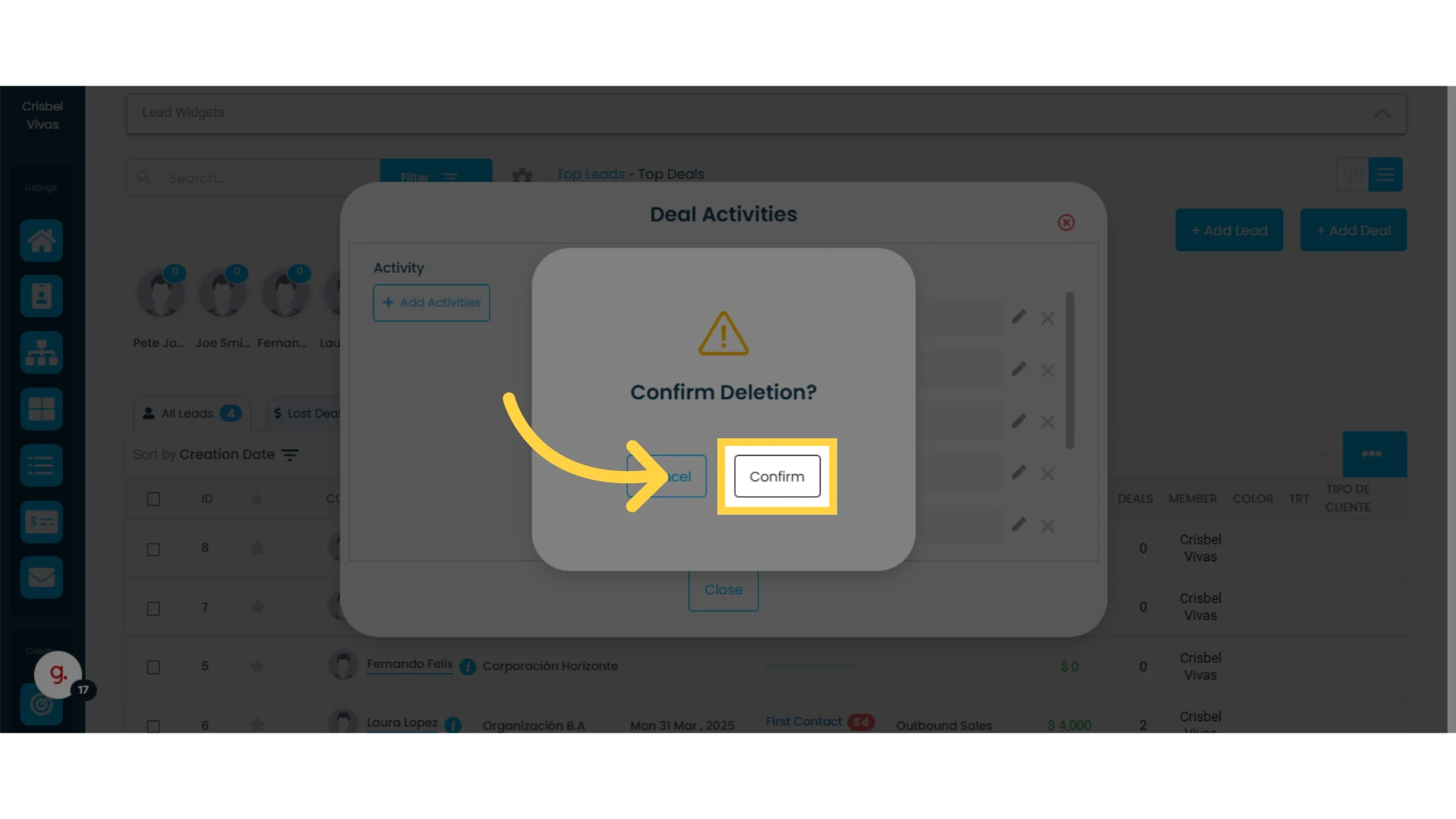
2. Click on "Confirm"
A new pop-up window will appear. Click on the "Confirm" button on the right side.
Closing the Section
Once you have finished making changes to sales activities, you can exit the section.