Every quote, sales order and invoice has a History panel. It shows what happened and when, including your emails.
Open the History
1. Open a saved quote
2. Click the “History” icon at the top

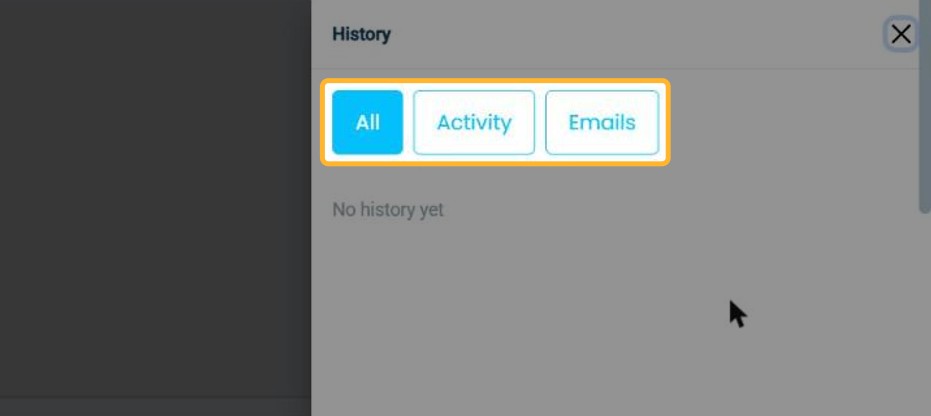
3. Choose “All”, “Activity” or “Emails”
The newest events are first. A quote with nothing recorded shows No history yet. History starts when the feature was added, so older events are not listed.
What You Can See
Quote sent to … and Quote re-sent to …, with the team member who sent it
Invoice created
Stage changed
Email delivered to …: the recipient’s email server accepted it. It can still be in their spam folder.
Email opened by …: some email apps block or load images on their own, so treat this as a hint.
Email to … bounced (in red): it did not arrive. You may see why: The address doesn’t exist., The mailbox is full. or The receiving server refused it.
Email dropped for … and Marked as spam by … (in red)
Delivery and open lines are not available for every email. Emails sent automatically by a recurring schedule show only that they were sent. If you use your own sending address, send from inside the quote to get delivery and open lines.
Fix a Bounced Email
Check the address on the contact, correct it, and send the quote again. See Modifying Contact Info from a Quote.
Warning: Your Quote Emails Are Bouncing
This applies to quote emails that Osmos sends for you, when you have not set up your own domain. Osmos looks at the last 30 days, once you have sent at least 50 quote emails.
From 4% bounced (or 0.24% reported as spam), a warning appears at the top of Quotes, for example Some of your quote emails are bouncing. It lists addresses to check.
Above 5% bounced (or 0.3% reported as spam), Osmos stops sending your quote emails. When you click Send, a window says the quote wasn’t sent. The History shows Not sent.
Keep Sending: Use Your Own Domain
Click Authenticate Your Domain in the warning or the window. Add the DNS records shown, then finish your sending address setup. Your quotes then go out from your own address. See Email and DNS Setup.
Also clean your contact list: fix or remove addresses that bounce.
Learn how to create and send a quote.