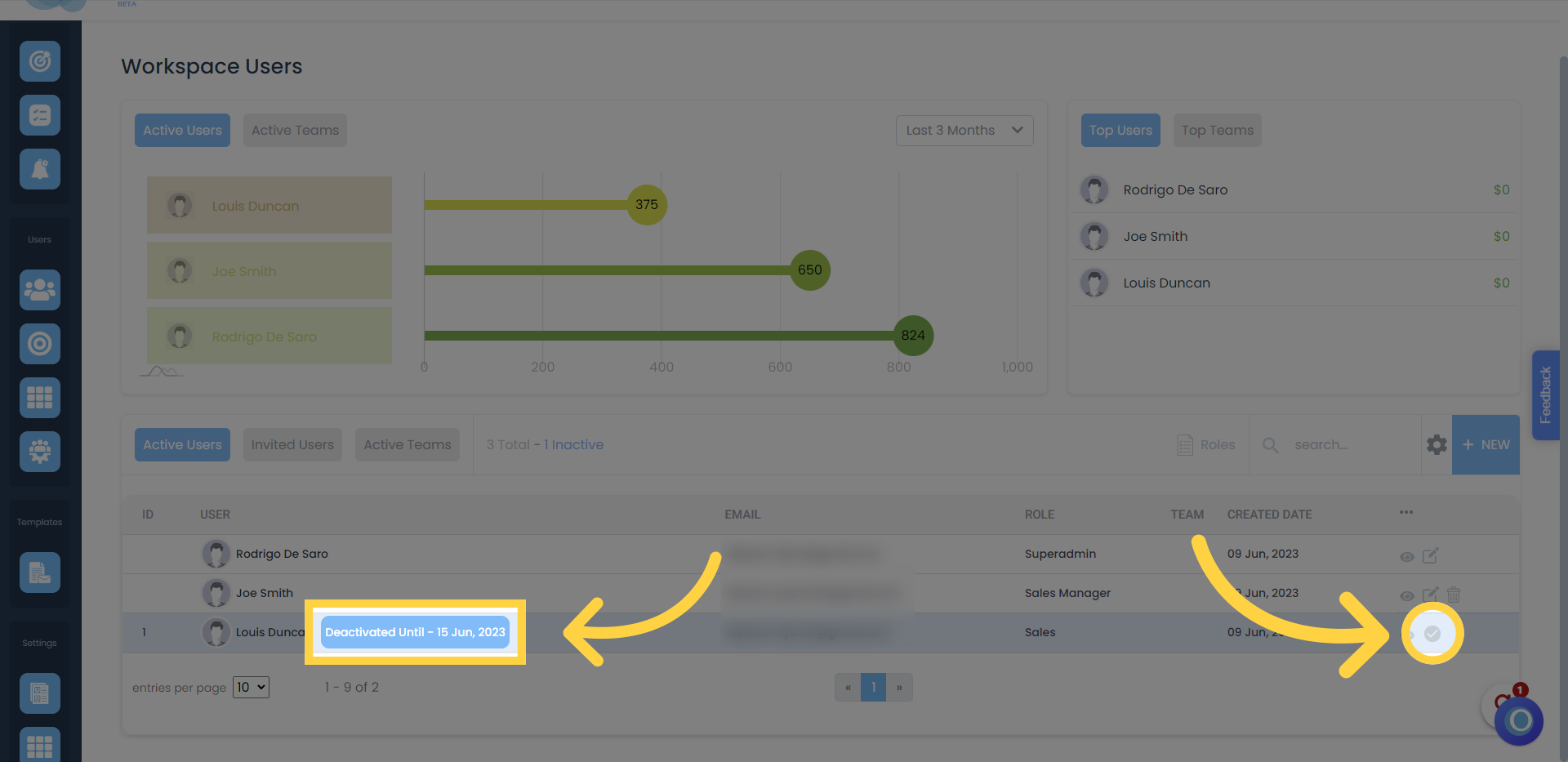
In this guide, you will learn how to manage the members of your workspace, allowing you to have full control over who has access and what their status is.
You can manage active, invited, and inactive members.
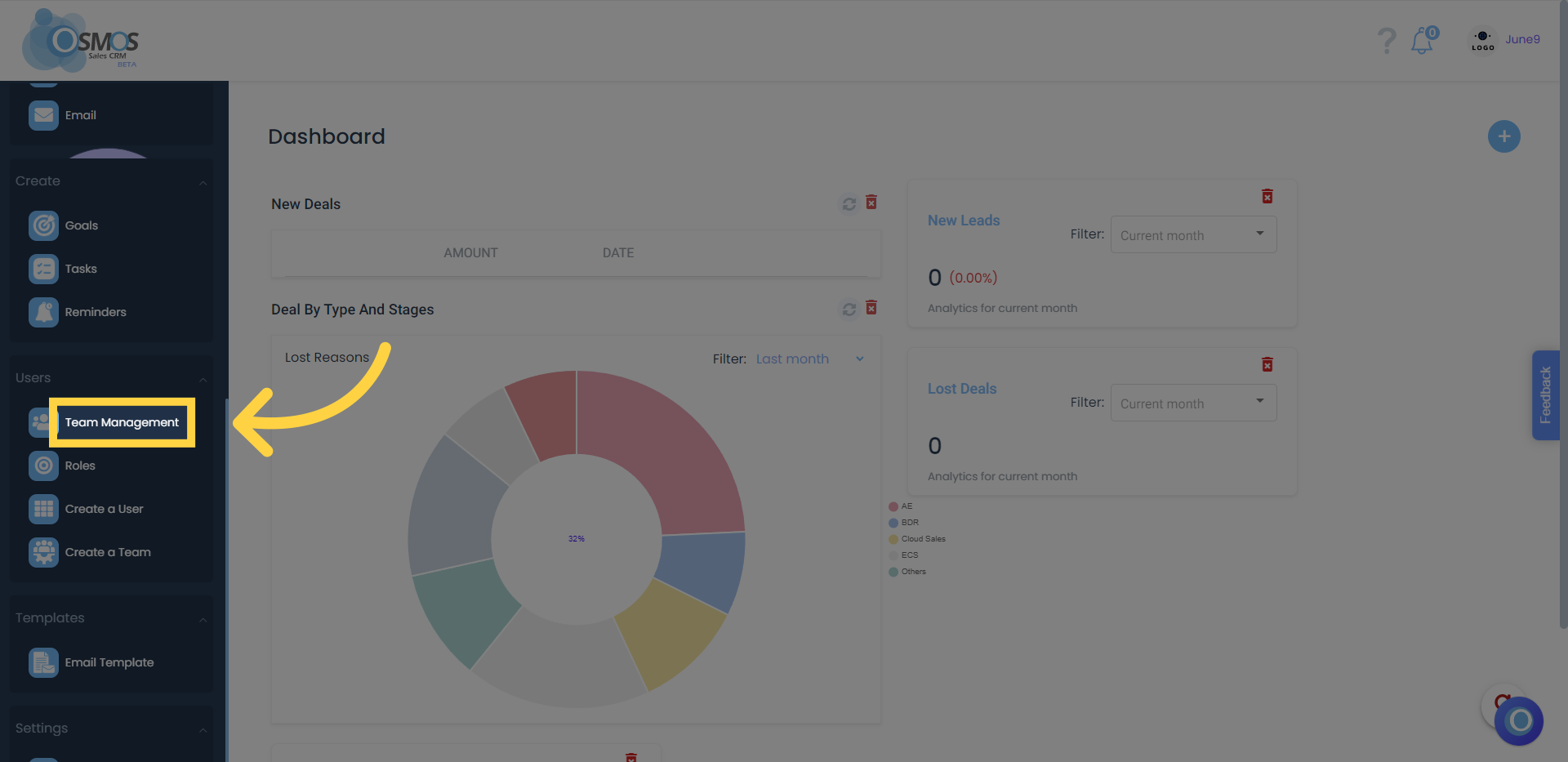
Click on “Team Management” in the main left-hand menu
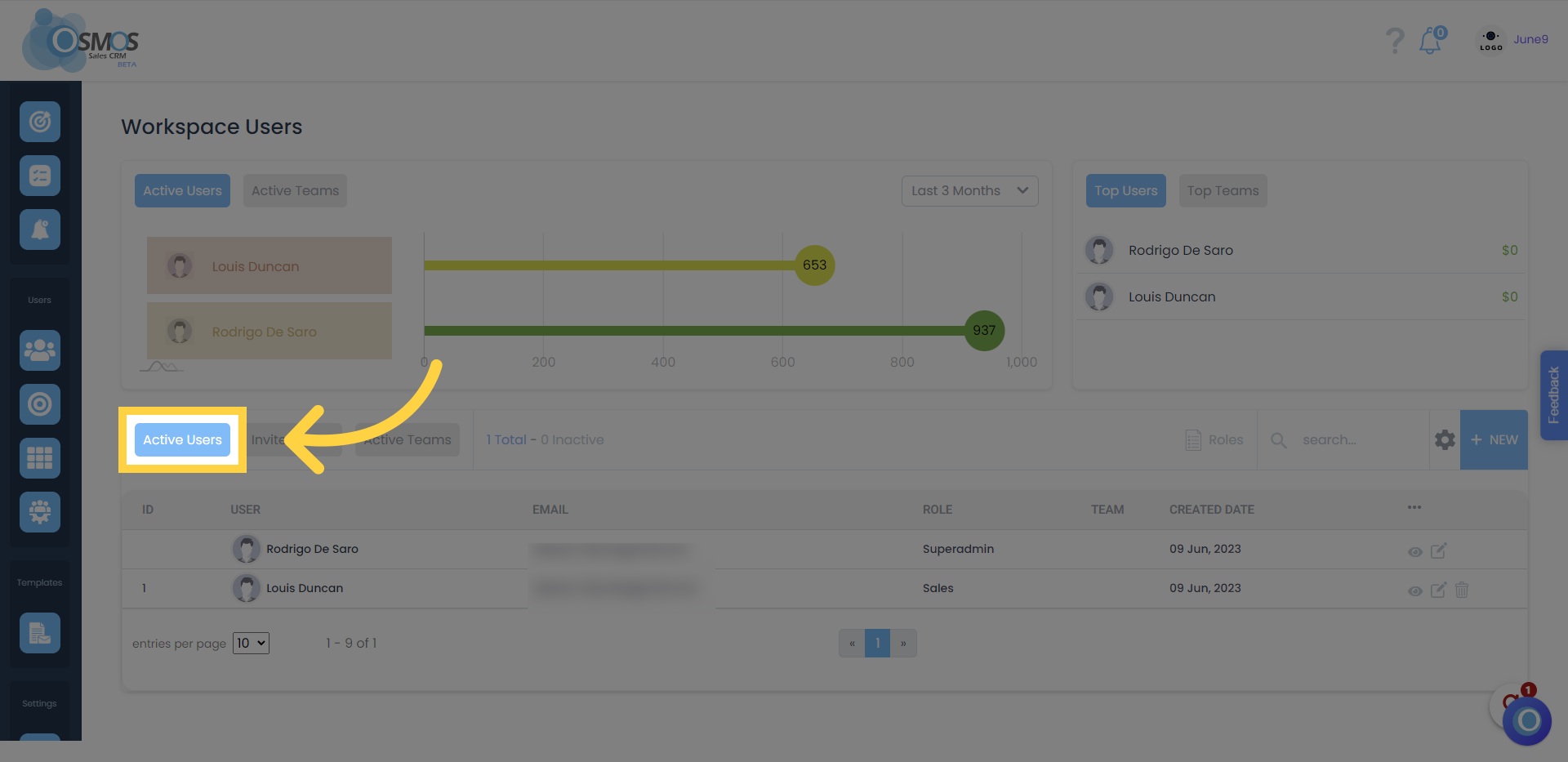
Active Members
These are members who have accepted the invitation to join the workspace and are actively participating in it. They have full access to all the features included in your current workspace plan.
Invited Members
These are users who have received an invitation to join the workspace but have not accepted it yet. Until they accept the invitation, they will not have access to any workspace features and will not count toward your plan.
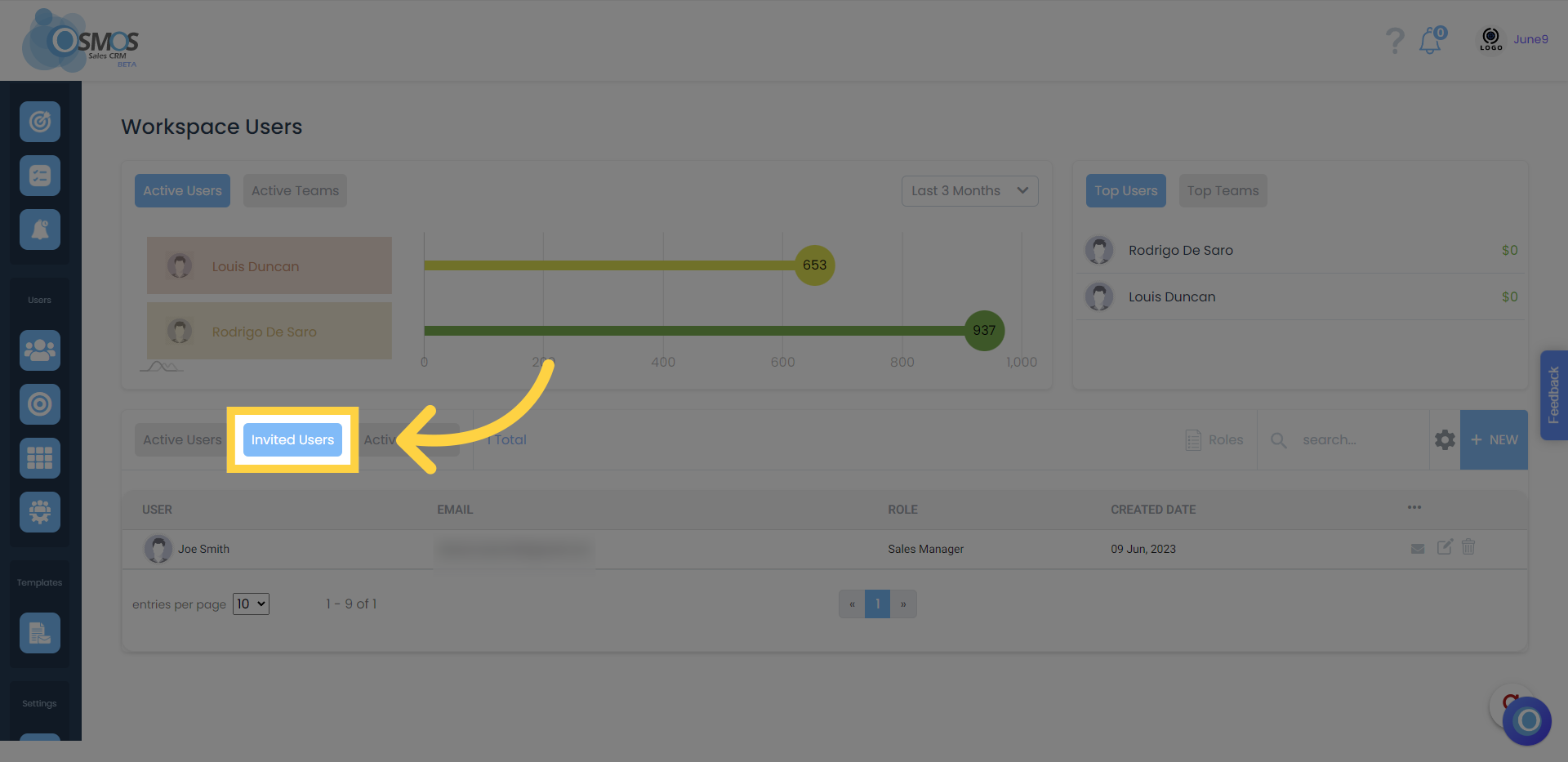
Learn how to invite members to your workspace.
Inactive Members
These are members who have been inactive for a period of time and, therefore, no longer have access to the workspace. Although they cannot access Osmos, they still count toward your current workspace plan.