A sales order is the same as a sales receipt or order note. It is the step that follows a client’s acceptance of a quote, as it serves to confirm the sale.
In this guide, you’ll learn how to convert a quote into a sales order, what’s required, and how to void a sales order when needed.
Steps to Create a Sales Order
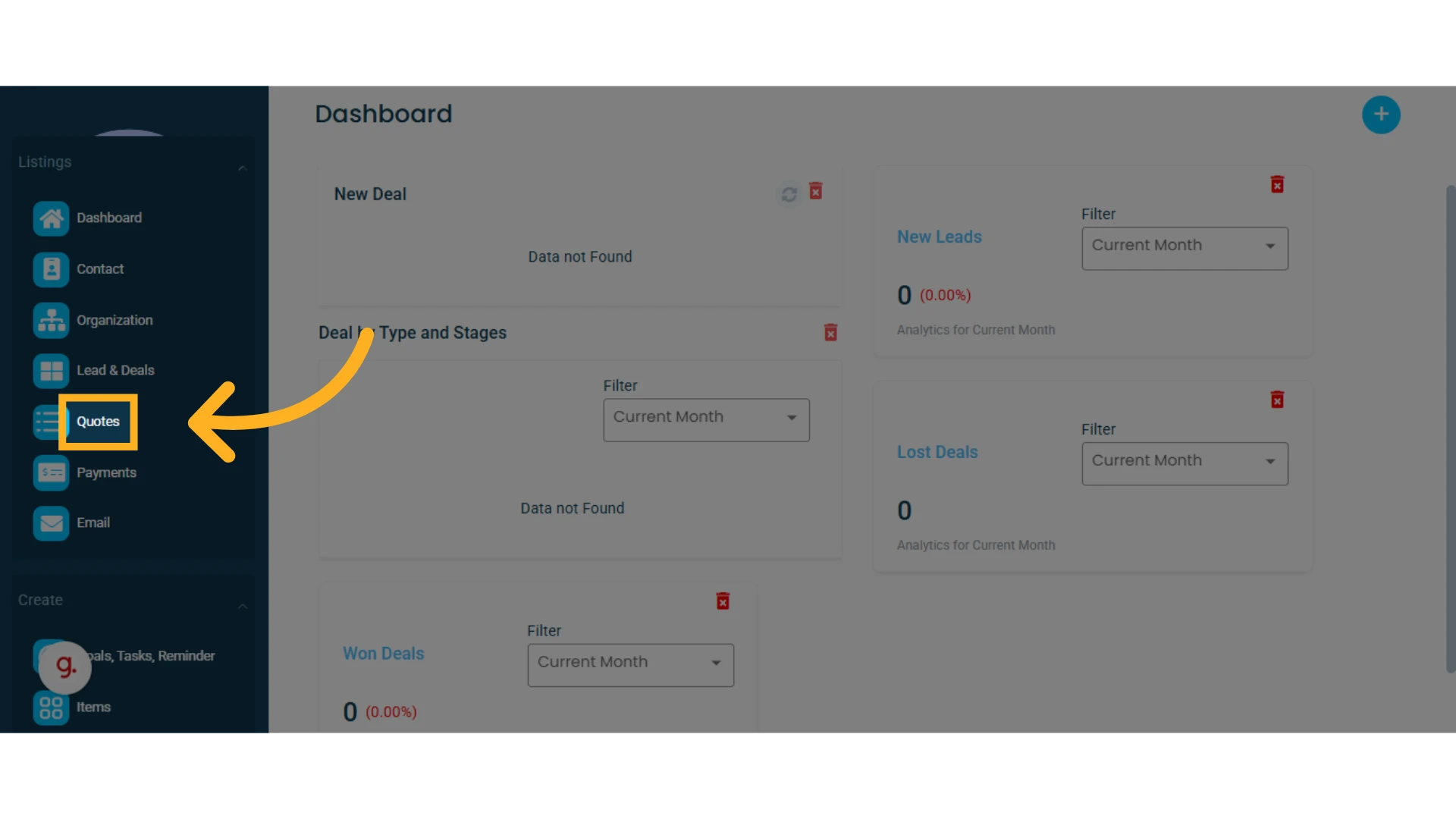
1. Go to the left-hand menu and select the "Quotes" module.
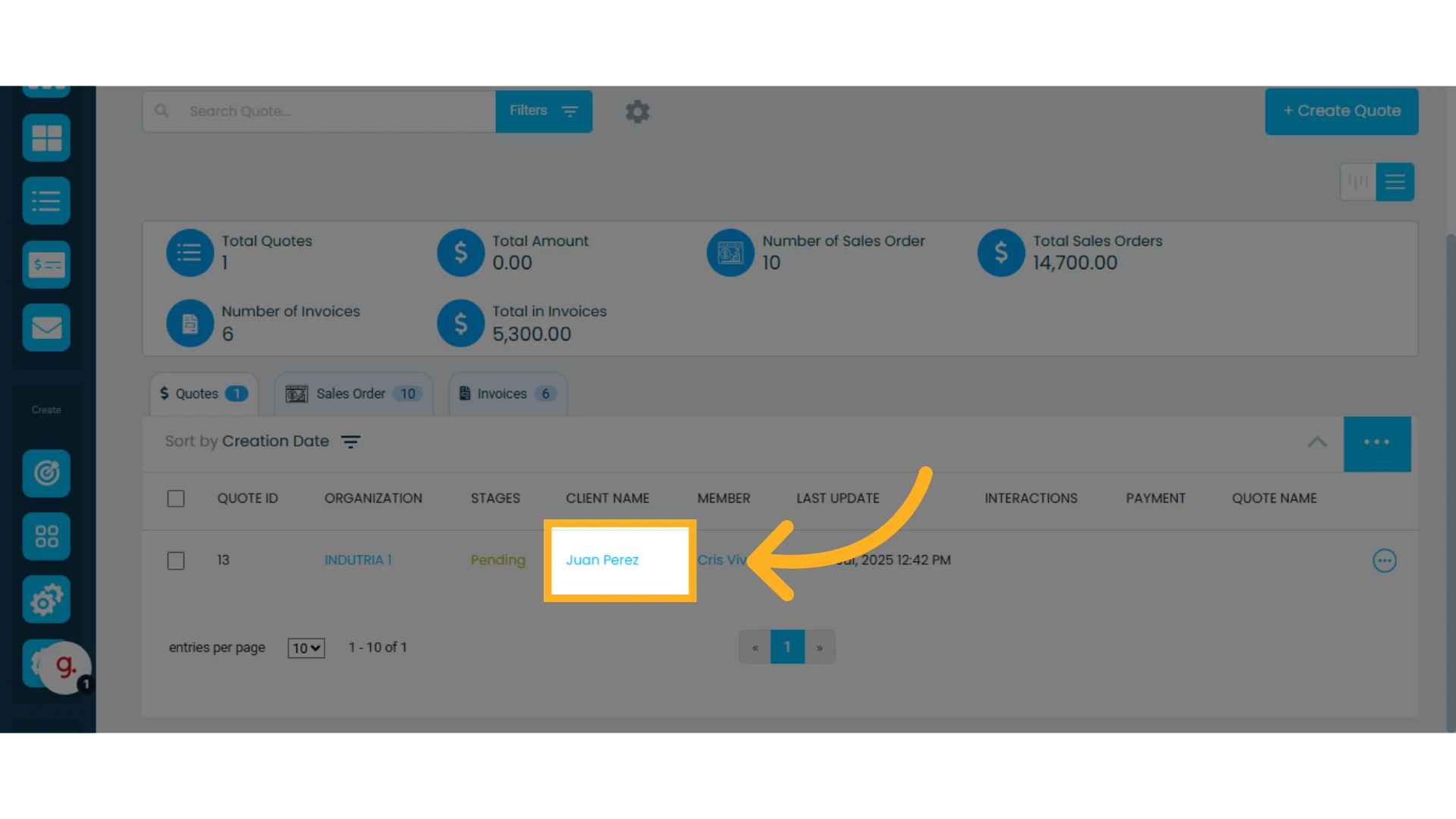
2. Select an existing quote by clicking on it, or create a new one.
Learn how to create a quote.
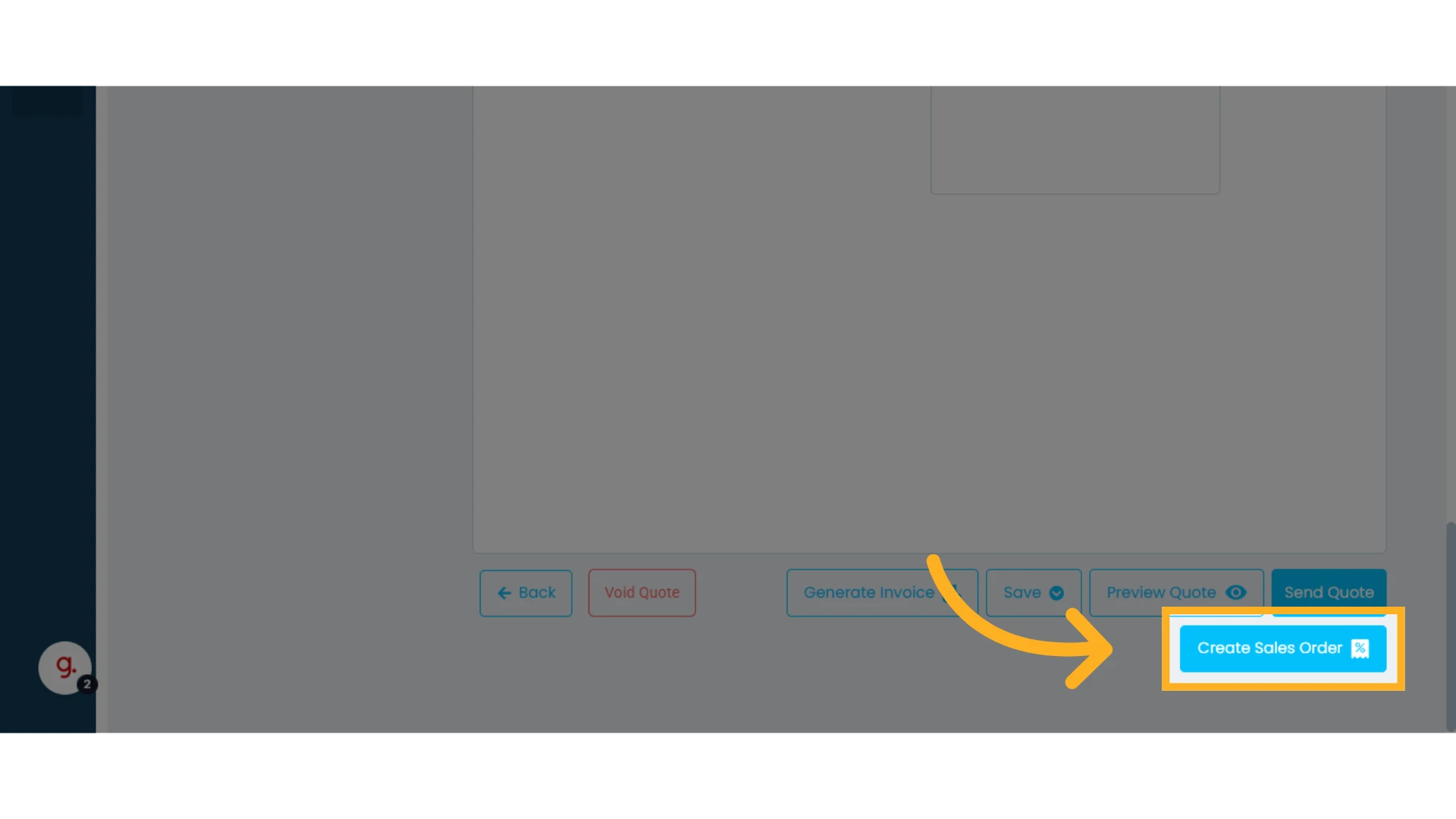
3. At the bottom, you’ll find a button labeled "Create Sales Order." Click on it
Important Considerations When Creating a Sales Order with Products
Check Your Inventory
If your quote contains only products, make sure there is enough inventory available for each item.
If any product is out of stock, you’ll see a message when trying to create the sales order indicating which item is unavailable.
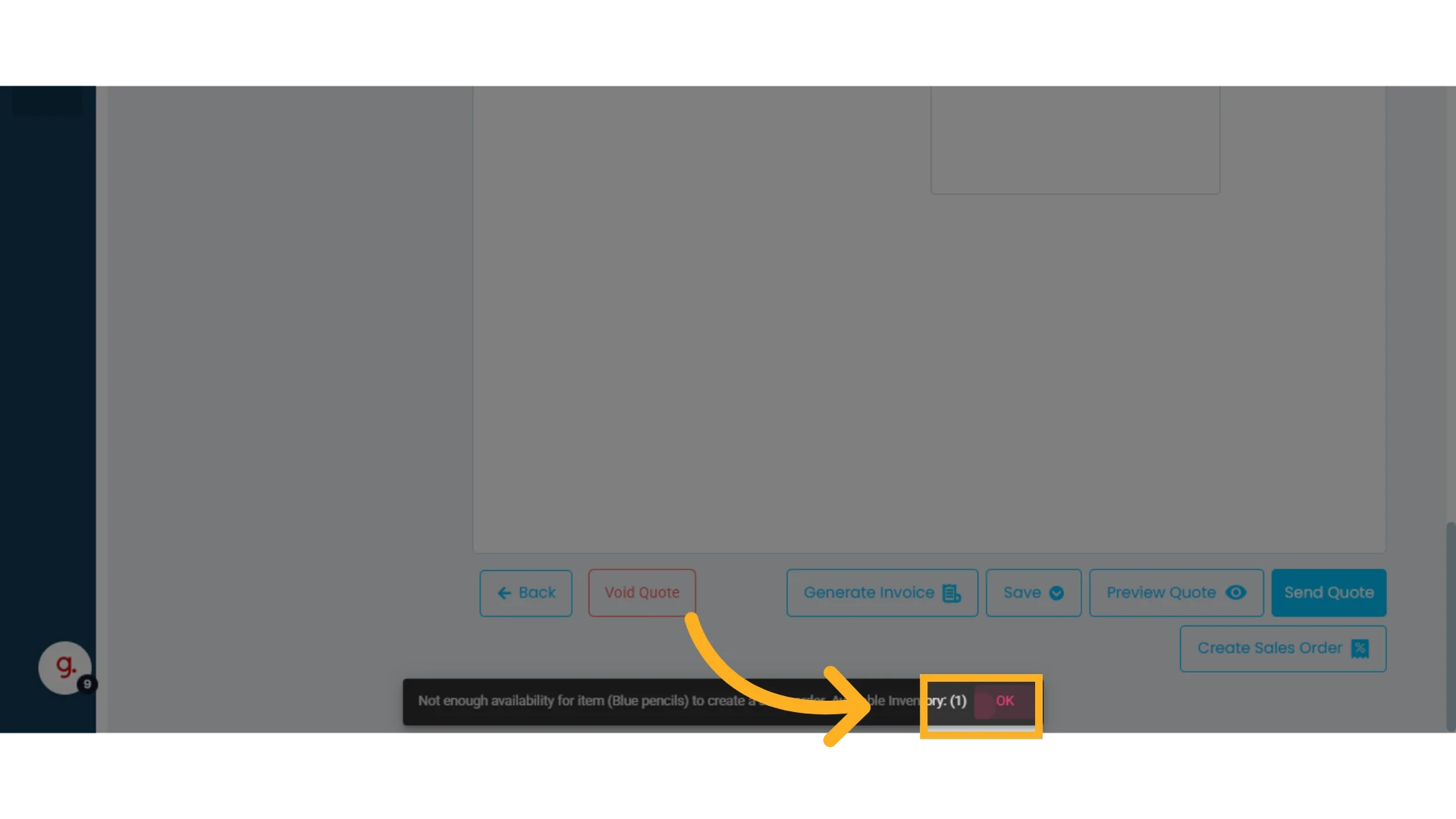
TIP: Update your inventory if you want to create sales orders.
Inventory for listed products is automatically deducted when a sales order is created.
To update your inventory, you can edit the item directly.
Learn more about the item list and how to update it.
Create a Sales Order with Services
Unlike physical products, service availability is based on reservations and date/time availability.
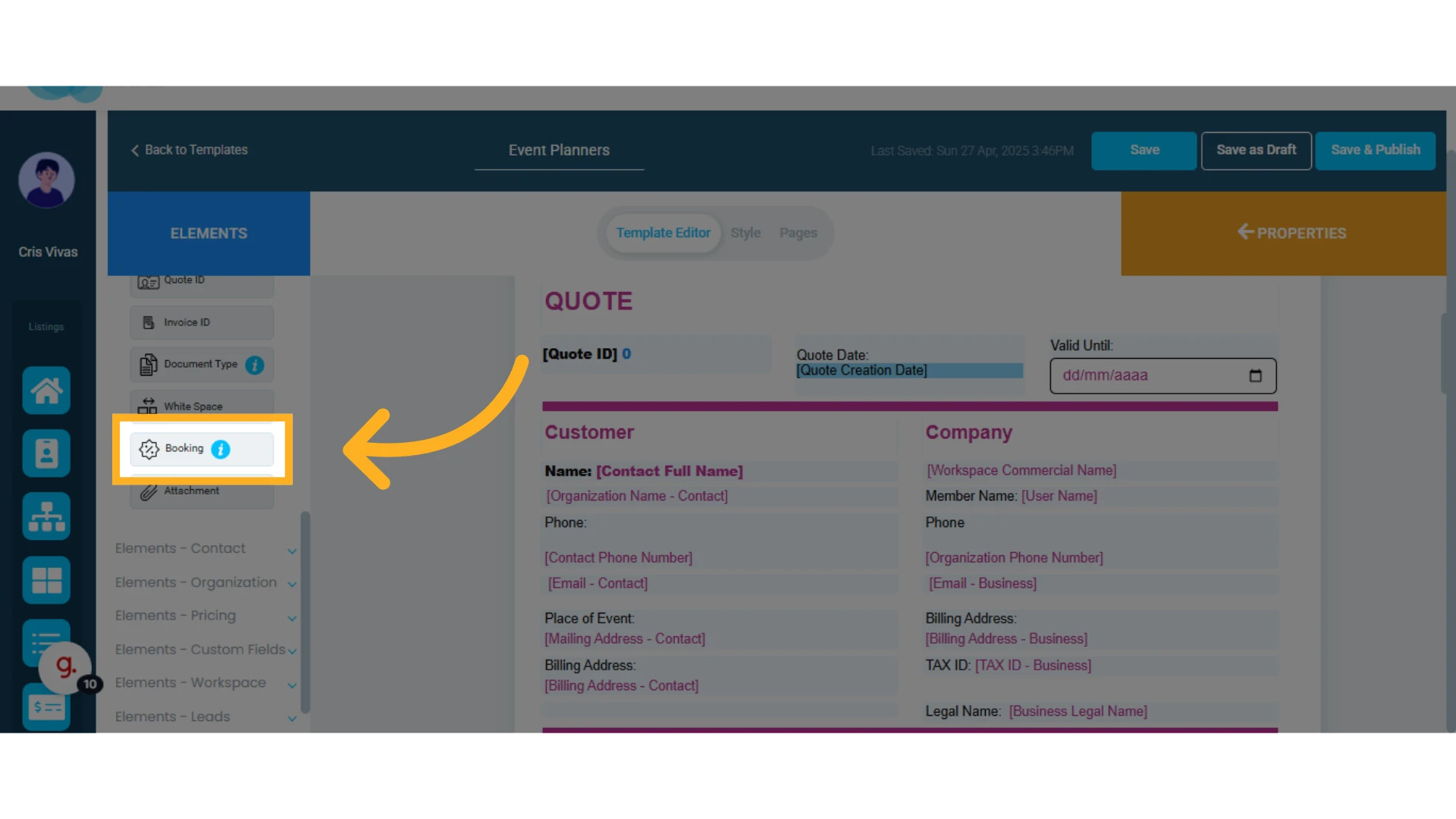
1. Add the “Booking Element” to Your Quote Template
This step is essential to link your service to specific availability dates. To do this, edit the selected quote’s template and add the “Booking Element.”
Learn how to modify a quote template.
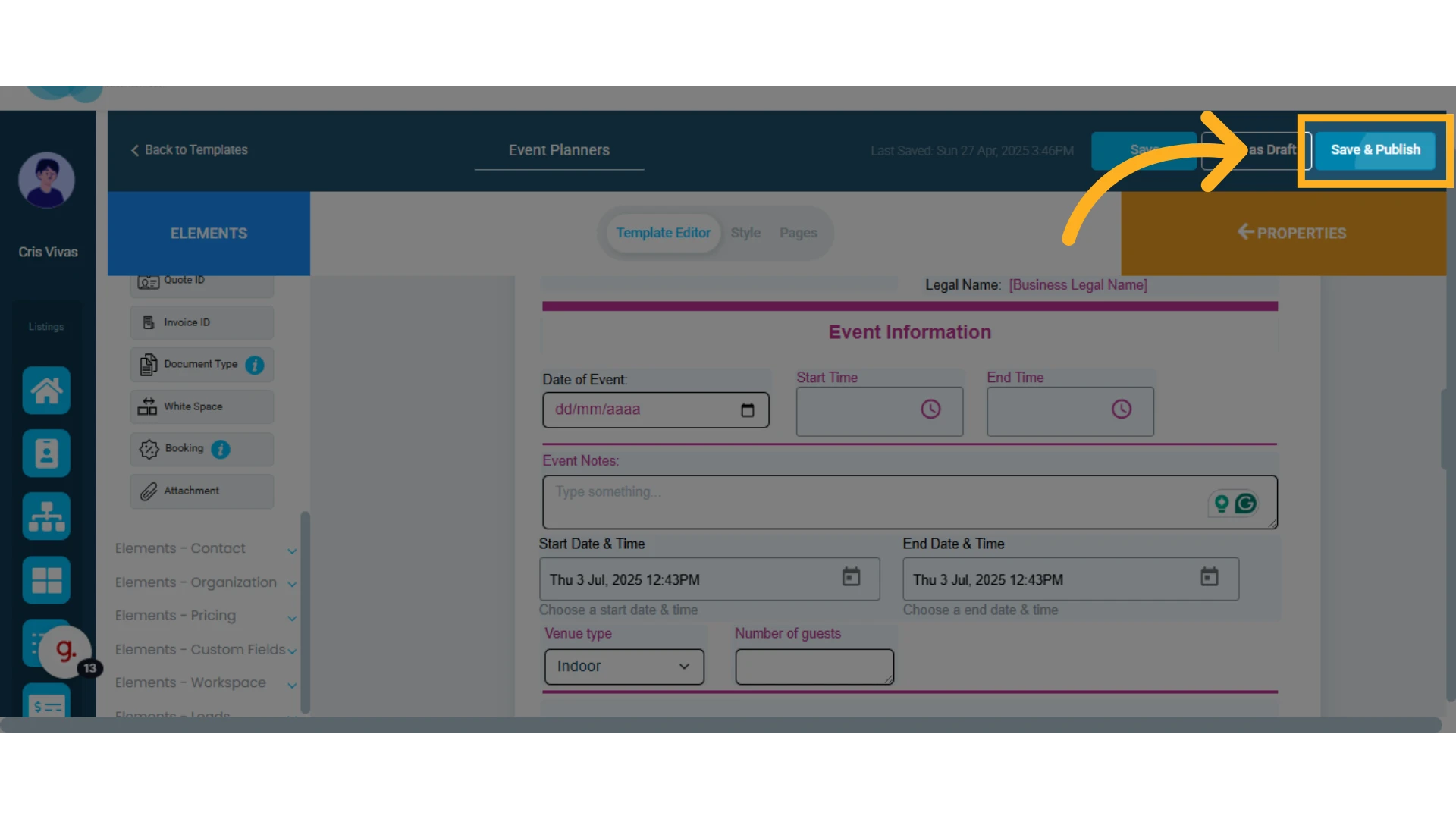
After adding the element, be sure to click "Save & Publish" so the change is reflected in the quote.
2. Select the Dates
After editing the template, you will return to the quote. There, you must select the dates on which the service will be offered.
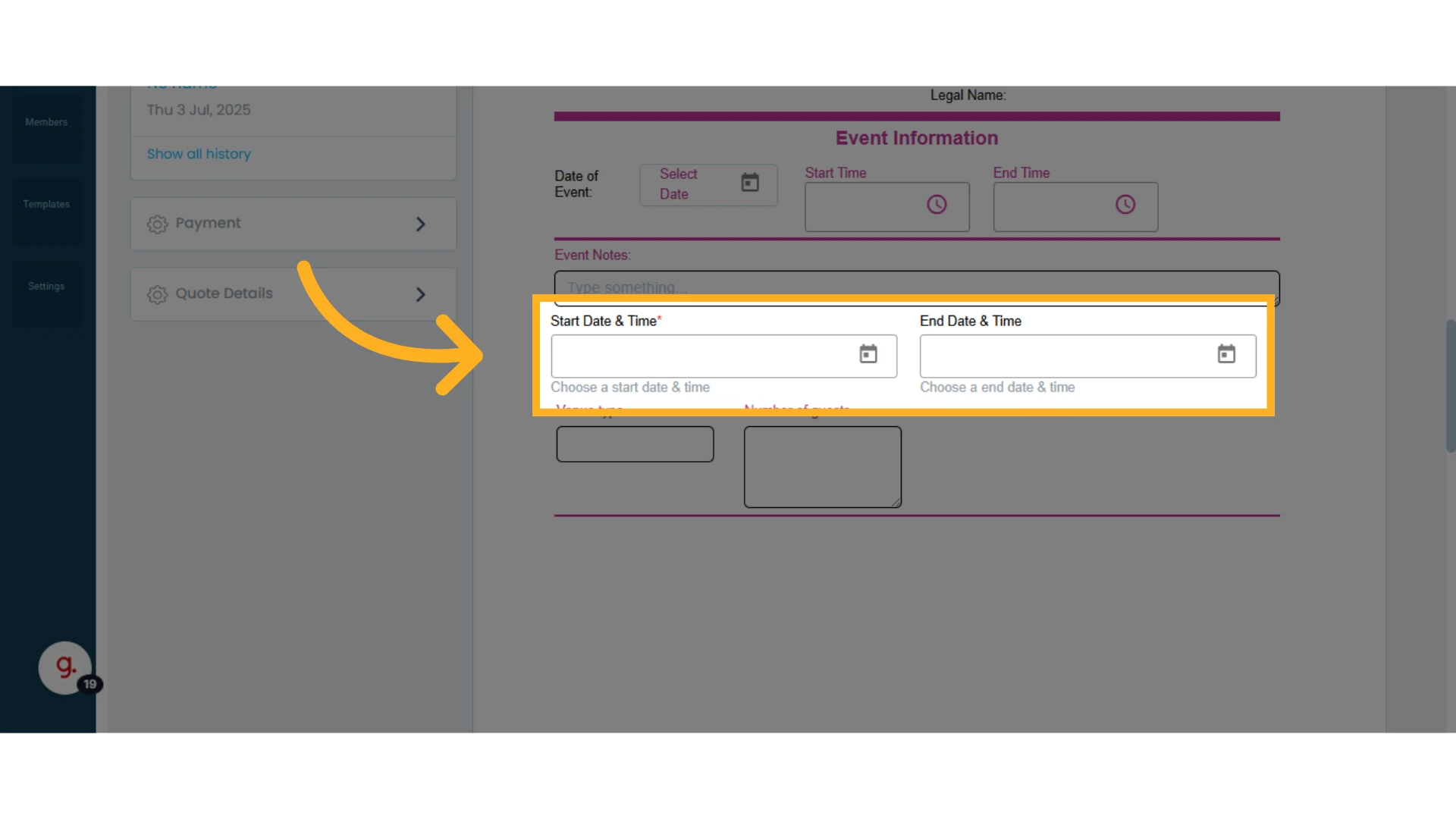
IMPORTANT: Services will be blocked for the selected dates and times, but will become available again after the time period ends.
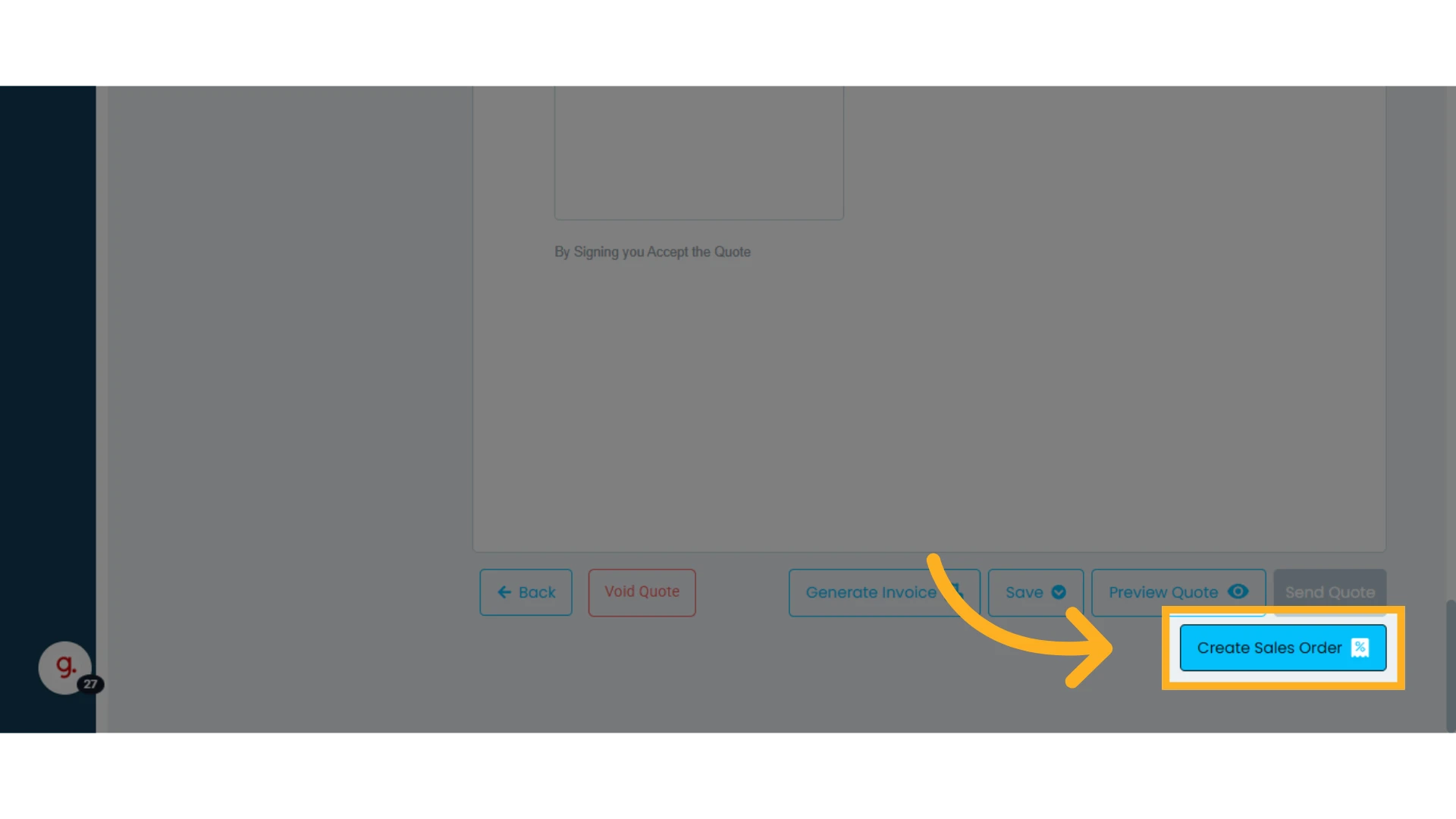
3. Click "Create Sales Order"
The sales order will only be created if there is enough availability for the service during those dates.
NOTE: Example: if you rent cars, each car can only be reserved once for a specific time period. You cannot have two clients booking the same car for the same date and time. A car rented on April 18 will only be available again starting April 19.
View and Manage Sales Orders
Once a sales order is created, you can view and manage it from the sales order tab.
1. Click on the sales order you want to manage
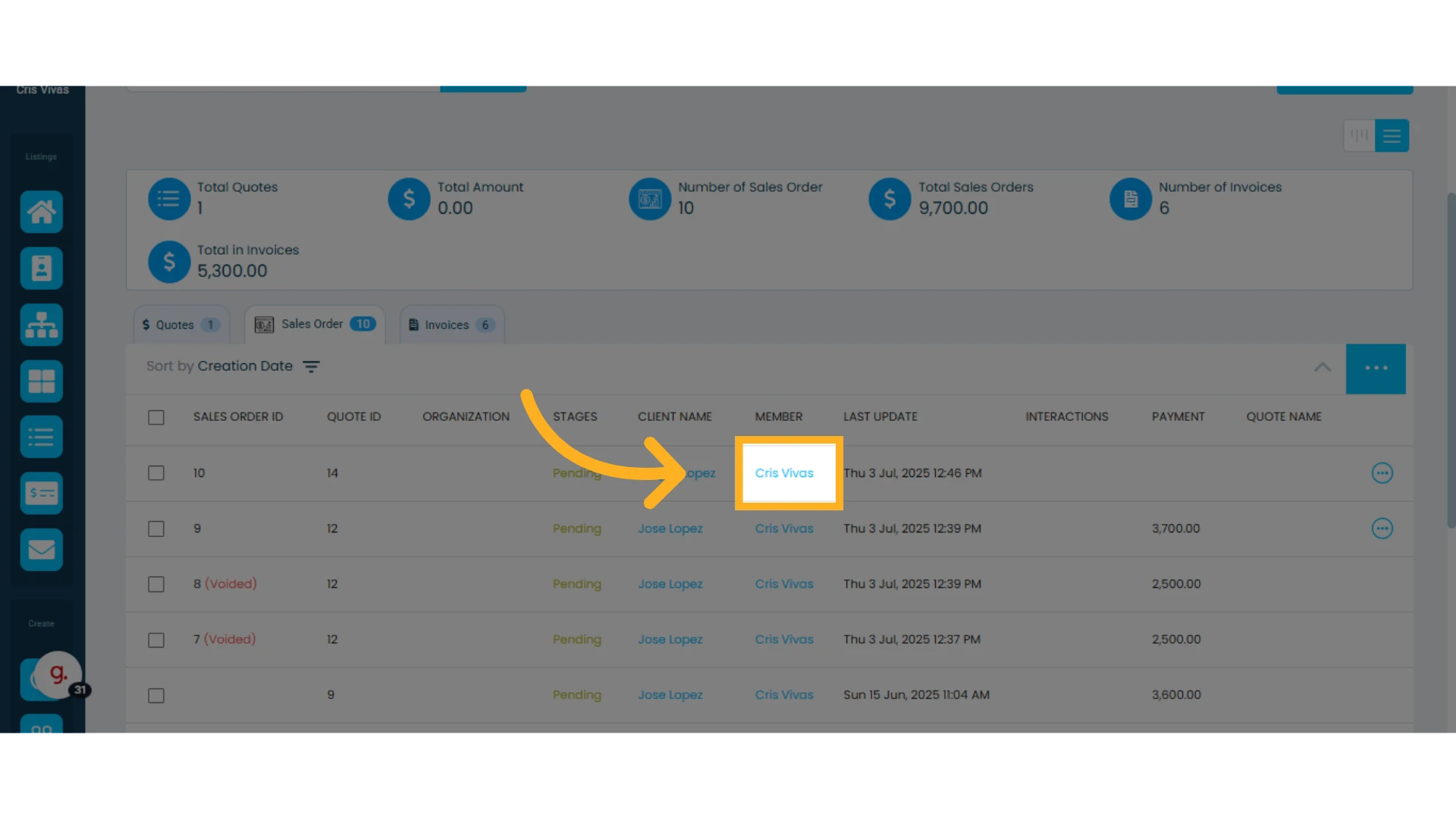
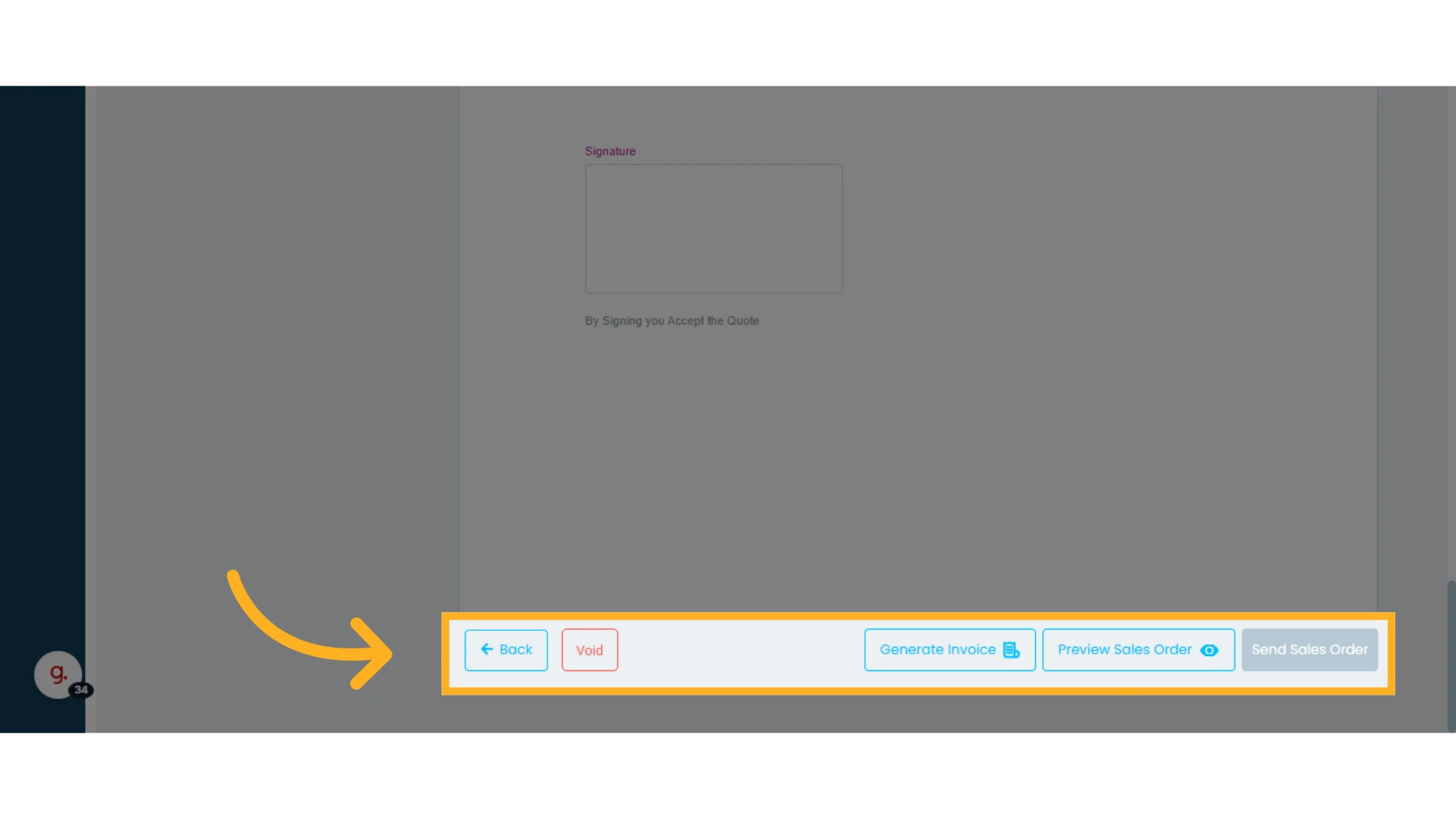
2. Scroll to the bottom of the sales order
There you’ll find a menu to void, view, or send the sales order. You can also generate an invoice.
TIP: You can also create a sales order directly from an invoice.
Learn everything about invoices.
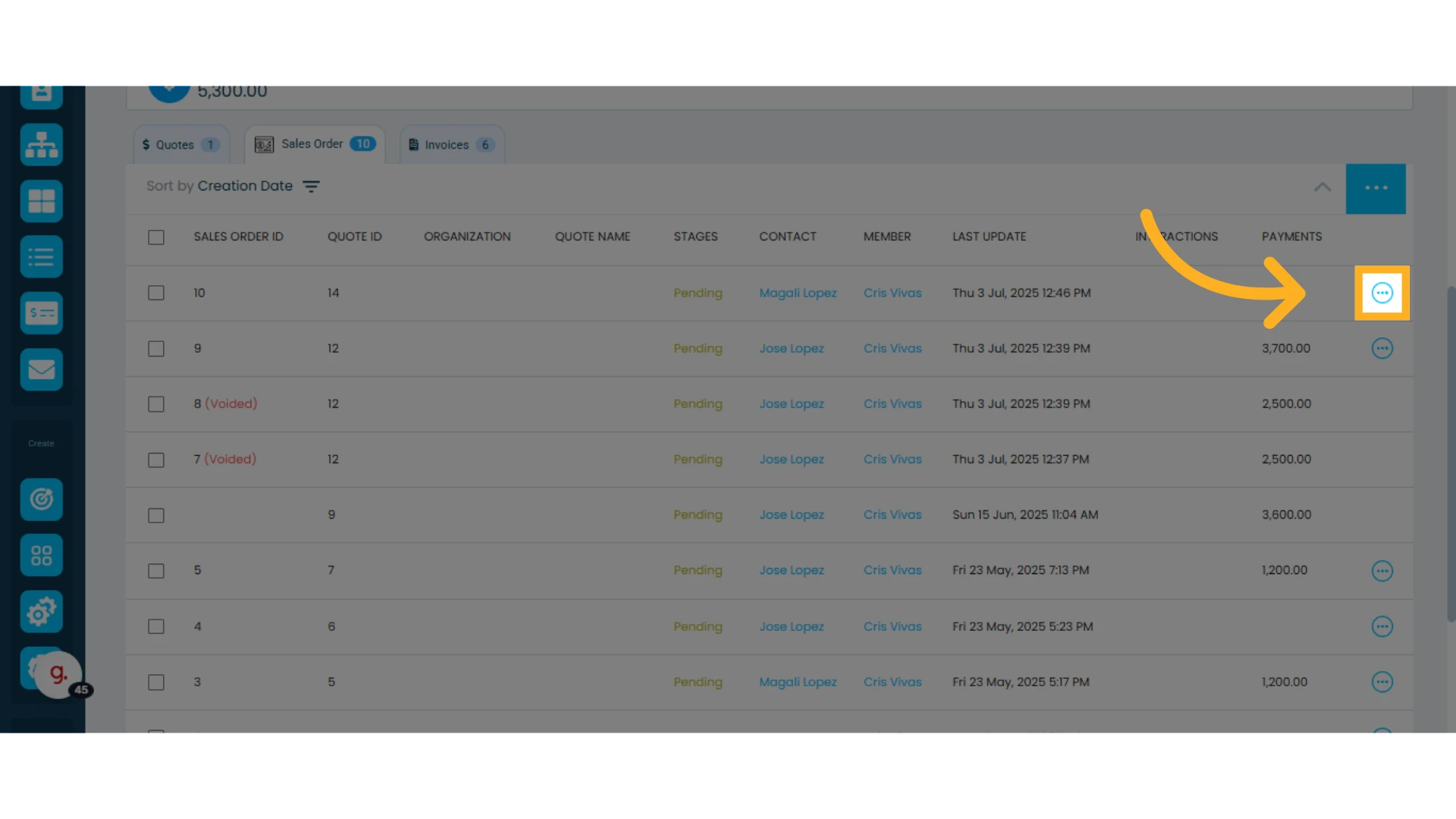
From the Sales Orders list, you can also view, send, or void an order. Just click the three-dot menu next to a sales order to access the options.
What Happens When a Sales Order Is Voided?
When a sales order is voided the product inventory is restored and the services become available again for the corresponding dates and times.
The associated quote will return to the quotes tab, where you can edit it and generate a new sales order.
NOTE: If a sales order has an associated invoice, you must void the invoice before you can void the sales order.