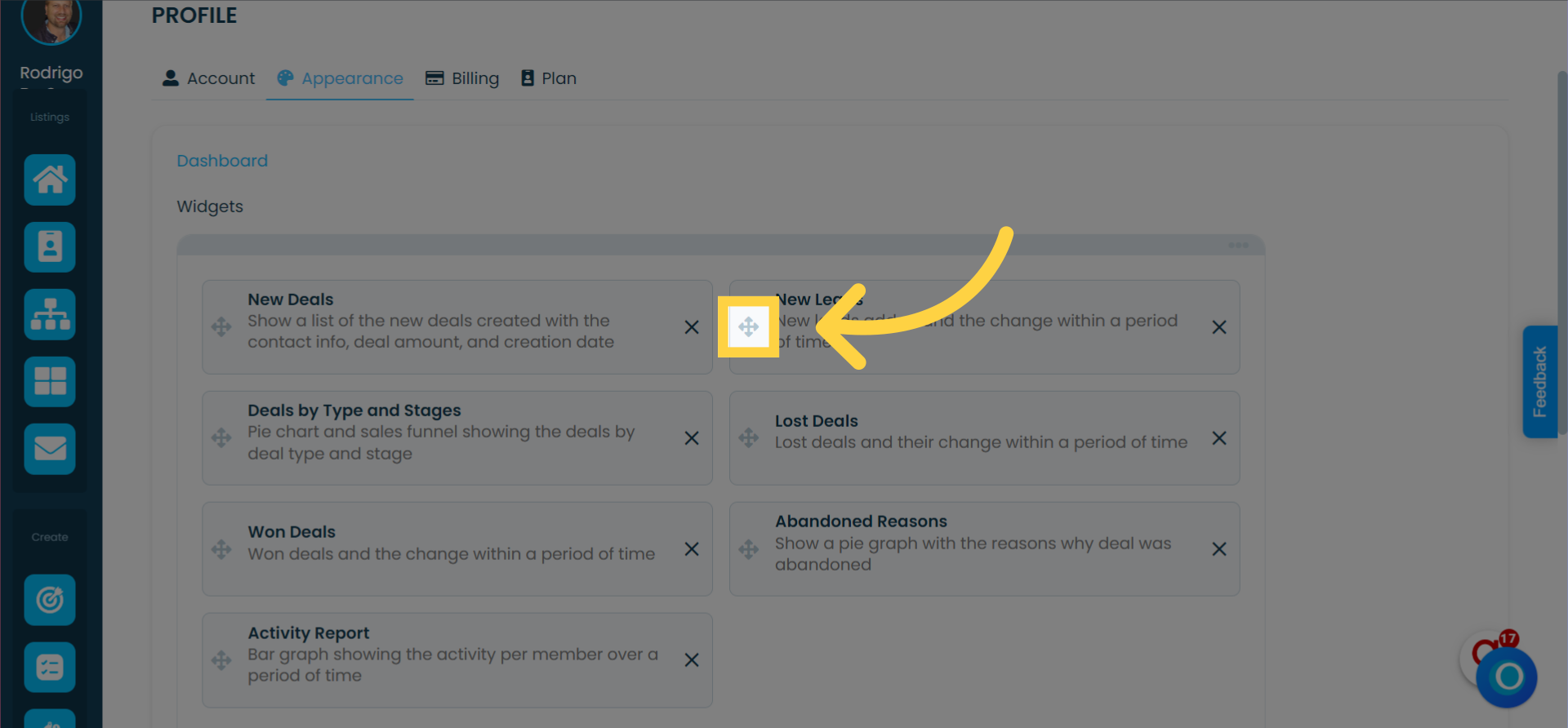
Widgets are reports and graphs that provide valuable insights into your sales and prospects. They are essential tools for your sales team, offering easy access to useful data.
Widgets can be added to the main dashboard and certain modules.
Access to widgets can be restricted by assigning roles to team members.
All widgets update in real time, and you can apply filters to view information for different time periods.
This guide will show you how to add widgets.
Adding Widgets from the Dashboard or Module
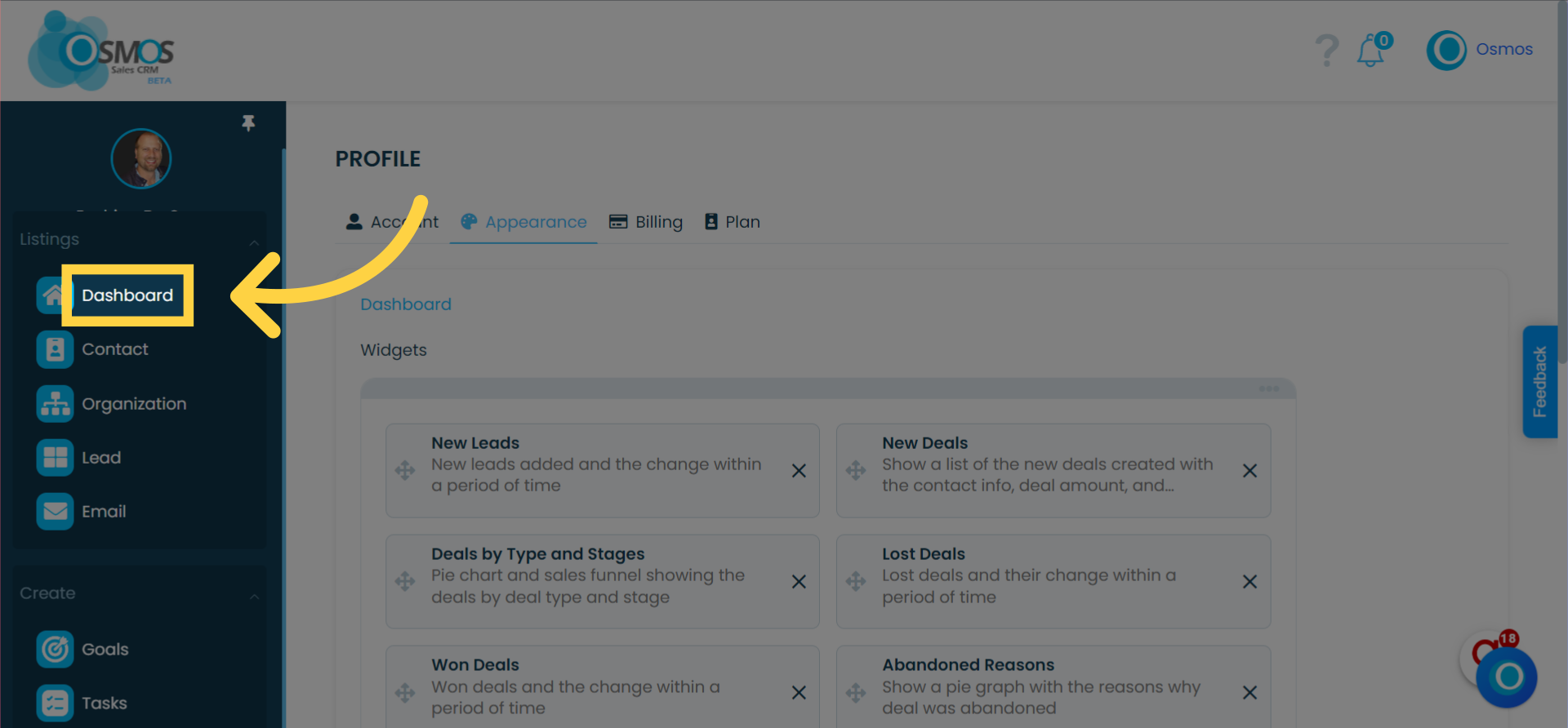
1. Click on "Dashboard" or open the Prospects module from the left-hand menu
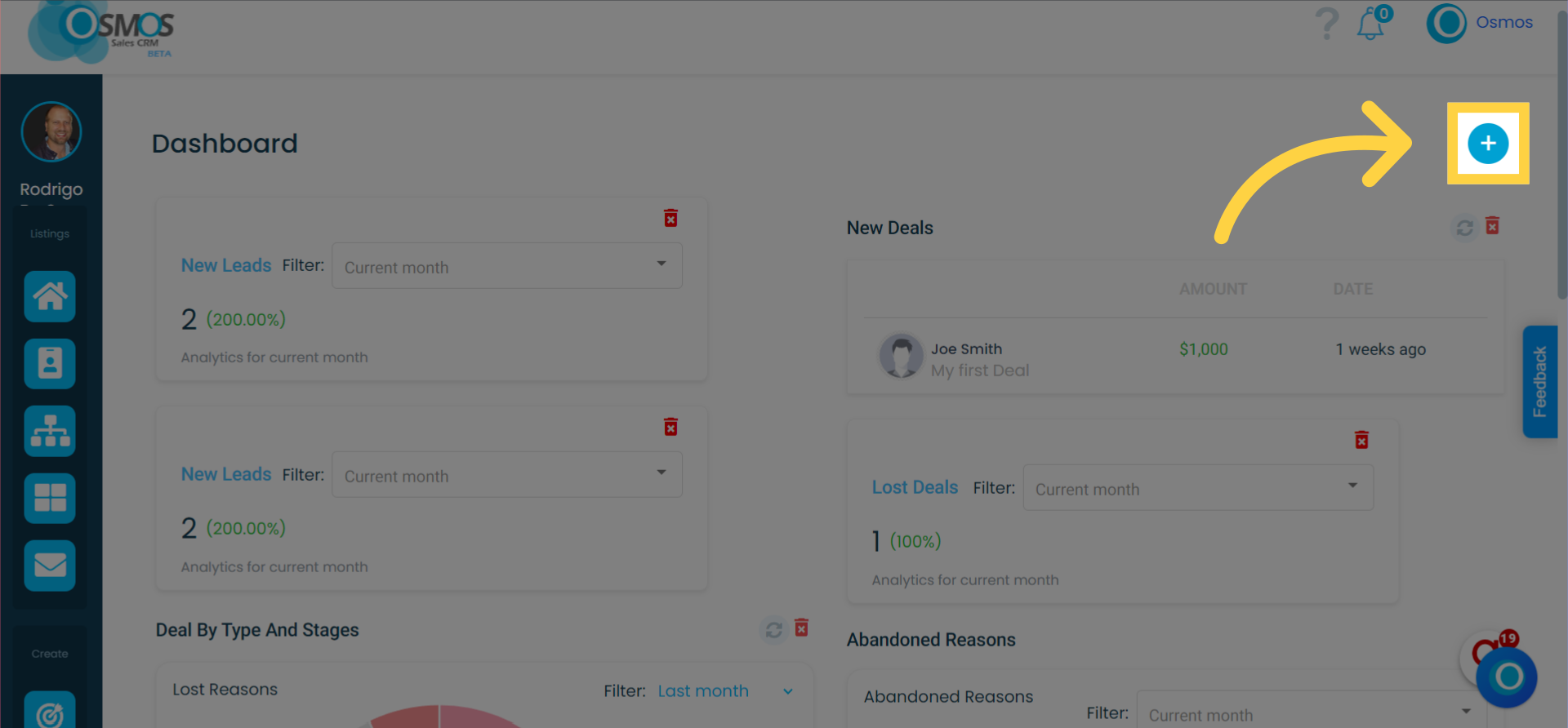
2. Click on the "+" sign and select the option to add a widget
3. Select the "Widget Category"
Widgets are categorized by type. Example: Widget related to "lead" module.
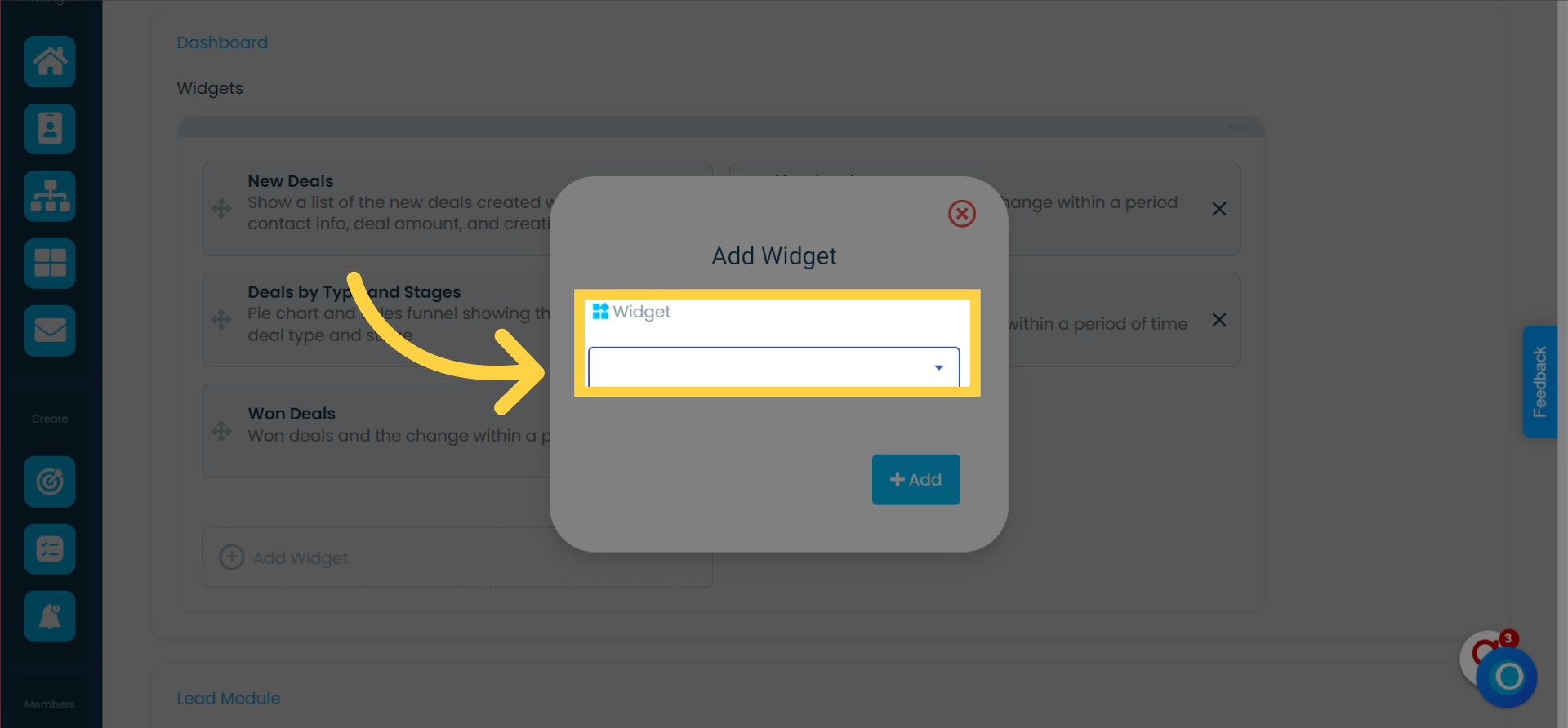
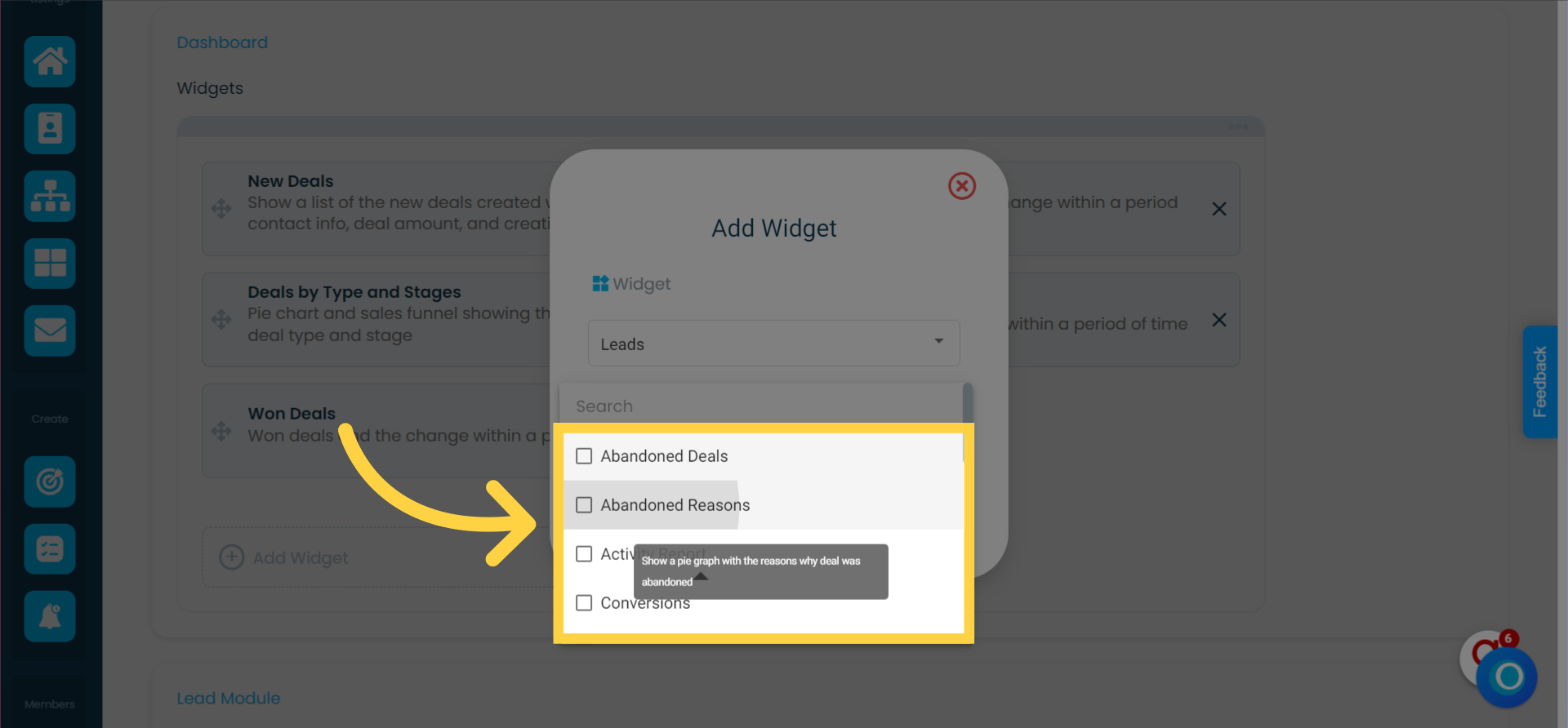
4. Choose the widget(s) you want to add
Only available widgets will be shown. Widgets that have already been added or are not available to you will not appear.
You can add multiple widgets at once.
Hover over a widget title to see its description.
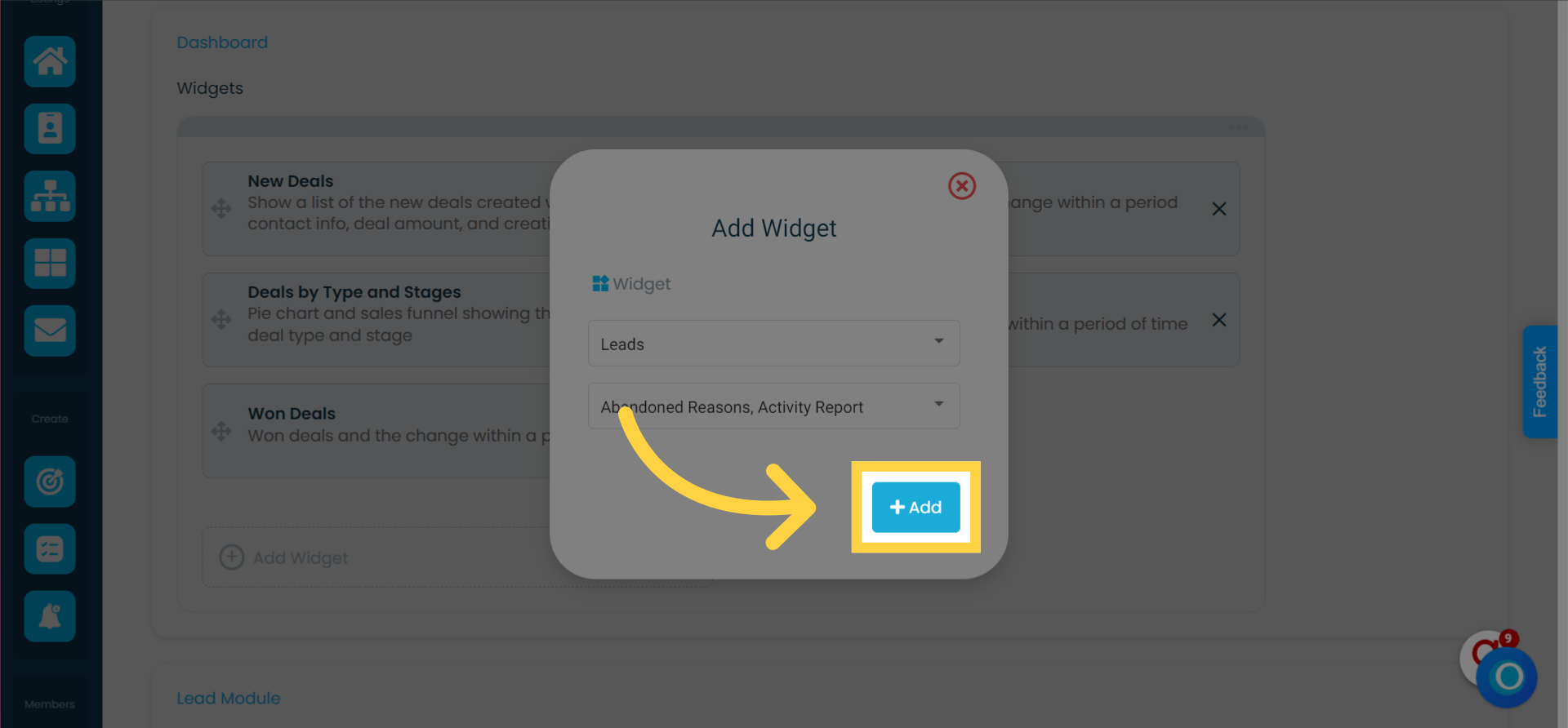
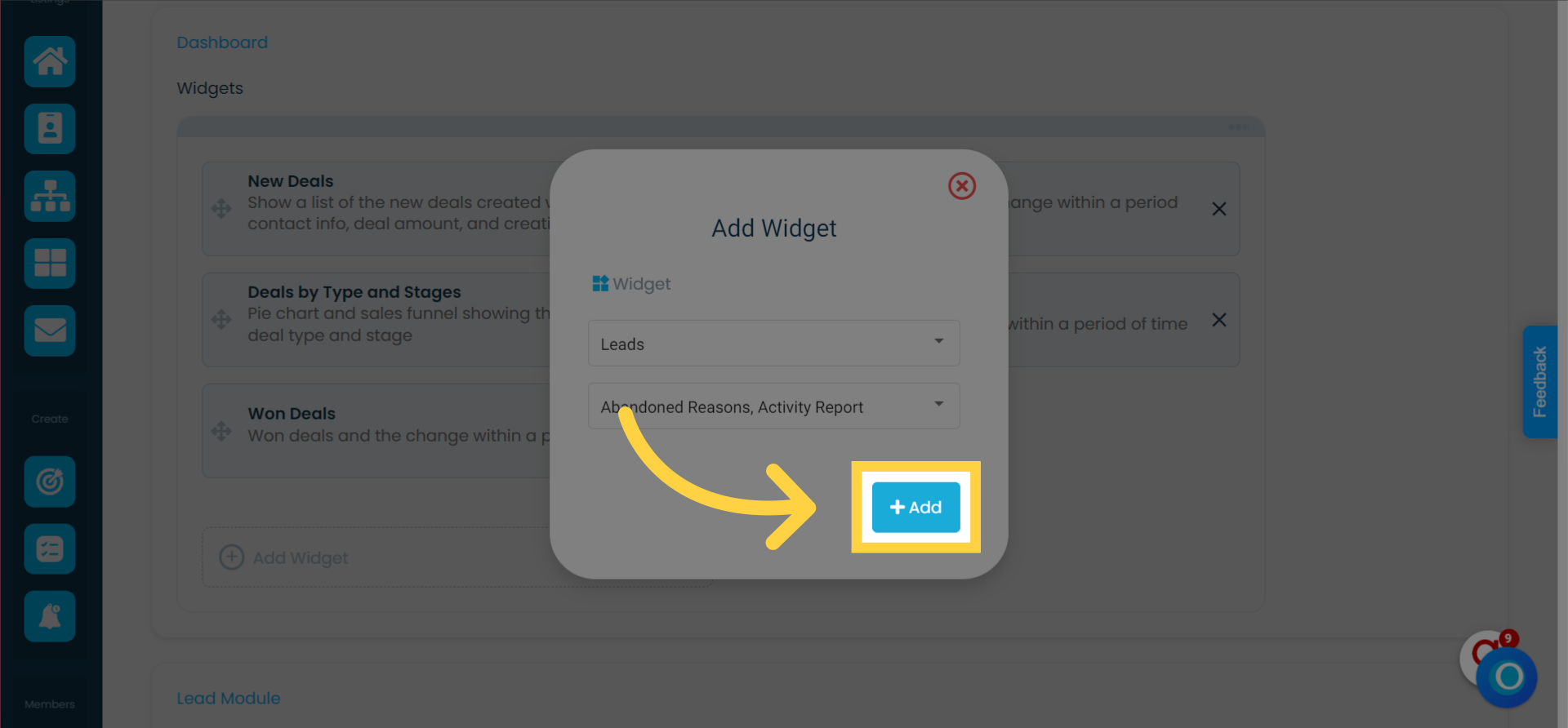
5. Click "+ Add" to insert the selected widget(s)
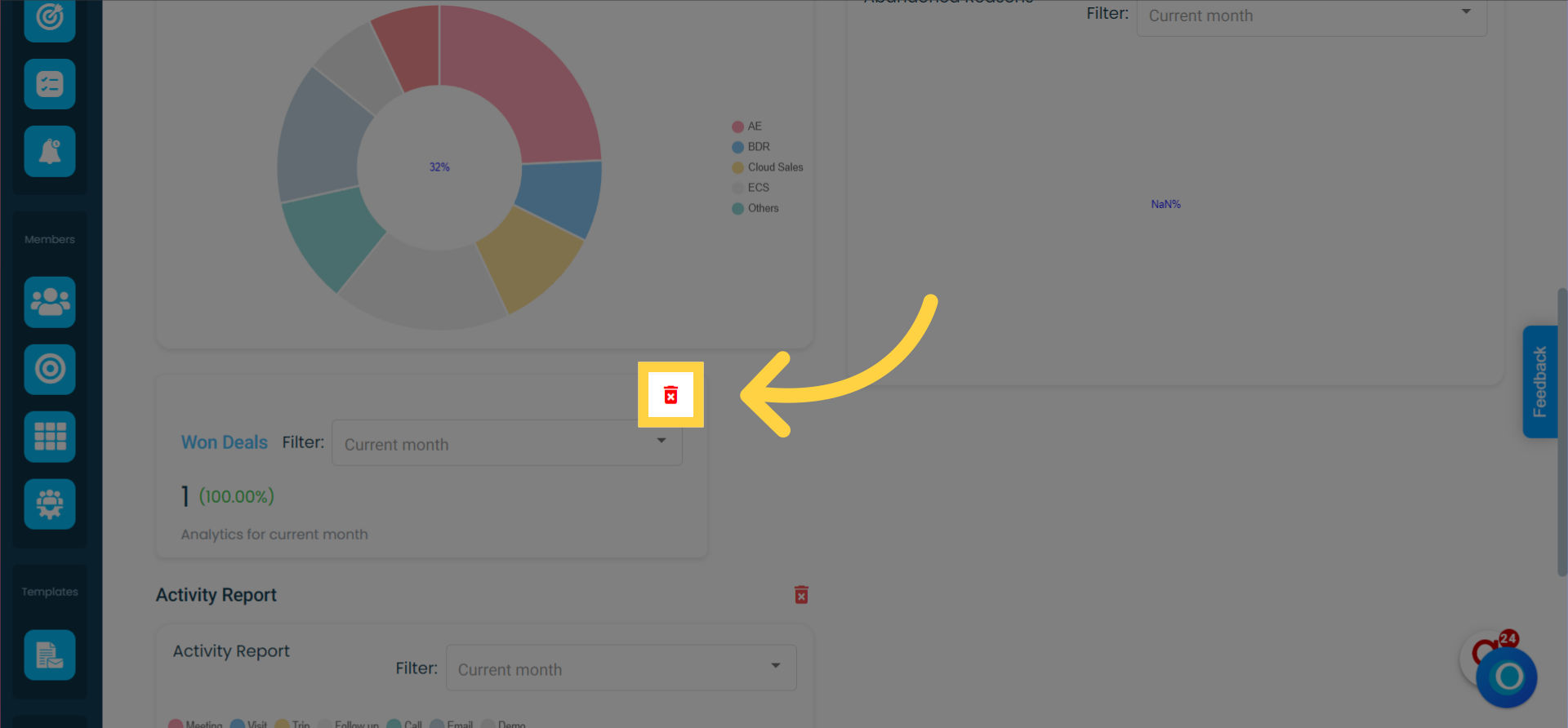
To Delete a Widget, Click on the Red Trash Bin Icon
Adding Widgets from the Member Profile
1. Click on your profile image in the left-hand menu or the dropdown menu where your workspace name appears
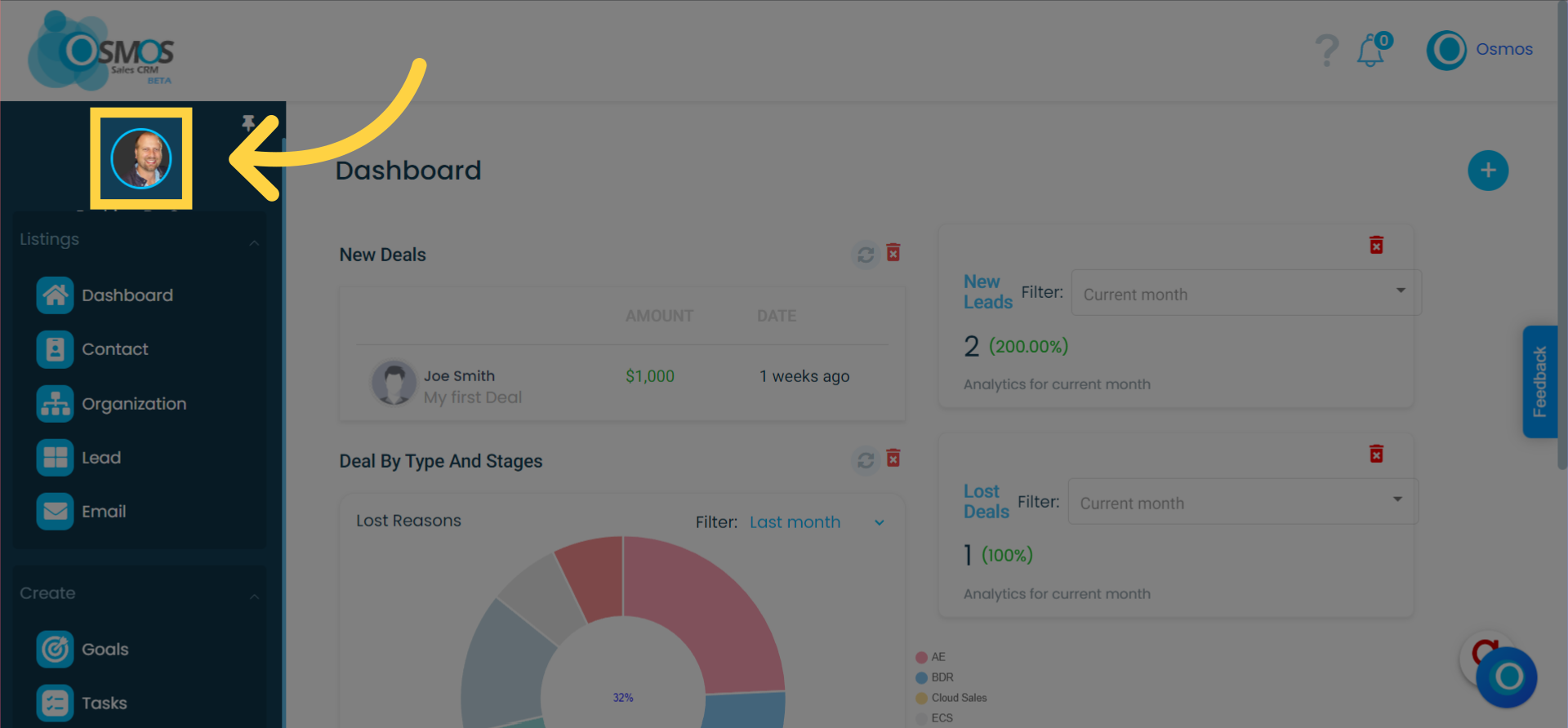
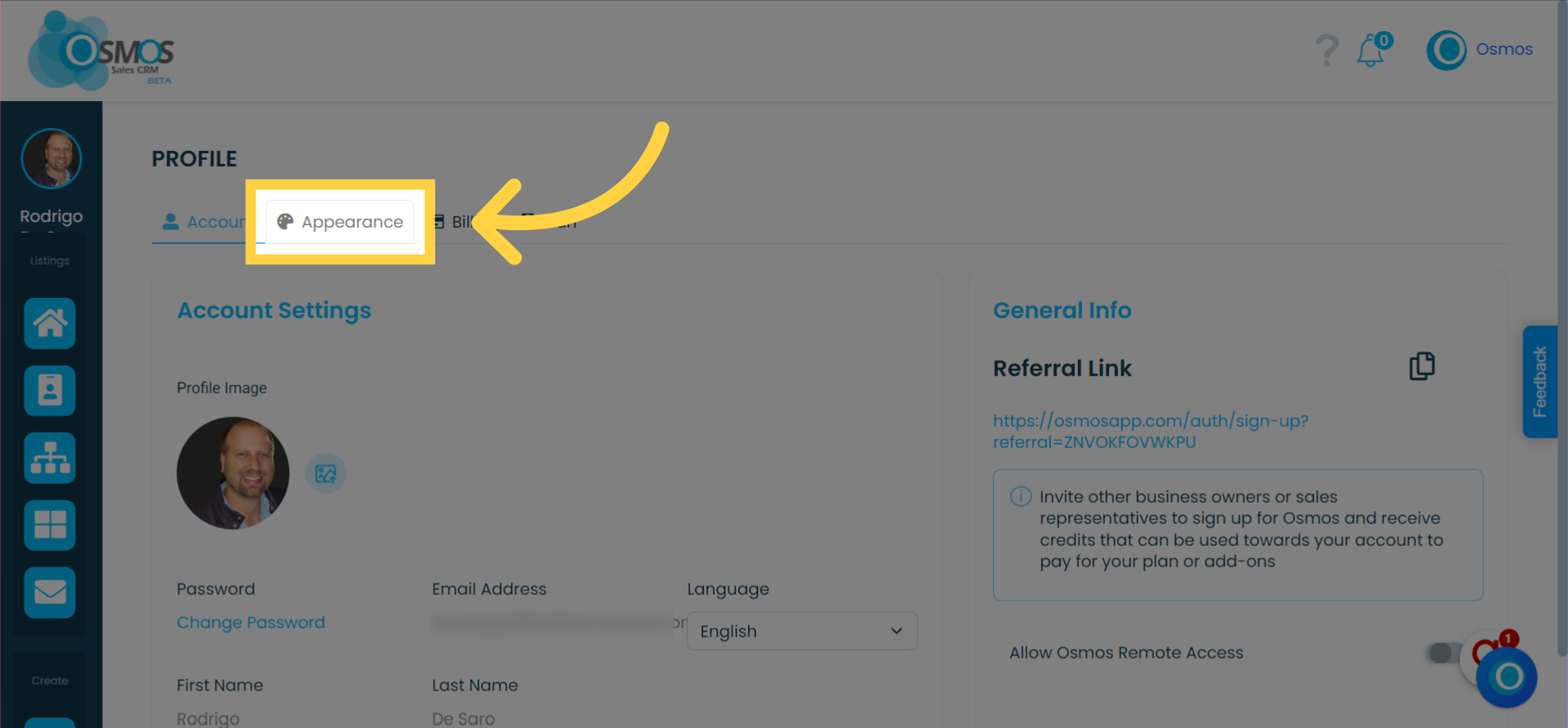
2. Click on "Appearance"
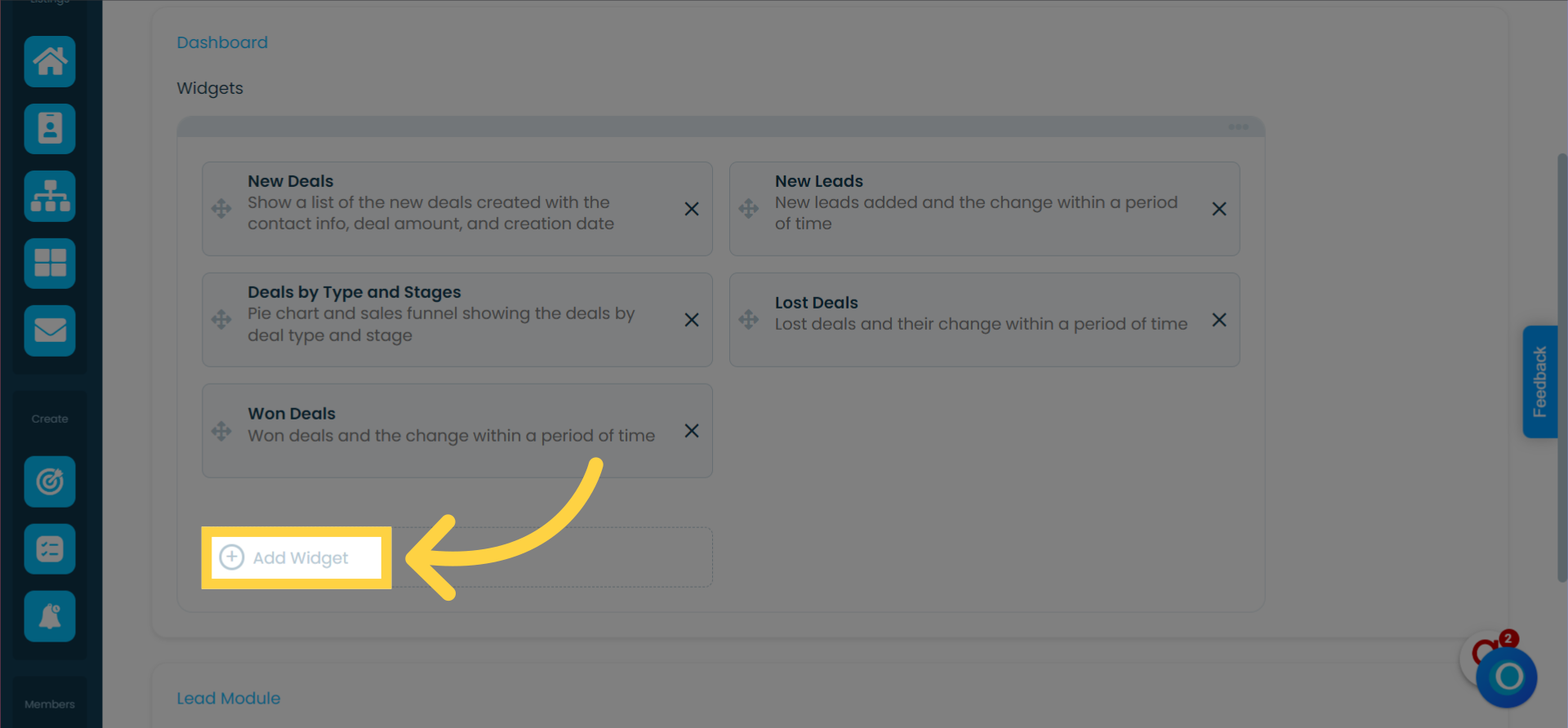
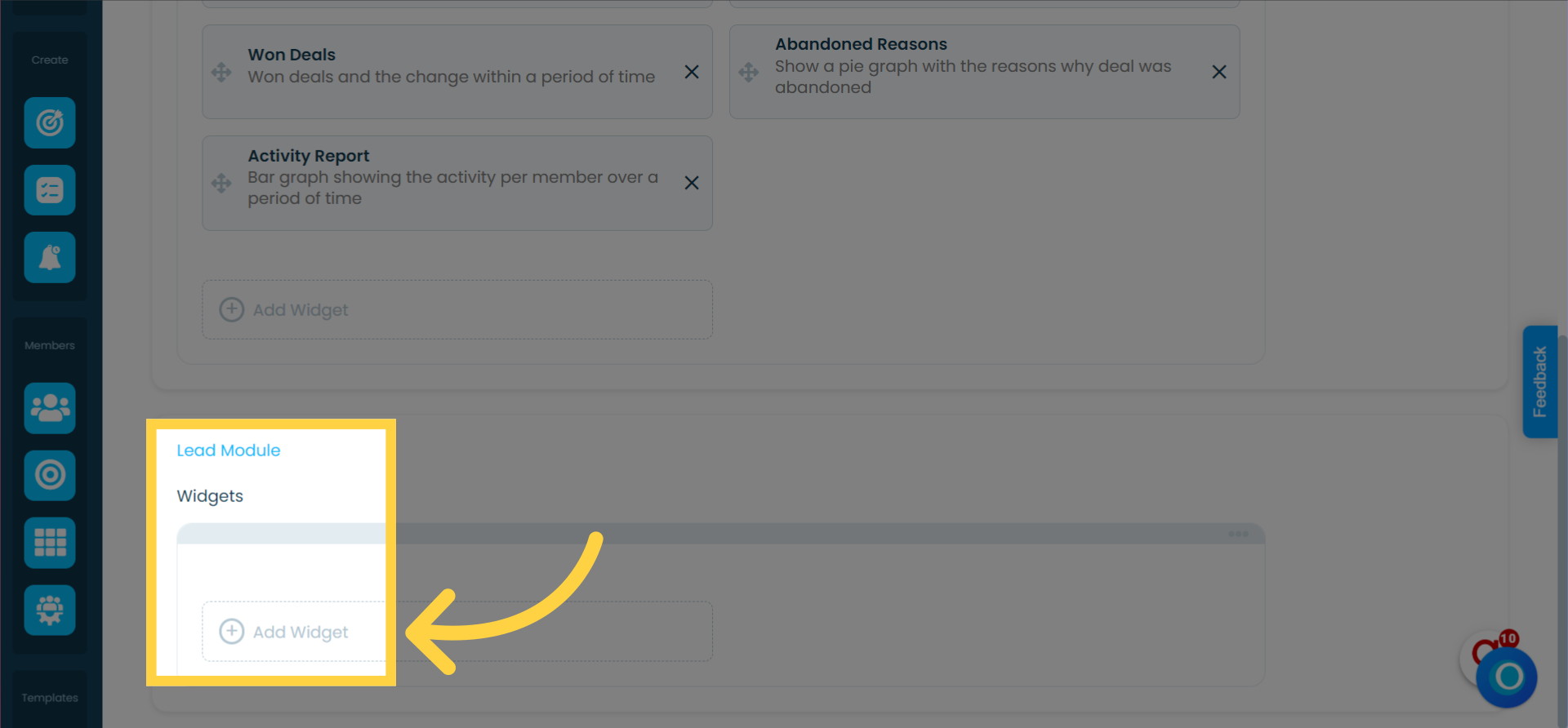
3. Click on "Add Widget" for either the dashboard or other modules by scrolling down
4. Select the "Widget Category"
Widgets are categorized by type. Example: Widget related to "lead" module.
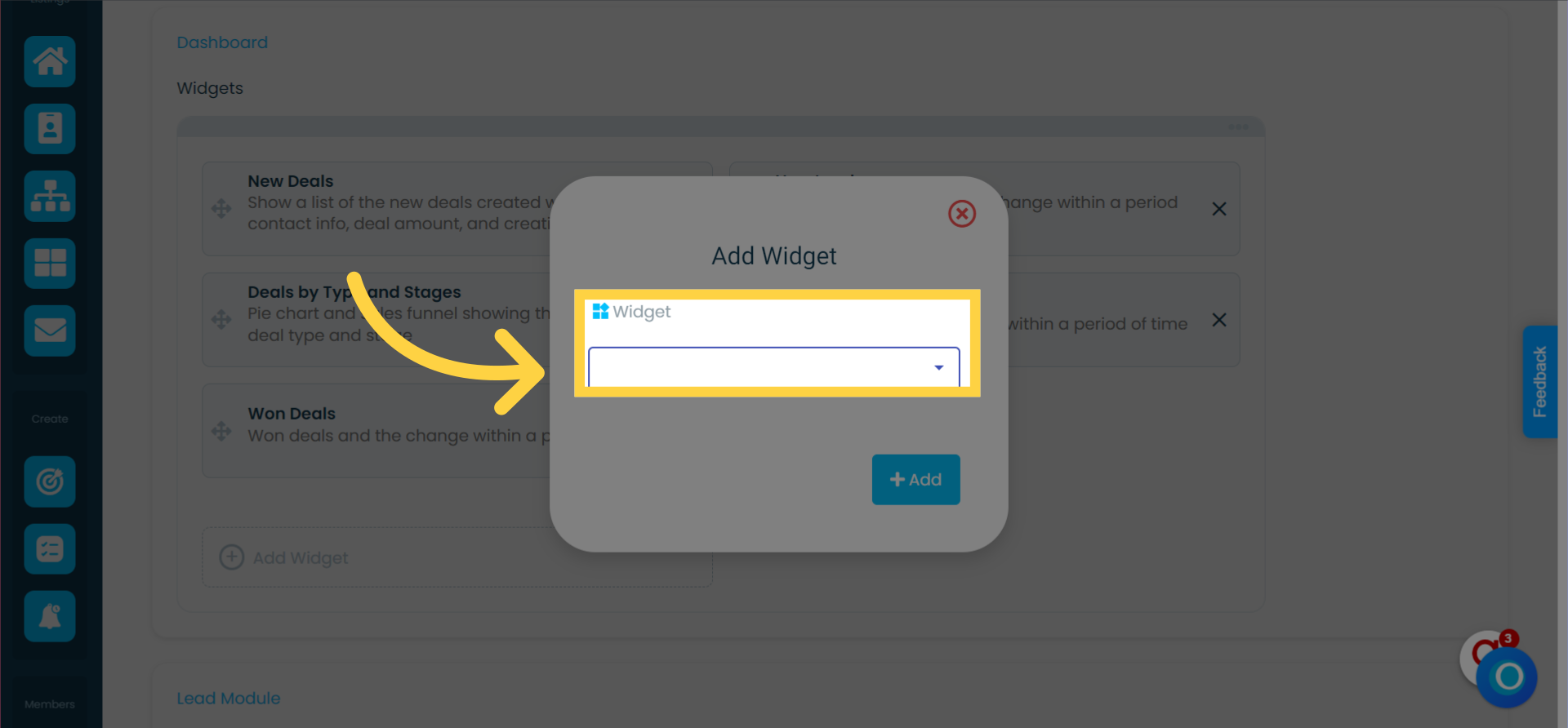
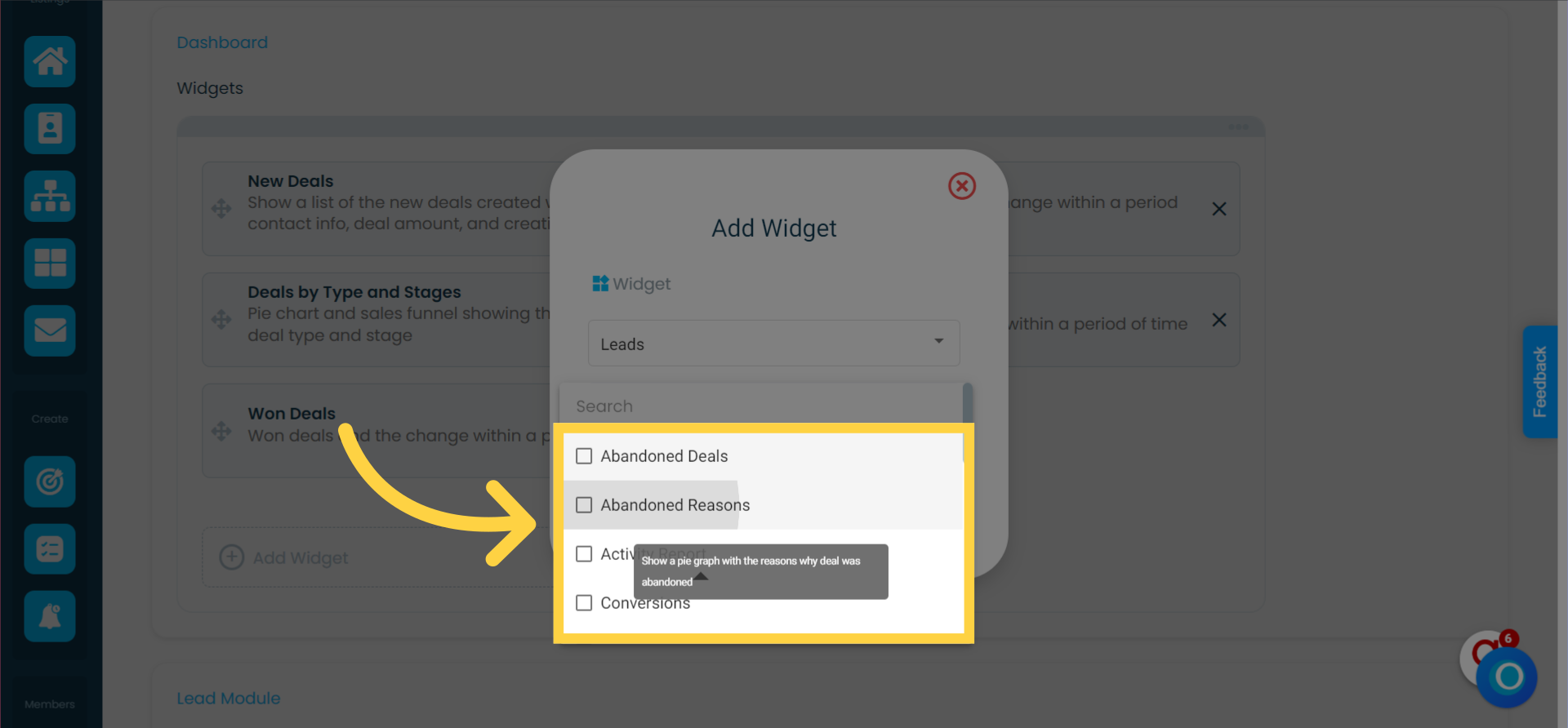
5. Choose the widget(s) you want to add
Only available widgets will be shown. Widgets that have already been added or are not available to you will not appear.
You can add multiple widgets at once.
Hover over a widget title to see its description.
6. Click "+ Add" to insert the selected widget(s)
7. Reorder widgets by dragging and dropping them into the desired position