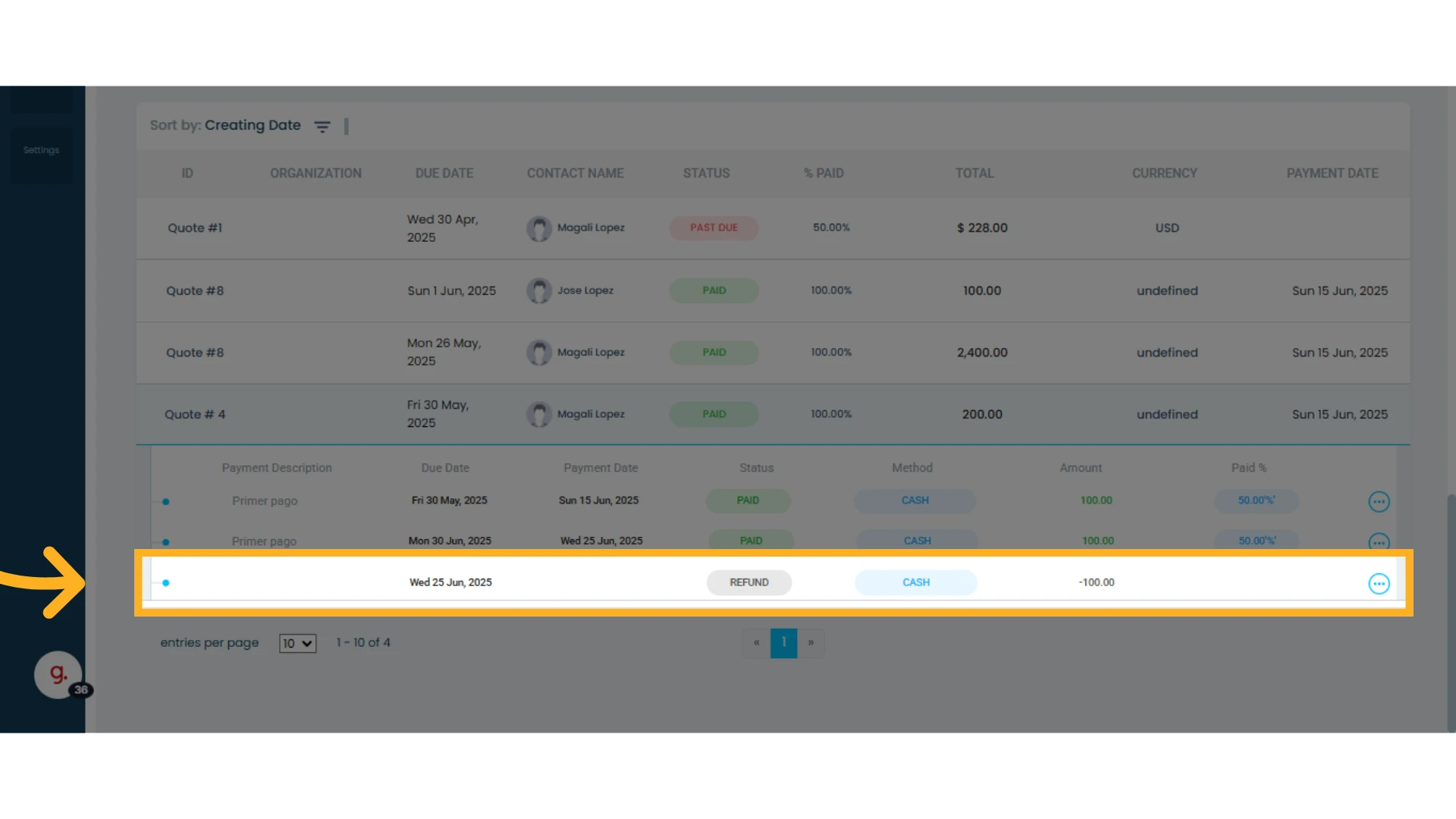
In this guide, you’ll learn how to register and update a payment.
Register a Payment from the Quotes Module
Payments must always be initially recorded in the Quotes Module in order to appear in the Payment Module. This process allows you to enter a payment directly linked to a specific quote, sales order, or invoice.
1. Go to the Quotes Module and select the quote to which you want to record a payment
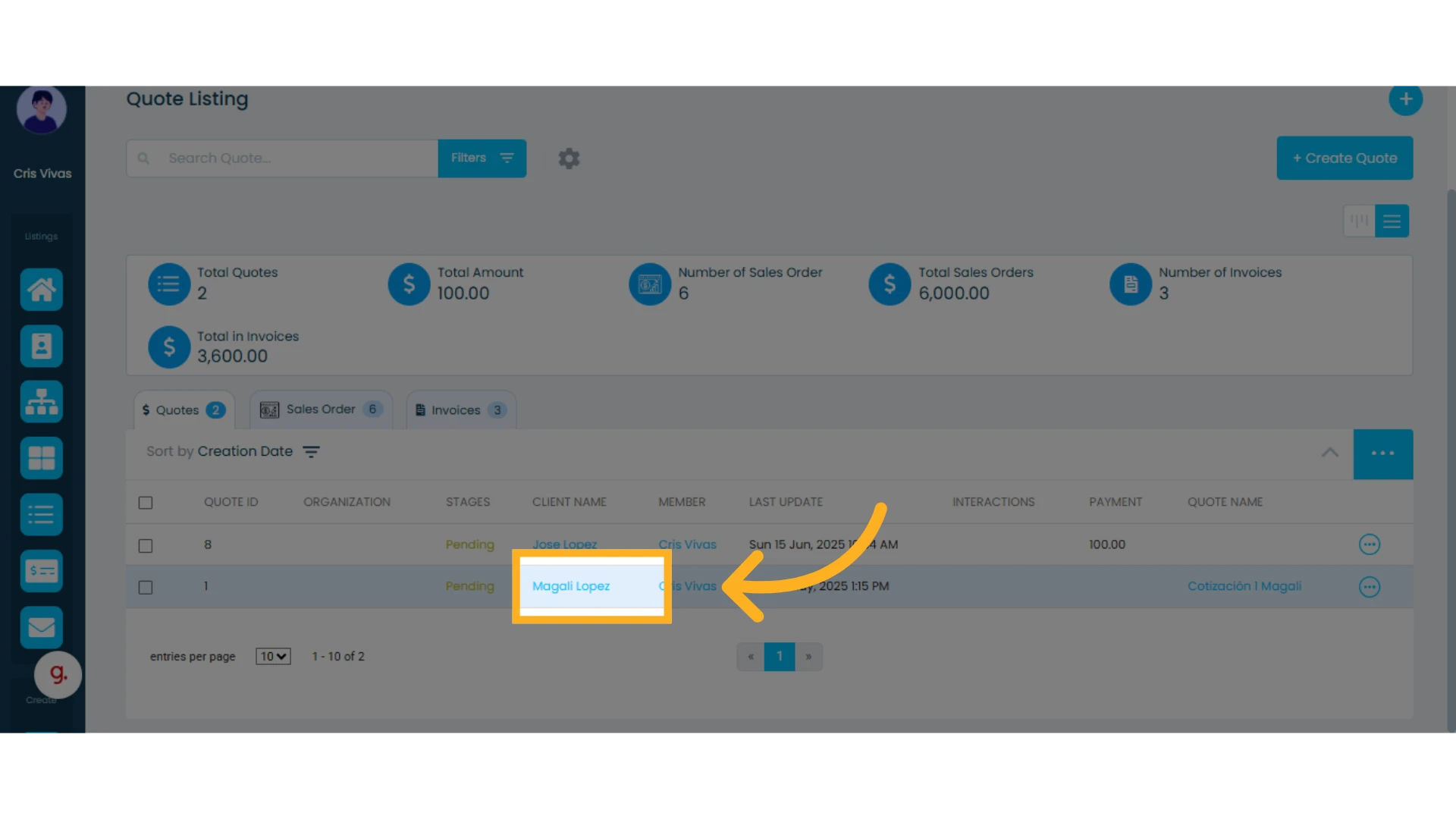
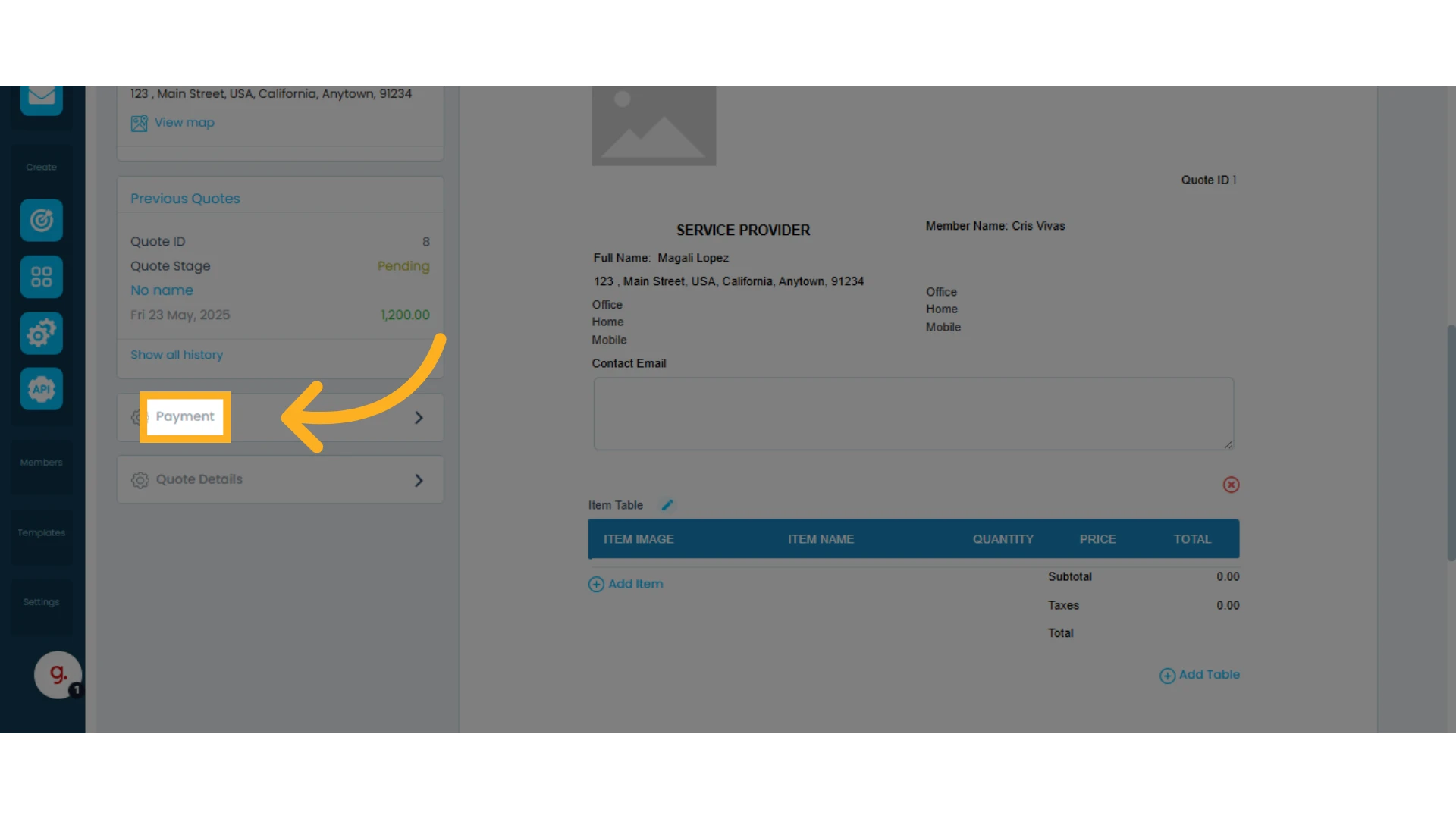
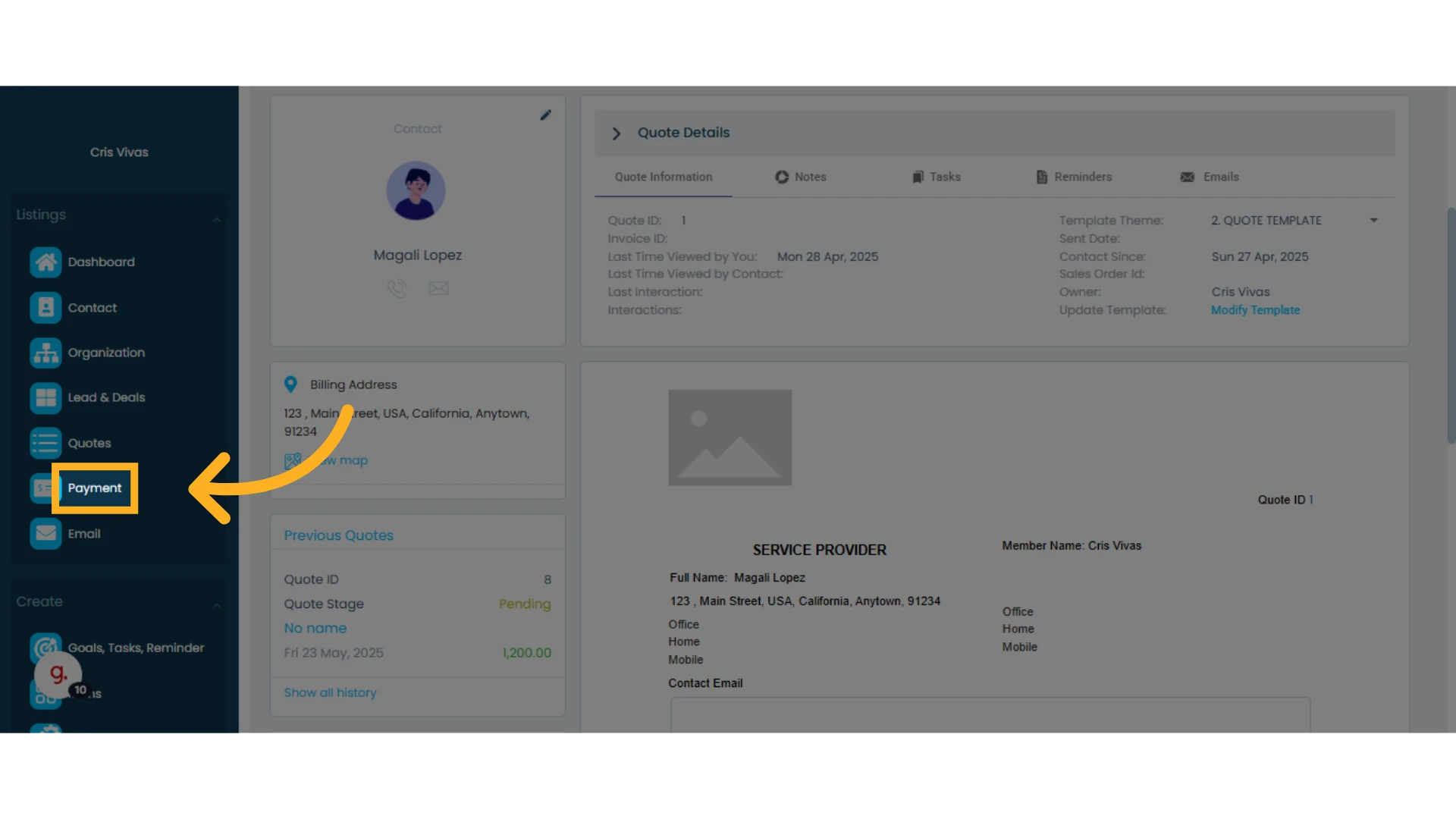
2. On the left-hand panel, look for the option labeled "Payment"
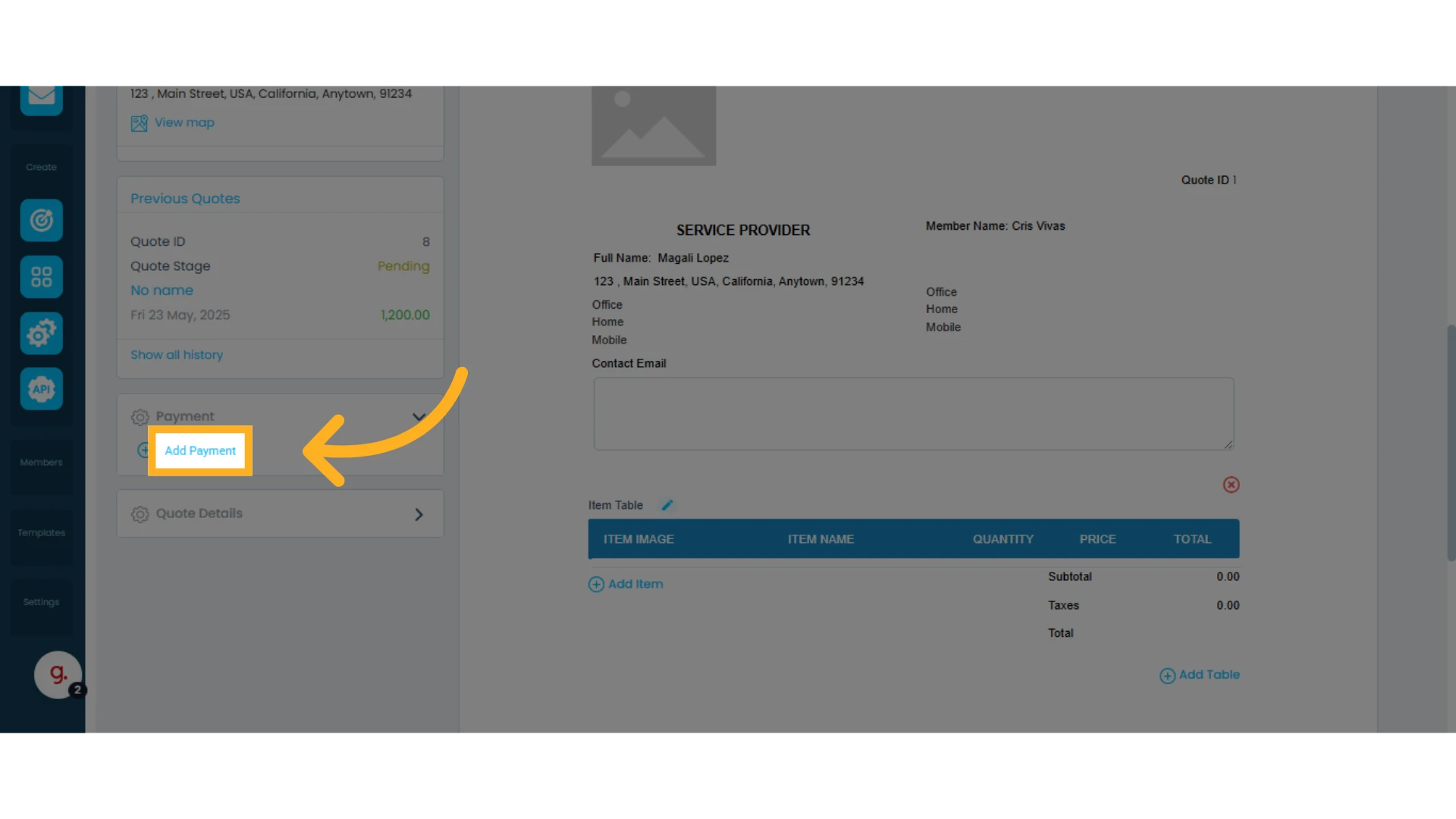
3. Click on "Add Payment"
4. A new screen will give you the option to add payments
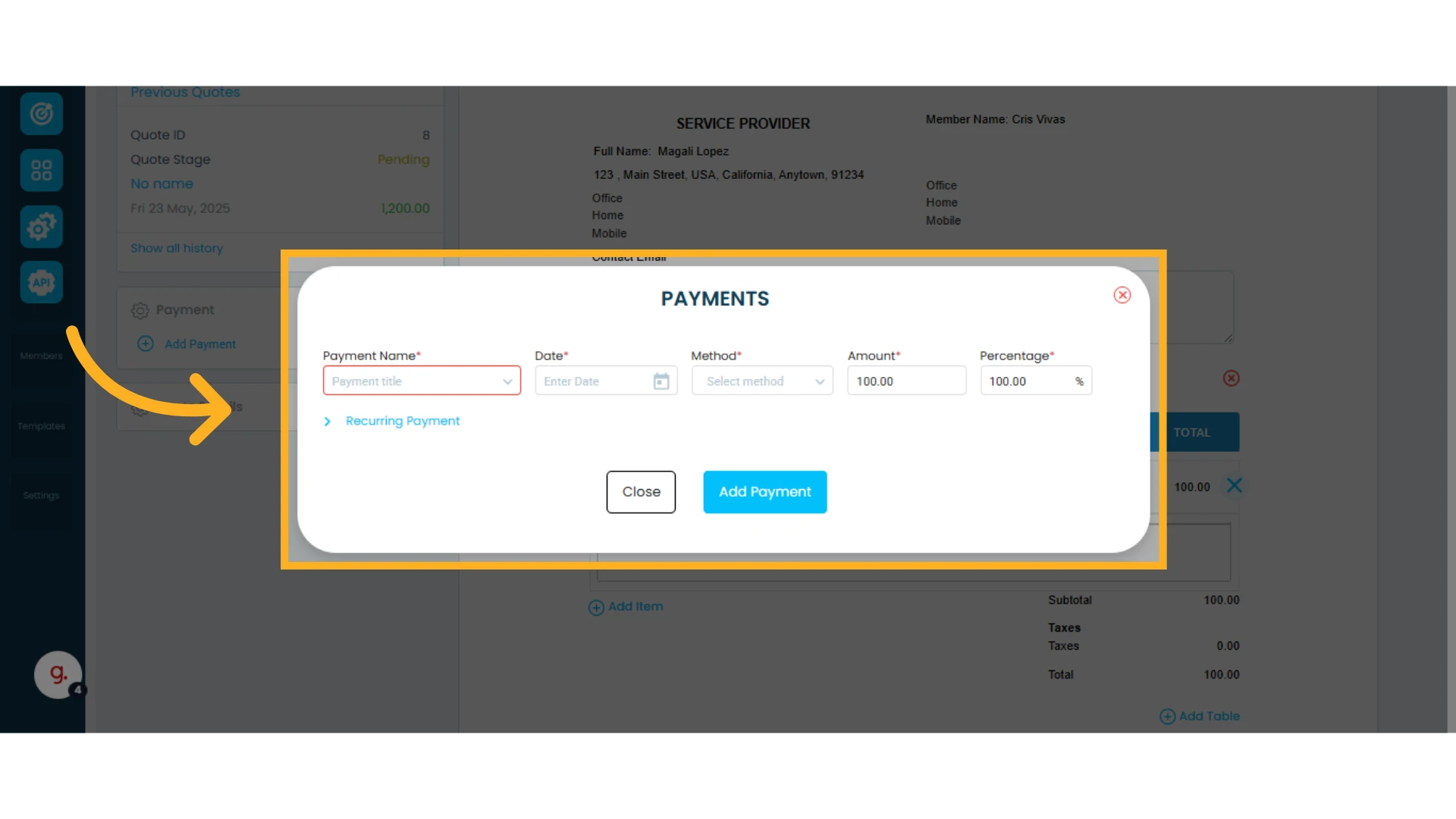
You can customize the payment information by entering a payment name, date, payment method, amount, or by creating a new payment method.
Learn more about how to add payments to a quote.
NOTE: A payment can only be recorded for the first time within the Quotes Module. After it's registered, you can edit or create new payments in the Payment Module.
Edit a Payment from the Payment Module
In this module, you can manage all payments previously recorded in the Quotes Module.
1. Go to the Payment Module
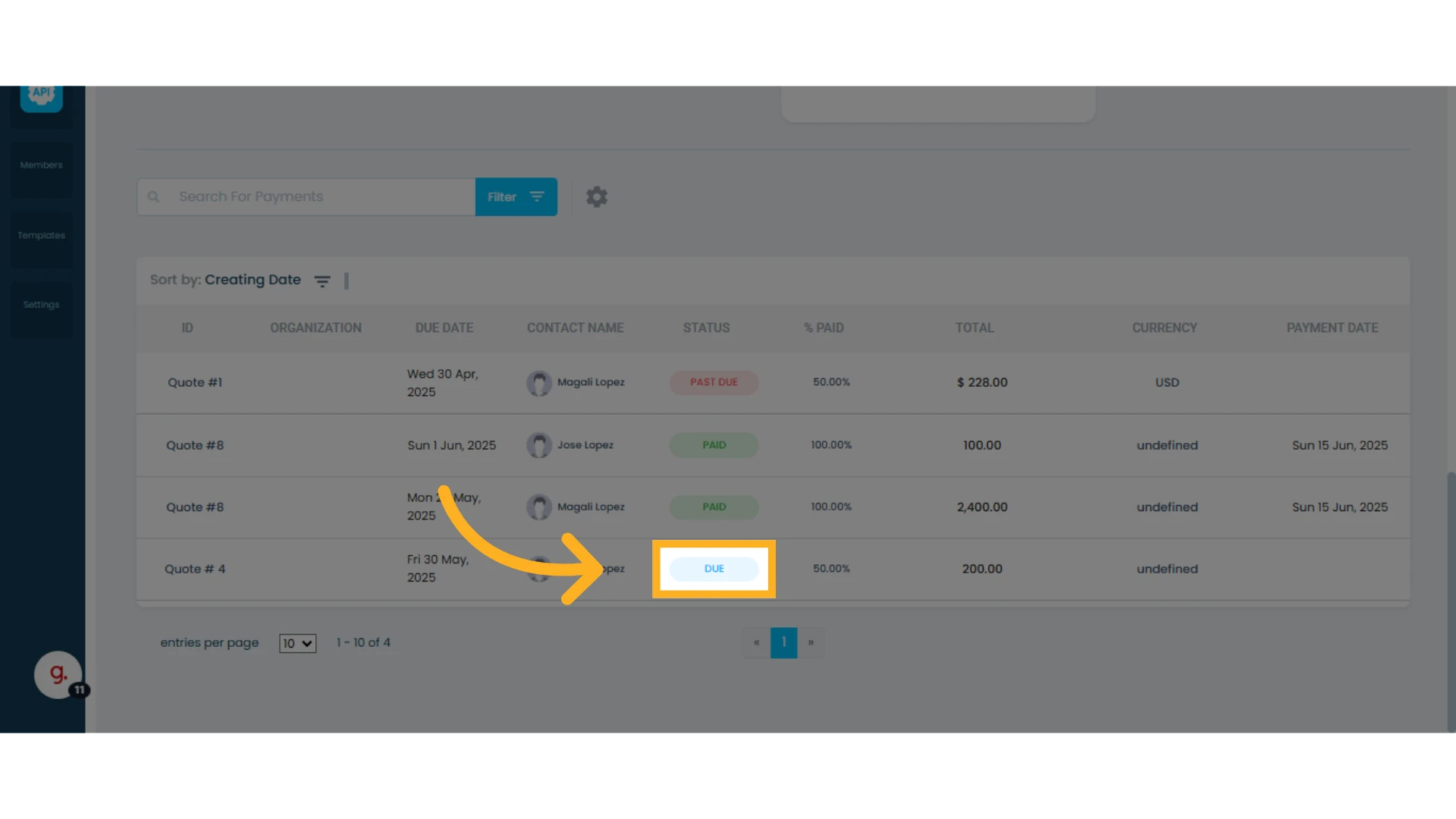
2. Find the payment you want to modify, click on it to expand, and view all related payments
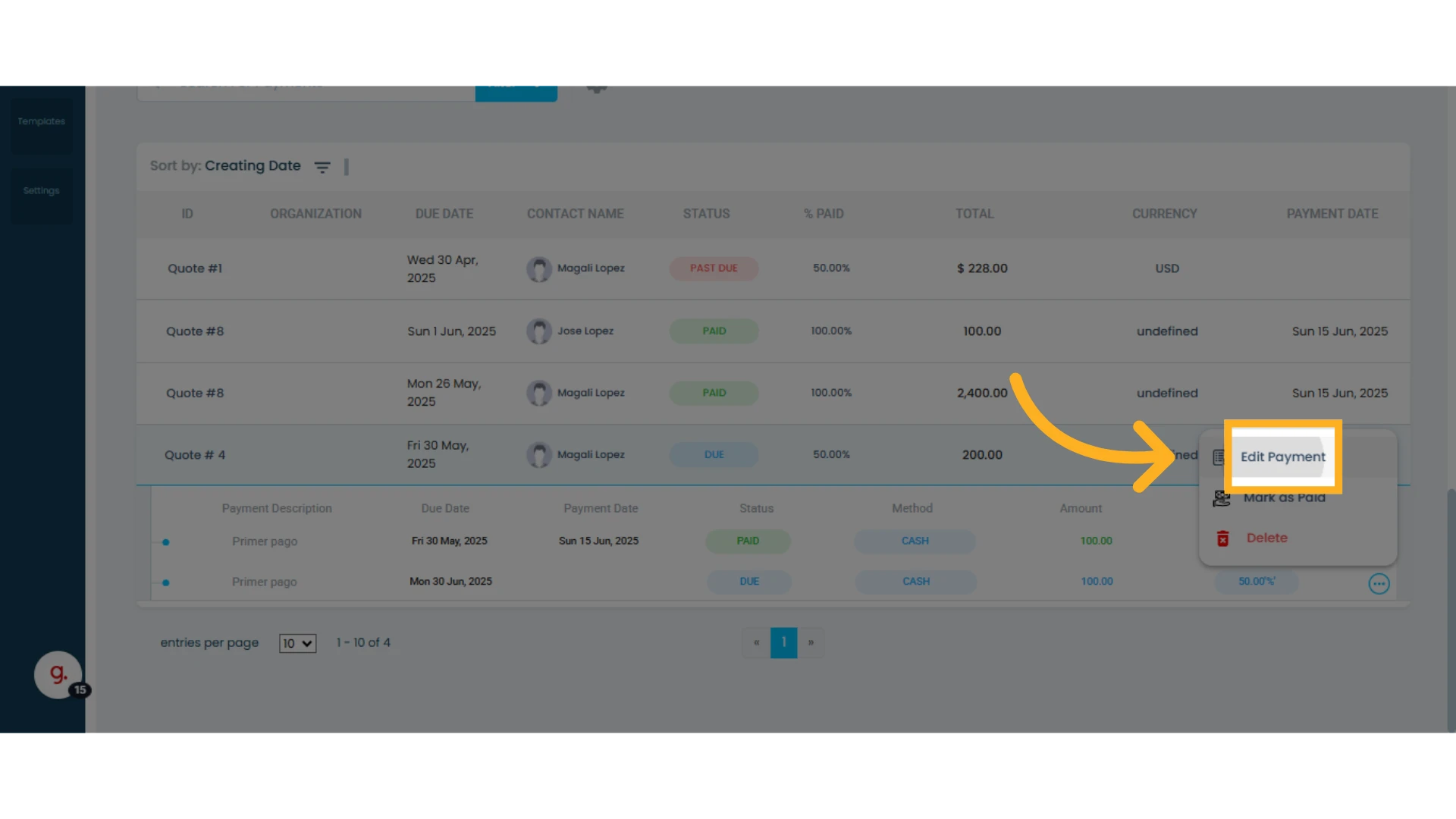
3. Select the specific payment to edit, click the three-dot menu, and choose "Edit Payment"
4. Make the necessary changes. You can modify the amount, date, method, and percentage
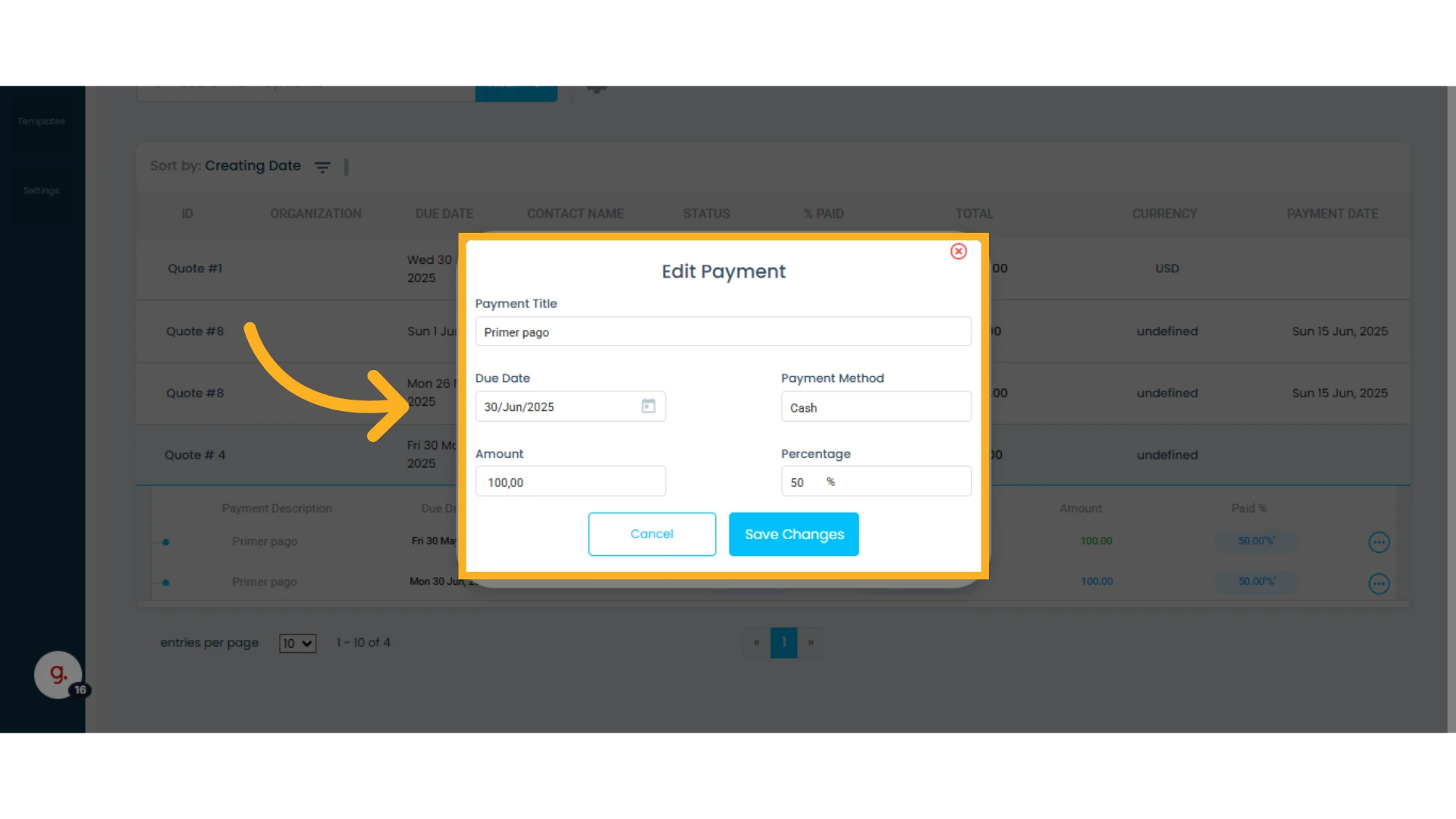
Note: If you need to add a new payment, simply adjust the payment’s percentage or amount and click "Save Changes." A new payment will automatically be created to cover the remaining balance (100%).
Mark a Payment as "Paid"
This function is used to confirm that a payment has been successfully received. Once marked as paid, you can send a payment receipt to your client.
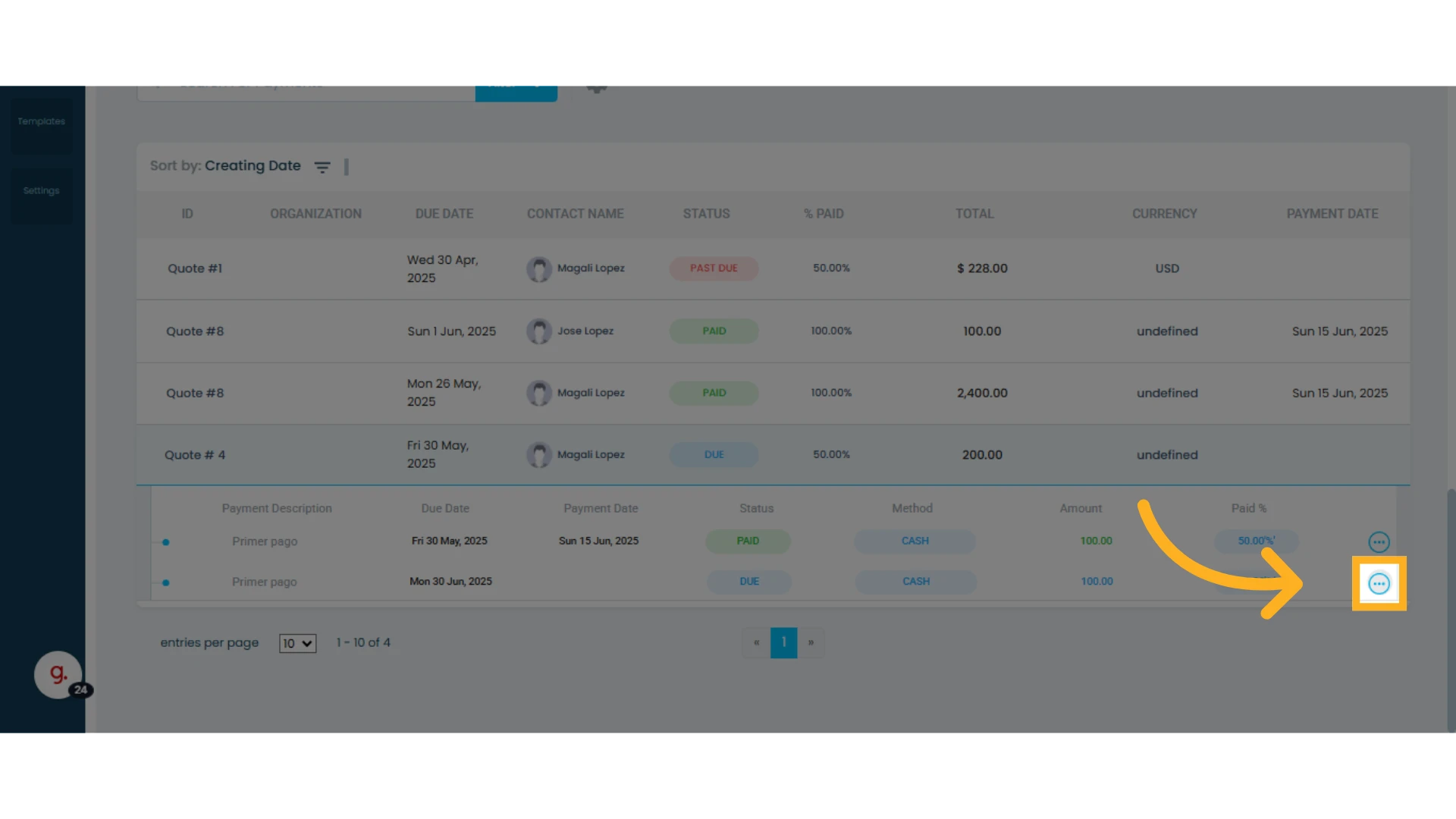
1. Select the payment and click on the three-dot menu next to the payment you wish to mark as paid
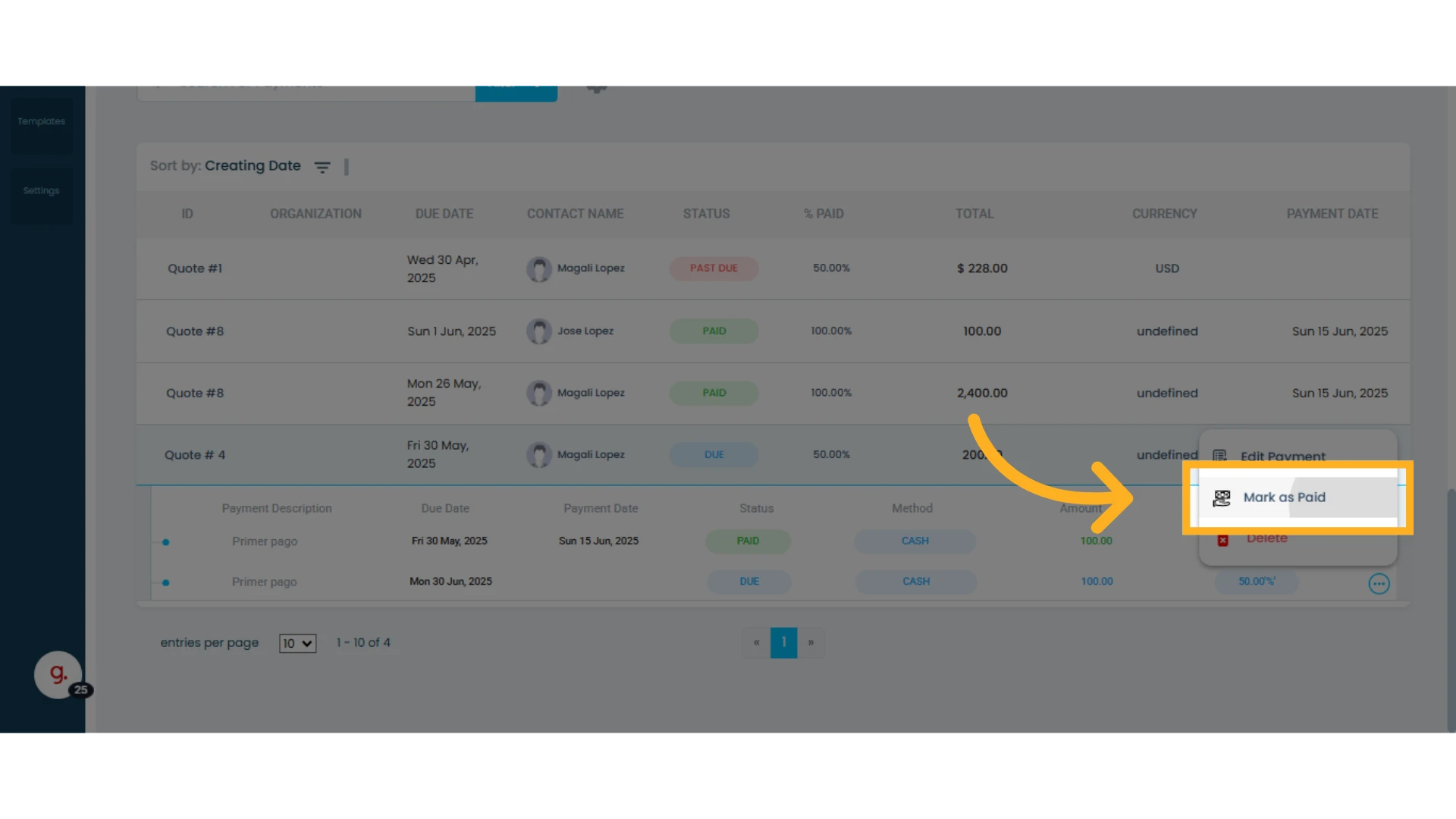
2. Choose the "Mark as Paid" option
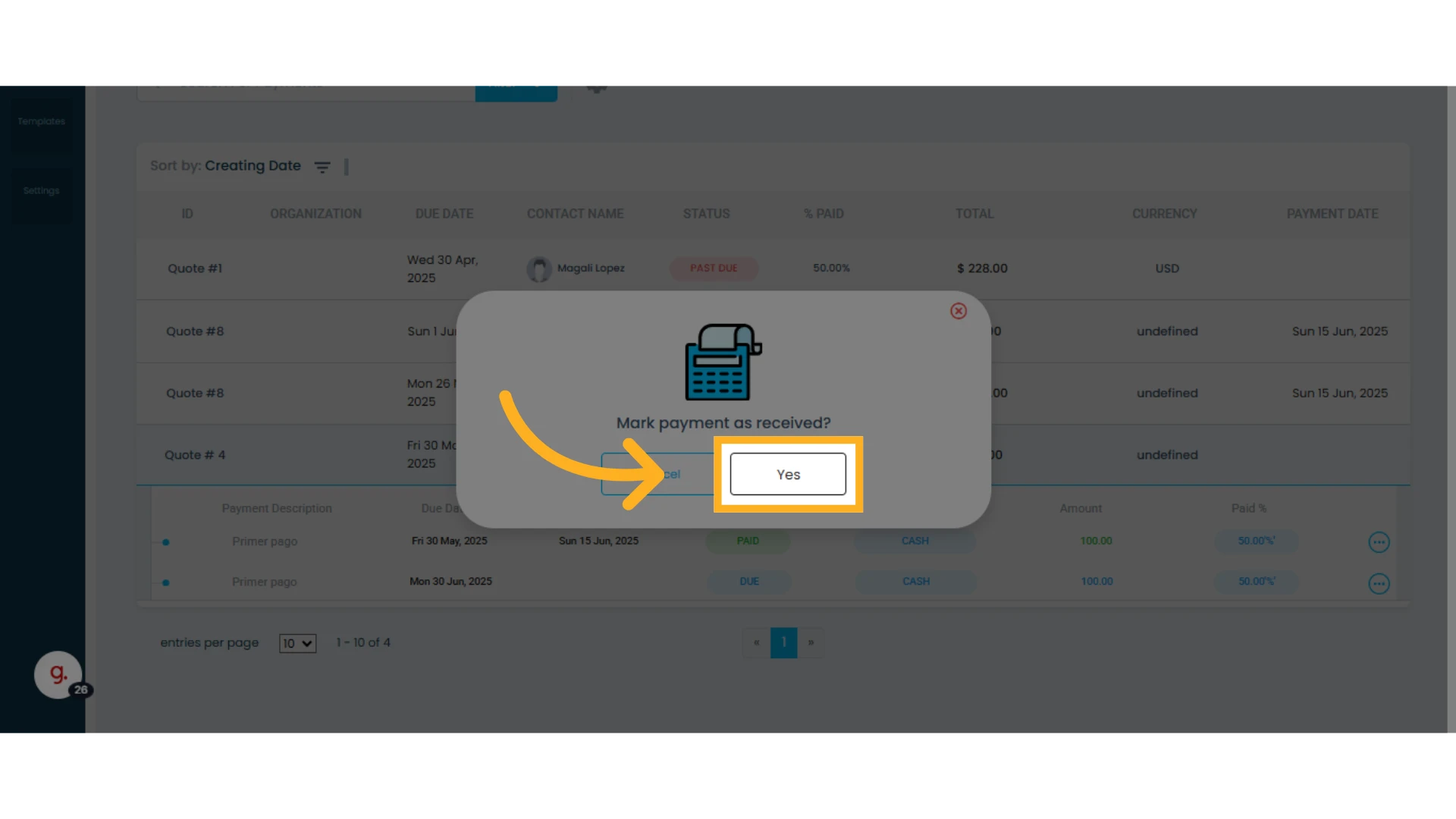
3. Confirm the payment was received by clicking "Yes"
4. You can either send the payment confirmation to your contact or skip this step by clicking "Done"
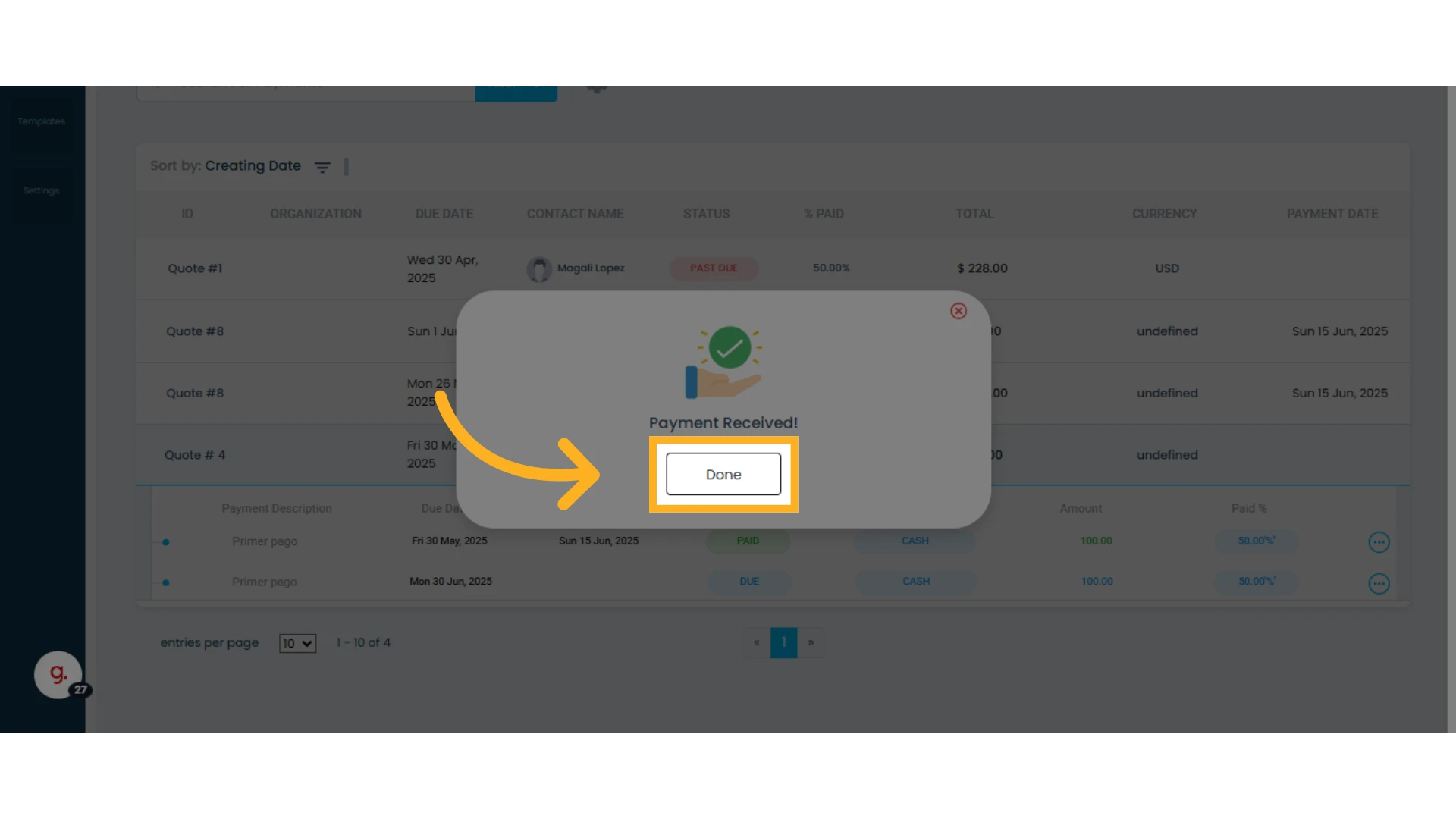
Note: Once a payment is marked as paid, it can no longer be deleted or canceled—only refunded.
Refund a Payment
This option allows you to return a previously received and marked-as-paid payment. Refunds are useful in cases of cancellations, errors, or adjustments. The refund will appear in the payment history.
1. Select a payment with "Paid" status and click the three-dot menu
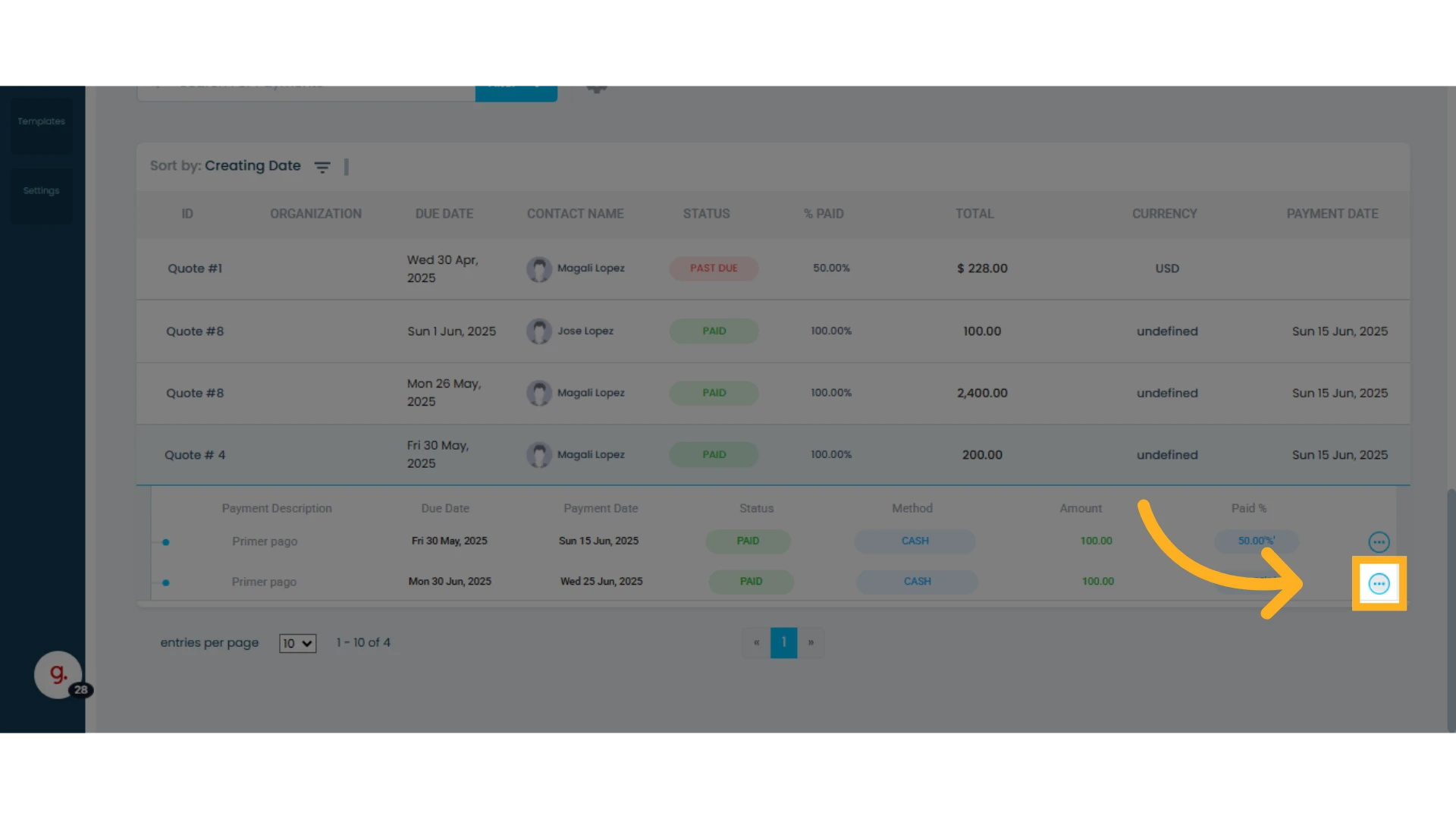
2. Choose the "Give a Refund" option
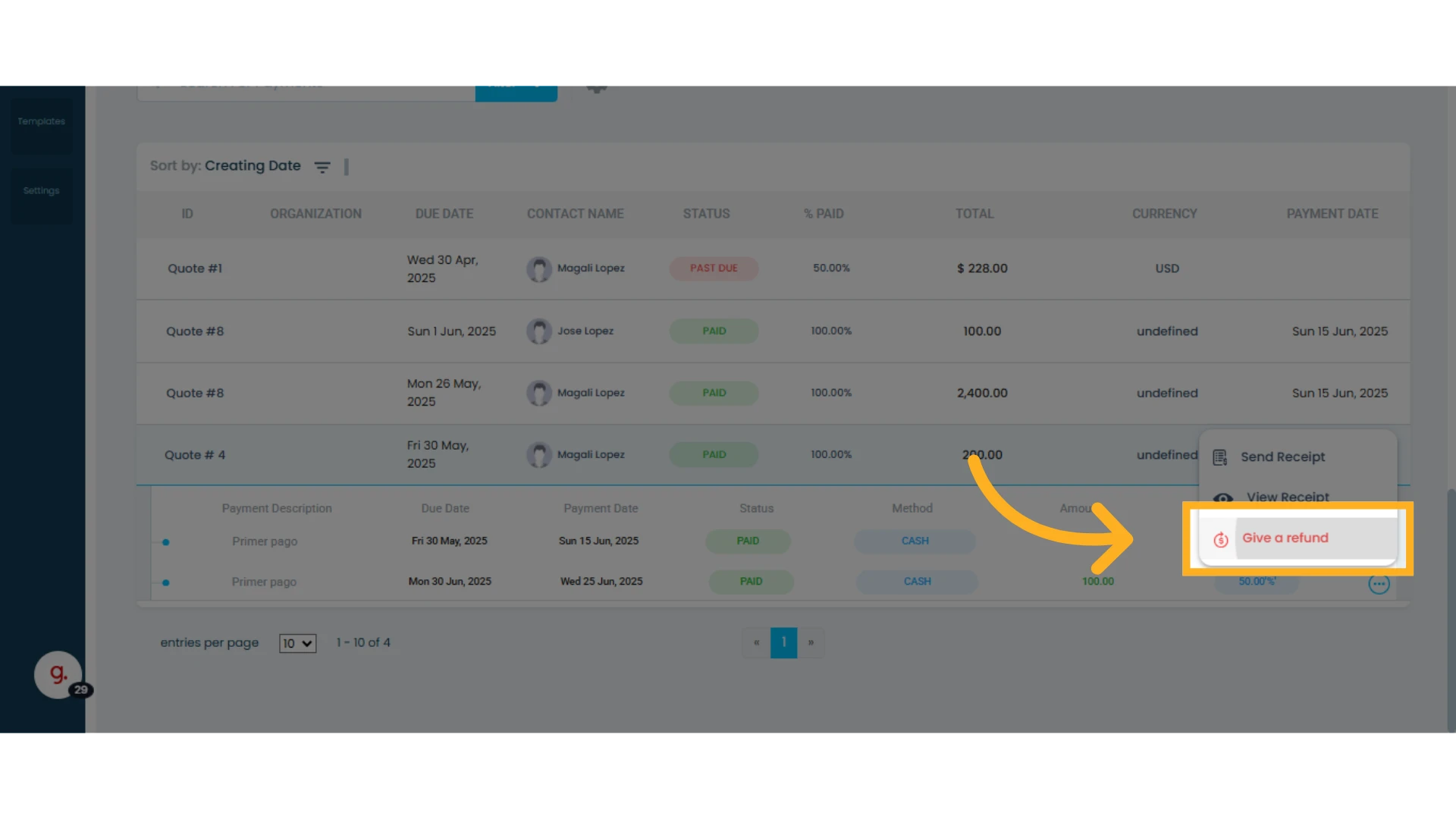
3. Select the refund method from those already created in the Quotes Module
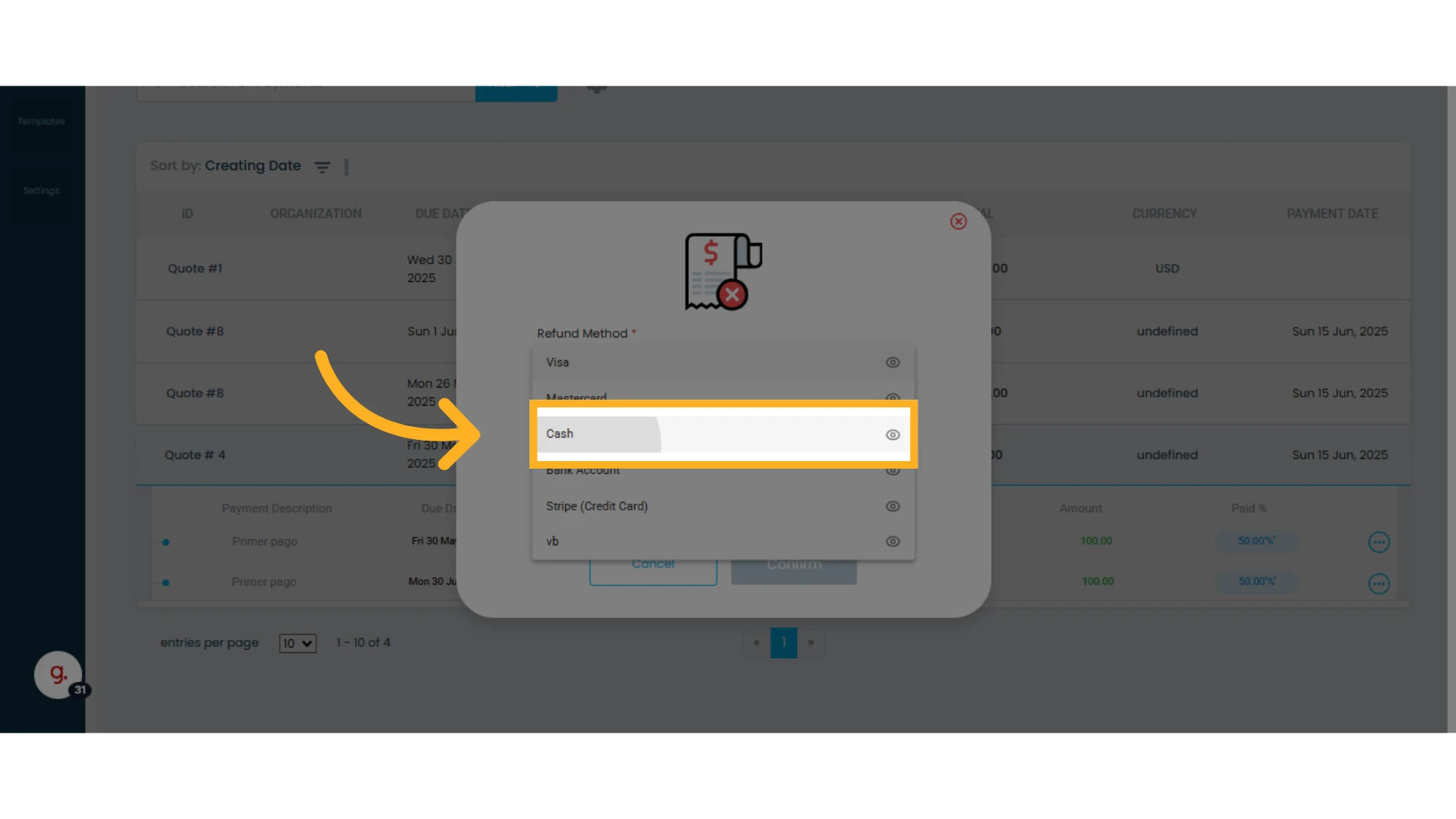
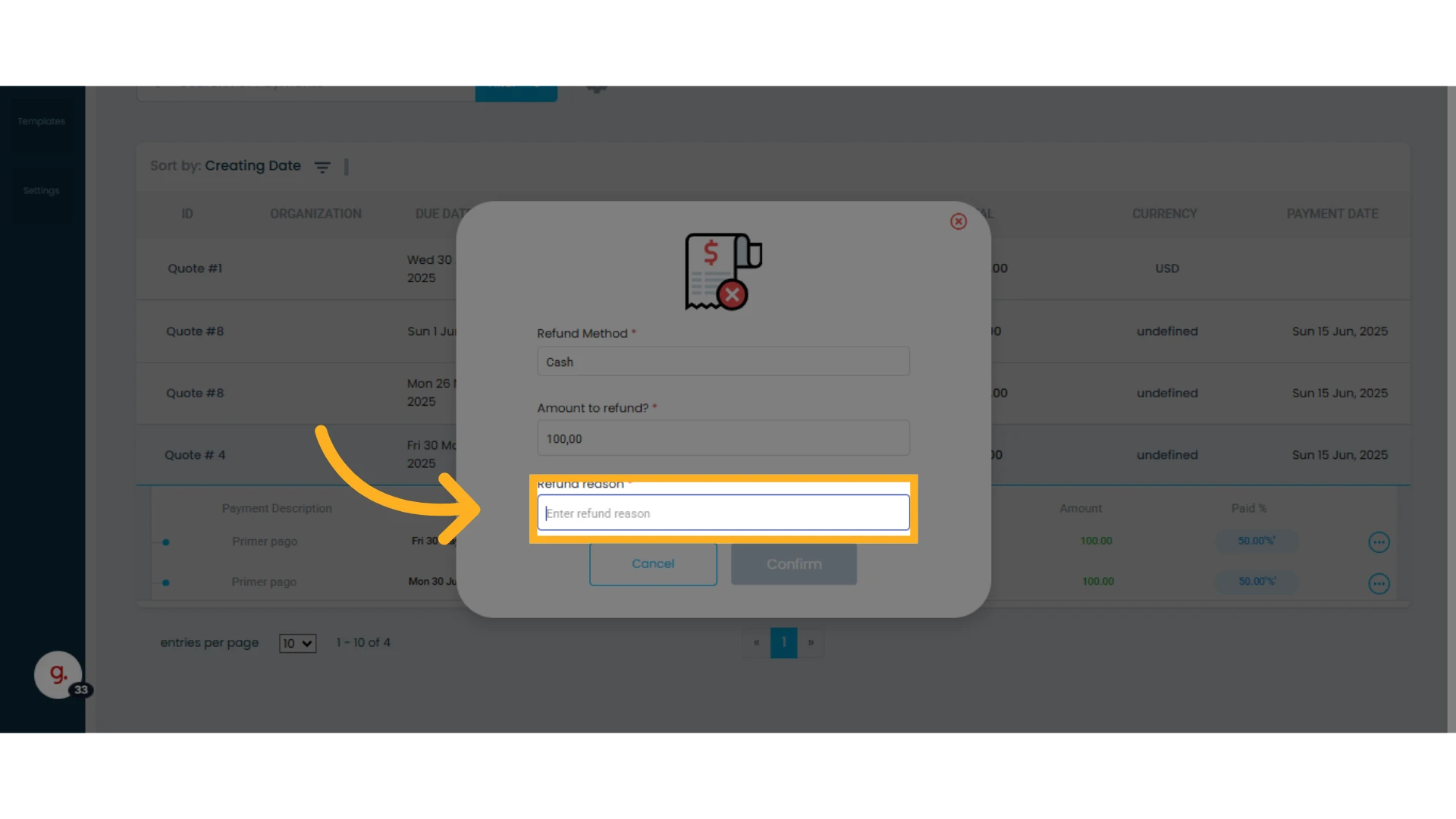
4. Enter the refund amount (it cannot exceed the original payment amount) and provide a reason for the refund
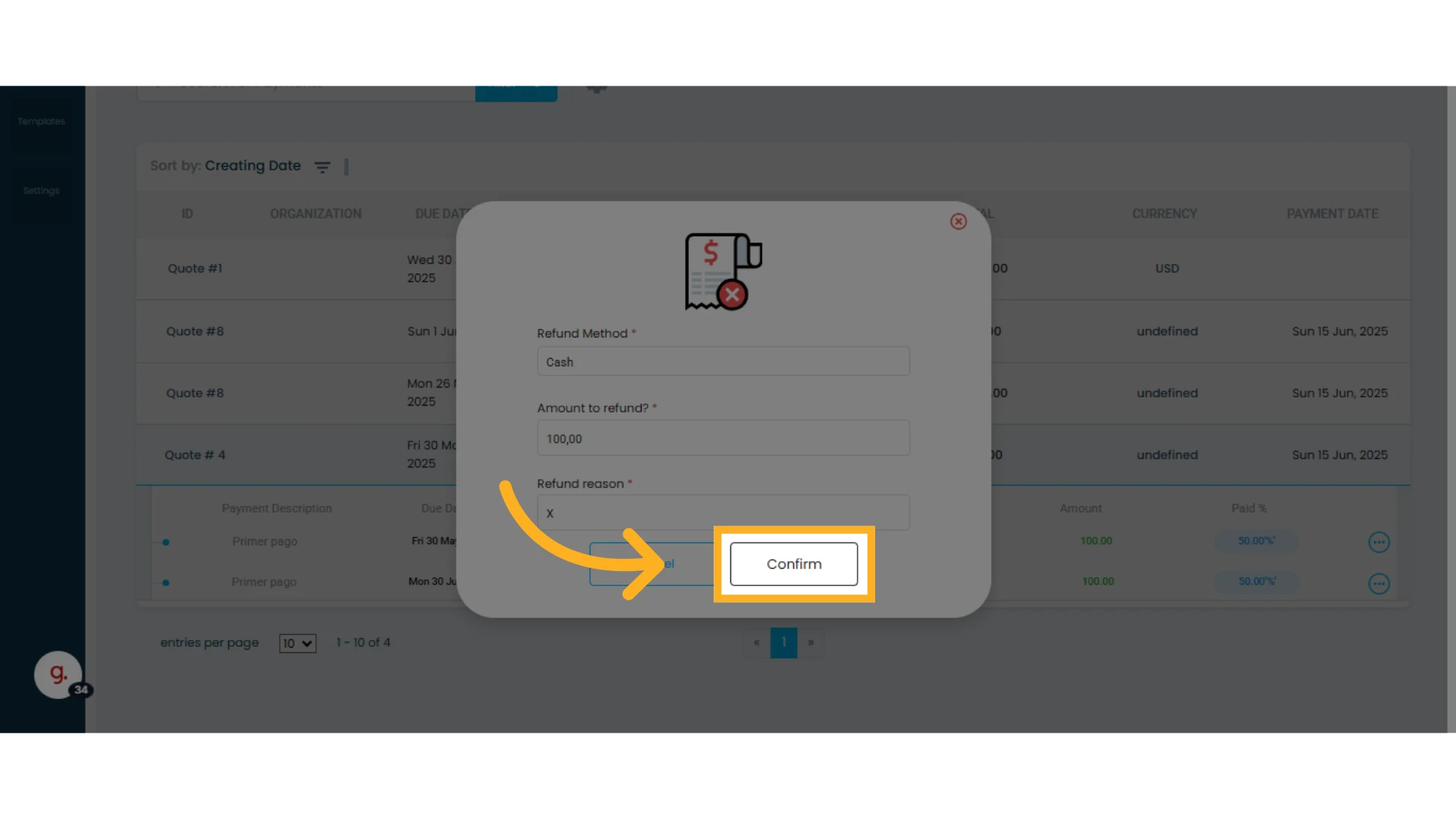
5. Click "Confirm"
The refund will appear at the bottom of the payment list associated with the quote, including the refund date and amount.