The Quote List allows you to view and organize all your quotes and apply filters.
In this guide, you’ll learn how to use the quote list and the different elements you can find within it.
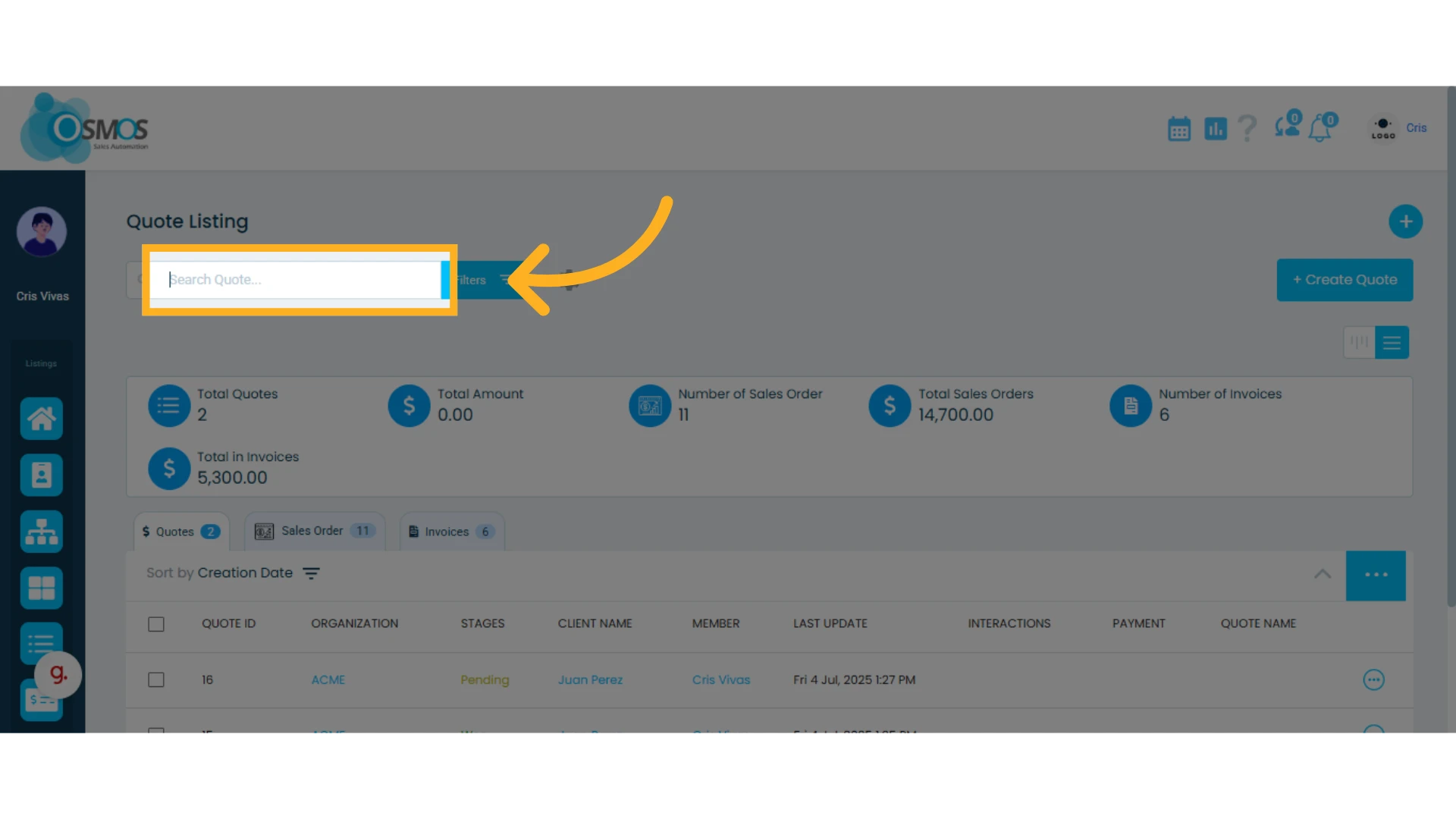
Search Box
You can search for quotes by entering the contact’s name or email address into the search box.
Using Filters
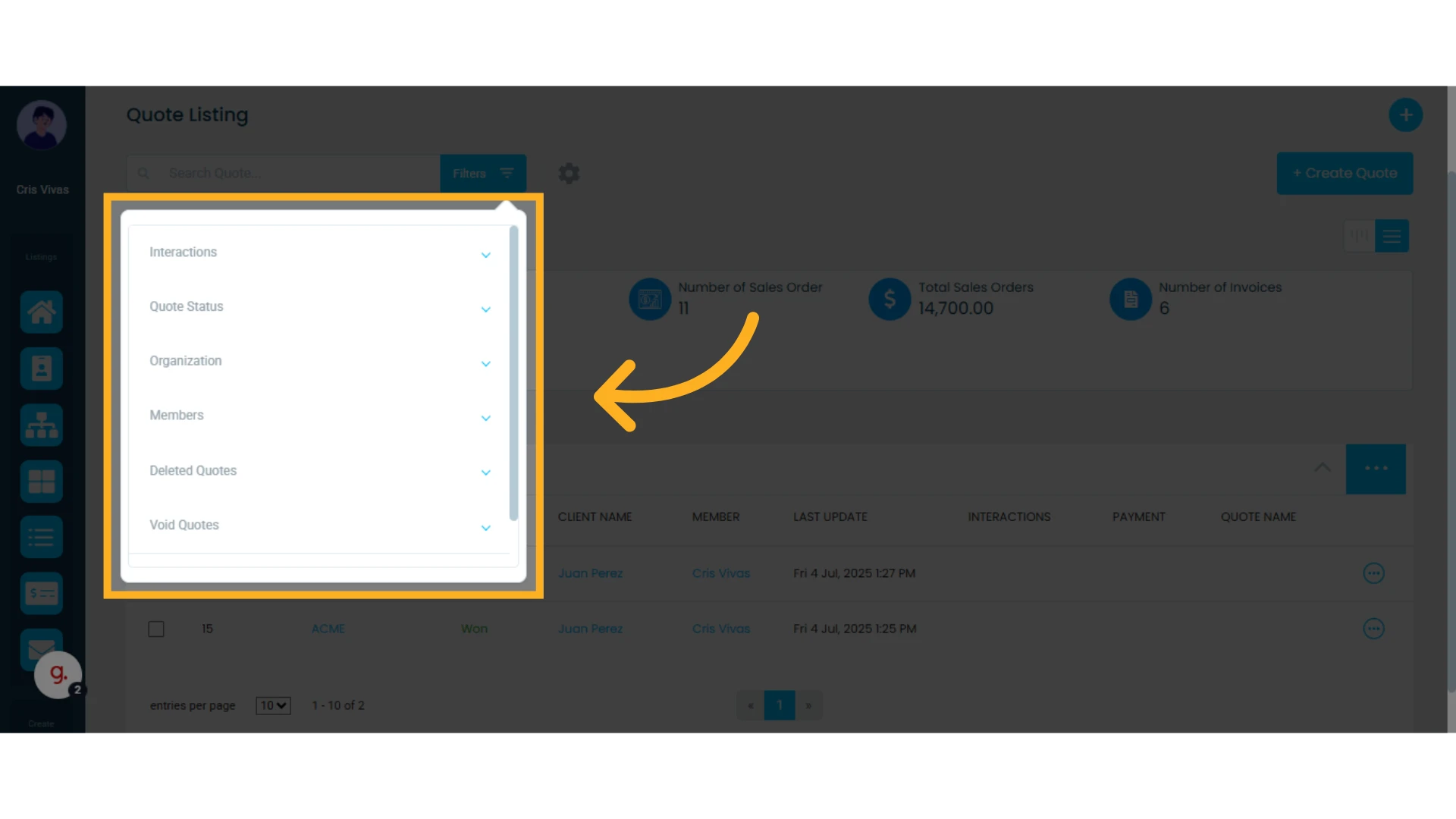
To sort the list and find quotes you can apply various filters. Available filters include:
Interactions: This filter lets you view quotes based on the client’s response. It’s useful for tracking quotes that have received some type of interaction. Options include "Accepted" for quotes approved by the client, and "Rejected", for quotes that were not accepted.
Quote Stages: Filter quotes based on their status also known as stage in the sales process. The available statuses will depend on the ones you have created or are currently using.
Organization: Displays quotes by the company or organization assigned to the contact/client.
Members: Filters quotes by the team member assigned to the contact.
Deleted Quotes: Shows only the quotes that have been deleted.
Void Quotes: Show quotes that have been voided.
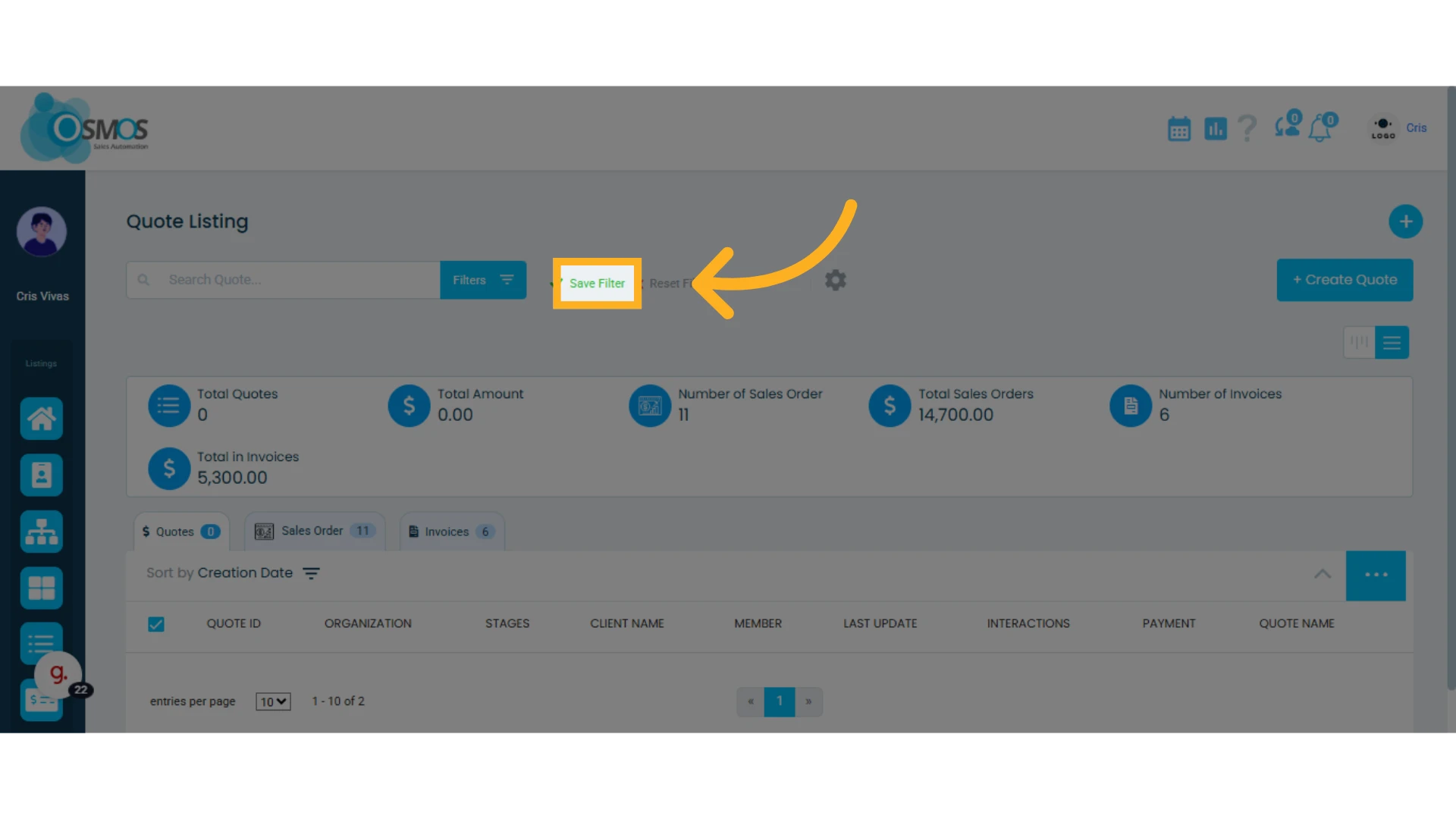
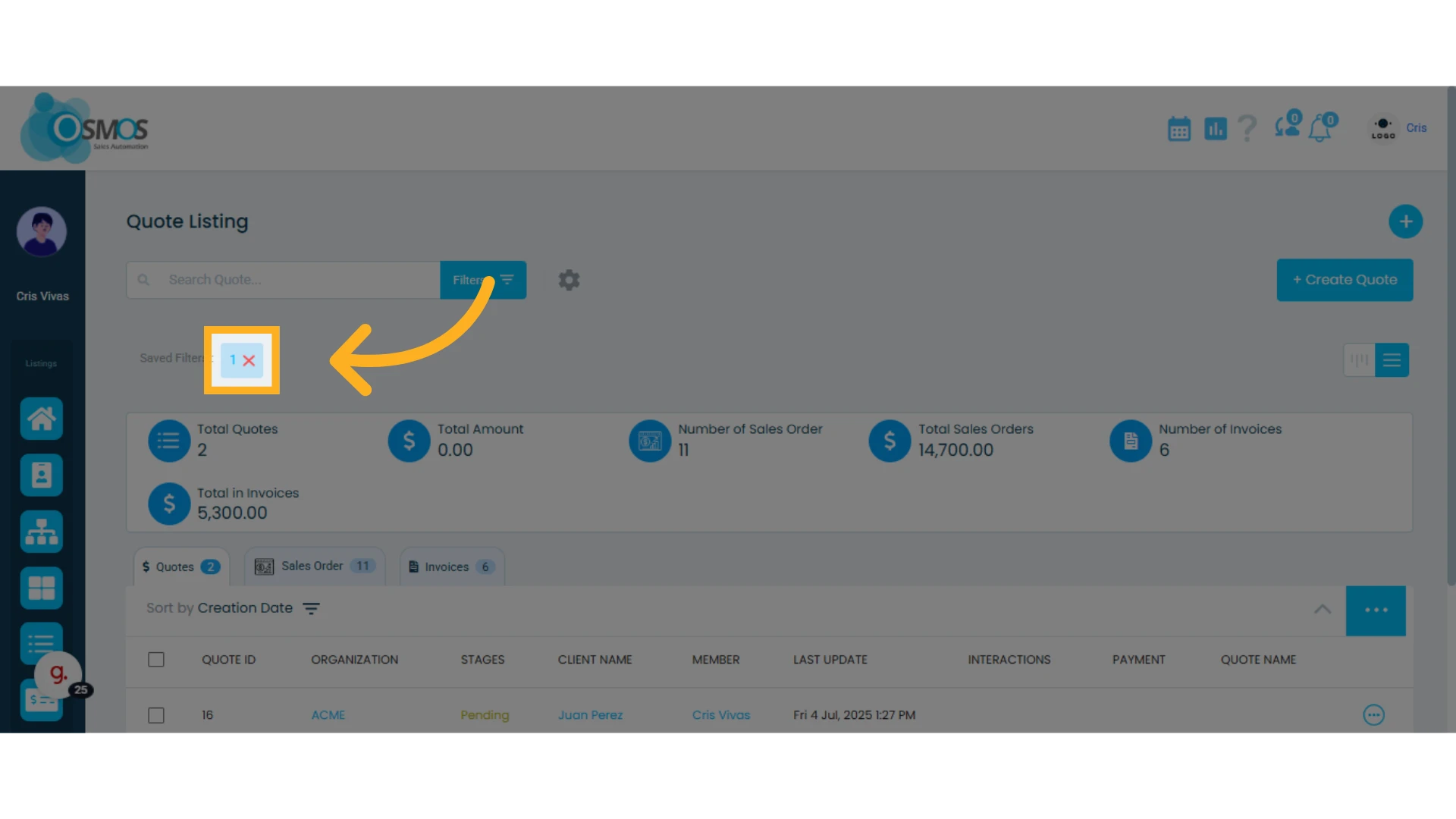
After applying a filter, you can save it for future use by clicking “Save Filter.”
Saved filters will appear below the search box. To use a saved filter, just click on it.
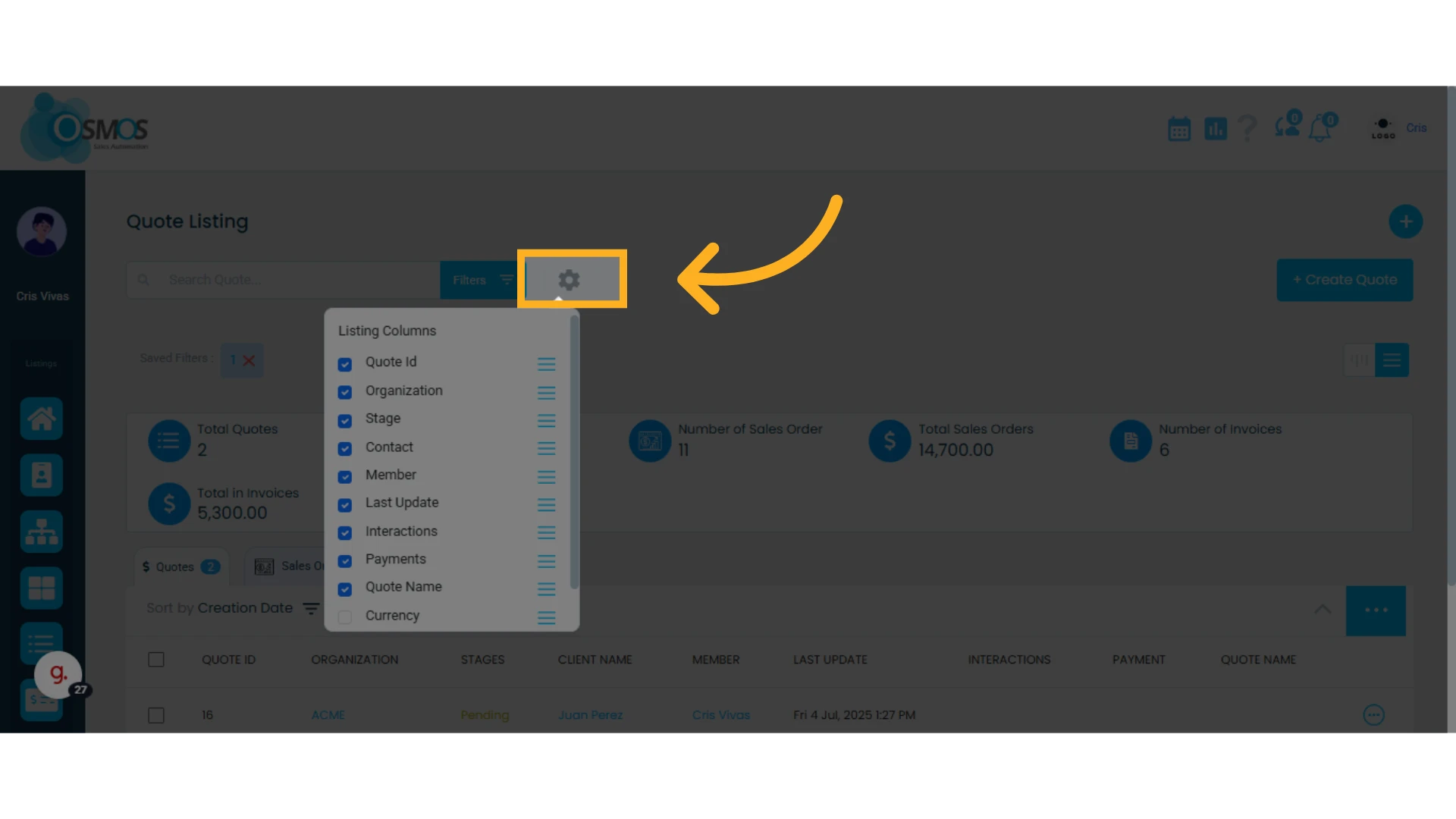
Column Customization
Click the gear icon to customize which columns are visible in your list.
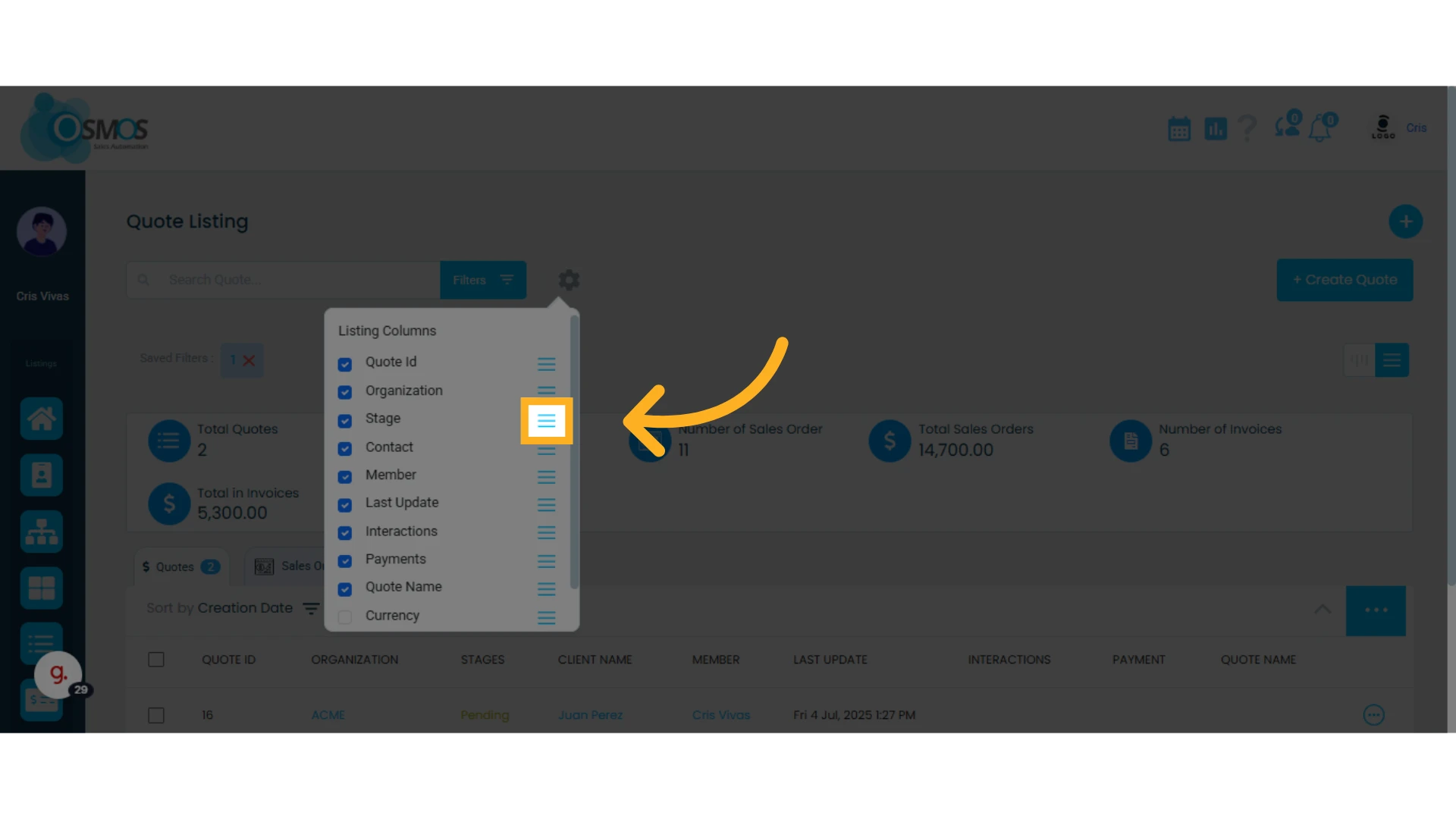
You can also reorder the columns by clicking and dragging the three horizontal lines icon to your desired position.
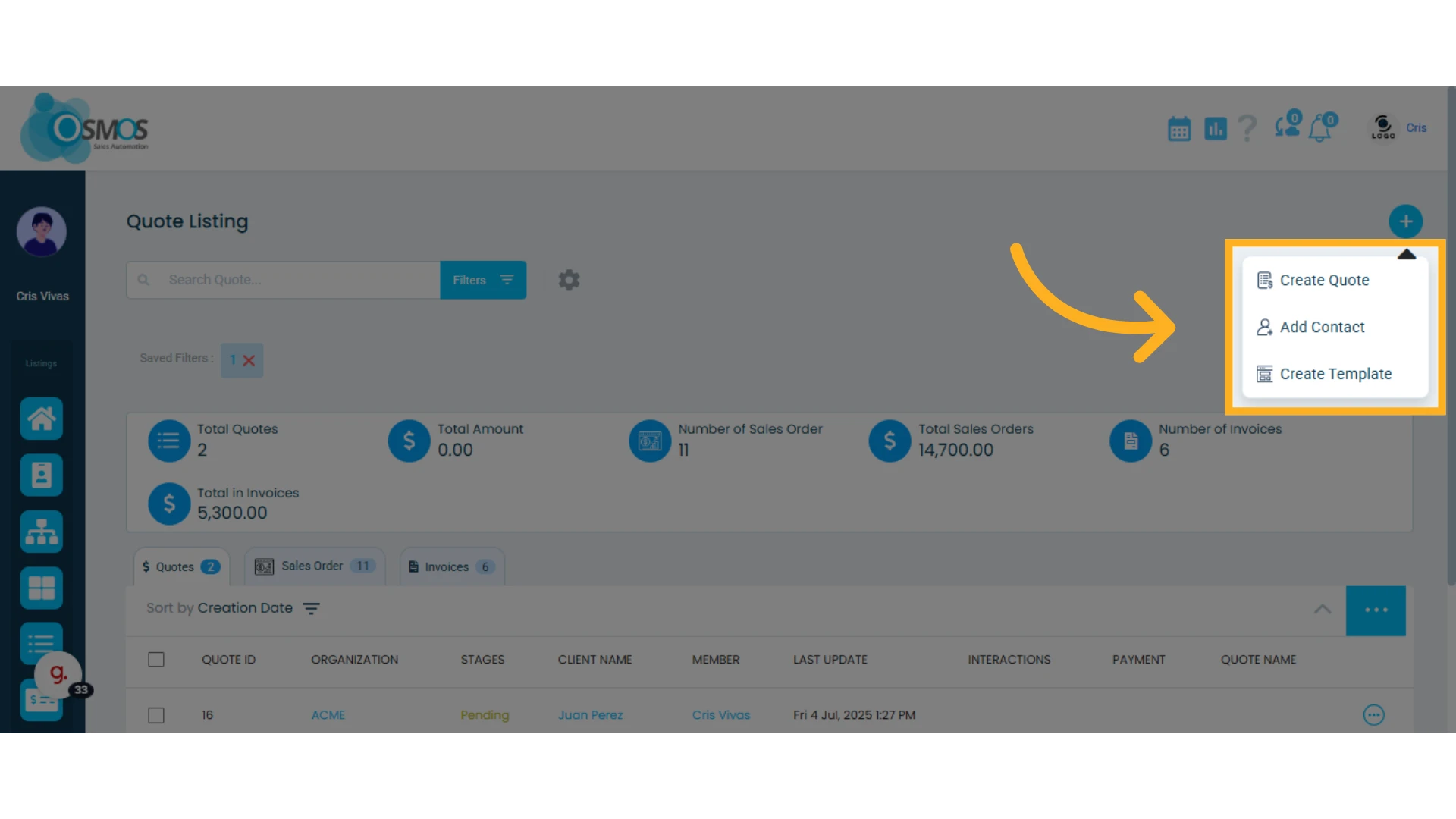
Creating and Managing Quotes
At the top right corner, you’ll find a plus (+) icon where you can:
Create a quote
Add a contact
Create a template
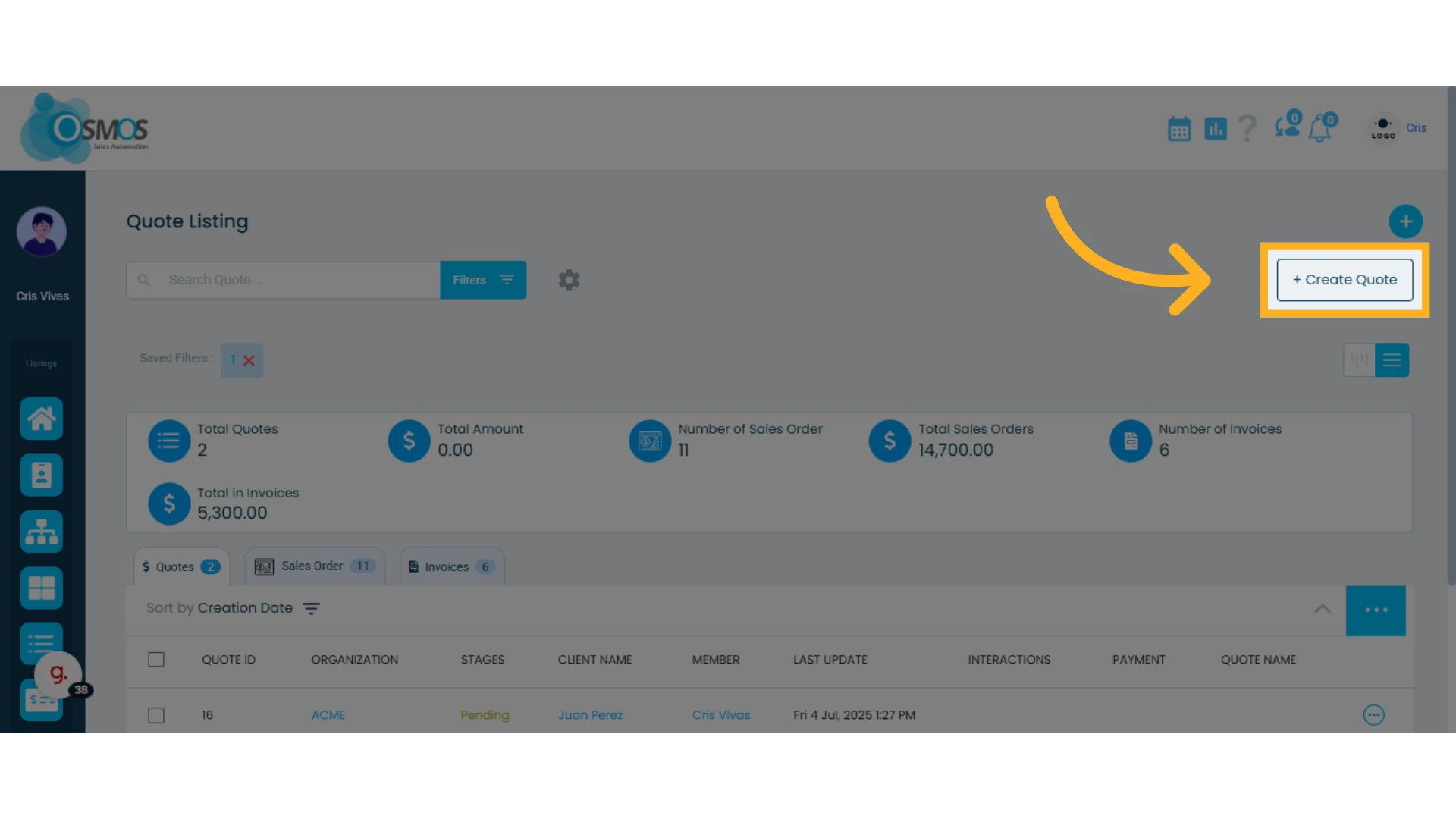
Below that, you’ll find the “Create Quote” button to generate a new quote.
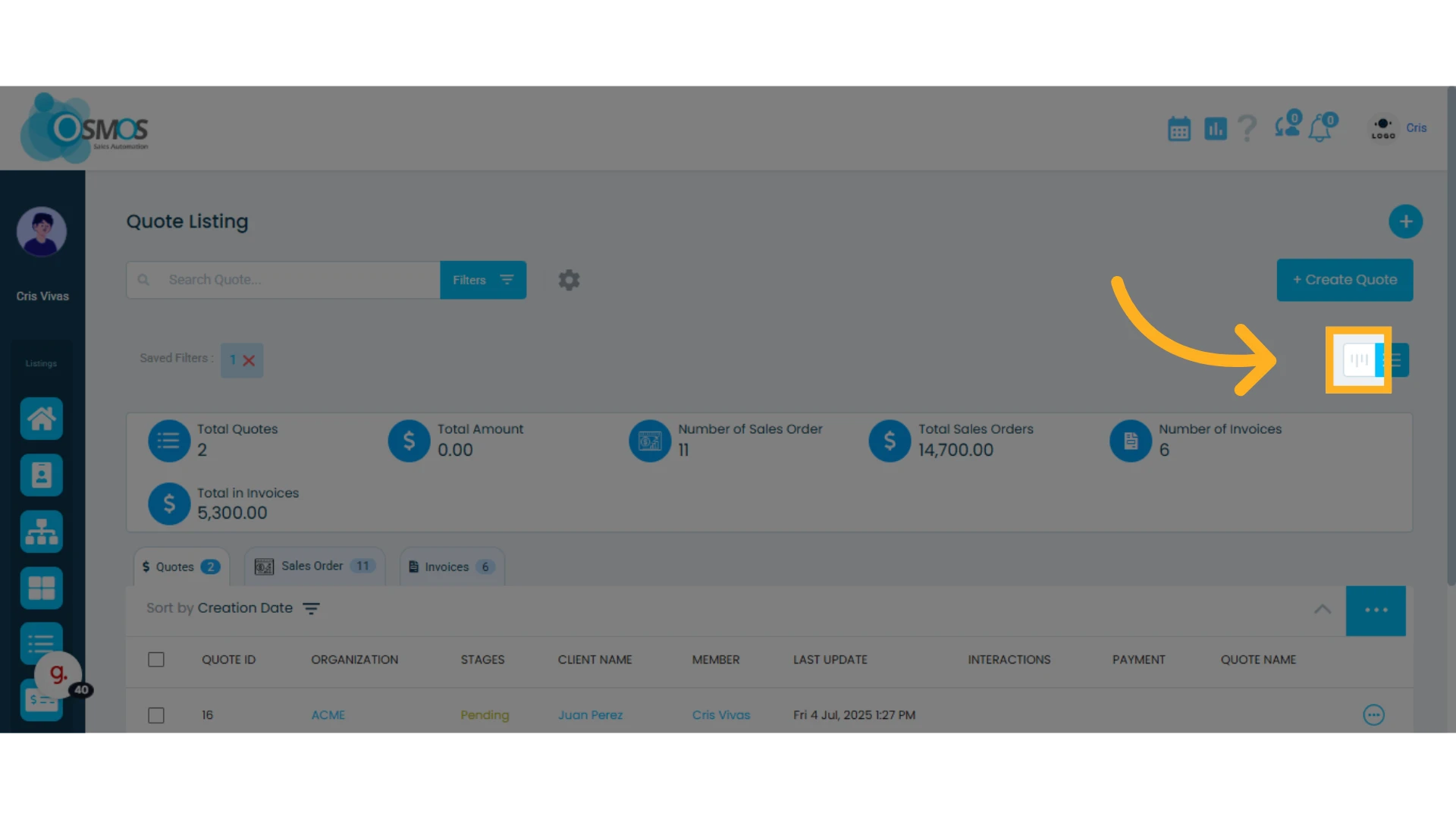
You also have the option to view your quotes in list view or card view.
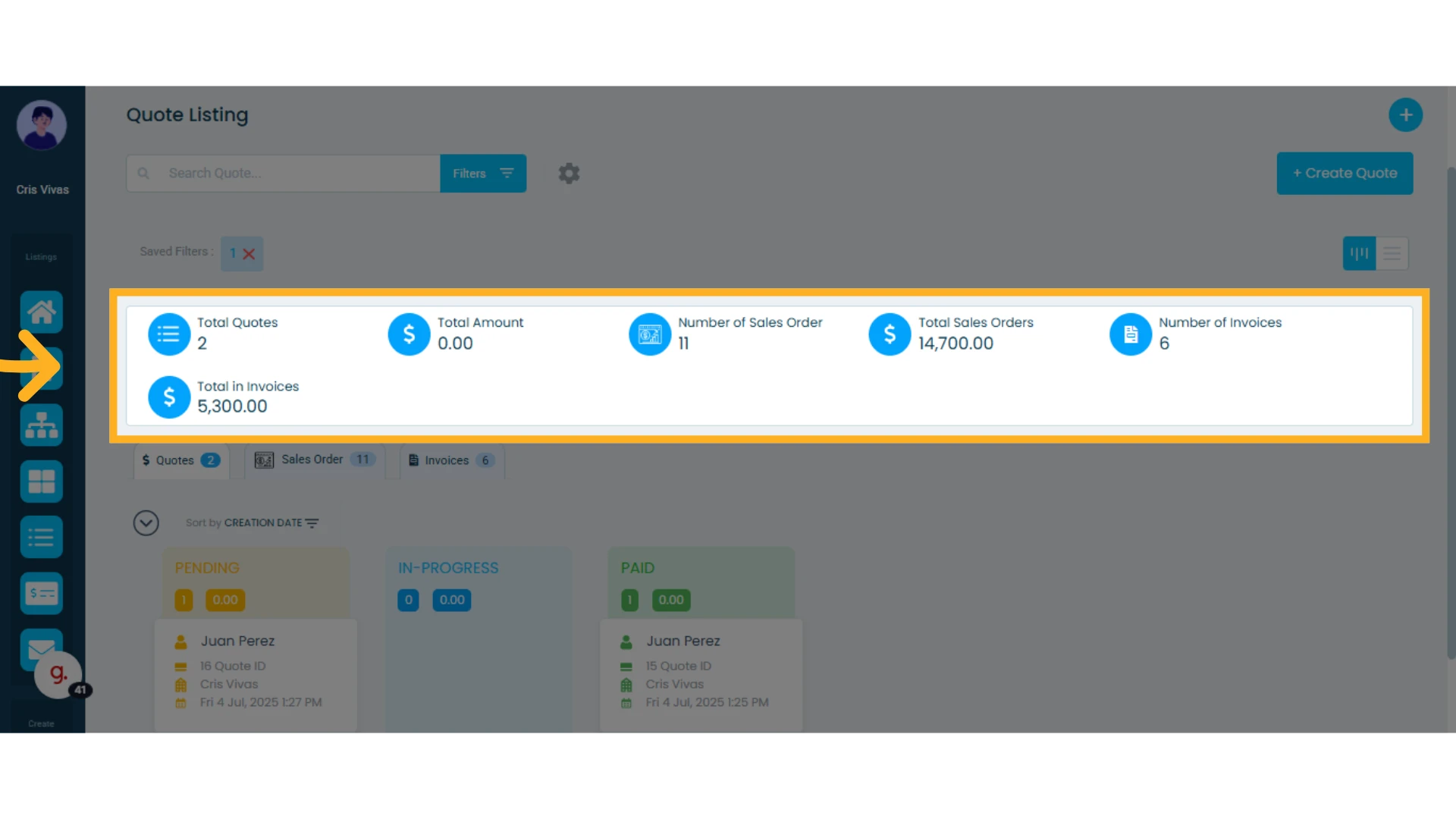
Statistics and Tabs
In the center section, you’ll see statistics for created quotes, sales orders, and invoices.
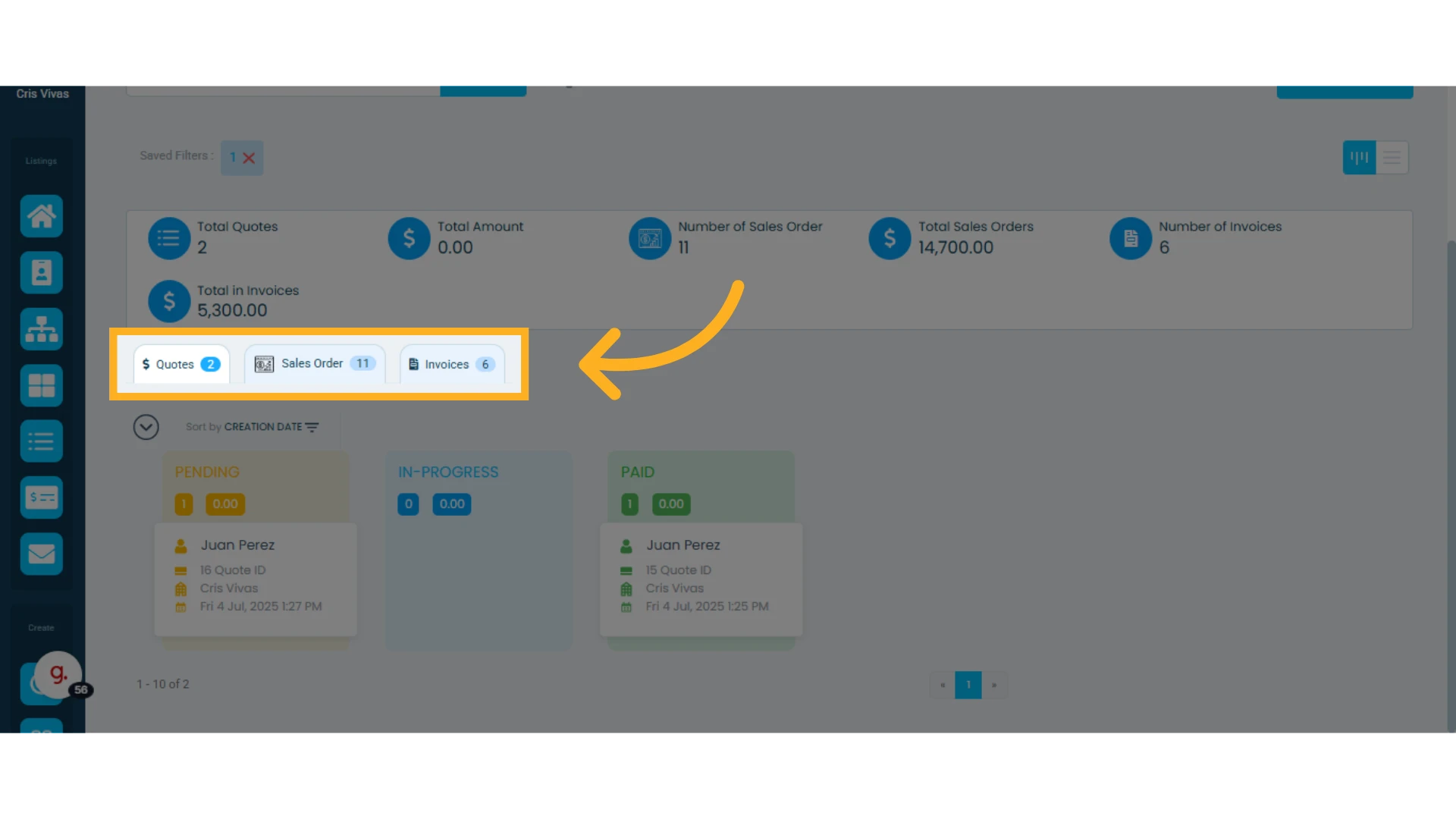
The list contains three tabs:
Quotes: Shows all quotes that haven’t been converted into invoices or sales orders.
Sales Orders: Displays quotes that have been converted into sales orders.
Invoices: Displays all quotes and sales orders that have been converted into invoices.
Sorting Lists
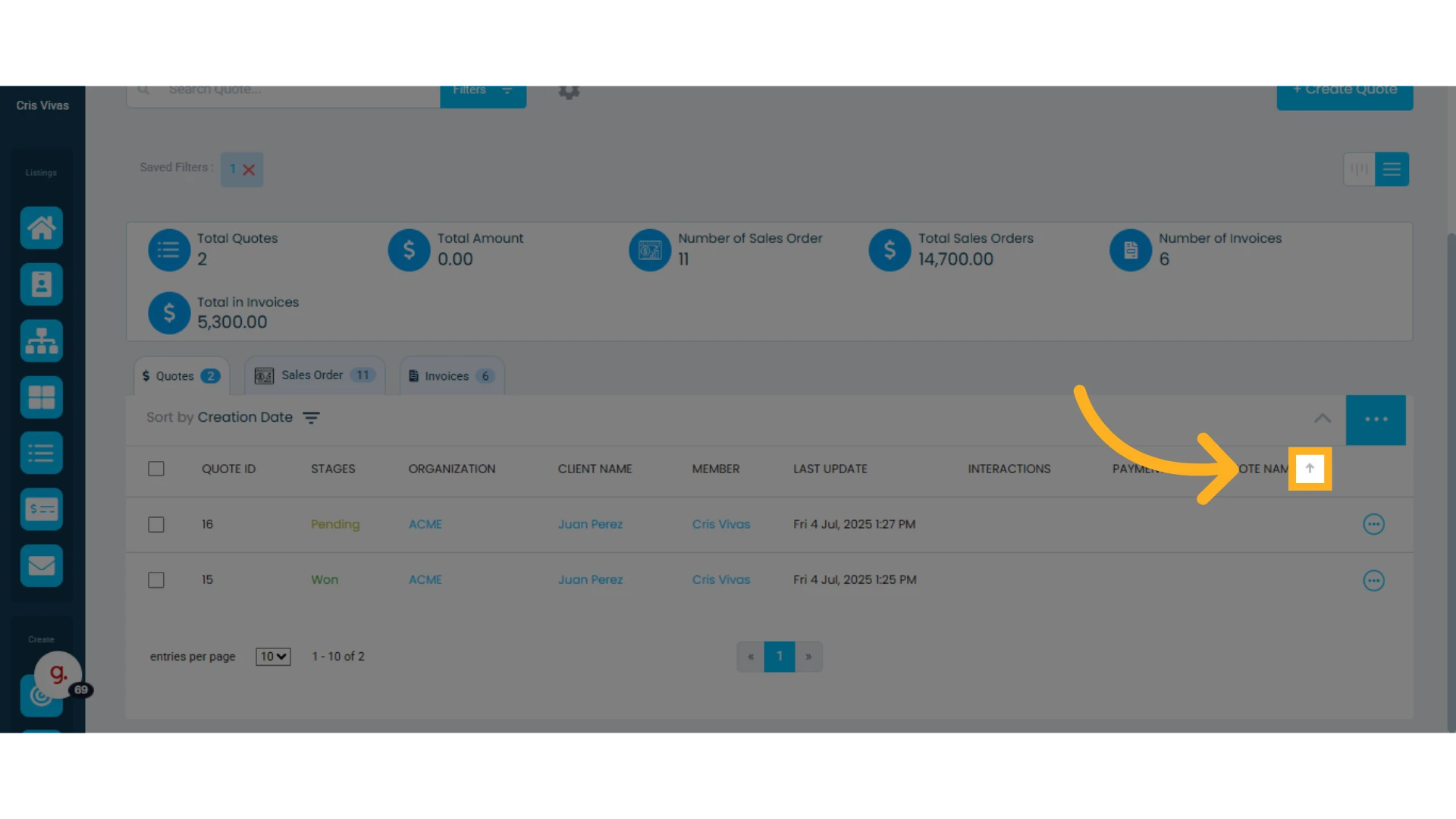
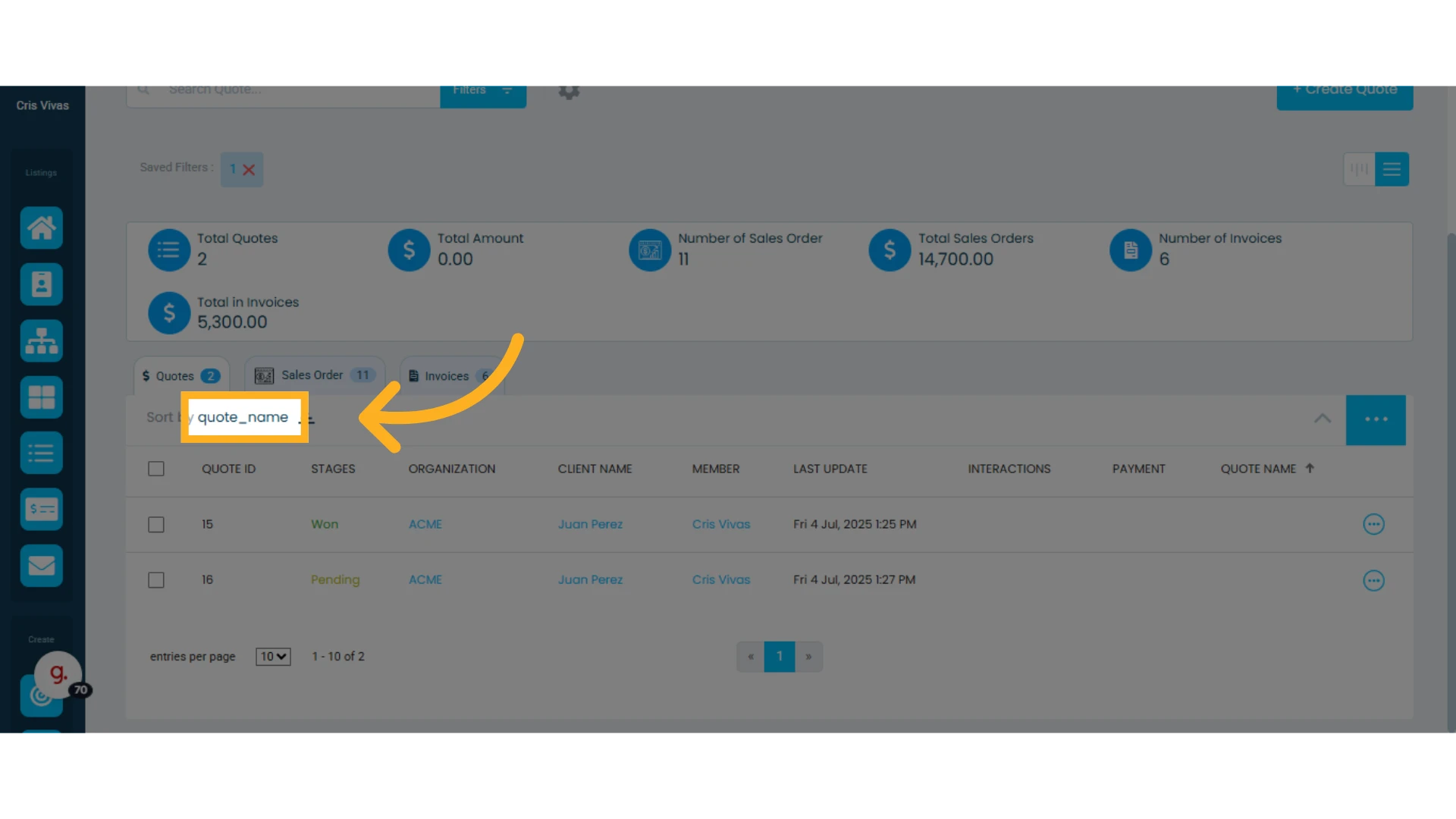
You can sort lists by any column in ascending or descending order. Click on any column to change the sorting order.
The active sort column will be displayed at the top left of the table.
Three-Dot Menu Options
The three-dot menu provides access to various options.
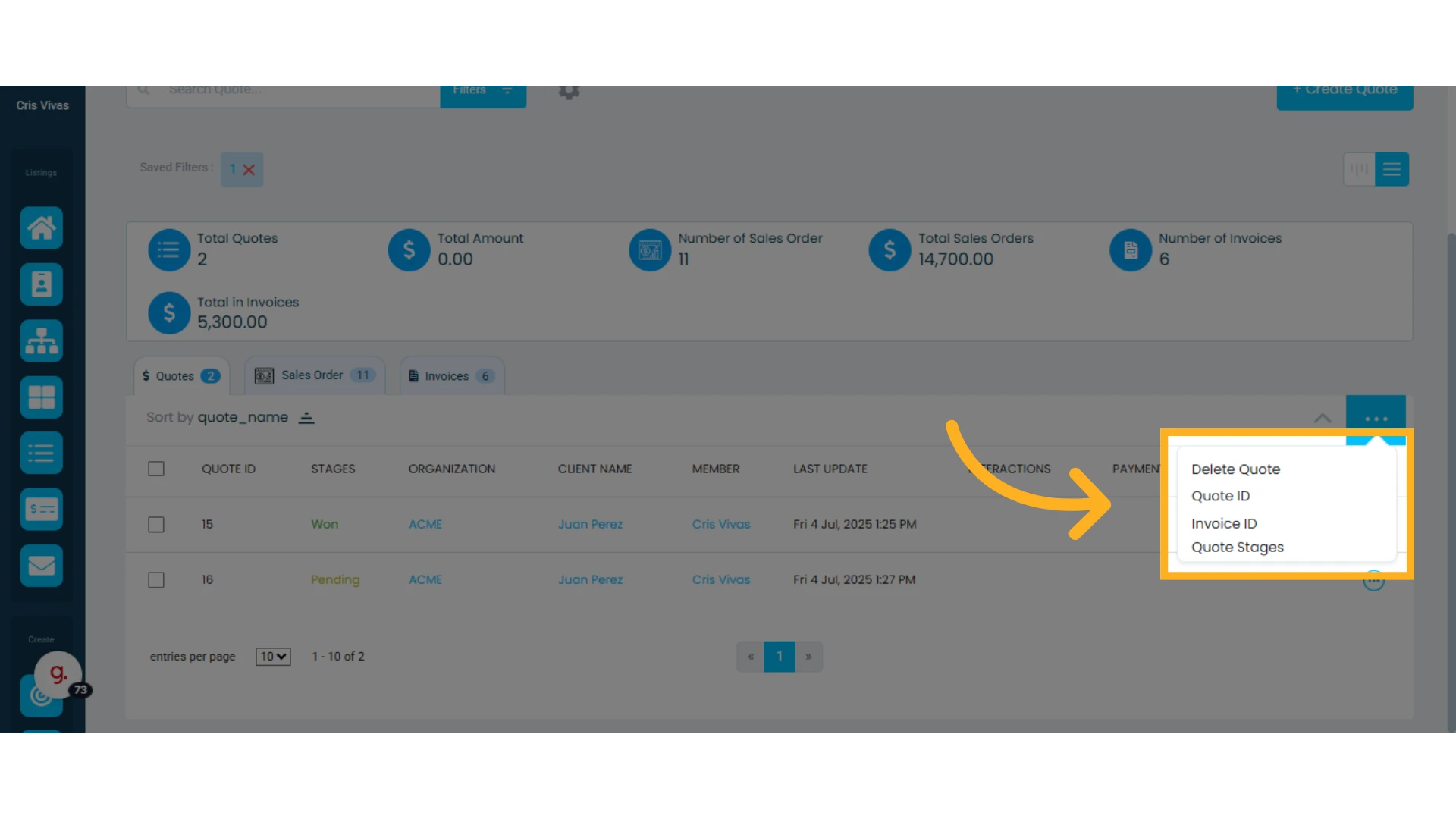
From here, you can:
Select multiple quotes and delete them
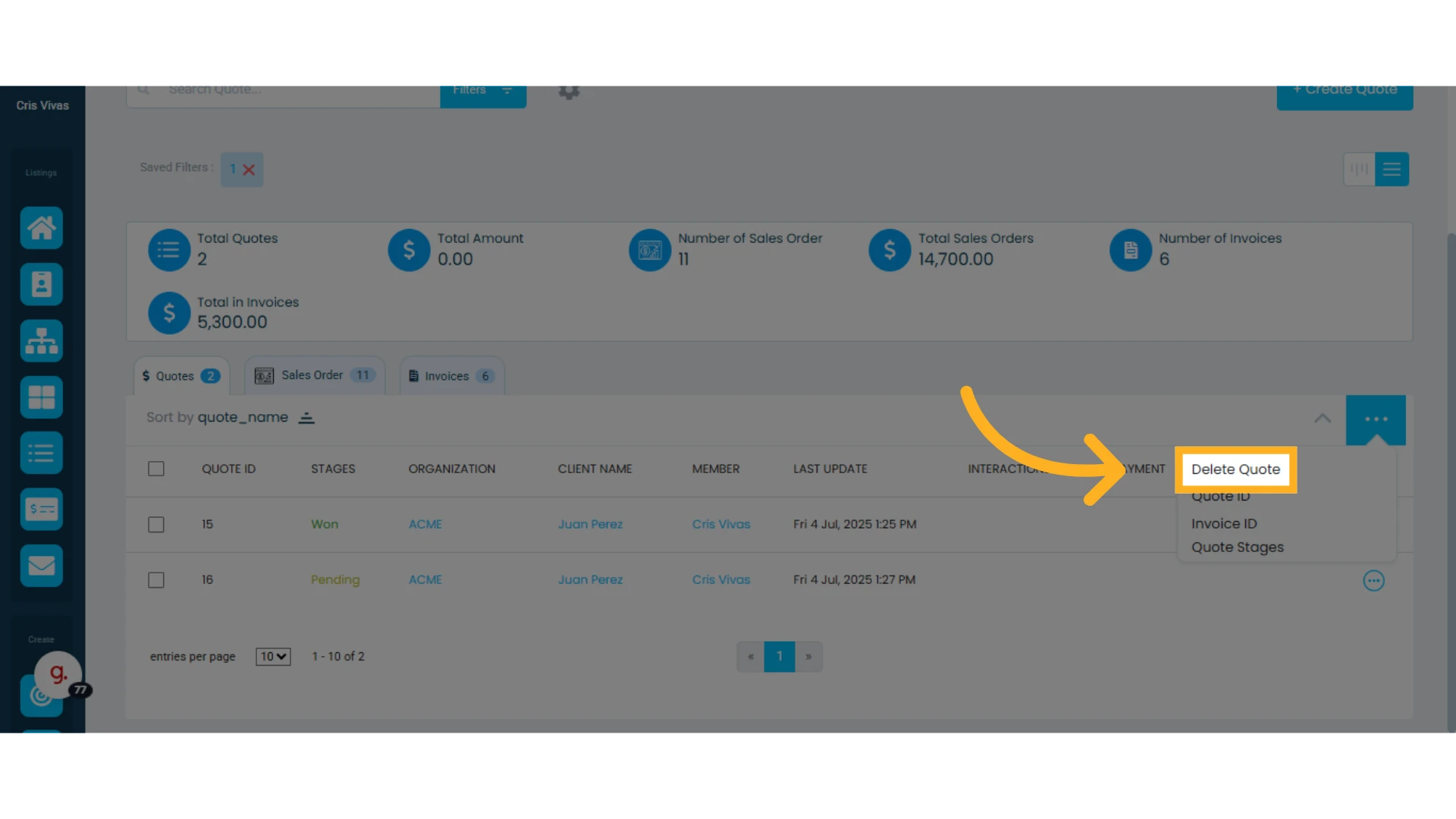
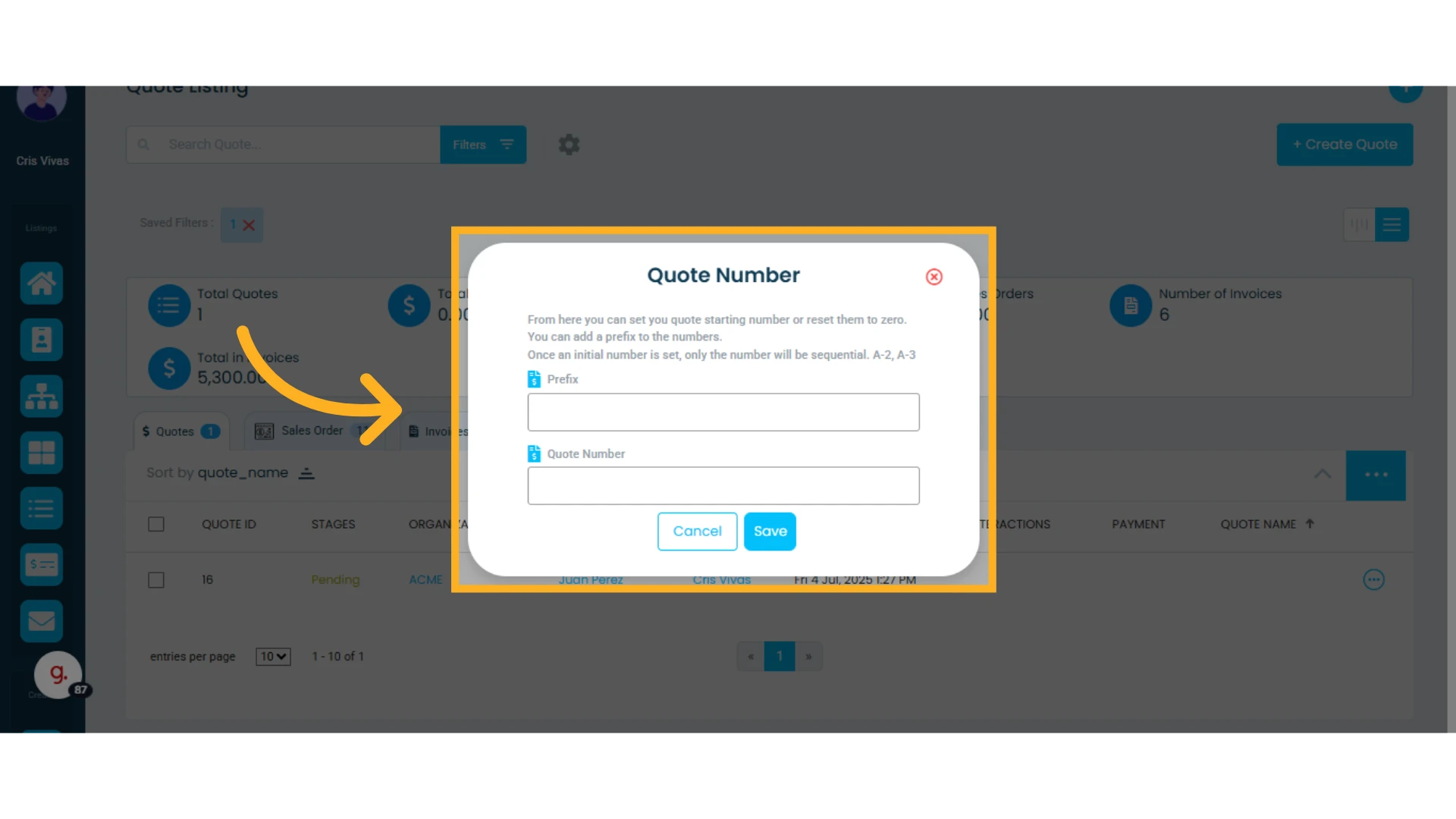
Set a Quote Identifier
Customize the identifier with a prefix and a starting number (other than 1). This will reset the quote numbering for new quotes. You can change this as often as needed, but you must always use a unique identifier—reusing the same one is not allowed.
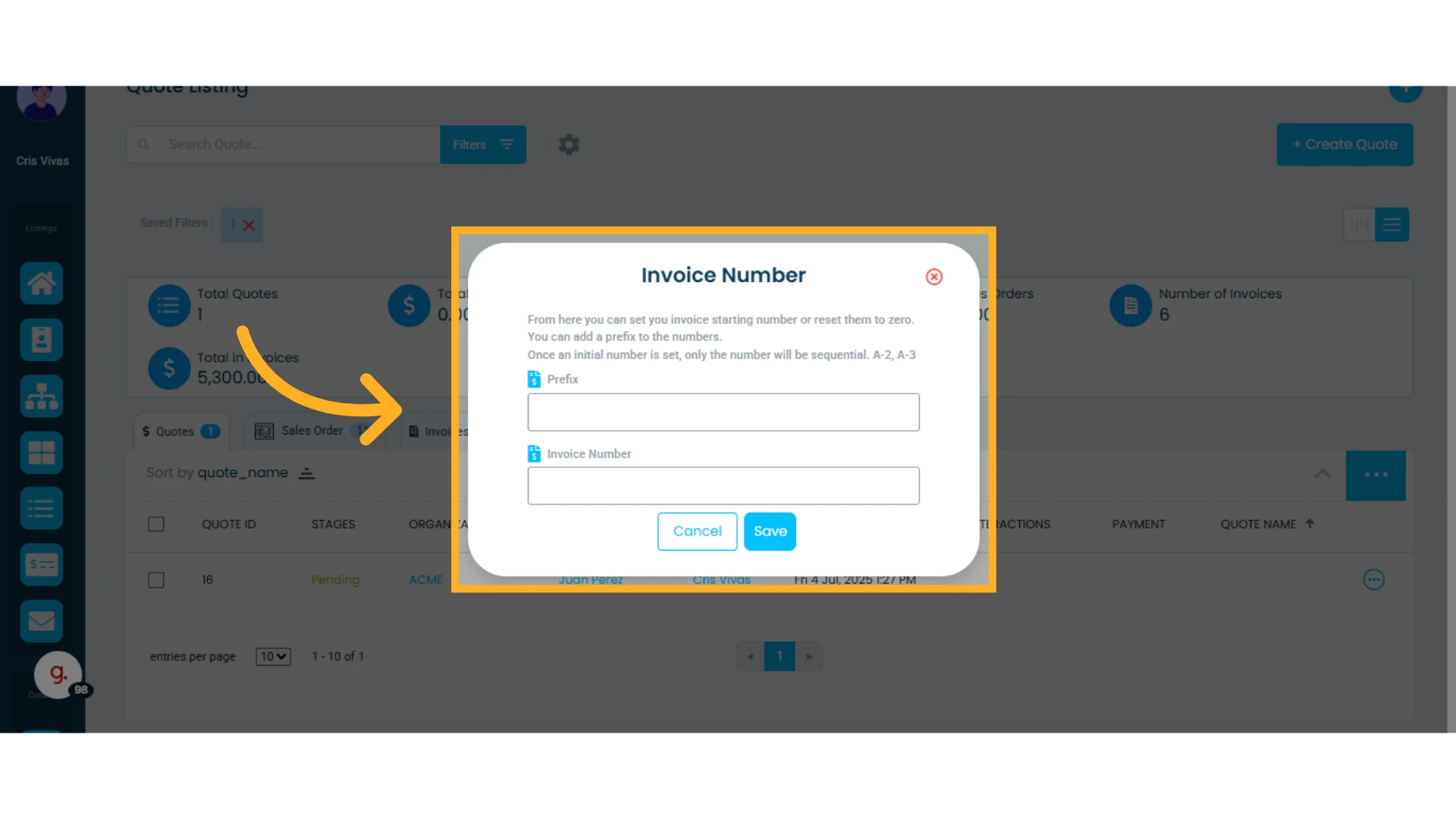
Set an Invoice Identifier:
Customize the invoice identifier with a prefix and a starting number.
You can reset and update this as needed, as long as each identifier remains unique.
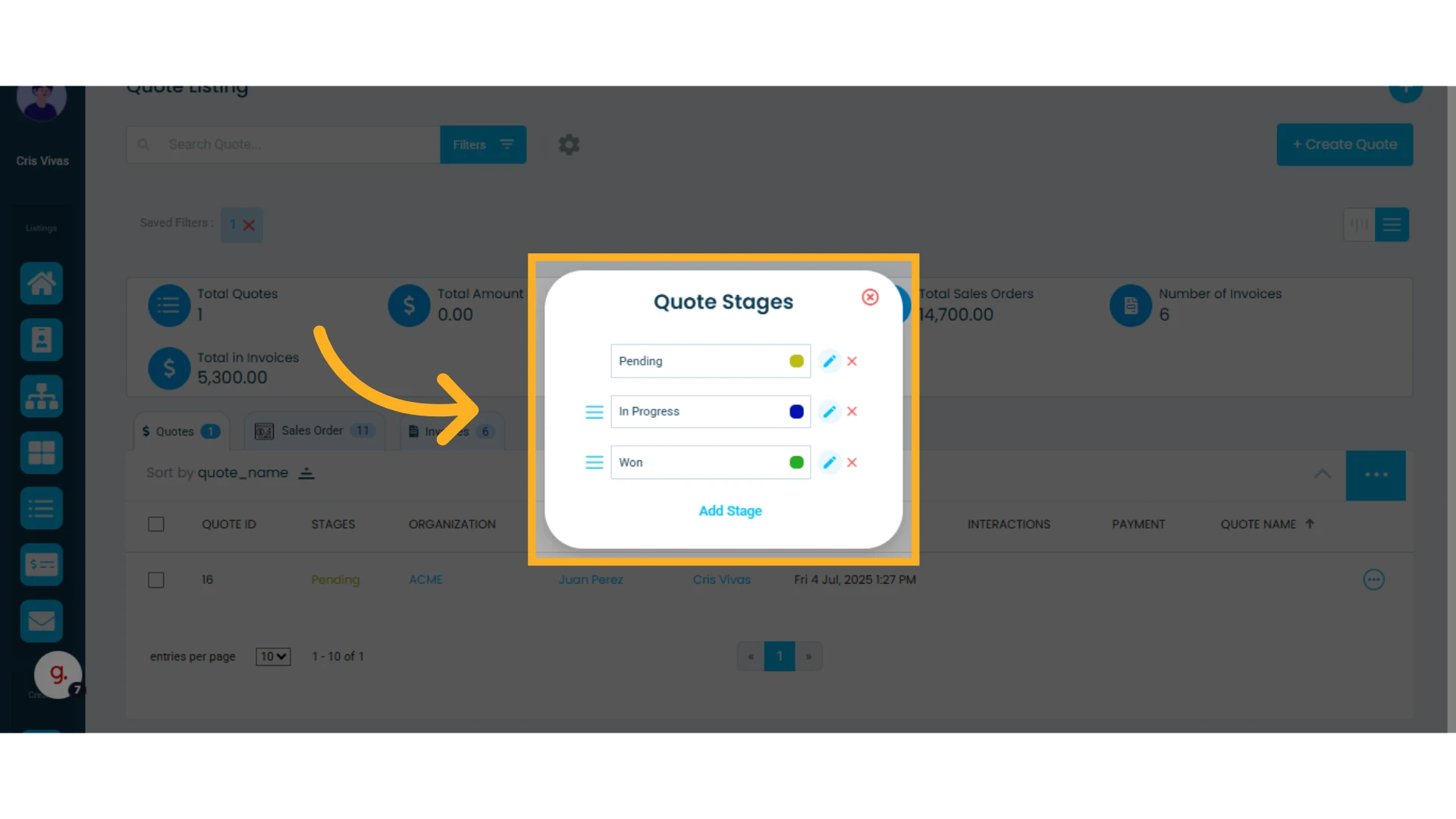
Set and Edit Quote Stages:
You can edit stages by clicking the edit pencil icon. You can rename them and choose a color. Additionally, you can add new stages and drag them to rearrange their order.
NOTE: The Pending stage cannot be reordered, as it is the default starting stage.
Options for Each Quote
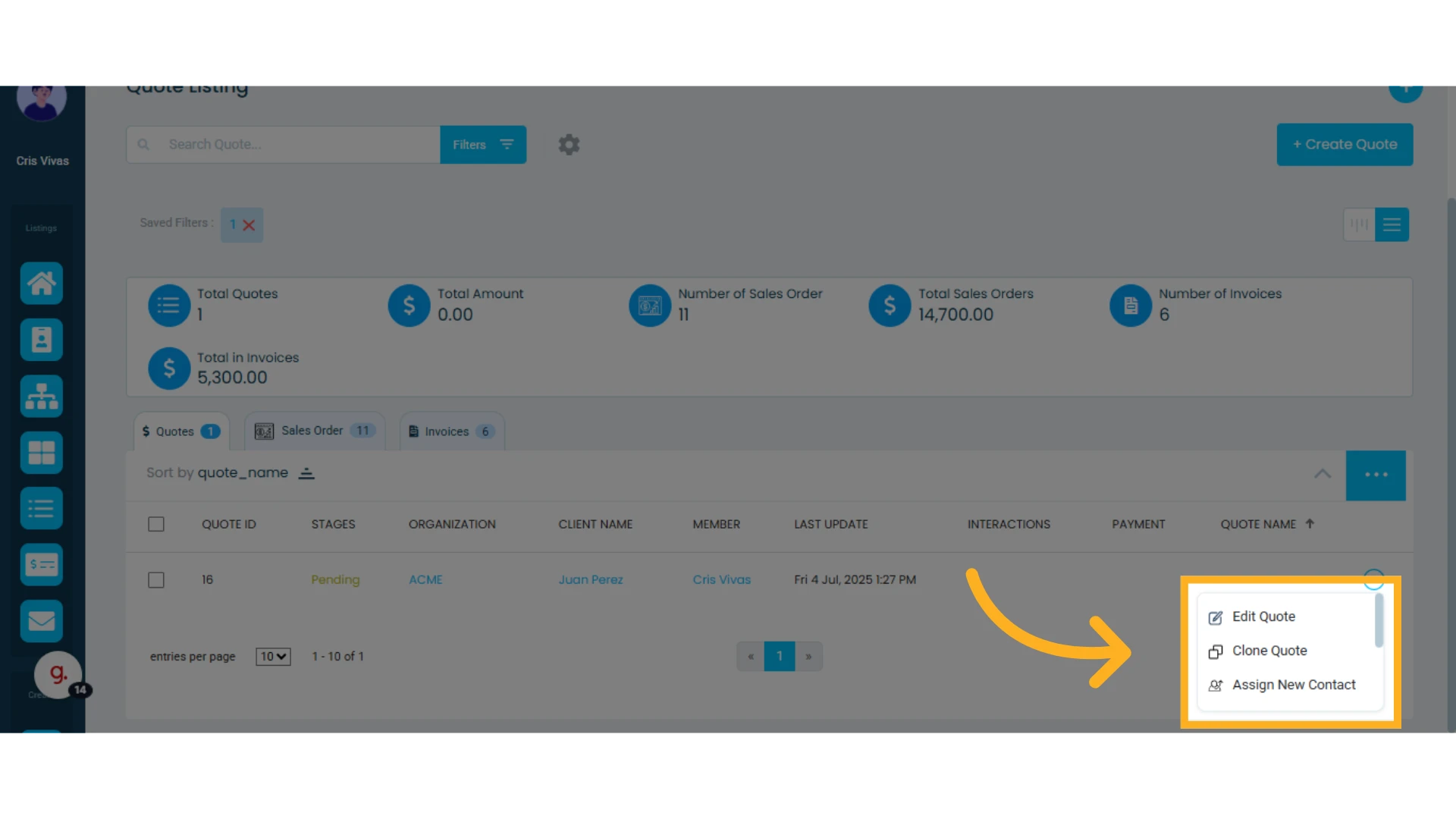
In the three-dot menu next to each quote, you can:
Edit the quote
Clone the quote
Learn more about how to clone a quote.
Assign a new contact: Change the owner of the contact or account
View the quote
Create a new quote with a specific name
Learn how to name to a quote.
Send the quote
Delete the quote