Changing the currency of a quote in Osmos allows you to use a different currency on selected quotes.
In this guide, you’ll learn how to change the currency of a quote and set the appropriate exchange rate.
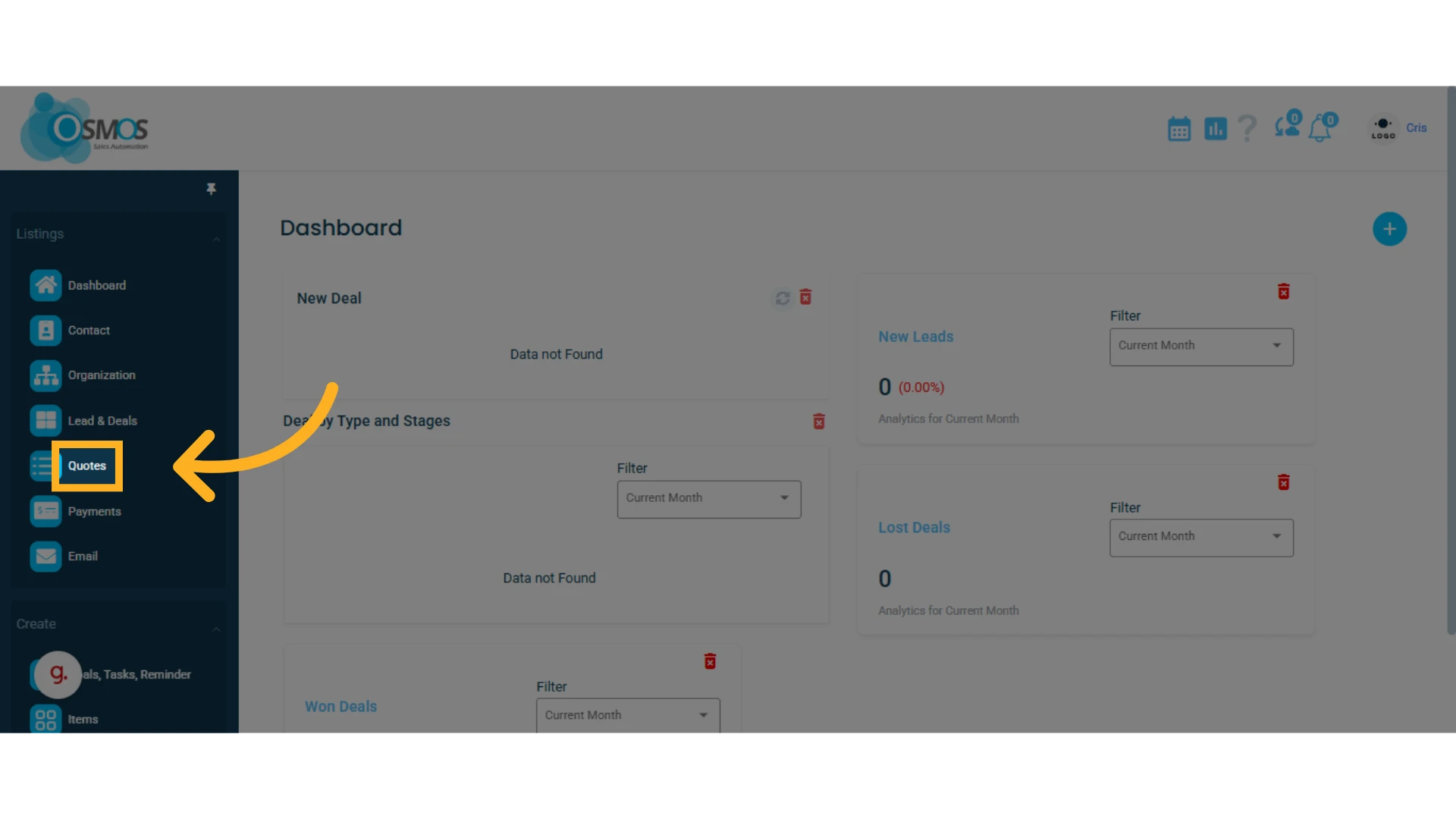
1. Go to the left-hand menu and select the "Quotes" module
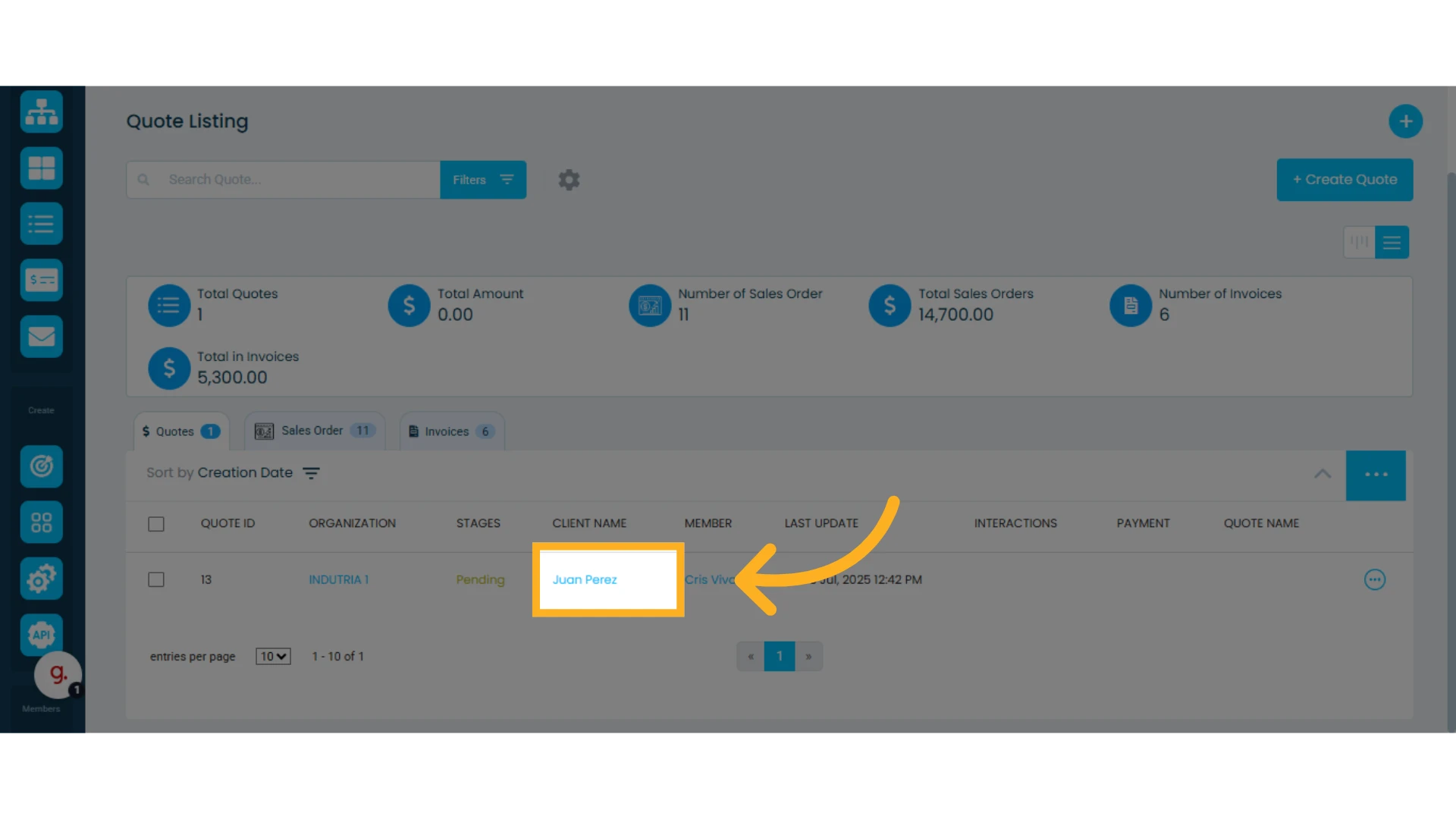
2. Open the quote you want to modify
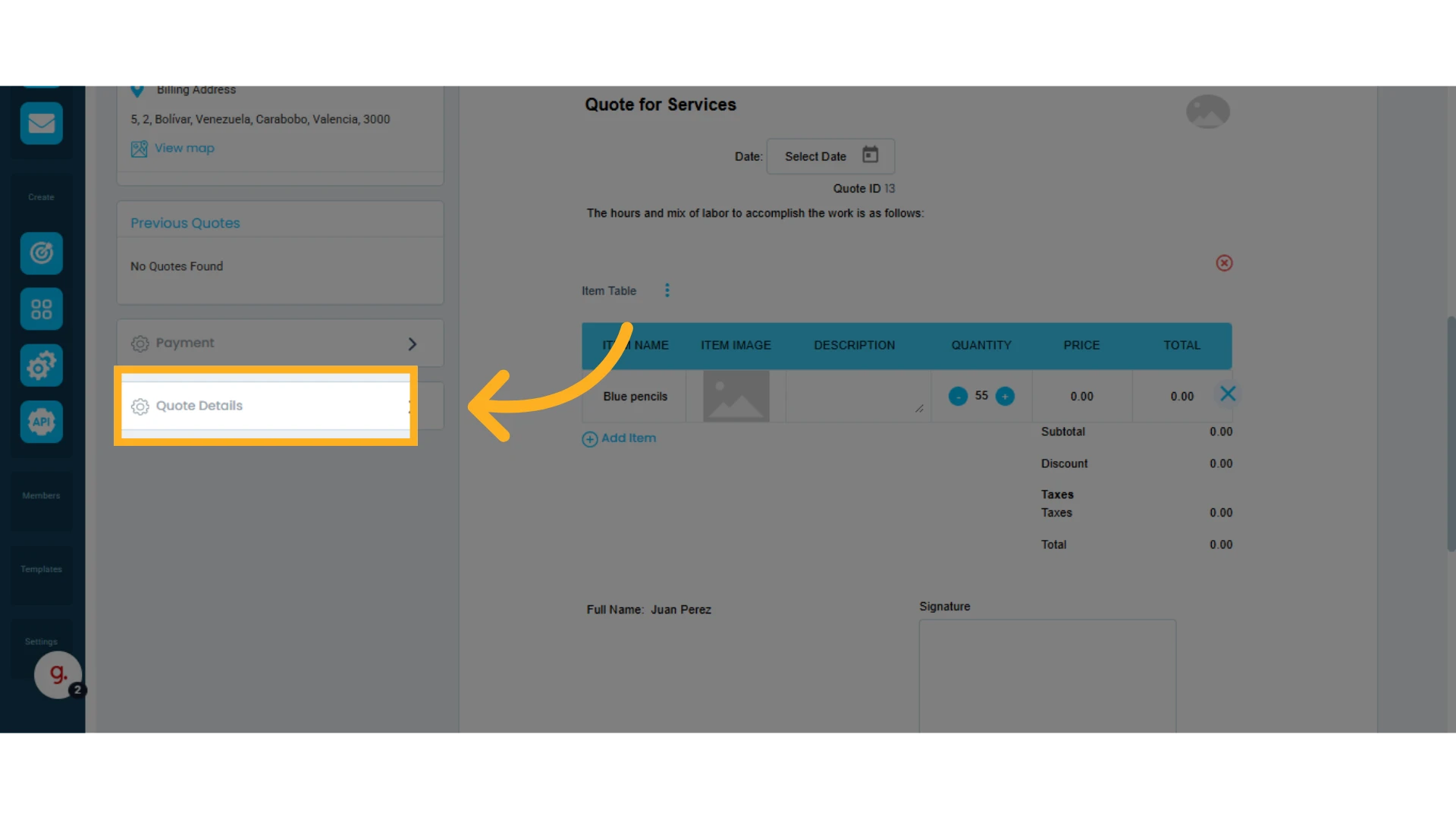
3. Expand "Quote Details"
On the left-hand side, you’ll see a tab labeled "Quote Details." Click this tab to view additional information.
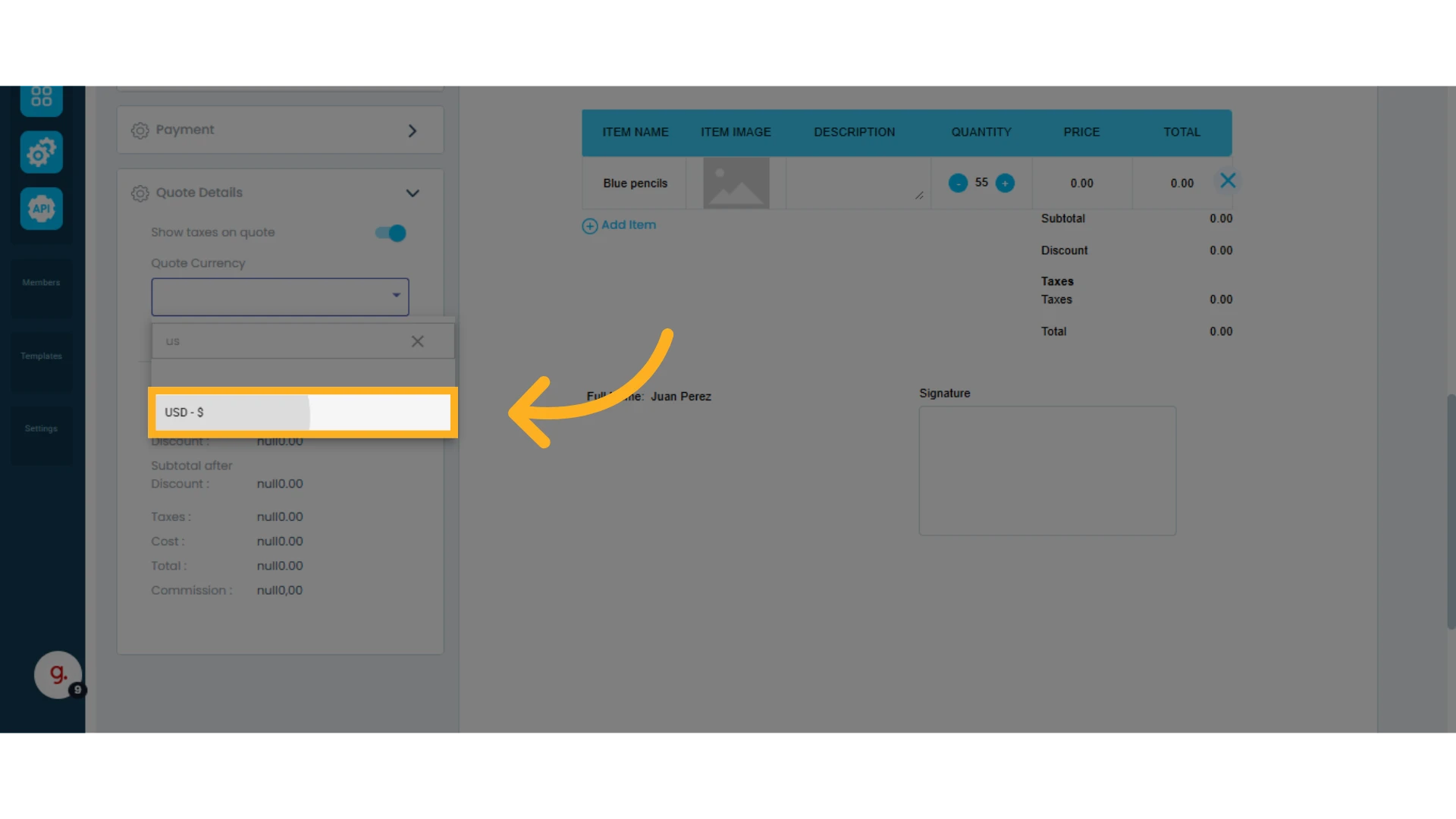
4. Change the "Quote Currency"
Within the details section, you’ll find the "Quote Currency" option. This is the default currency used in your quotes (based on the currency set in your workspace).
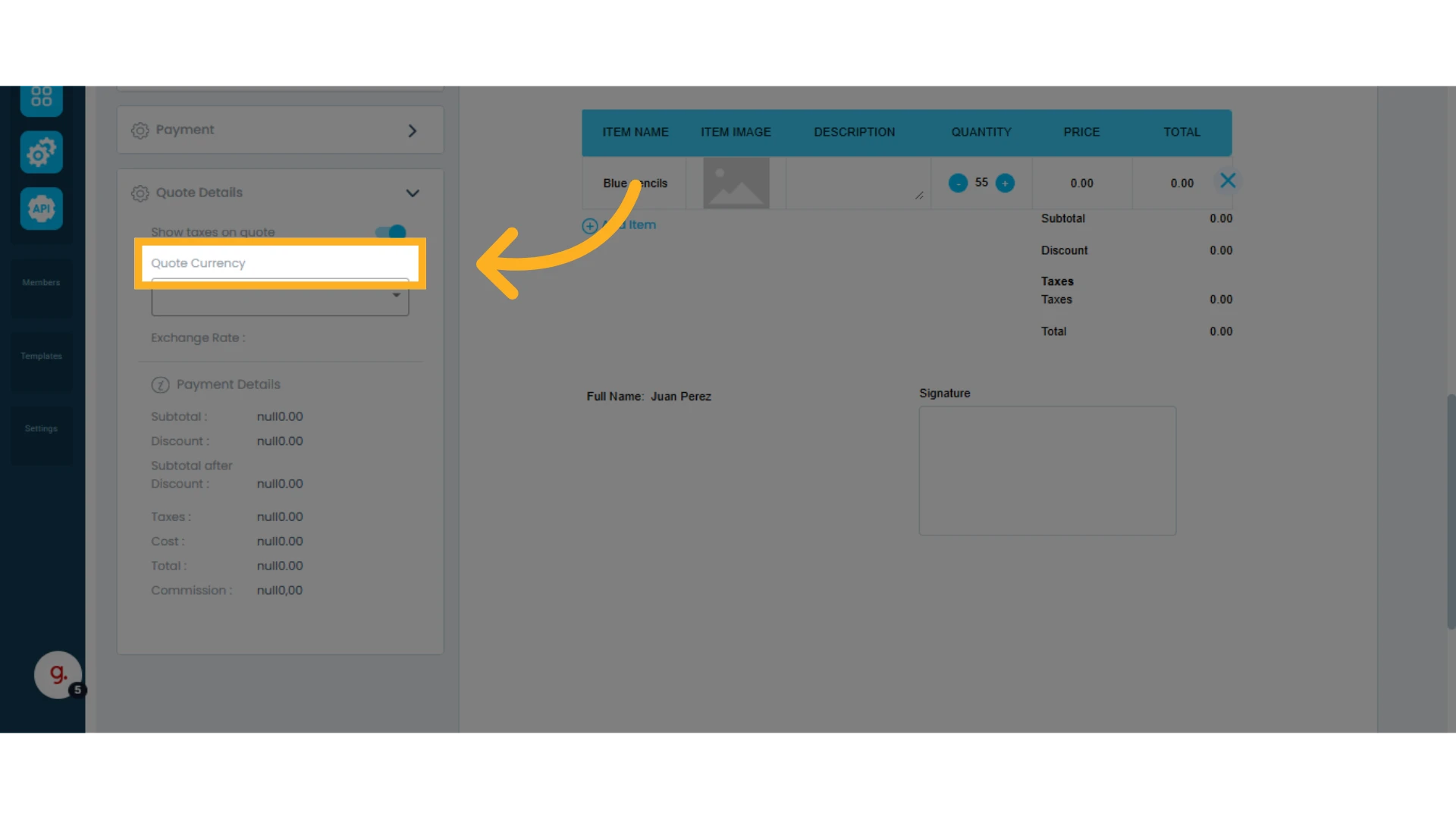
From the list of available currencies, select the new currency you want to use.
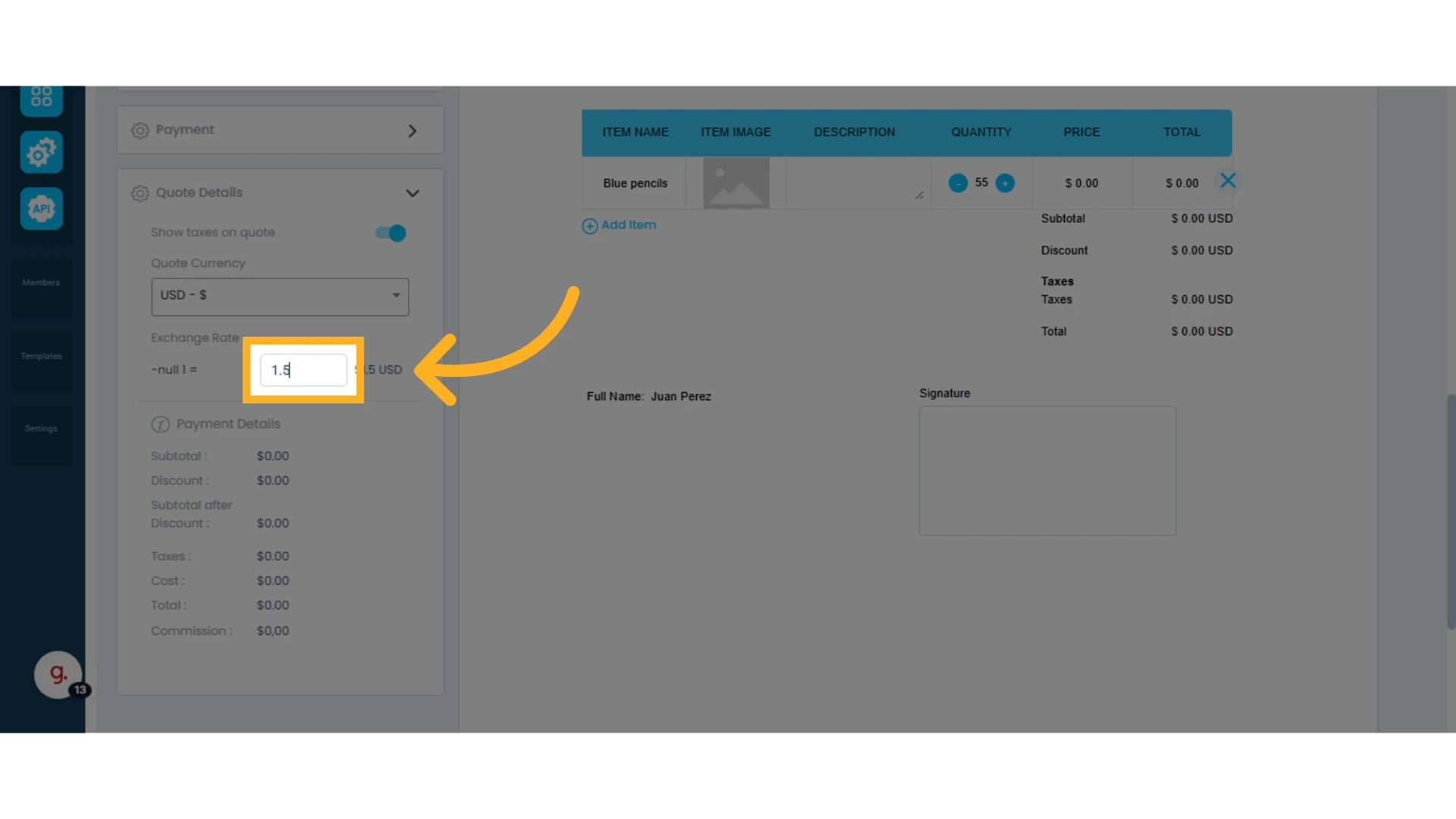
5. Set the Exchange Rate
If, for example, you changed from Euros to US Dollars, you’ll need to enter the appropriate exchange rate (adjusting the value of your currency relative to the US Dollar).
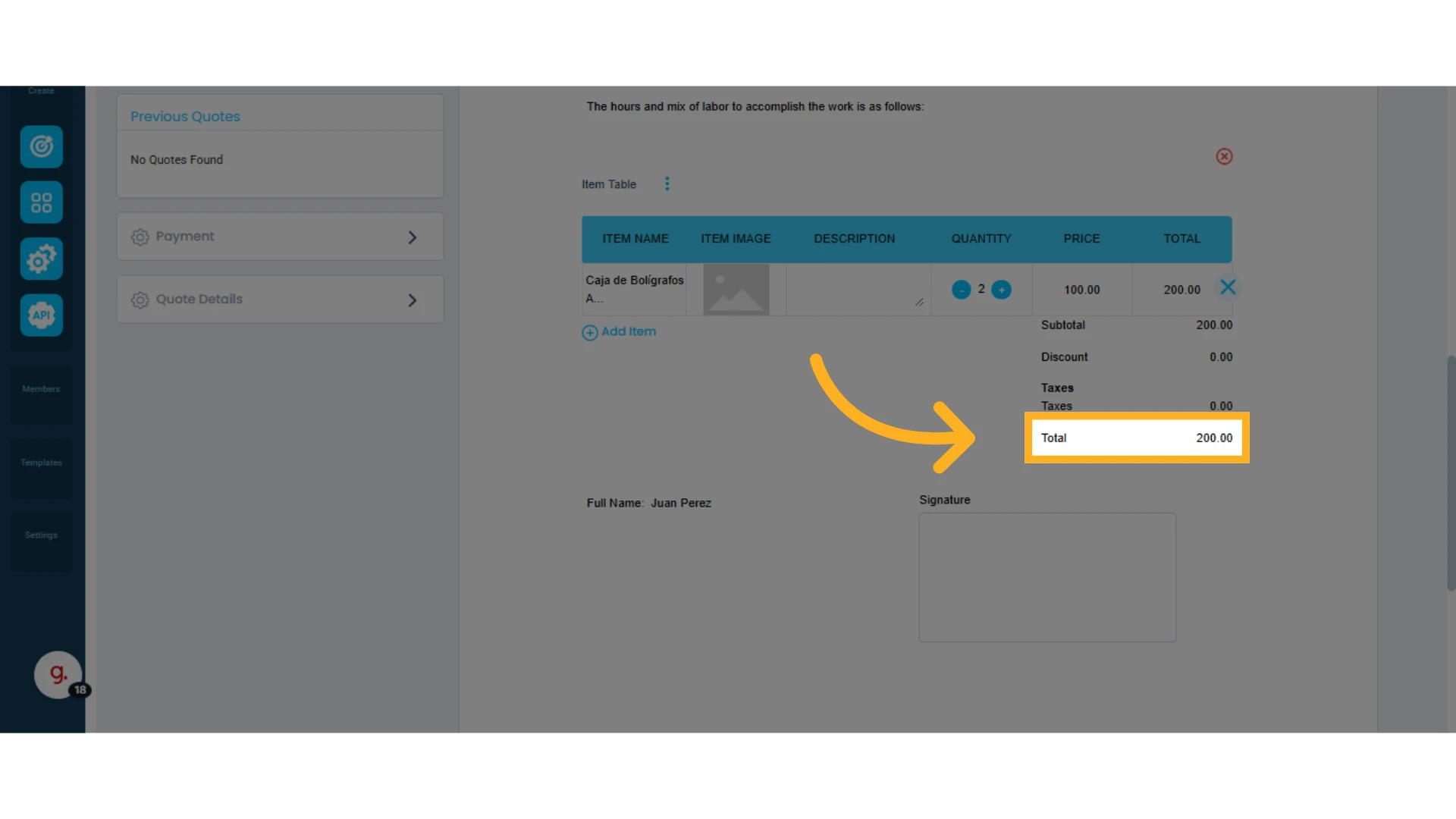
6. View the New Currency in the Quote
Once the exchange rate is set, you’ll see the quote now reflects the new currency, and the totals will update accordingly based on the exchange rate you've entered.
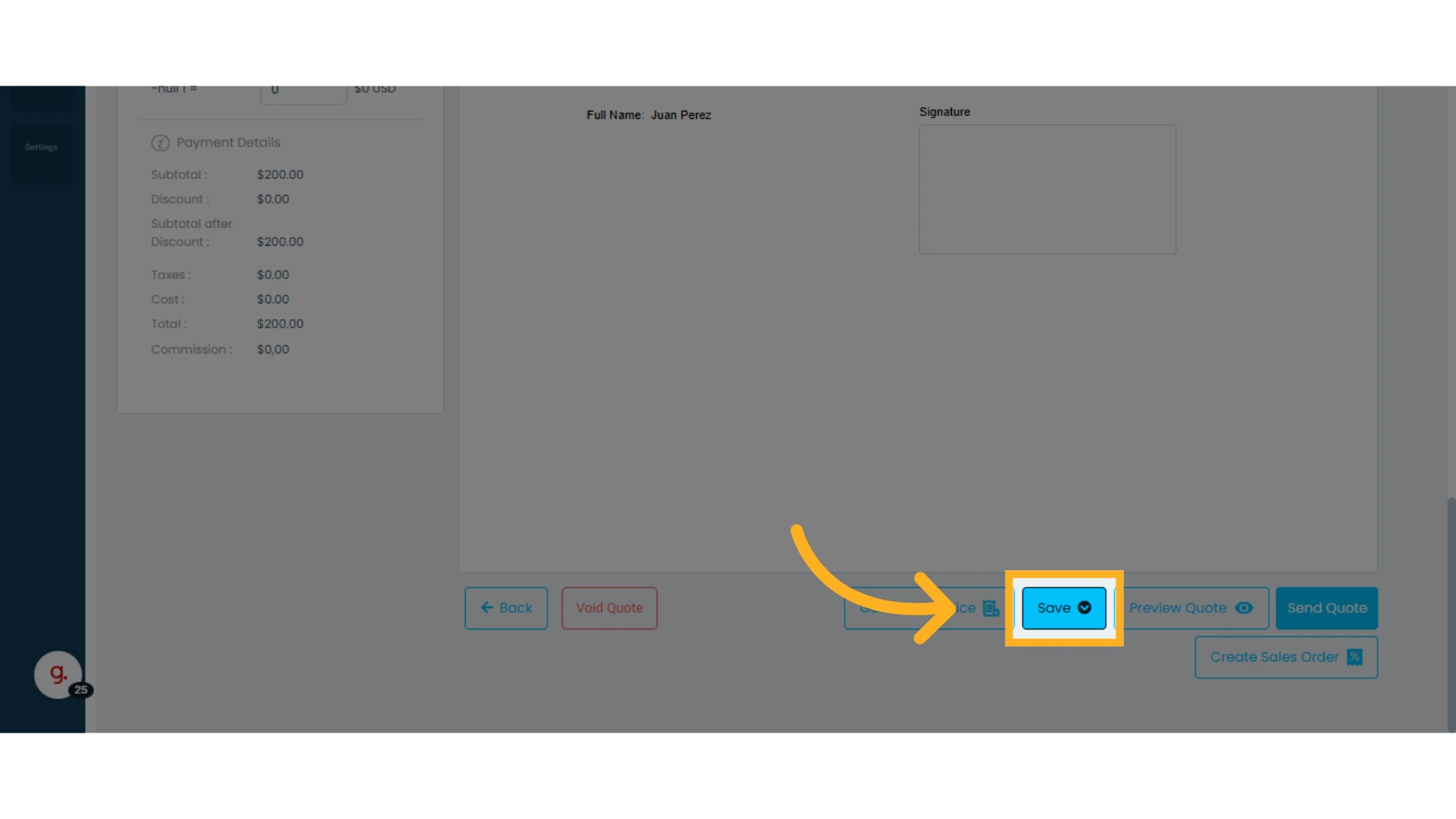
7. Save the Changes
Don’t forget to save the changes made to the quote so they take effect.
IMPORTANT: Osmos uses a single default currency—the one assigned in your workspace.
This means that even if you send quotes in different currencies, at the end of the day, Osmos will calculate all prices using your default currency. For example, if your default currency is US Dollars but you also quote in other currencies, all reports will be shown in US Dollars.