The Payments Module in Osmos allows you to view and manage all payments recorded in the Quotes Module. In this guide, you’ll learn how to register payments and refunds, and how to use the various features in this module.
Reports Section
1. Go to the left-hand side menu and click on "Payment"
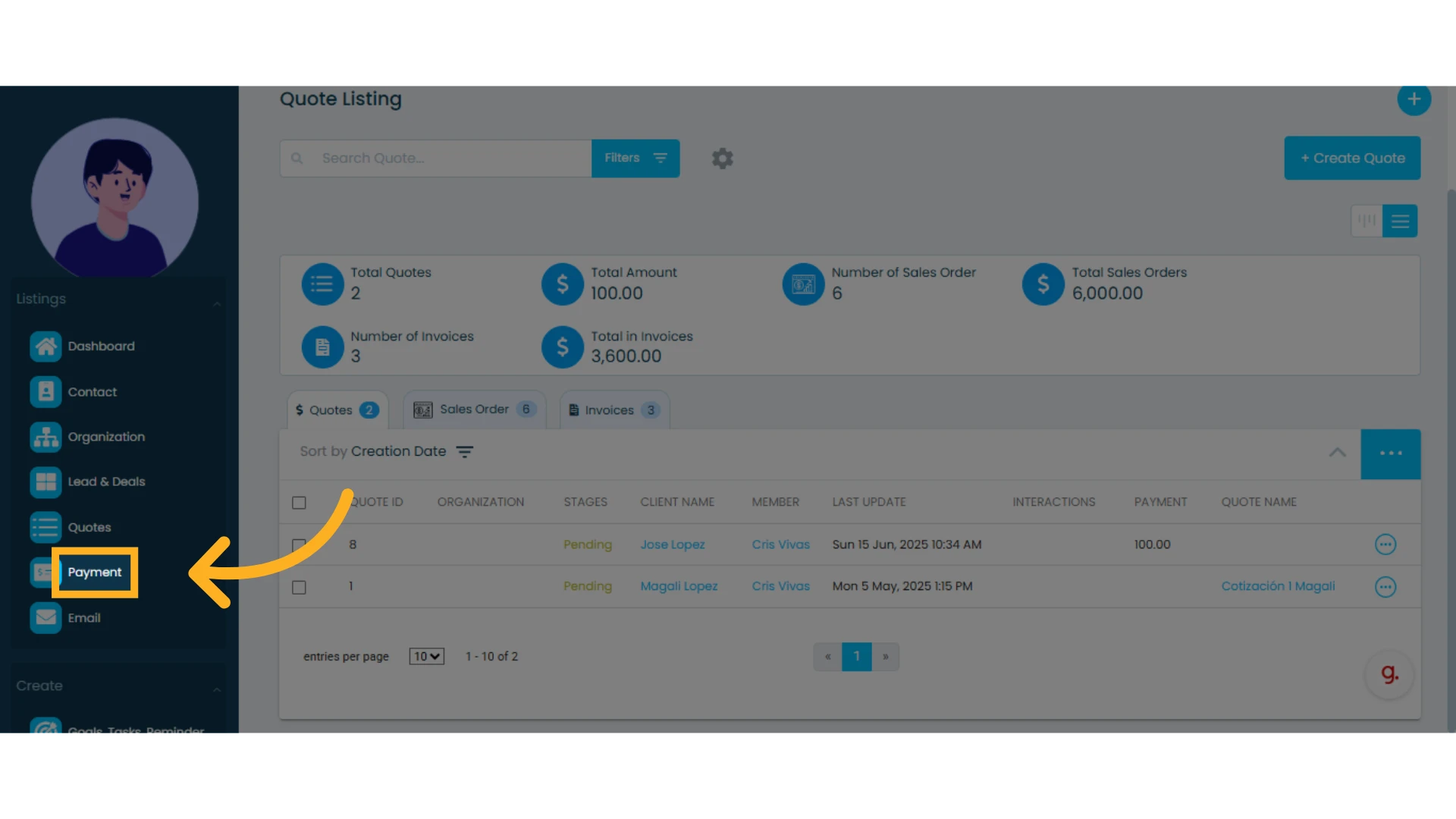
2. The module has two main sections: Reports and Payments Listing.
Reports Section
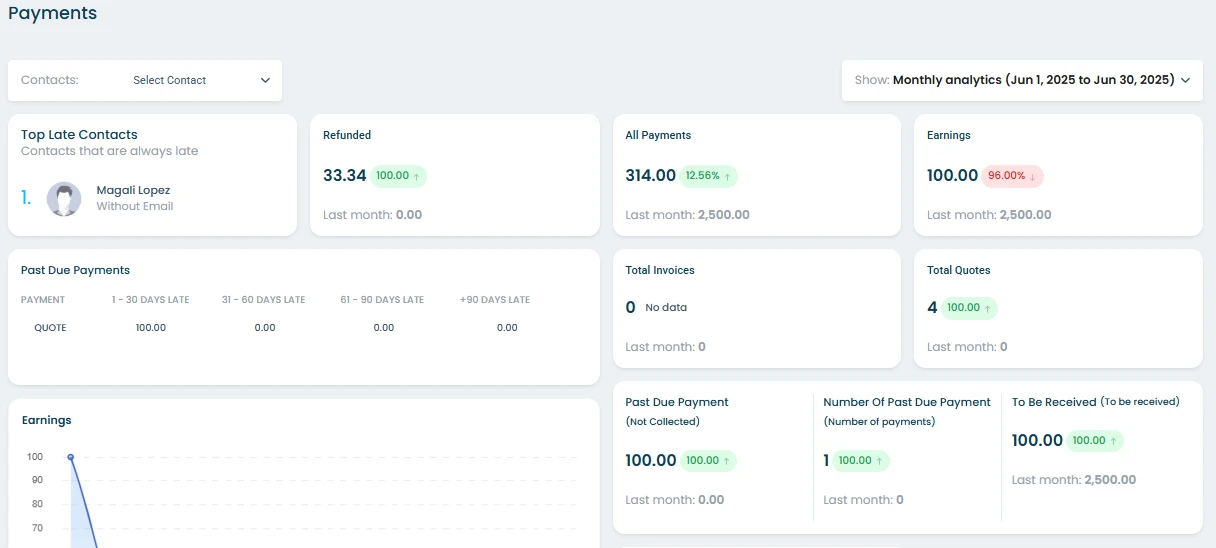
Payments Listing
Reports Section
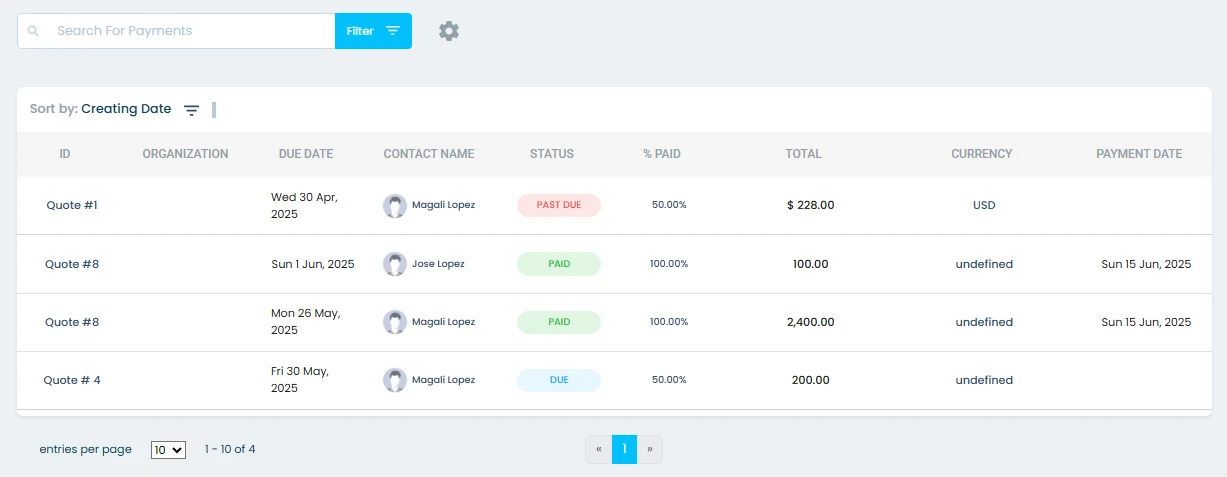
In this section, you can access detailed information about all payments recorded in Osmos. Reports help you identify various aspects of payments and collection.
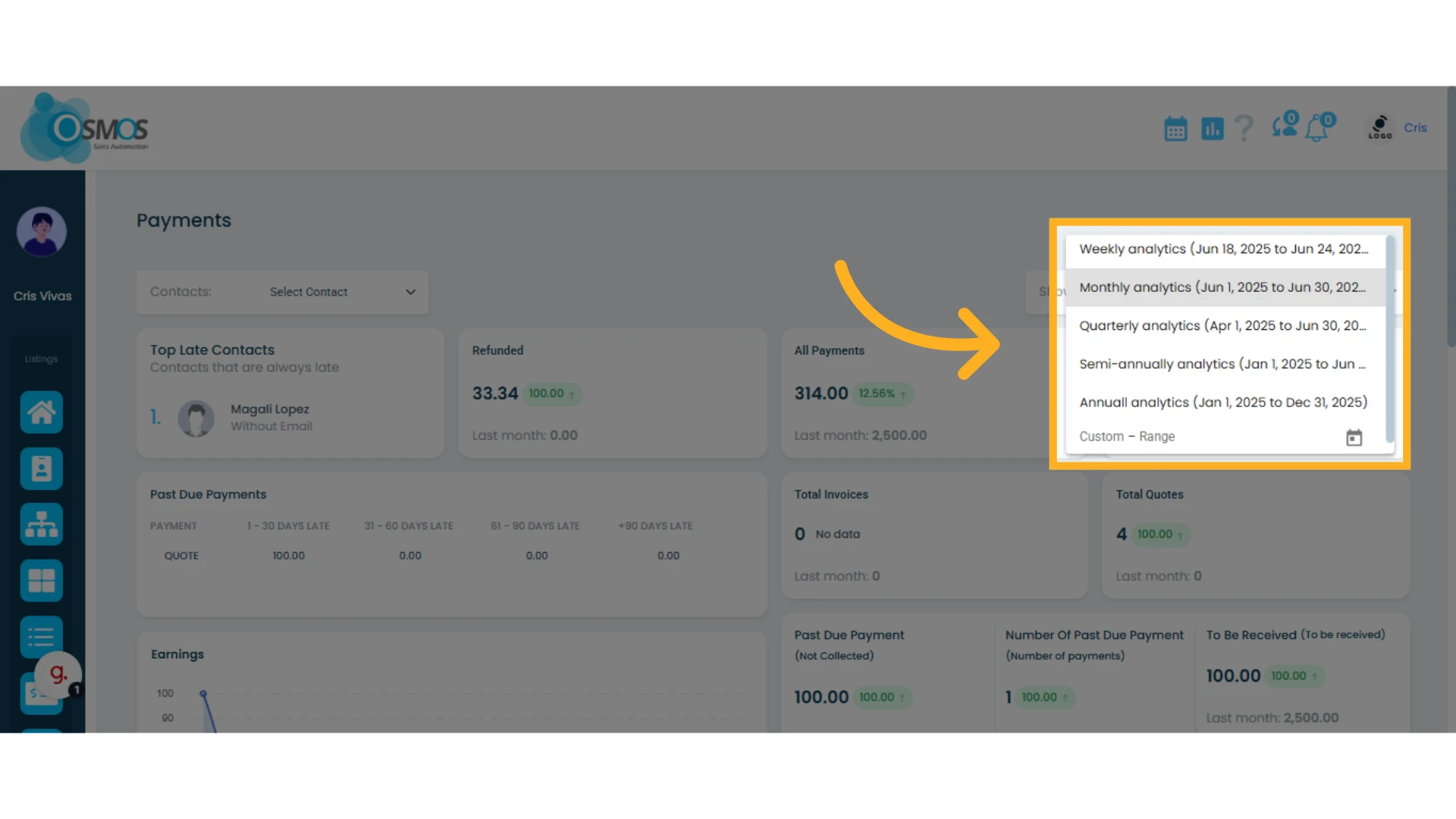
Filter Reports by Time Period
You can filter reports by week, month, quarter, semester, or year, or set a custom date range.
Filter Reports by Contact
You can also view reports associated with specific contacts. To do this, go to the top-left menu and select the contact you want to analyze. This feature is especially useful for tracking individual payment histories and understanding the payment status for each contact.
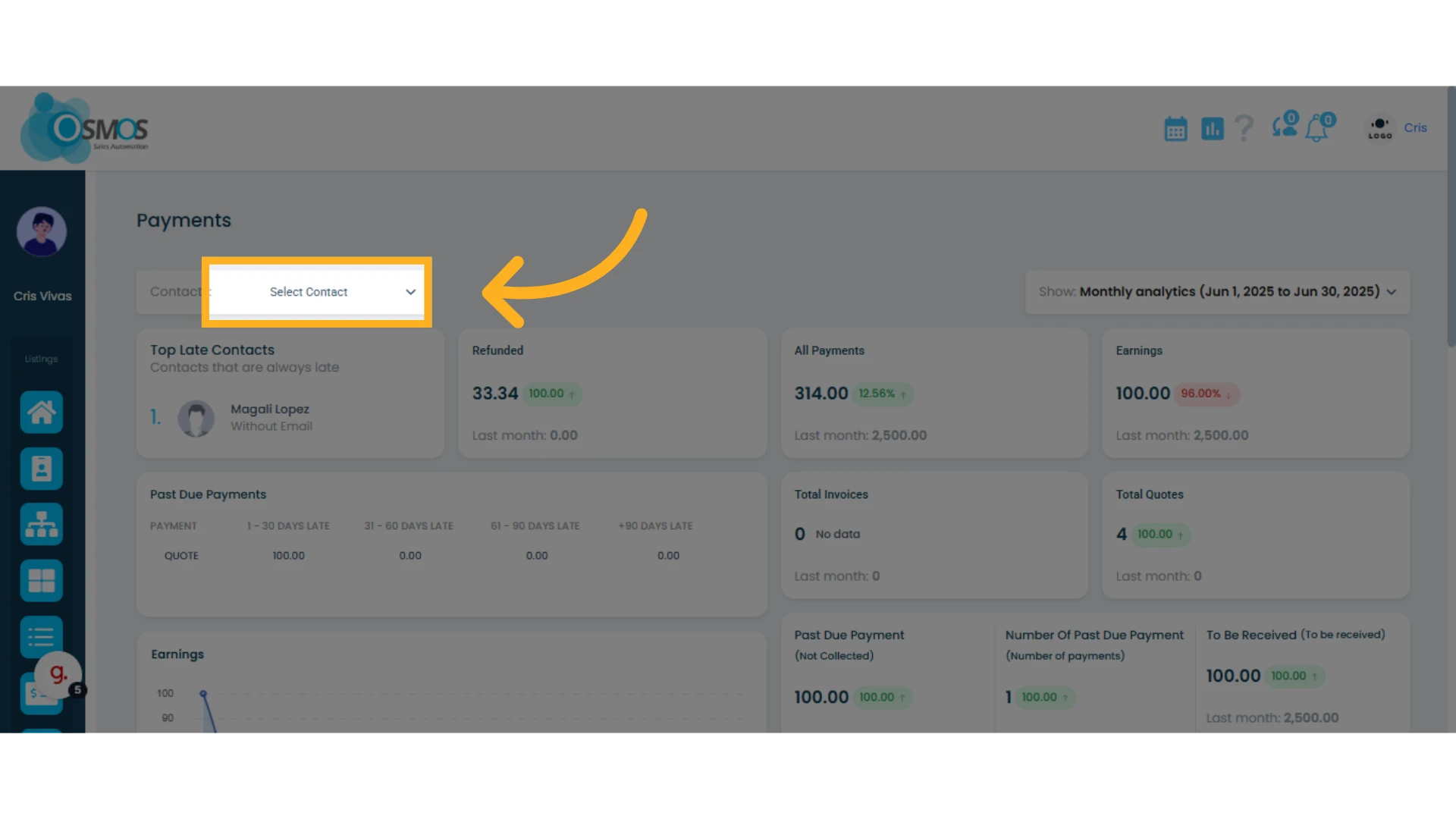
Reports
Here you'll find different types of reports related to completed or pending payments
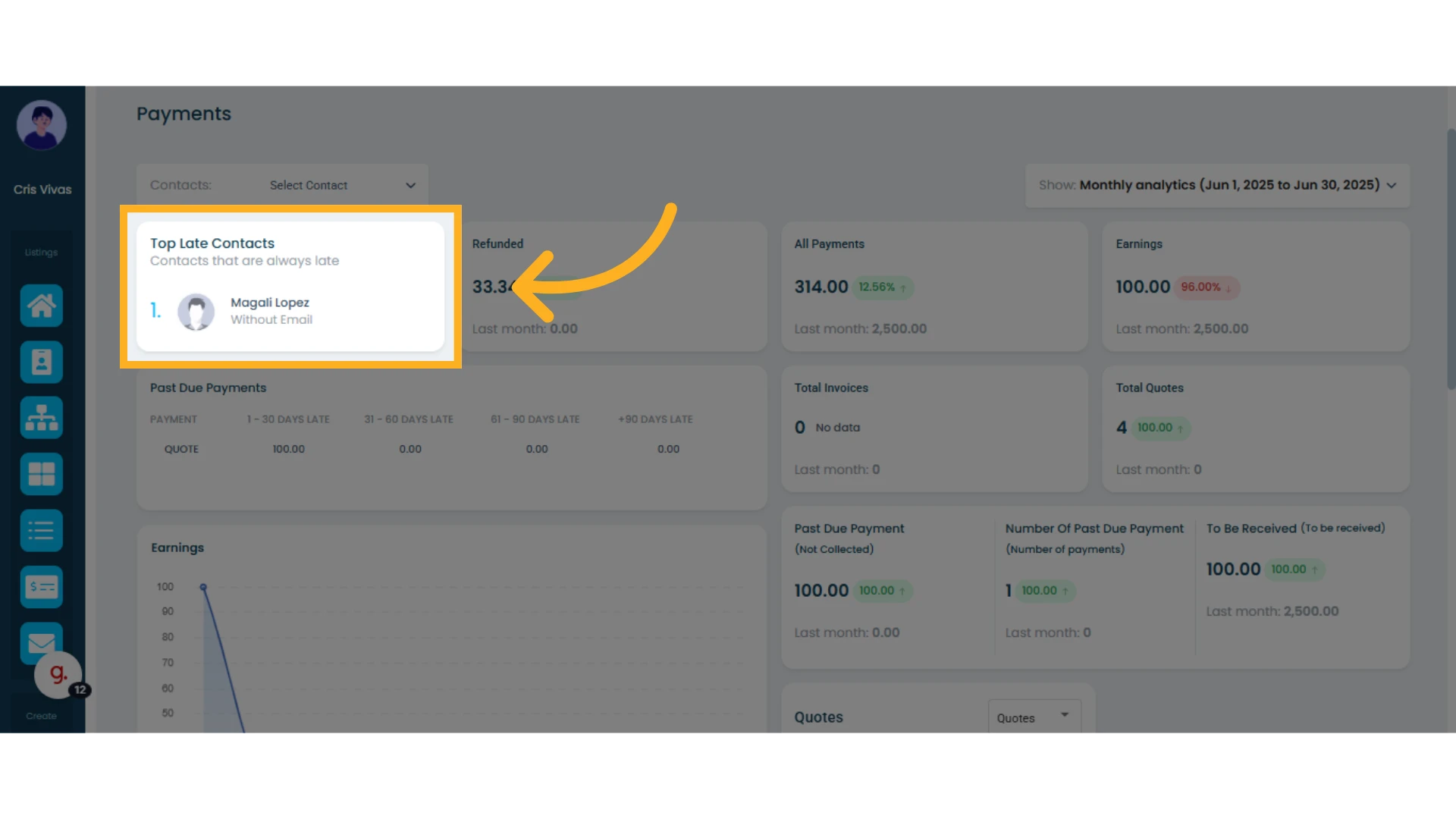
Top Late Contacts: Displays the contacts with the most frequent payment delays.
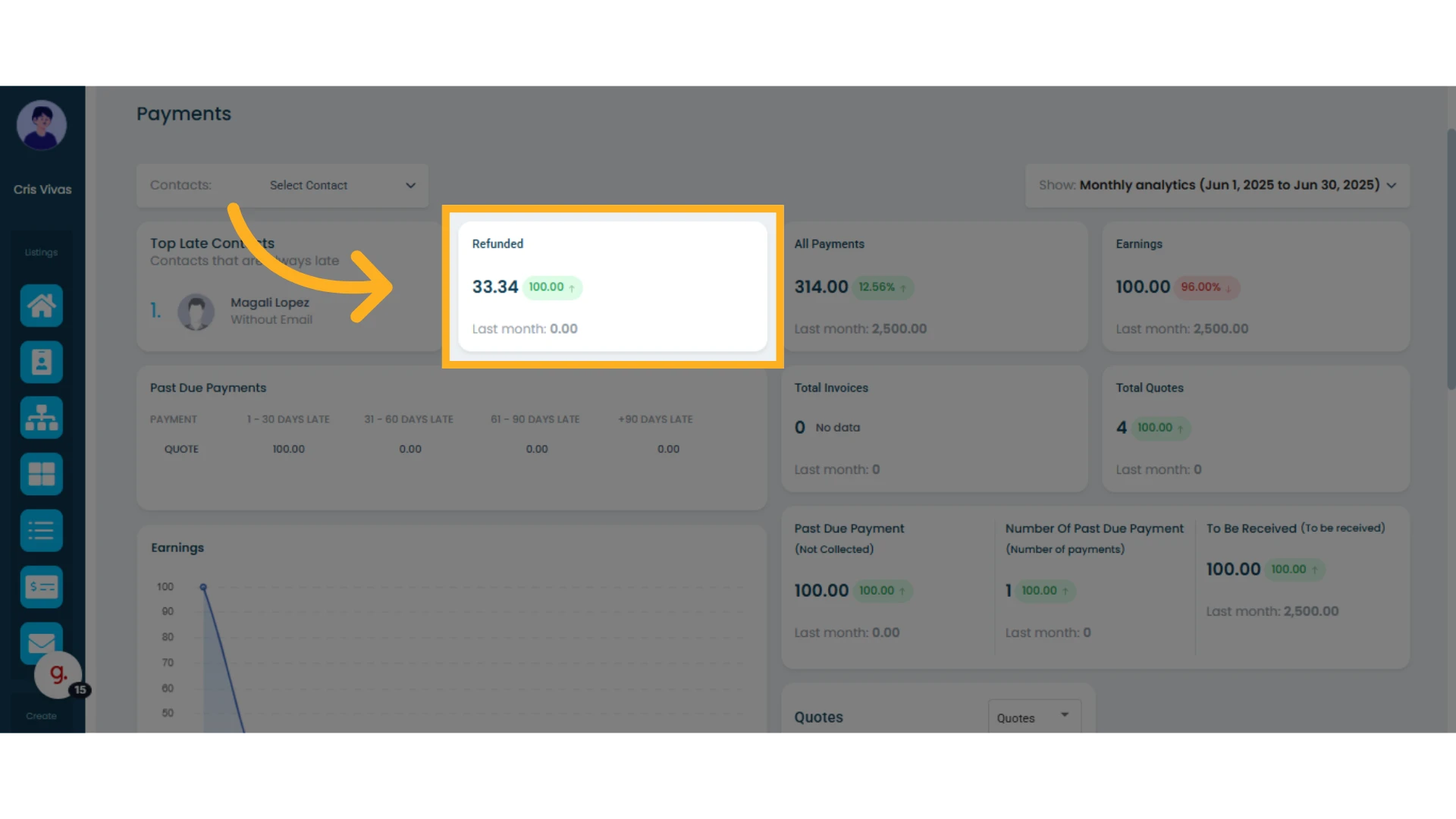
Refunded: Shows payments that have been partially or fully refunded, including the difference compared to the previous month.
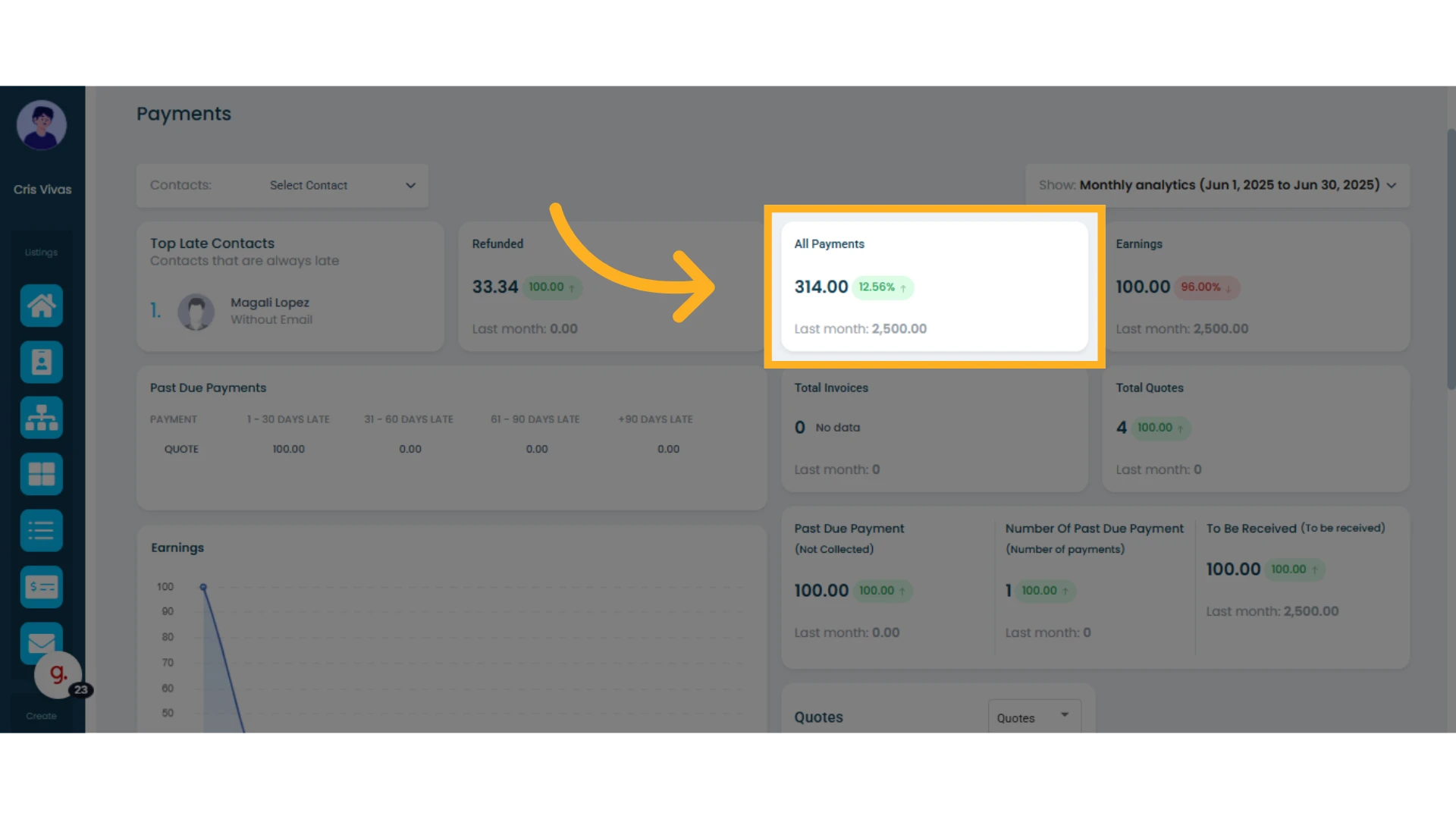
All Payments: Displays the total amount of payments received during the selected period, along with the profit percentage and a comparison to the previous period (week, month, or year), allowing for analysis of revenue growth or decline.
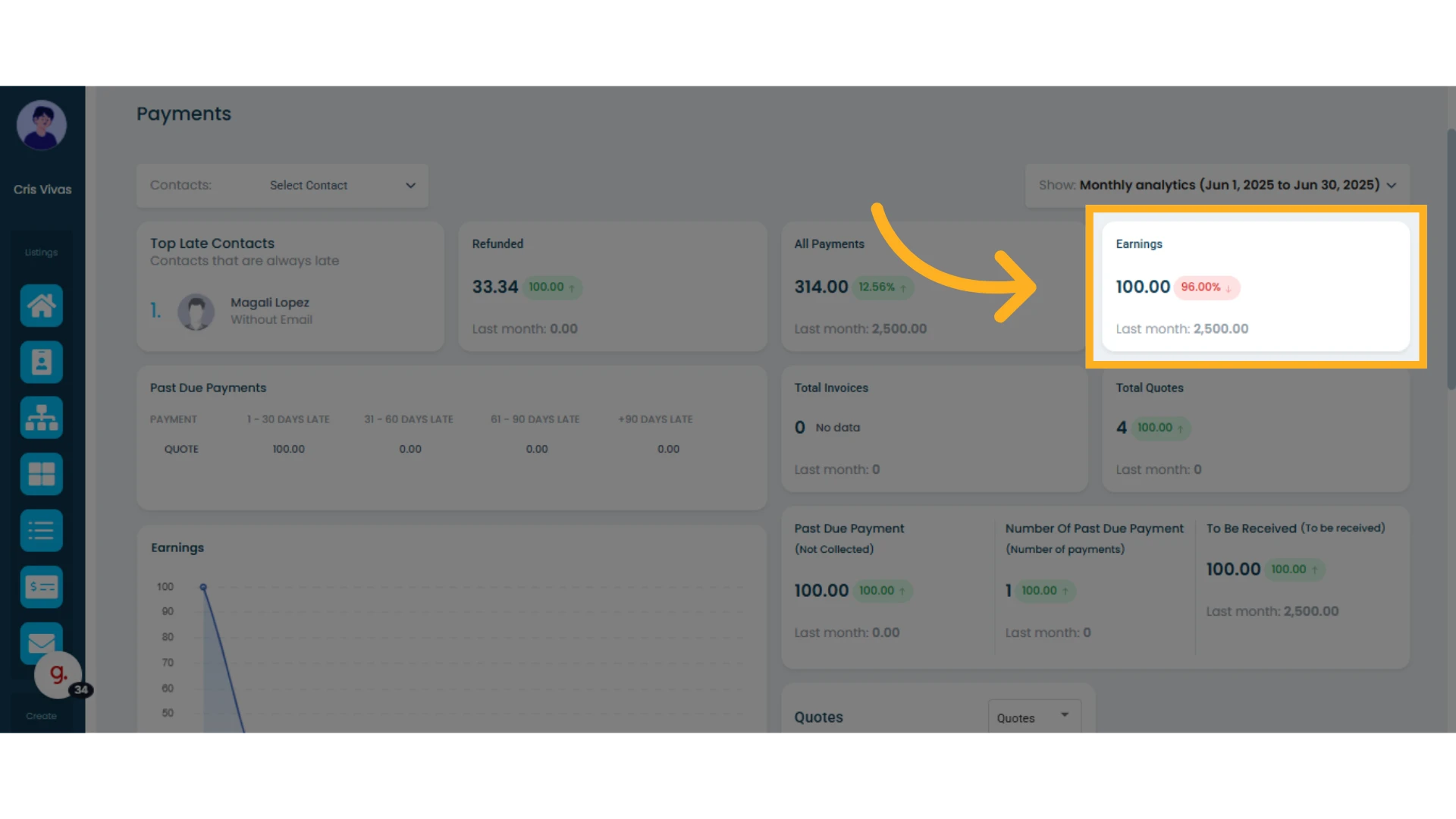
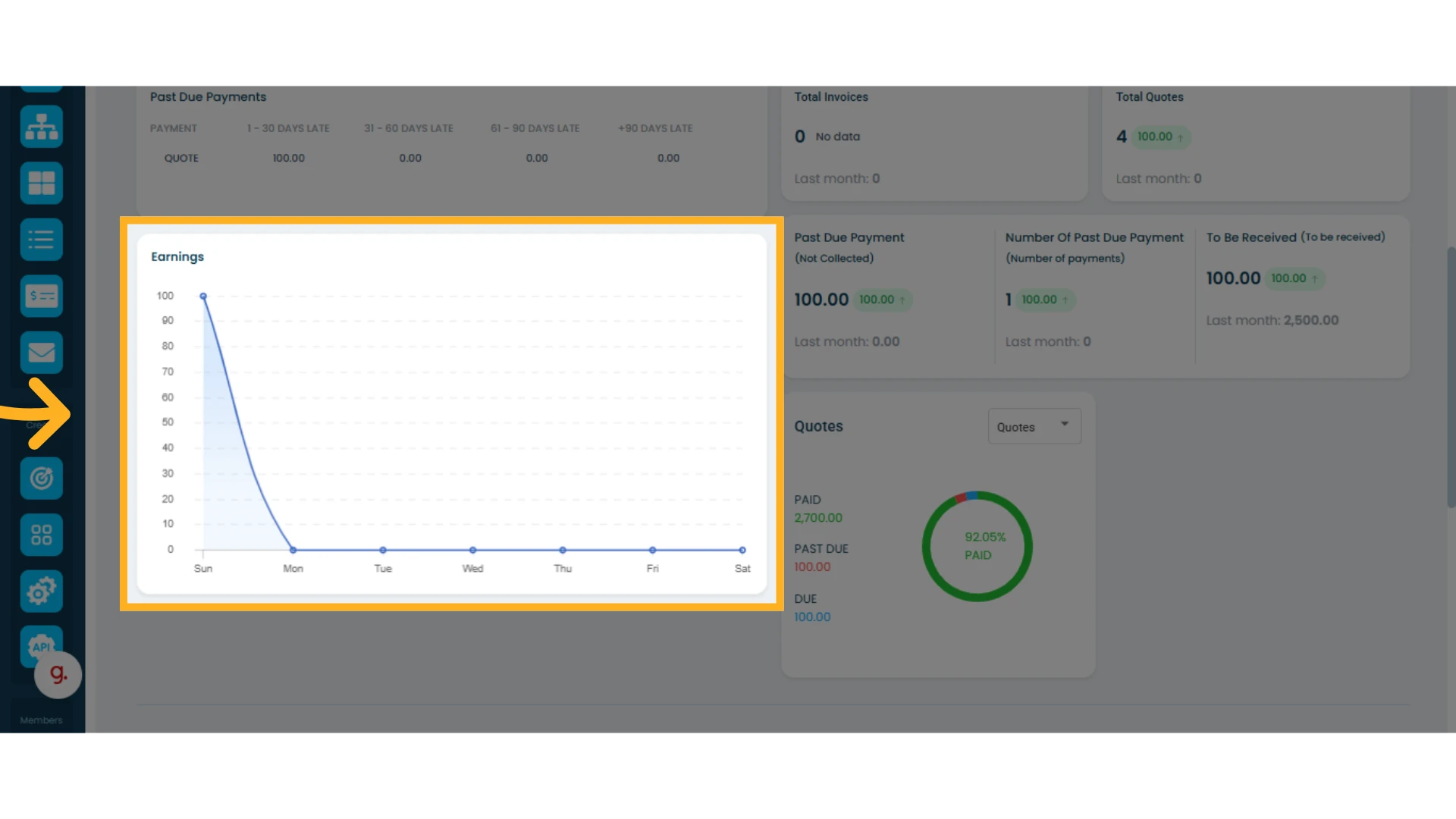
Earnings: Shows the total amount received from completed sales during the selected period. It also indicates the percentage change compared to the previous period, along with the corresponding amount.
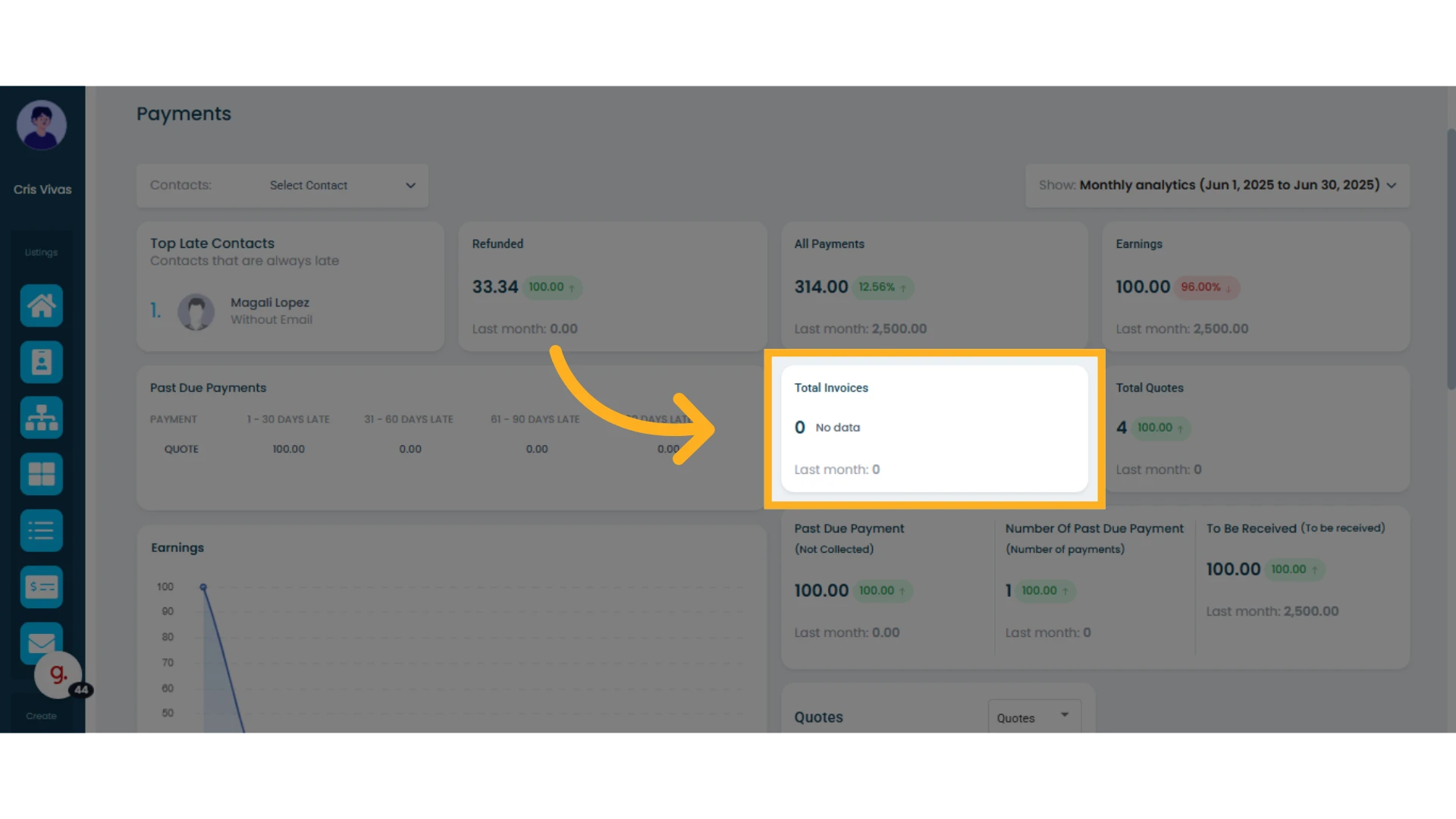
Total Invoices: Displays the total number of invoices generated during the selected and previous periods.
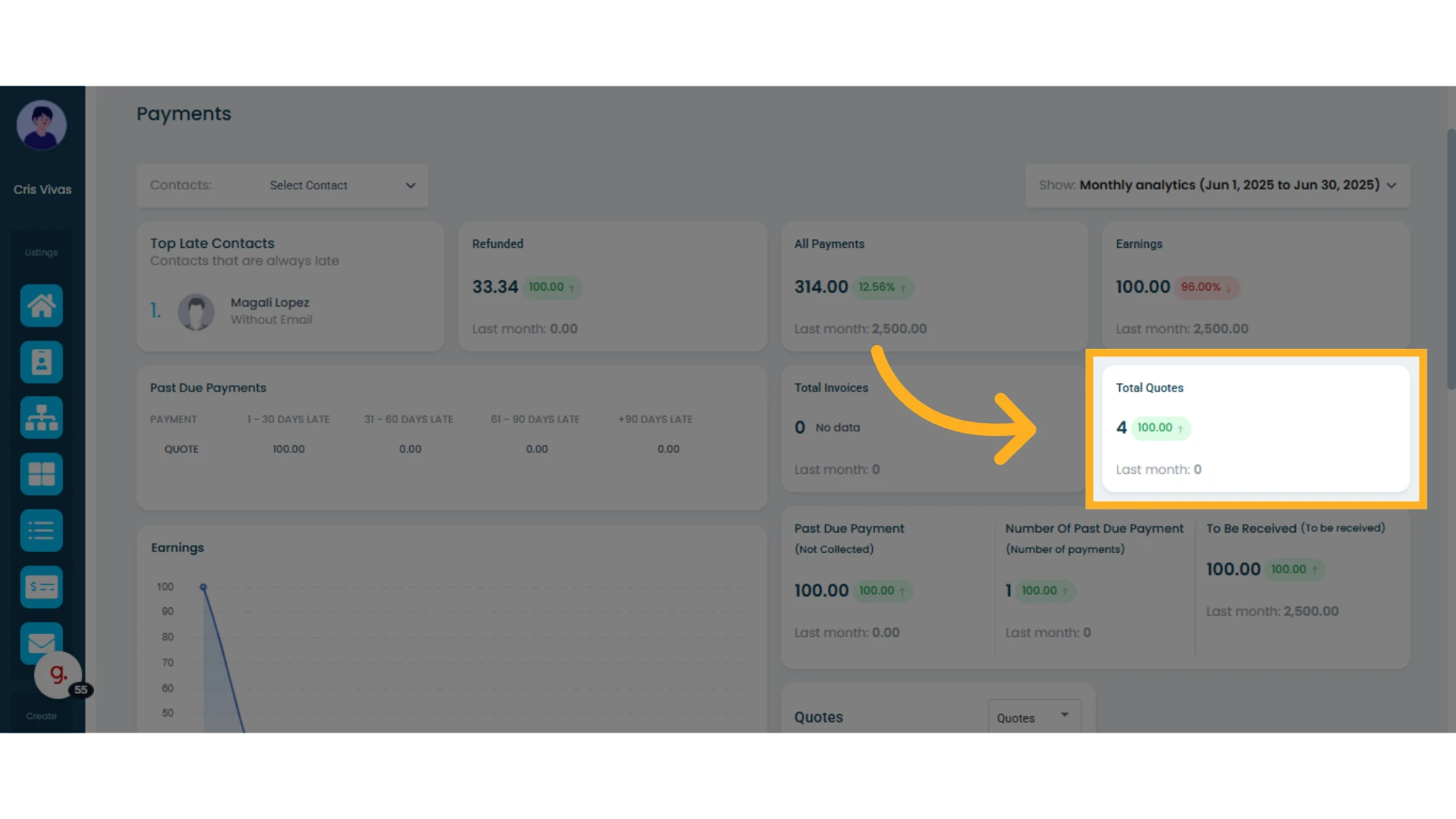
Total Quotes: Shows the total number of quotes created during the selected period, and the percentage of growth or decline compared to the previous period, helping you assess the proposal flow that could turn into sales.
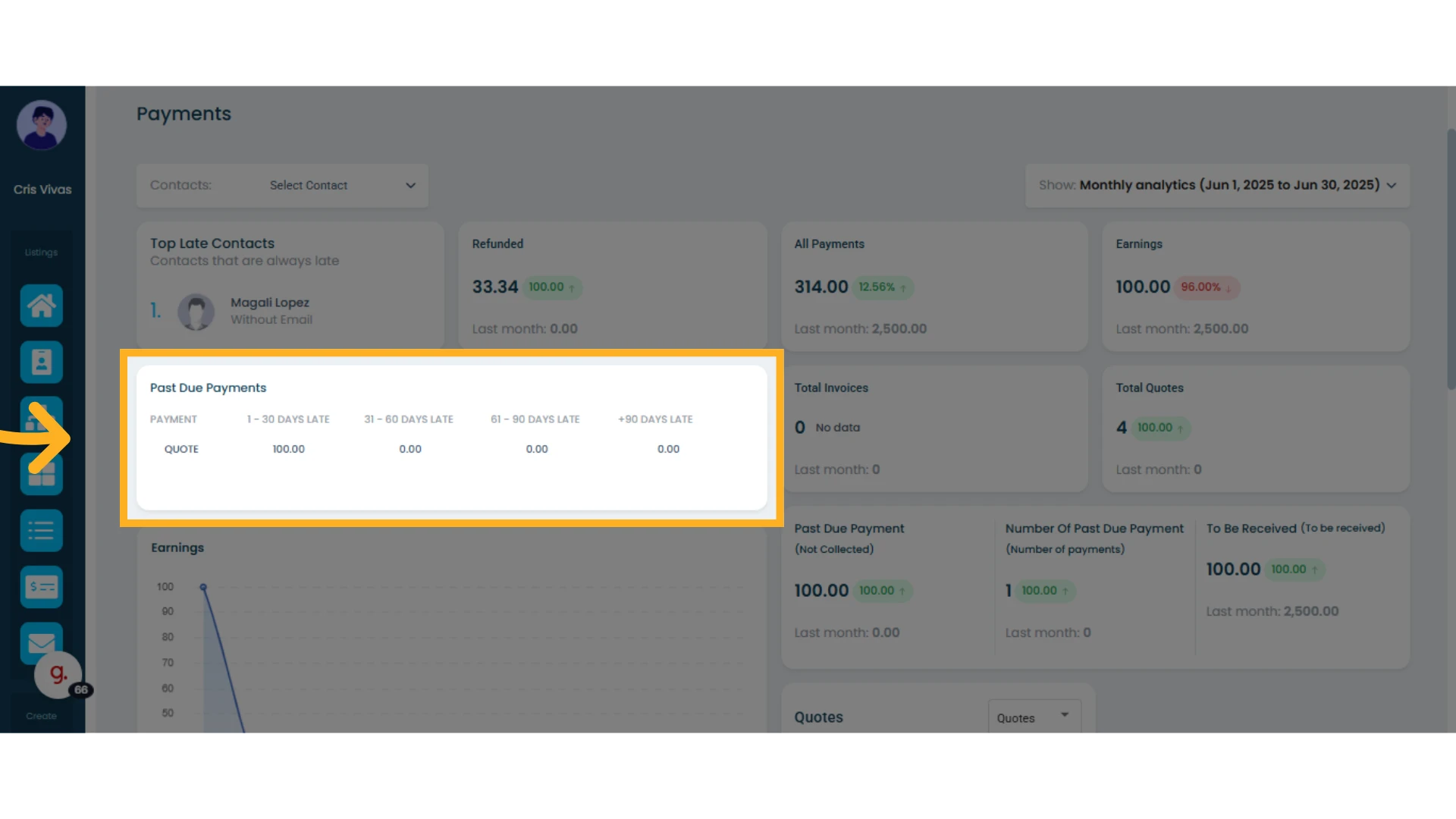
Past Due Payments: This section breaks down payments that are past due. Amounts are categorized by the number of days overdue: 1–30 days, 31–60 days, 61–90 days, and more than 90 days.
Past Due Payments by Category: Groups overdue payments by their status—whether Past Due Payment (Not Collected), Number Of Past Due Payment, or To Be Received.
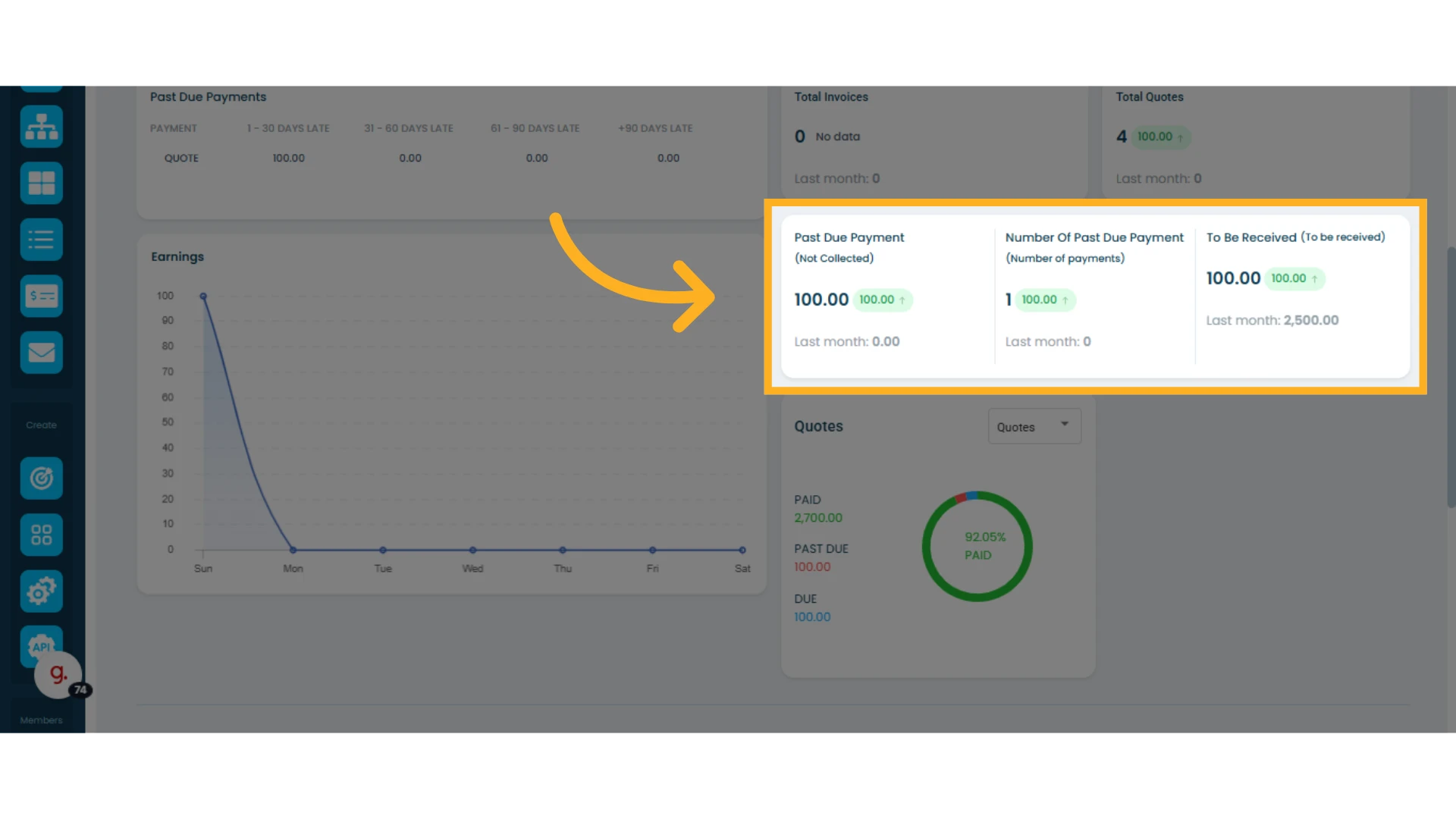
Earnings (Chart): A chart that visually shows the evolution and trend of your profits during the selected period.
Quotes, Sales Orders, and Invoices: This report shows the amounts distributed across different stages of a quote, sales order, or invoice: paid, overdue, and pending.
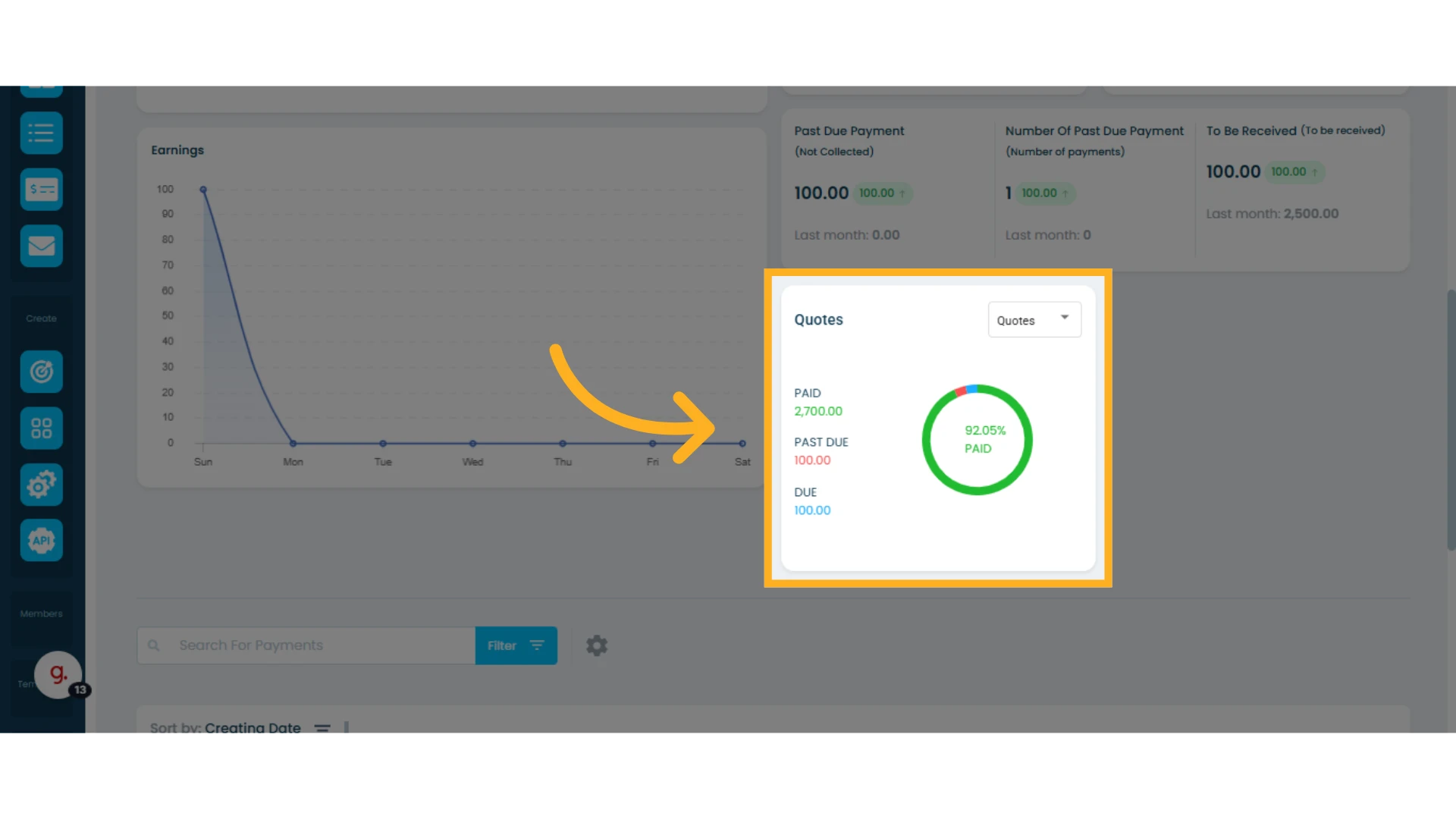
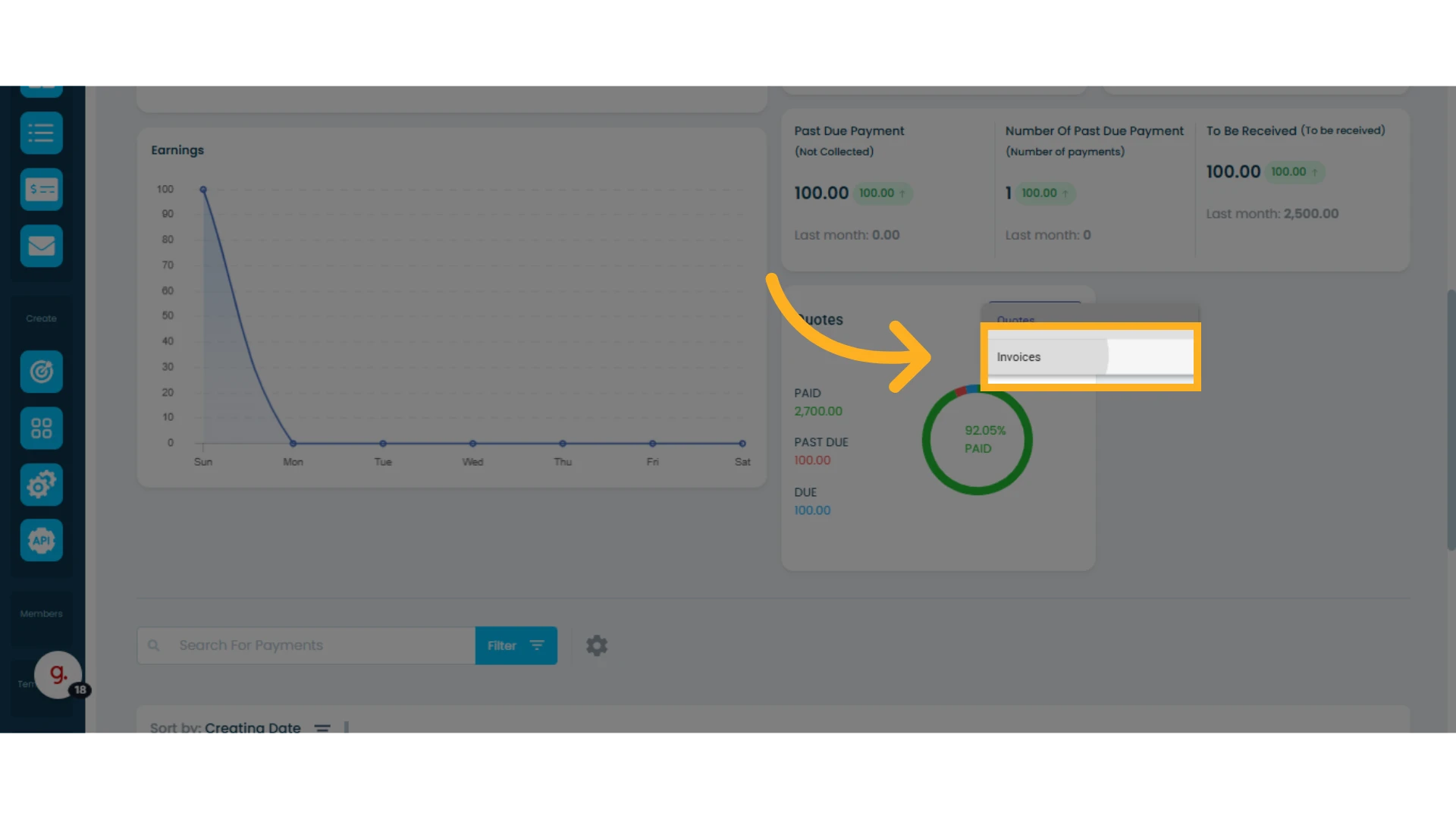
From the dropdown menu, you can select whether to view information related to quotes, sales orders, or invoices. A summary chart is also included to facilitate visual analysis.
Payments List
This section displays all payments recorded for your contacts. In the list, you’ll see pending, overdue, late payments, and refunds.
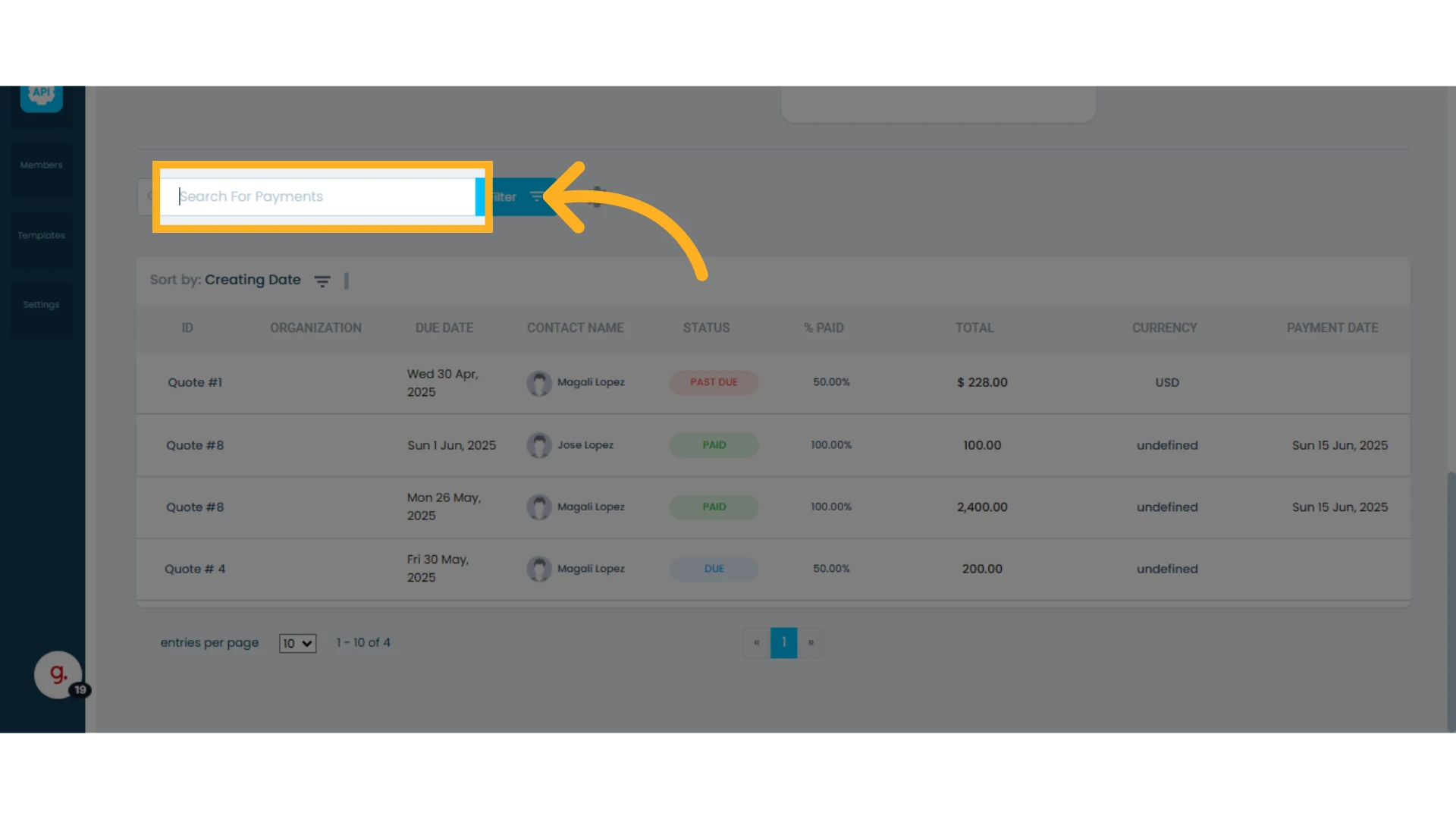
Search Payments
You can search for payments using the amount, quote number, invoice number, or contact name.
Apply Filters
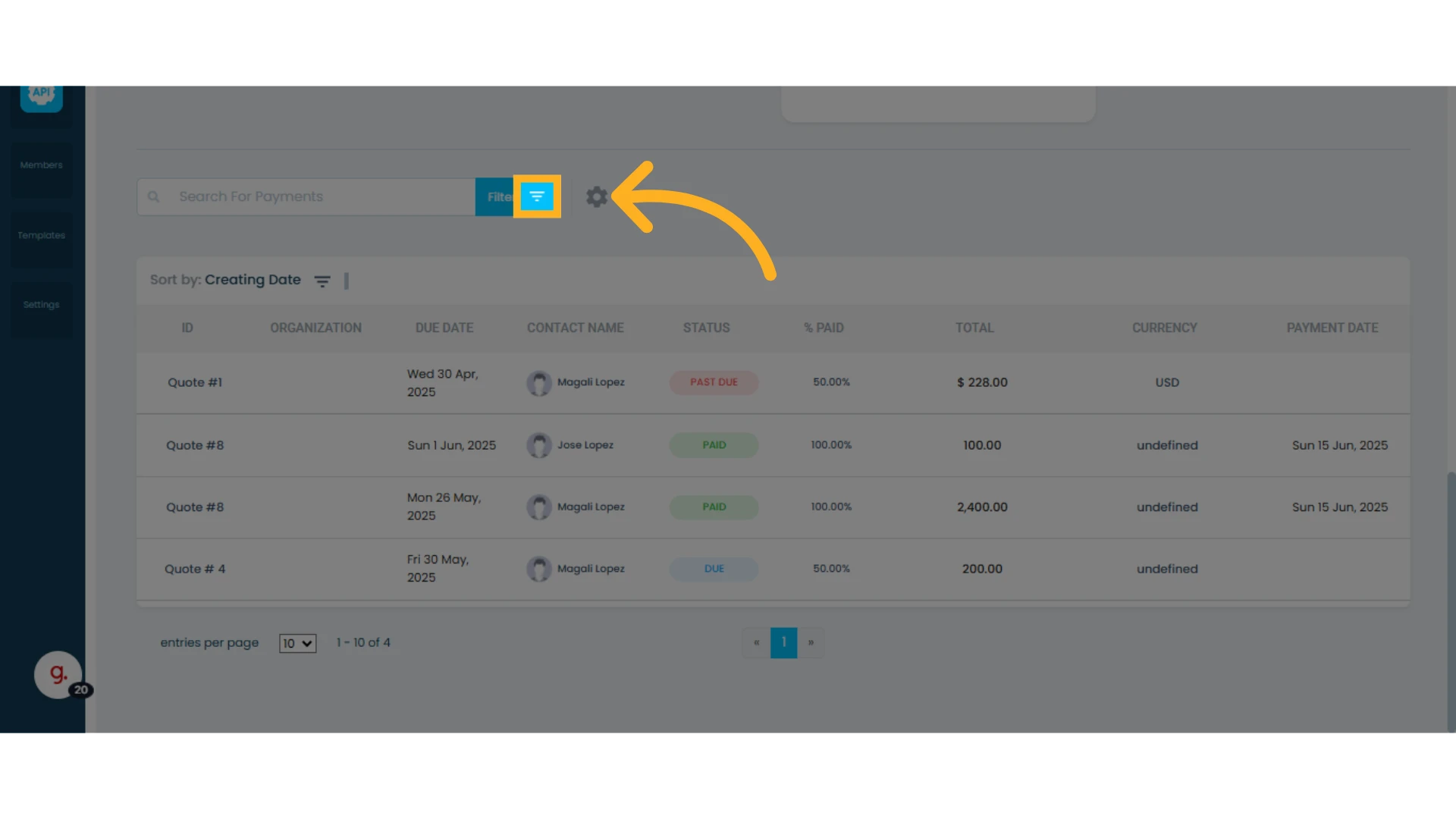
You can apply filters such as:
Status: Shows the current status of the payment. Possible values are:
Paid: Payment has been successfully received and recorded.
Due: Payment hasn’t been made yet, but the due date hasn’t passed.
Past Due: Payment is past due; the deadline has passed without receiving the payment.
Refunded: The paid amount was partially or fully returned to the customer.
Due Today: The payment is scheduled for today.
Members: Shows which team member is assigned to the contact, helping identify who is responsible for the account.
Organization: Indicates the organization to which the contact belongs. Useful for grouping and filtering payments by organization, especially when managing multiple contacts within the same entity.
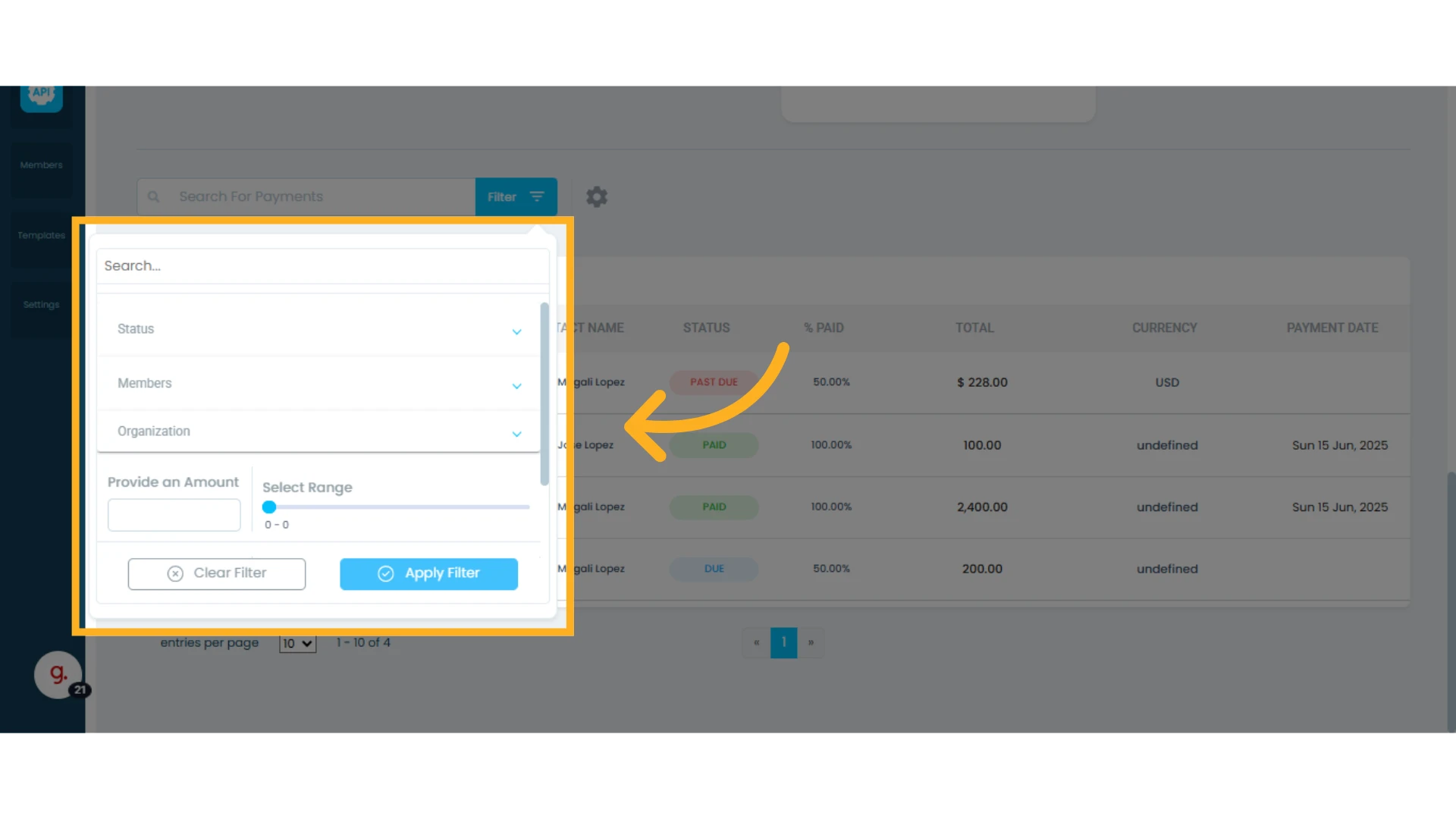
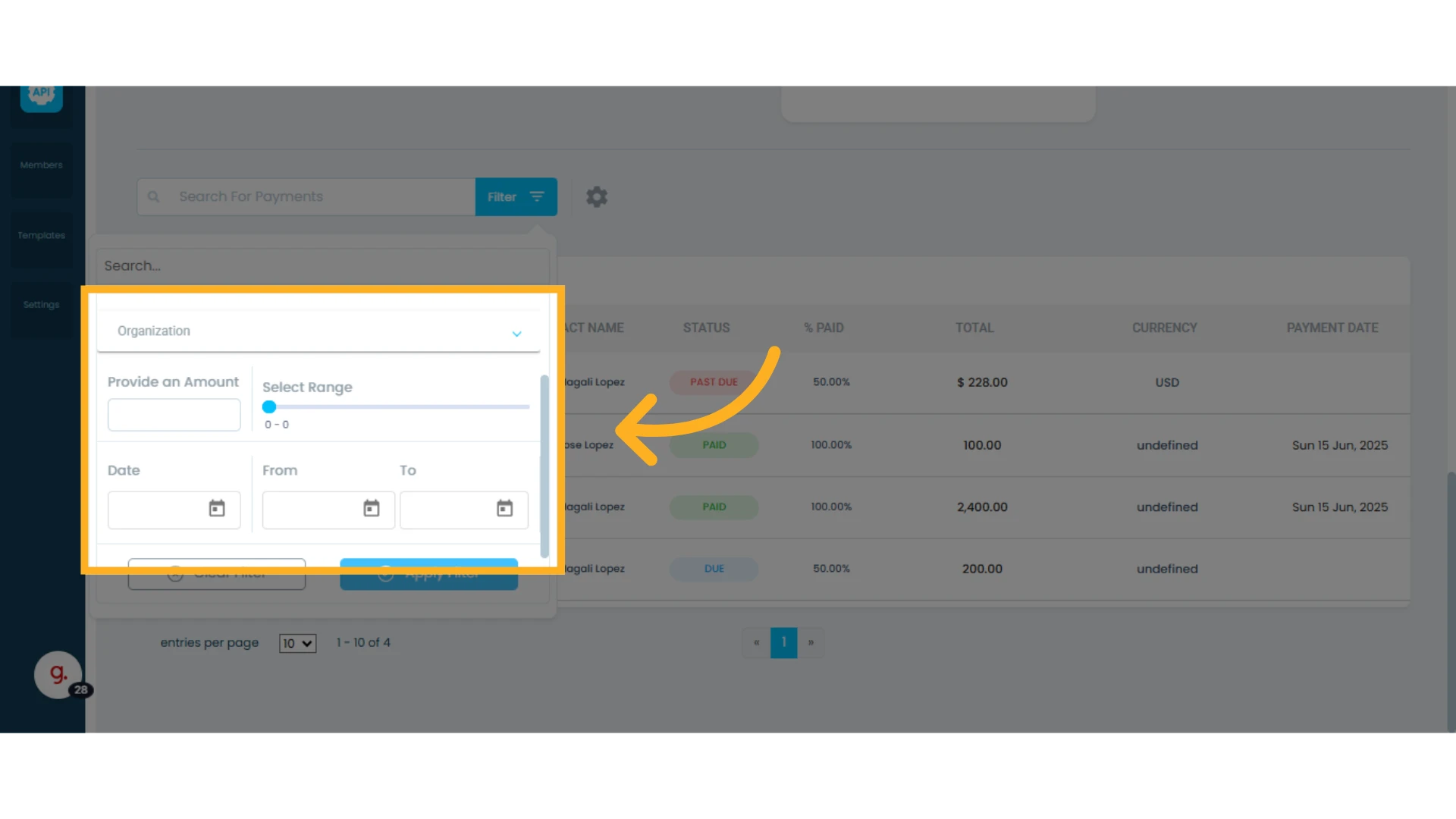
Provide an Amount: Choose a specific amount to filter payments by an exact recorded value.
Select Range: Set a range of amounts to display only payments within those limits.
Date: Set a specific date or a custom period by selecting a start and end date to see payments made during that time.
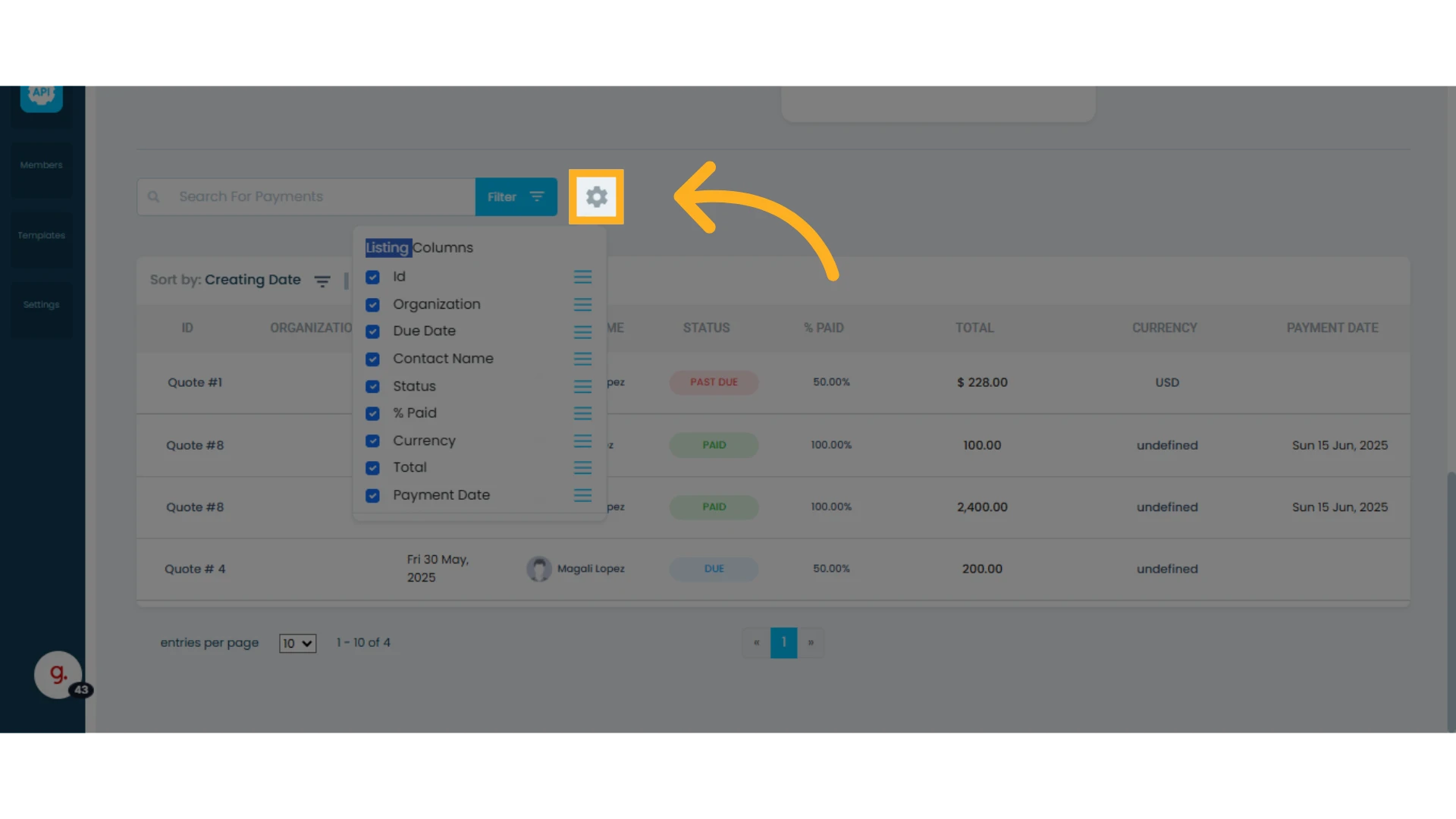
Adjust Columns in the Payments List:
Click the gear icon to customize which columns to display by checking or unchecking them. You can also rearrange columns by dragging and dropping them into your preferred order.
Manage Payments:
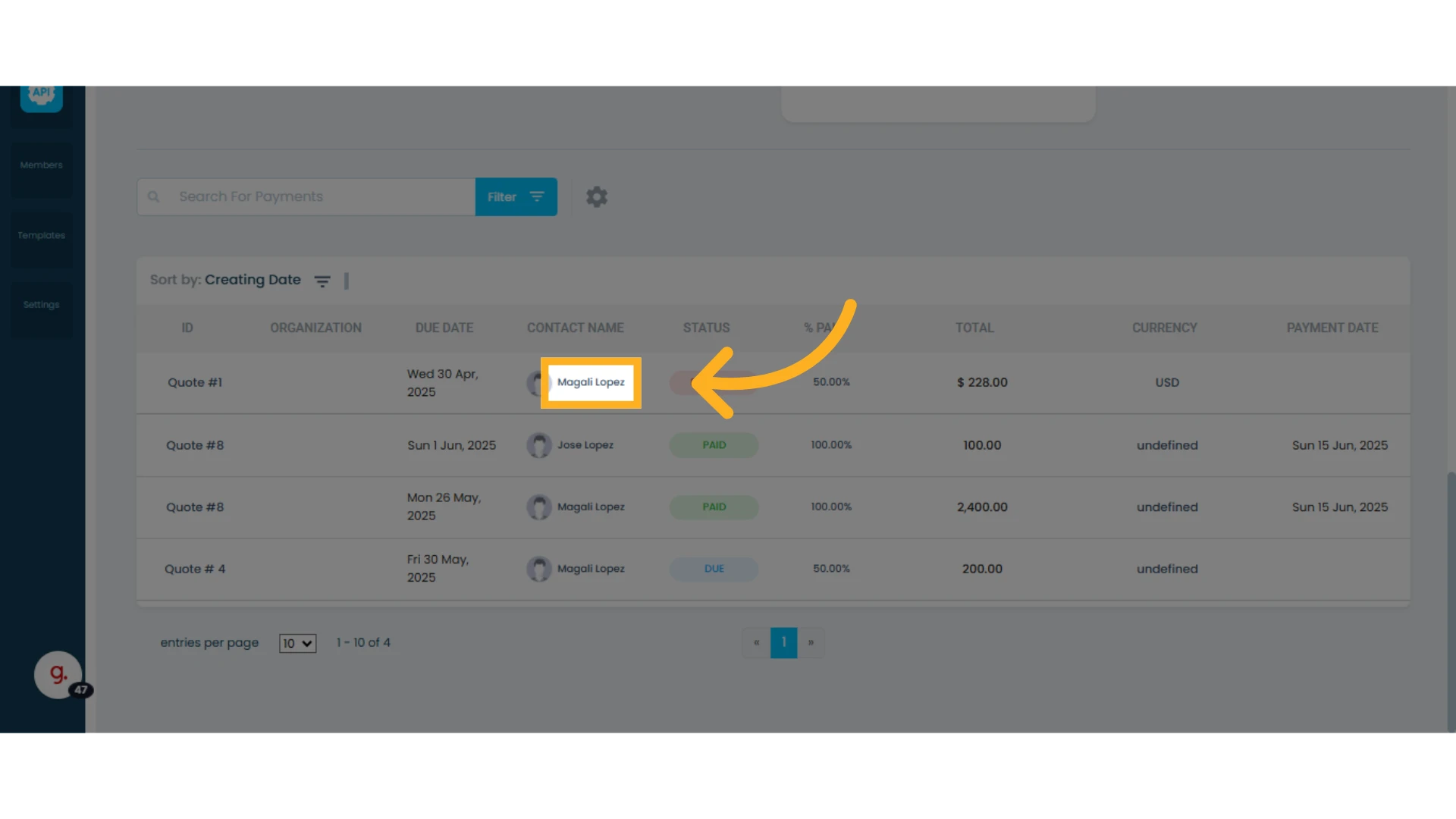
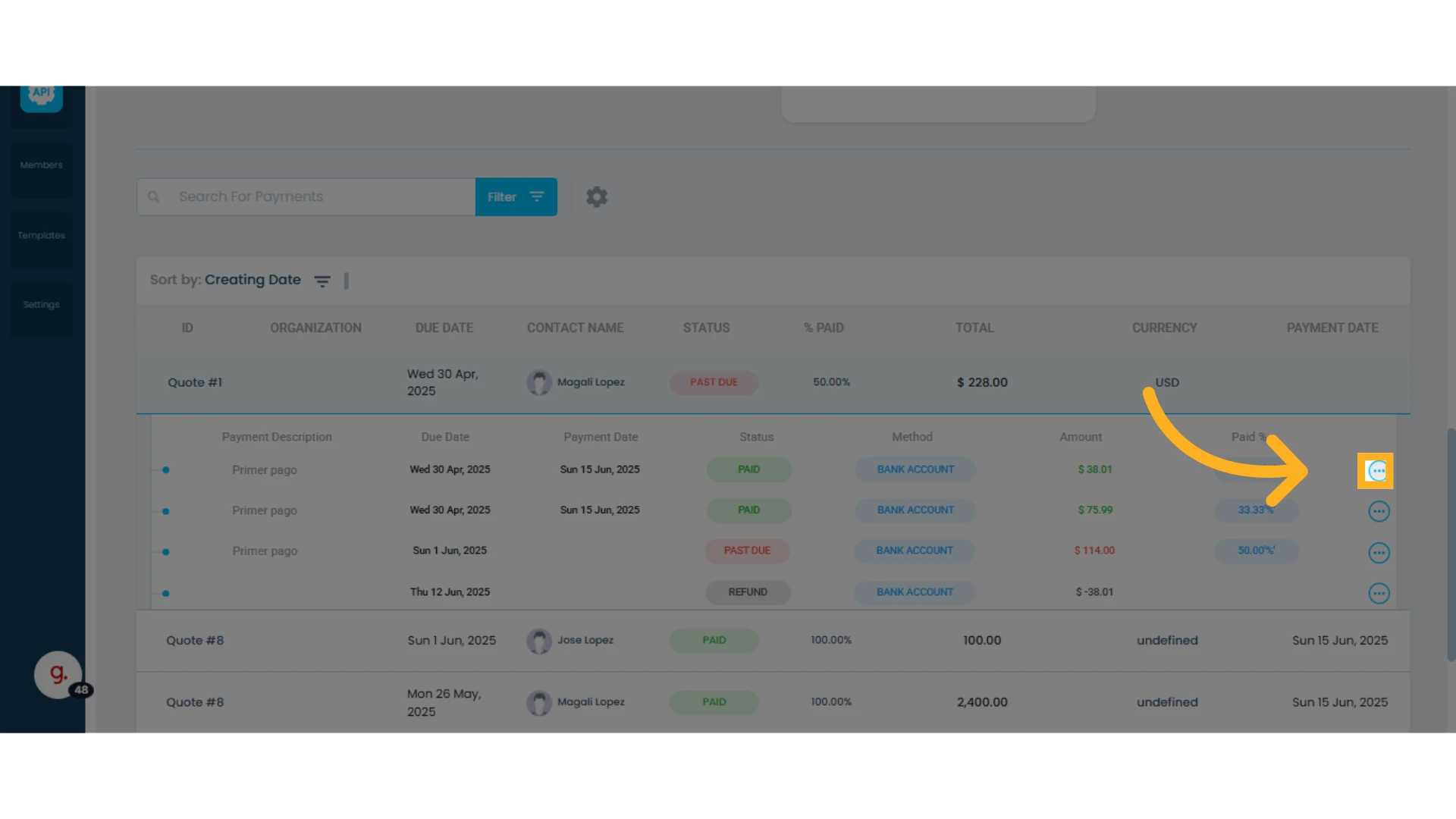
Click on any payment in the list to expand and view the related quote, sales order, or invoice.
Use the three-dot icon to edit a payment, send reminders (for overdue payments), mark payments as paid, or delete a payment.
Learn more about how to record, modify, and refund payments.