If you want to send and receive emails from your workspace, you will need to do three things.
These steps are technical, so you will need some knowledge of IMAP and DNS or ask someone with technical expertise to help you set up your email.
Add your email’s IMAP information
Add DNS records in your hosting provider
Verify your email inside Osmos
Once your email is set up, you will be able to send and receive emails from Osmos. This also allows you to create email templates within Osmos and send them to clients automatically.
NOTE: Once you have added the DNS to the workspace, you will only need to add the IMAP for additional emails from other members/users using the same domain name.
IMPORTANT: We cannot provide technical support for this.
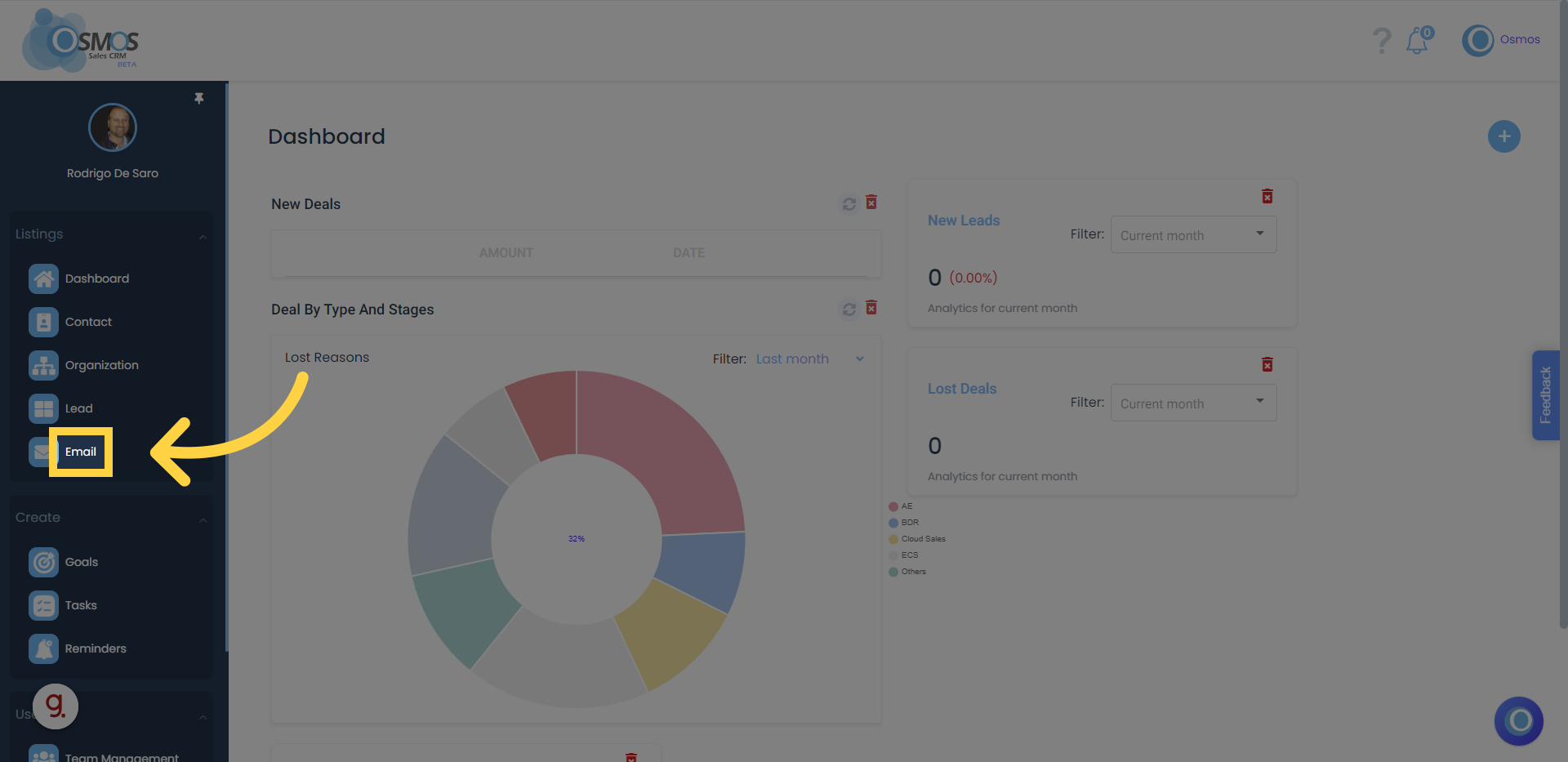
1. Click on “Email” in the main left-hand menu
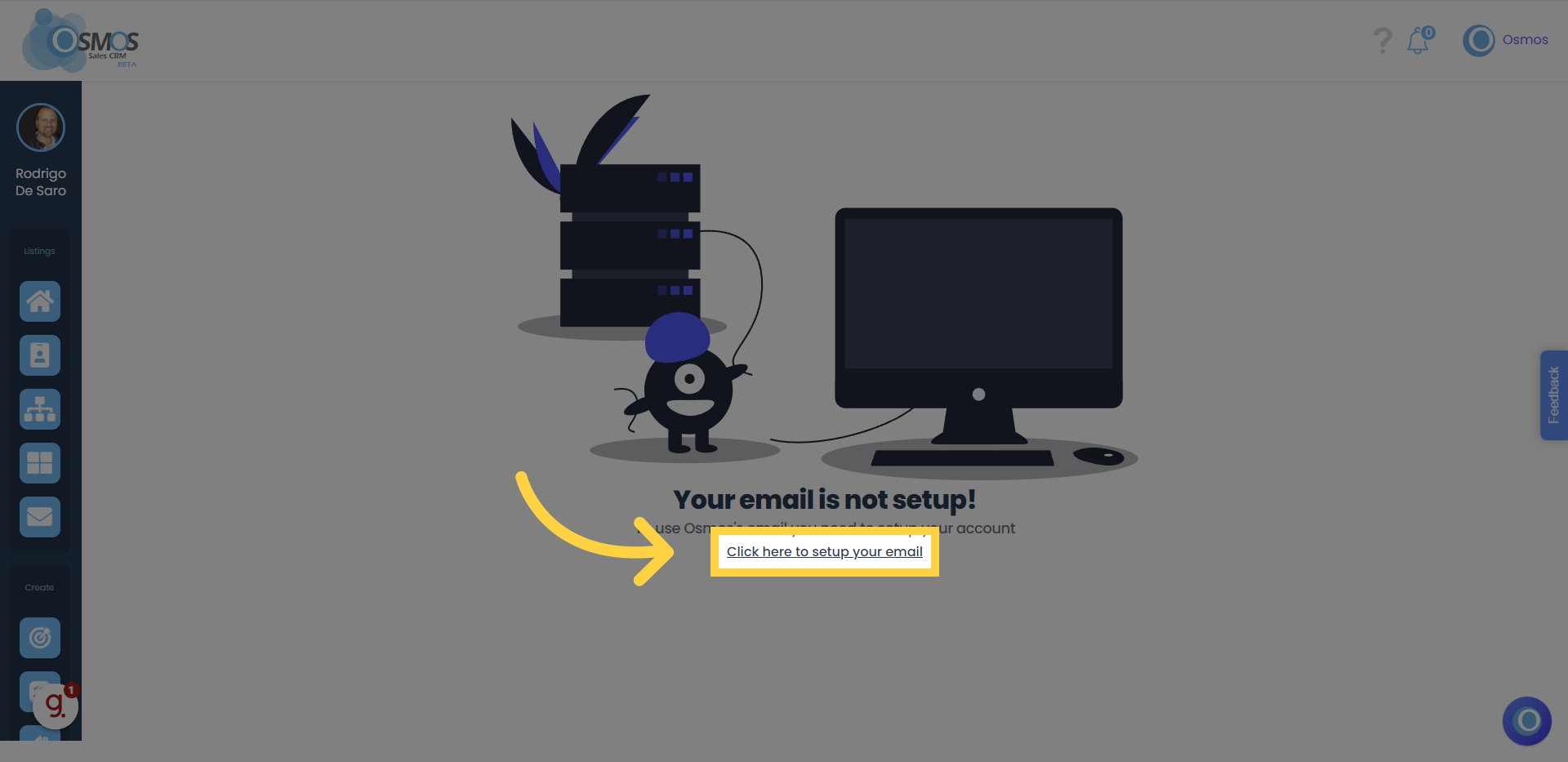
2. Click on "Setup your email"
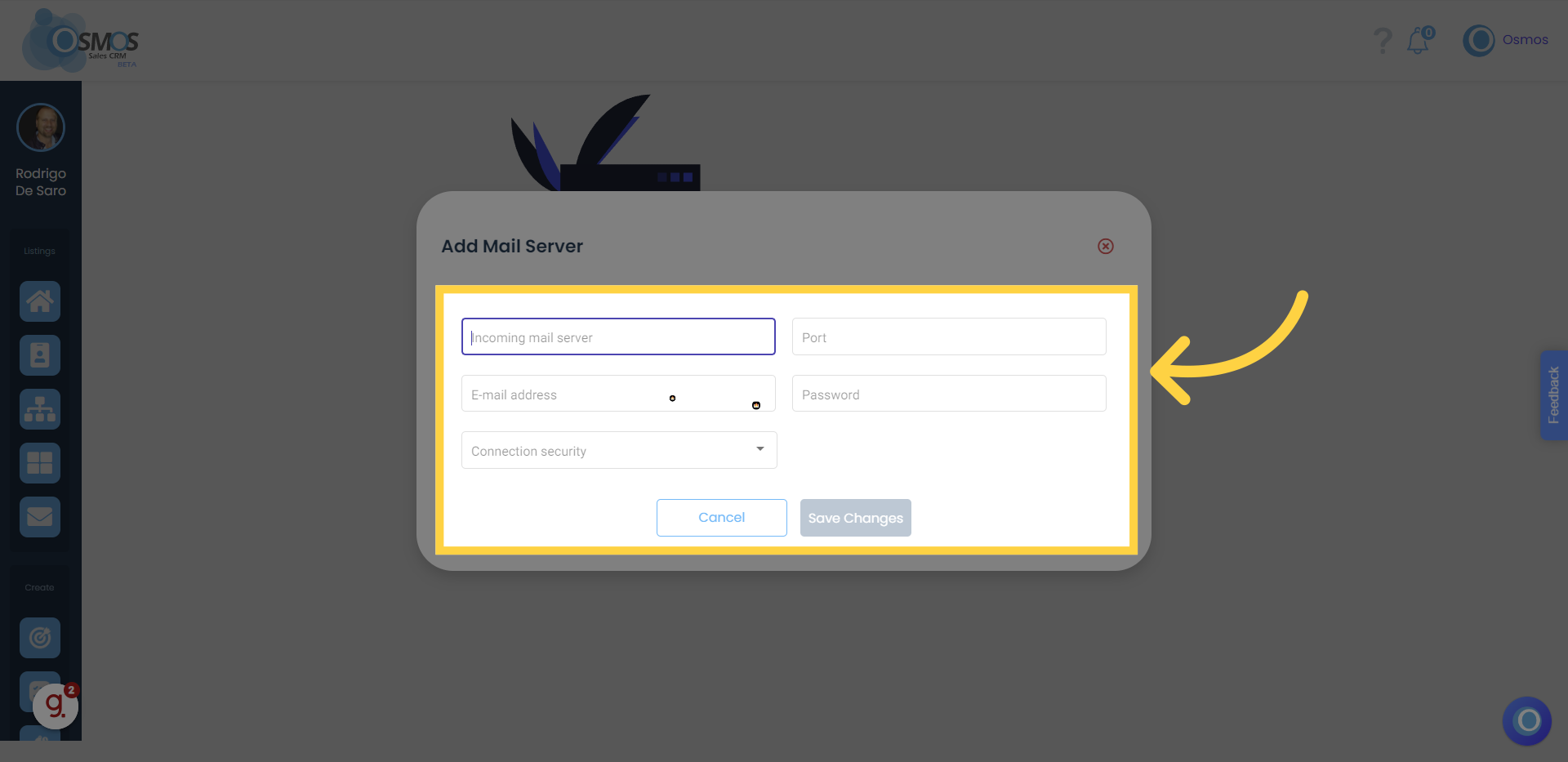
3. Enter your IMAP credentials
The IMAP details for your email can be found with your hosting or email provider. The information may vary from provider to provider. In here we share an example that can be handy:
Incoming mail server: imap."your hosting provider".com
Port: 993
Email address: Your full email address
Password: The password you use to login to your email
Connection security: SSL/TLS
4. Connect to your inbox
After you have entered your IMAP credentials, you will see your inbox with your emails. At this point, you will only be able to read and see your emails (not compose them).
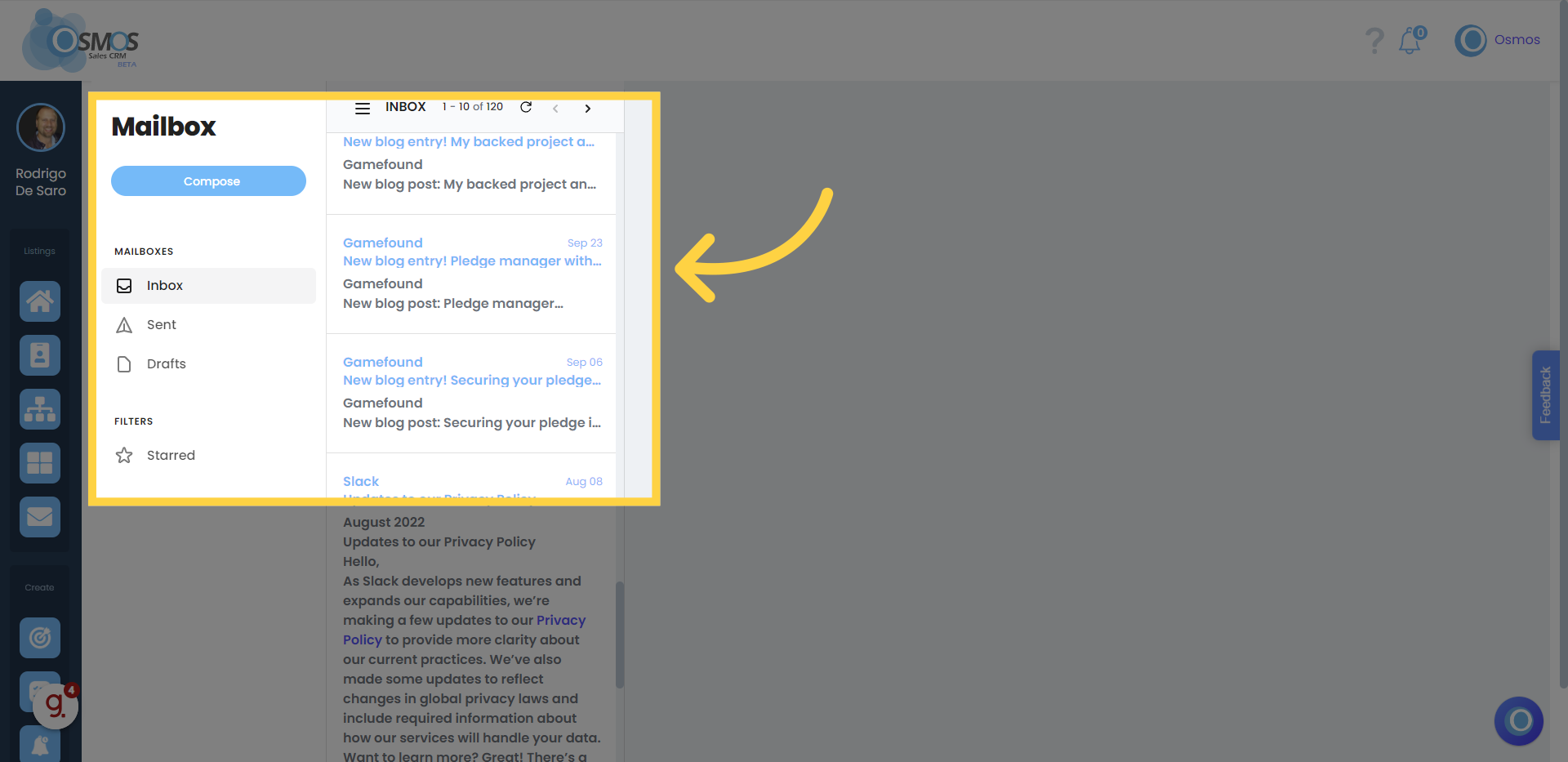
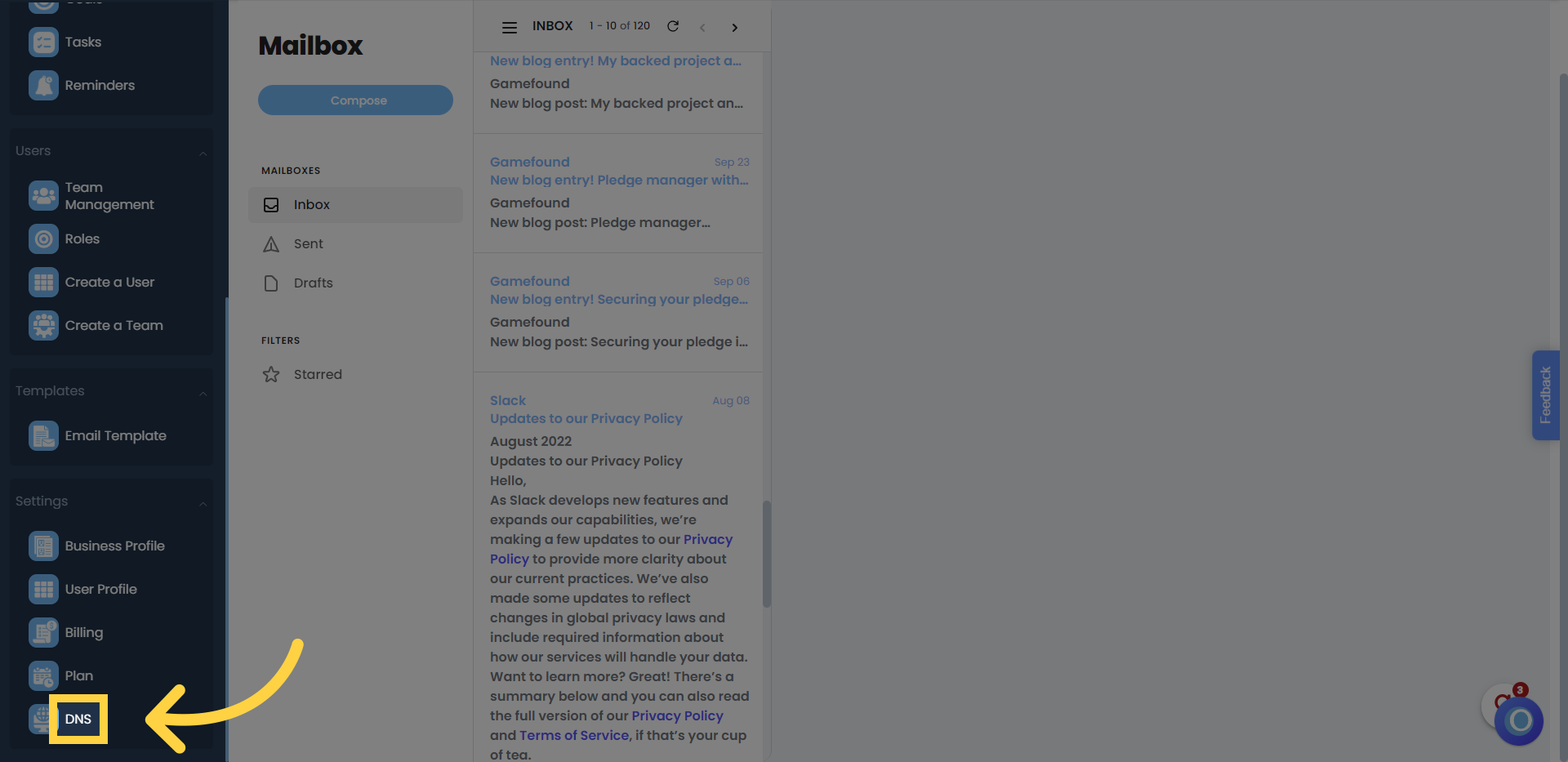
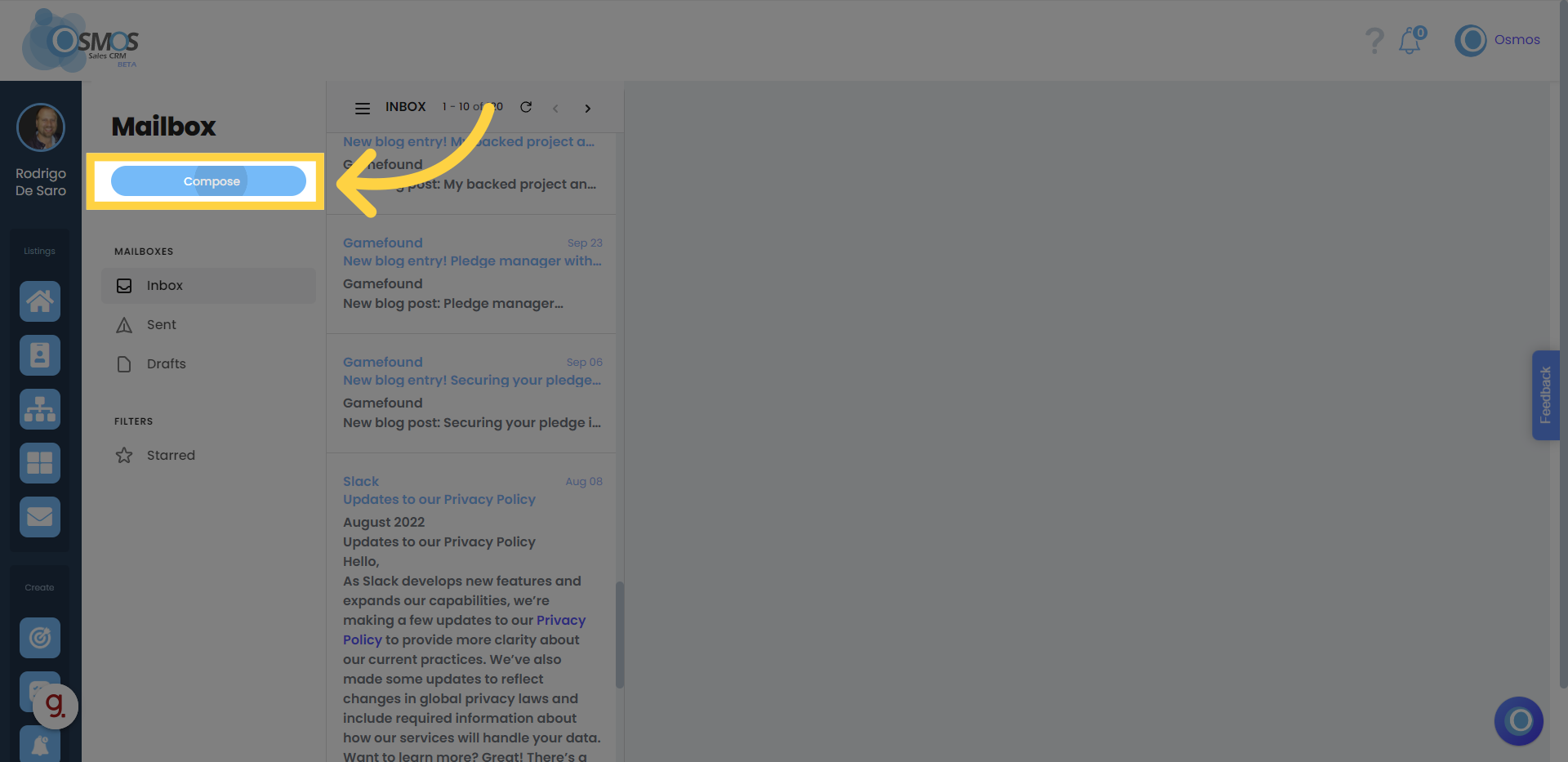
5. Click on "Compose" to set up your DNS, or in the main left-hand menu, scroll down and look for the option labeled DNS
If this is your first time adding your DNS, a new window will open asking for your DNS configuration details.
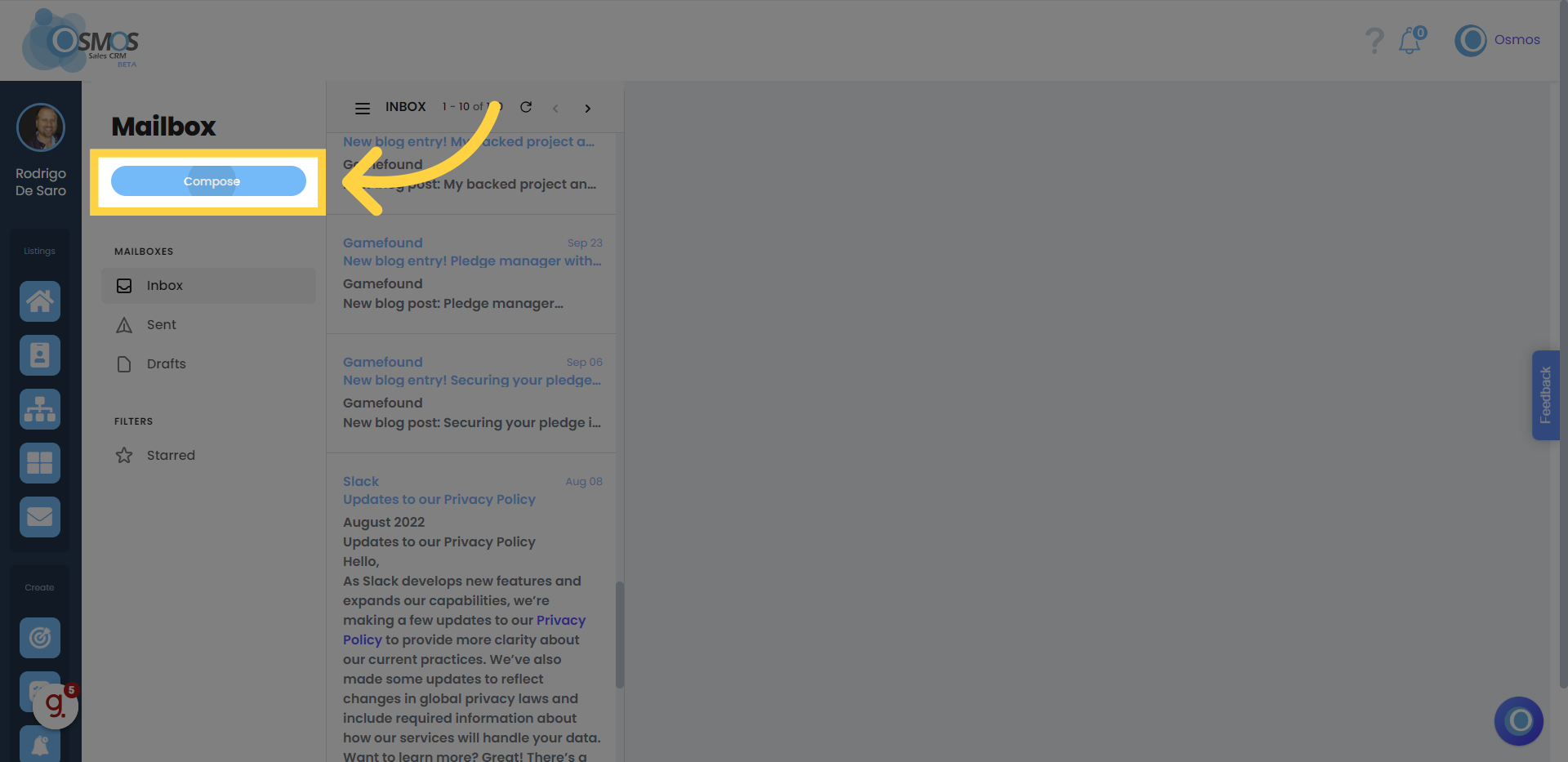
6. Add DNS Records
If you want to send emails using Osmos CRM you will need to add DNS records to your hosting.
Add your own domain (website) Example: nobletreason.com
Log in to your hosting provider and add the 3 DNS records shown in this window.
(If you are not familiar with how to do this, contact your hosting provider and share these records with them).
IMPORTANT: We cannot provide technical support for this.
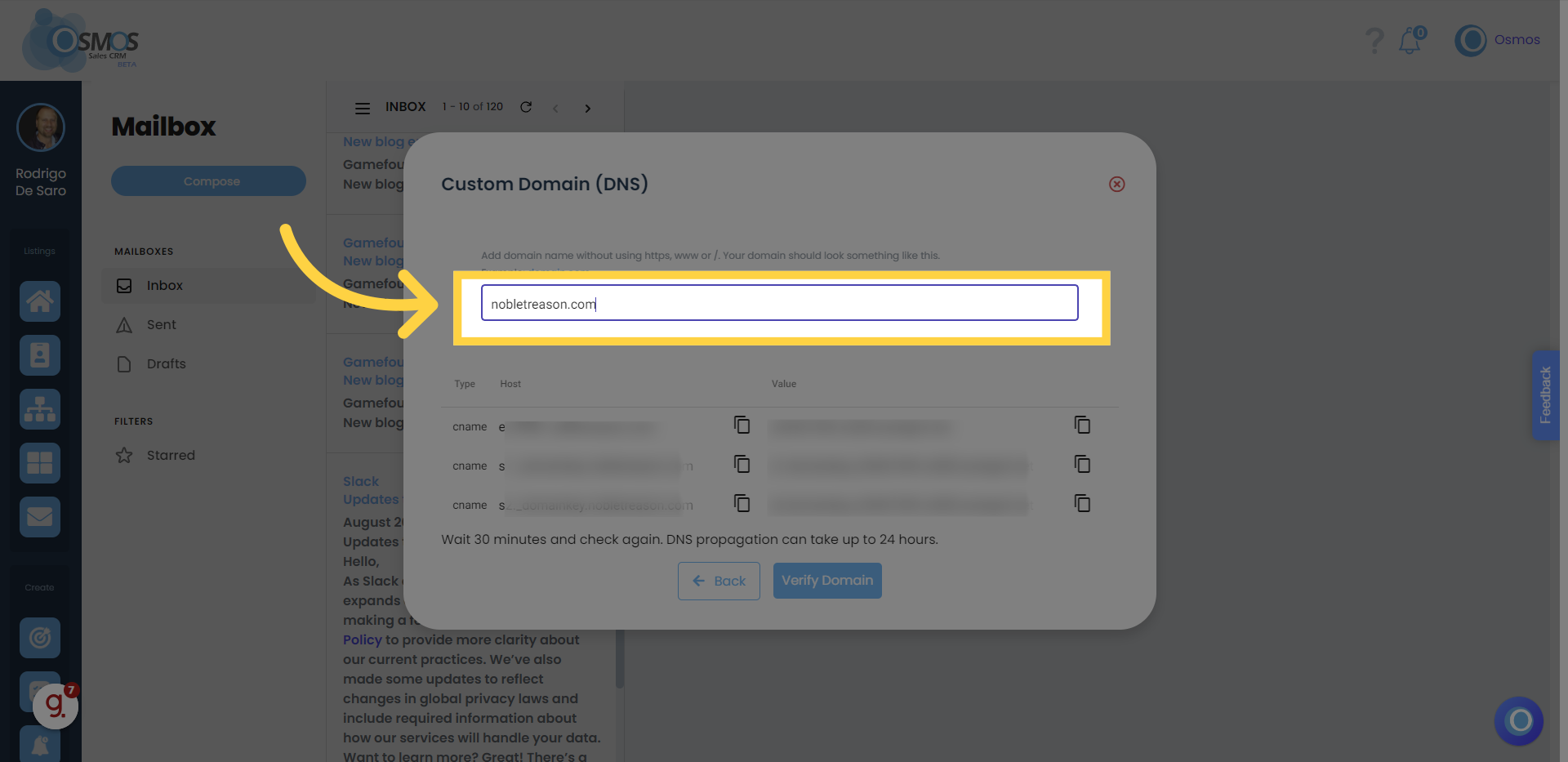
7. Verify domain
After adding the DNS records, you can click on “Verify Domain”. The configuration may not be complete yet — it can take a few minutes or up to 24 hours.
To check if your DNS records have propagated, click on “Compose” or go to the DNS section in the left-hand menu and click on “Verify Domain”.
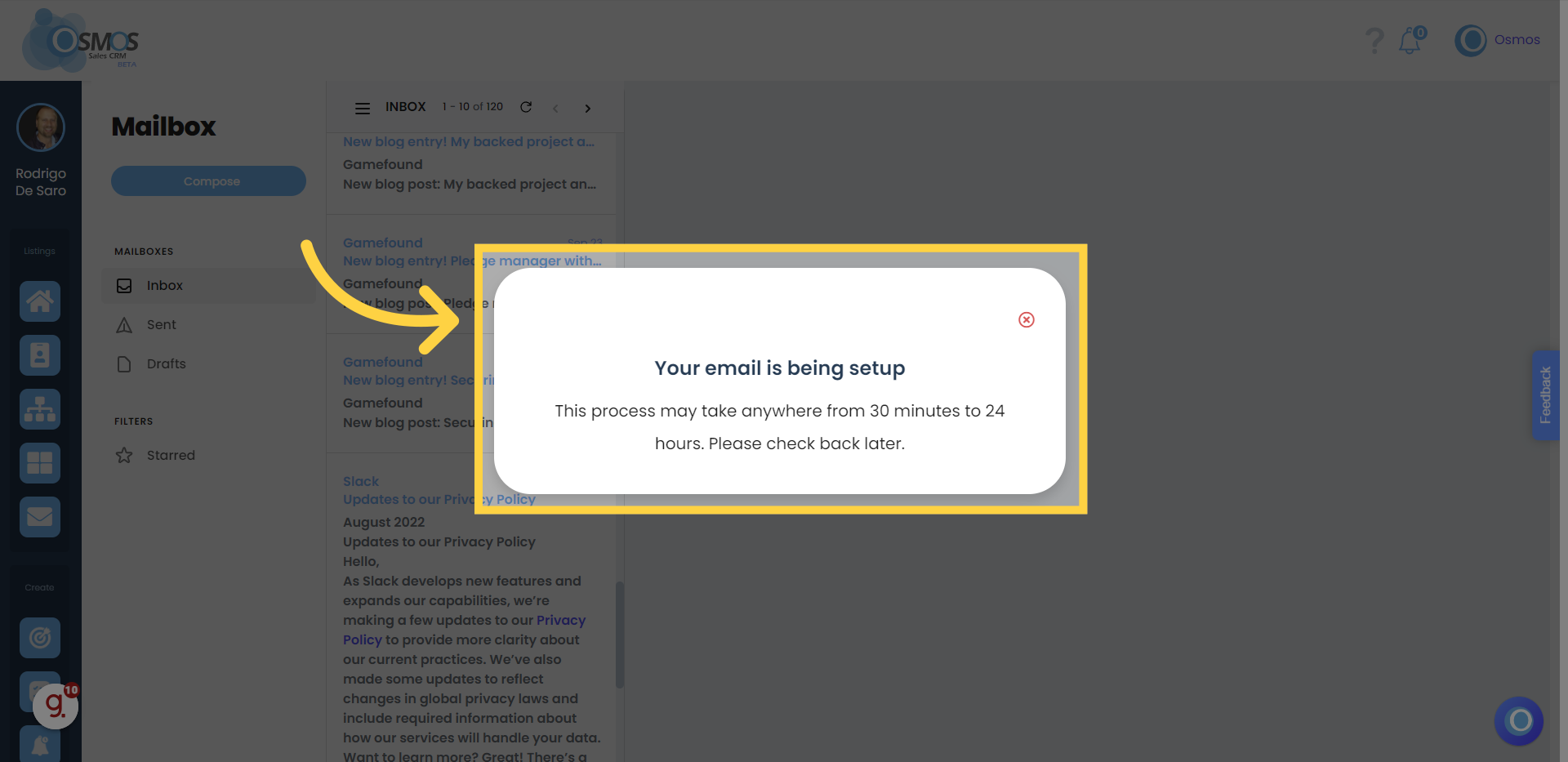
8. Final Step: Verify Your Email
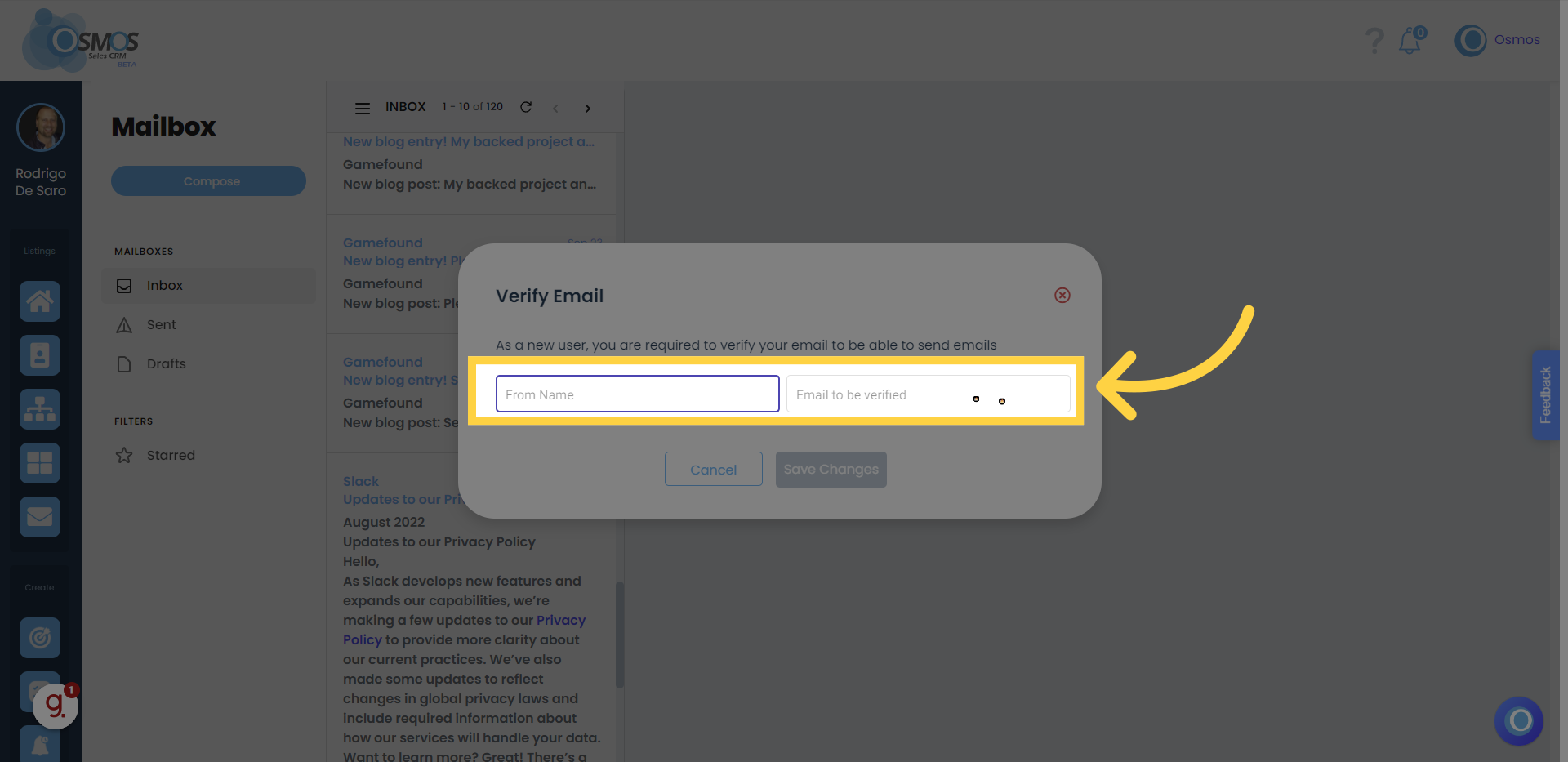
Once your DNS records have propagated, click “Compose” or go to the DNS section in the main left-hand menu. At the bottom, you’ll find the option to verify your email.
Enter your name as you want it to appear to your email recipients, and enter the email address you’ll use to send messages (it must match the domain you verified in the DNS setup).
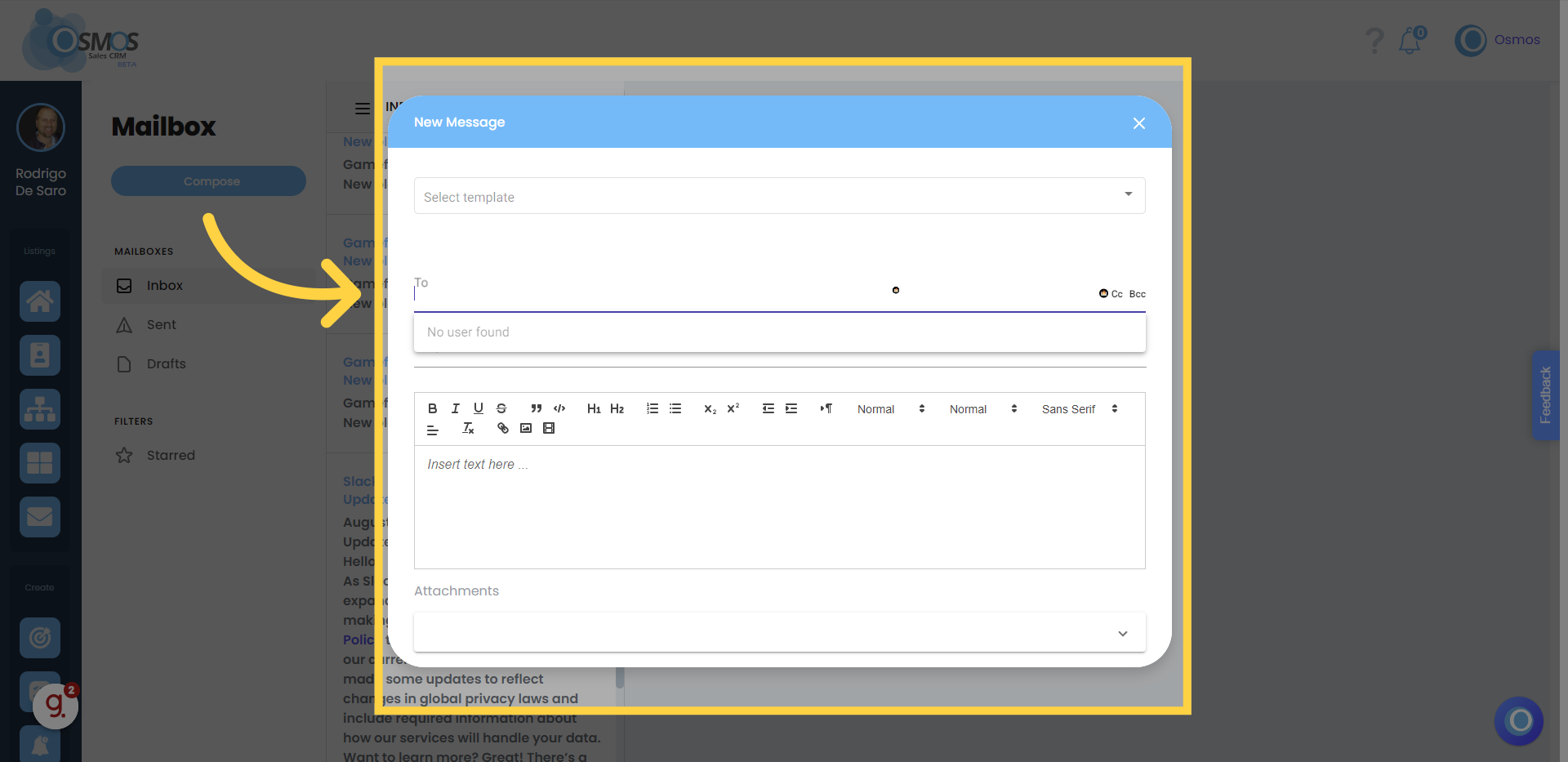
9. Send your first email by clicking "Compose"
If you want to verify your DNS settings and emails click on "DNS"