Creating an invoice in Osmos is very simple. In this guide, you’ll learn how to convert a quote into an invoice, how to create single and recurring invoices, and how to manage invoices after they’ve been created.
Generate an Invoice
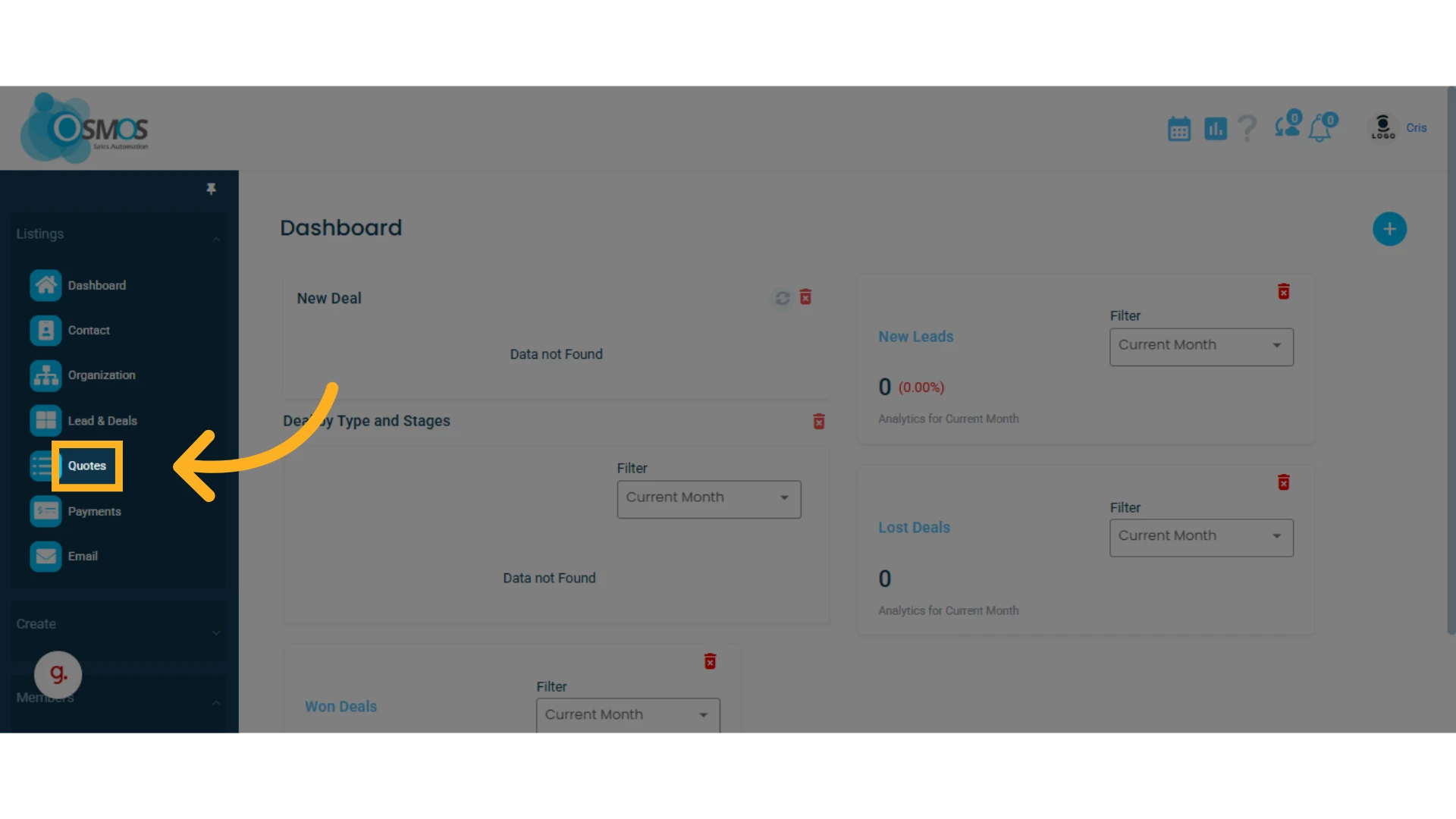
1. Go to the left-hand menu and select the "Quotes" module
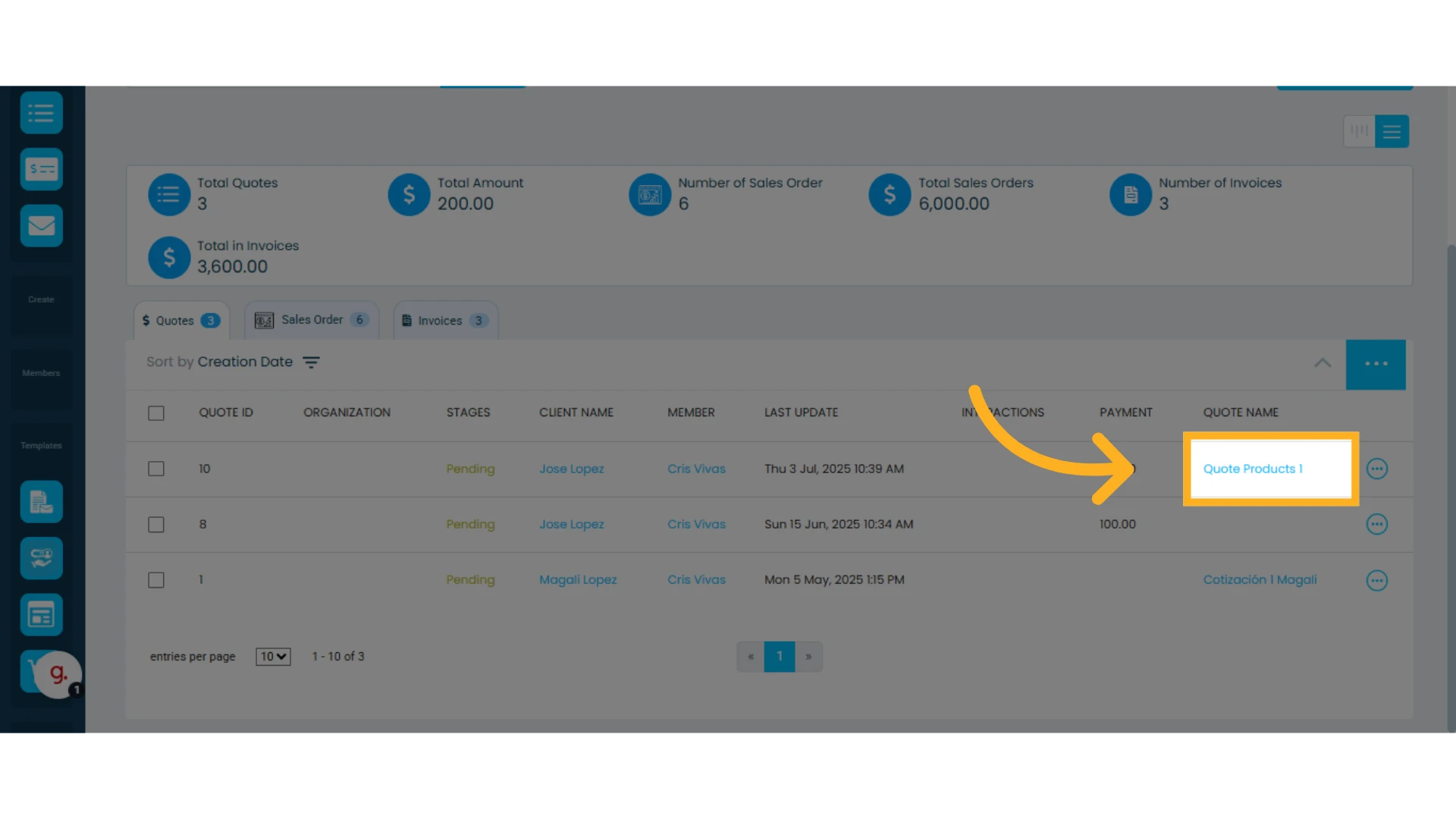
2. Click on the quote you want to convert into an invoice to open it
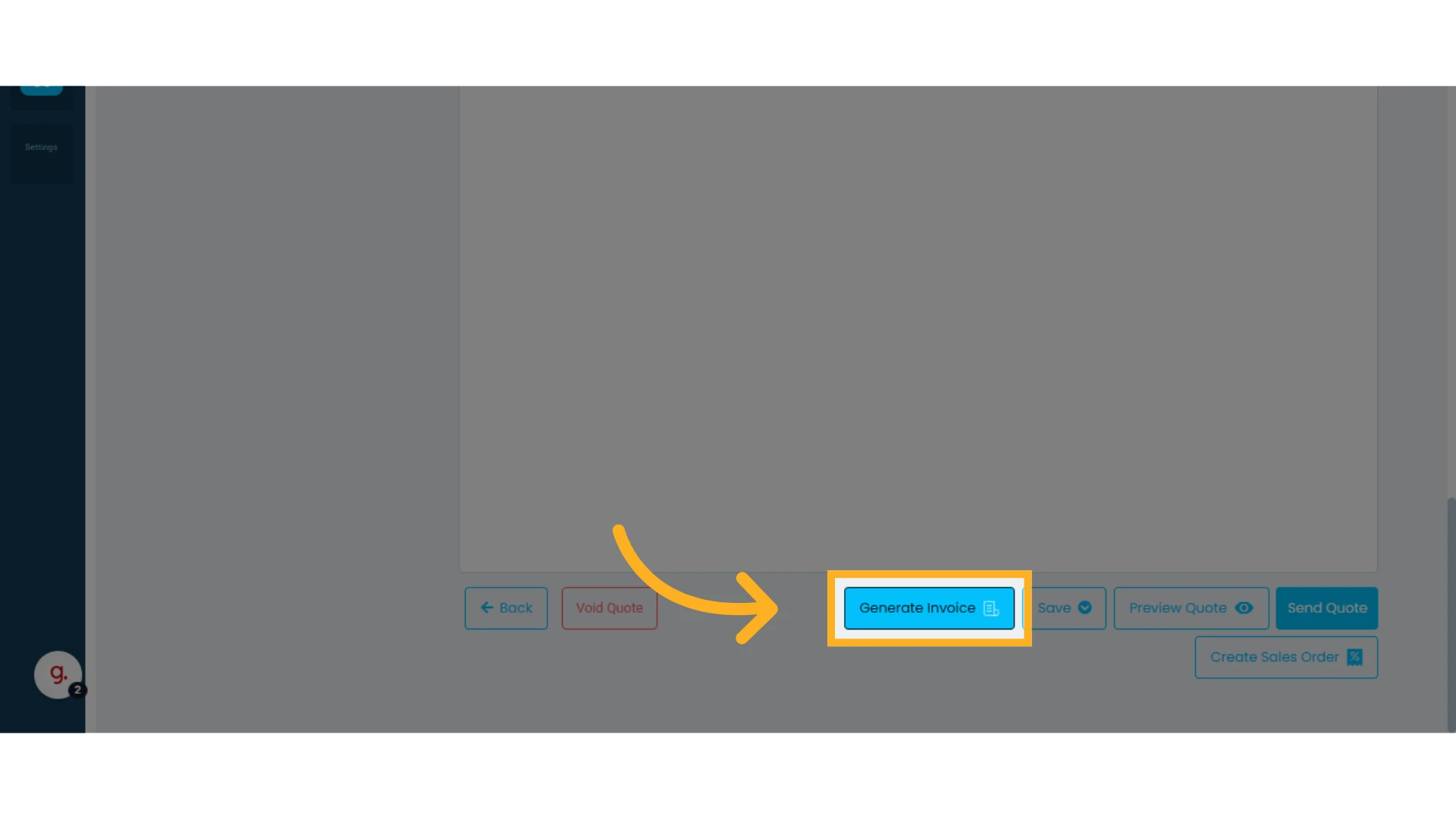
3. Scroll to the bottom and click the "Generate Invoice" button
Types of Invoices
You can generate two types of invoices:
Single Invoice
Recurring Invoice
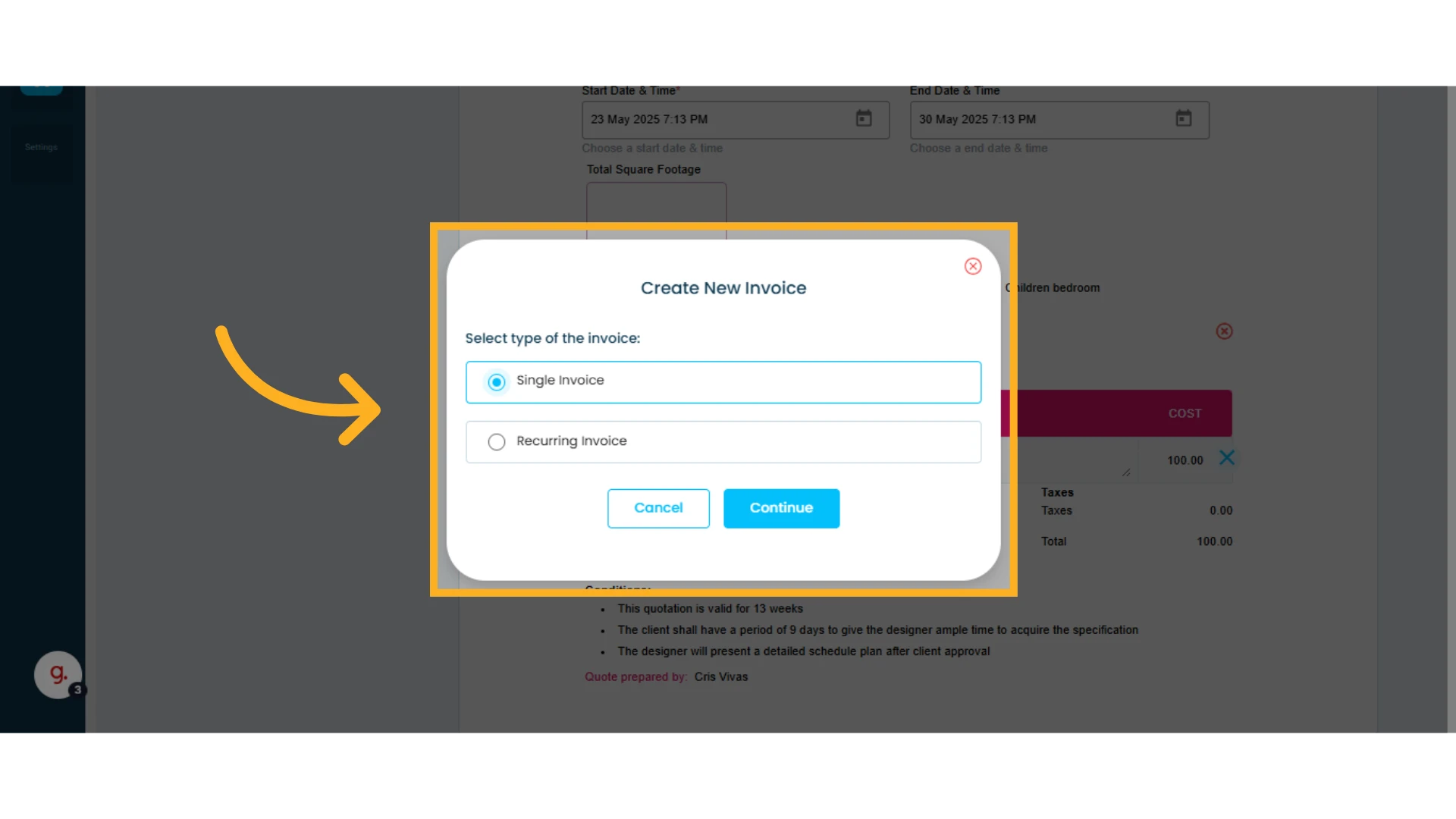
Single Invoice
To generate a Single Invoice, follow these steps:
1. Click "Single Invoice" and then "Continue"
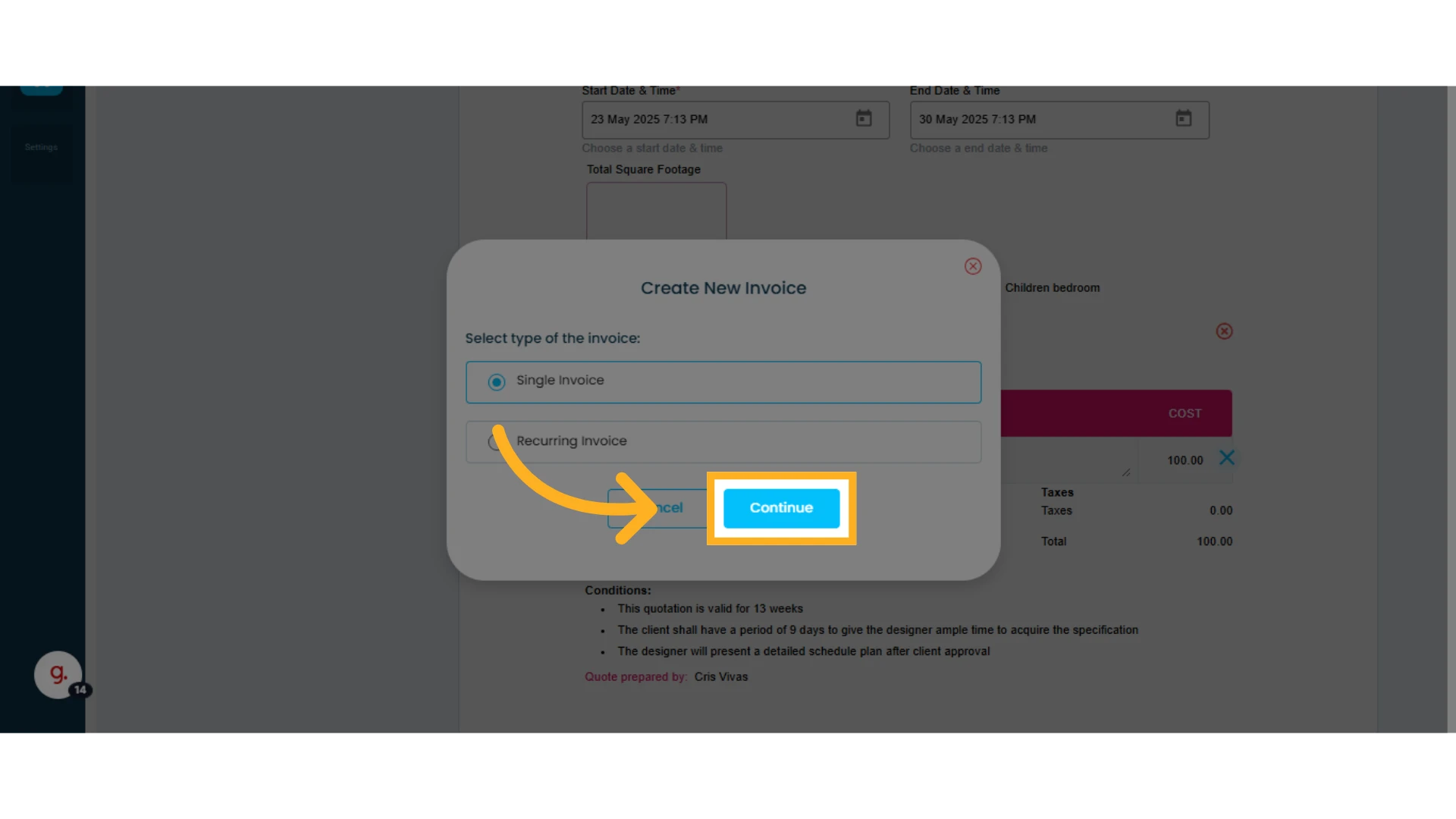
2. Select the invoice date and click "Create Invoice"
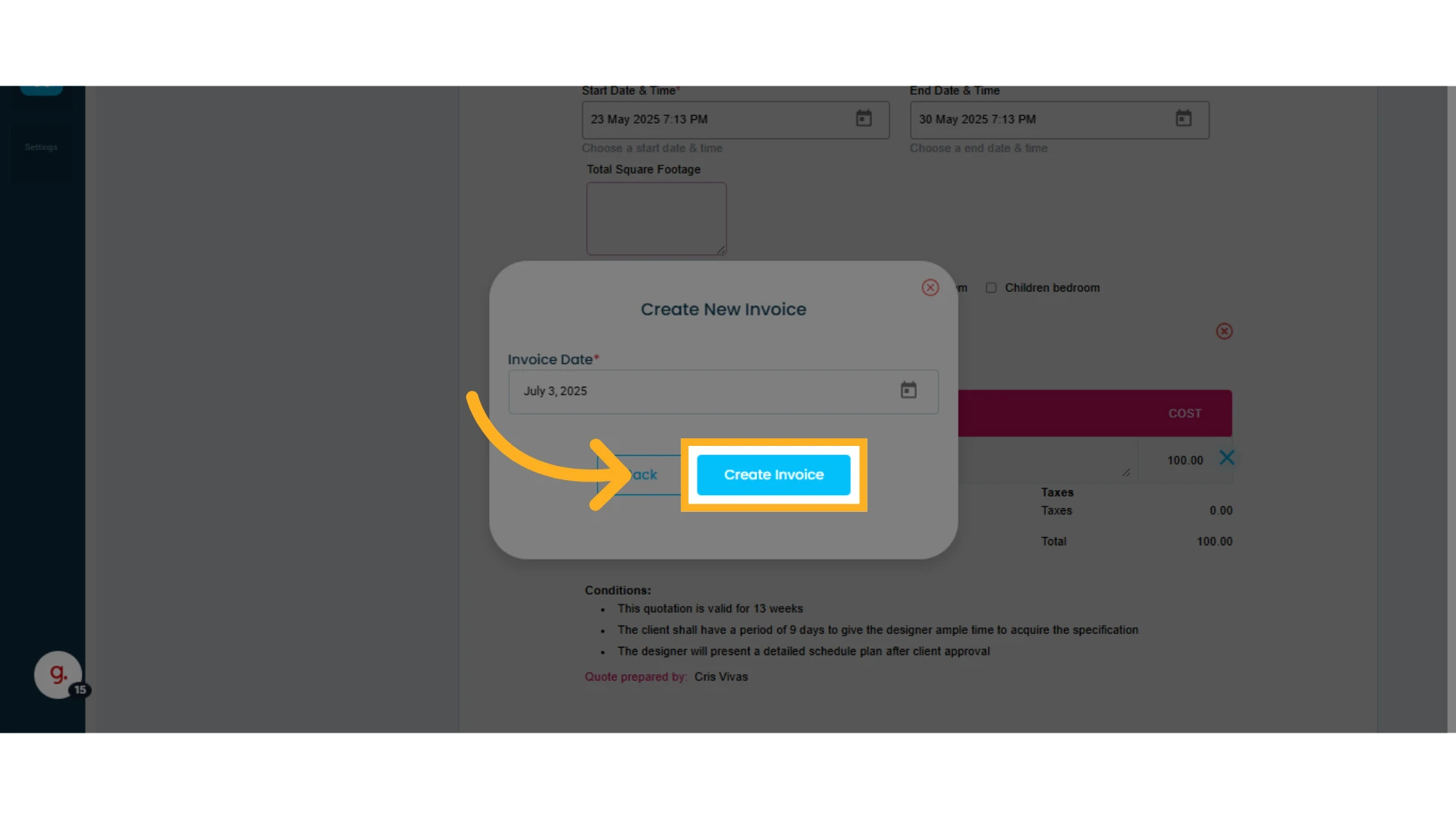
Recurring Invoice
A recurring invoice is sent to the contact on a scheduled basis. The invoice will contain the same information each time, with only the invoice ID and date changing. This option is ideal for businesses that send invoices for the same service over a defined period.
To generate a "Recurring Invoice", follow these steps:
1. Click "Recurring Invoice" and then "Continue"
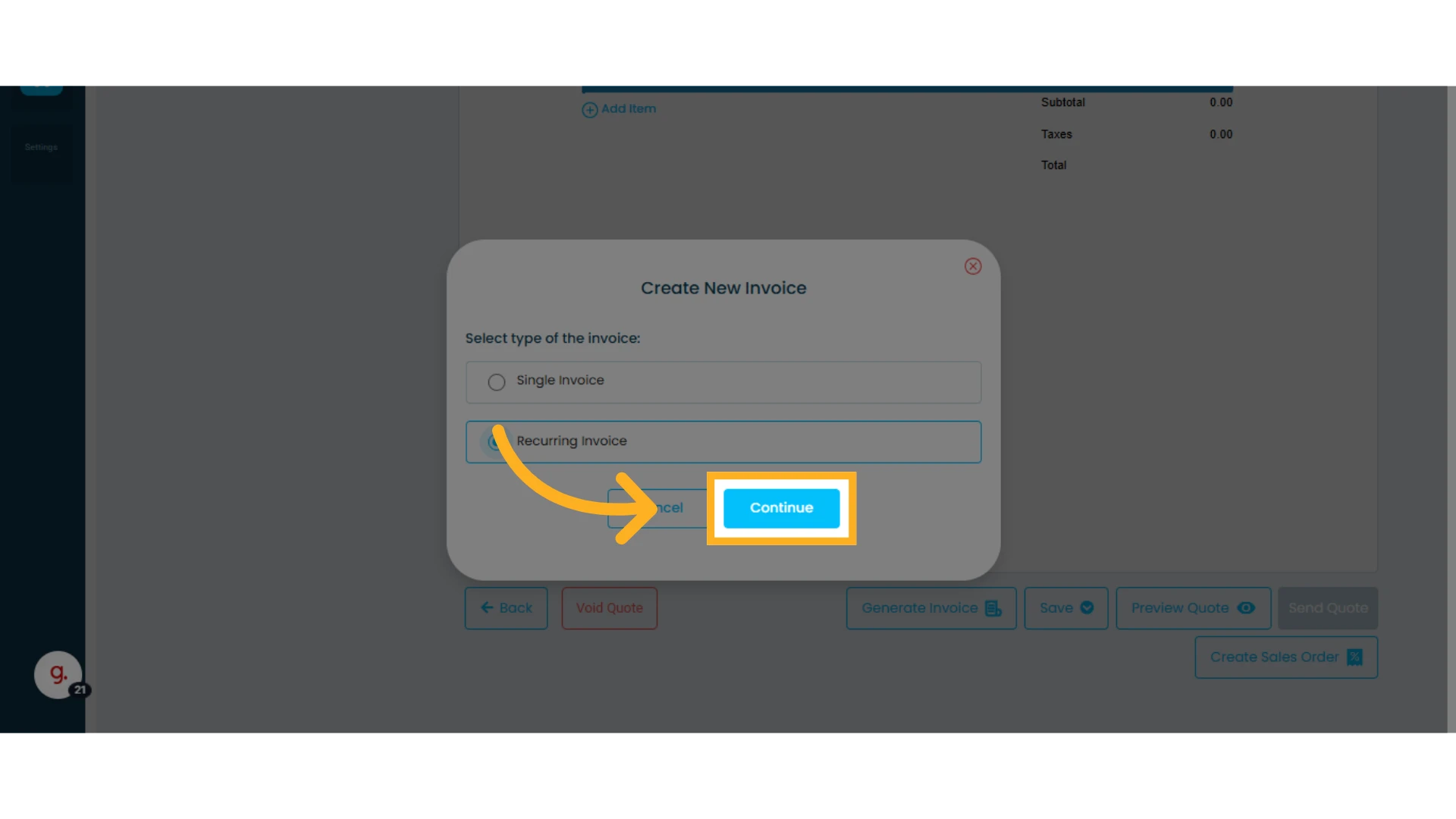
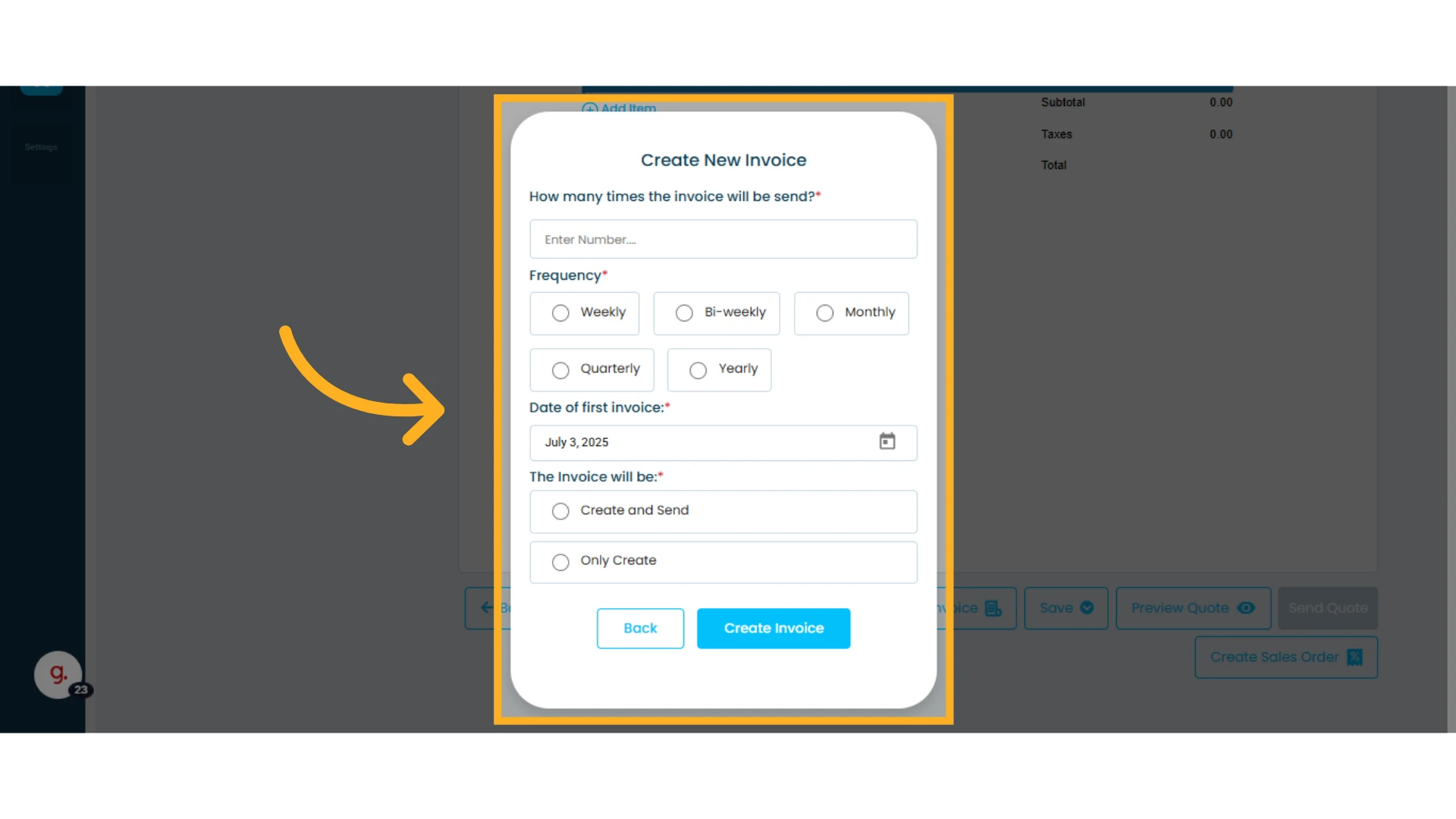
2. Enter the required information
On the new screen, you’ll need to specify:
How many times the invoice will be sent
Frequency (weekly, biweekly, monthly, quarterly, or yearly)
Date of the first invoice
Whether you want to create and send the invoice or just create it
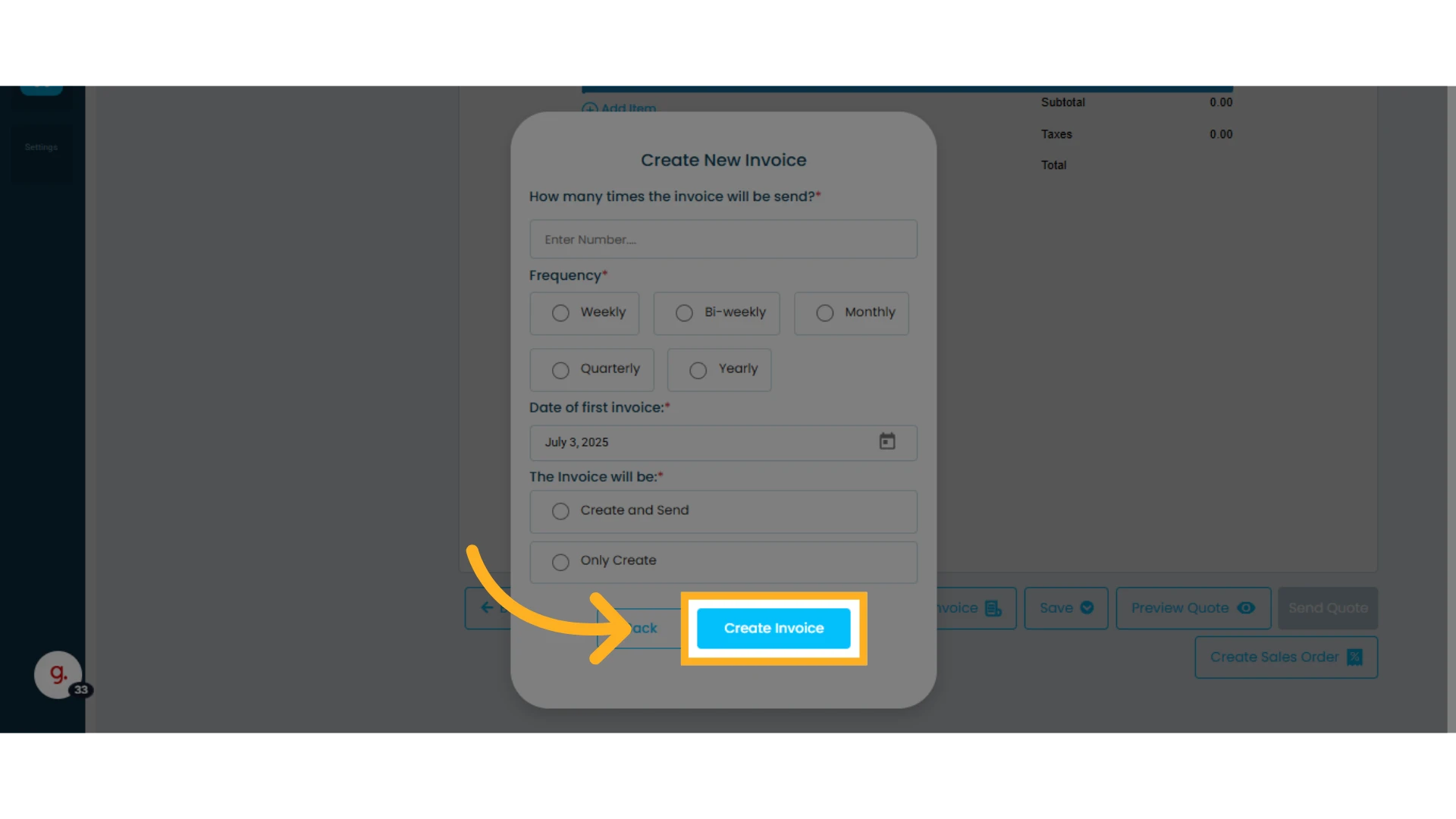
3. Click "Create Invoice"
TIP: In some countries, invoice generation is subject to specific rules and procedures that Osmos may not support. Check our API integrations to see if we offer e-invoicing for your country.
View the Created Invoice and Invoice Details
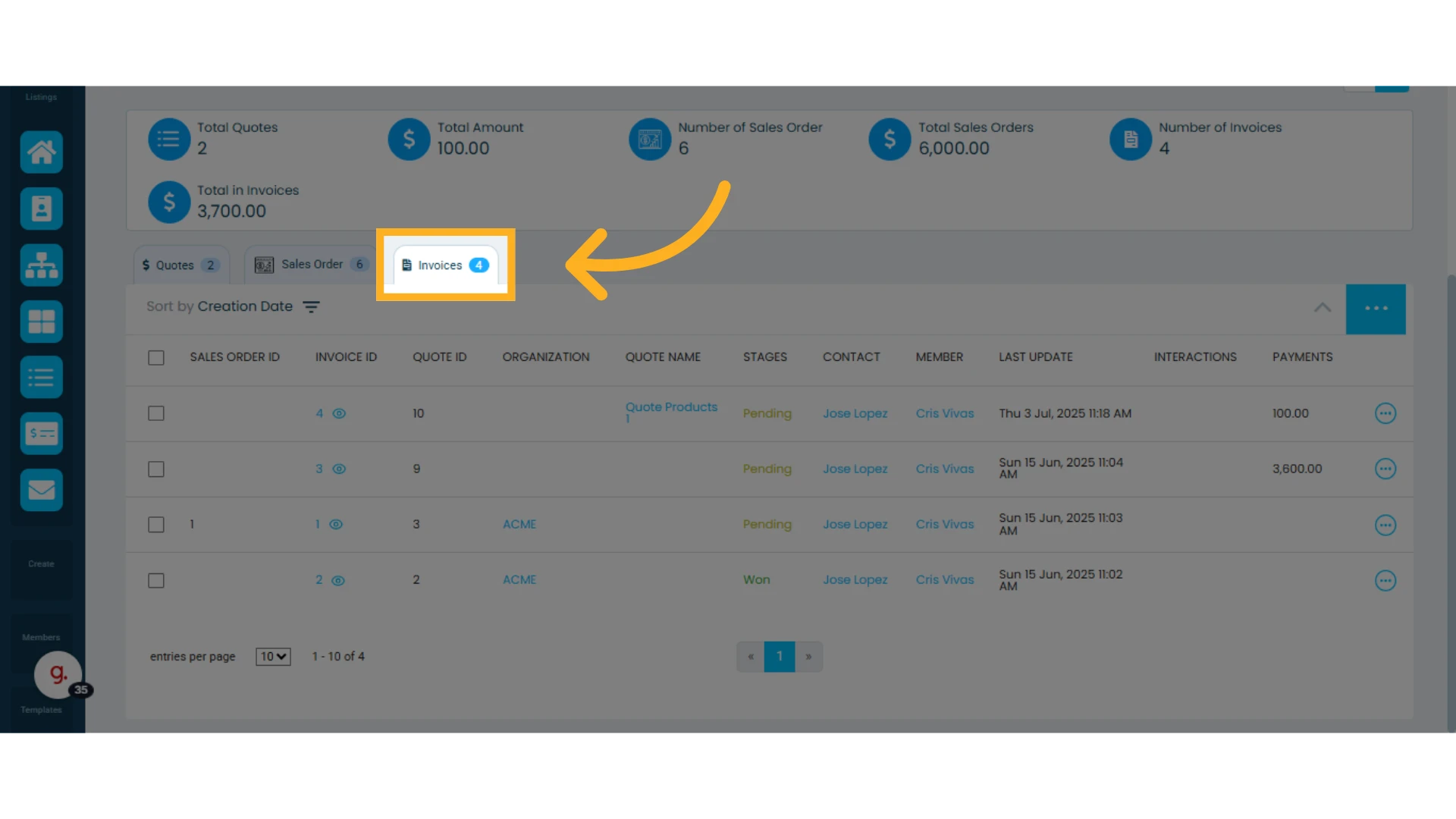
All quotes converted to invoices will disappear from the "Quotes" tab and appear under the "Invoices" tab.
1. After creating an invoice, click the "Invoices" tab
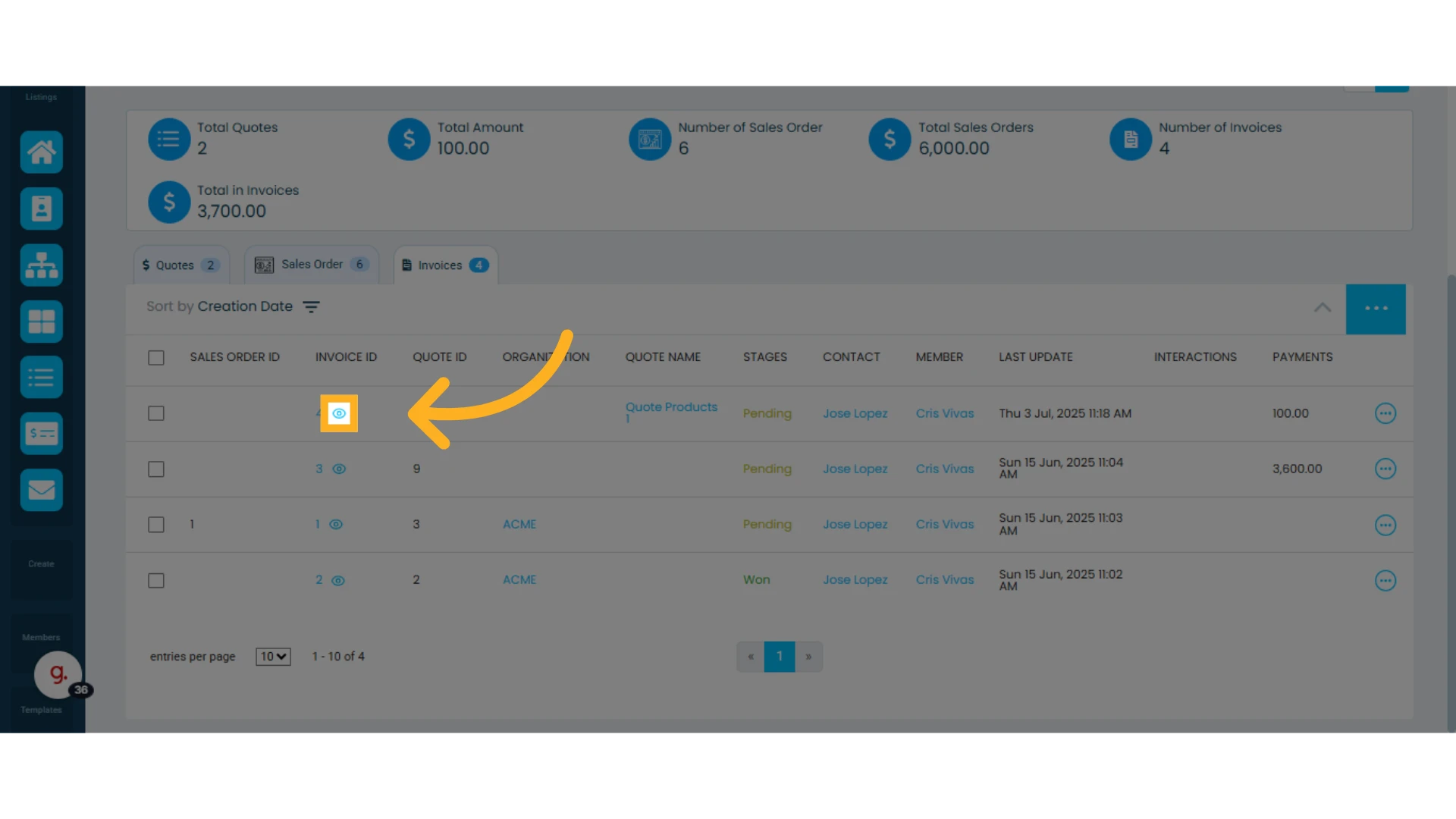
2. Click the eye icon in the ID column to view invoice details
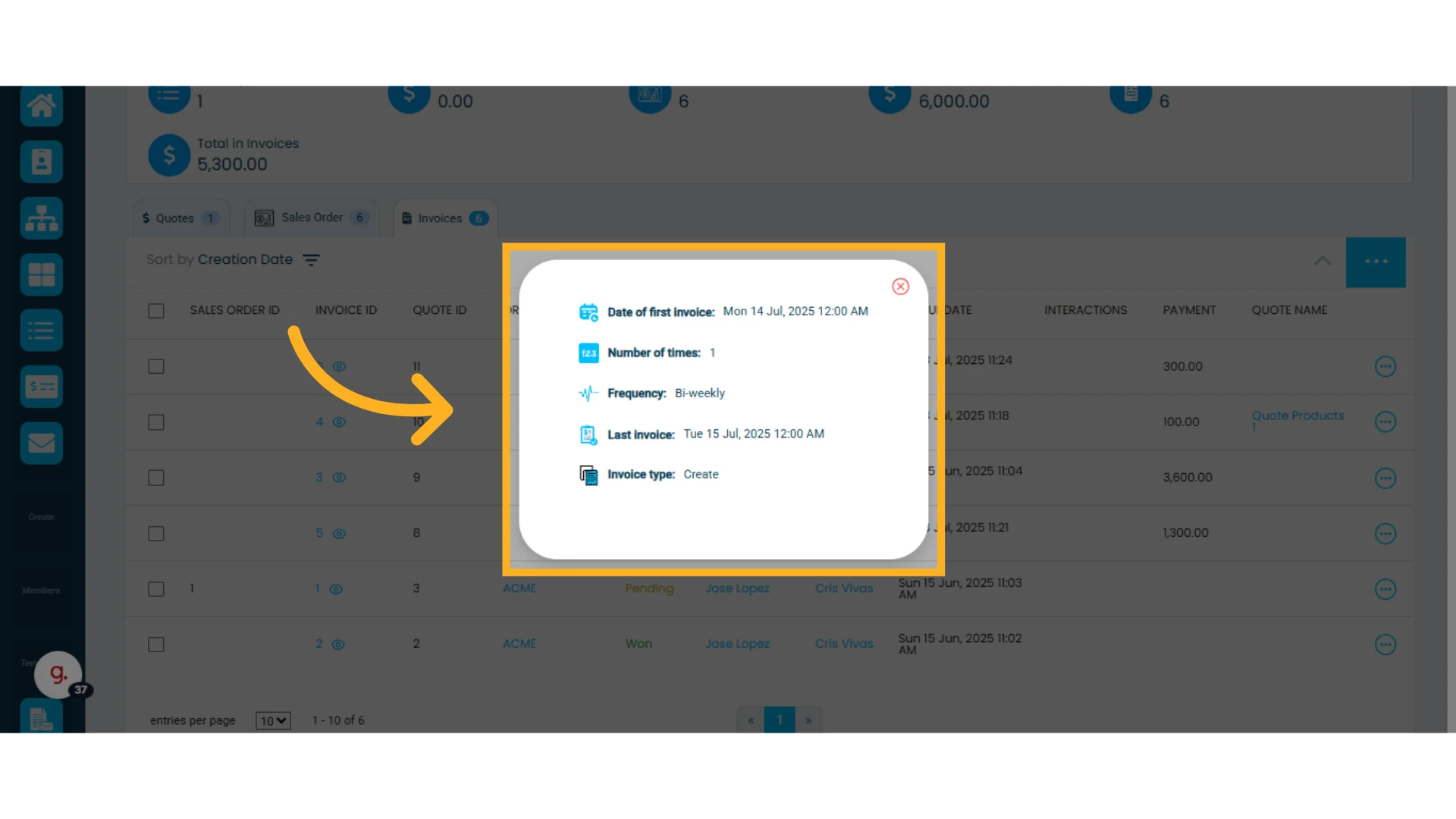
3. Click on the invoice to view its full information, just as you would with a quote
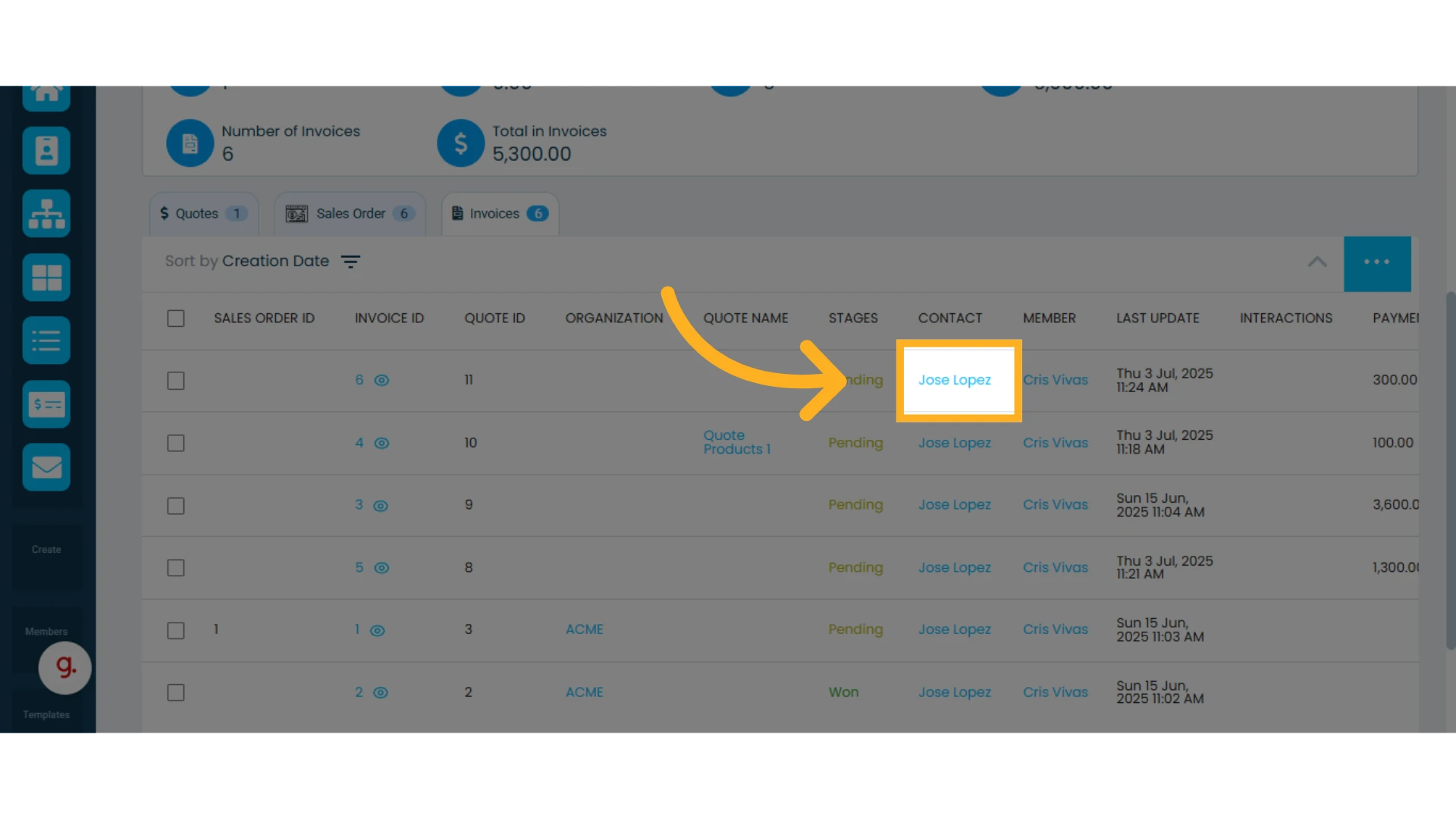
Invoice Statistics
In the central section of the Quotes module, you'll see statistics on quotes, invoices, and sales orders.
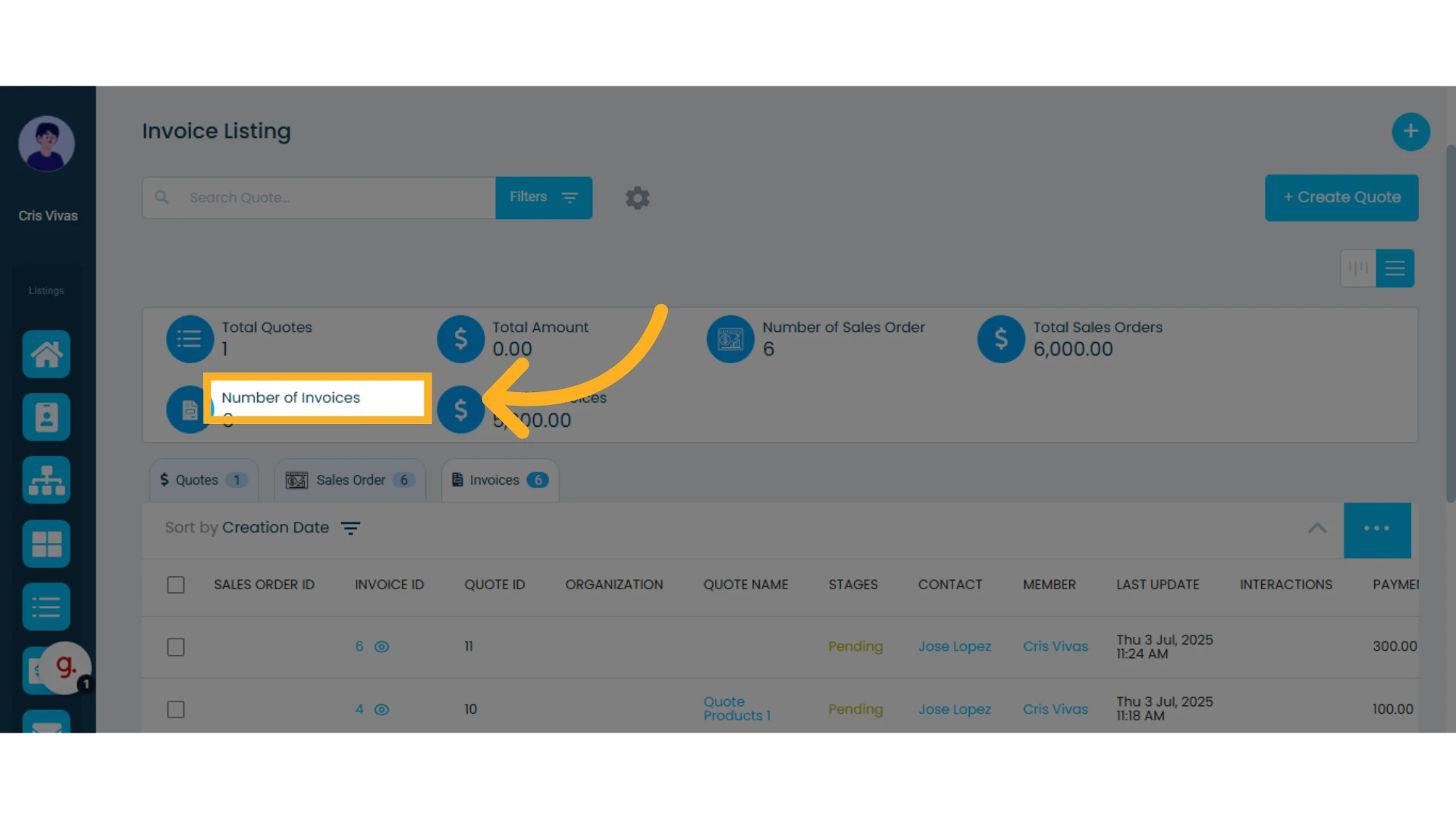
Number of Invoices
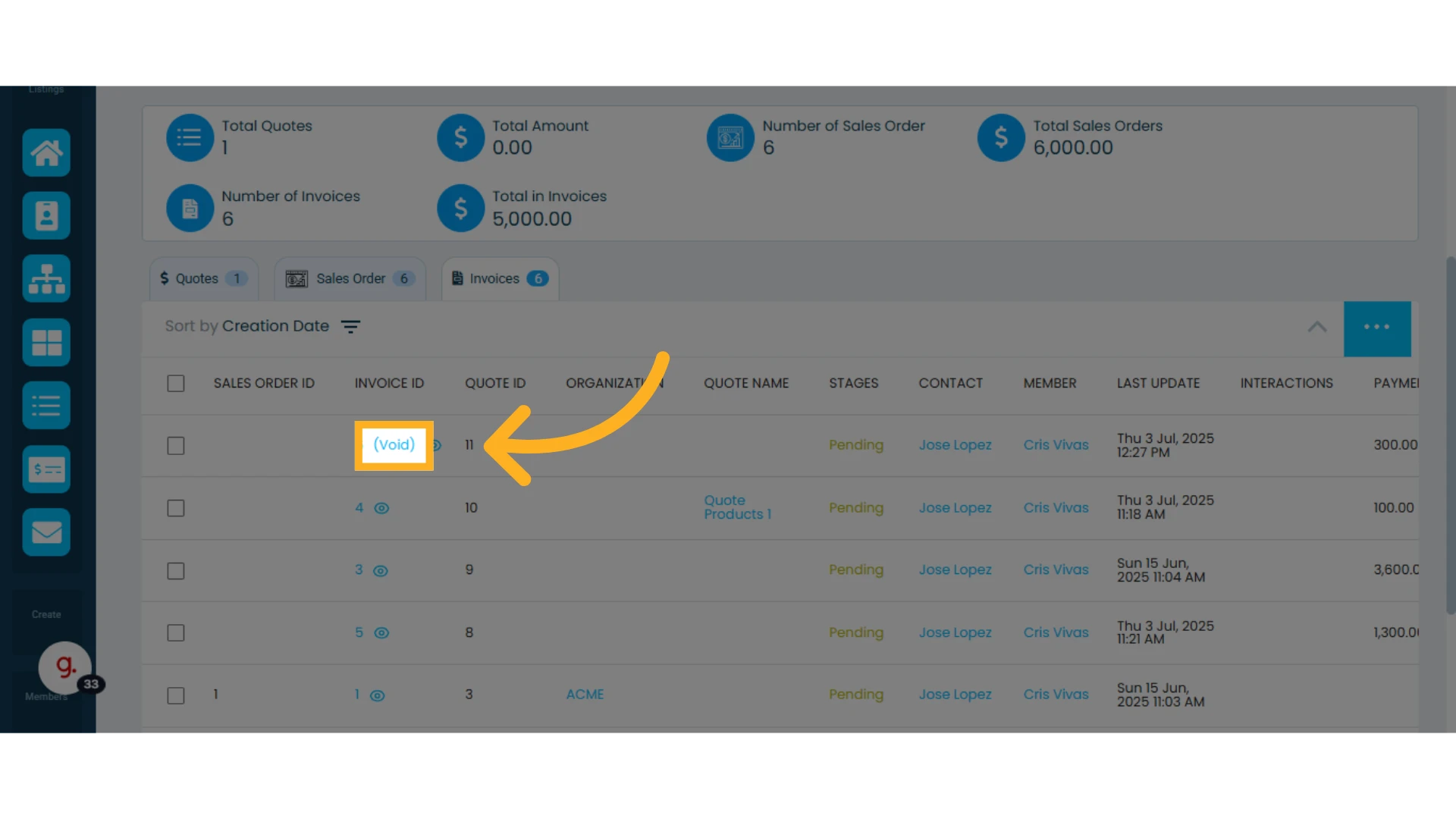
Displays the total number of invoices created. If an invoice is voided, this number will decrease.
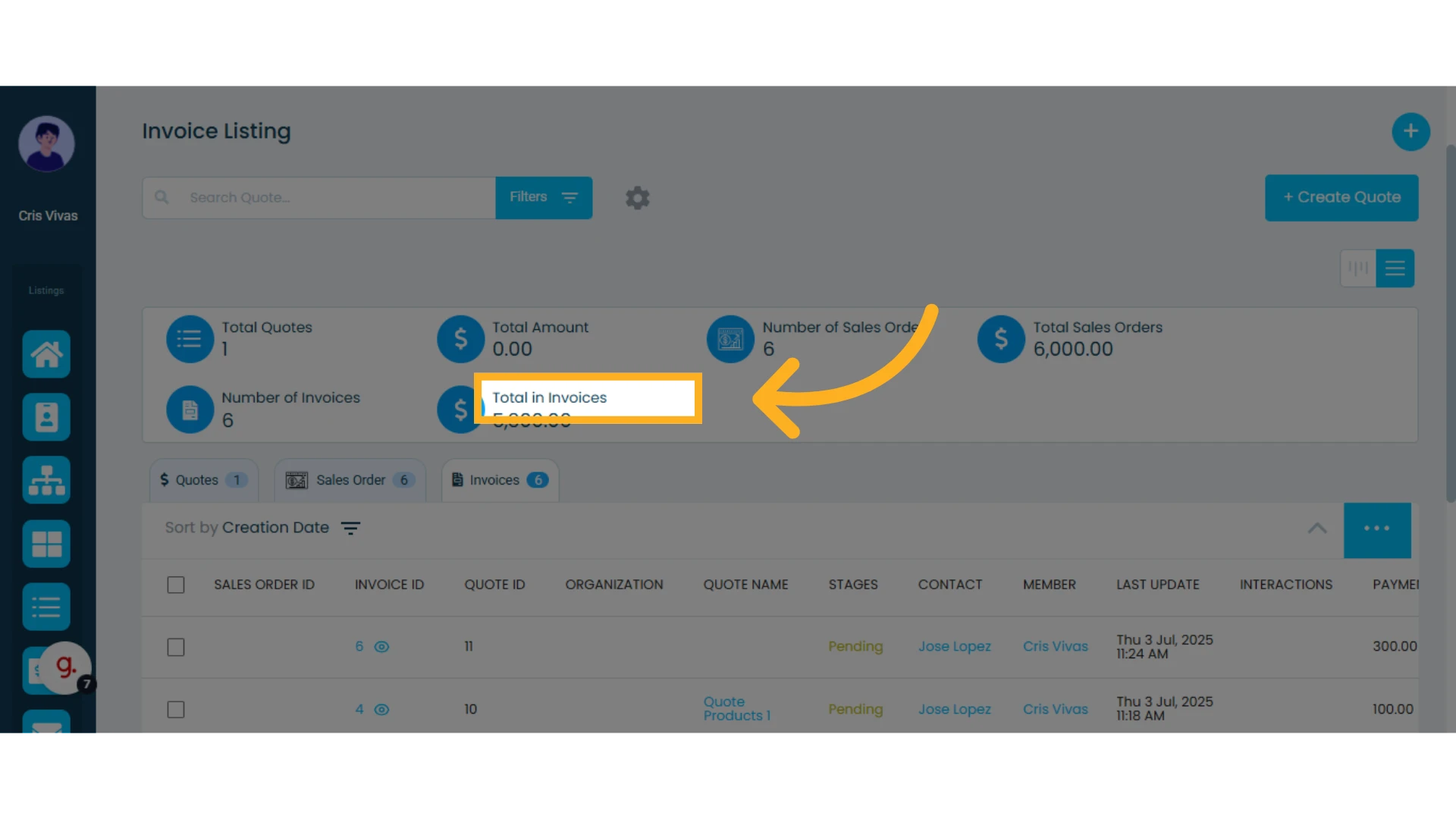
Total Invoiced Amount
Shows the total amount of generated invoices in your workspace’s set currency.
Voided invoices are subtracted from this total.
Manage an Invoice
1. Click on the invoice to open it
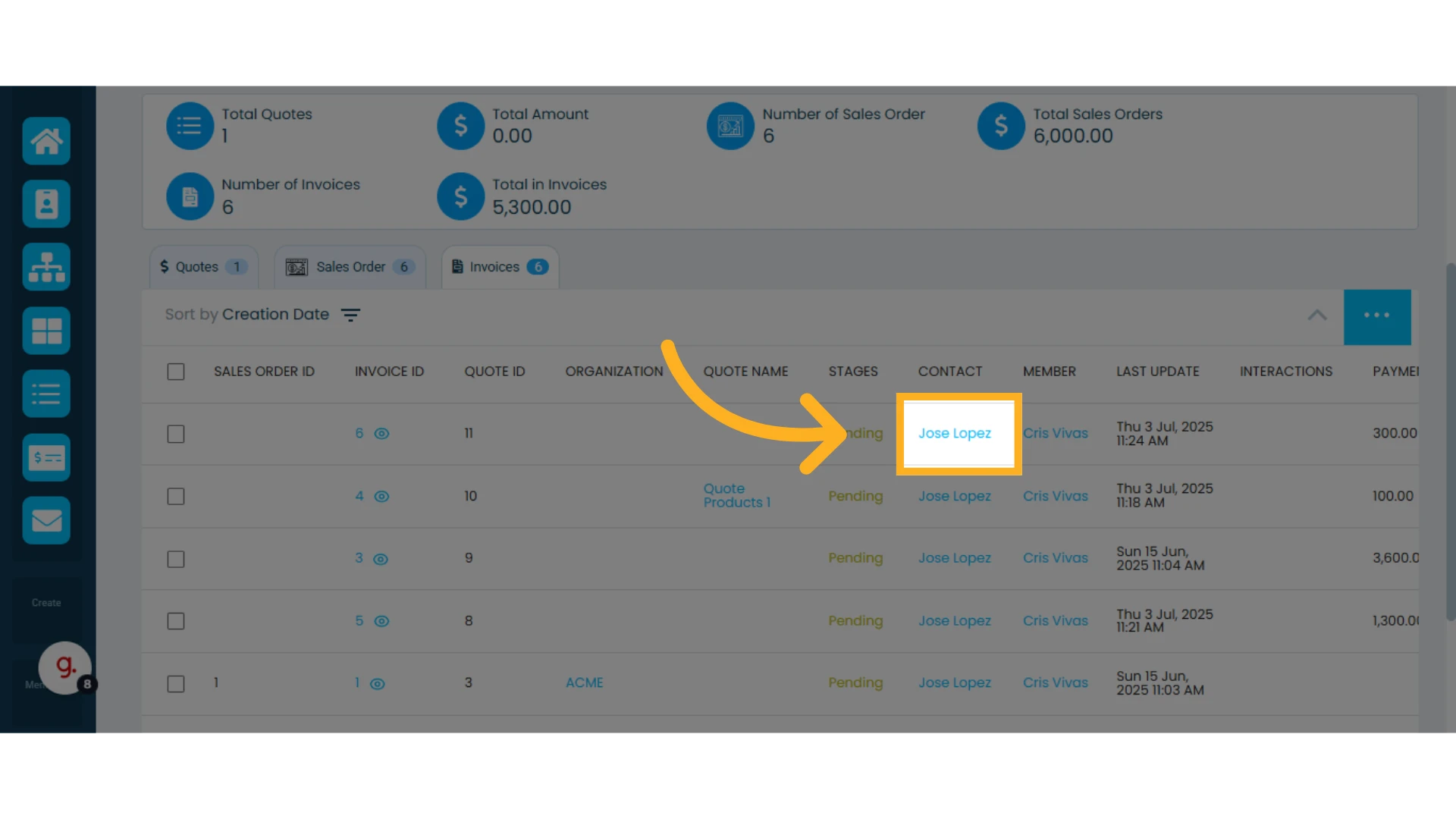
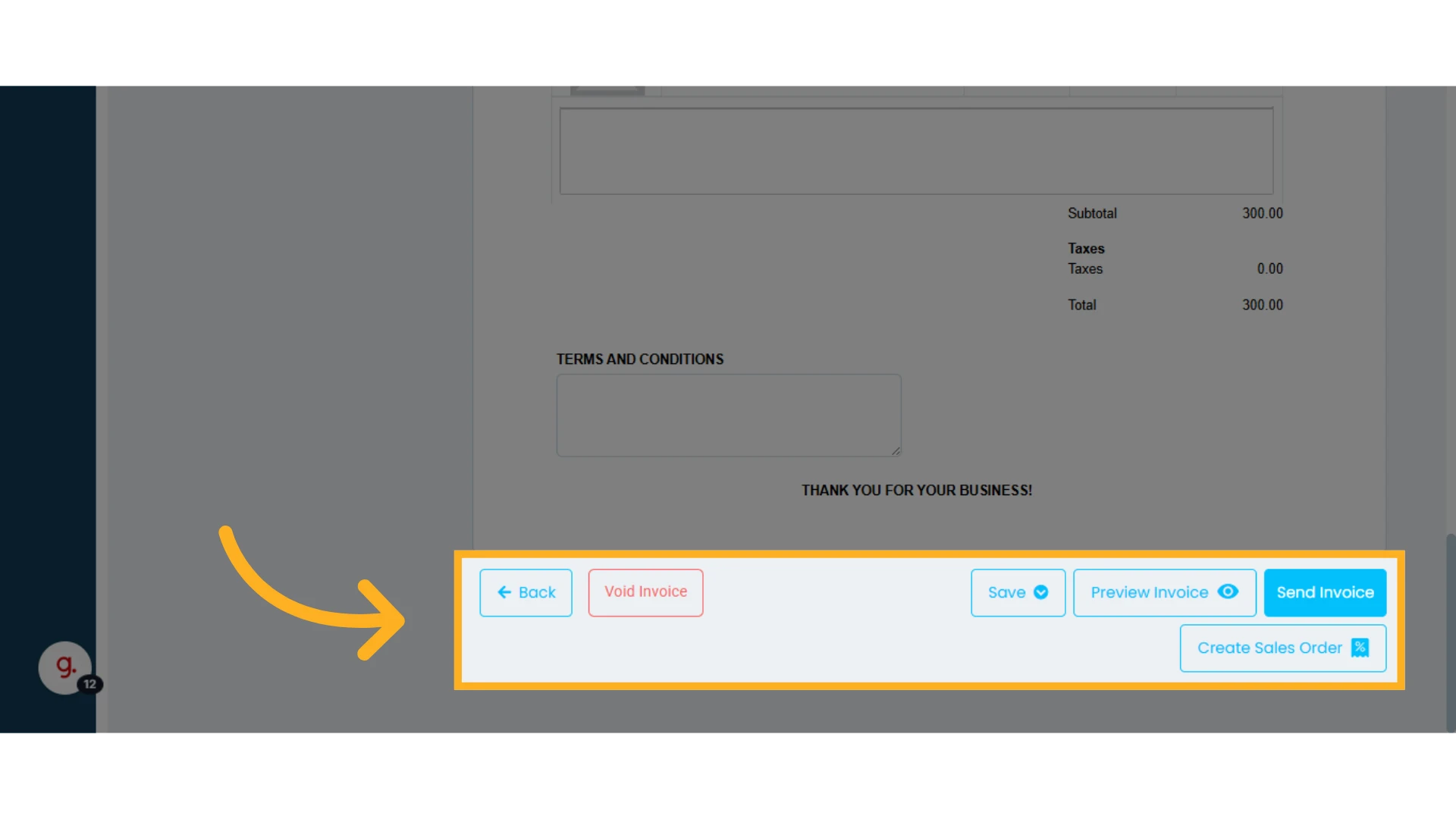
2. Scroll to the bottom of the invoice to either send or void it
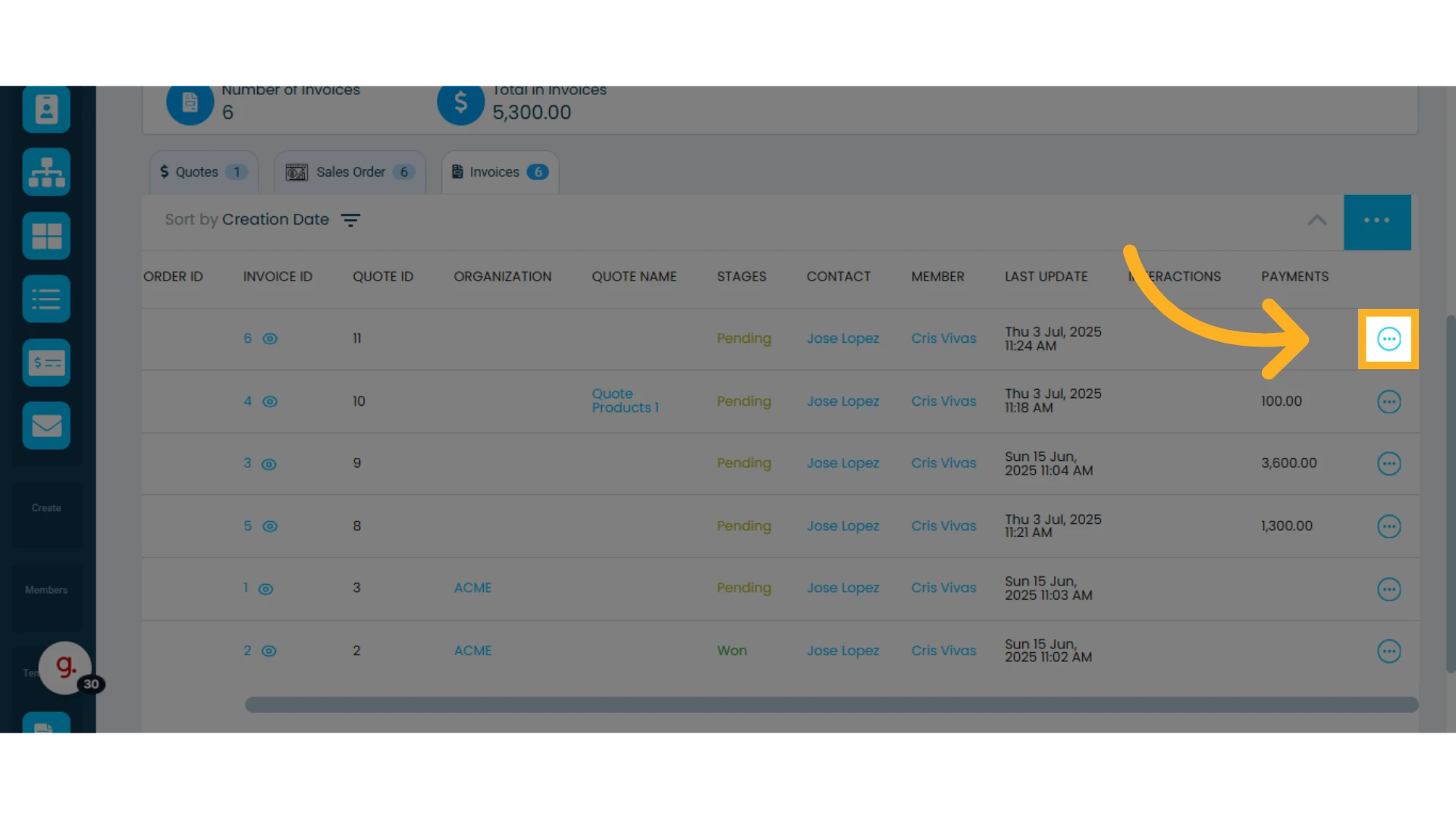
From the list of invoices, you can also view, rename, send, or void an invoice. Simply click the three-dot menu next to the invoice you want to manage to see the options.
IMPORTANT: Invoices cannot be edited.
Voided invoices will display the word "Void" next to the invoice ID.