In Osmos you can create tasks to organize your activities and to-dos.
From the “Goals, Tasks, Reminders” module you can assign responsibilities to different members, customize task stages, define urgency and adjust other details of tasks and reminders.
To create tasks, follow these steps:
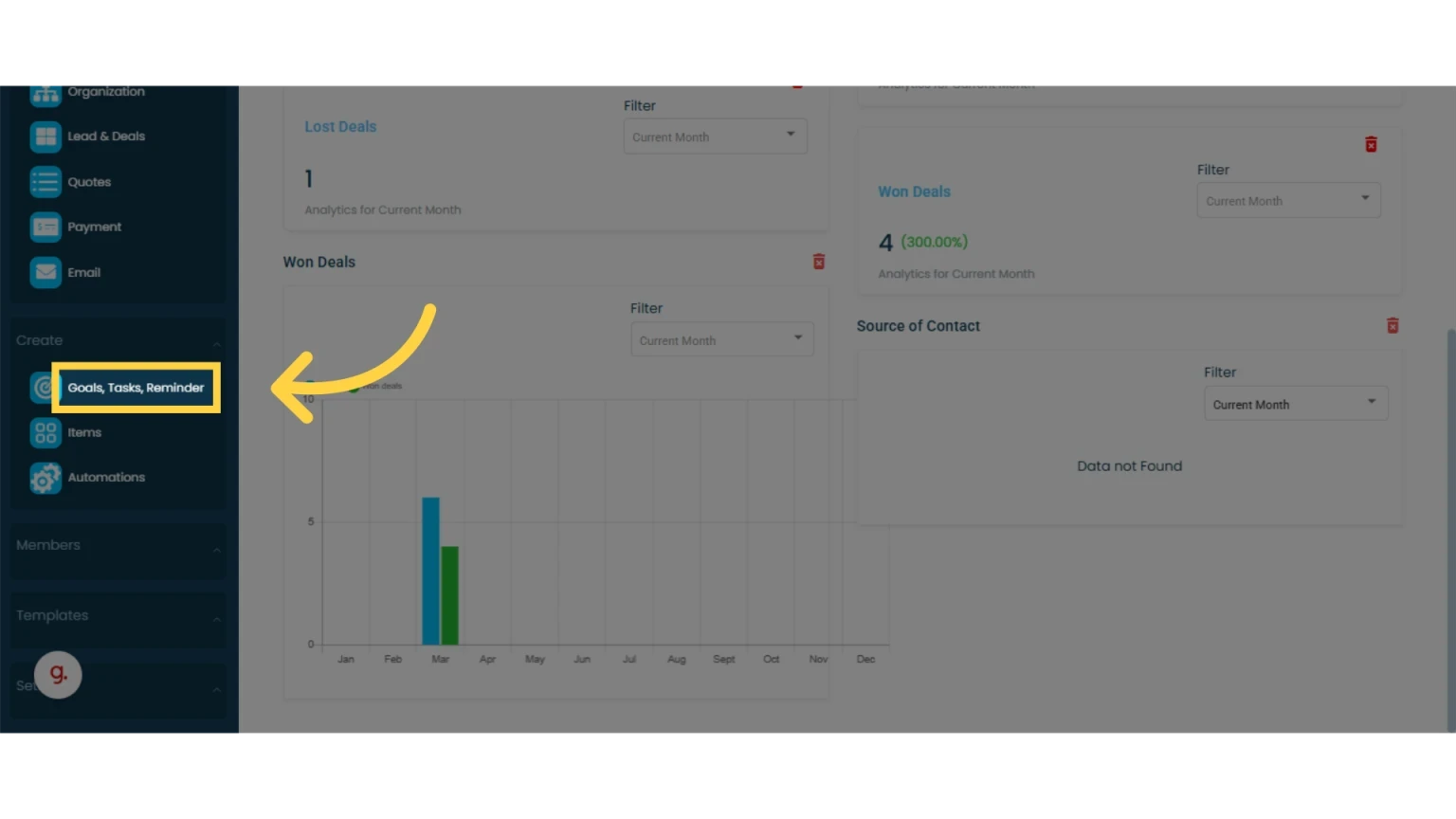
1. Click on "Goals, Tasks, Reminder" in the left main menu
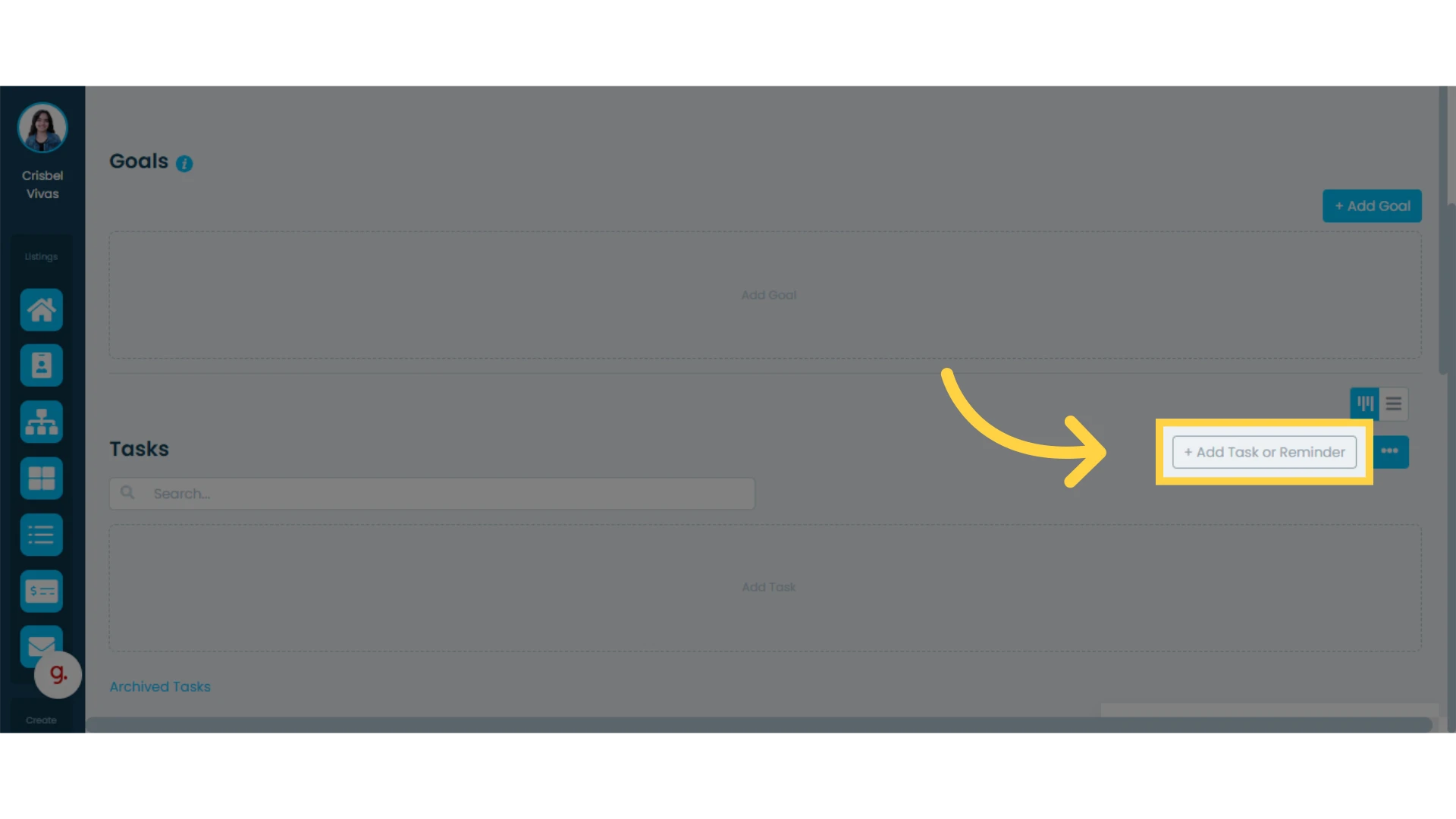
2. Click the "Add Task or Reminder" button
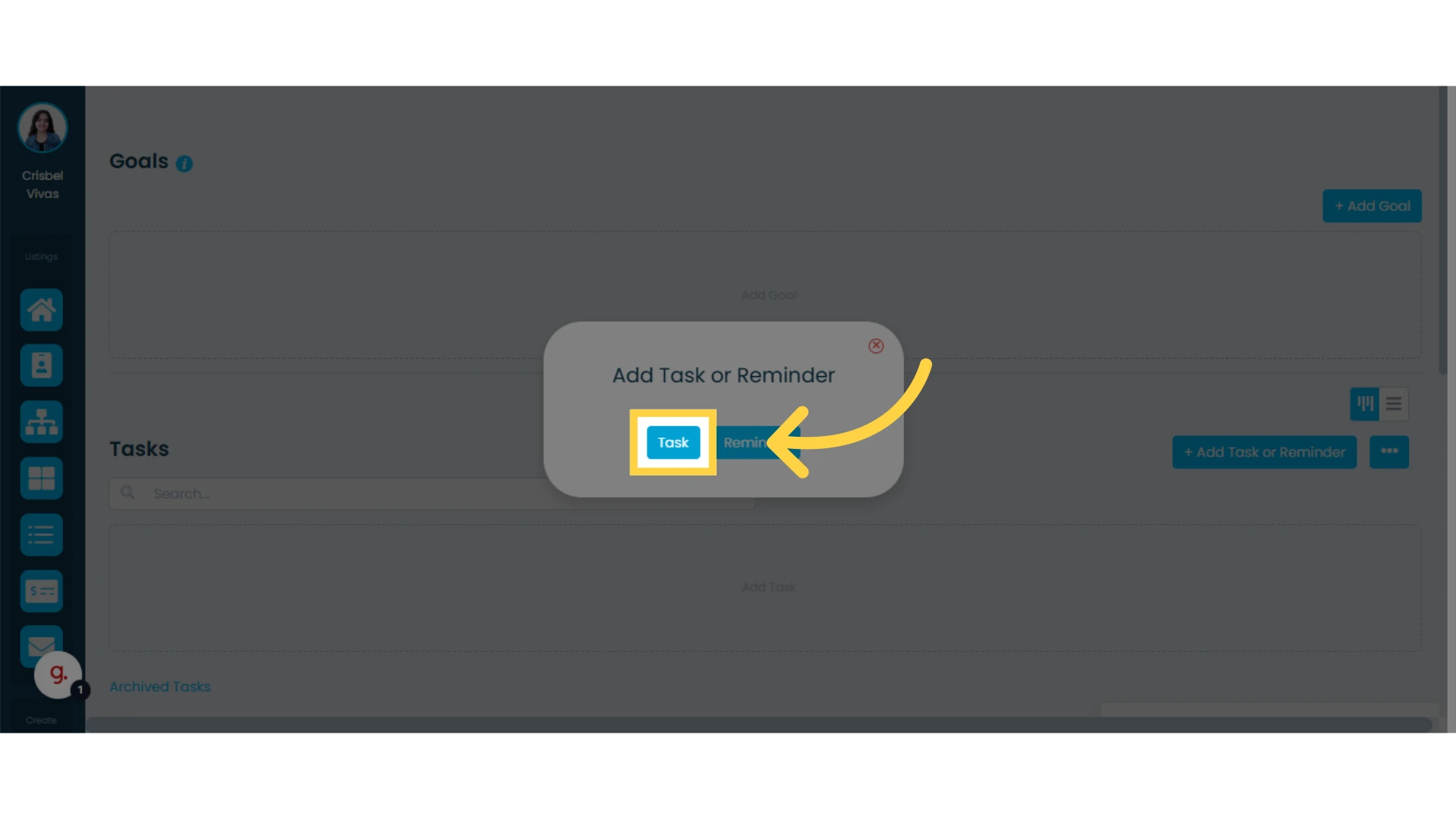
3. Select the "Task" option
4. Create a "Task Name"
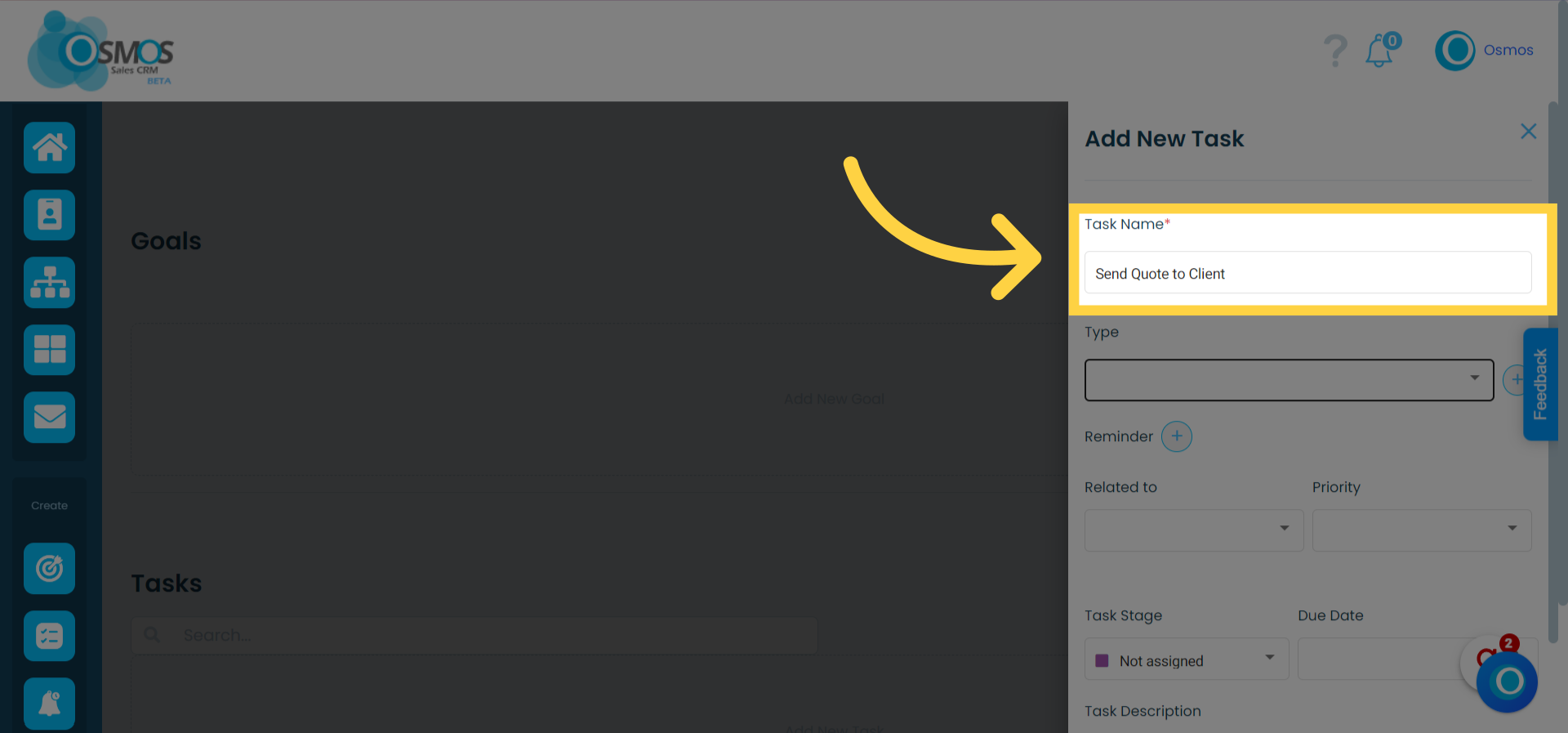
5. Select a type of task (optional)
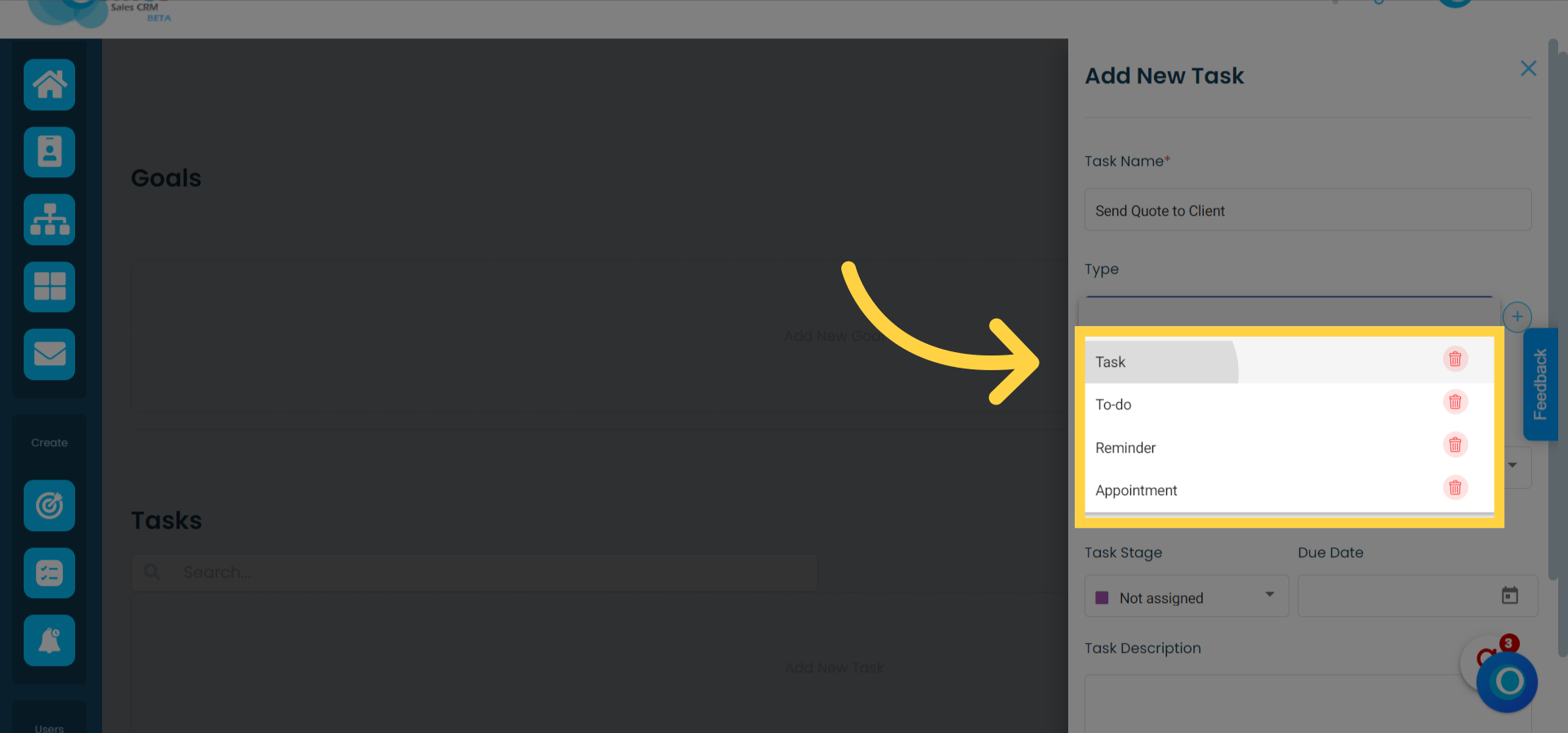
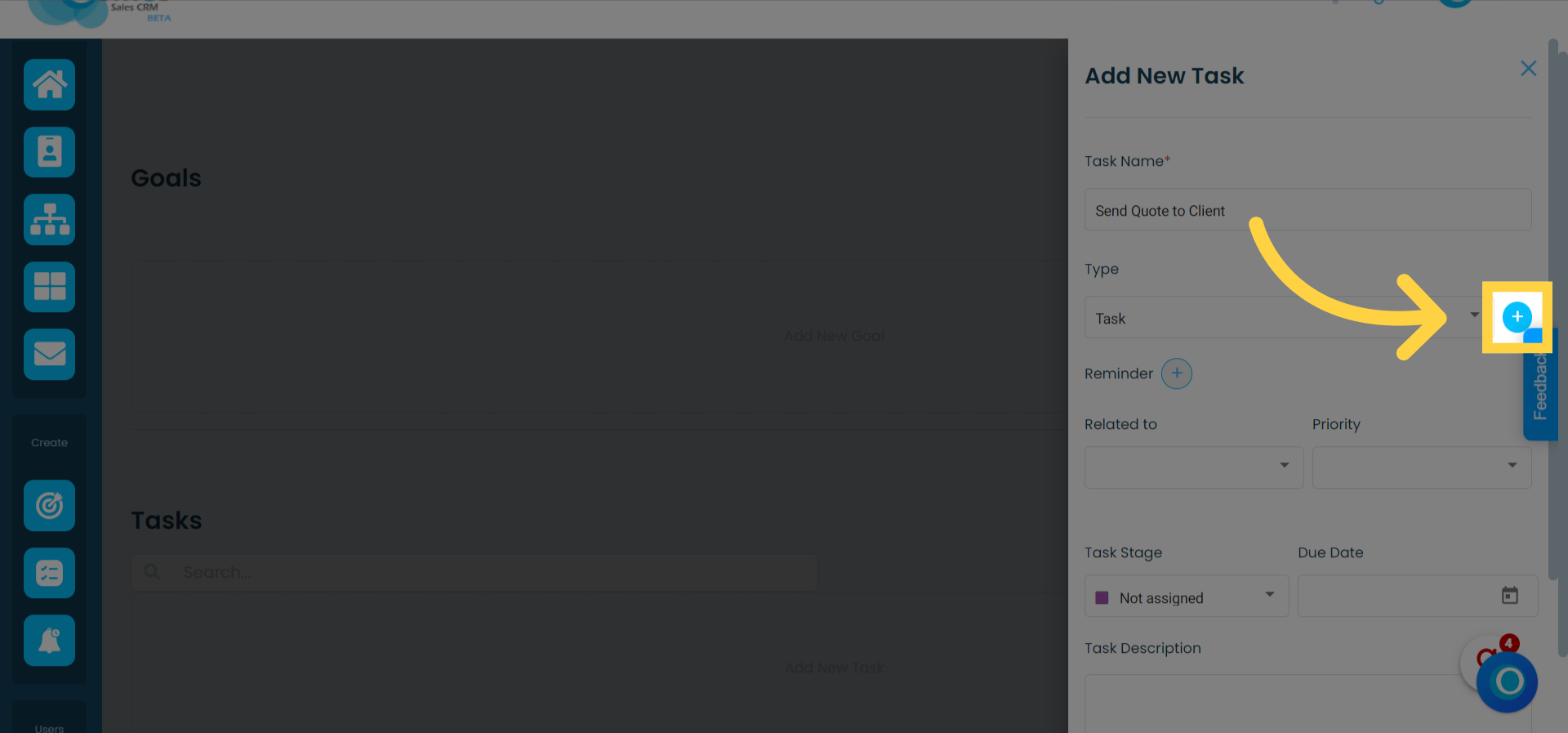
You can create or customize the task type by clicking the plus "+" sign.
6. Indicate the Task Relation and Priority (optional)
You can specify if the task is related to a contact, lead, or quotation.
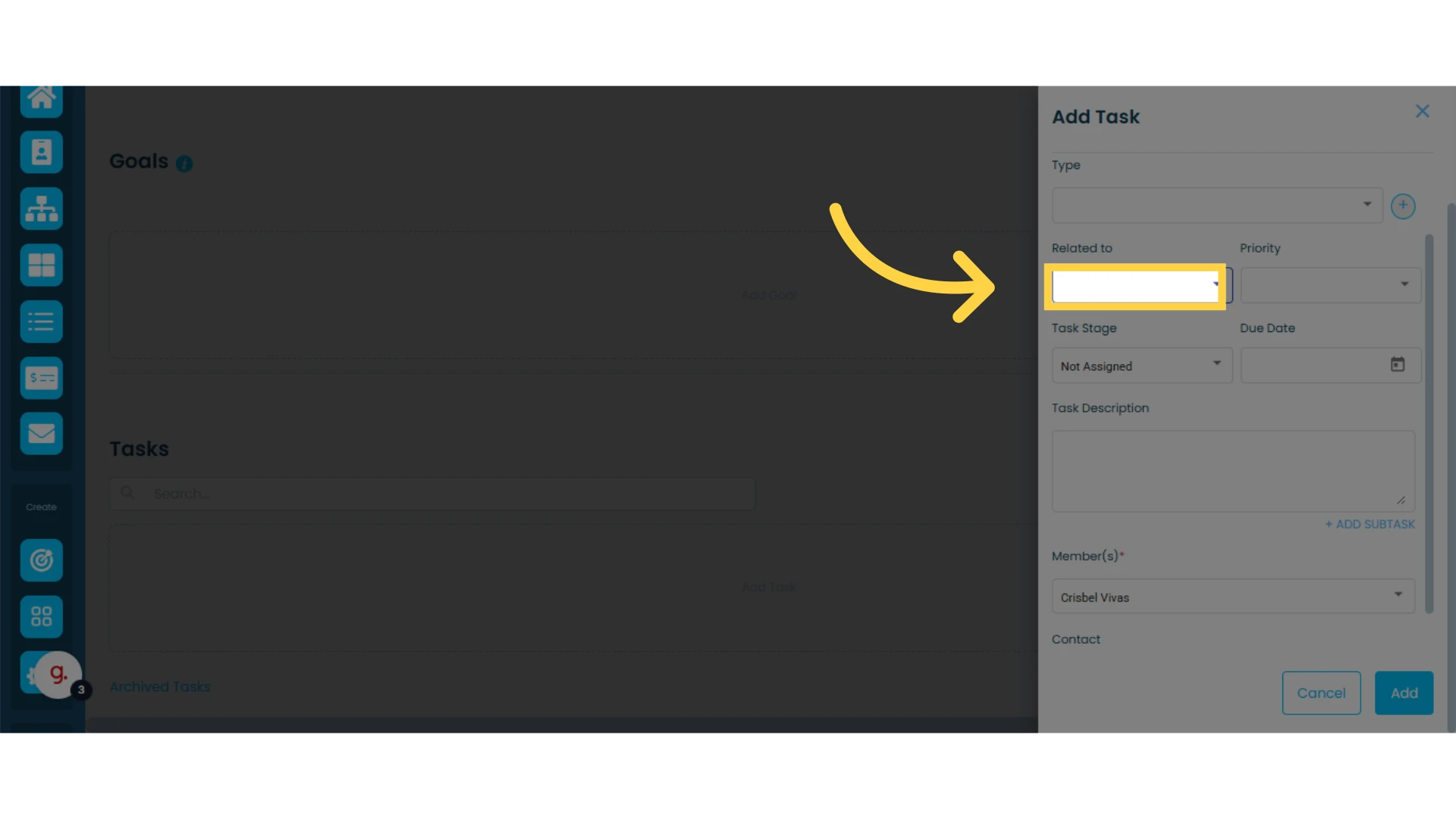
Additionally, you can set the task priority as low, medium, or high.
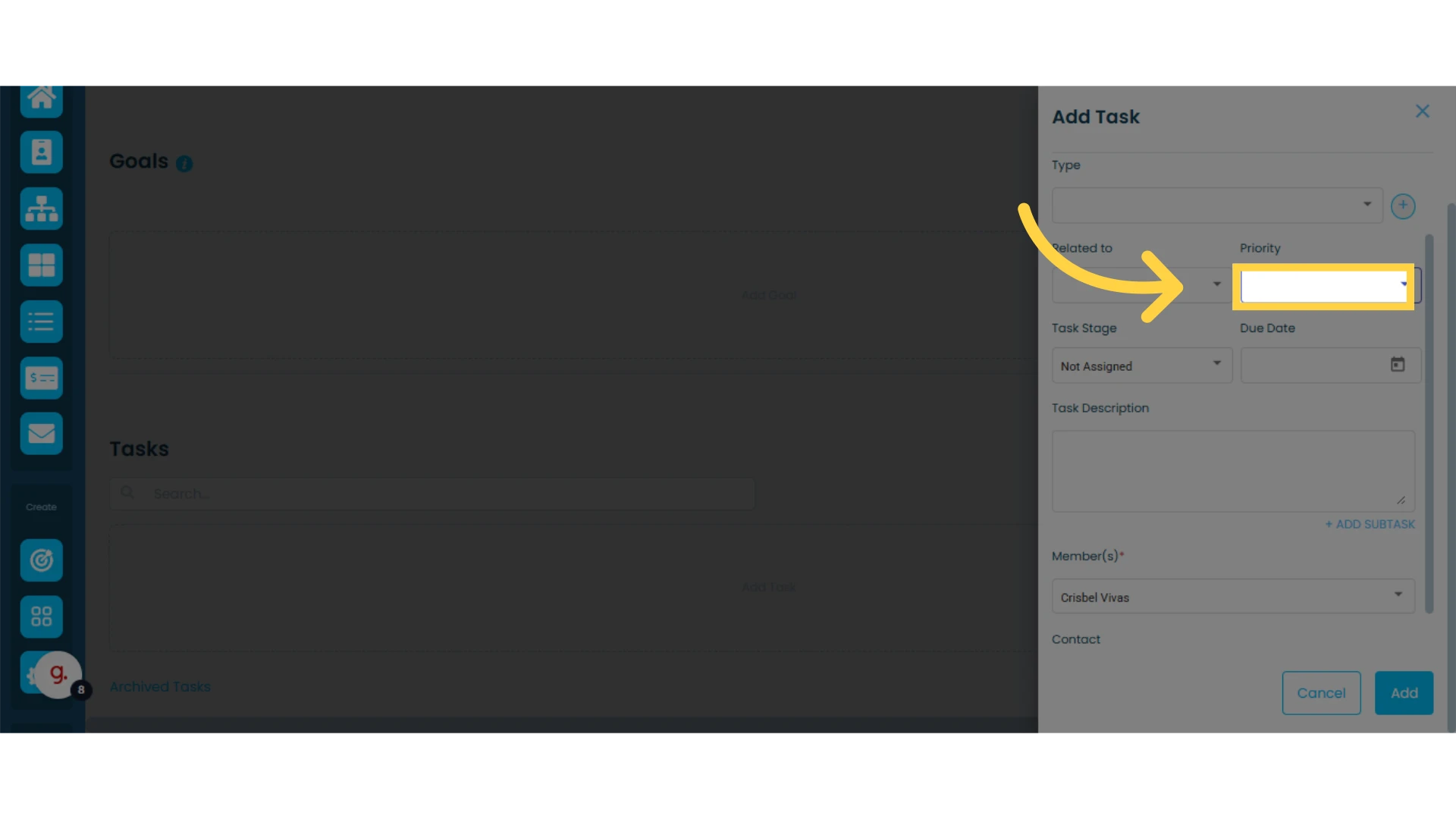
7. Select a "Task Stage" (optional)
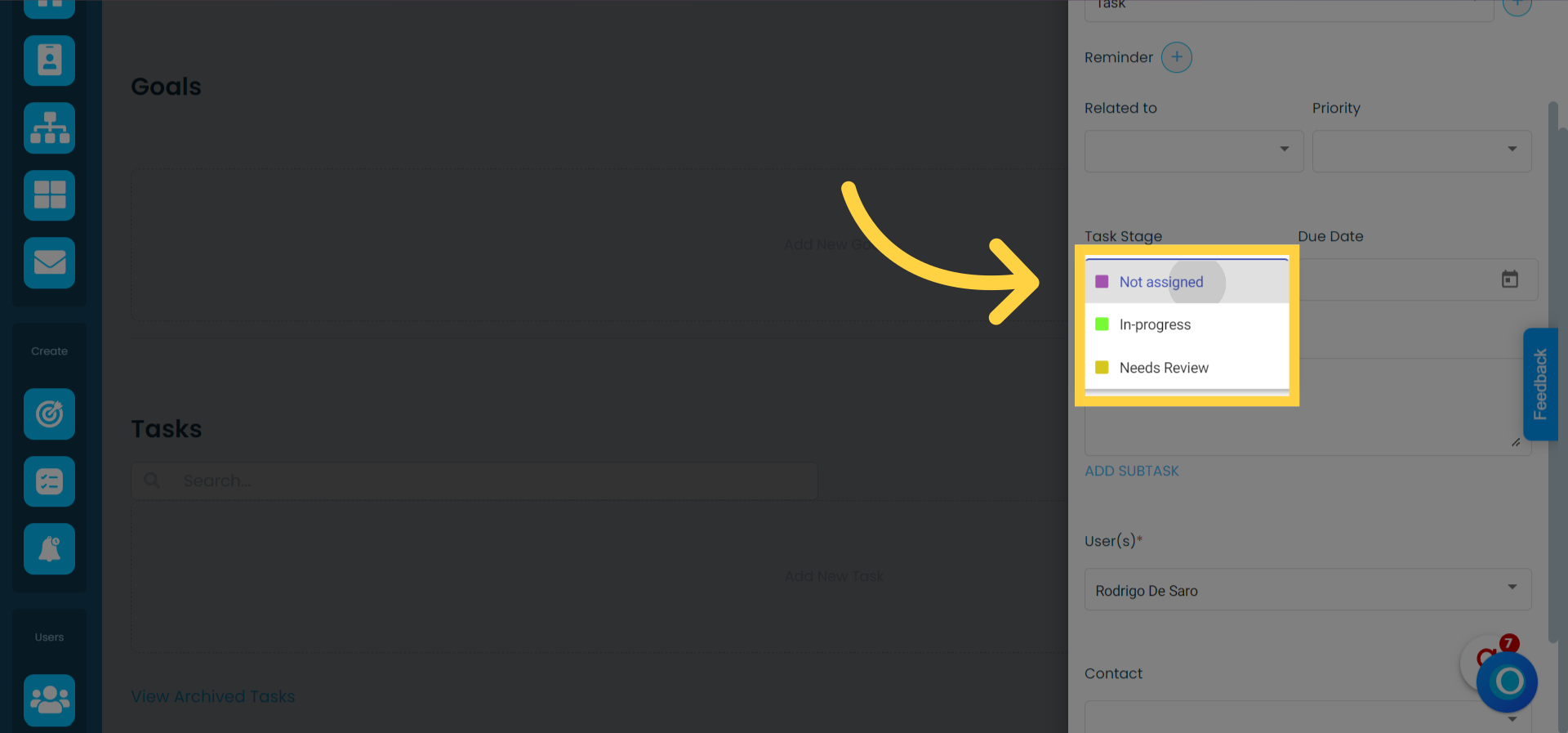
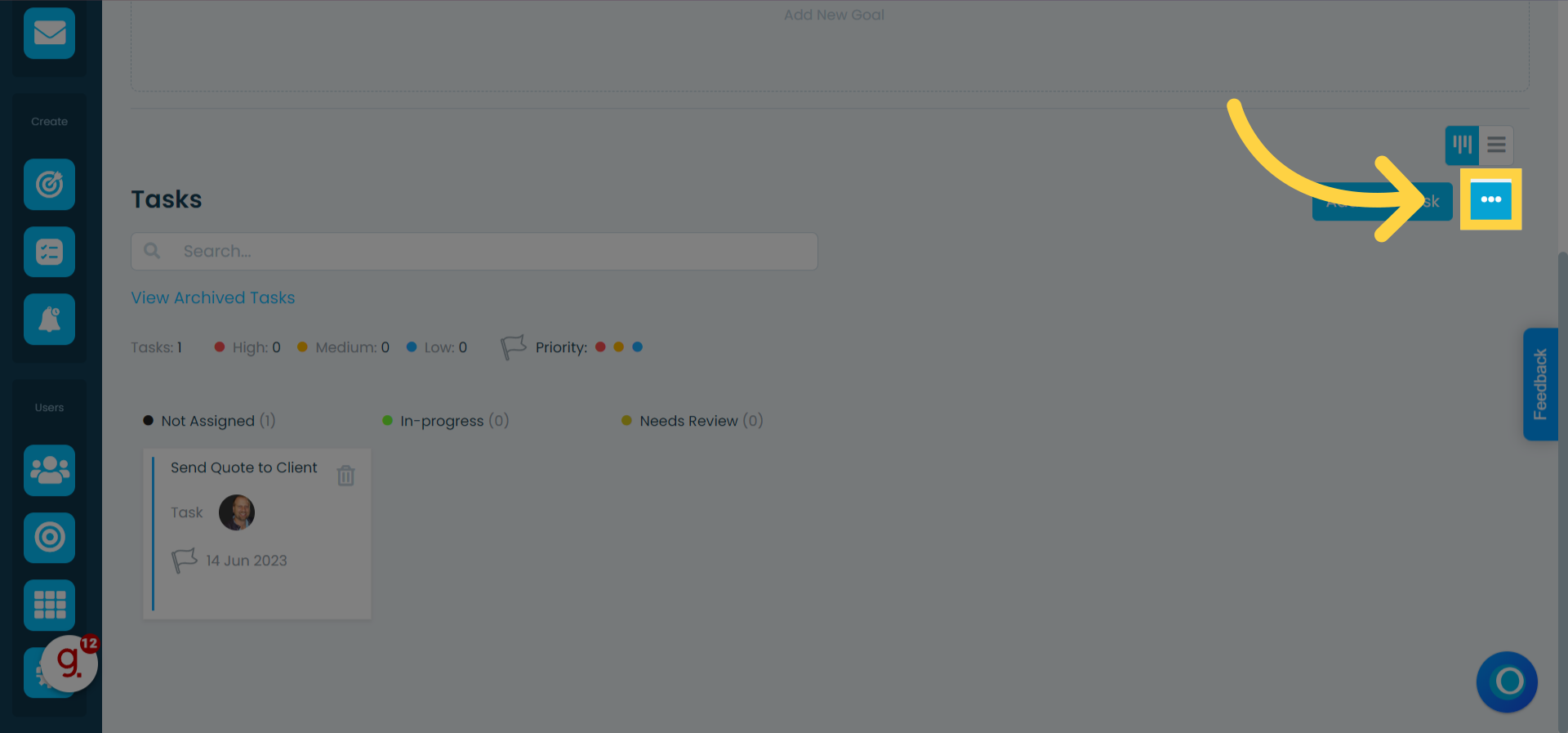
You can create and customize task stages by clicking on the three-dot menu located on the main screen of the task module, next to the button for adding tasks and reminders.
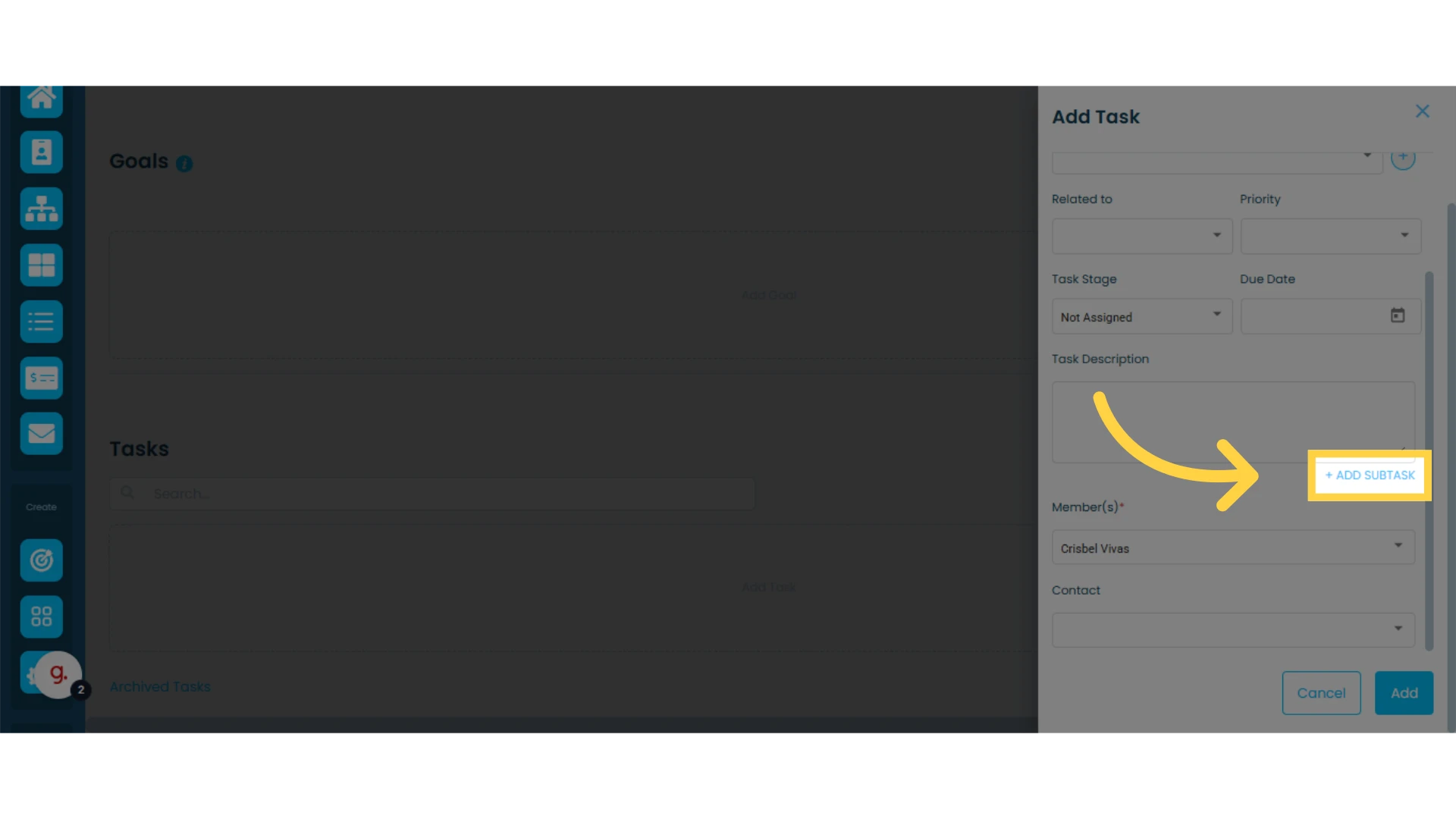
8. Add a Task Description (optional)
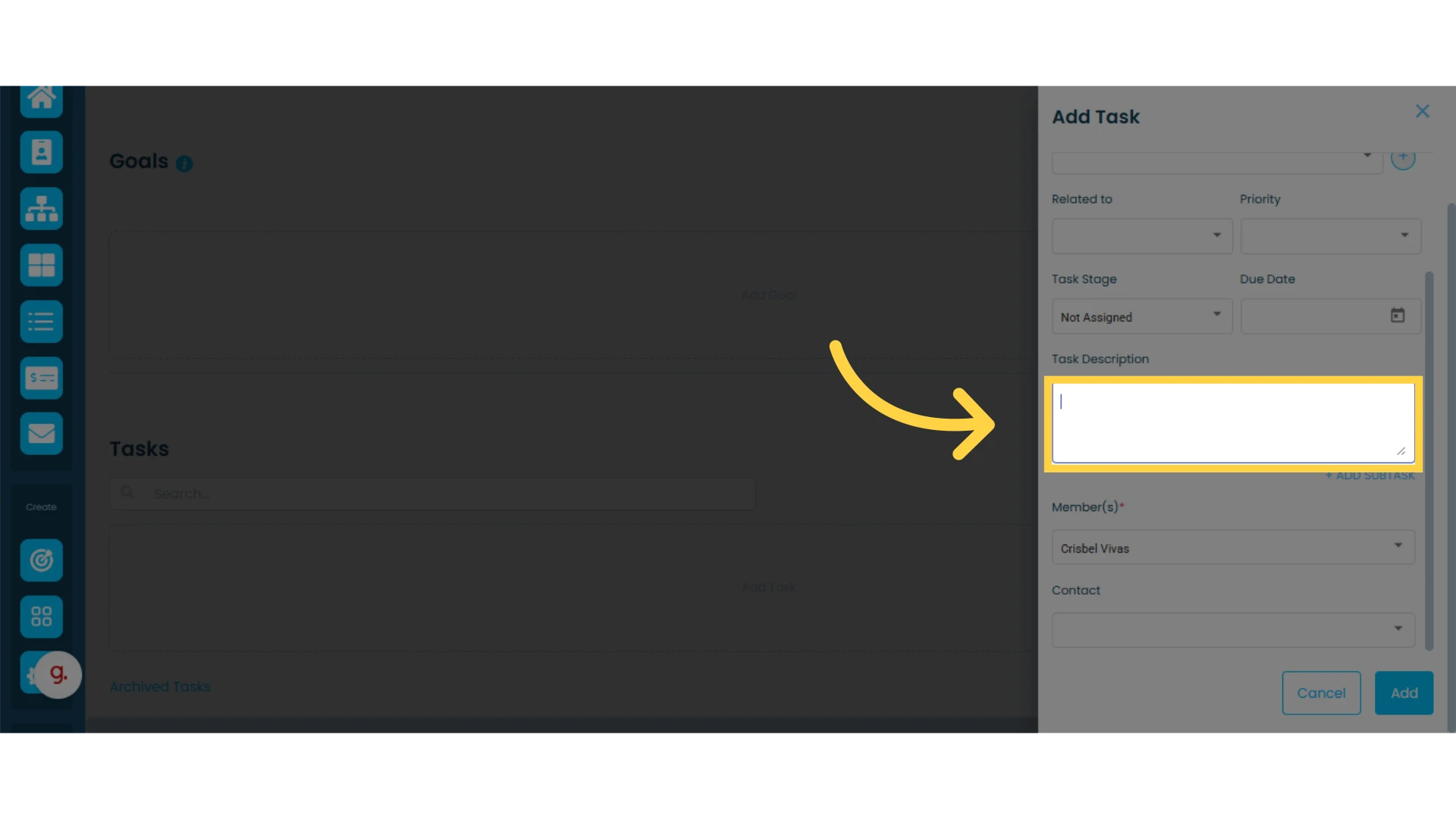
If needed, you can add a subtask by clicking on "+ Add Substack".
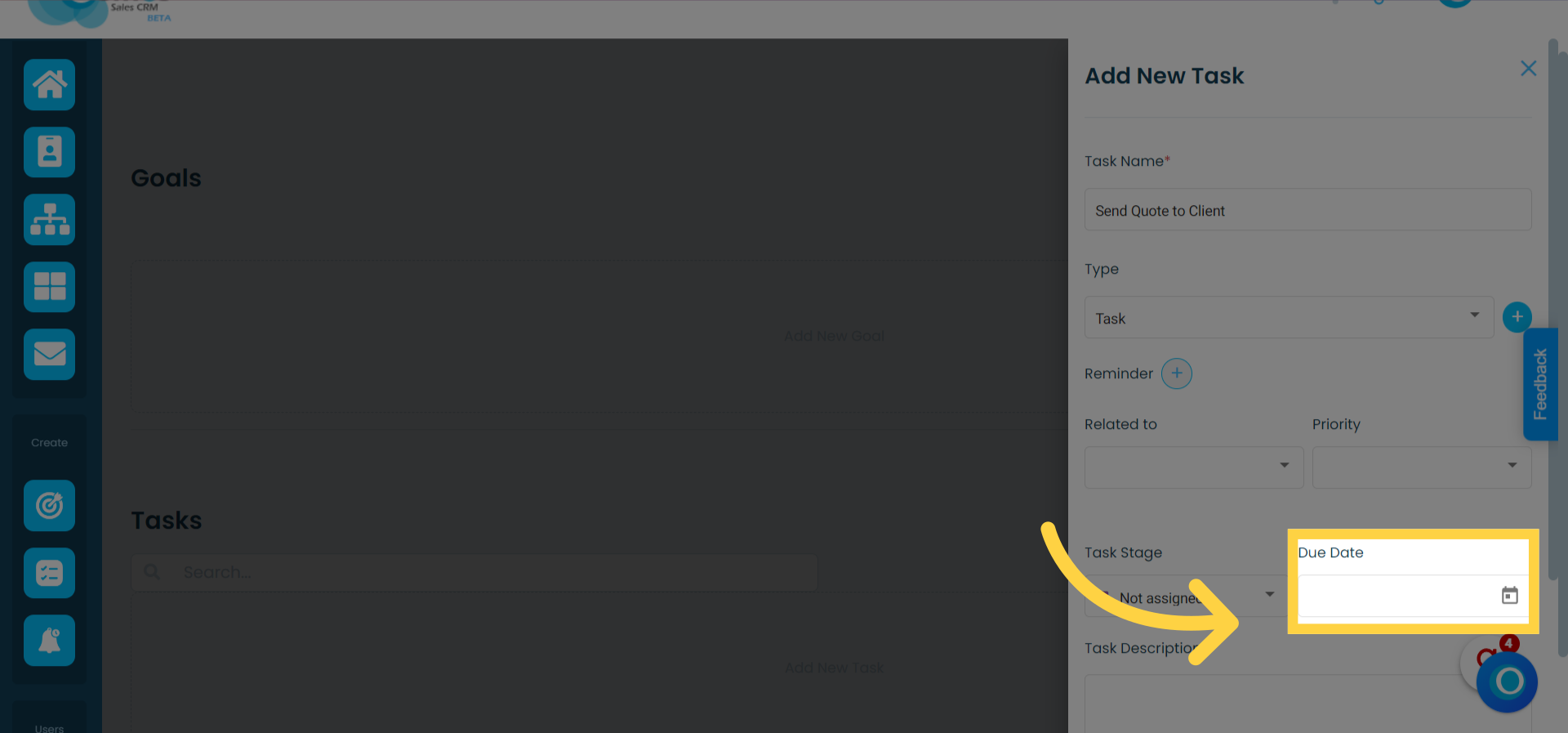
9. Select a "Due Date" (Optional)
If a due date is selected and the task has not been marked as "Completed" by that date, a notification will be displayed to the user in the notification bell.

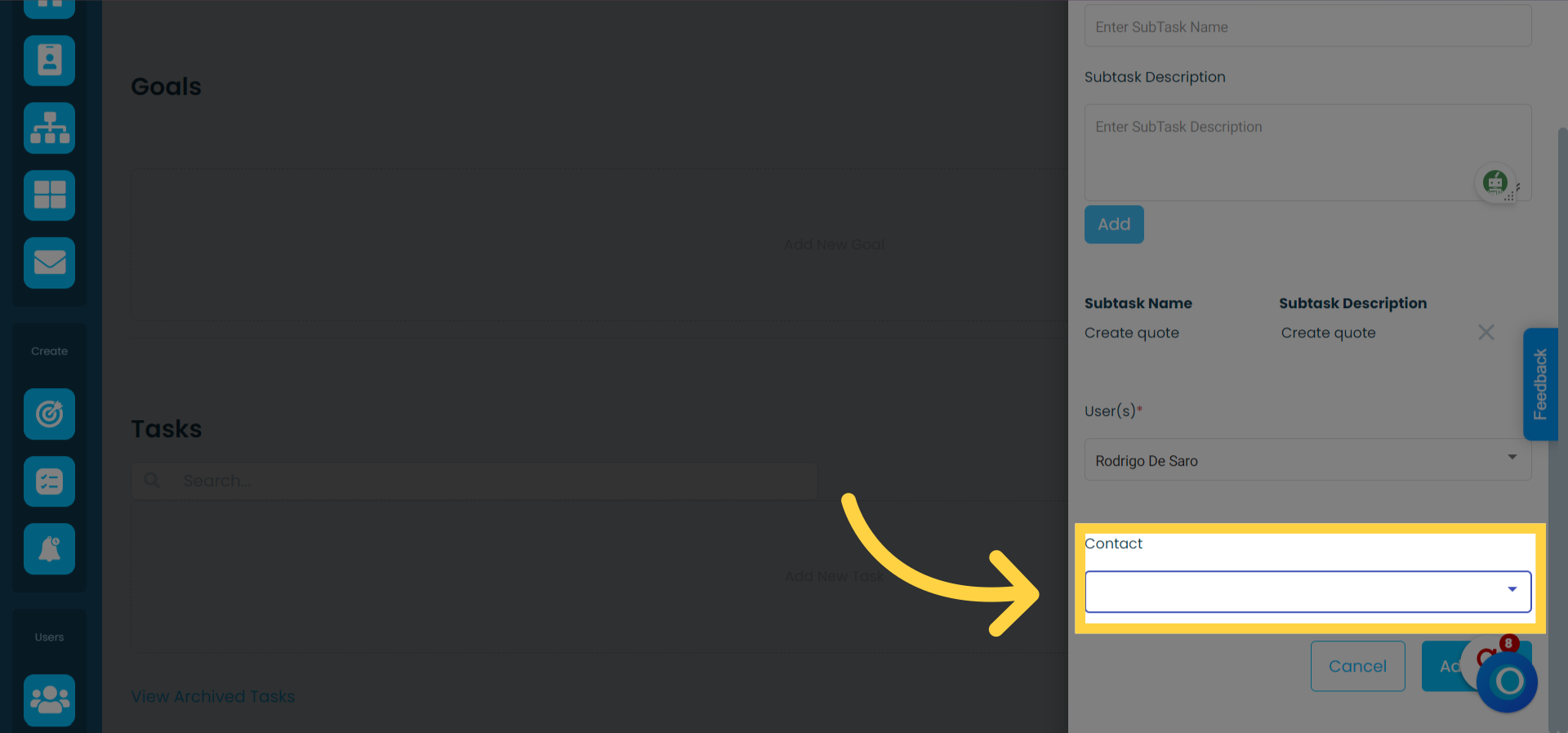
10. Select a "Contact" if the task is related to one (optional)
By selecting a contact from the list, the task will be associated with that contact.
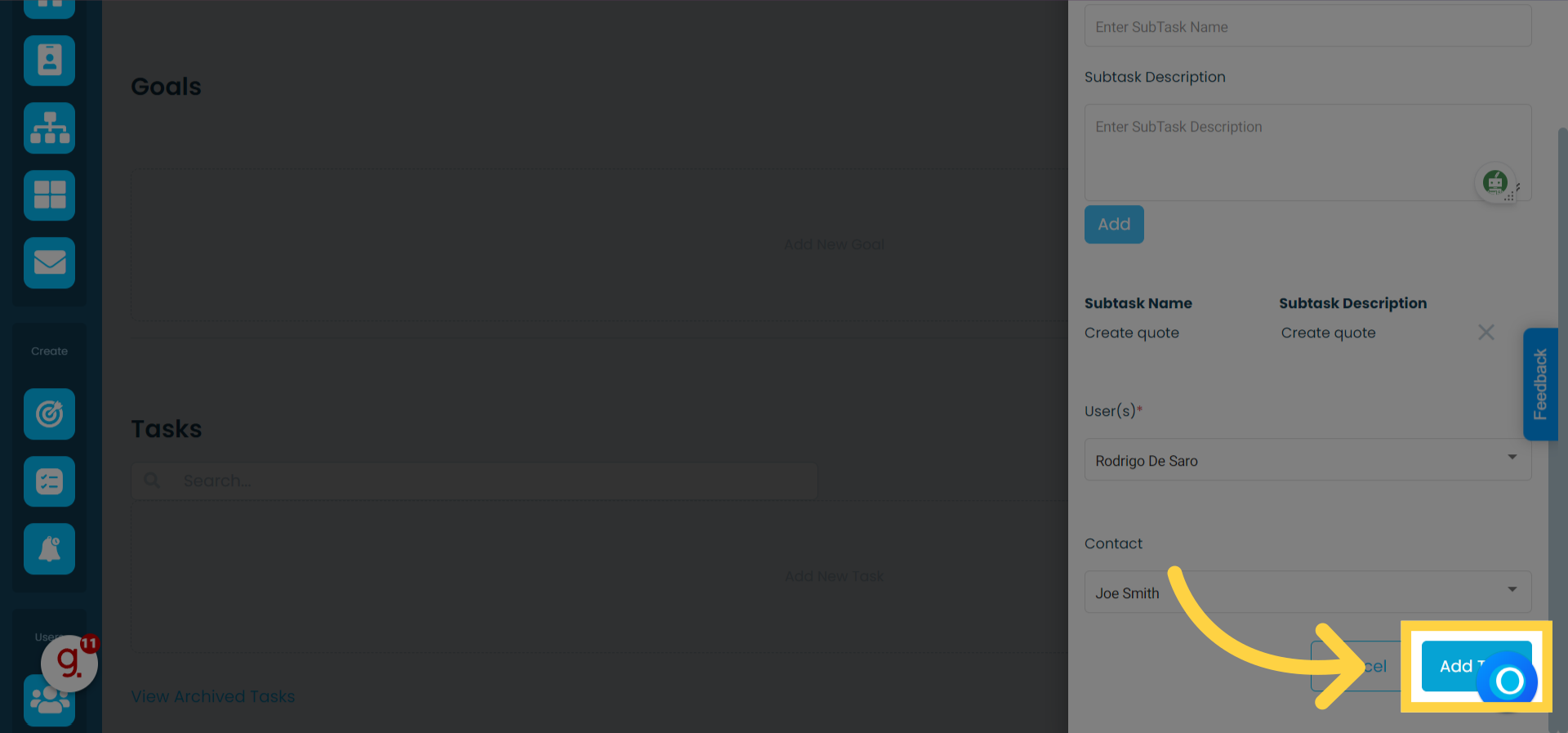
11. Click on "Add Task"
Managing Tasks
You can drag and drop tasks to move them through different stages.
For more options, click on the three-dot menu on the task card to:
View task details
Edit the task
Delete the task
Mark the task as completed
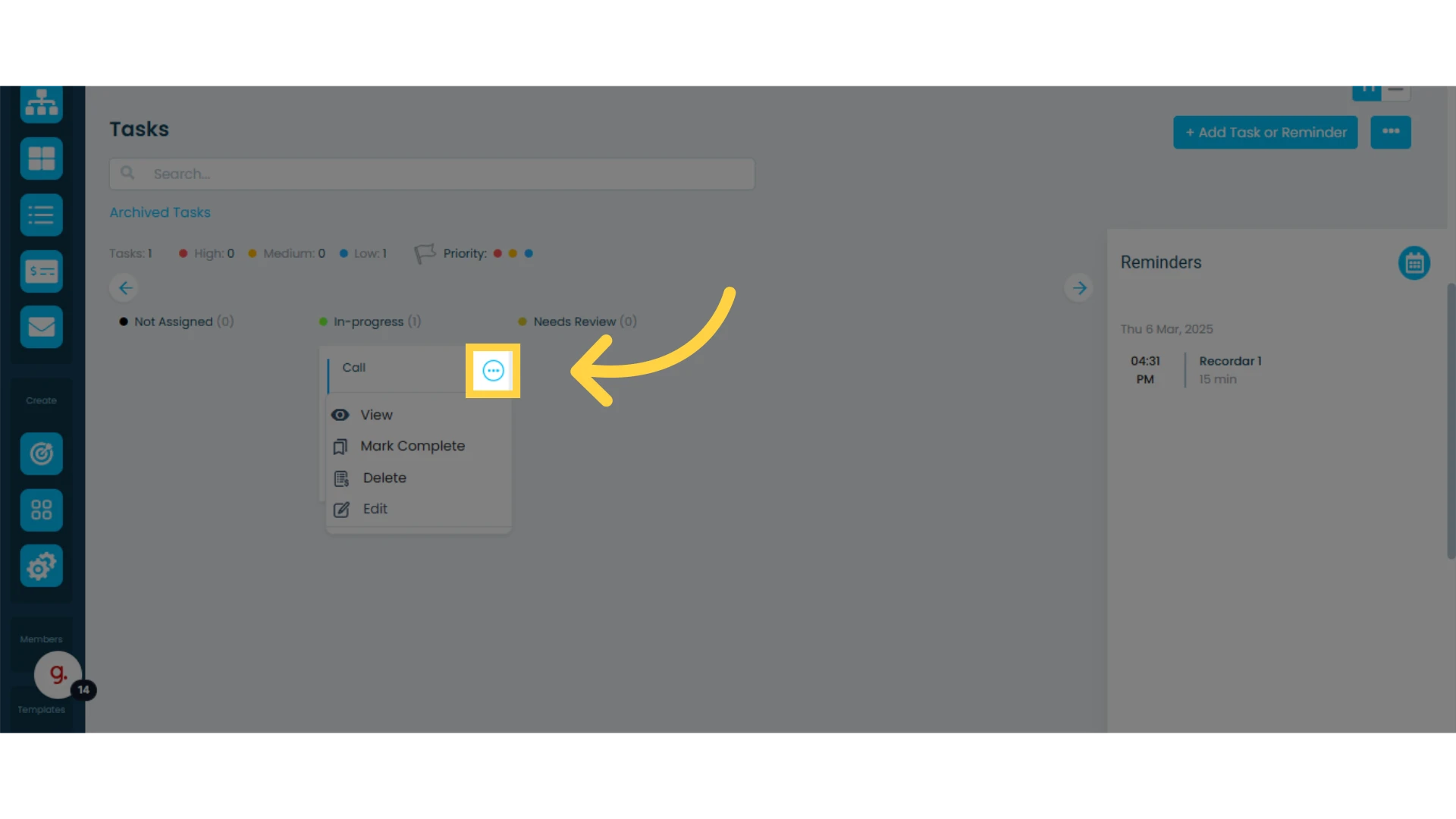
Marking a tasks as "Completed"
1. Click on the three-dot menu of the task card you want to modify
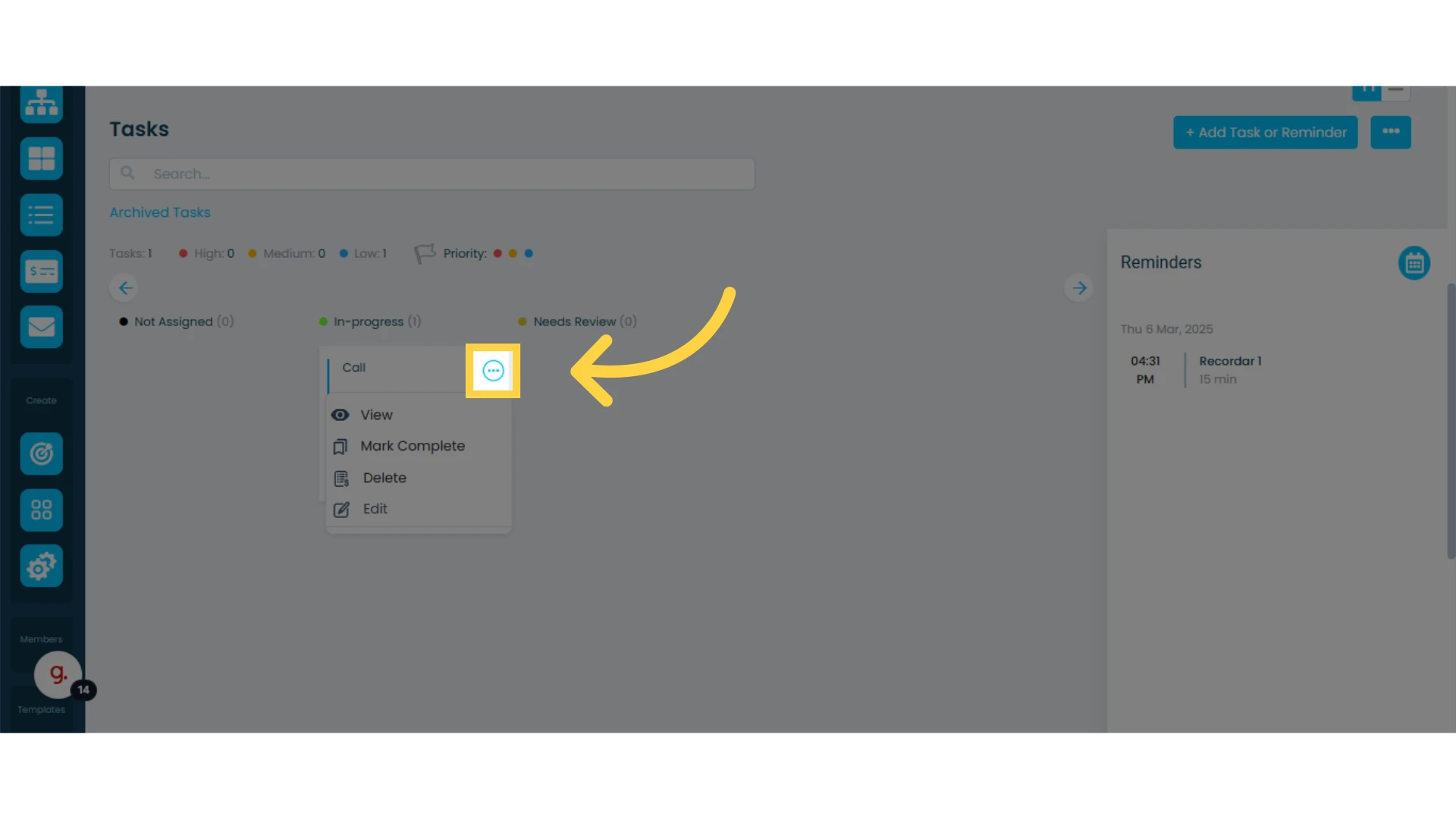
2. Click on "Task Completed"
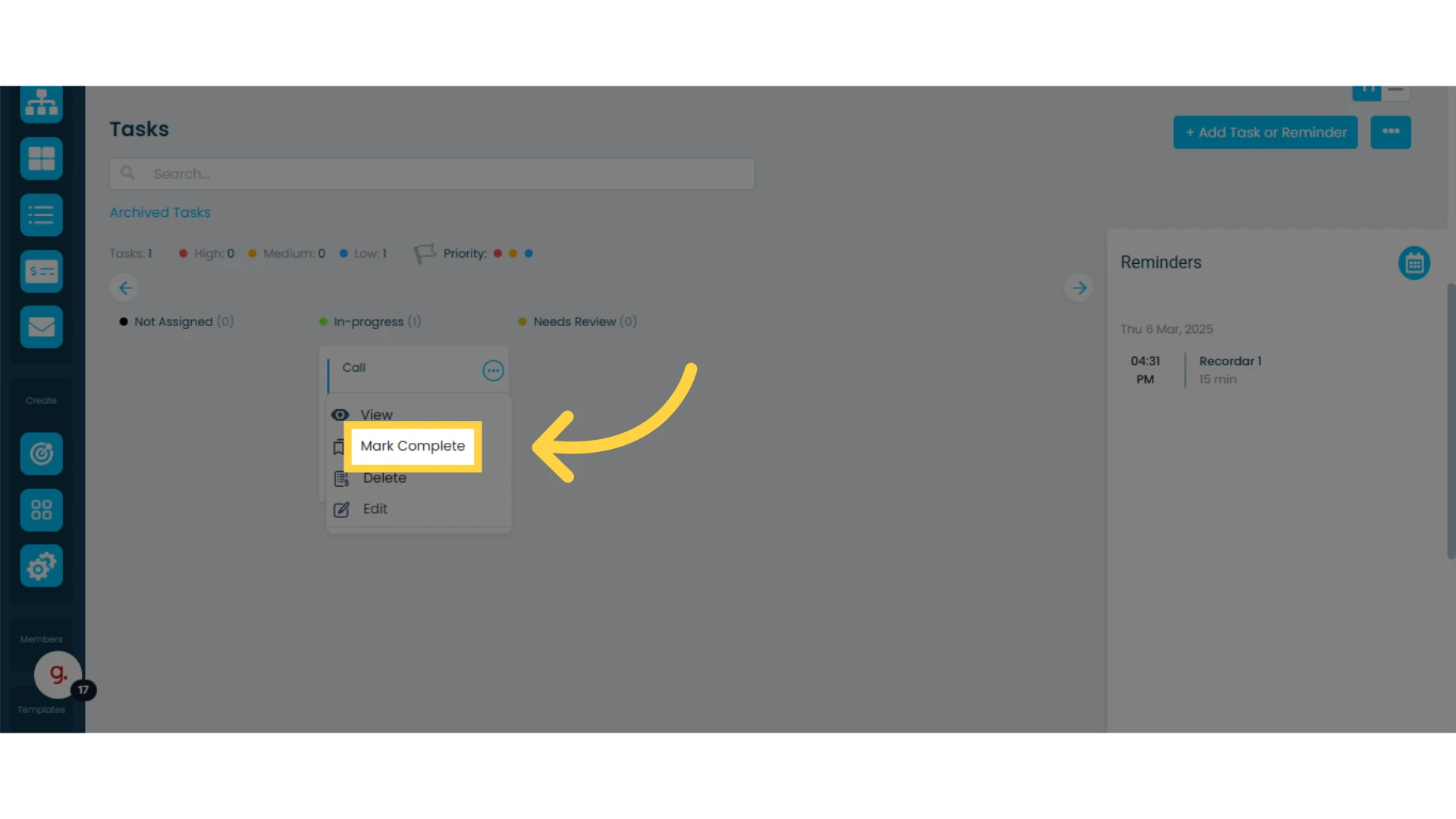
You can also click "View" and then select "Completed Task."
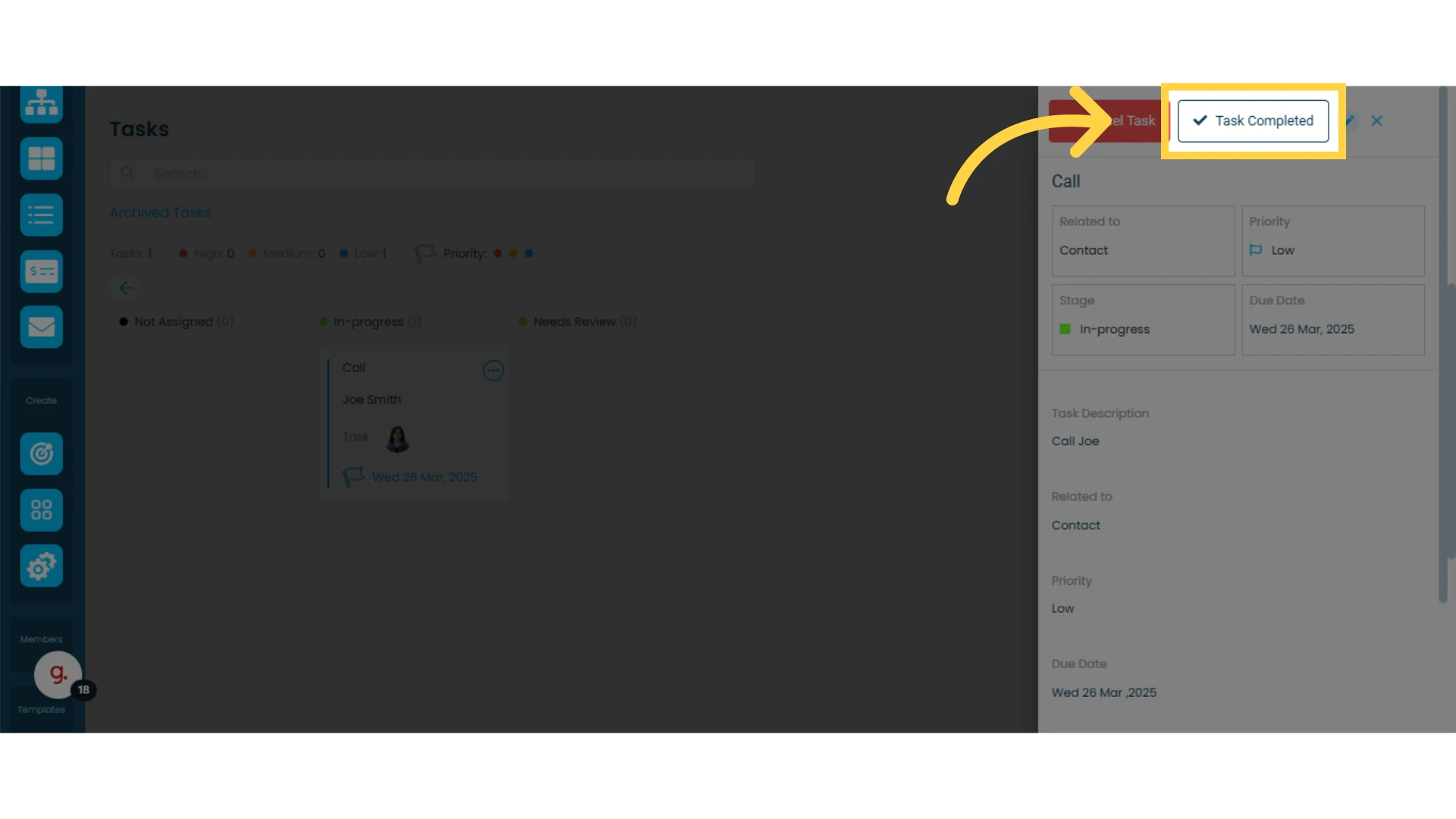
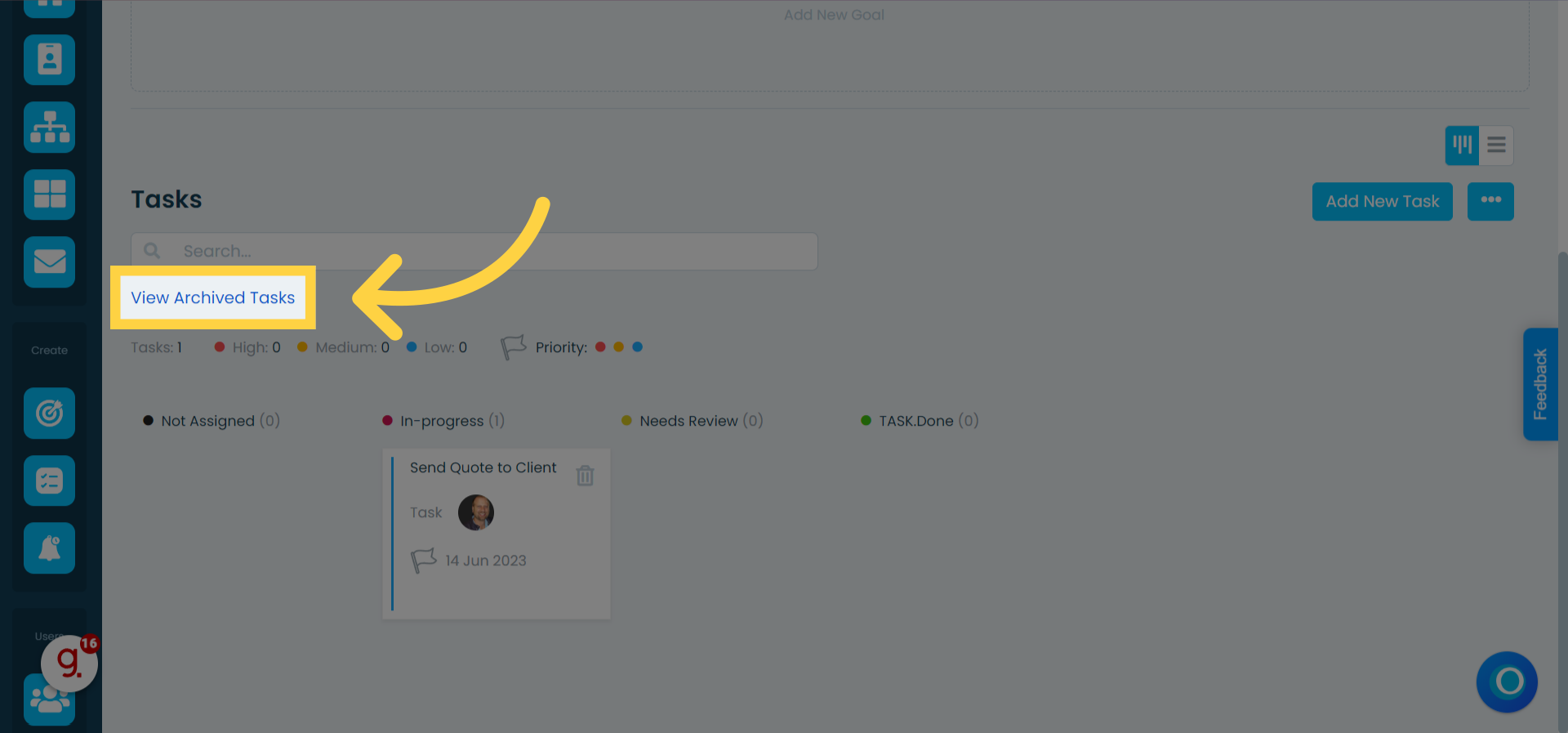
When a task is marked as completed or canceled, it will be archived. All archived tasks can be viewed and reactivated by clicking "View Archived Tasks."
Viewing "Archived Tasks"
Tasks marked as completed or canceled can be accessed from the "View Archived Tasks" option.
Additionally, archived tasks can be restored to reappear in the task list. To restore them, click on the icon with a circular arrow.
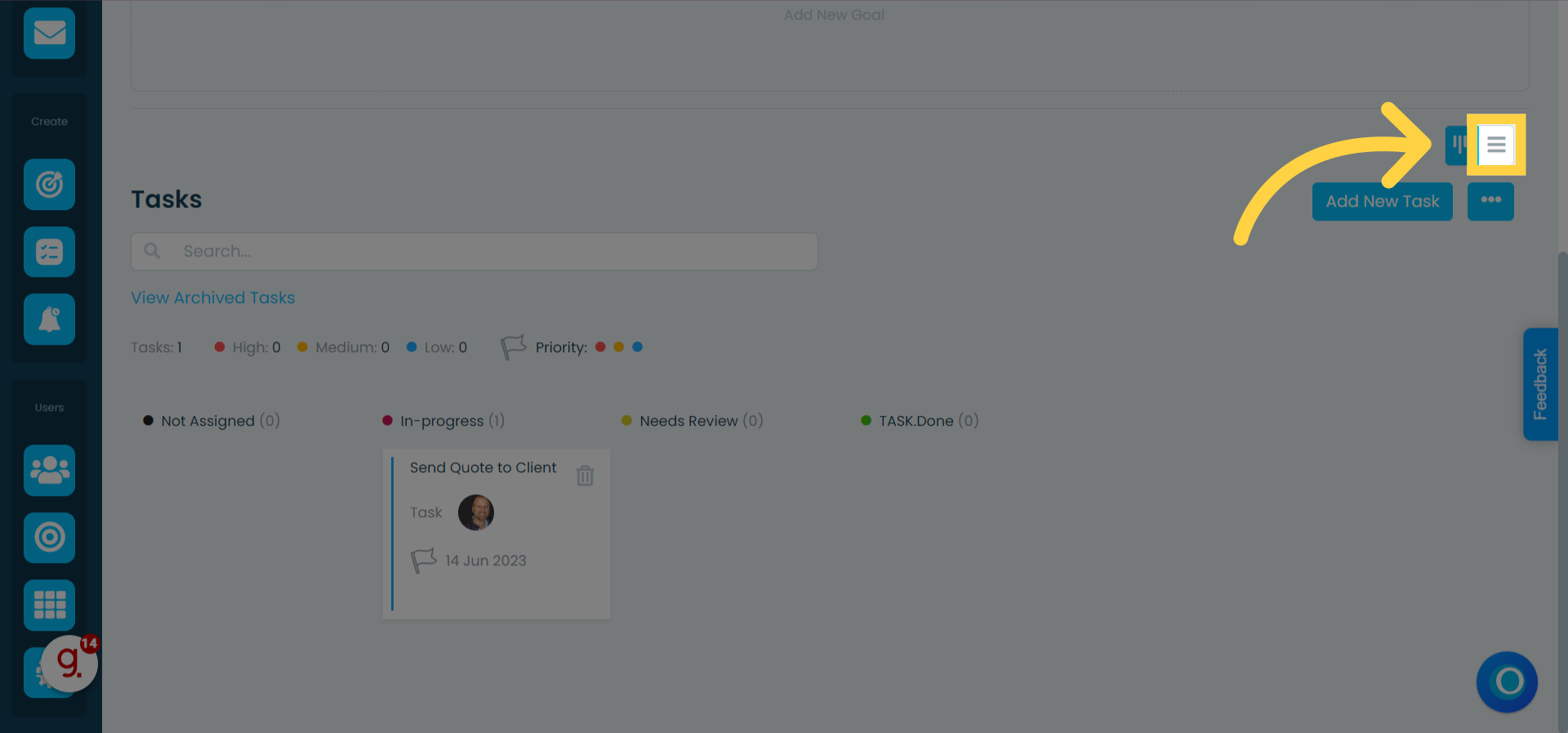
Changing the Task View (List View)
1. Click on the "List View" icon in the task section, above the button for adding tasks and reminders
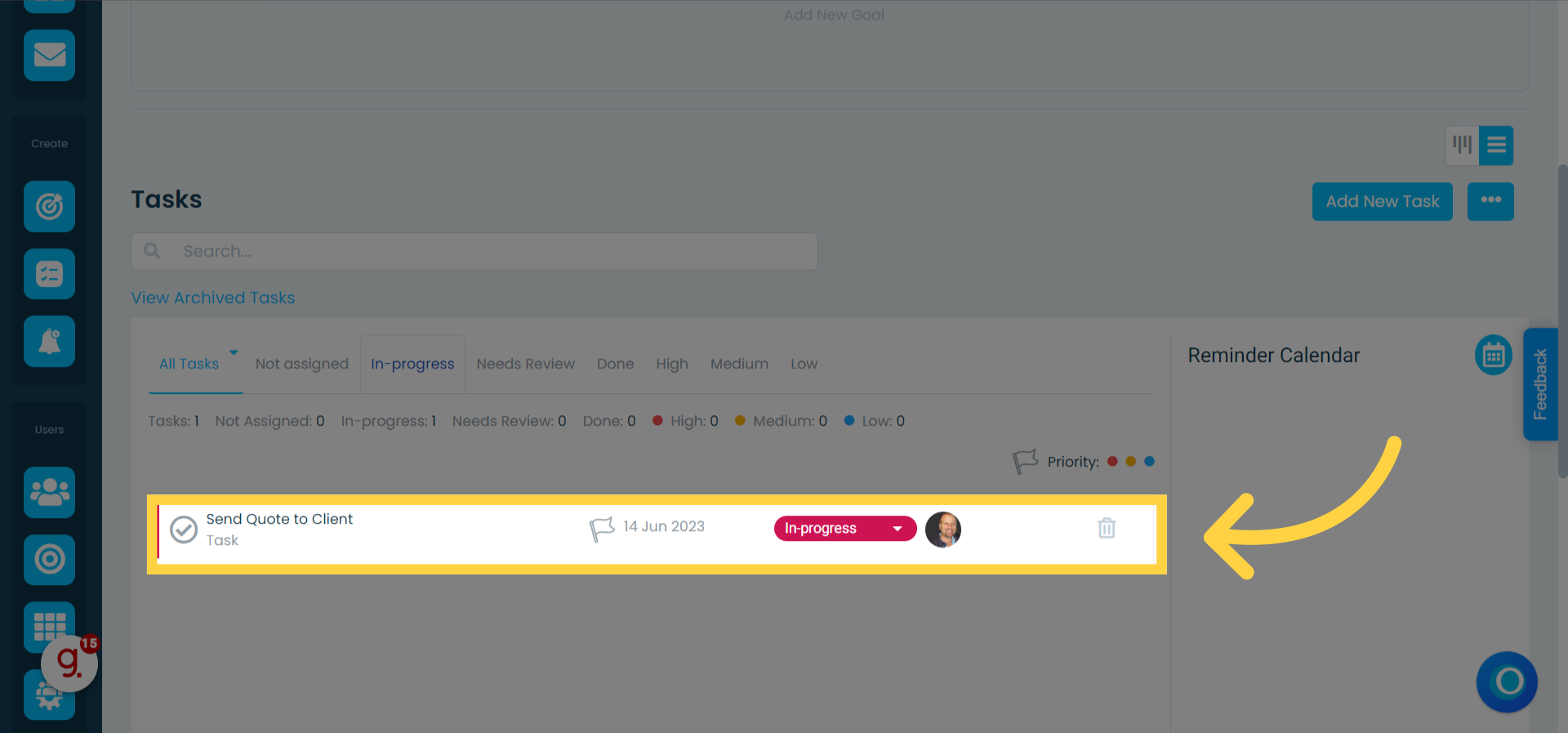
2. View Tasks
You can change the task stage from the dropdown menu on each task card.
By clicking on the task card name, you can:
View task details
Edit the task
Cancel the task
Mark the task as completed
To delete a task, click on the corresponding delete icon.
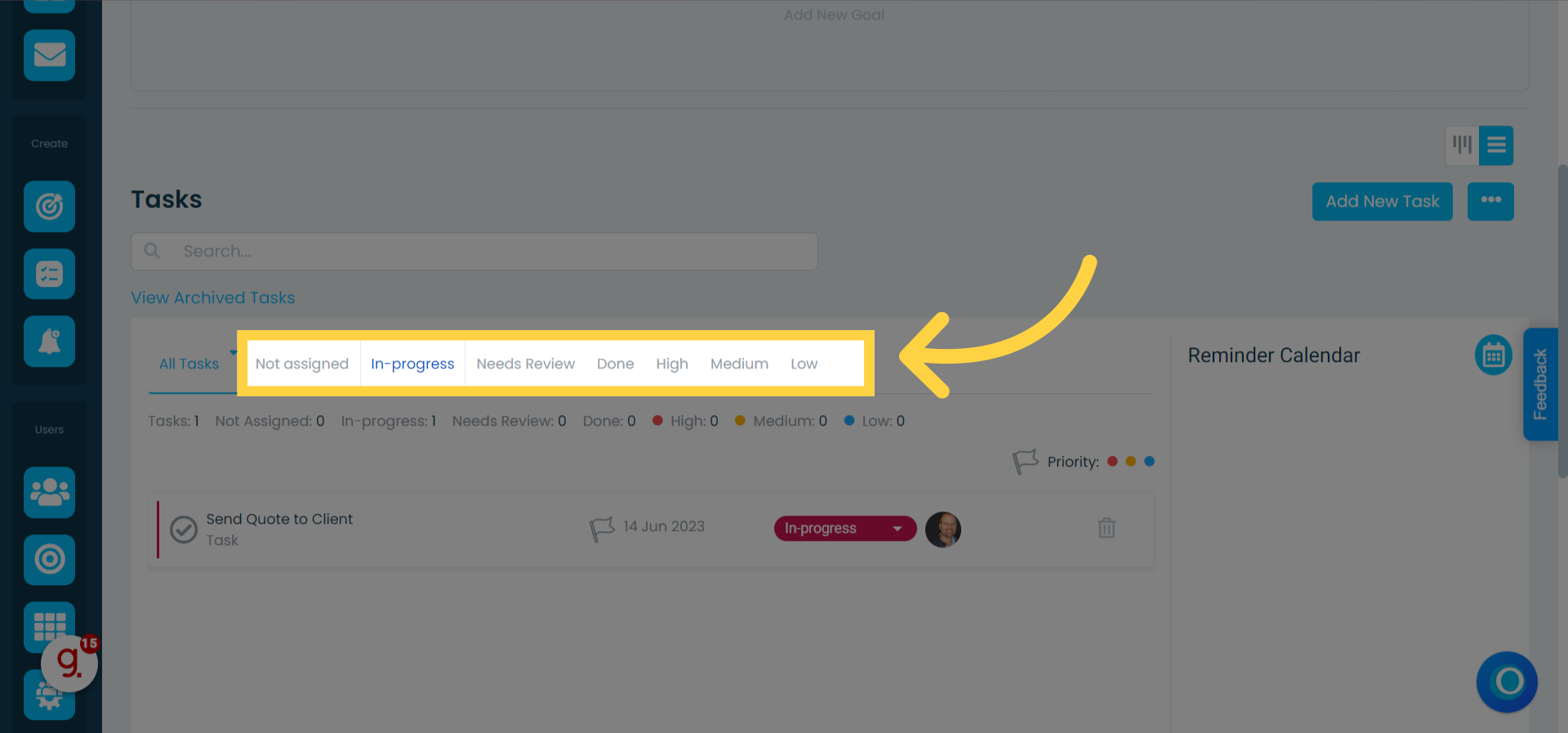
3. Filter tasks based on stage and priority
In the top menu, you can filter tasks by status: "Unassigned," "In Progress," "Needs Review," or any custom statuses you have created. You can also organize them by priority, choosing between "High, Medium, or Low."
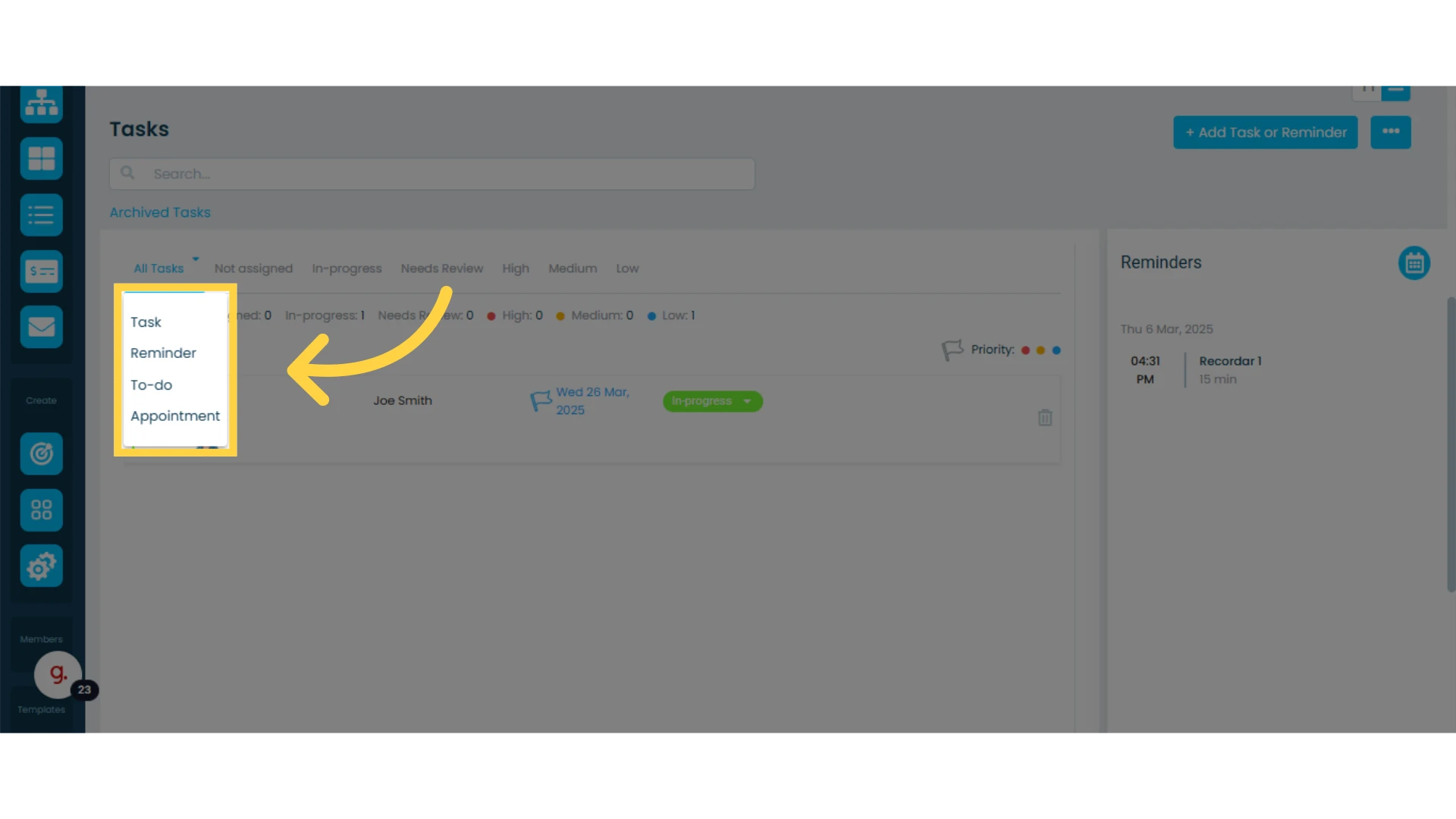
4. Filter by tasks type
By clicking on the "All Tasks" dropdown menu, you can filter by task types such as: "task", "reminder", "to-do", "appointment", or any other custom task types you have previously created.