In this guide, we’ll walk you through the different components of the organization list in detail.
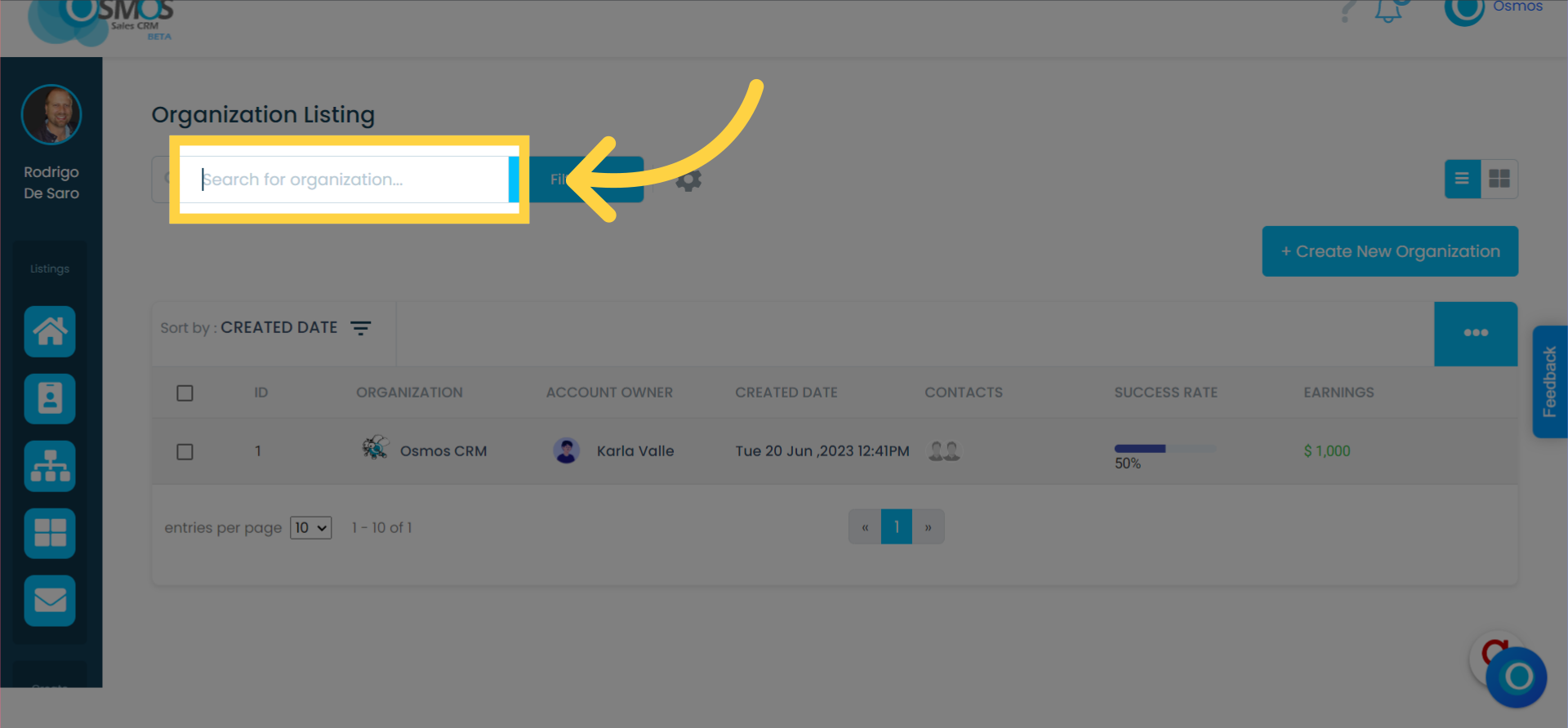
Search Box
Use this box to quickly find a specific record in your list. You can enter the contact’s name, organization, or email address.
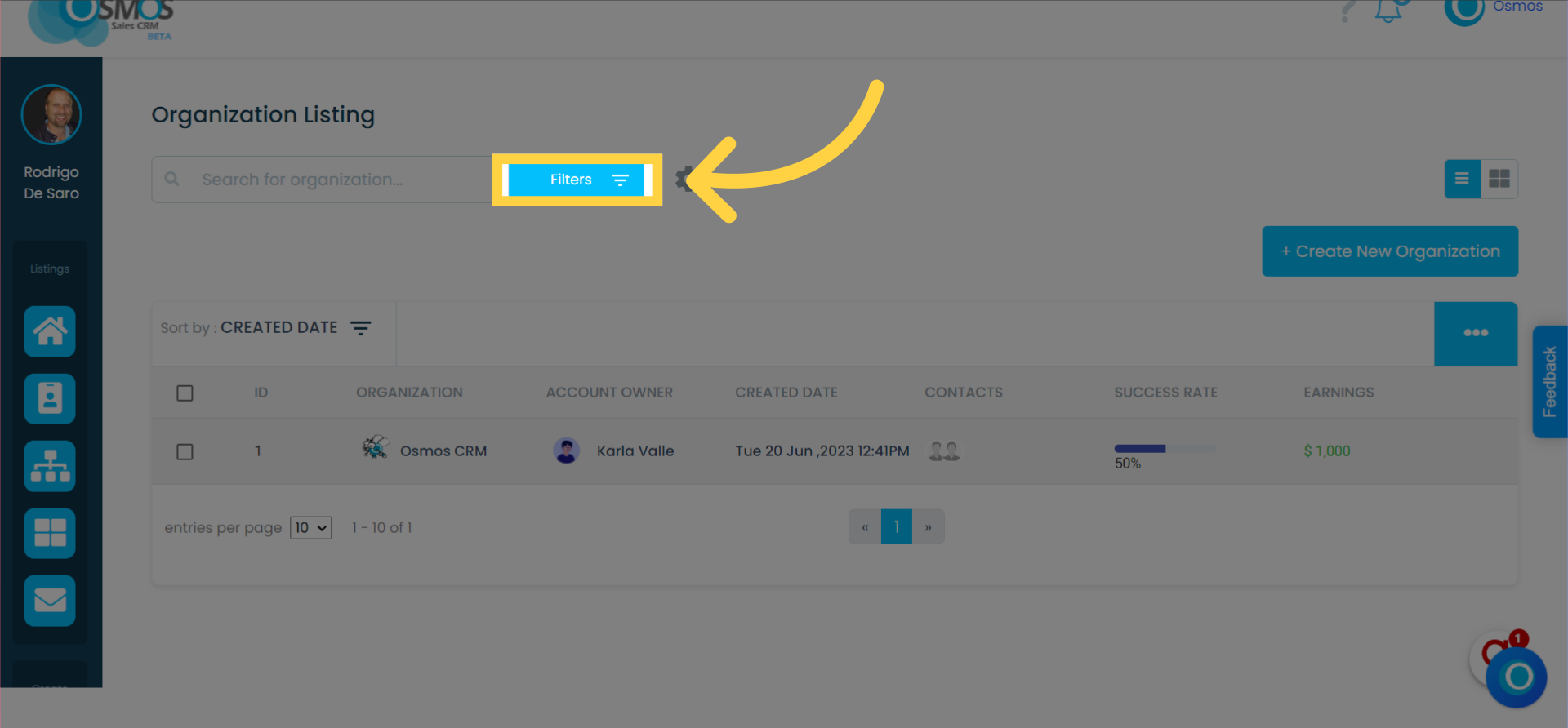
Filters
Use filters to sort the organization list.
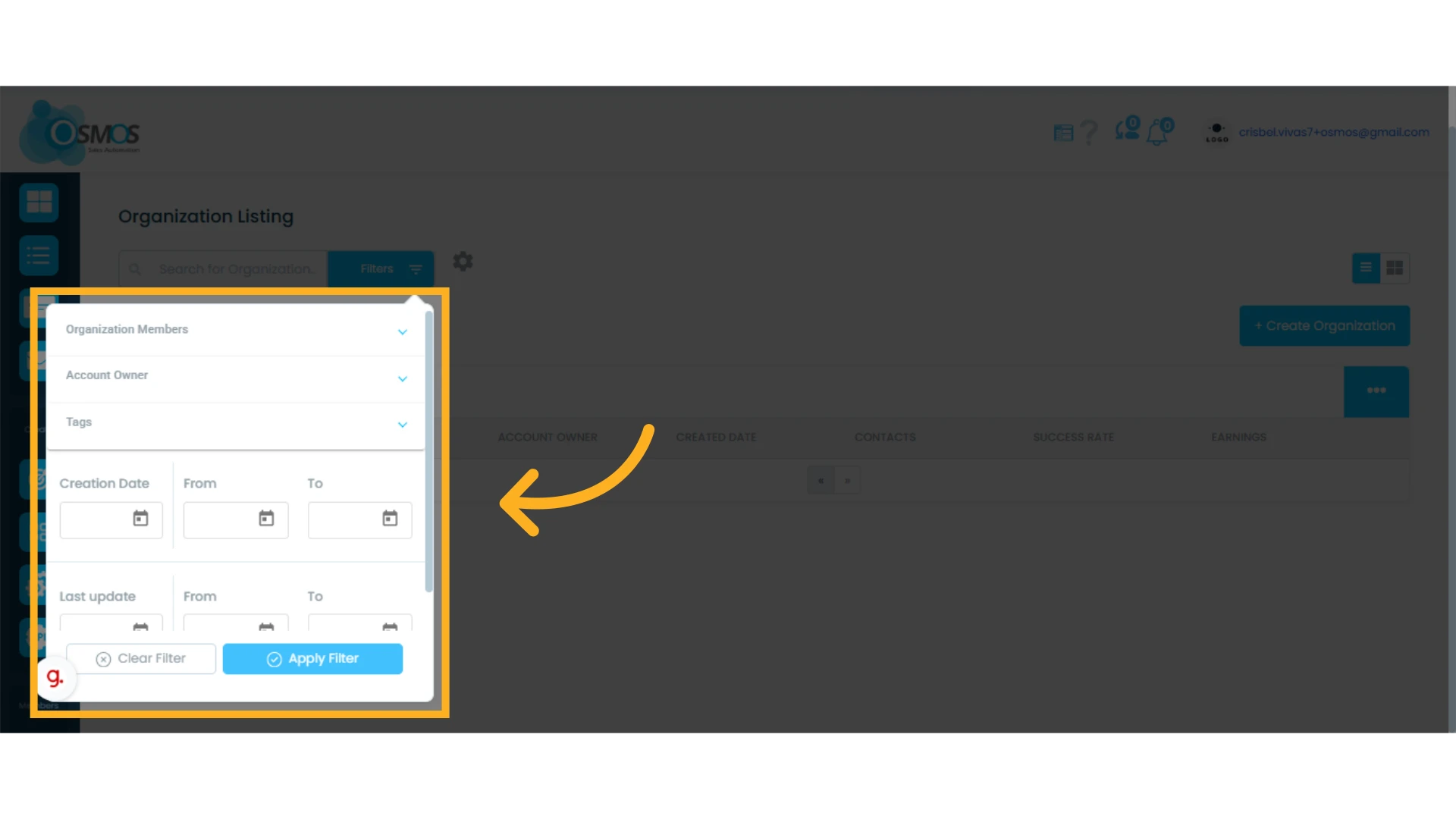
The filters you can apply are:
Organization members: Filter records by members associated with an organization.
Account owner: Show organizations assigned to a specific owner within the CRM.
Tags: Search for organizations labeled with custom tags for better organization.
Creation date: Filter organizations based on when they were registered in the system.
Last update: Show organizations based on the date of their last modification.
After creating and applying a filter to your search, you can save it to reuse later or reset the query to start over.
To save a filter, click on “Save Filter.” Saved filters will appear below the search box and can be activated with one click whenever needed.


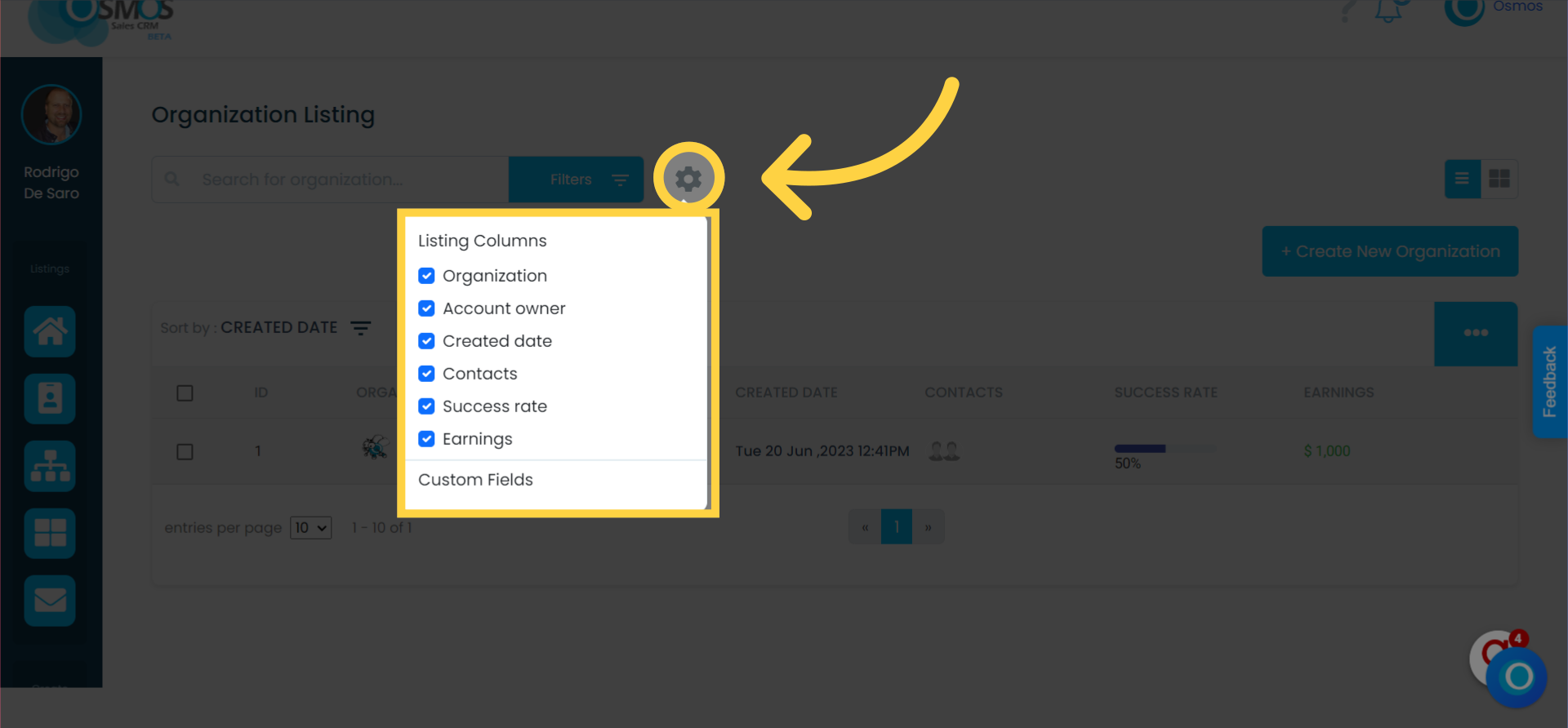
Gear icon
The gear icon allows you to customize the columns you want to view in your list. Simply drag the column names to arrange them in your preferred order.
Create and View Organizations
From here, you can create an organization and switch between list view and card view.
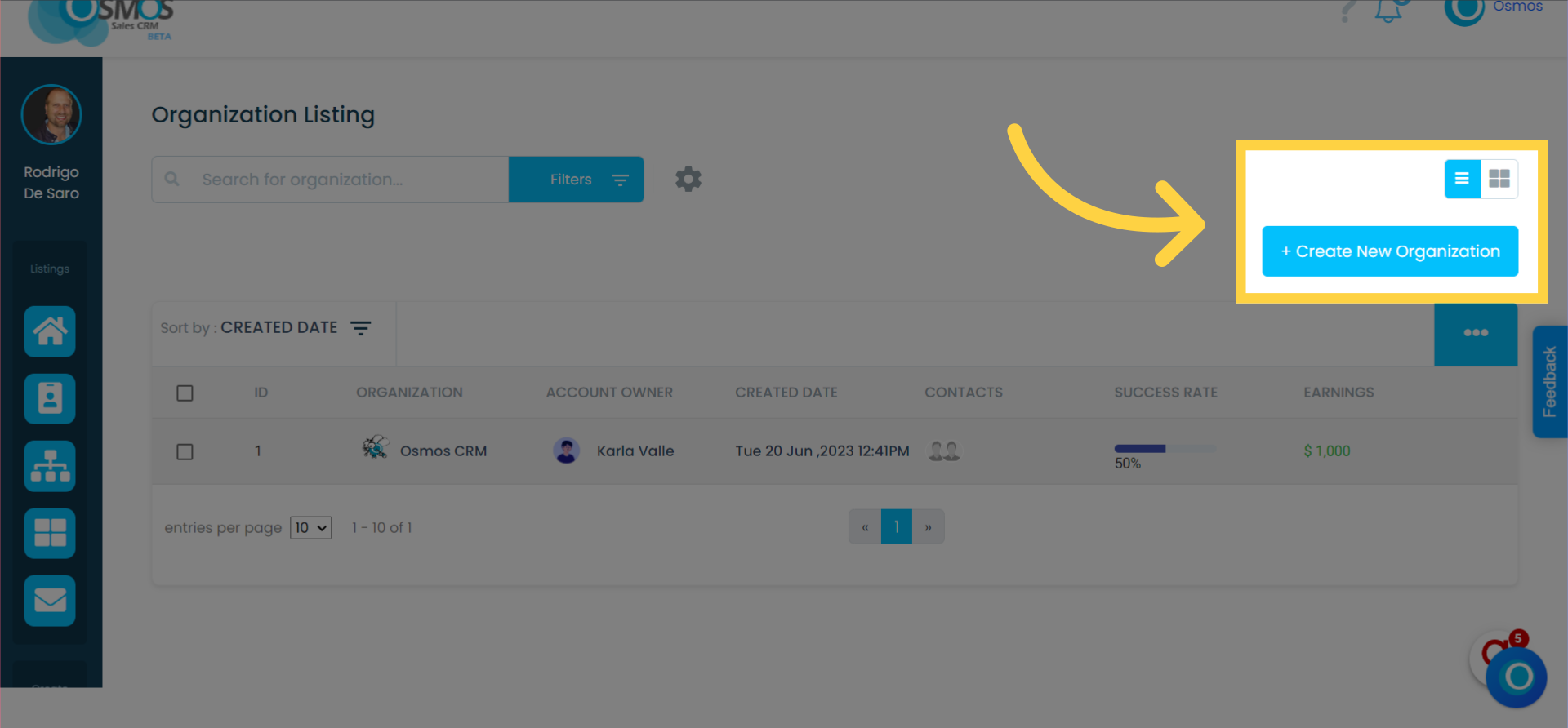
Learn more about the organization card list view.
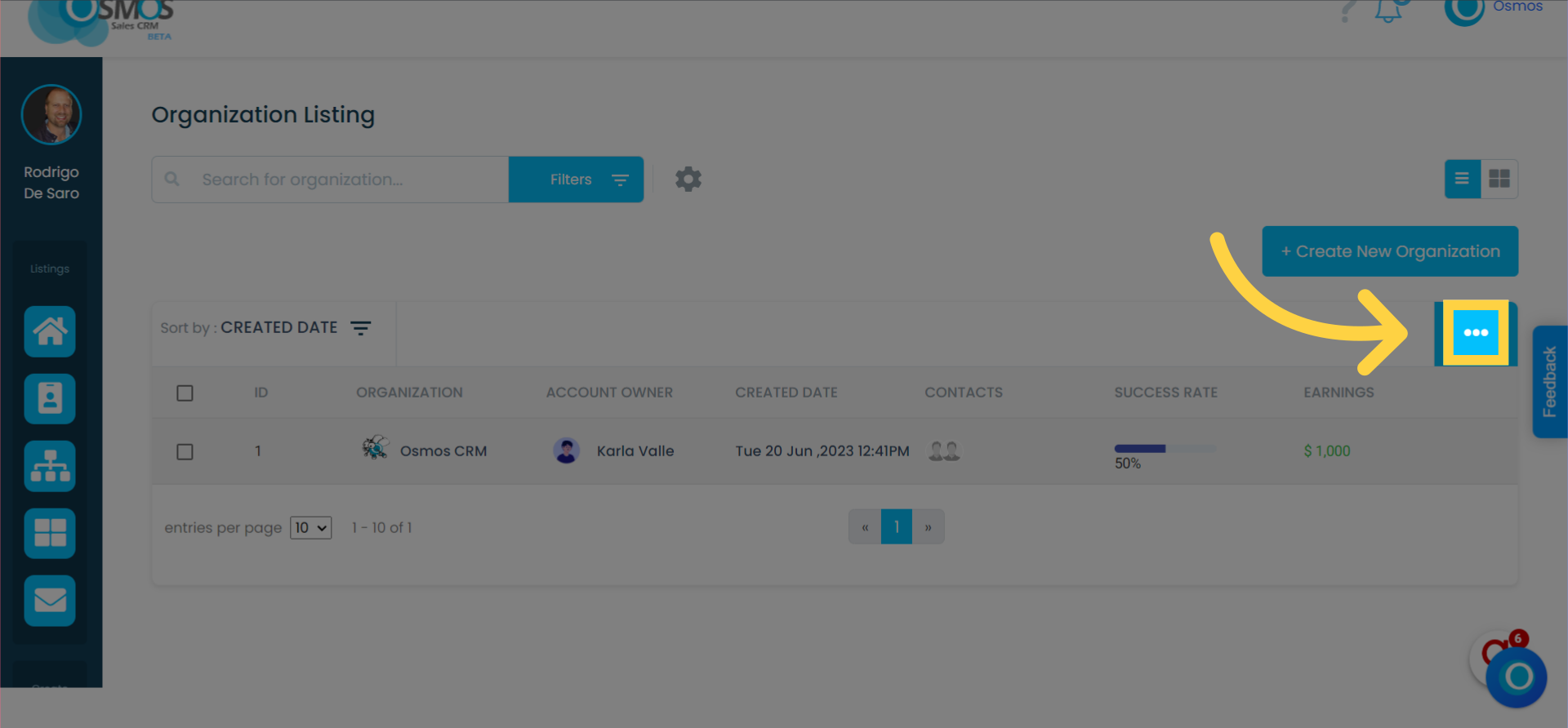
Delete One or More Organizations
To delete an organization, select the one you wish to remove from the list and click on the three-dot menu located in the top right corner of the table. There, you will see the “Delete Organization” option. Confirm the action to complete the process.
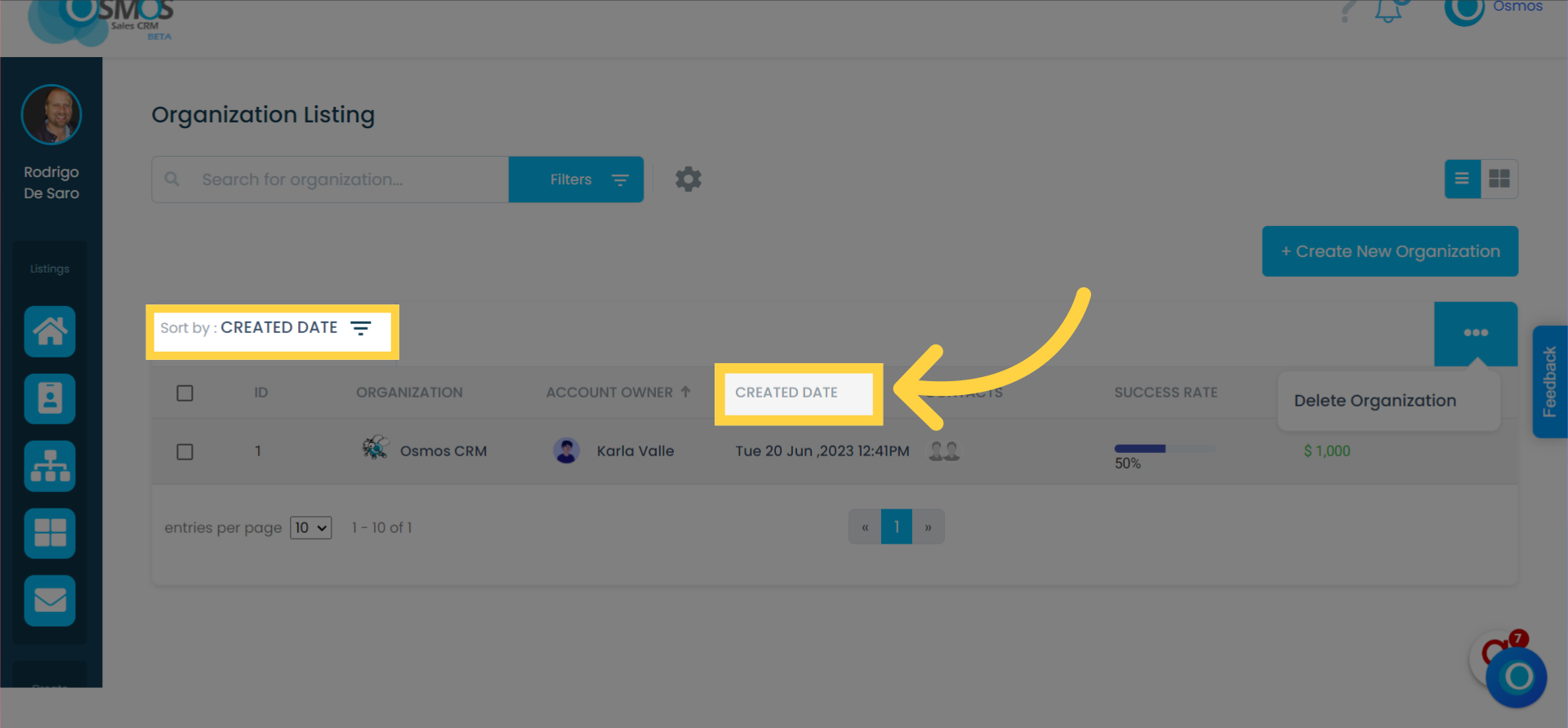
Sort the List by Columns in Ascending or Descending Order
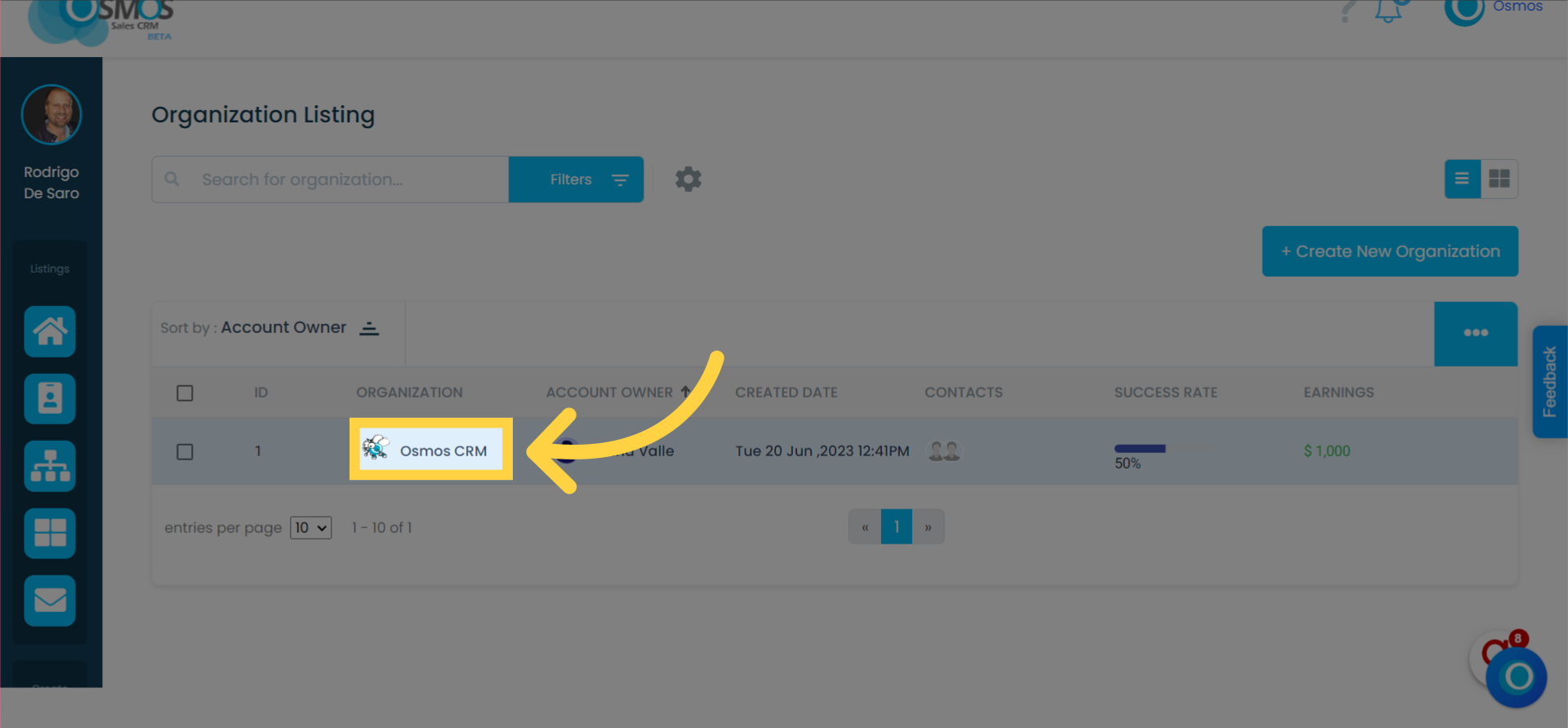
Click on any column to sort the table. The top left corner of the table will show which column the table is currently sorted by.
View Organization Details
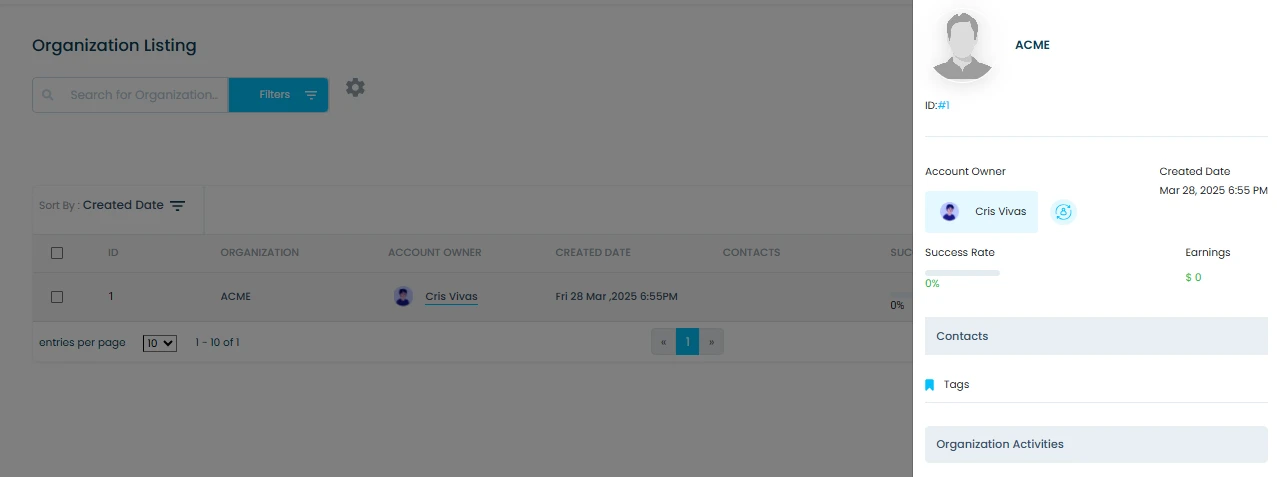
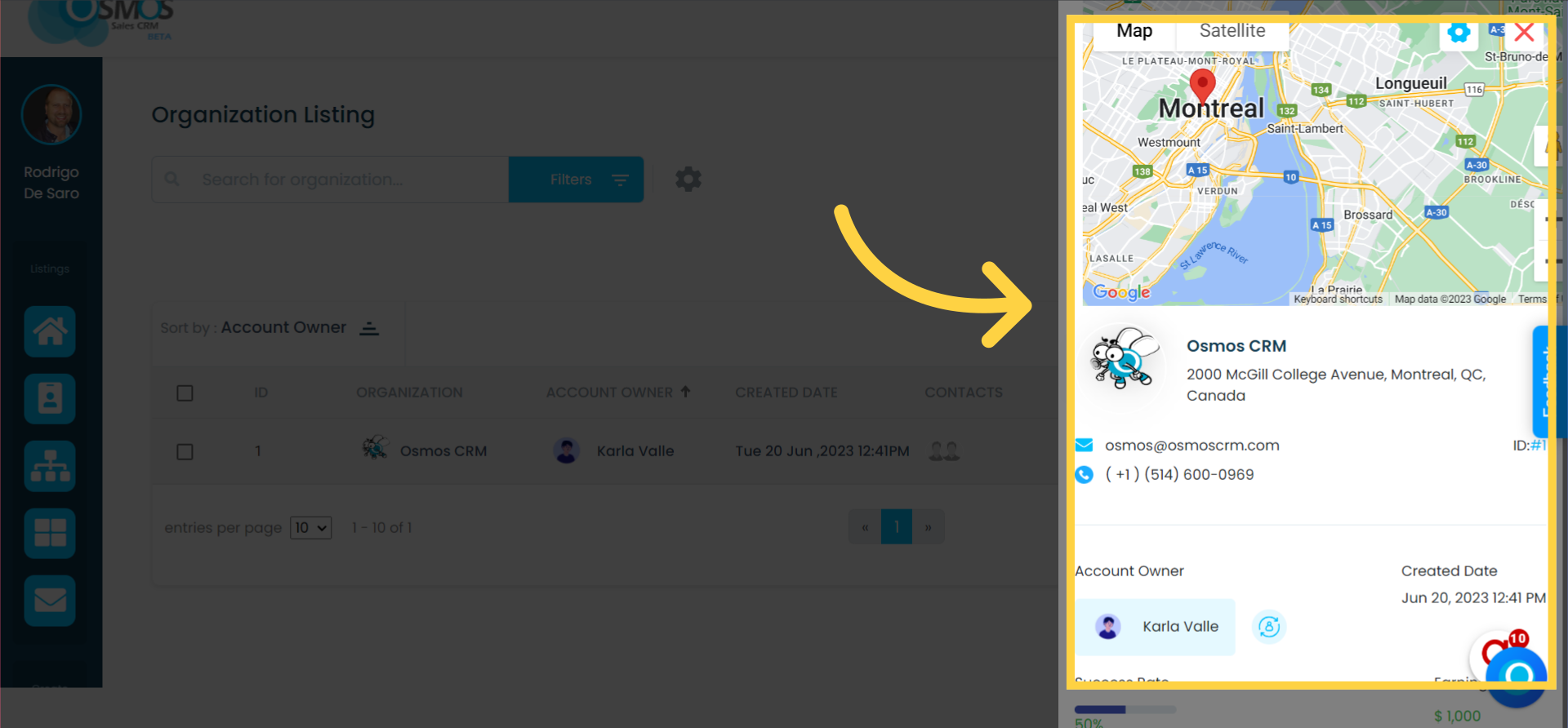
Click on the name of the “Organization,” and a window with the organization’s details will open.
Success Rate and Earnings
The success rate and earnings section displays information related to the deals assigned to the prospect(s) within the organization.
The success rate represents the percentage of closed deals.
In other words, it calculates the percentage of deals created and deals won.
For example, if the organization has 2 deals and one of them was won, the success rate would be 50%.
The same goes for earnings; here, the total amount of the won deals is added up.