In this guide, you will learn about the different elements of the “Item List” and how to use them to manage your catalog efficiently.
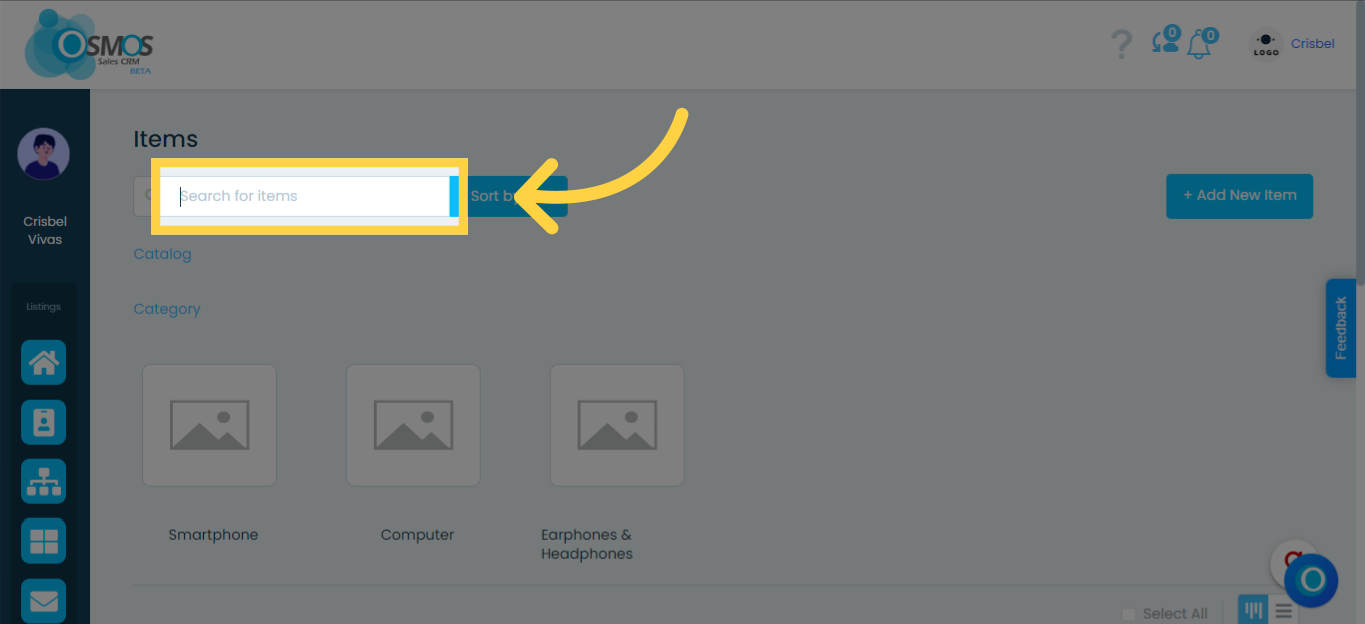
Search Box
Use this field to quickly locate a specific item. You can search by product name or item code.
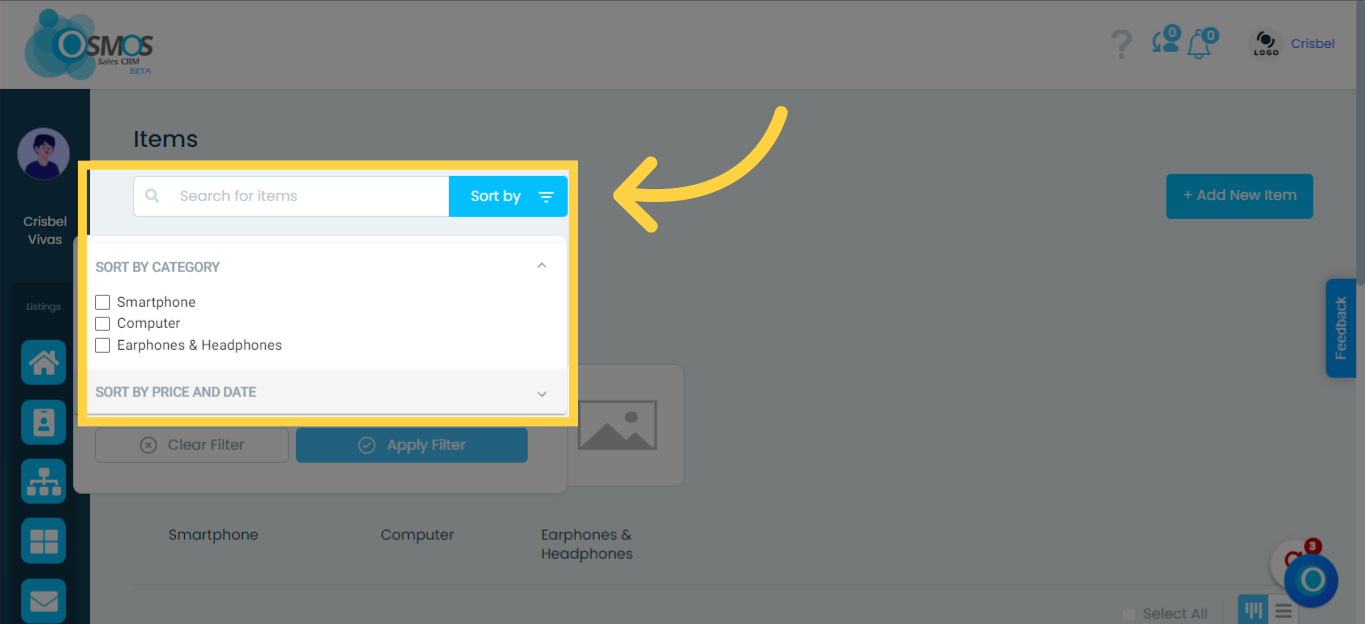
Filters
Refine your search by applying different filters to organize the item list according to your needs:
Category
Subcategory
Price and Date
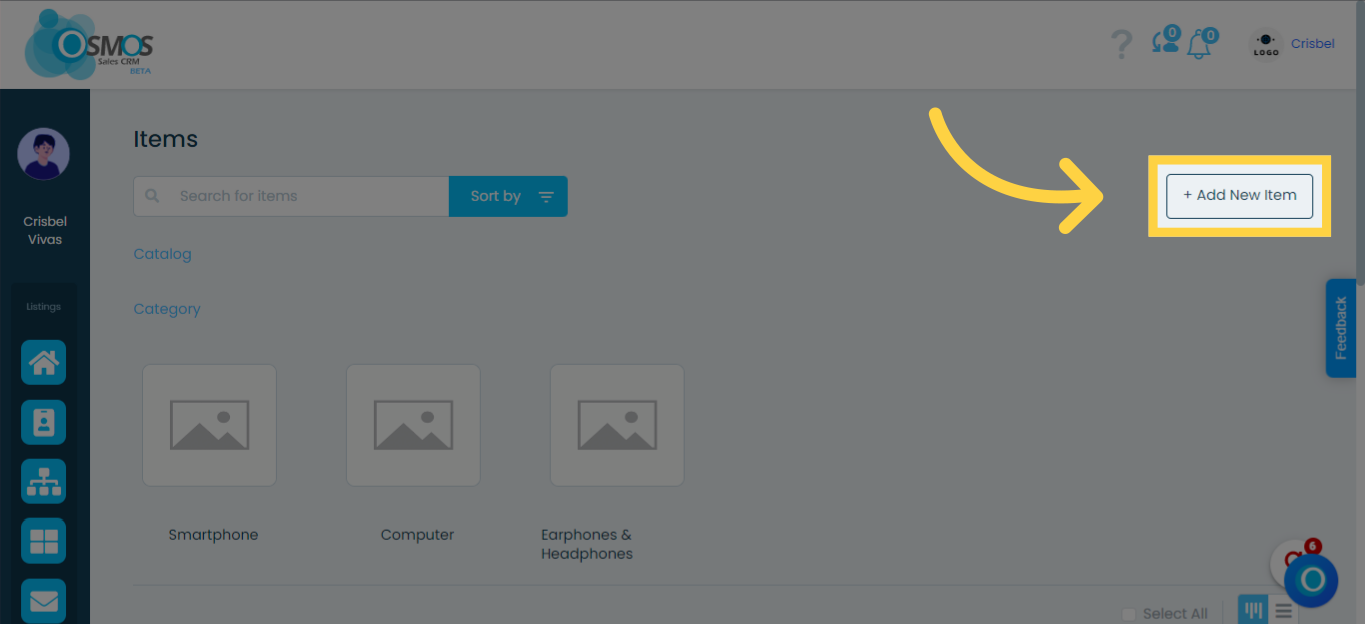
Add an Item
Click the “Add Item” button to manually add a new item to your catalog.
Learn how to add items.
Catalog
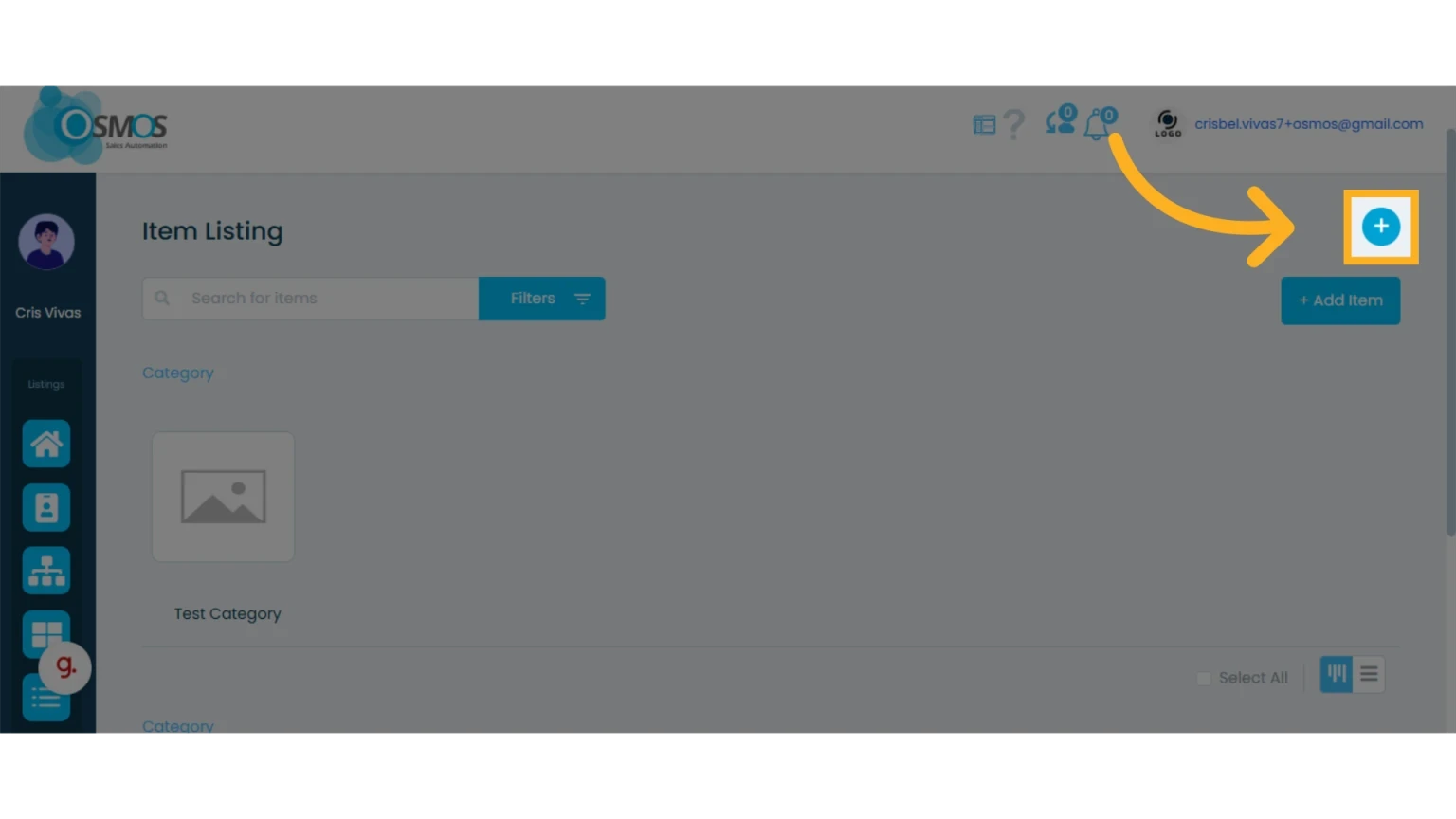
To manage your catalog, click on the “+” icon. From there, you can:
Download your current item catalog as a CSV file
Upload multiple items using a CSV file
Bulk upload images to your items
Category and Subcategory
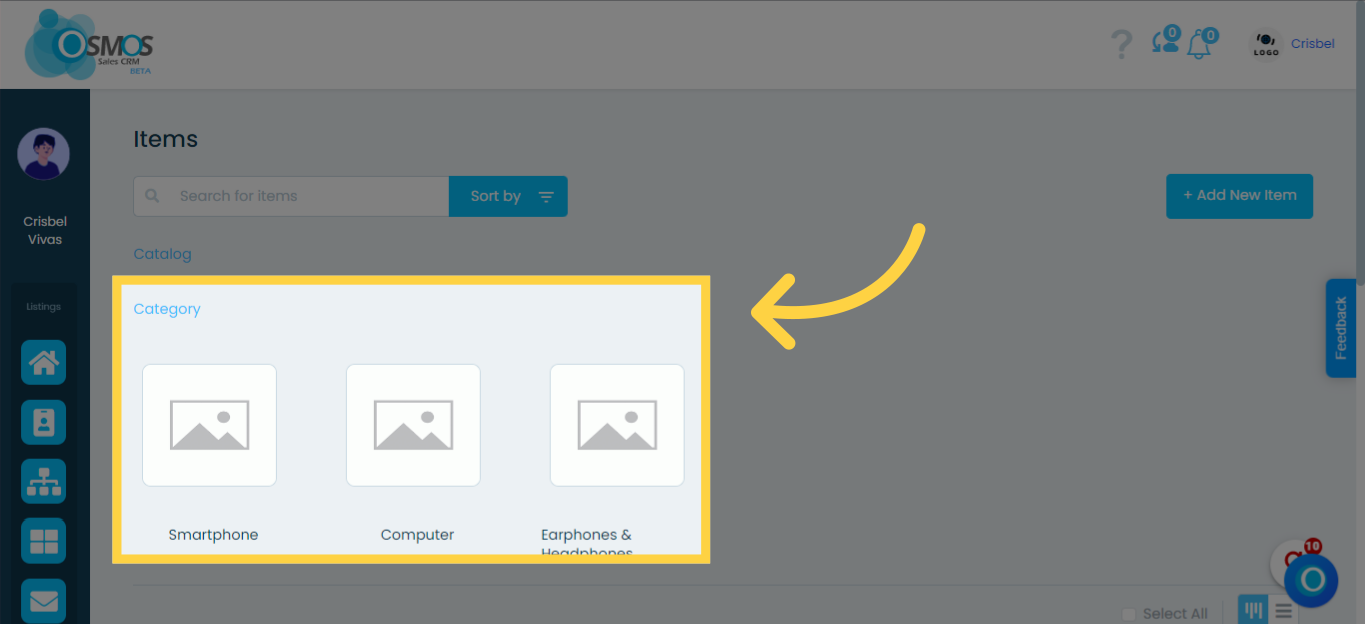
In this section, you will find the categories you have created. Clicking on a category will display the list of items within that category.
If a category contains subcategories, they will appear underneath it. Clicking on a subcategory will display only the items within that subcategory.
Items
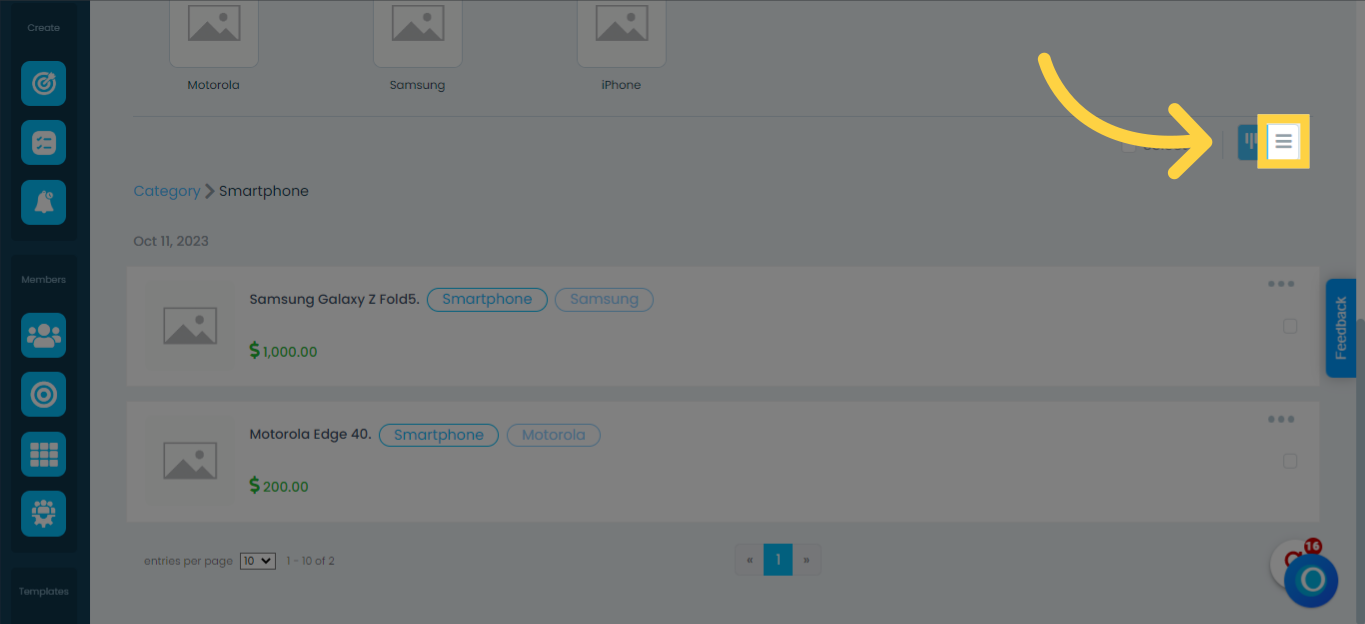
Items can be viewed as a list or as cards by clicking either view at the top right of the table.
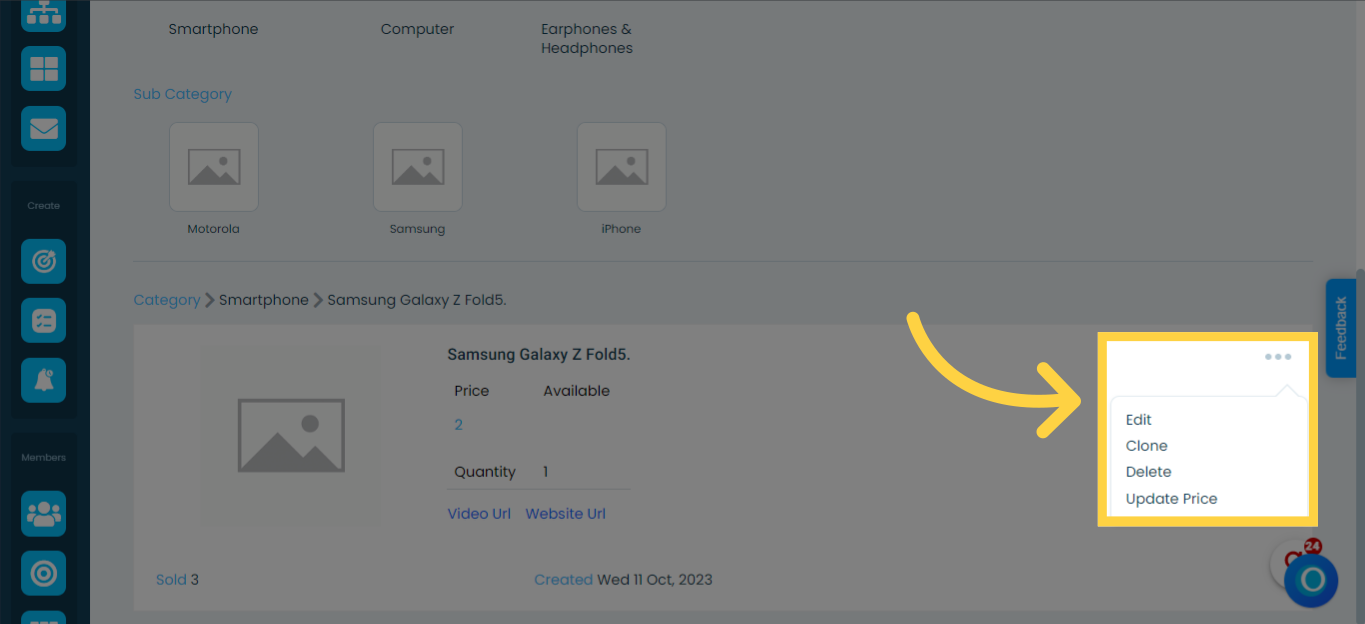
The 3 Dots Menu ...
This menu gives you access to different options for the item:
Edit: Modify the item’s information as needed
Clone: Create an exact copy of the item
Delete: Permanently remove the item
Update Price: Adjust item prices by increasing or decreasing a percentage