Items are an essential part of Osmos if you want to send quotes and estimates.
In this guide, you will learn how to add an item to your catalog.
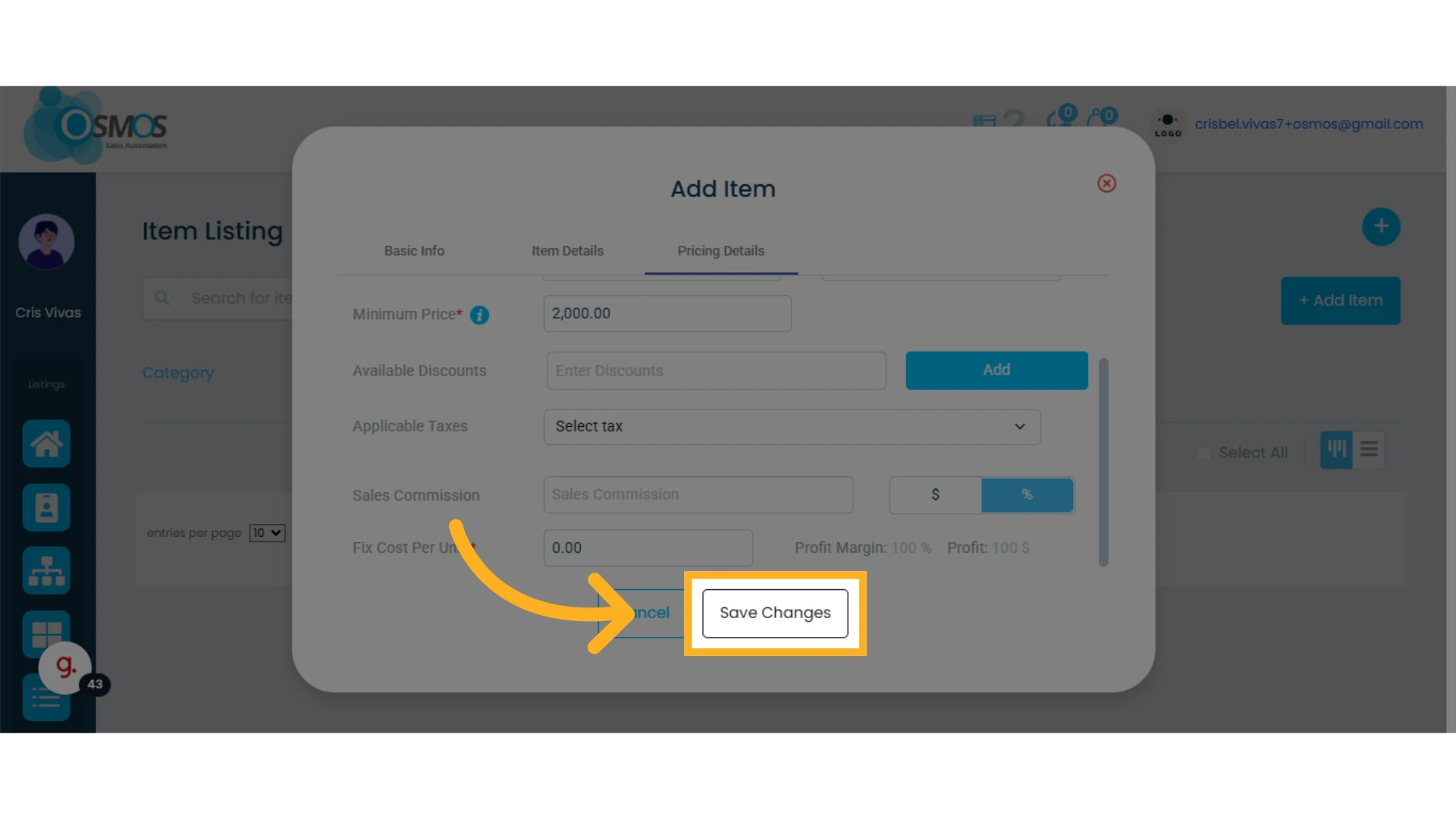
1. Click the “Add Item” button
Learn how to upload items in bulk.
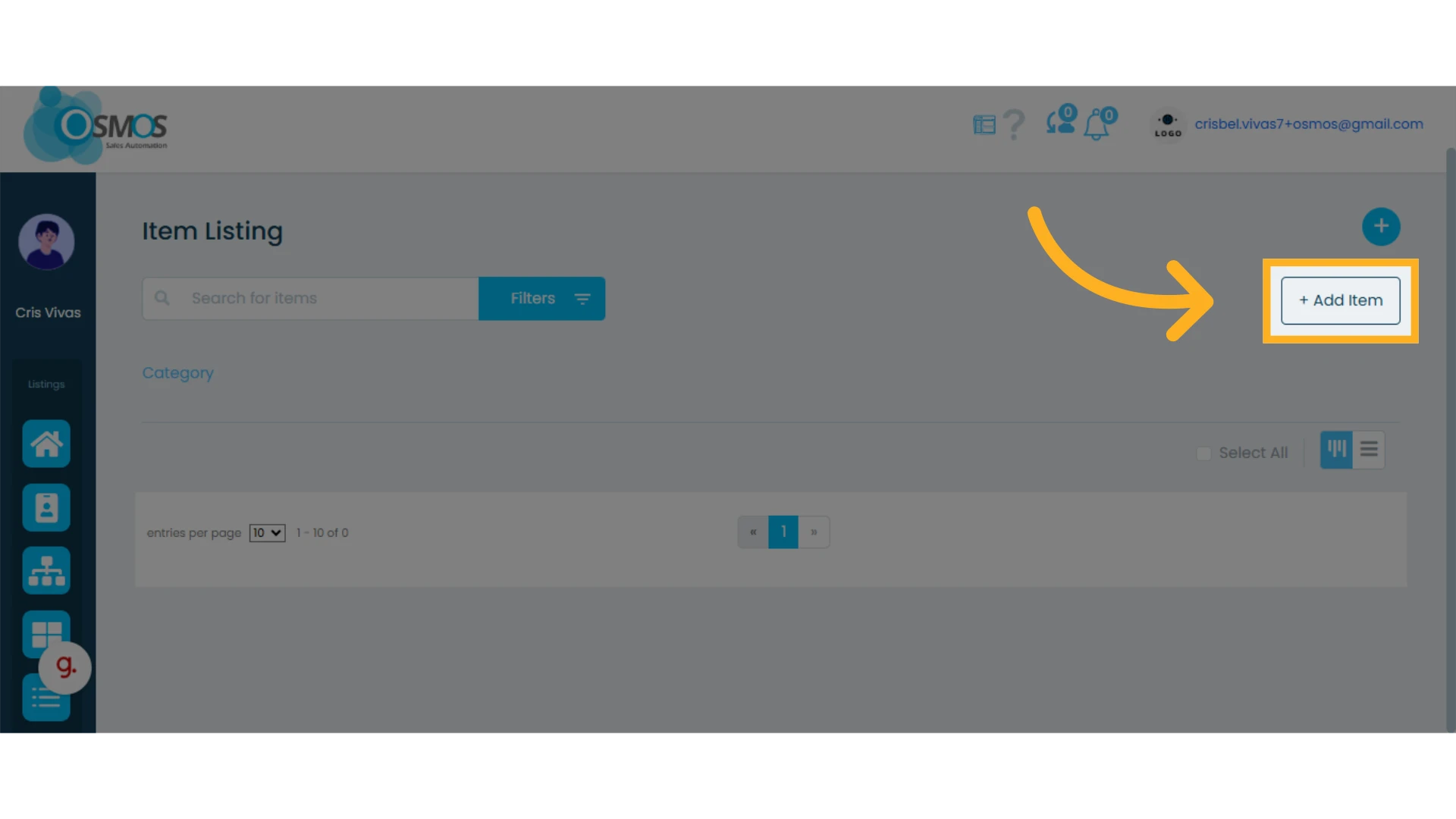
2. Add the item information, item details, and pricing
You will find three sections you need to complete:
Basic Information:
Category: Assign a category to the item. This is a required field.
Subcategory: You can add subcategories to better classify your items.
Item Name: This is the primary identifier of the item. Unique names are recommended, though not required.
Item Code: An additional optional identifier. Unique codes are also recommended.
Video and Website URL: You can add up to two custom links with editable descriptions. Click the pencil icon to add them.
Images: Add images to your item and select the main image.
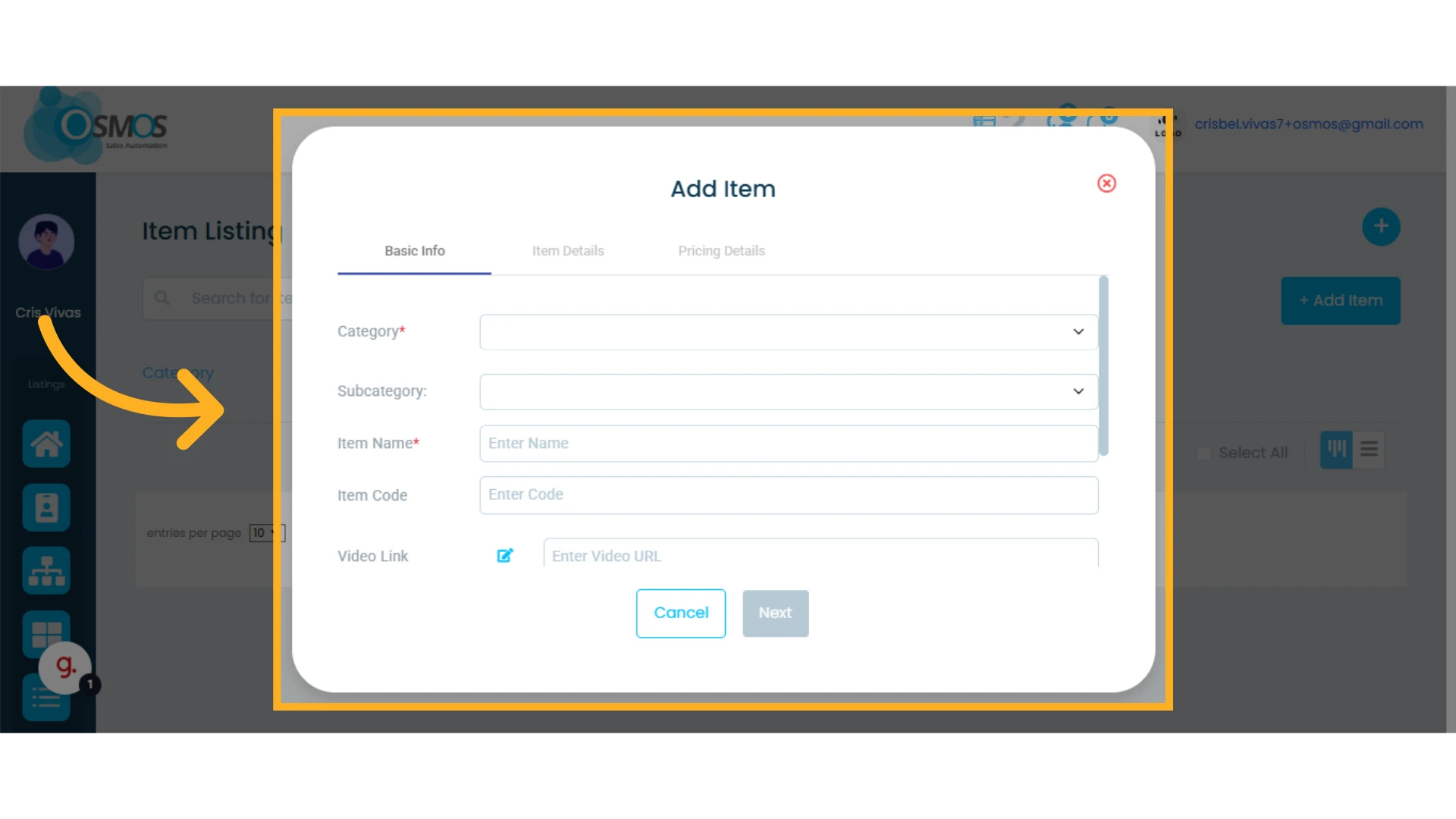
Item Details:
Custom Field: You can add additional fields to your items. Learn how to add custom fields.
Description: A description of the product or service you want your client to see.
Comments: Notes you can add to the items, usually unique. These comments are saved for reuse.
Item Type: Indicate whether it is a product or a service. This is helpful for inventory tracking and service availability when creating sales orders.
NOTE: If you use sales orders and offer services, this feature helps measure availability. For example, if you rent machinery and only have one unit, Osmos can detect availability based on dates and times before allowing a sales order to be created.
Unit: Used to define how the item is measured (unit of measurement).
Inventory: Enter the available quantity of each item in stock. Maintain accurate inventory control to avoid shortages or overstock and optimize product or service availability if you plan to create sales orders.
NOTE: If you use sales orders, product inventory will be adjusted automatically, reducing the quantity from stock. To update inventory manually, just edit the item and enter the new available quantity.
Quantity per click: Determines the amount added or removed from the quote when clicking the “+” or “–” buttons.
Example: If the quantity per click is 12, each click will add 12 units to the quote.
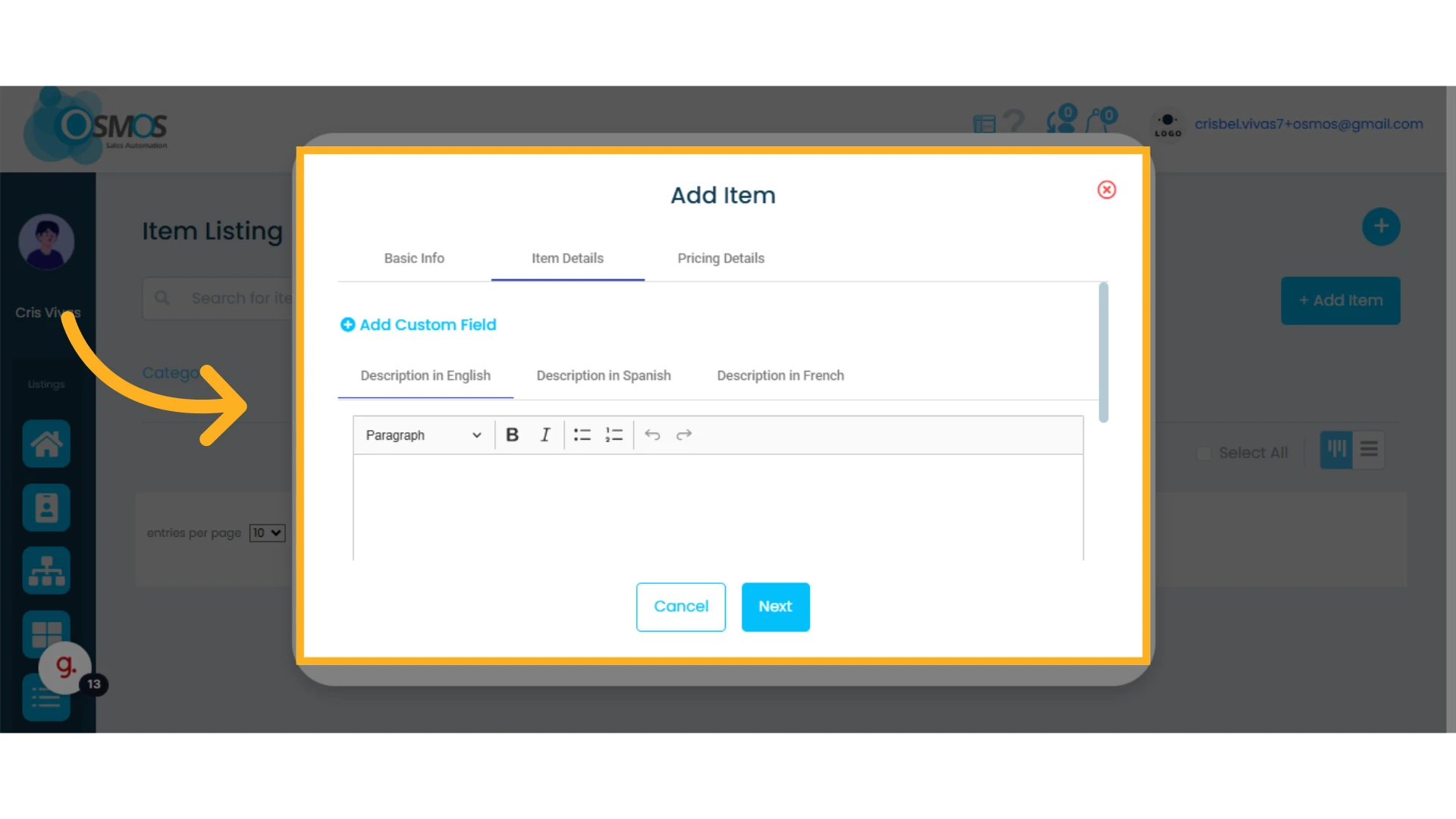
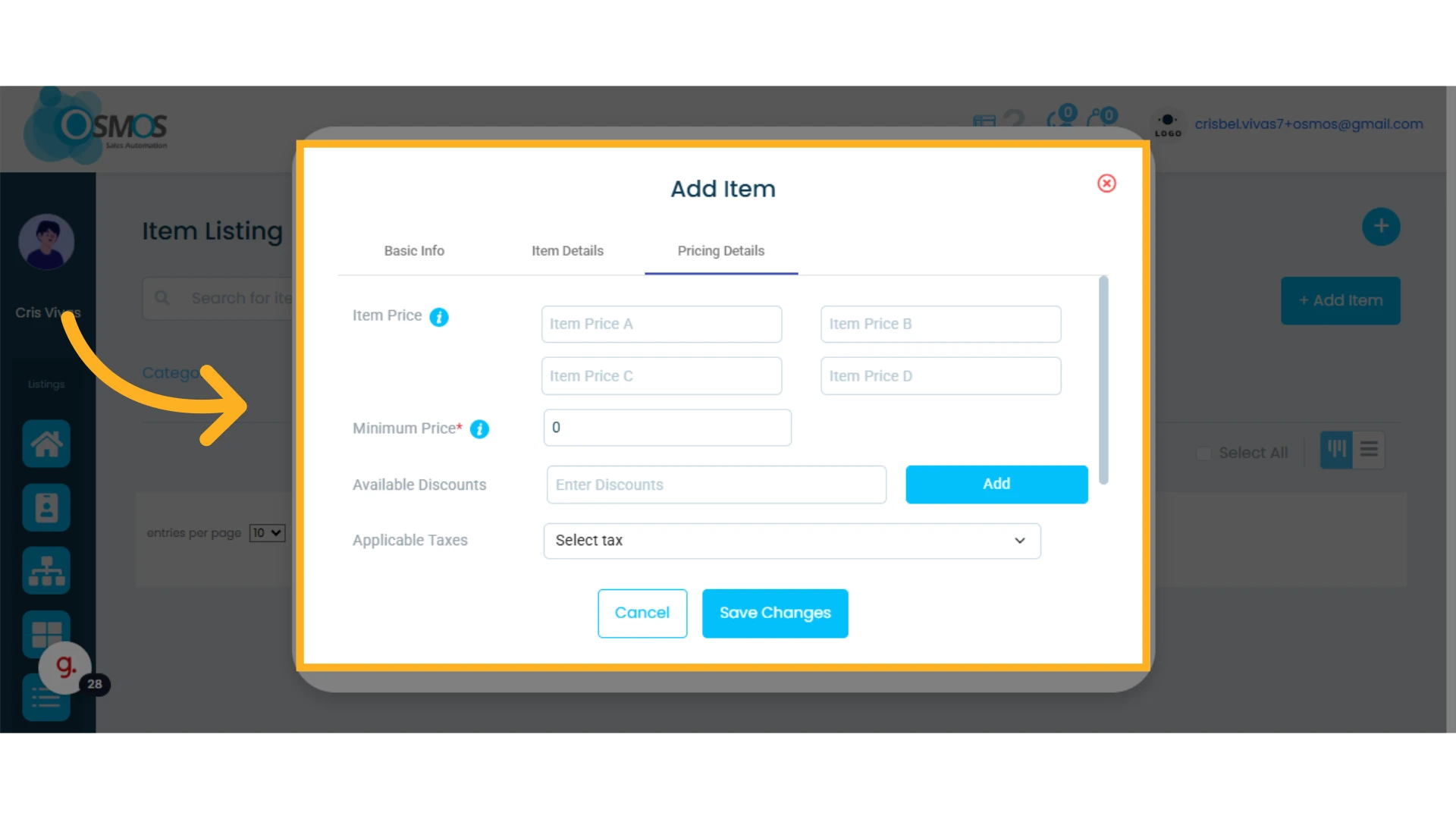
Pricing Details:
Item Price: You can set up to four different prices. The default is “Price A.” You can assign price lists to contacts so the related price is automatically applied to their quotes.
Minimum Price: Restricts users from manually lowering prices below this amount when generating quotes.
Available Discounts: Set up and add available discounts to the item. These can be applied in quotes.
Applicable Taxes: Add and configure any sales taxes you need to include in each item. Multiple taxes can be added.
Sales Commission: Define a commission for members who sell this item. It can be a percentage of the price or a fixed amount.
Example: If the item costs $10 and the commission is 10%, the member earns $1. If the fixed commission is $1, the member earns $1 per item sold, regardless of the price.
Fixed Cost per Unit: Represents the gross cost of the item. When entered, Osmos calculates the profit margin and profit per item.
Profit Margin and Profit: Profit margin is the profit percentage, calculated as the base price minus the commission and unit cost. Profit, on the other hand, is the monetary difference between the base price and the sum of the commission and item cost. Both are expressed as a percentage.
3. Click “Save” to add the item