You can create reminders to ensure you don’t forget important details about activities related to your prospects, deals, or quotations.
To create reminders, follow these steps:
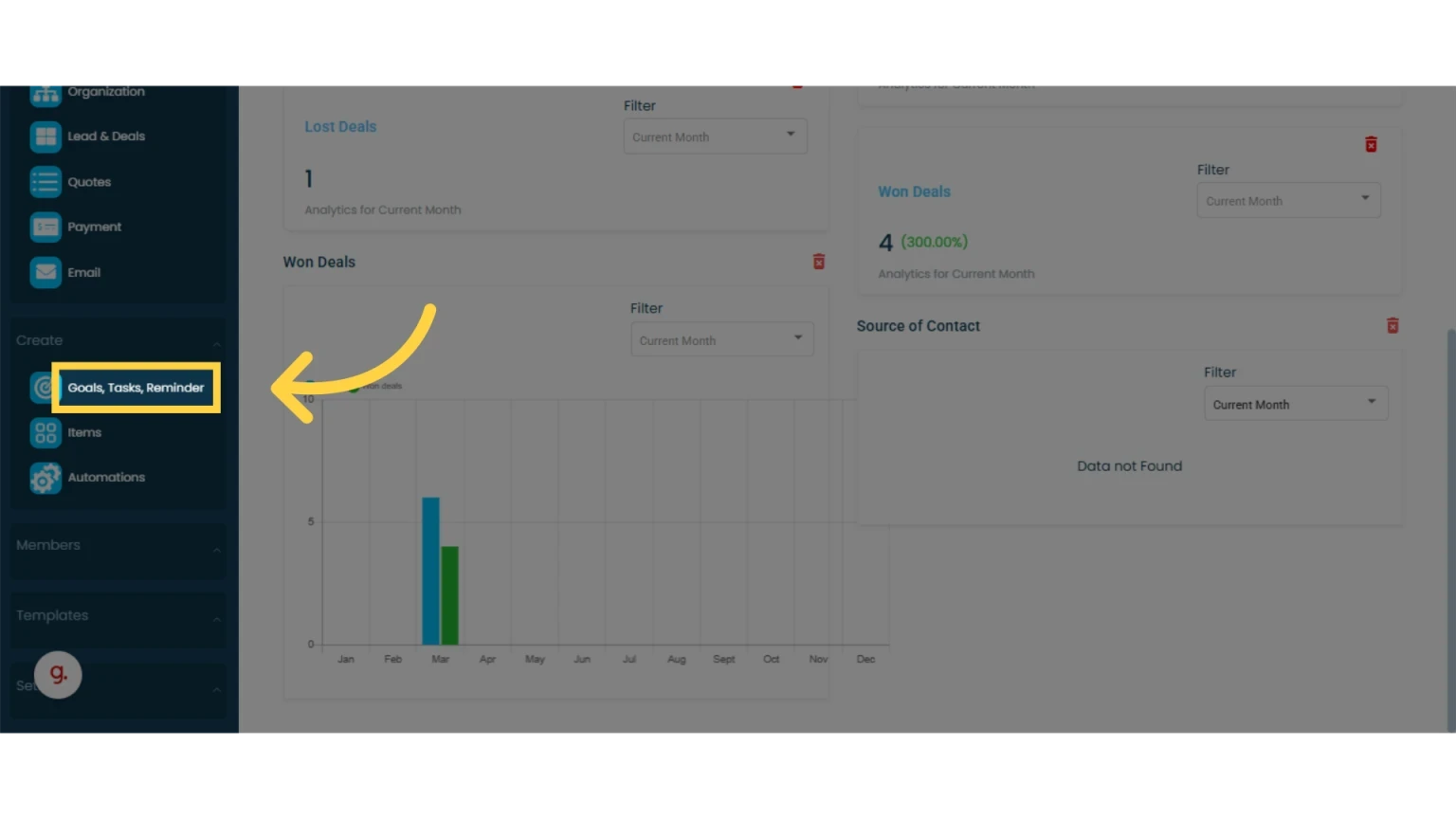
1. Click on "Goals, Tasks, Reminder" in the left main menu
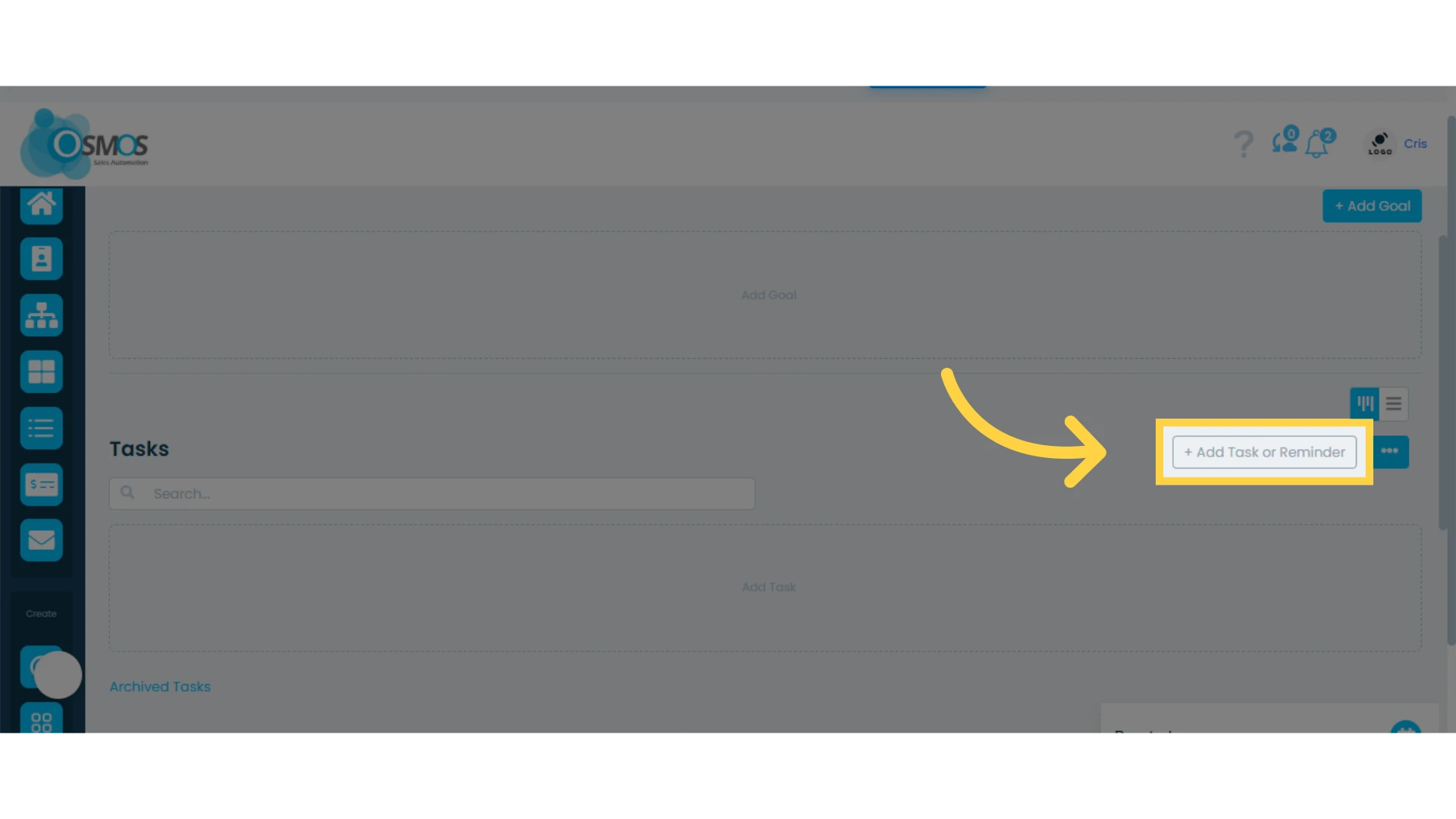
2. Click the "Add Task or Reminder" button
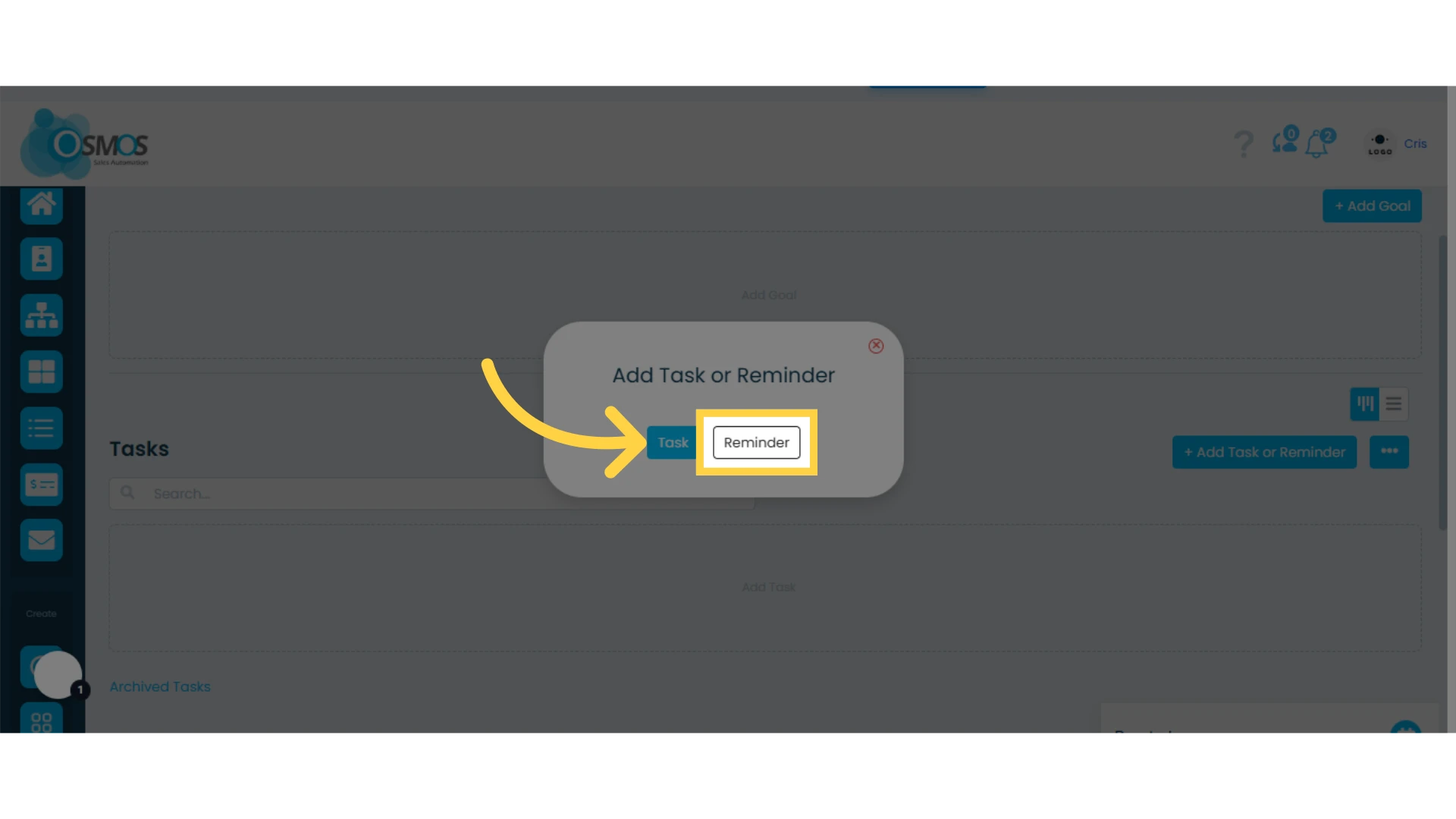
3. Select "Reminder"
4. Create a "Reminder Name"
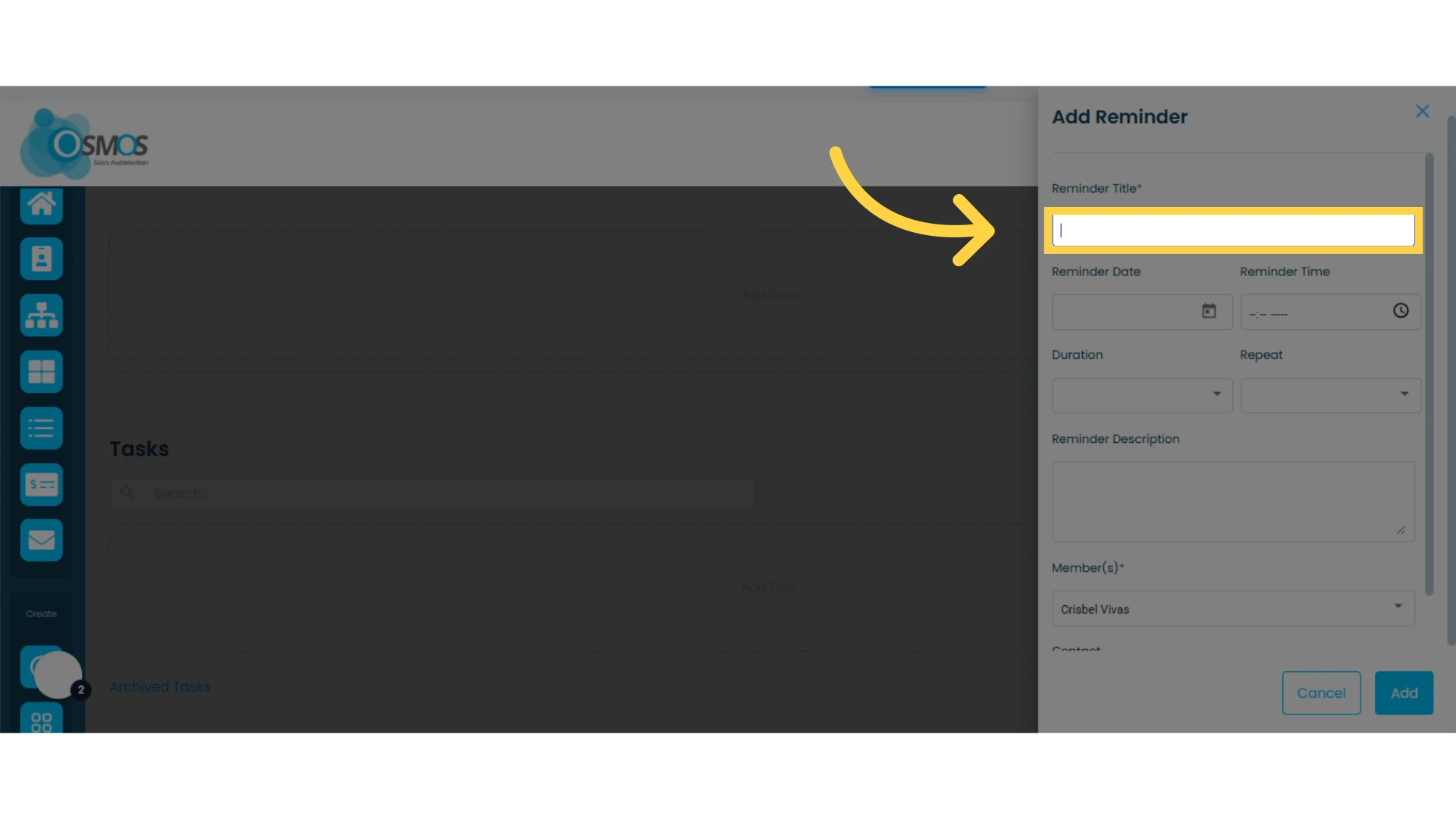
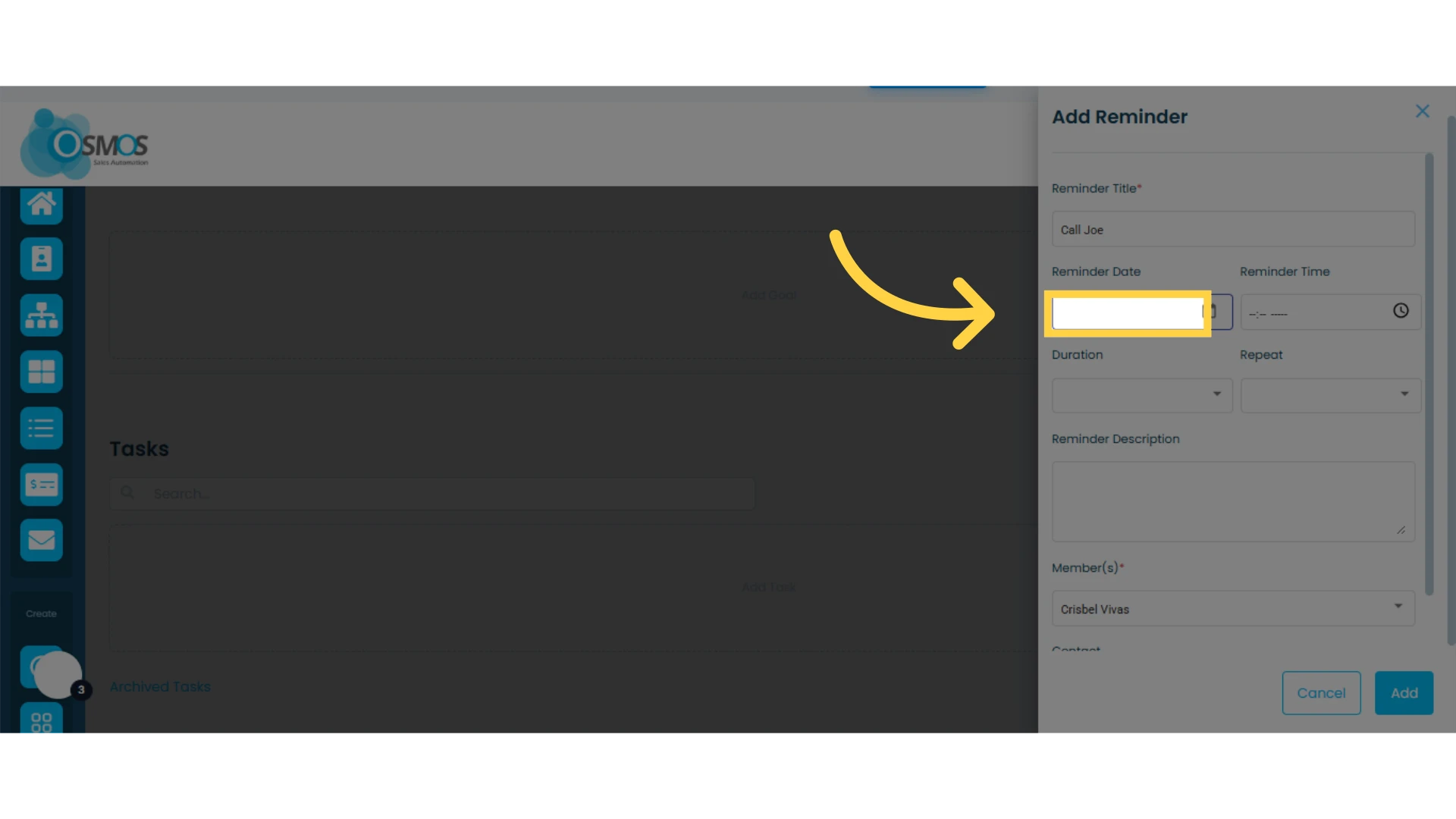
5. Select a date and time for the reminder
Choose the day you want the reminder to be activated.
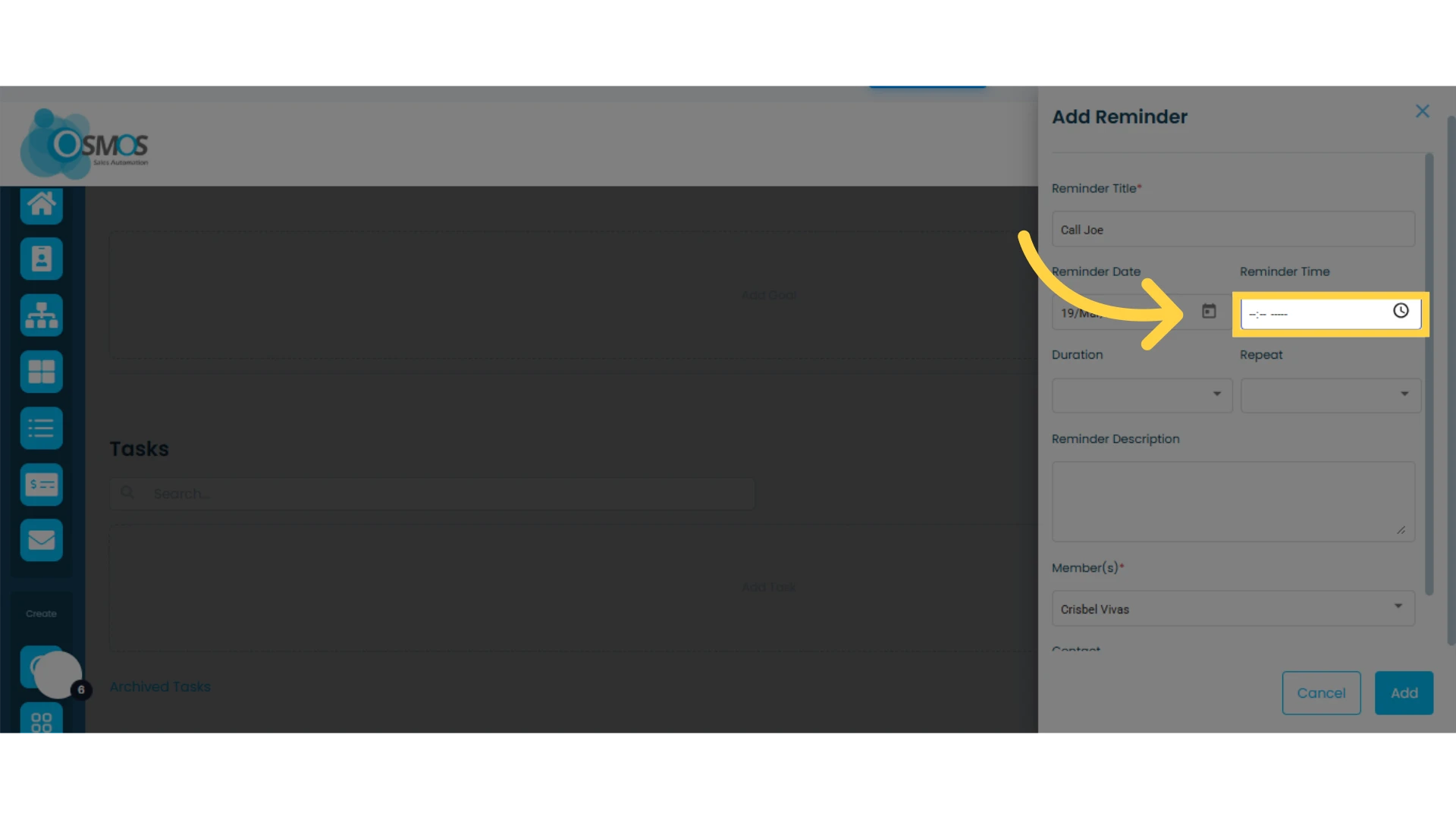
Set the exact time you will receive the reminder. Although these options are not mandatory to create a reminder, we strongly recommend selecting them to ensure you receive the notification at the right time.
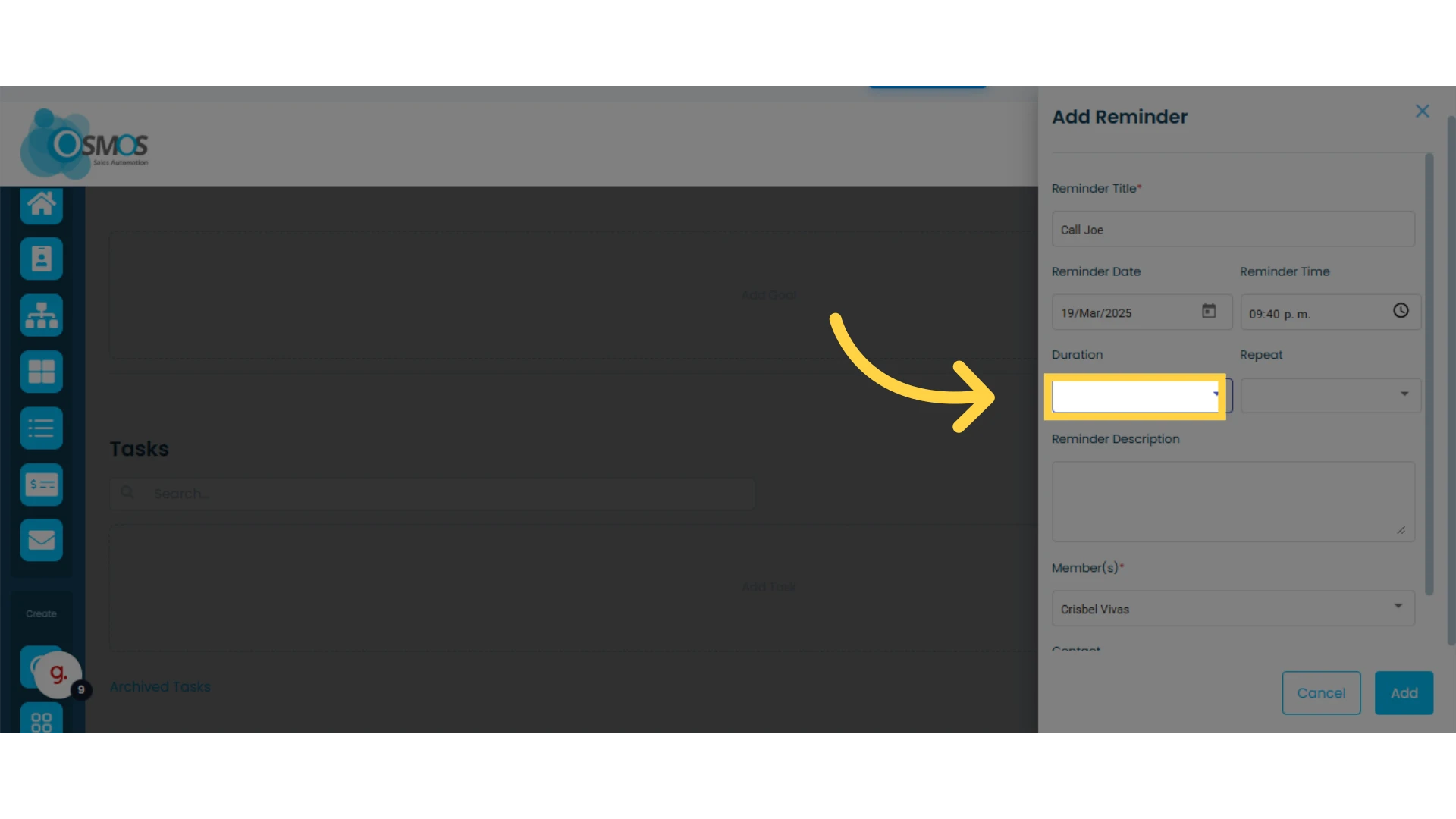
6. Set the Reminder Duration (optional)
Define how long this activity will take.
You can also set its recurrence so that it activates once, daily, weekly, or monthly.
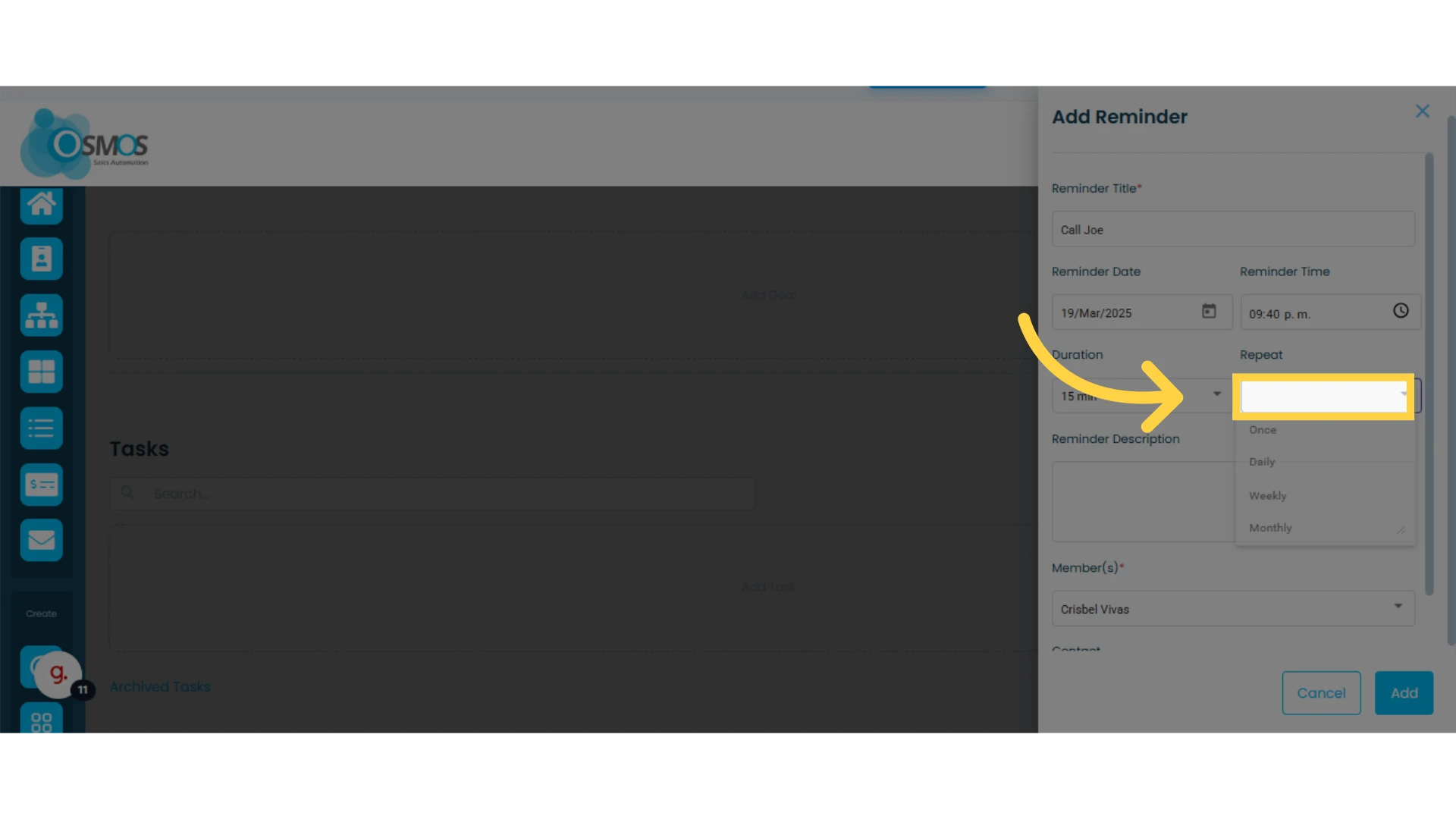
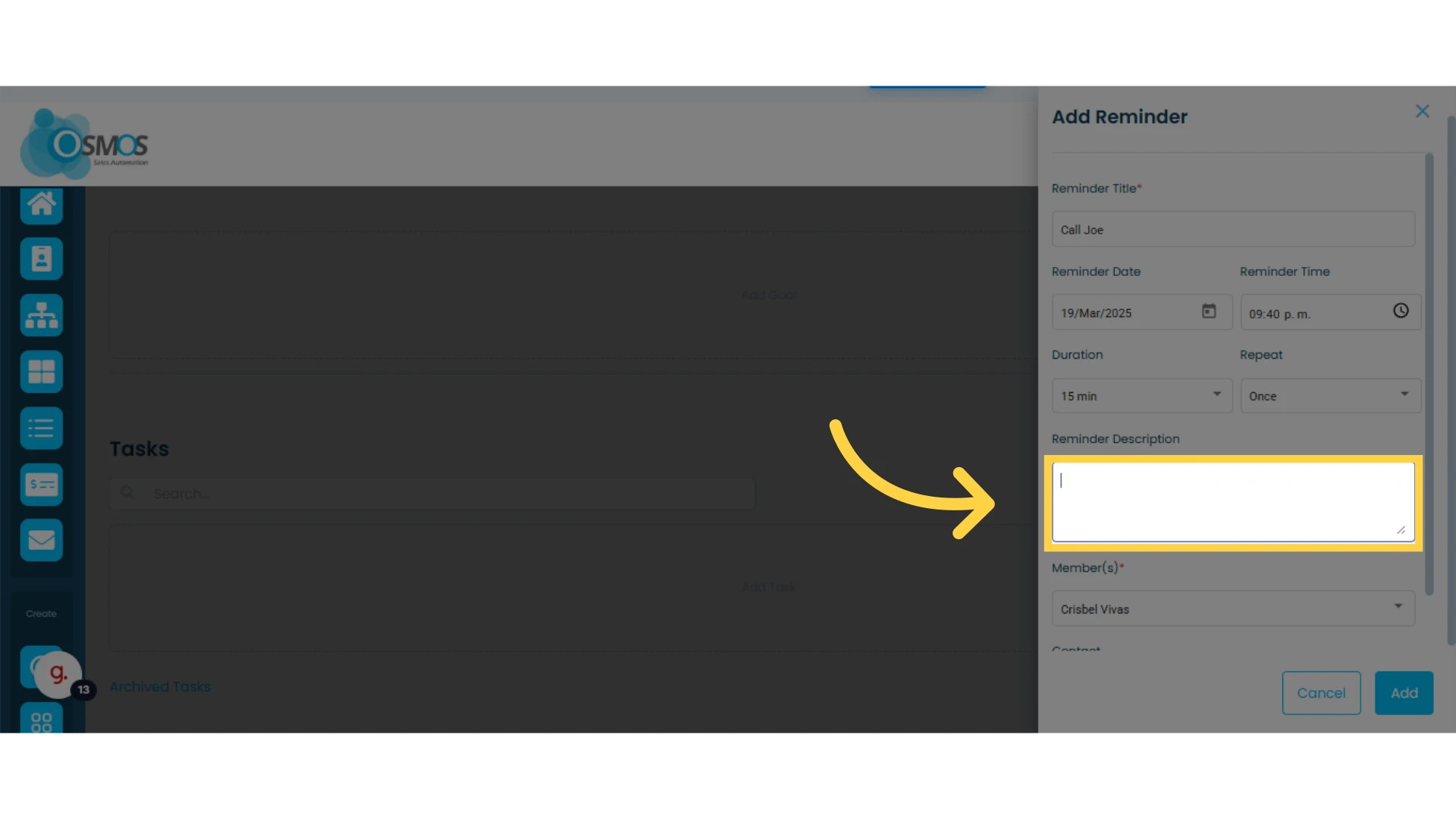
7. Add a description for your reminder (optional)
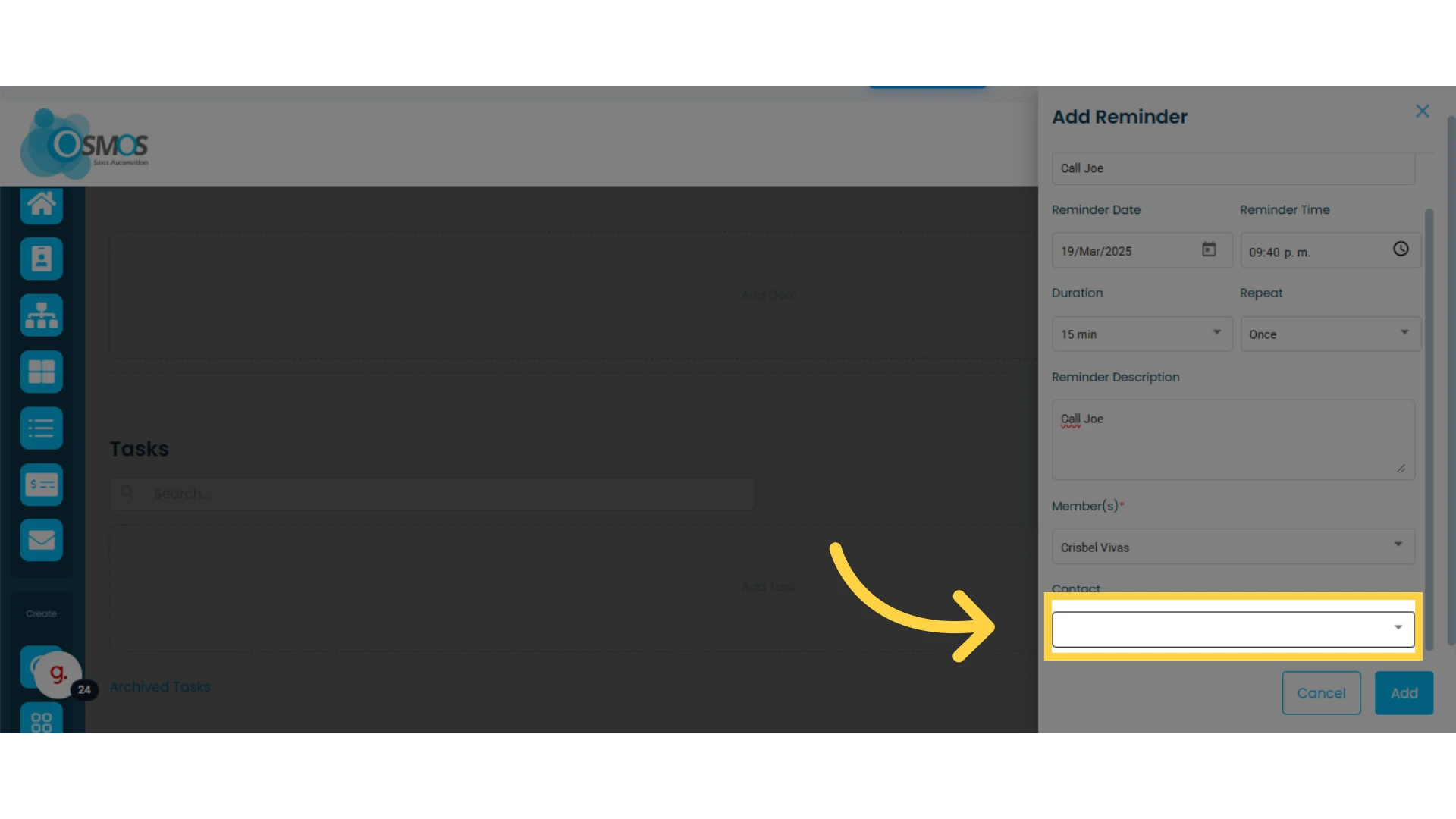
8. Select a "Contact" if the reminder is related to one (optional)
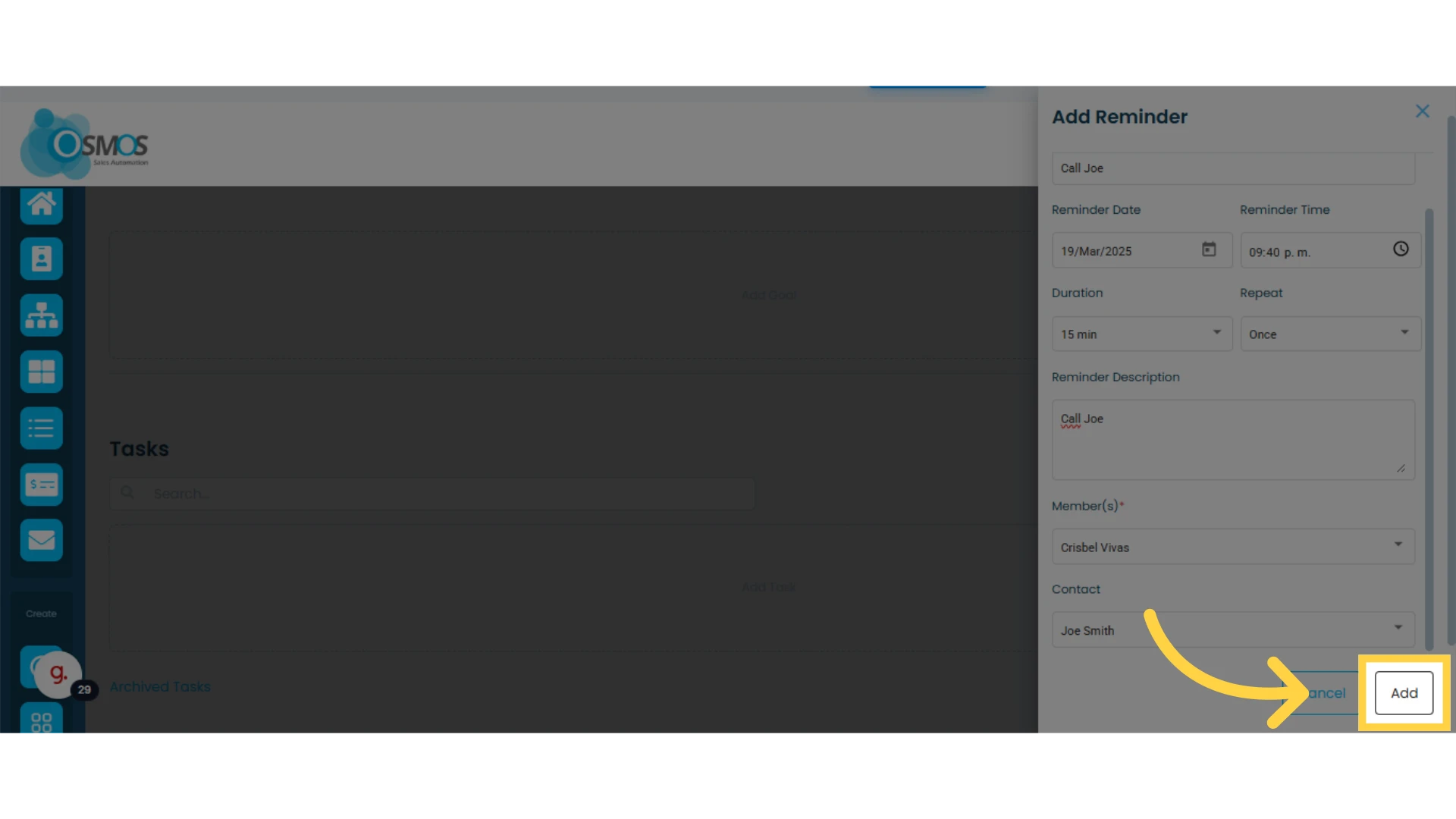
9. Click on "Add"
Filtering a Reminder
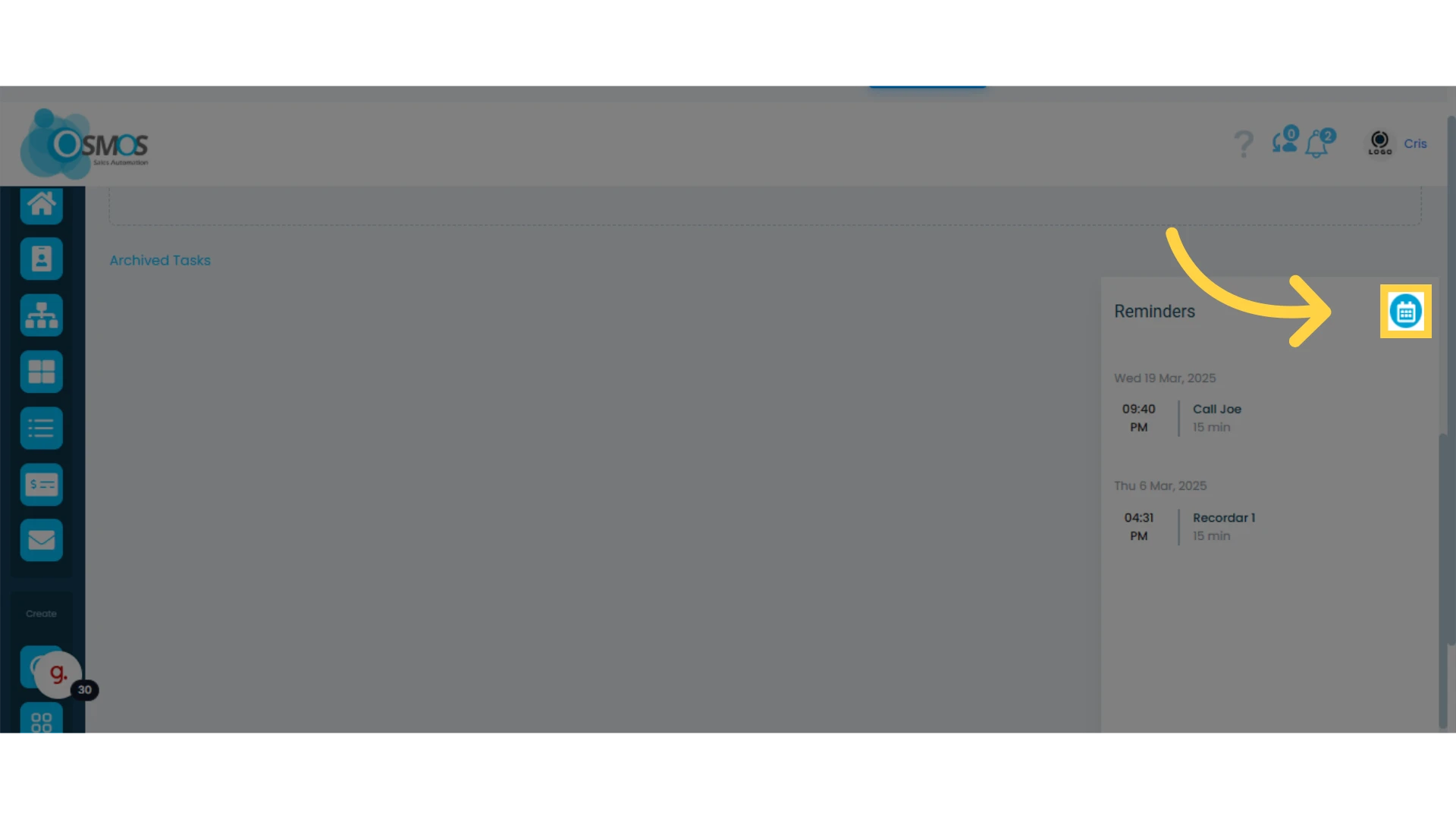
The reminders you add will appear on the right side of the screen. From there, you can filter by a specific date or a time range to view pending reminders within the selected period.
Editing, Marking as Completed, or Canceling a Reminder
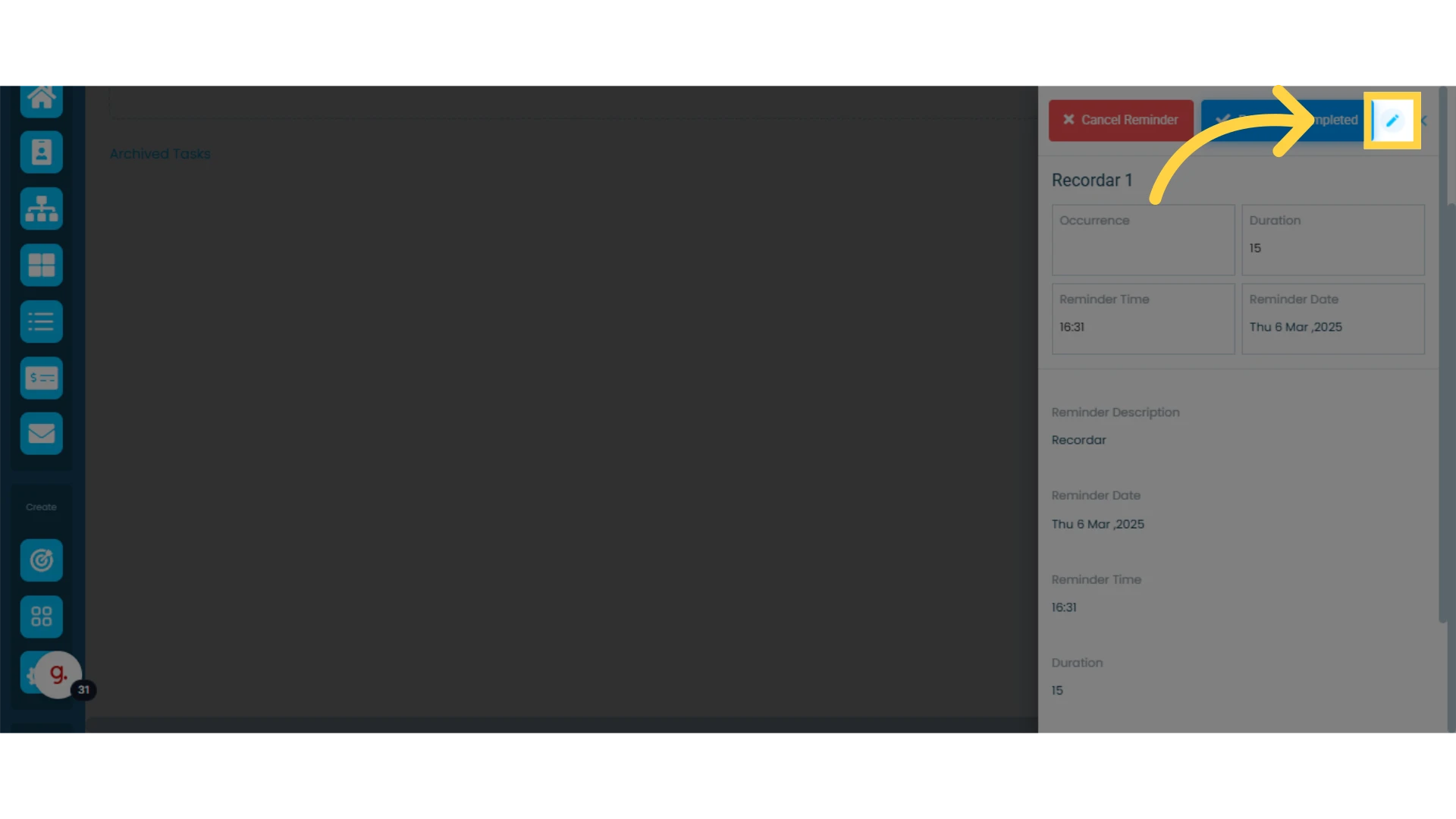
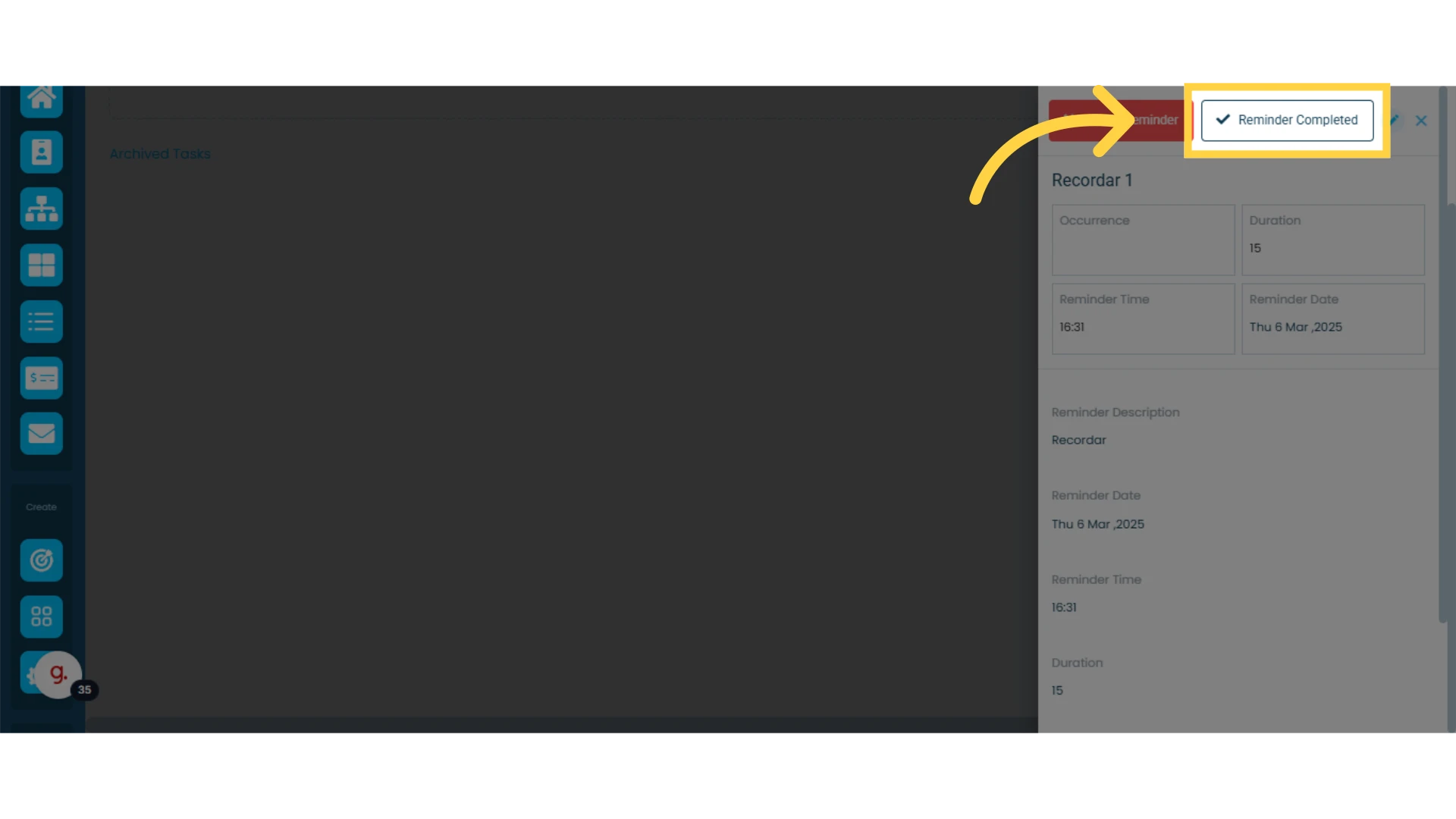
By clicking on a reminder, you can edit it, and mark it as completed.
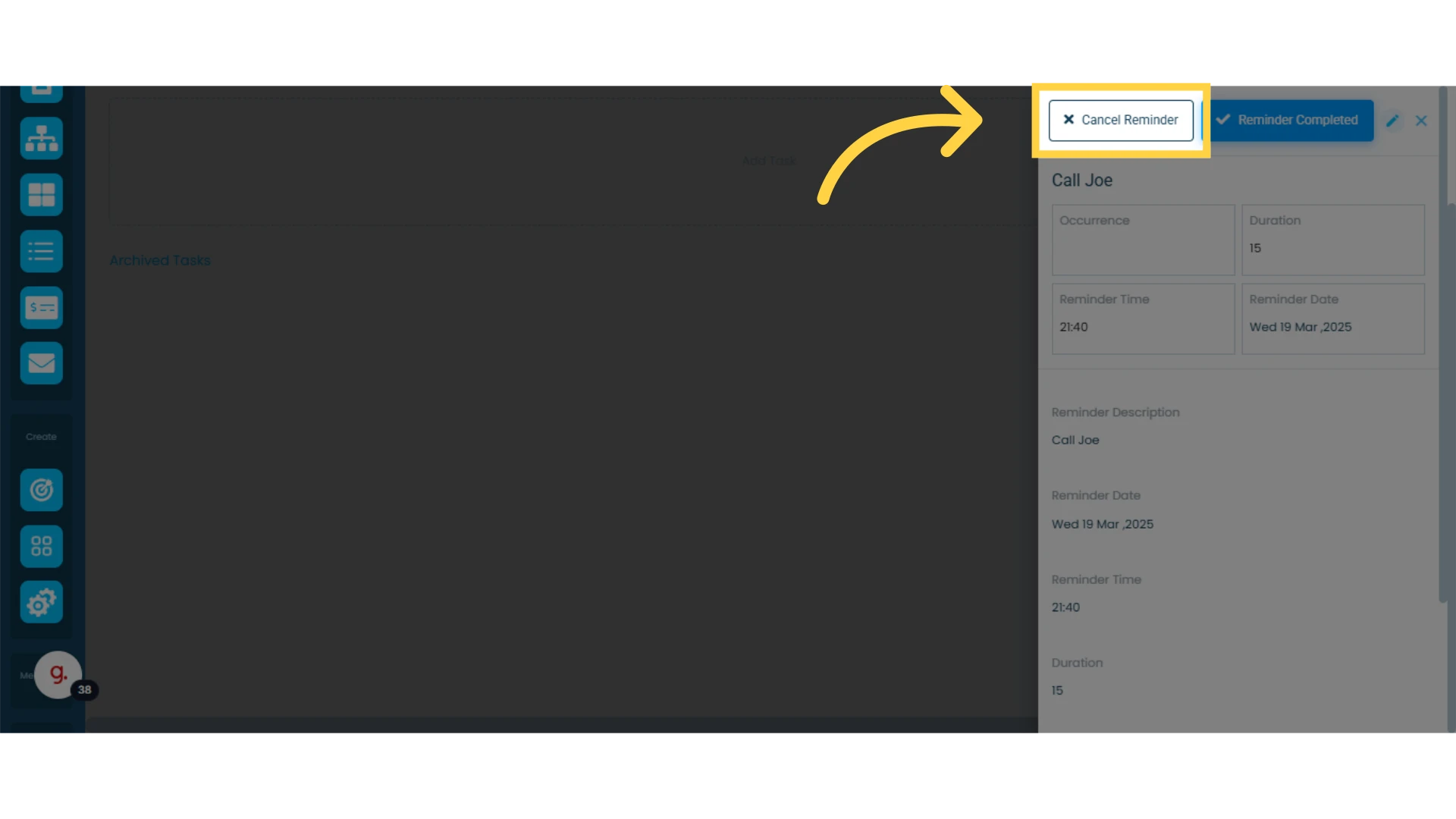
Or cancel it.
Reminder Notification
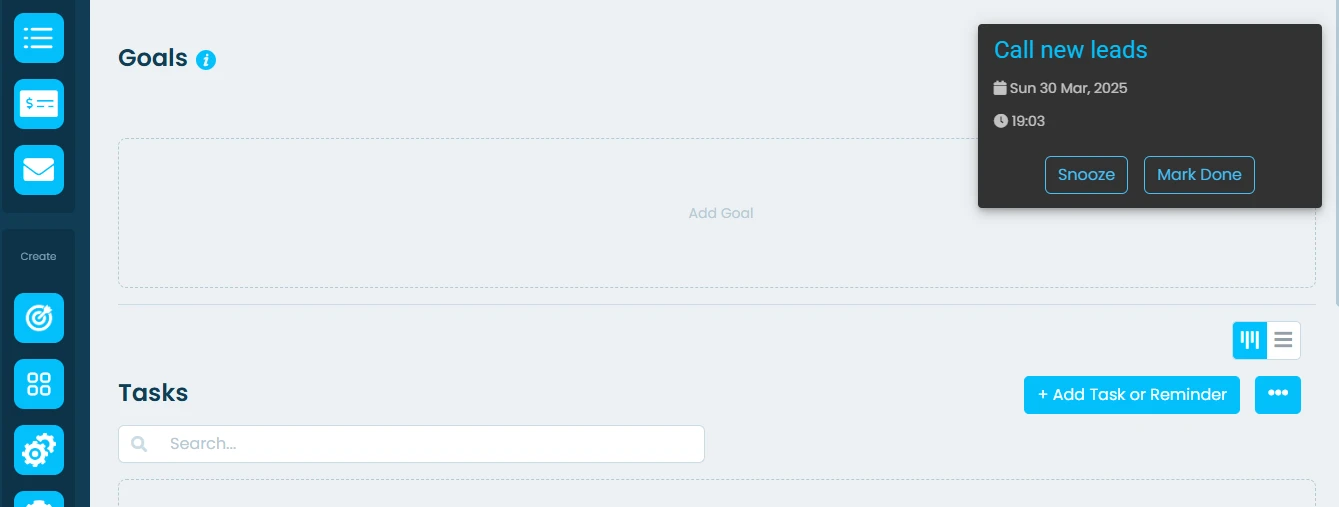
Once the reminder's date and time are due, a notification will appear within Osmos. You can snooze or mark it as done.
If you snooze it, the notification will reappear in your next session.
If you mark it as done, the notification will not appear again.