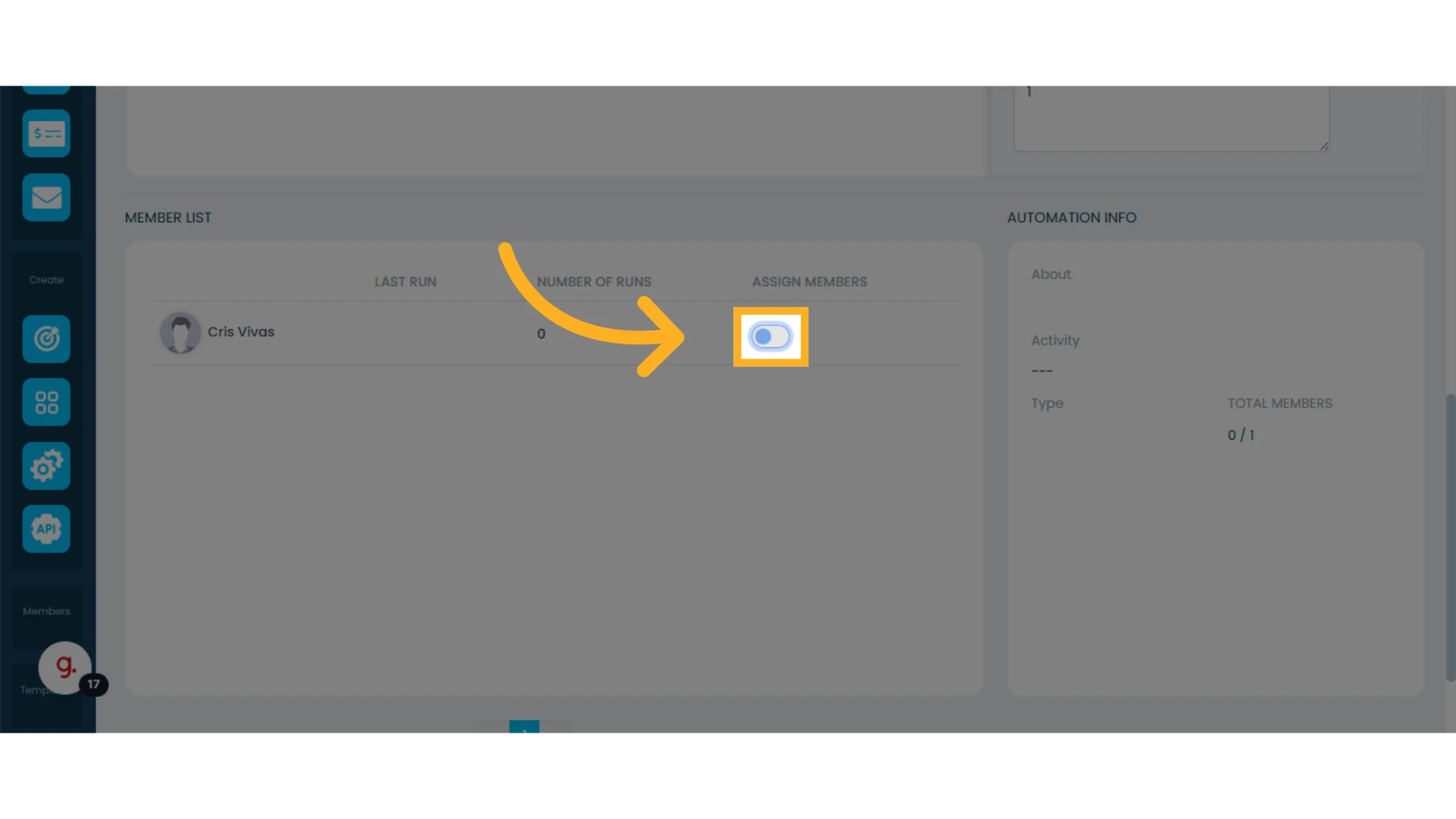
To edit, delete, clone, or assign members to an automation, follow this guide.
Learn more about automations and how to create them.
Edit an Automation
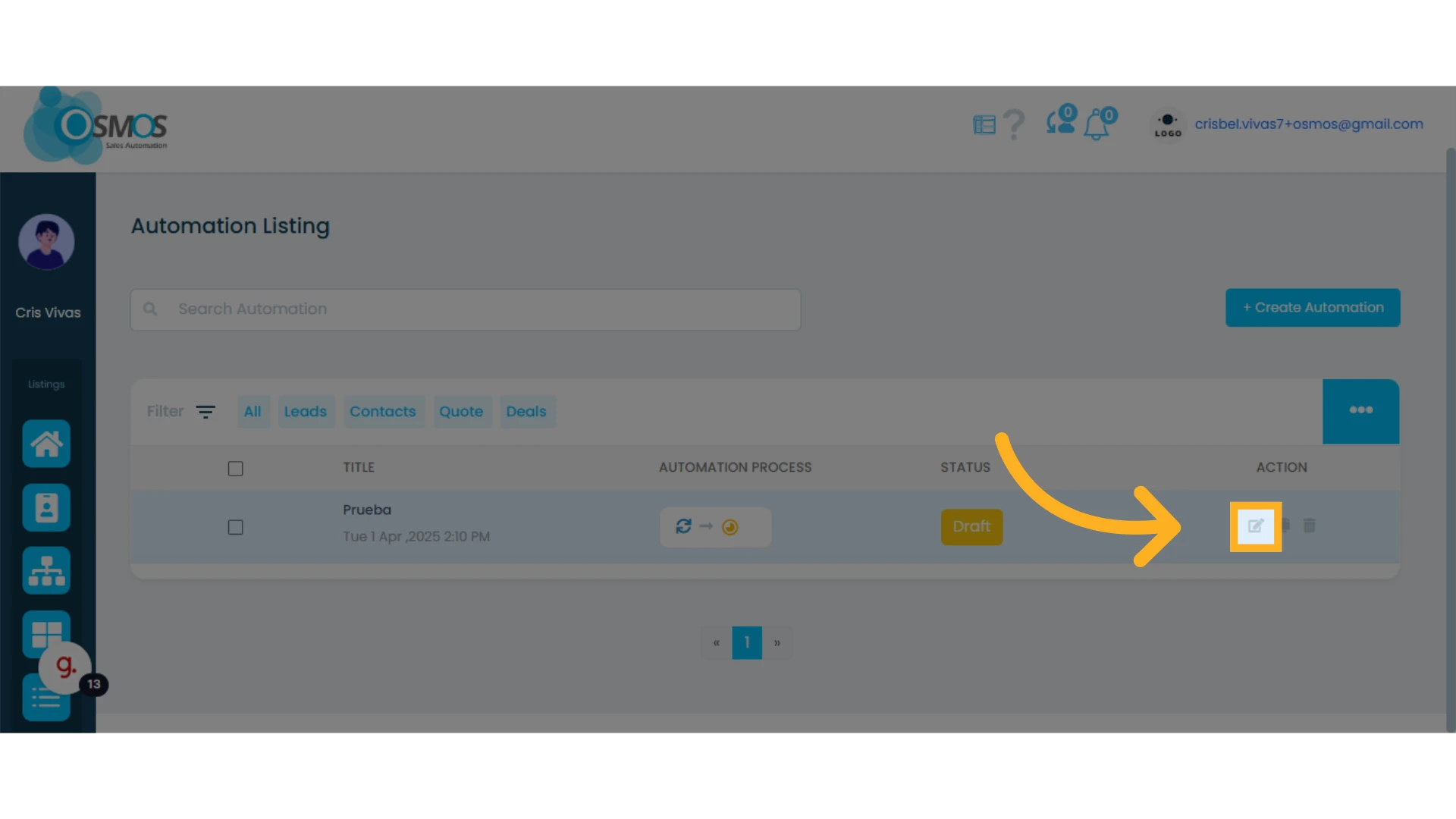
To edit an automation, click the pencil icon located to the right of the automation you want to modify.
Clone an Automation
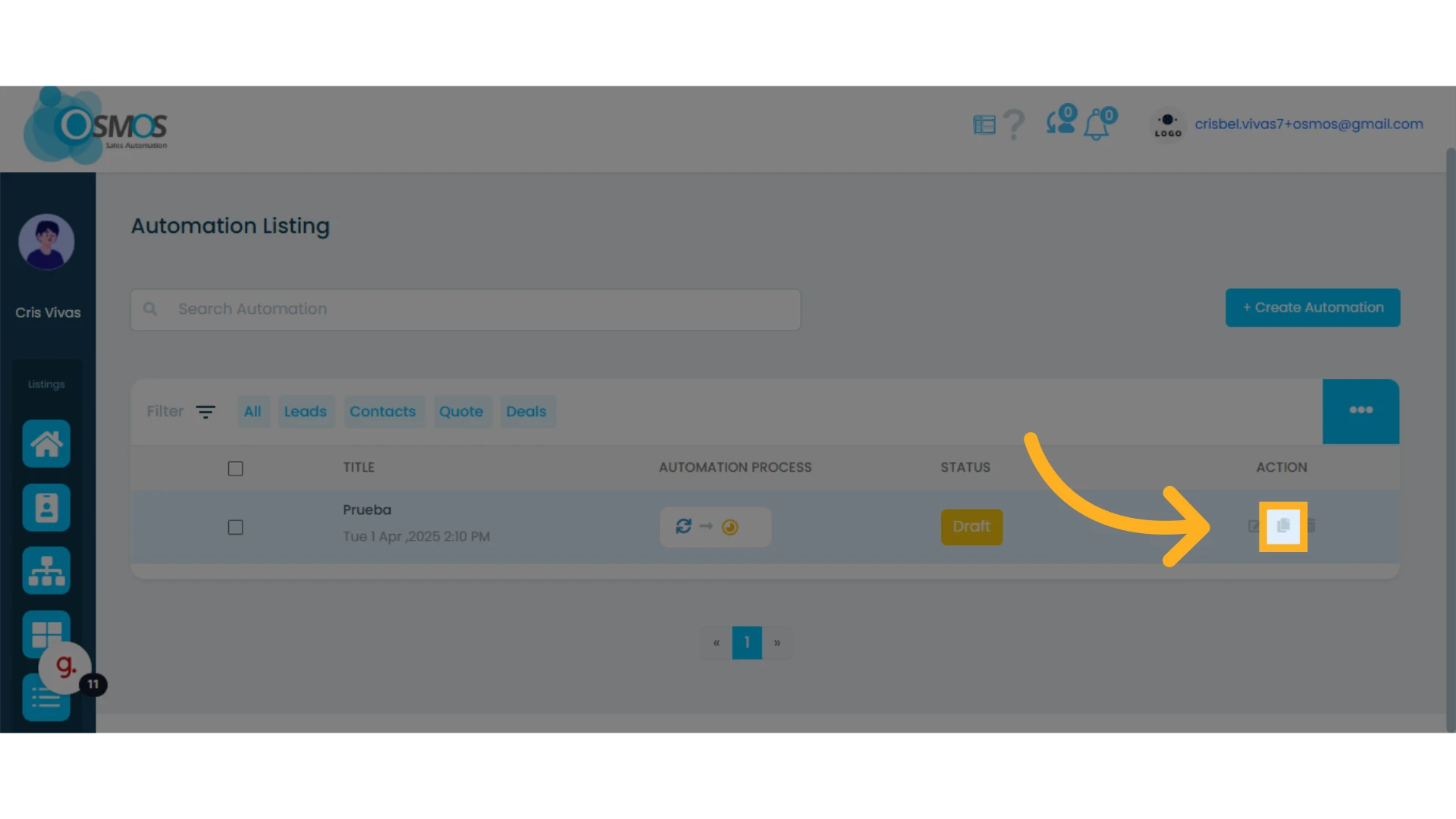
To clone an automation, click the “Copy” icon (two overlapping sheets) located to the right of the automation, next to the edit icon.
Delete an Automation
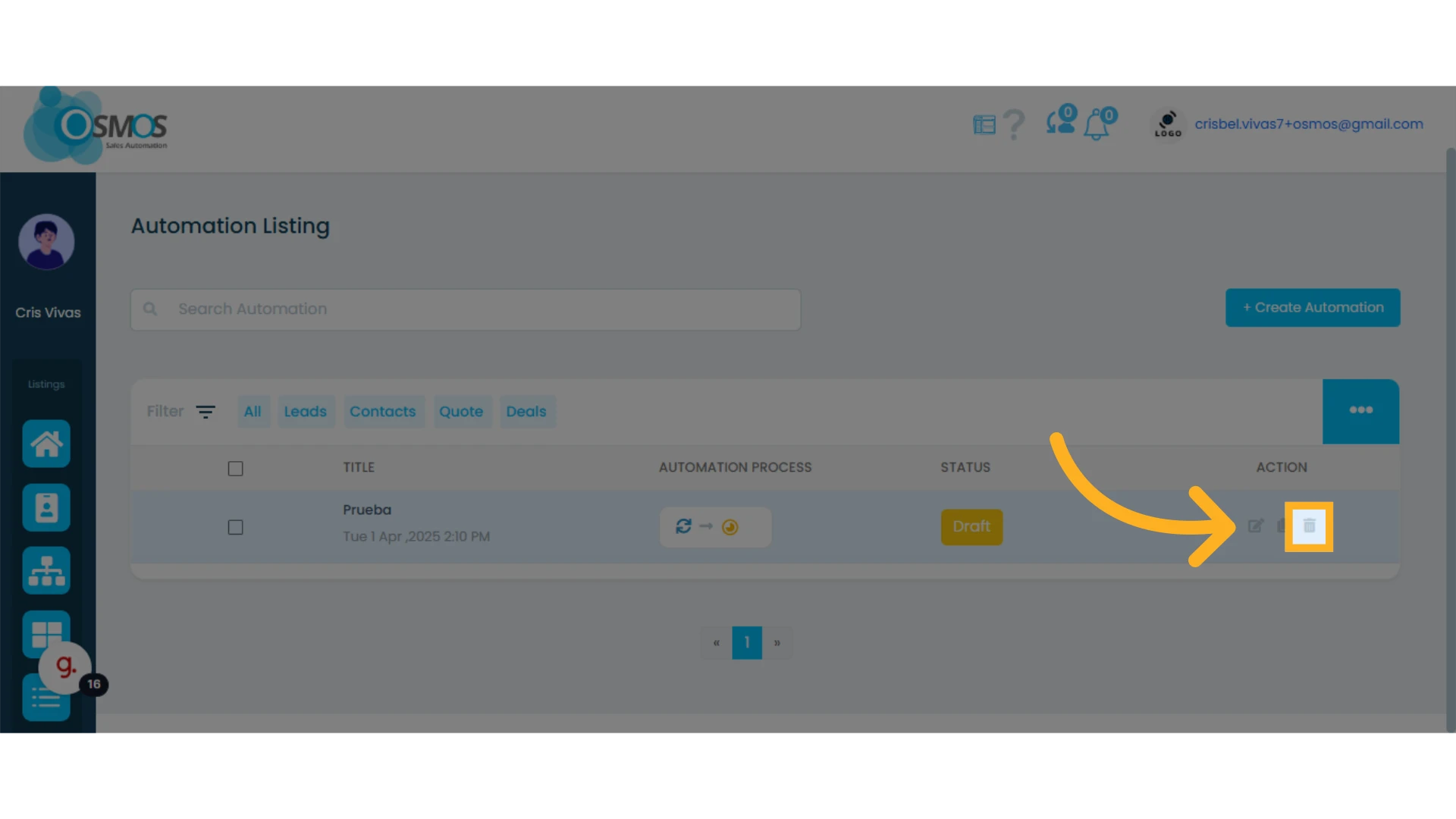
To delete an automation, click the trash can icon.
Assign Members to an Automation
If the automation was previously created and you want to add or change members, click Edit and, once inside the automation, scroll down to the bottom section.
There you will see the active members in your account. From this section, you can enable or disable members for that automation.