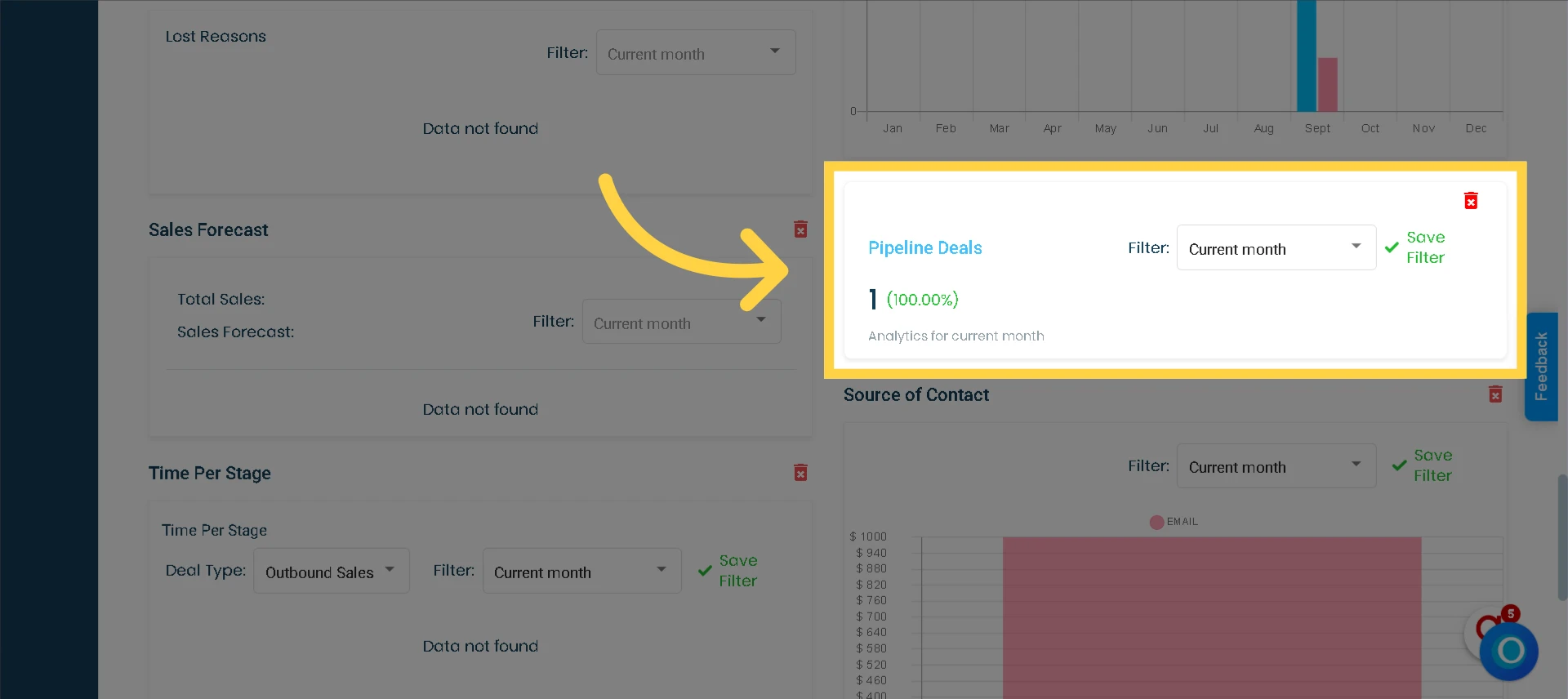
The widgets on the lead module will help you analyze your deals and leads by offering a variety of reports and charts that provide actionable insights into your business performance.
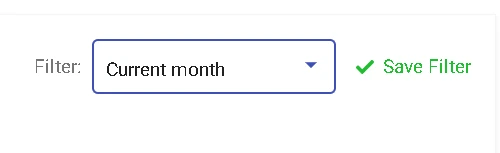
Customizing access to these widgets based on member roles ensures that not everyone can access them. Additionally, you can apply various filters within the widgets to display data for different time periods.
Some of the filters are:
Current month
Last month
Last 3 months
Last 12 months
Custom Range
You can set a default filter for each widget, enabling you to adjust timeframes for individual widgets based on your preferences and save these customized settings directly within the widget.
This guide will help you understand the main purpose of each widget and offer instructions on how to add or remove them within the Lead Module.
Adding Widgets to the Lead Module
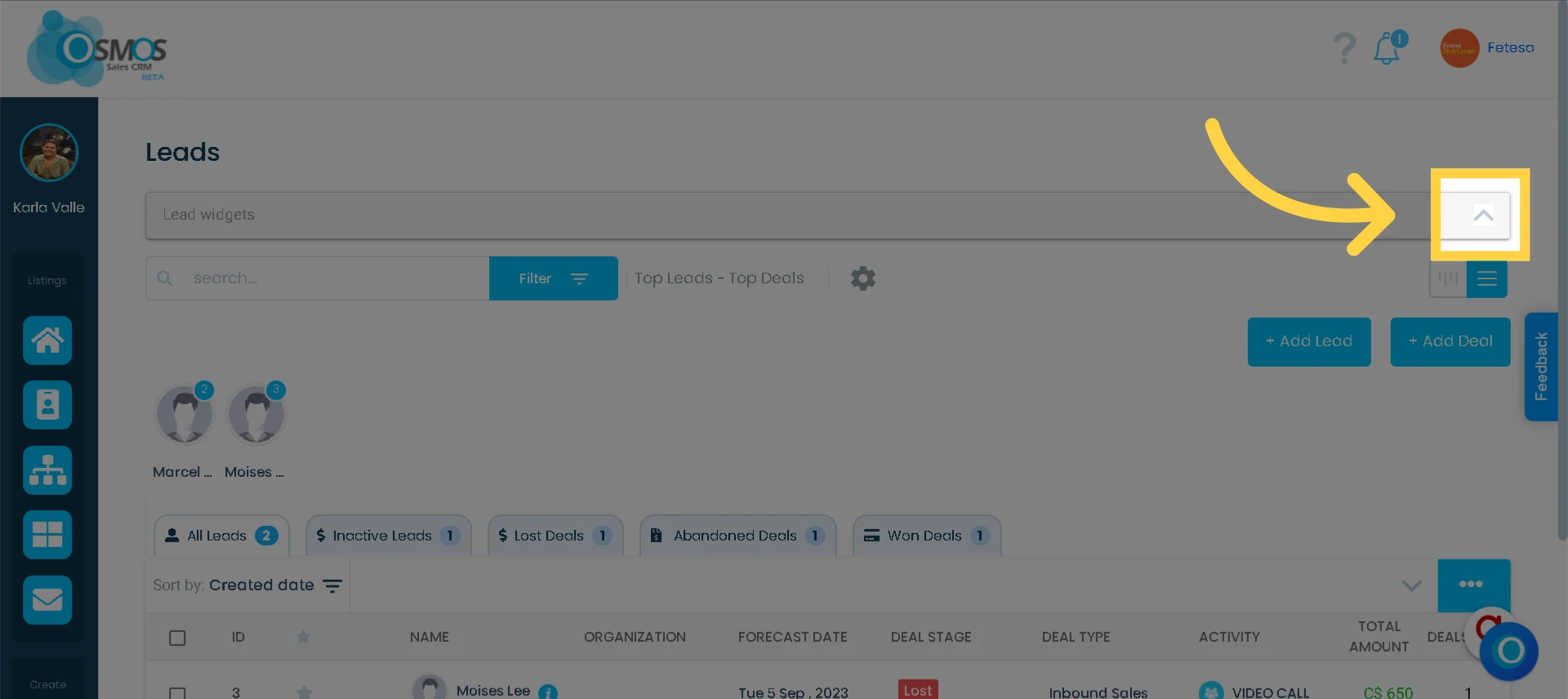
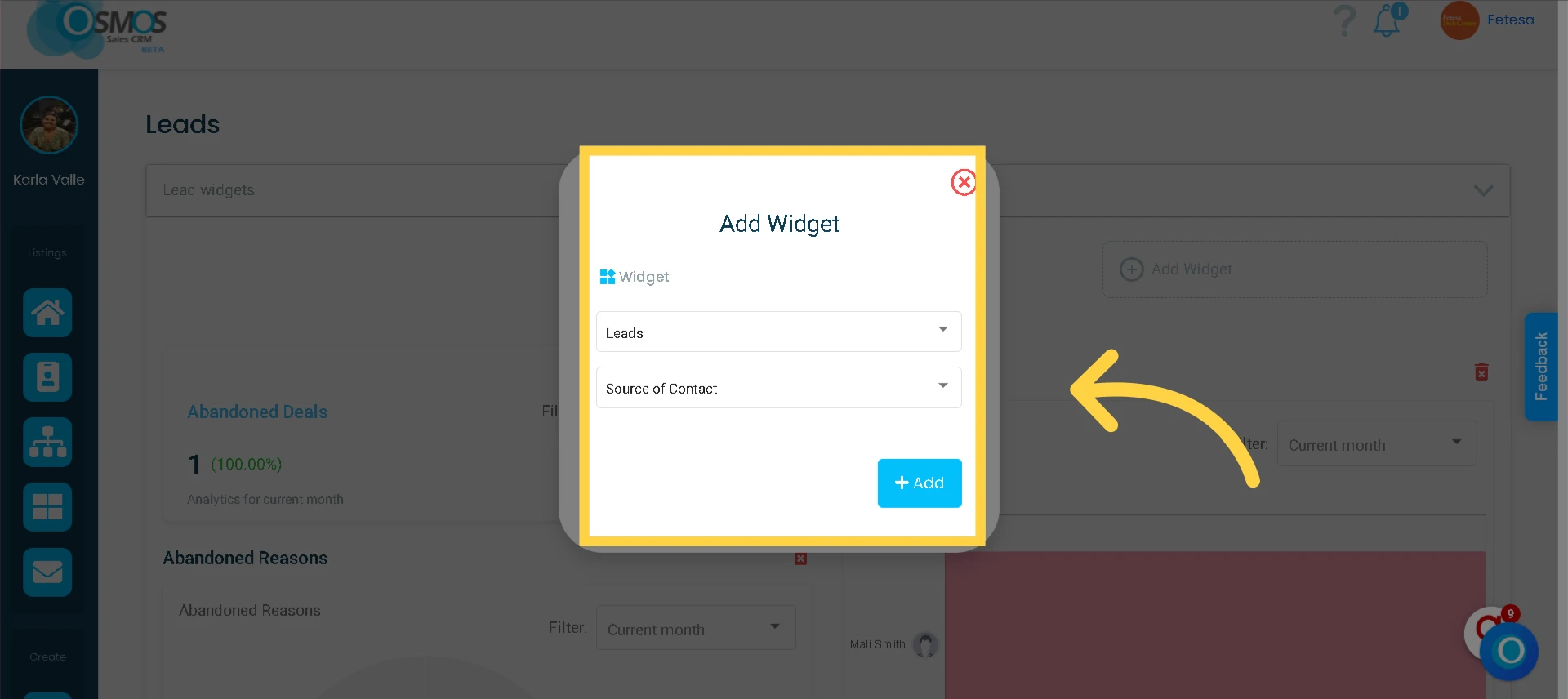
1. Click the upper-right button
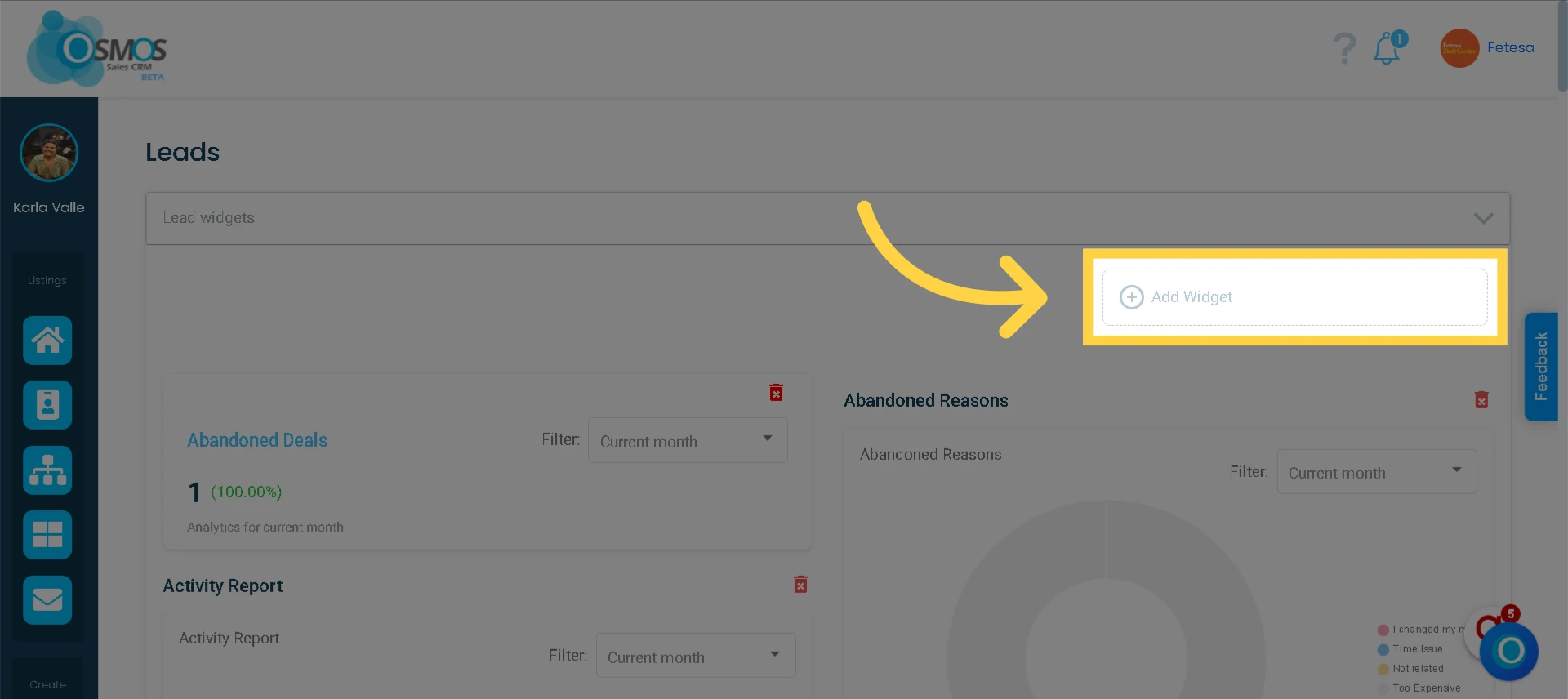
2. Click on Add Widget
3. Select the "Lead" category, choose your preferred widget, and then click "Add".
Removing a Widget
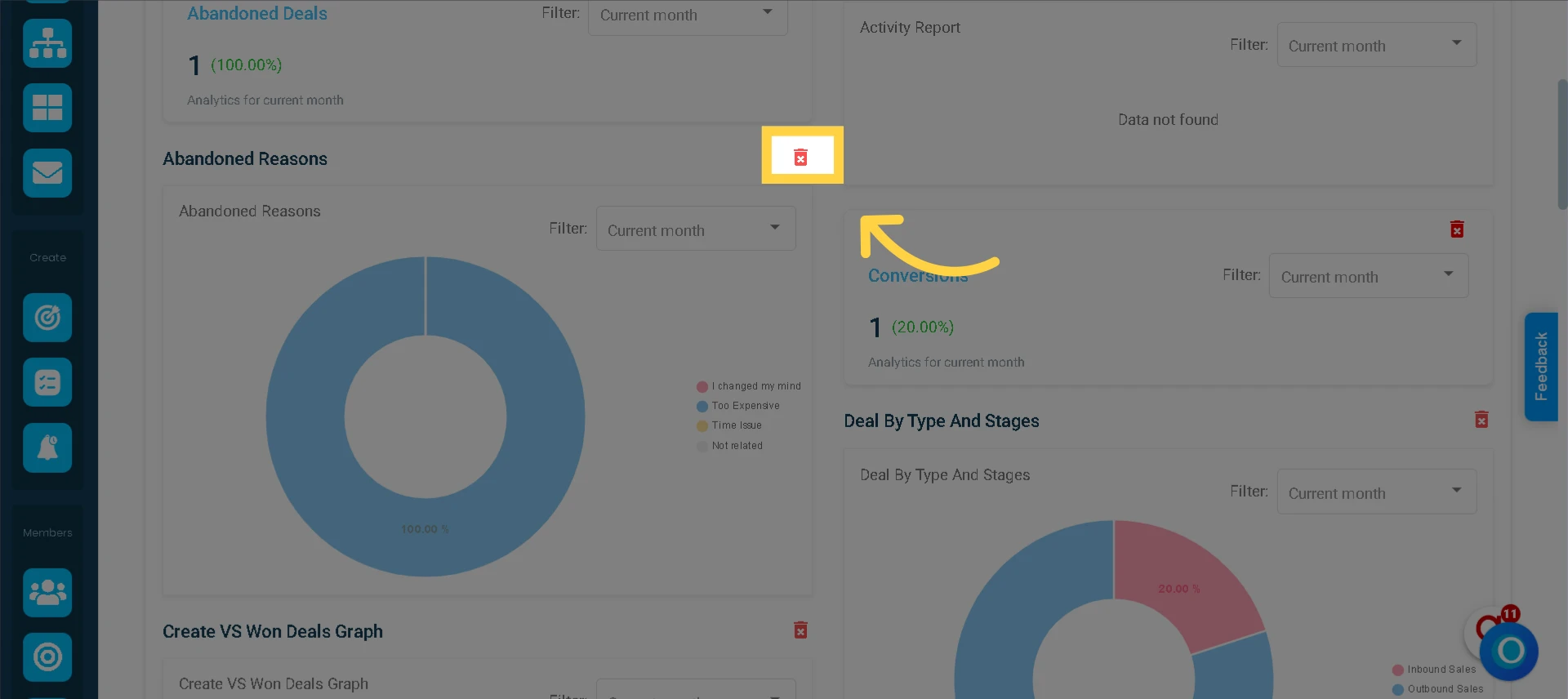
Click the trash bin icon to delete a widget.
Lead Widgets
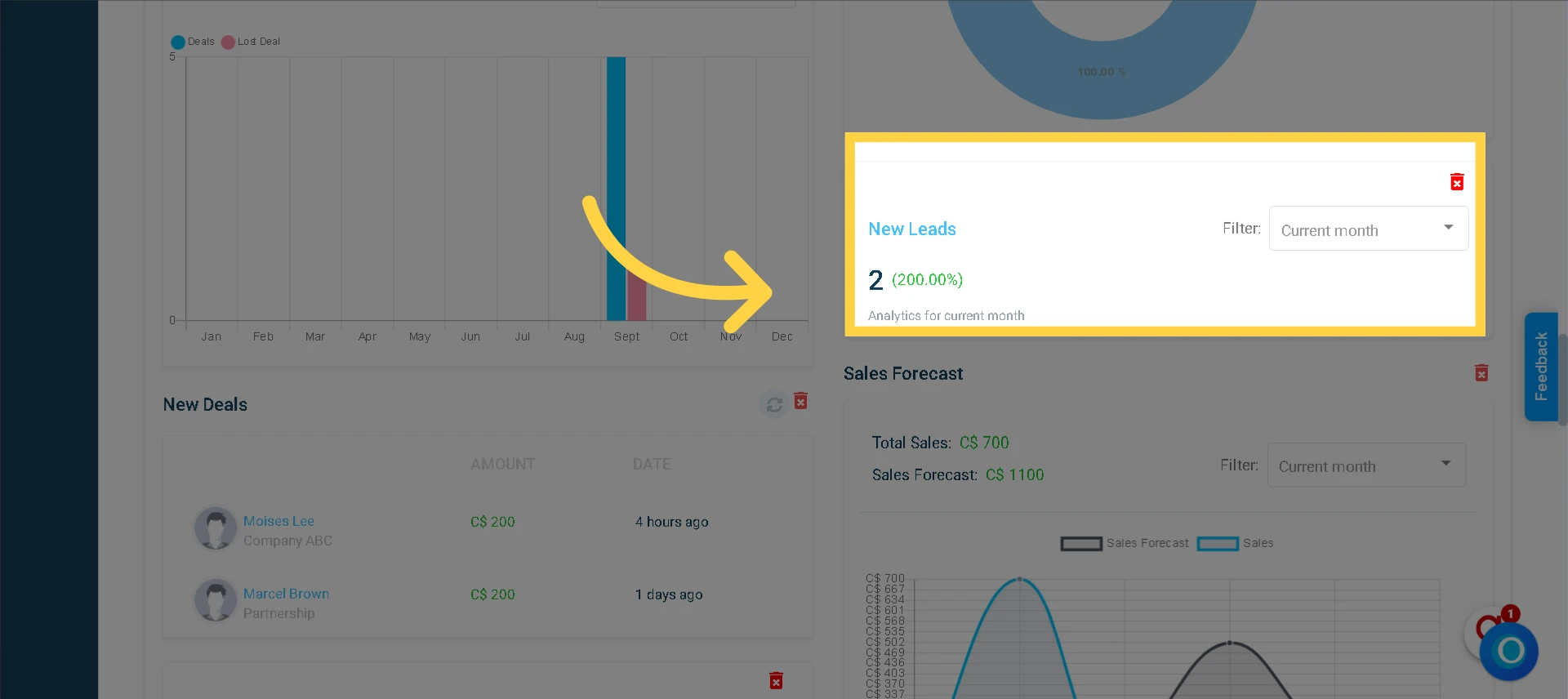
1. New Leads
Objective: This widget provides a comprehensive way to evaluate the number of new prospects added and the difference compared to the previous period.
It monitors the number of new prospects over a specific period and evaluates the percentage growth compared to the previous month. Each new prospect is automatically included as it is generated.
2. New Deals
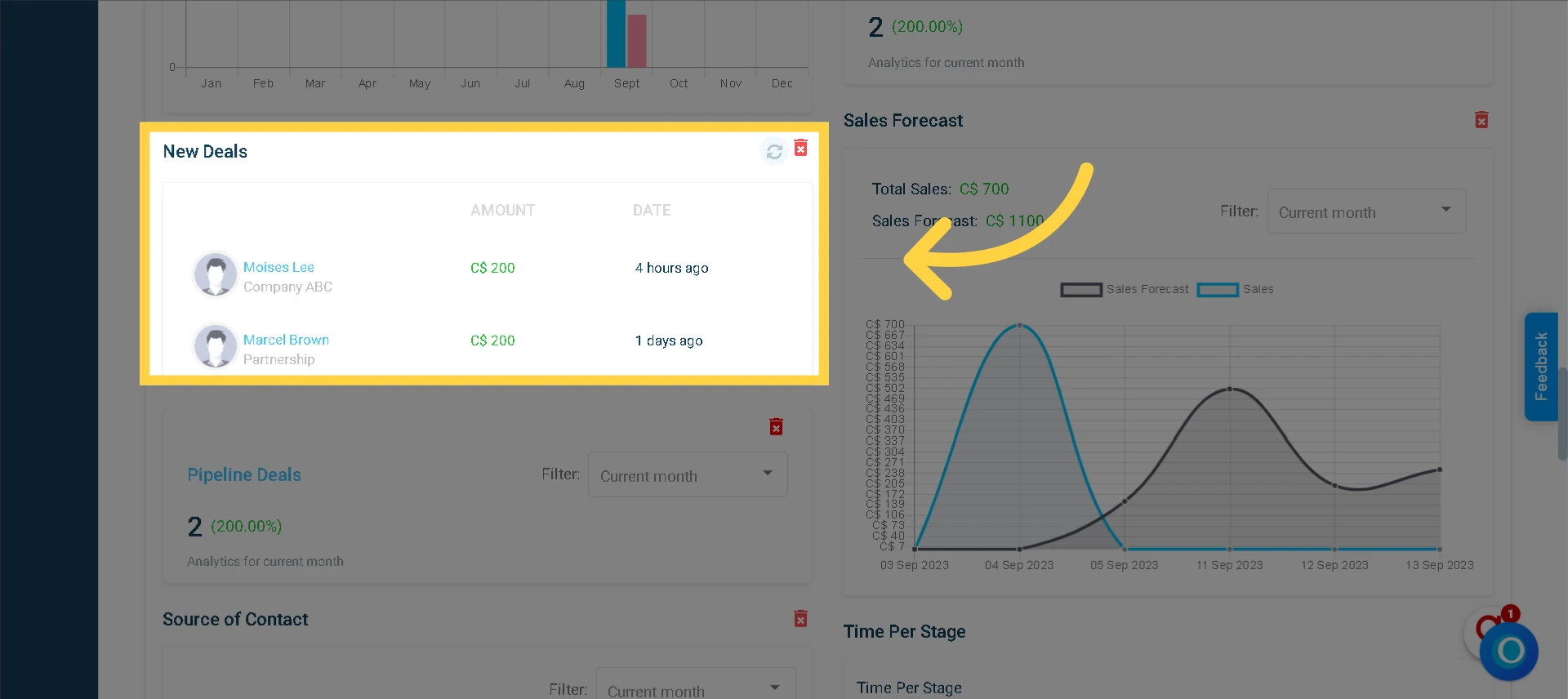
Objective: This widget records and displays every new deal added to your sales process, enabling real-time tracking of team performance.
Whenever a new deal is added to the CRM, this widget automatically displays it, including the deal name, associated amount, and creation date. Its simplified design allows quick access to key data and ensures efficient tracking of new deals.
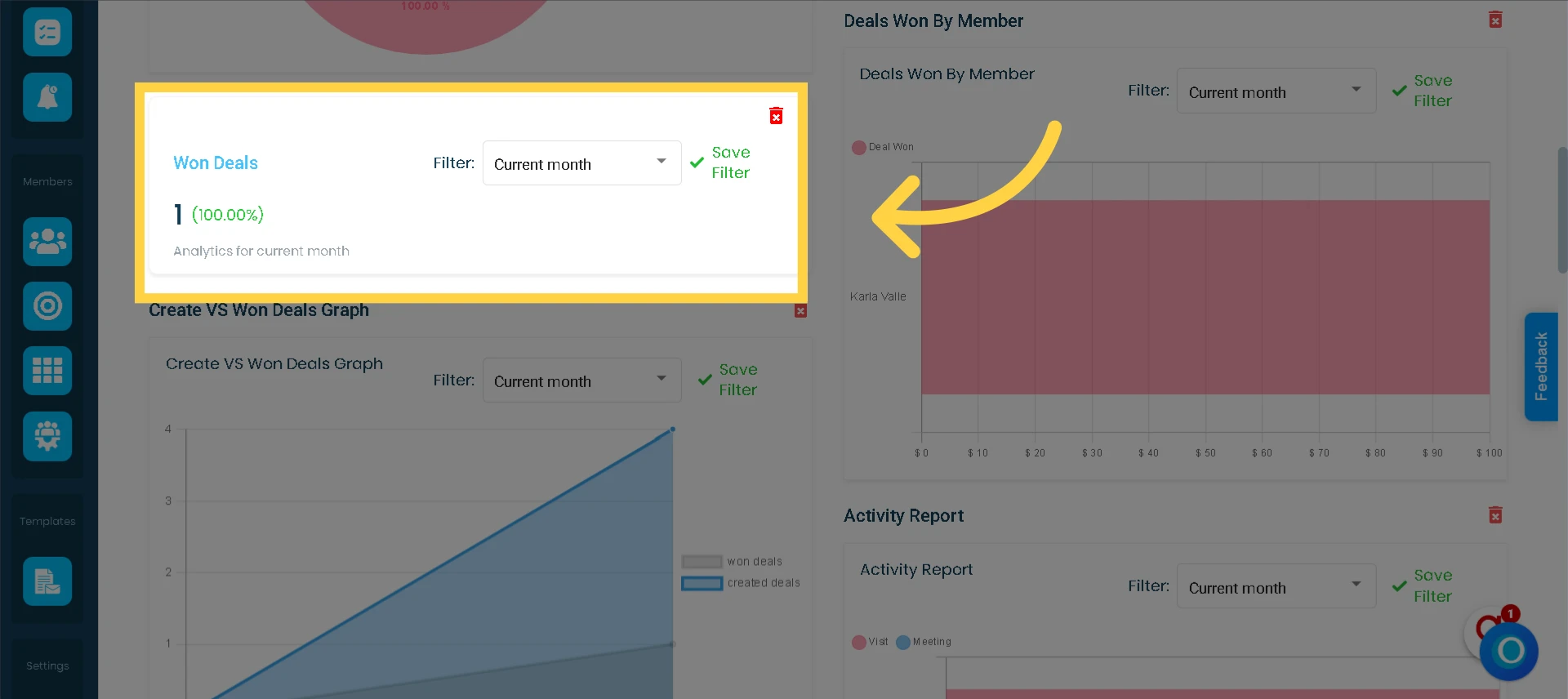
3. Won Deals
Objective: This widget allows you to view all successfully closed (won) deals within the selected time frame. It provides a clear overview of commercial performance and facilitates the evaluation of sales strategies based on finalized agreements.
Each time a deal is marked as "won," the widget automatically records the closing date. If you expected a deal to close in October but marked it as "won" in September, it will be counted as a win for September, not October.
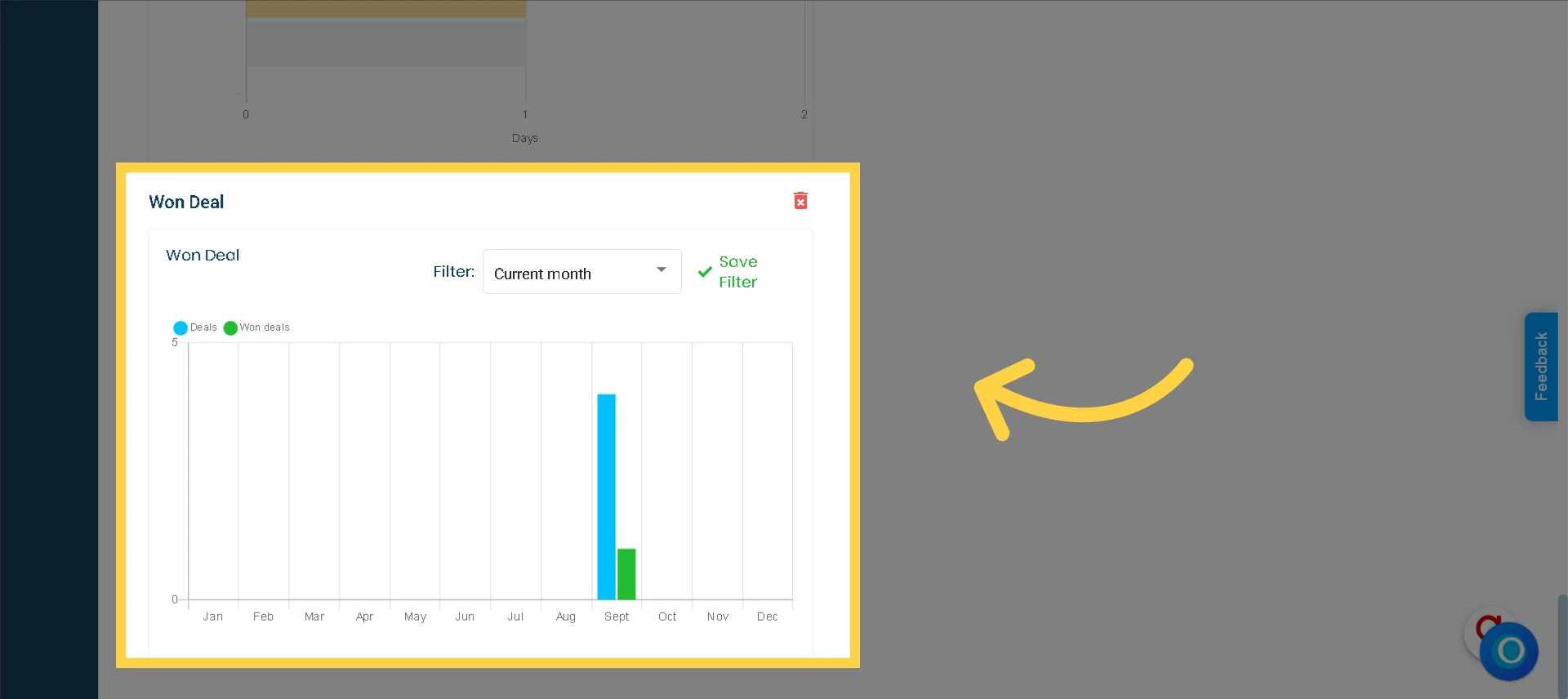
4. Won Deals (12 Months)
Objective: This widget displays a graph illustrating the number of deals you have successfully closed, allowing you to make comparisons over a 12-month period.
Each successful deal you close will be recorded on this bar graph, enabling you to analyze your achievements in greater detail.
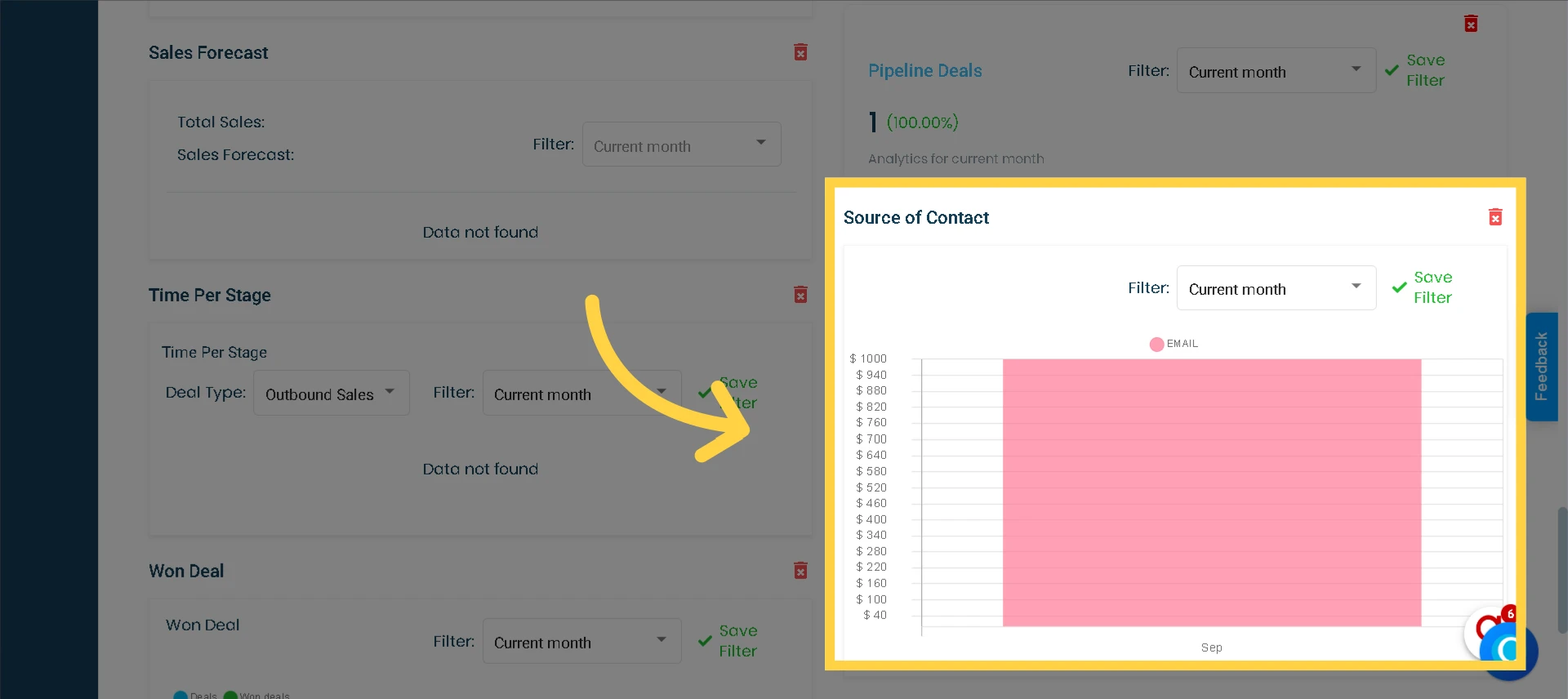
5. Source of Contact
Objective: This widget helps you identify how your prospects got in touch with you and assess the return on investment (ROI) of each contact channel for your business.
When adding a new prospect, the method of initial contact is saved. Later, when a deal is generated, the widget displays the contact source.
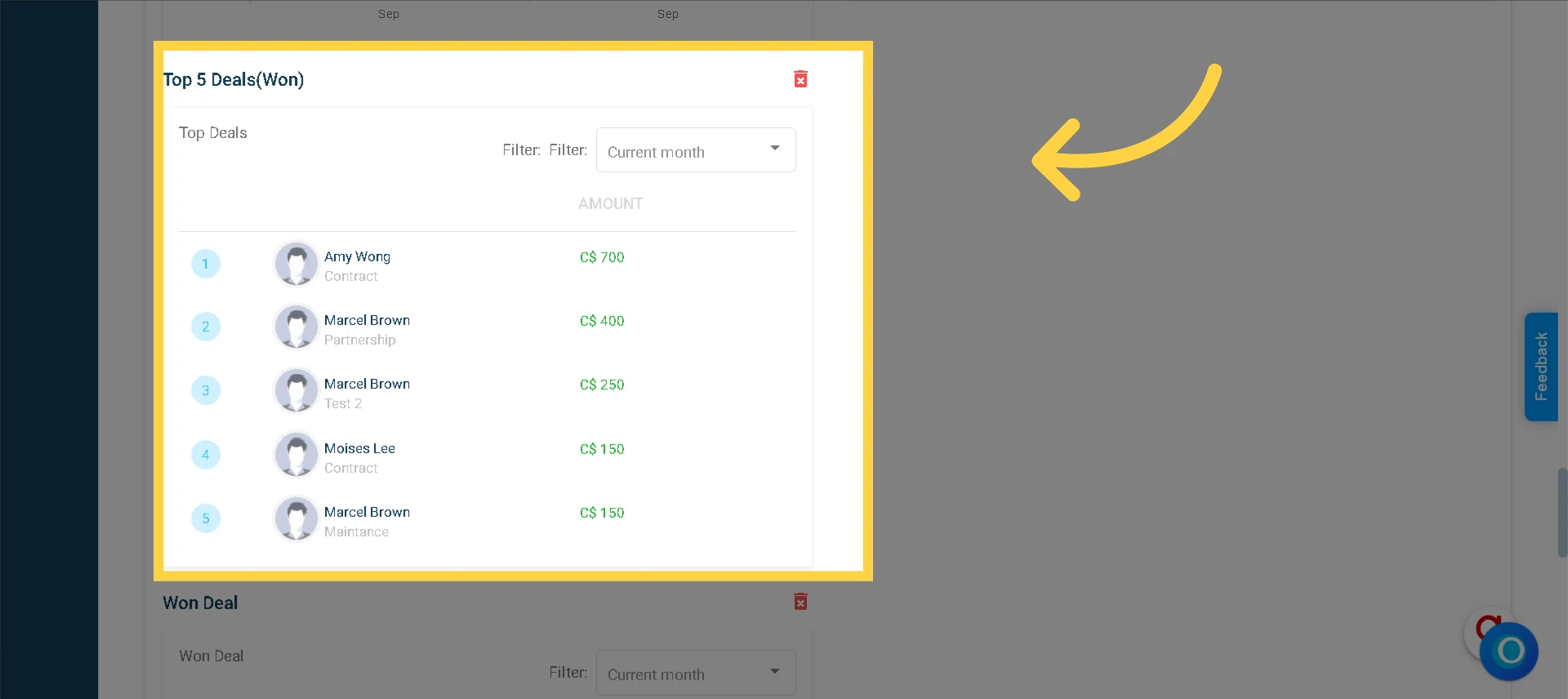
6. Top 5 Deals (Won)
Objective: This widget displays the top five won deals within the selected time frame, ranked by revenue, to provide an overview of your business performance.
The five most valuable deals based on revenue are automatically organized in this widget. This helps you identify which deals have had the most impact on your business. The ranking updates based on the selected period, offering a clear performance view and aiding strategic decision-making.
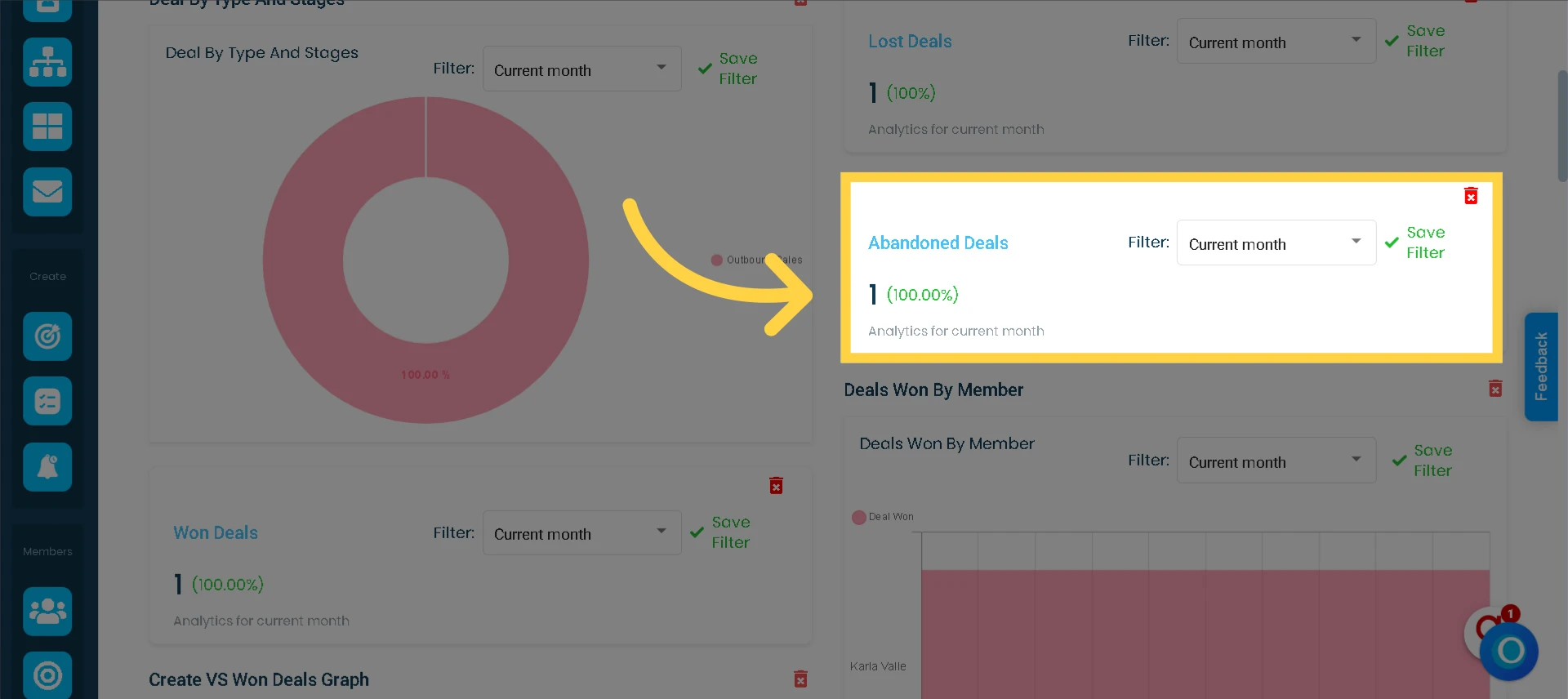
7. Abandoned Deals
Objective: This widget lets you visualize all abandoned (unsold) deals within a specified period, helping to analyze patterns and detect opportunities for improving the sales process.
Each time a deal is marked as “abandoned”, it is automatically recorded and displayed in this widget. In this way, it provides a clear summary of the deals not concluded in the selected period, facilitating the evaluation of causes and the optimization of strategies to reduce the abandonment rate.
8. Abandoned Reasons
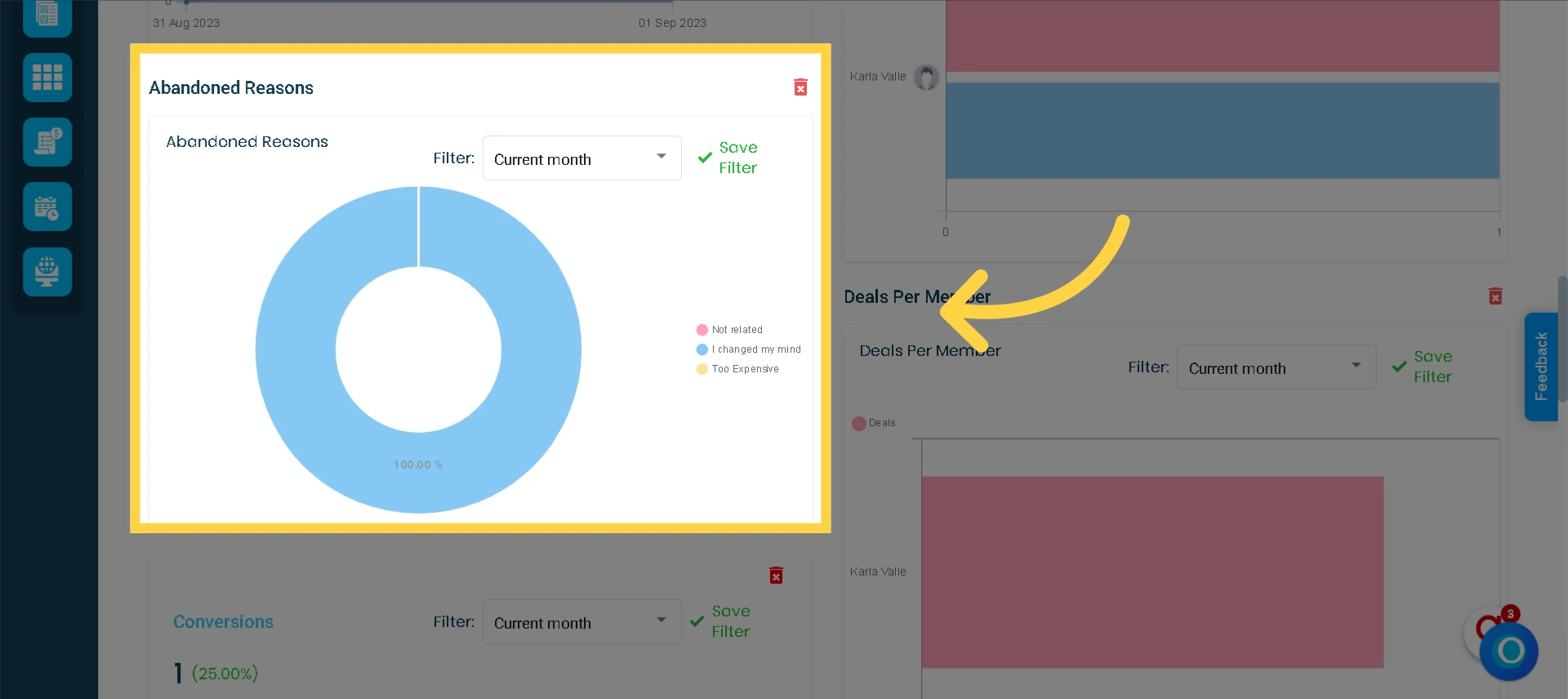
Objective: The Abandoned Reasons Widget provides insights into why potential leads decide not to engage in business with you. It is a tool for identifying the reasons behind unsuccessful deals, enabling you to develop strategies for improvement and prevention.
Each time a deal is marked as "abandoned" and assigned a specific reason, this information is stored and displayed in the widget. This enables the identification of patterns in abandonment causes and the adjustment of sales tactics to reduce lost business opportunities.
9. Created vs. Won Deals
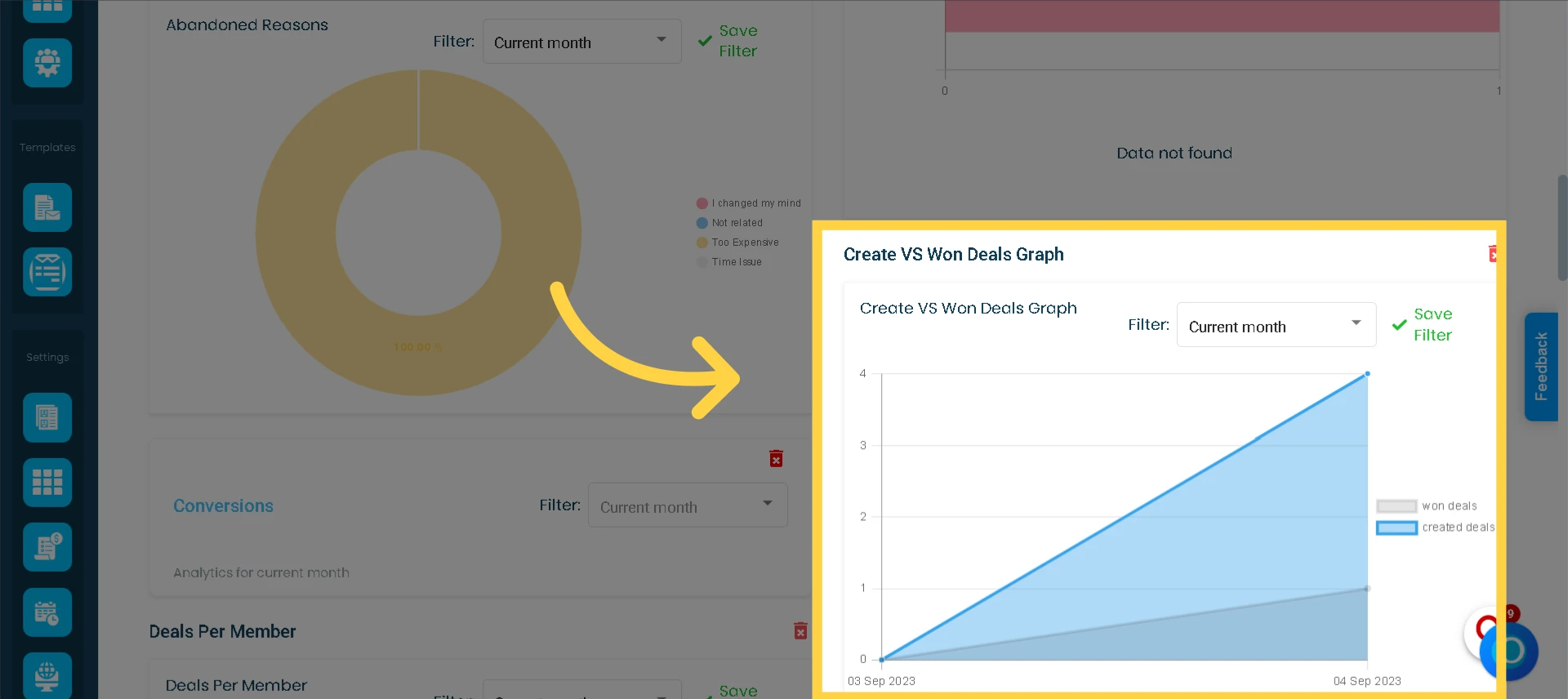
Objective: It displays a visual chart that allows you to track the number of new deals created versus those marked as "won" within the selected filter period. This facilitates the analysis of the sales team’s performance and helps evaluate the conversion rate of opportunities into successful closures.
Every time a new deal is added to the CRM, it is automatically recorded in the chart. Similarly, when a deal is marked as "won," a separate record is generated and reflected in this widget.
10. Sales Forecast
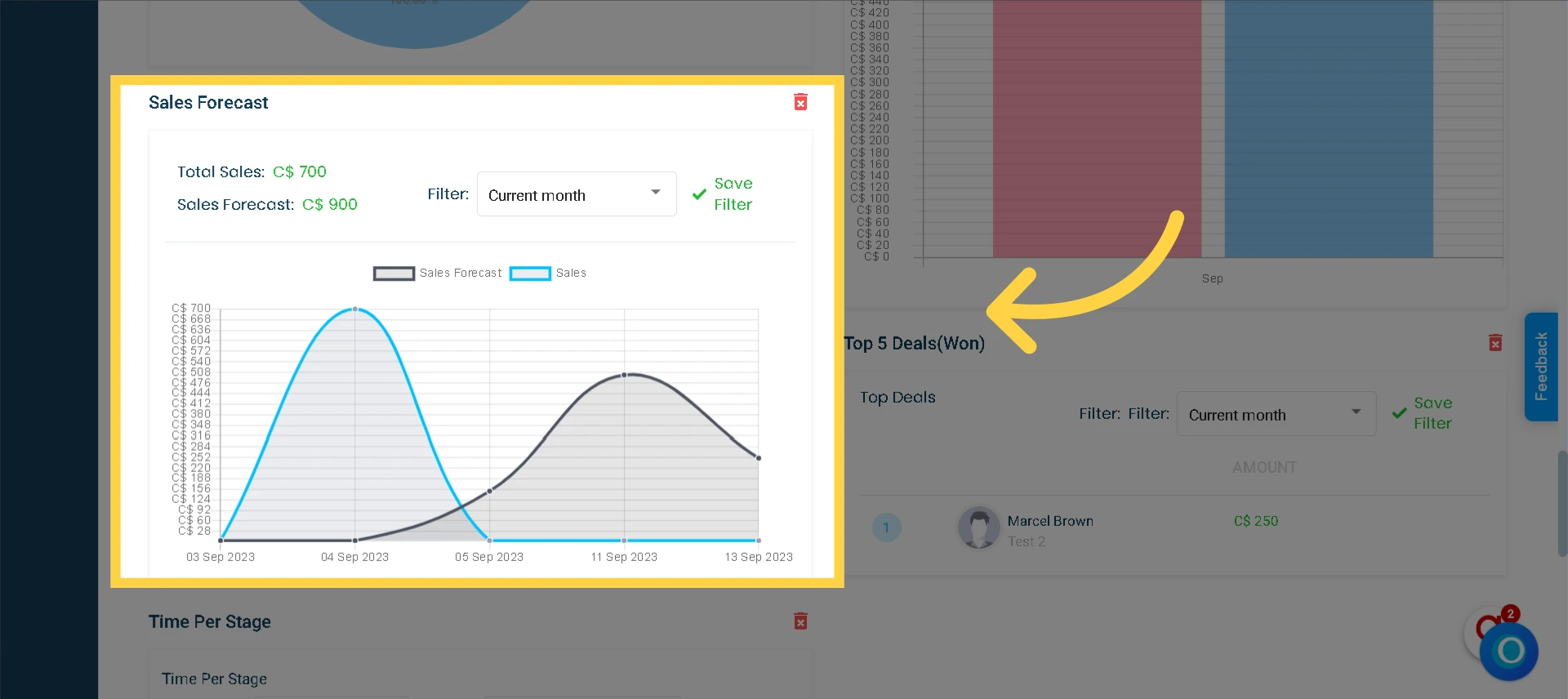
Objective: This widget helps you stay up to date with your current sales forecast for potential deals you may close in the future. At the same time, it allows you to monitor your sales progress in real-time, facilitating strategic planning and decision-making.
Each time a deal is created, the system automatically records the amount and expected closing date, incorporating it into the sales forecast. This enables the visualization of projected sales for upcoming months, current month performance, and past results. With this information, you can assess trends, adjust strategies, and anticipate possible revenue variations.
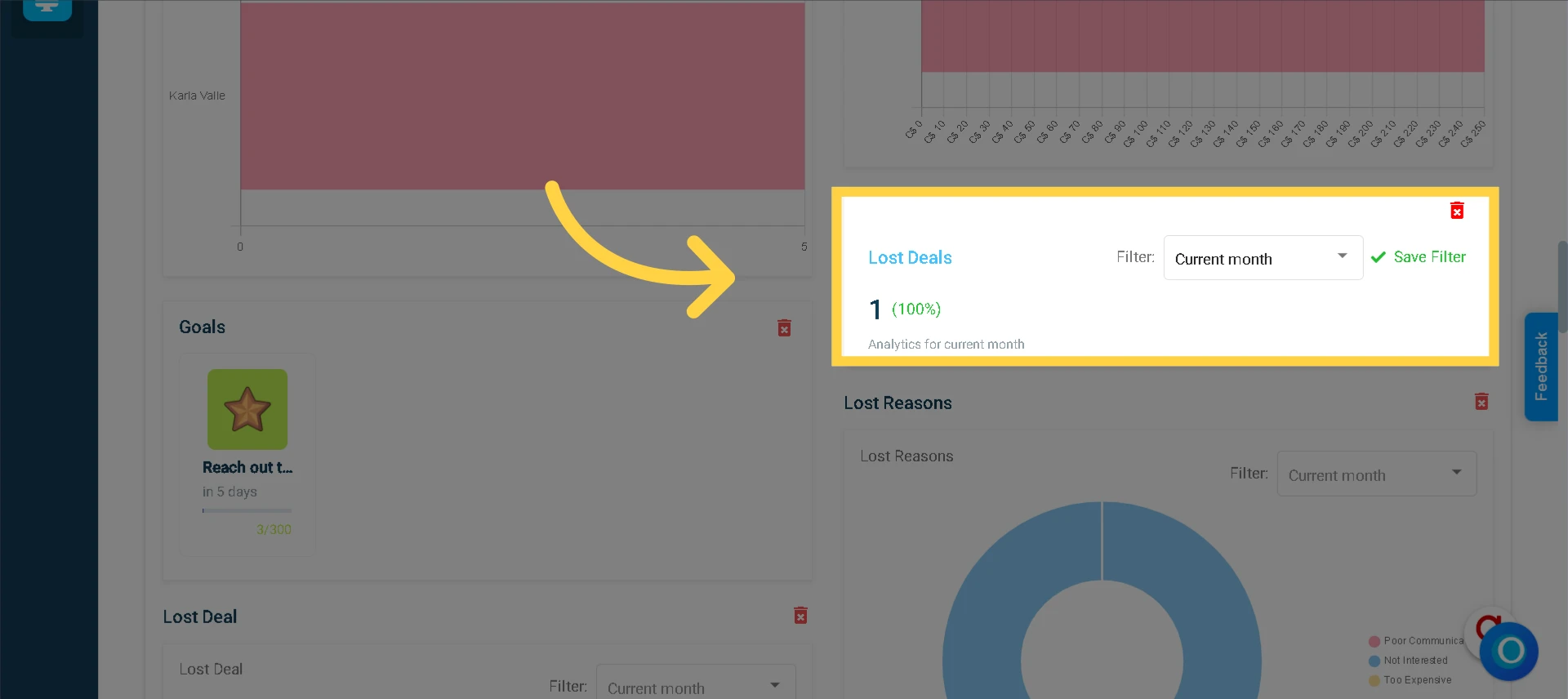
11. Lost Deals
Objective: With this widget, you can view all deals that were unsuccessful within a specific period.
When a deal does not go as planned and is labeled as "lost," it will be displayed in this widget.
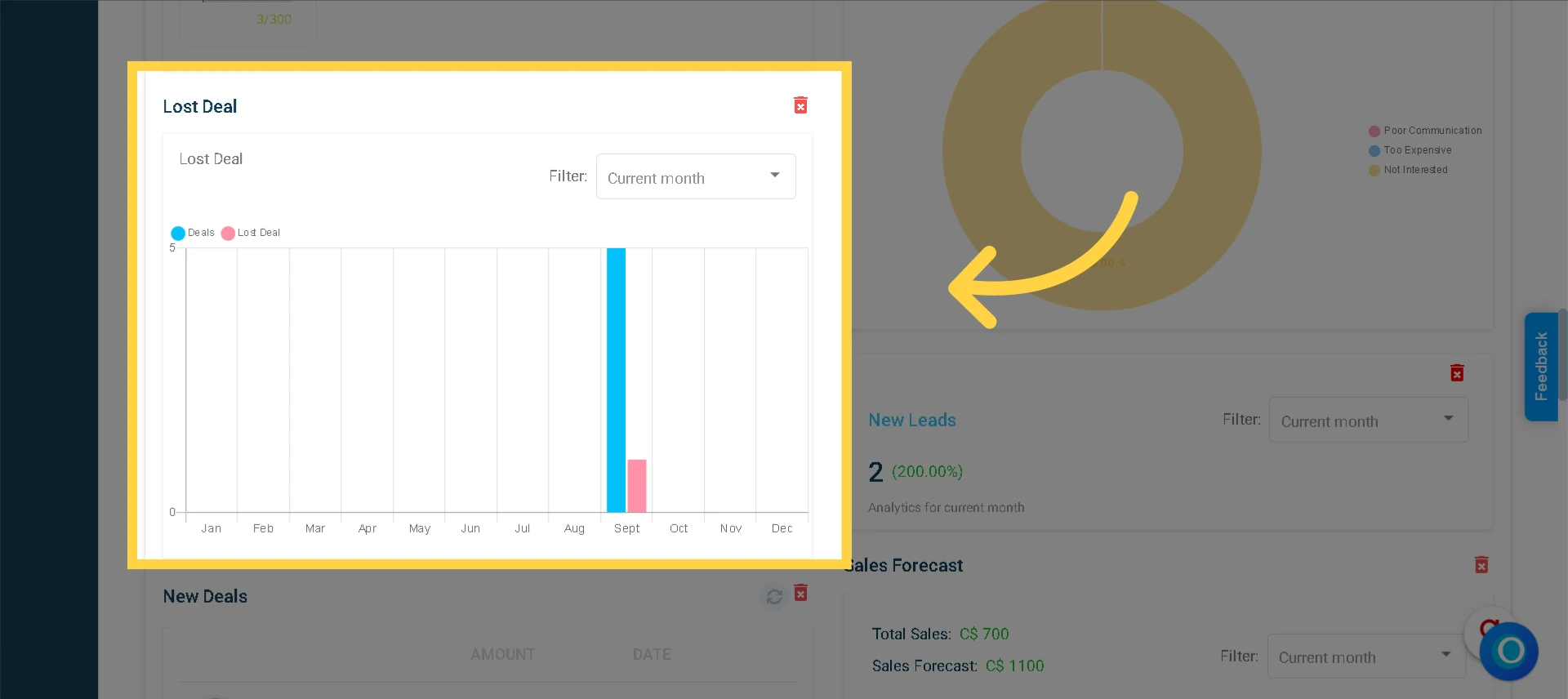
12. Lost Deals (12 Months)
Objective: This widget presents a bar graph illustrating the number of lost deals, enabling you to make comparisons over a 12-month period.
This bar graph records every deal that did not succeed, offering you a more comprehensive perspective over an extended timeframe.
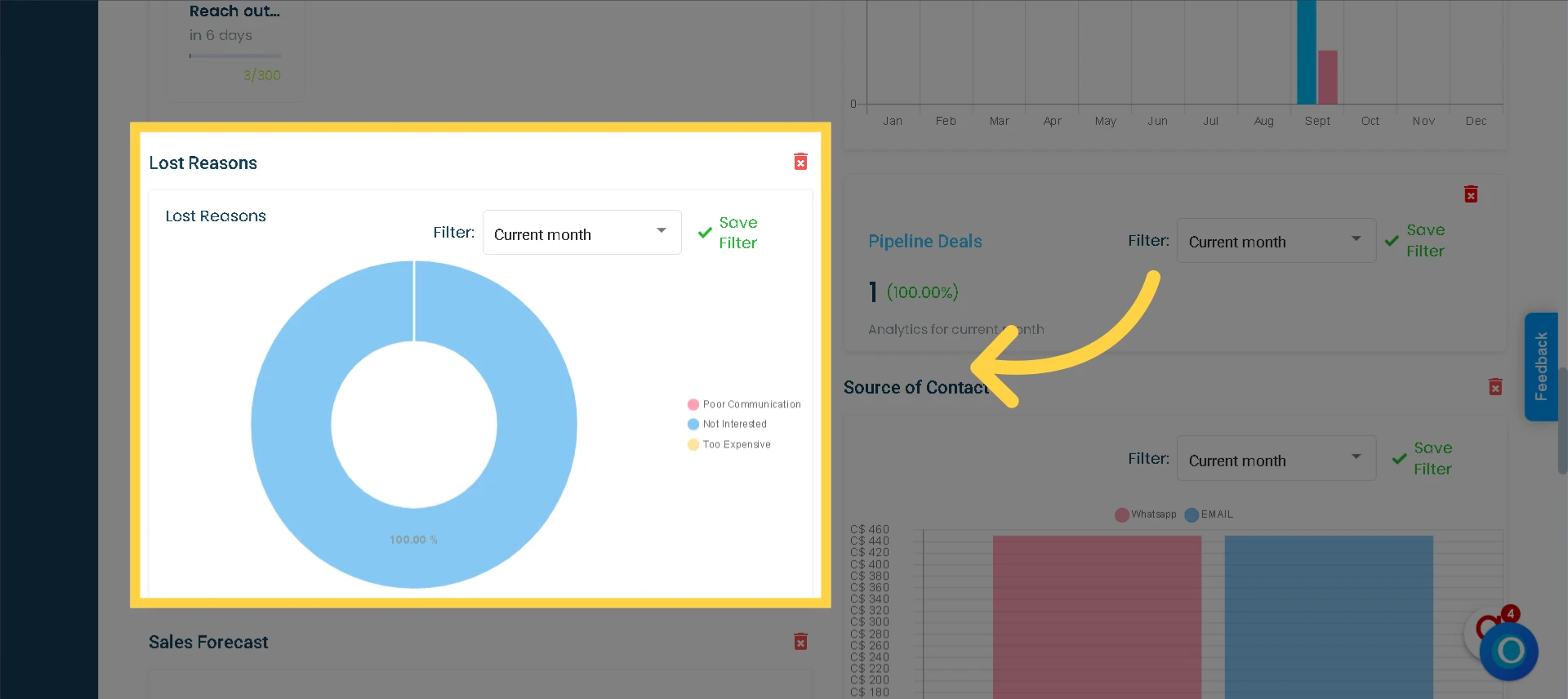
13. Lost Reasons
Objective: This widget provides a comprehensive analysis of the reasons why your business deals did not materialize.
Each time a deal is labeled as "lost" and a reason is specified, that cause will be recorded in this widget.
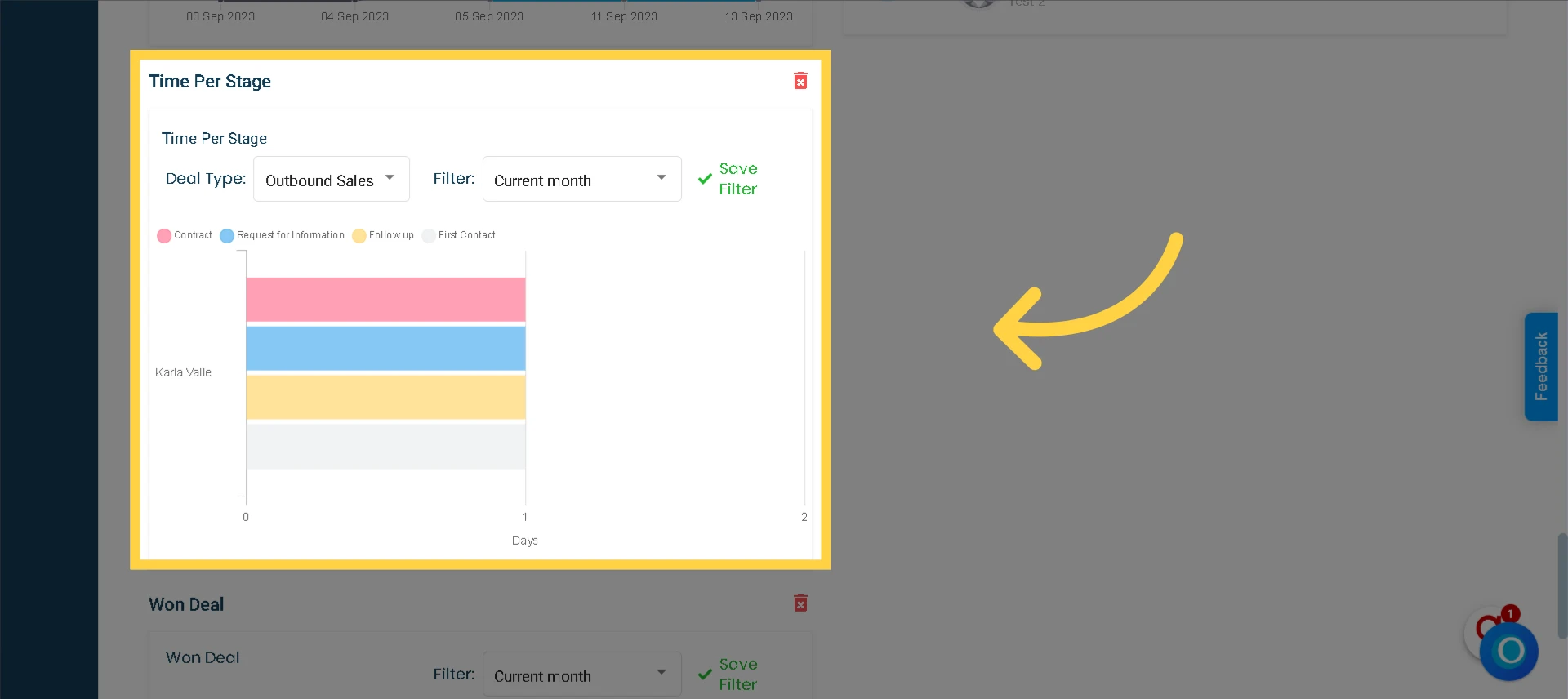
14. Time Per Stage
Objective: This widget allows you to determine how long it takes for a deal to progress from initiation to closure within your sales funnel, with the timeframe varying based on the specific category of the deal. By using this functionality, you can gain a clearer understanding of which types of deals are experiencing slower progress and identify areas for potential improvement.
Osmos monitors the duration of your deals at each stage, summing up the days according to the deal type and corresponding stage.
For example: If a deal is currently in a follow-up stage for 10 days, the assigned duration per stage is also 10 days. This duration is determined as an average, considering the total time invested in deals within that specific stage. To calculate the average time, the total time spent on all deals in that stage is summed up and then divided by the total number of deals in that stage.
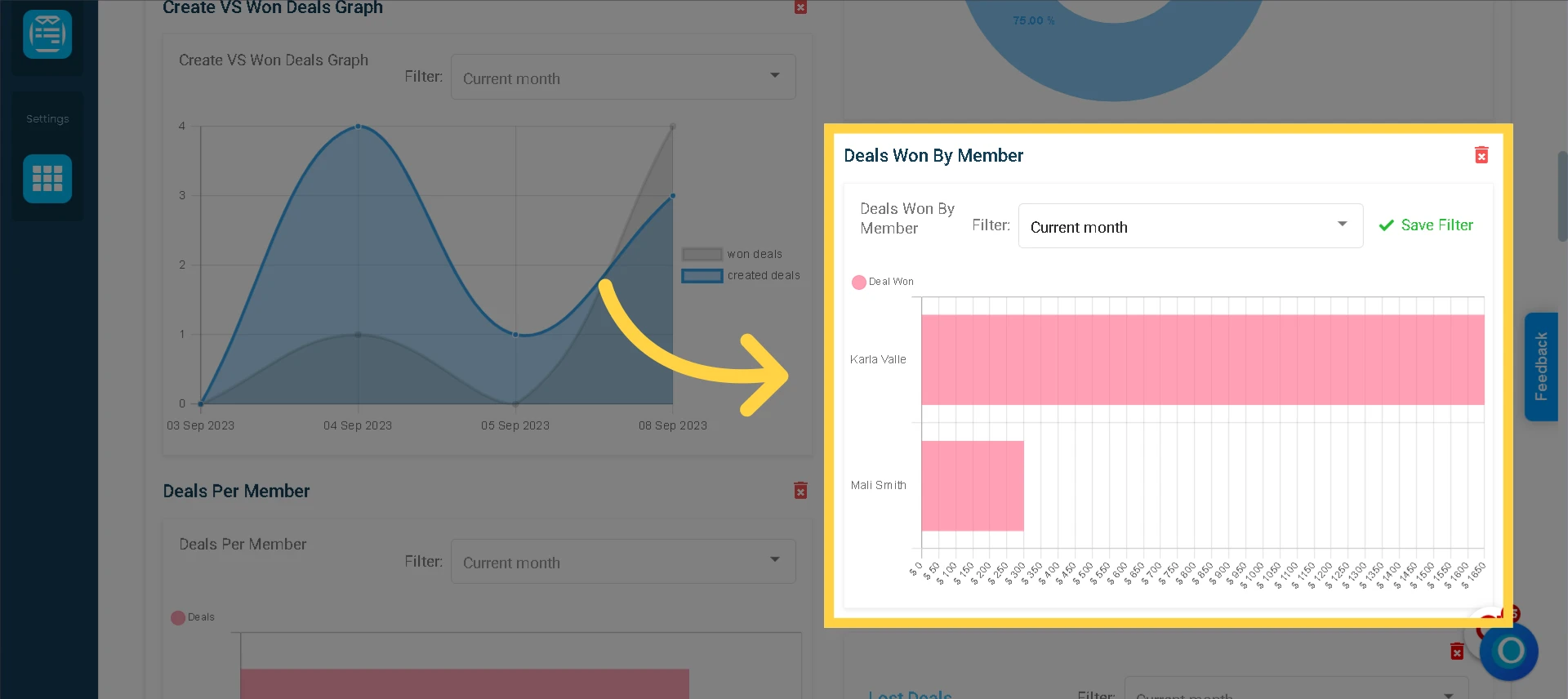
15. Deals Won by Member
Objective: This widget helps evaluate the performance of each team member by tracking the number of deals they have won within a specific time frame.
Each time a team member successfully closes a deal, it will be recorded and included in this widget.
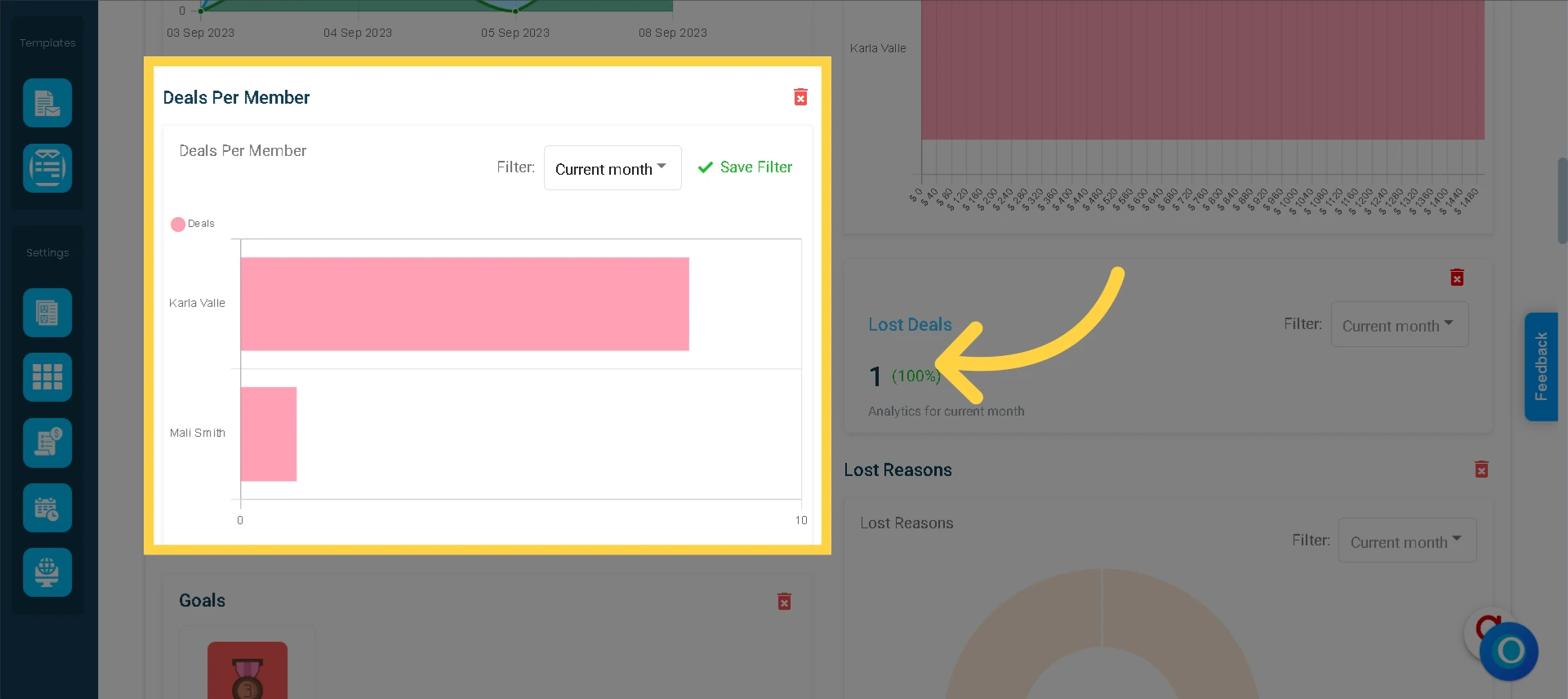
16. Deals Per Member
Objective: Simplifies the process of evaluating each team member's performance by keeping a record of the deals they have added.
Each time a team member enters a deal, it will be registered and included within this widget.
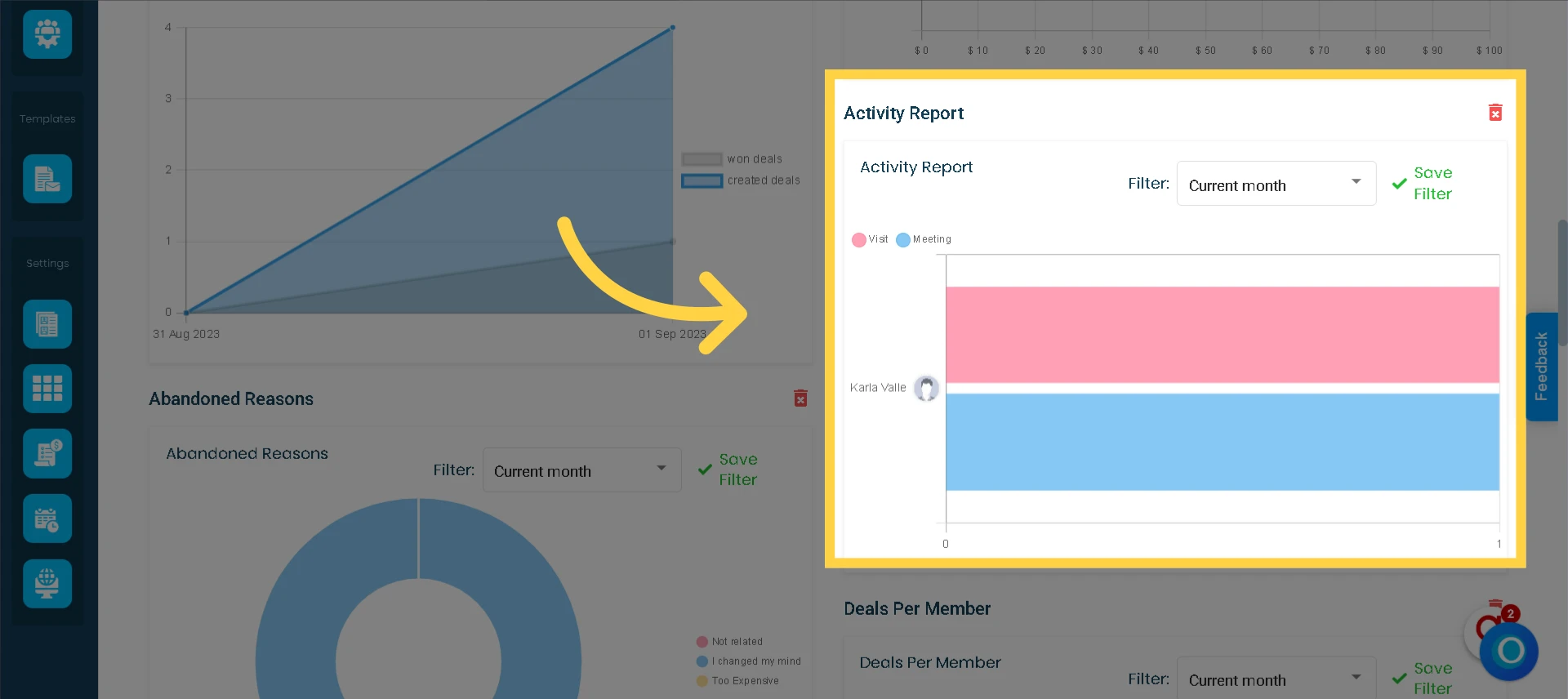
17. Activity Report
Objective: Offers an extra evaluation of the tasks executed by your team.
Each time a team member generates an activity associated with any lead, it will be recorded and added to this widget.
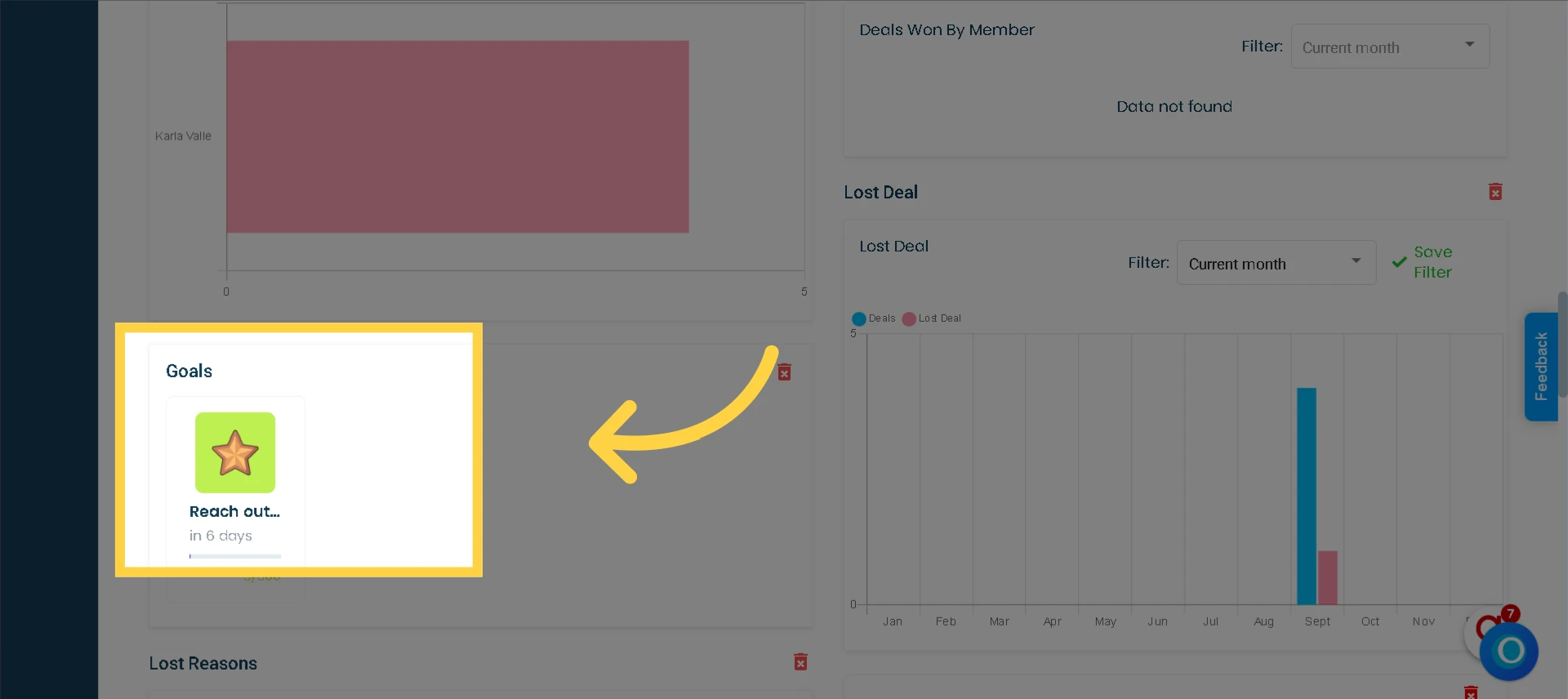
18. Goals
Objective: Identify your most significant goals and offer real-time monitoring as you progress toward accomplishing them.
When you establish a goal in the goal module, it generates a widget. This allows you to monitor and keep track of your goals every time you log in to your Osmos workspace.
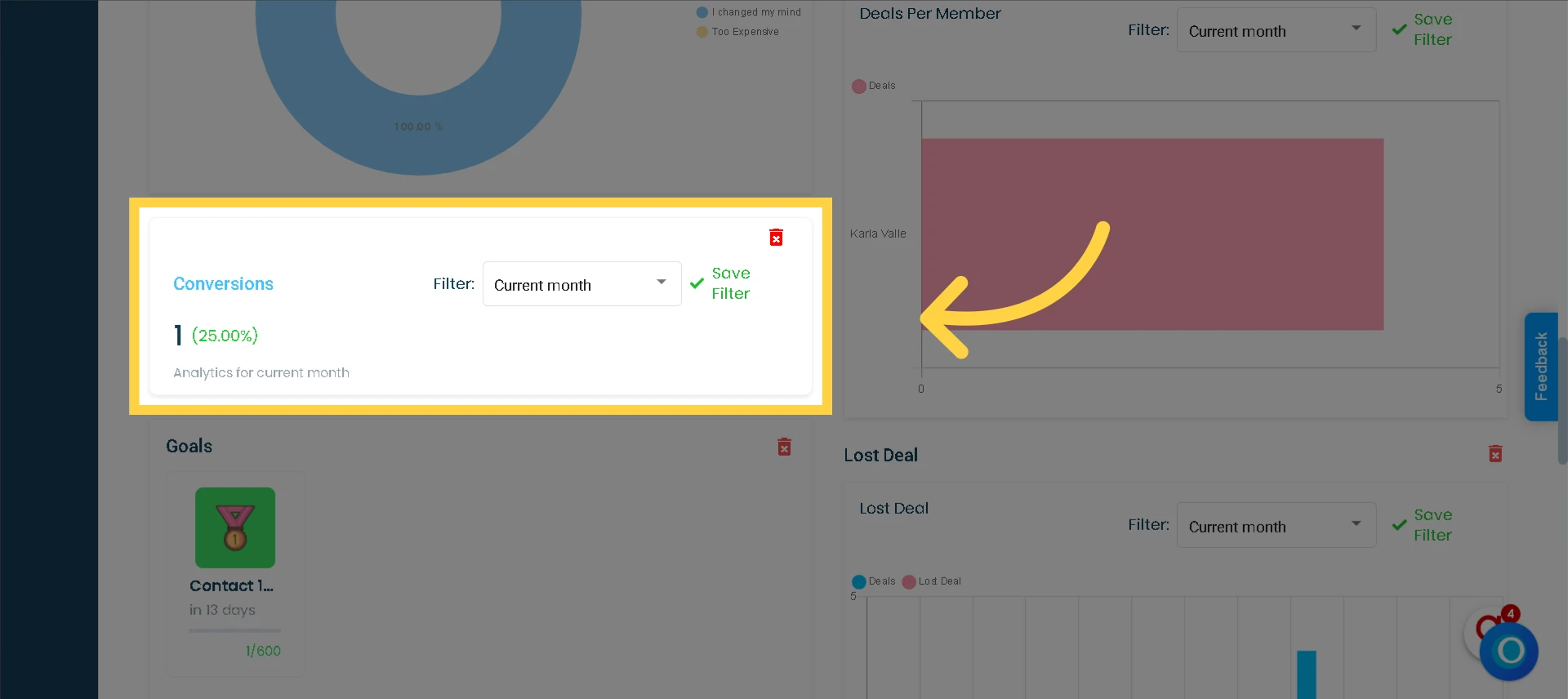
20. Conversion
Objective: Gives a clear indication of your effectiveness in converting leads into won deals, showcasing the ratio of deals that enter your pipeline and the number that ultimately results in successful sales.
This evaluation will assess the contrast between generated deals and those that have been won, illustrating it as a percentage. A higher percentage reflects your effectiveness in closing deals. In many business contexts, achieving a percentage in the range of 20% to 40% of your leads is indicative of strong performance.
21. Deals by Type and Stages
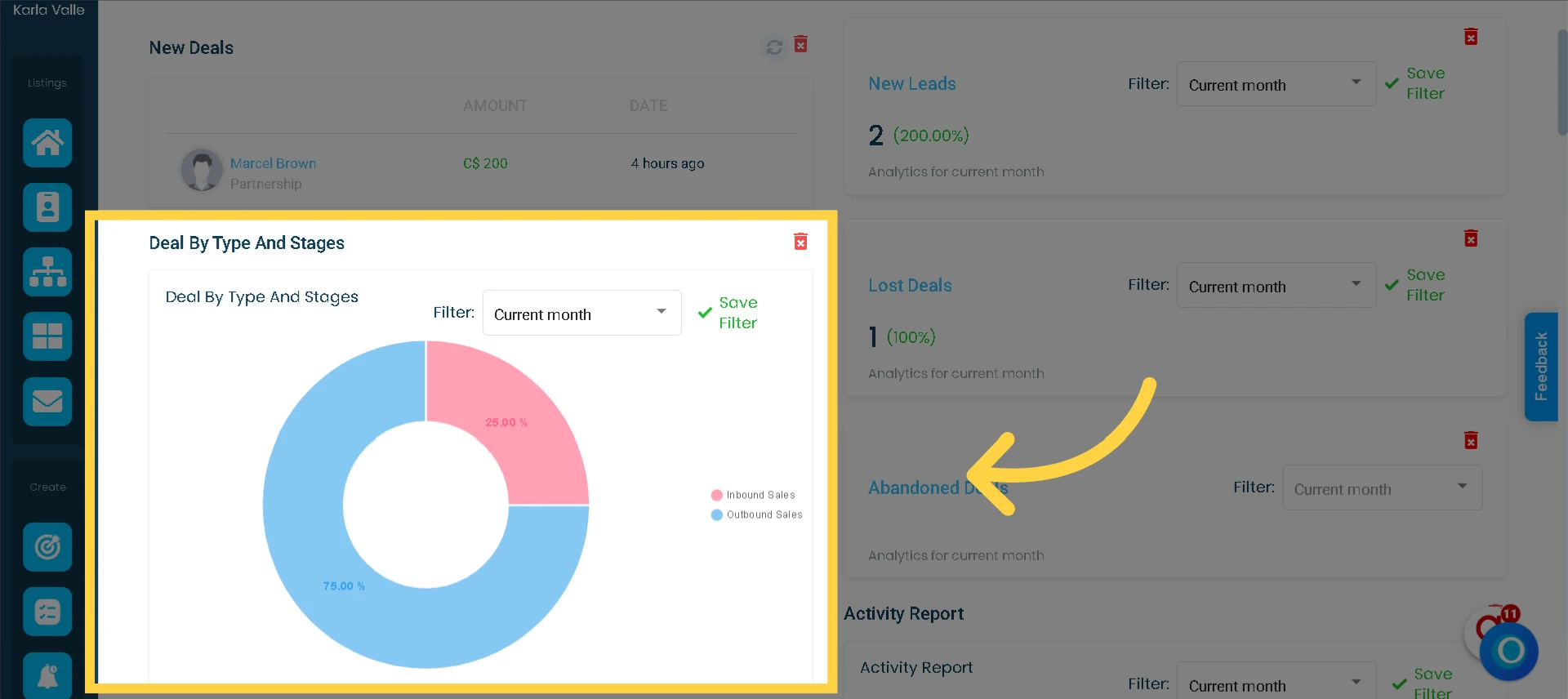
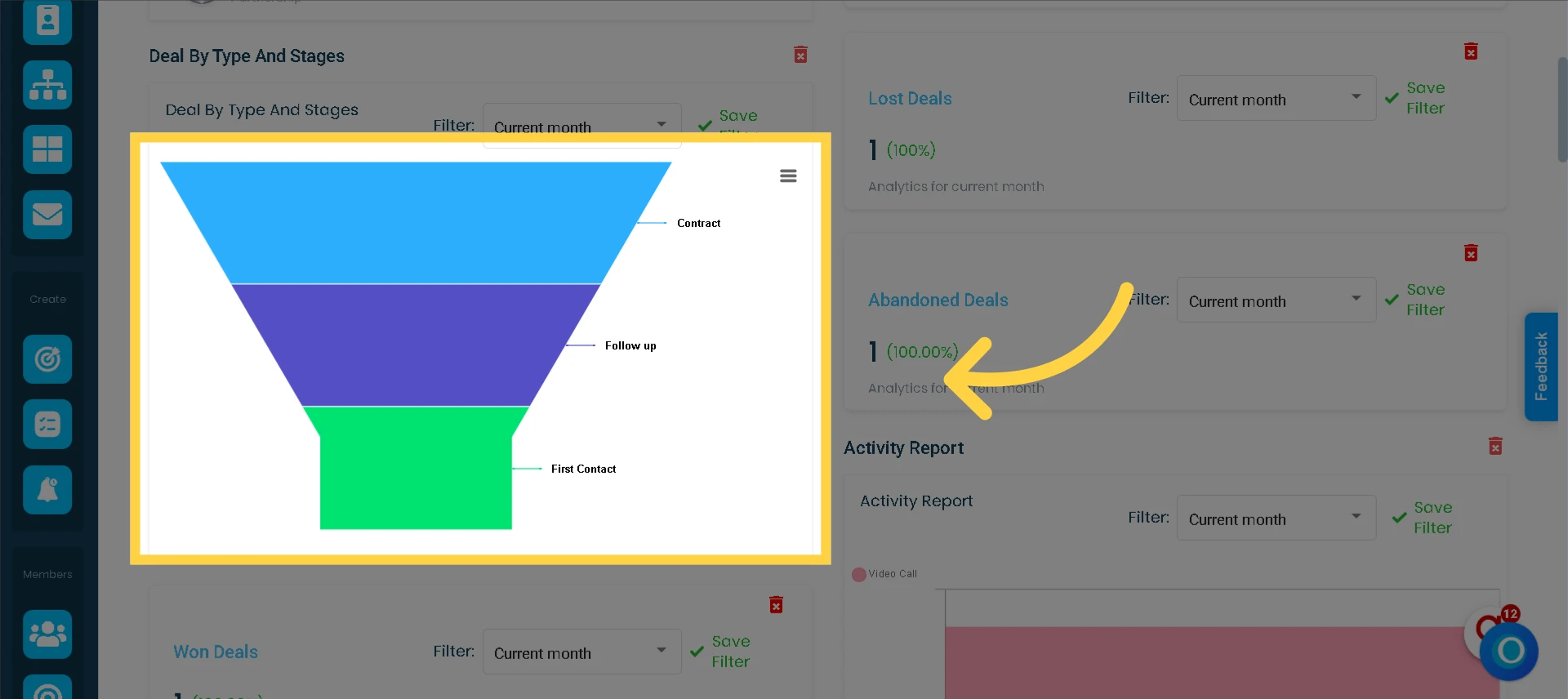
Objective: Provides a visual representation of deal types and their respective quantities, as well as offers the option to explore more extensive insights into the distinct stages of these deals.
The central graphic will show the quantity of deals categorized by deal type. When you click on it, you will access a detailed representation of how these deals advance through various phases within a sales funnel.
21. Pipeline Deals
Objective: Discover the number of deals you have conducted within your chosen time frame. The system will also contrast this with the previous period, highlighting any increases or decreases and providing the percentage change.
When a new deal is generated, it will be registered into the current month's accounting and included in the pipeline. However, deals that have already concluded, whether as successful wins, losses, or abandonments, will not be considered in the pipeline sales count.