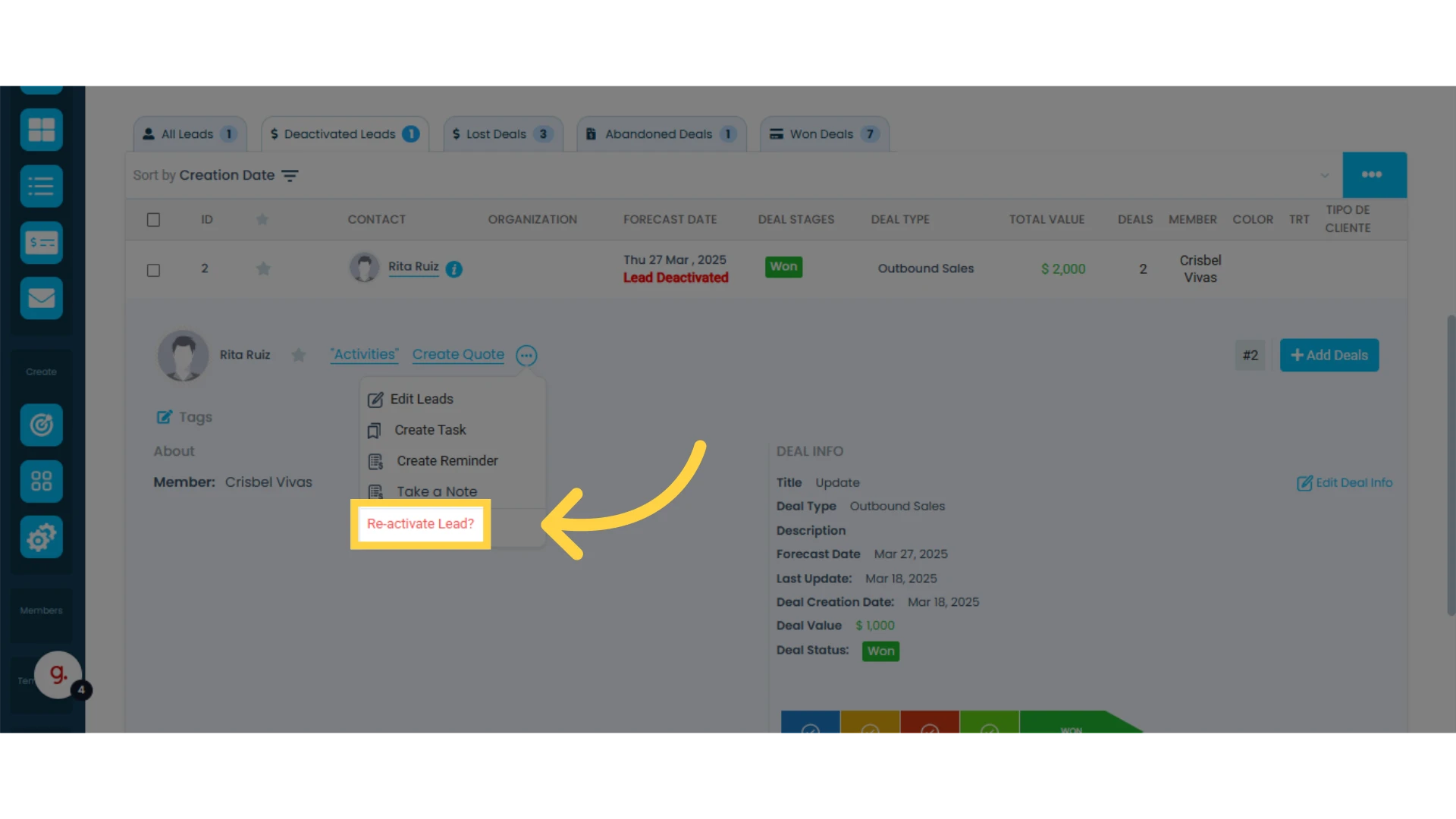
Keeping the "All Leads" list with only active leads is a good practice to optimize their management. If a lead no longer has active deals because they have been marked as won, lost, or abandoned, it is recommended to either remove them from the list or mark them as inactive.
To delete a lead, follow these steps:
Delete a Lead
1. Select the lead to be removed
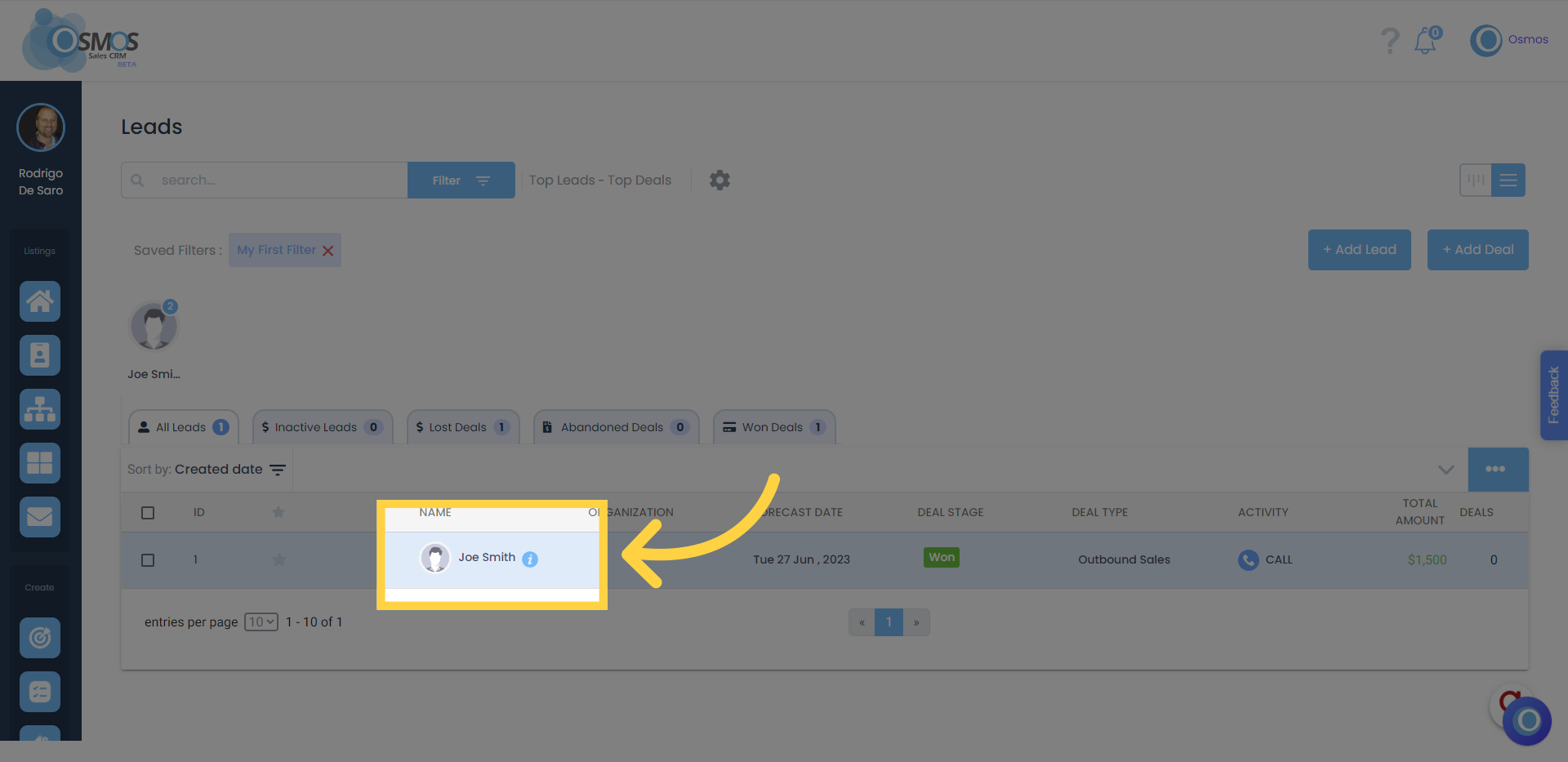
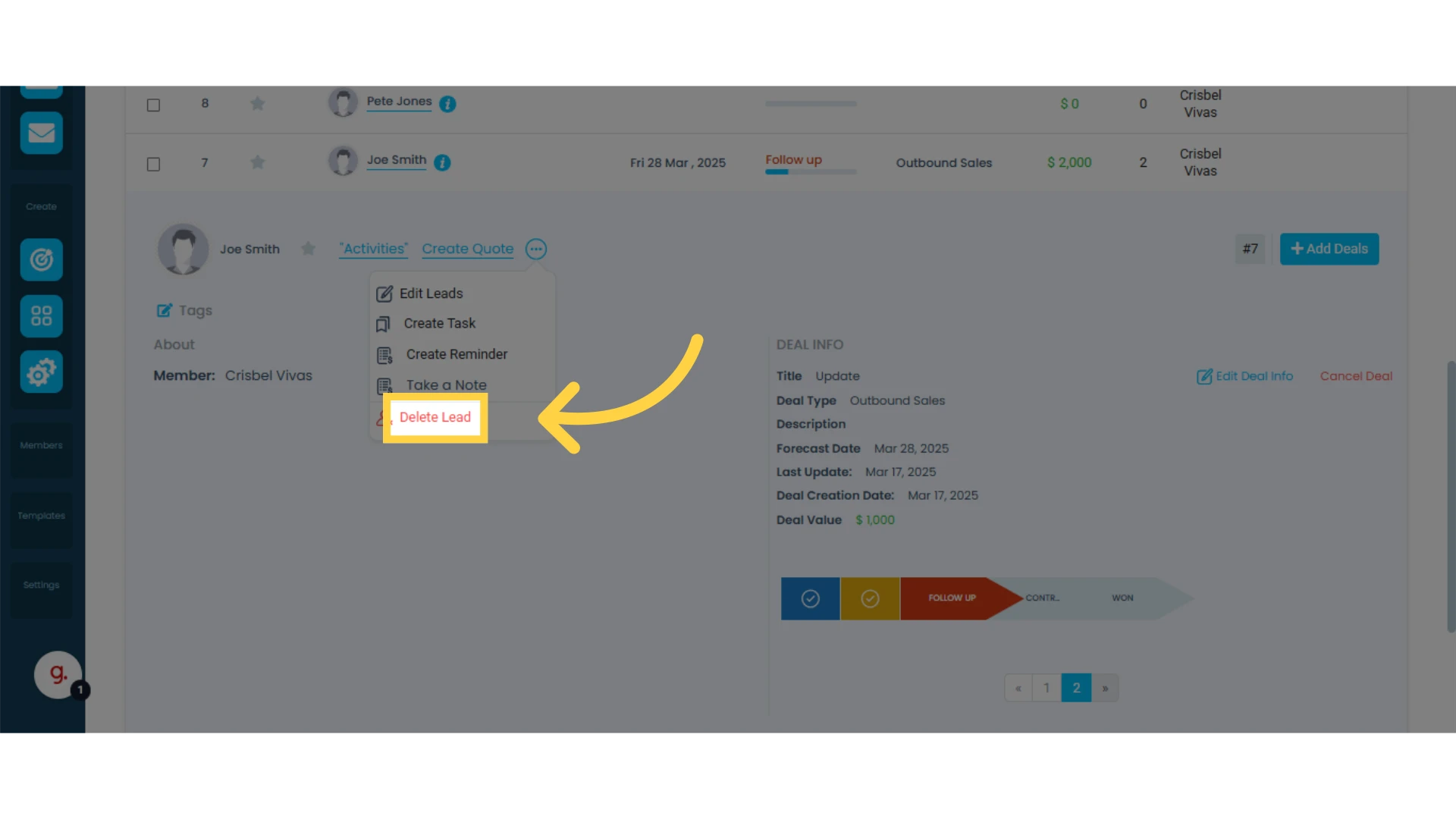
2. Click on "Delete Lead"
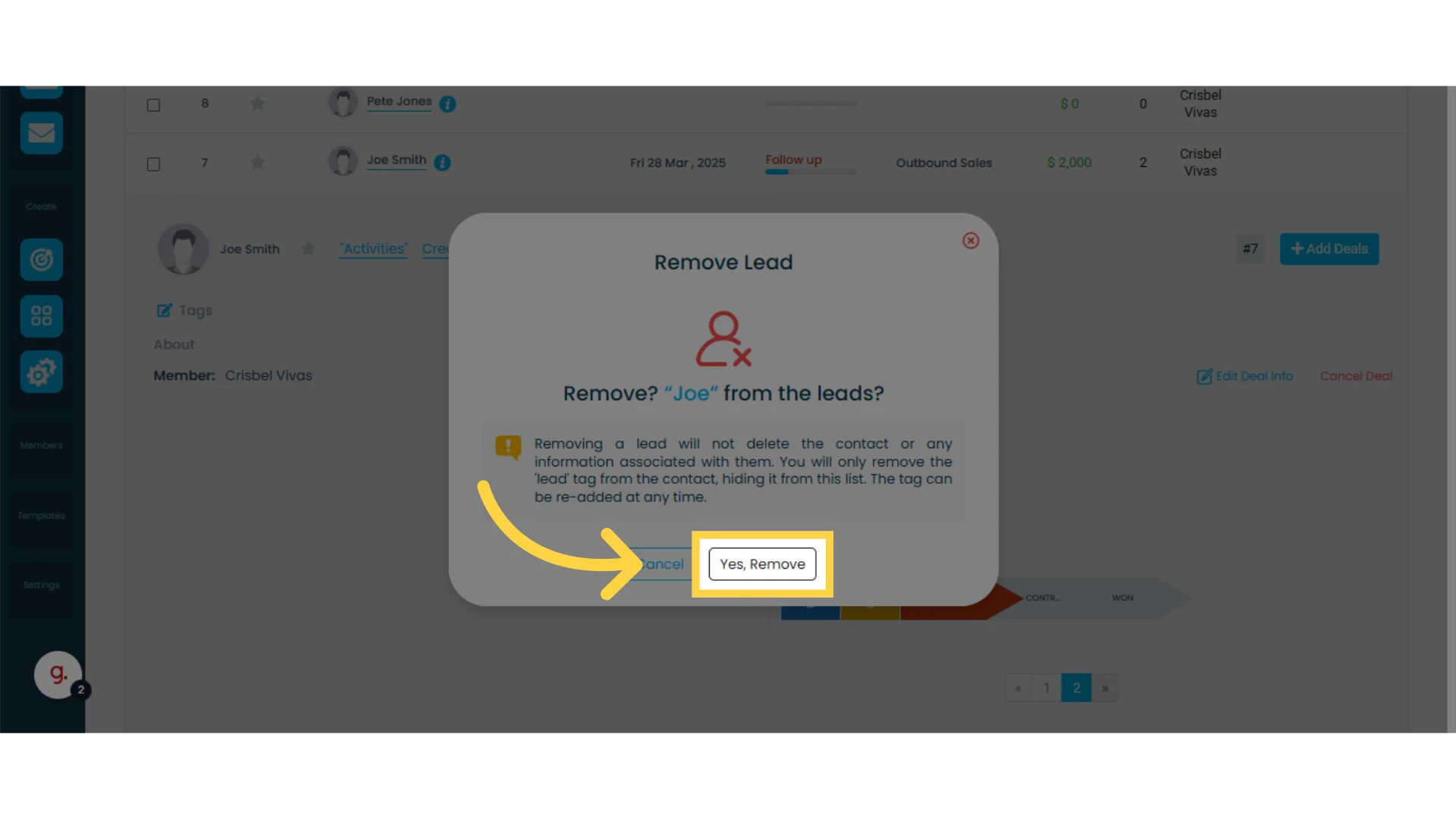
3. Confirm the action
Reminder: Deleting a lead will remove the "lead" label from the contact, hiding it from the "All Leads" list. It will also delete any deals that were not marked as won, lost, or abandoned. The label can be added again at any time.
Removing a Lead After Marking a Deal as Abandoned, Lost, or Won
If you mark a deal as abandoned, lost, or won, you will have the option to delete the lead. To do so, you must confirm your choice twice by checking the "Remove Lead" box and clicking "Done."
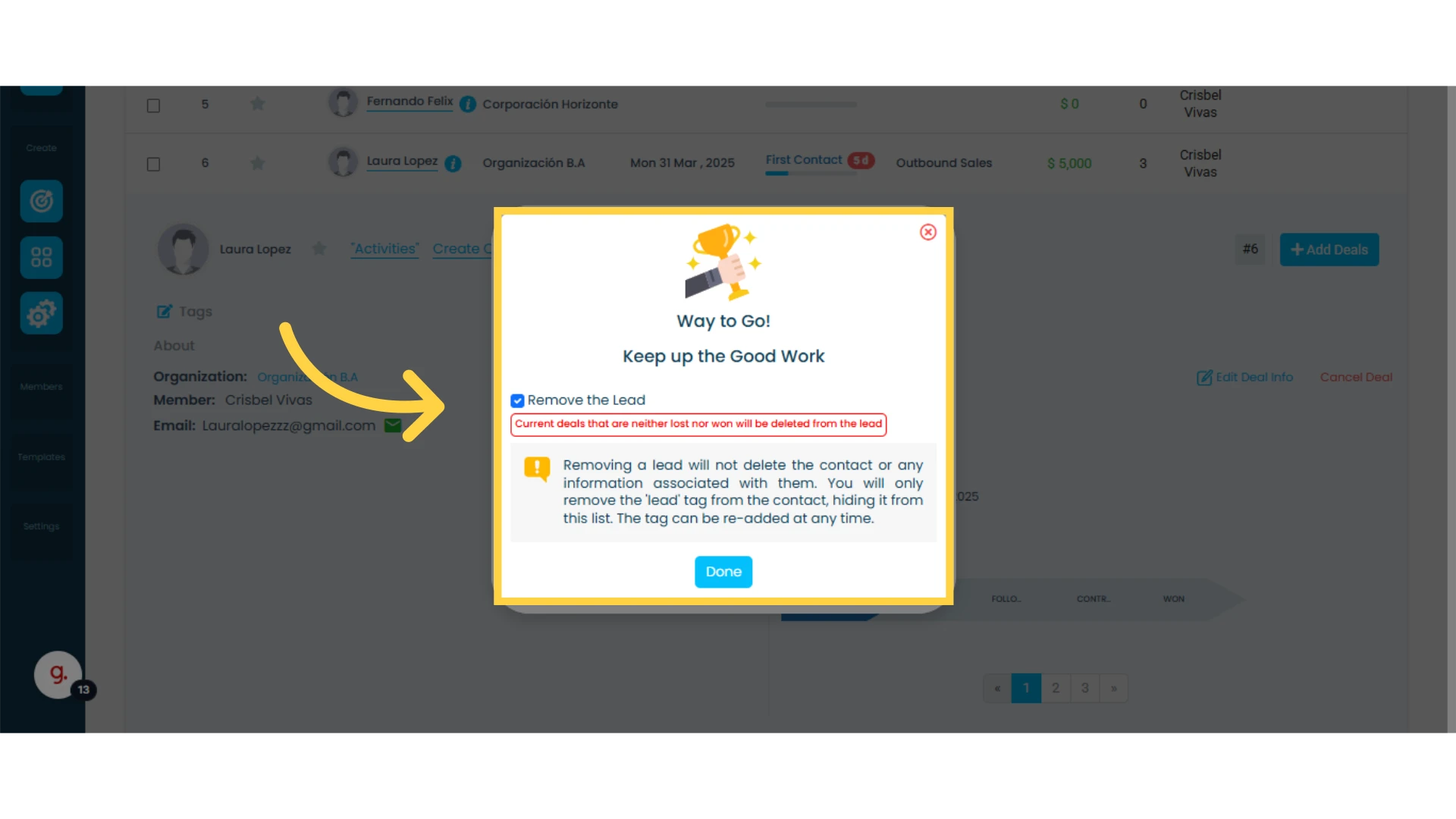
IMPORTANT: Any current deals that are not marked as abandoned, lost, or won will be deleted.
For example, if a deleted lead had three deals, but only one was marked as won, the other two deals will be deleted.
Tip: When marking a deal as lost or abandoned, you will have the option to add a reason. We recommend providing a reason for statistical purposes so you can identify why deals are being lost or abandoned.
Learn how to manage reasons.
To add the lead back, follow the same steps as creating a lead.

IMPORTANT: When re-adding a previously deleted lead, they will reappear in the "All Leads" list, but their previous deals will not be displayed.
Deactivating a Lead
Deactivated leads will remain inactive, but their information will still be available for reference in the "Deactivated Leads" tab.
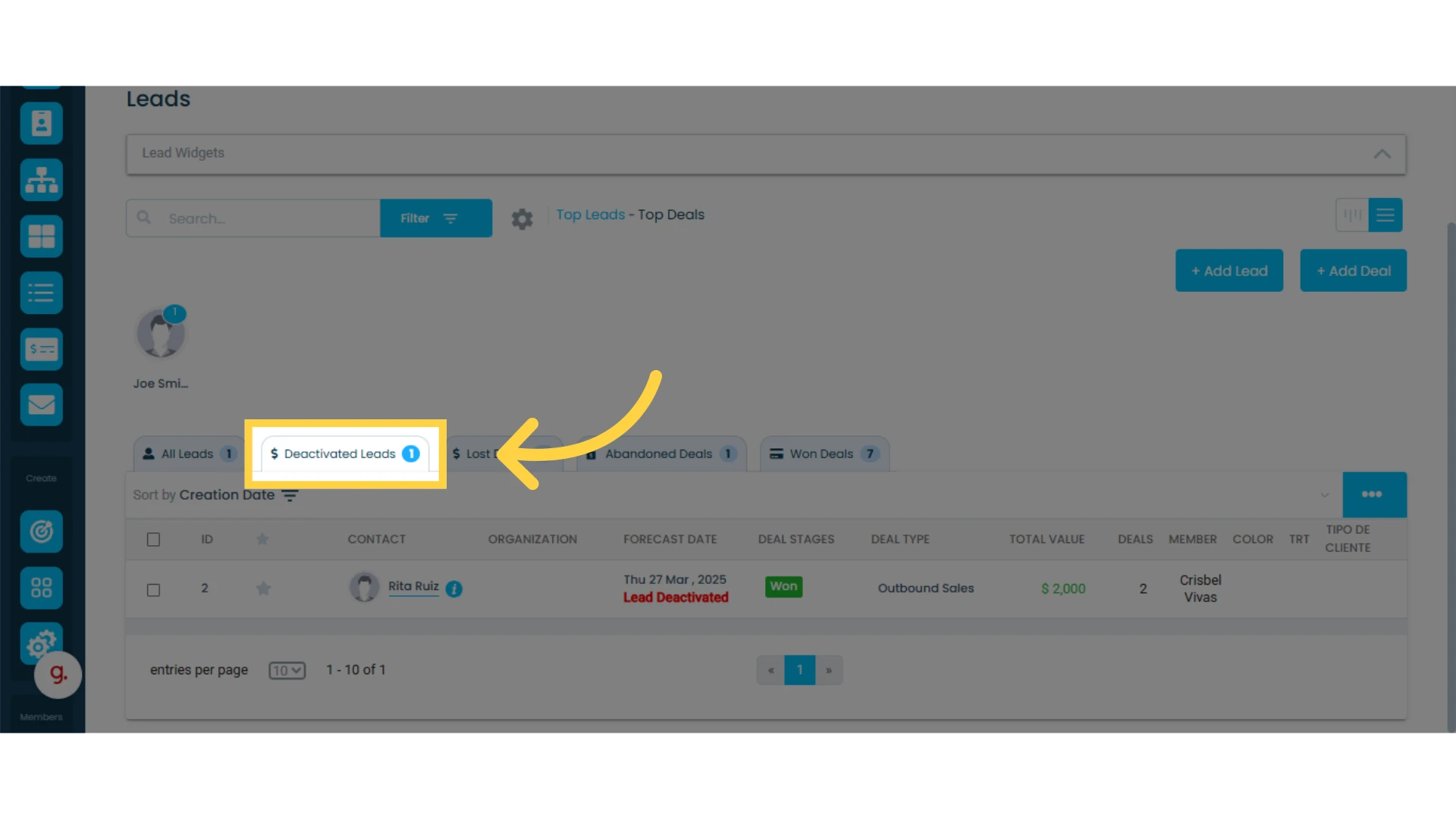
You can reactivate a lead by navigating to the "Deactivated Leads" tab, clicking on the lead, and then clicking on the three-dot menu.
From there, select the option "Re-activate Lead?"