With custom formulas, Osmos works out numbers for your items, and runs them every time you add an item to a quote. On Osmos screens, formulas are called Calculations.
A formula can use the item’s quantity, prices and discount, plus any Number field you add to the item, such as width or height.
The two types of formula
When you create a calculation, you choose between two tabs.
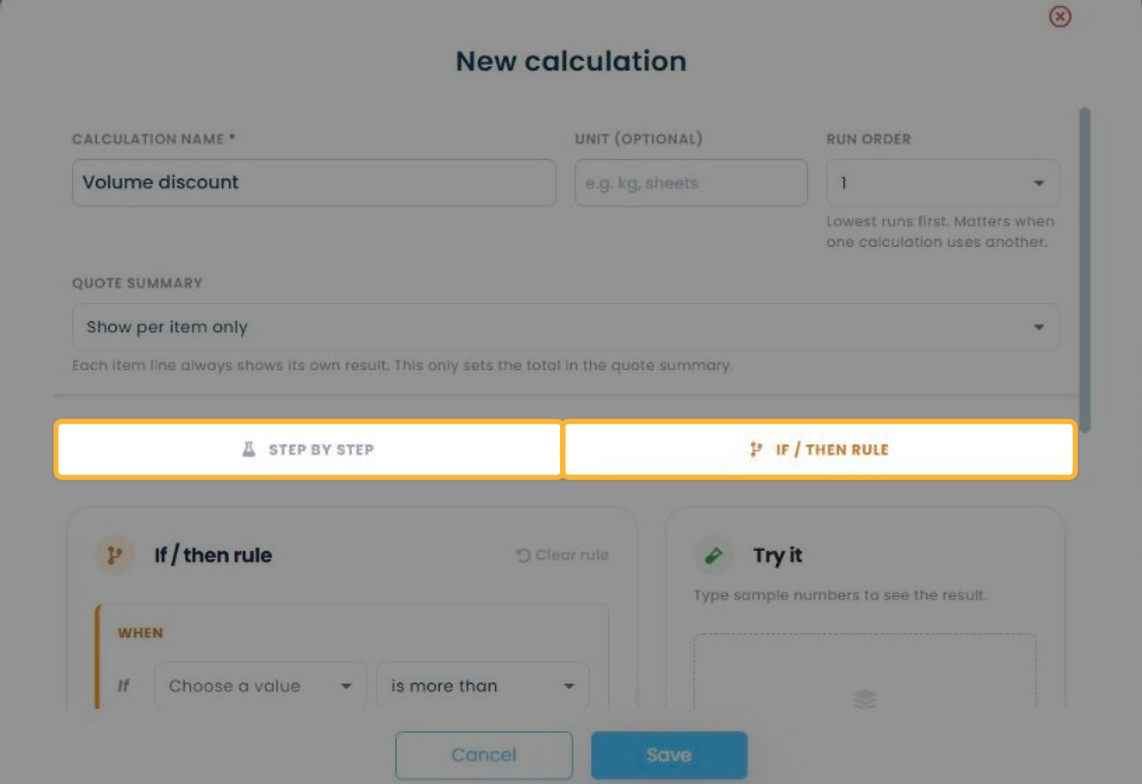
1. Step by step: show a result
You build the formula one step at a time, and Osmos shows the result. It doesn’t change the price.
Example: width × height × quantity shows the total area of a banner on your quote.
Guide: Show a result on quotes (step by step)
2. If / then rule: apply a discount on its own
You set a condition, and what happens when it is met and when it isn’t.
Example: if the quantity is at least 5, give a 10% discount.
Guide: Automatic discounts (if / then rule)
Turning a formula on or off
Each formula has a switch on the item called Calculate on quotes.
On: Osmos runs it for that item on every quote.
Off: it is skipped for that item.
The switch doesn’t add the result to your quote document. To show a result on the quote, follow Show a result on quotes (step by step).
New items copy your formulas
Once you have created a formula, new items receive a copy of it with Calculate on quotes switched on. Check that it fits each new item, switch it off if it shouldn’t apply, or edit it. Your changes apply to that item only.
Learn how to add items.