This type of custom formula lets Osmos apply a discount on its own, for example 10% off when someone orders 5 or more. On Osmos screens, formulas are called Calculations.
If you only need to show a number, such as an area, see Show a result on quotes (step by step). To compare both types, see Custom formulas on items.
In this guide, a sign shop gives 10% off when a customer orders 5 or more of its Outdoor Vinyl Banner.
Create the rule
1. Open the item
Click Items in the left menu, then click + Add Item. To use an item you already have, open its ••• menu and click Edit.

2. Add a calculation
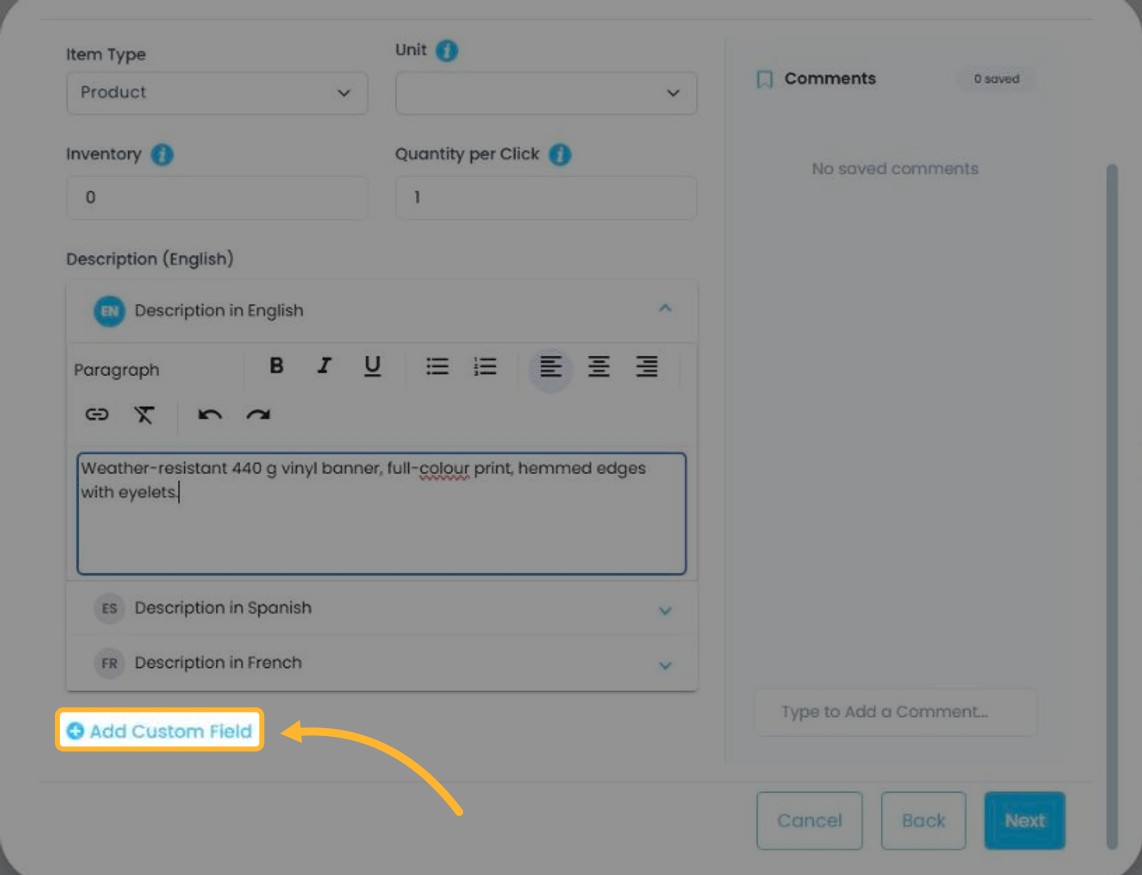
In Item Details, scroll to the bottom and click Add Custom Field.
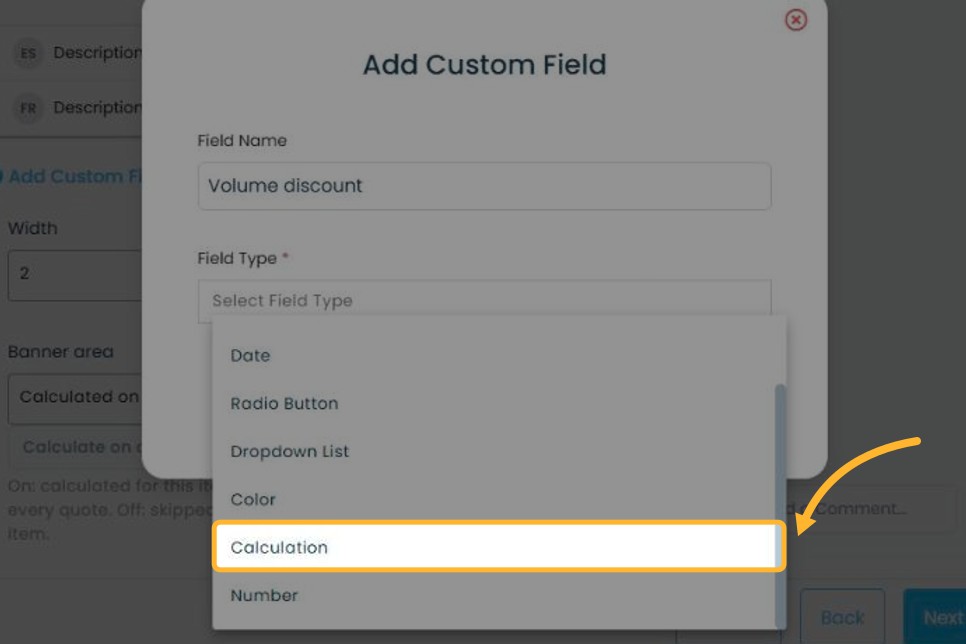
Name it Volume discount and choose Calculation as the Field Type.
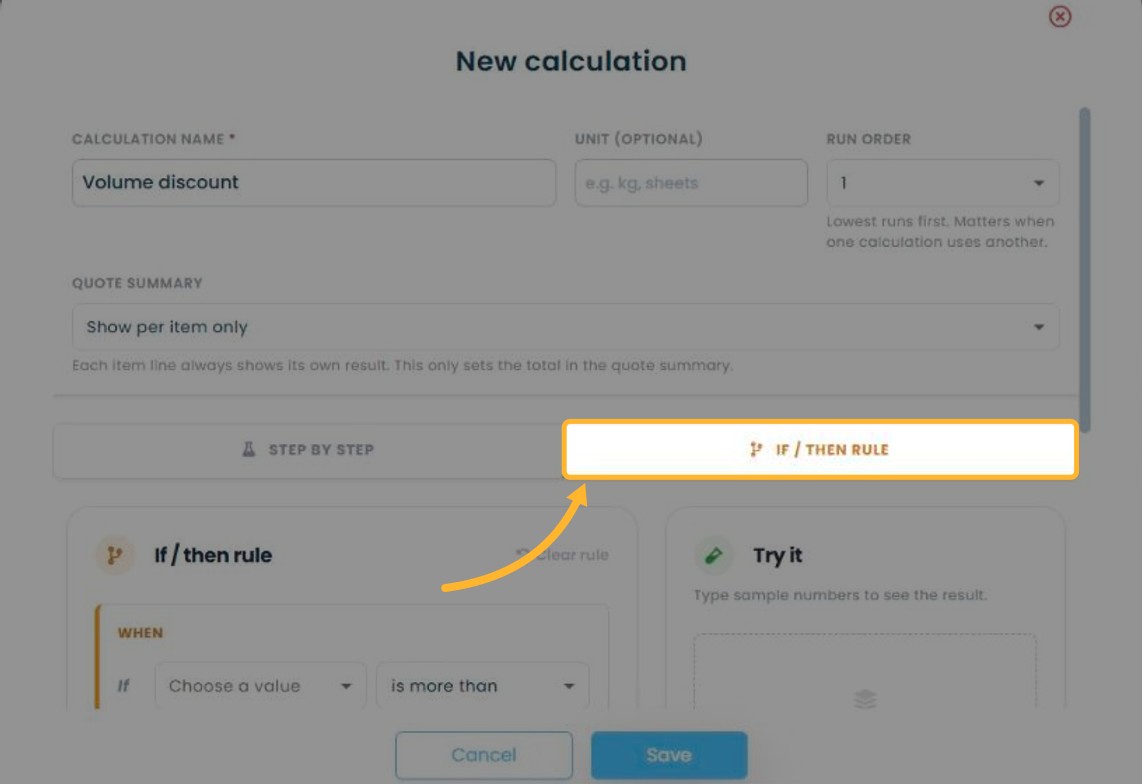
3. Open the “If / then rule” tab
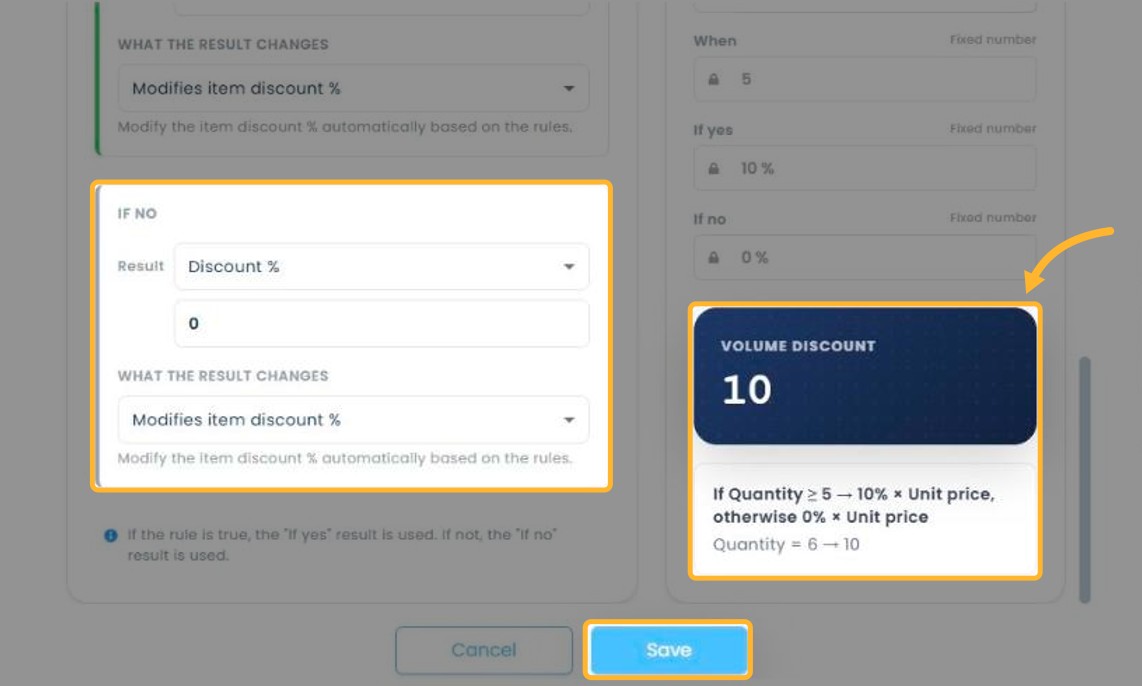
4. Set the condition and the “If yes” result
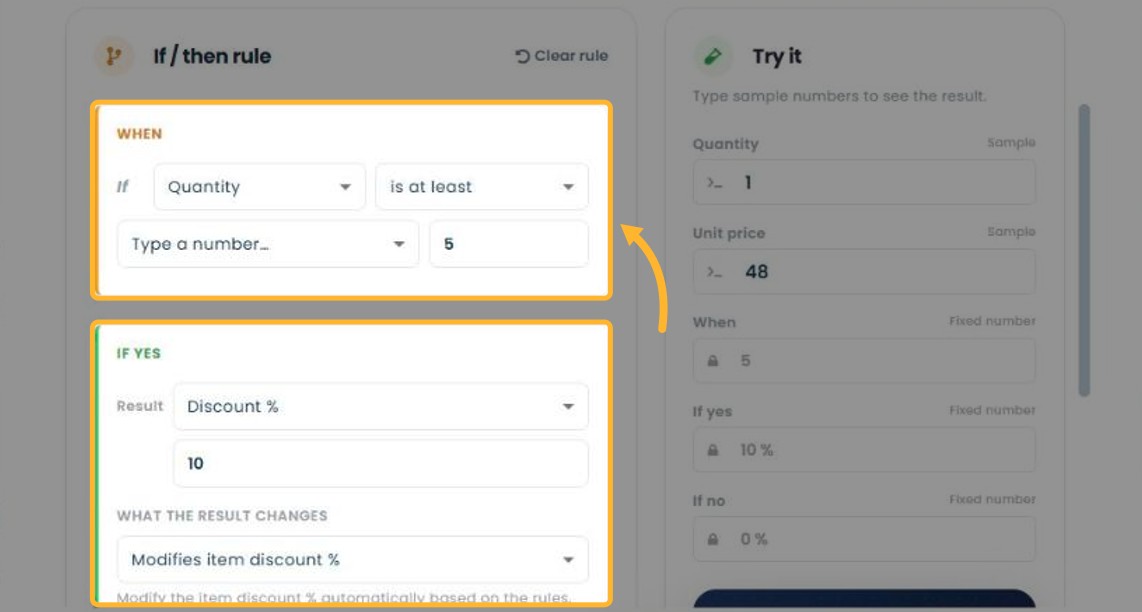
When: choose Quantity, then is at least, then Type a number… and enter 5.
If yes: choose Discount % as the result and enter 10.
What the result changes: Modifies item discount %.
5. Set the “If no” result, test it and save
Under If no, choose Discount % and enter 0. Under Try it, a quantity of 6 gives a result of 10. Click Save.
6. Switch on “Calculate on quotes” and save the item
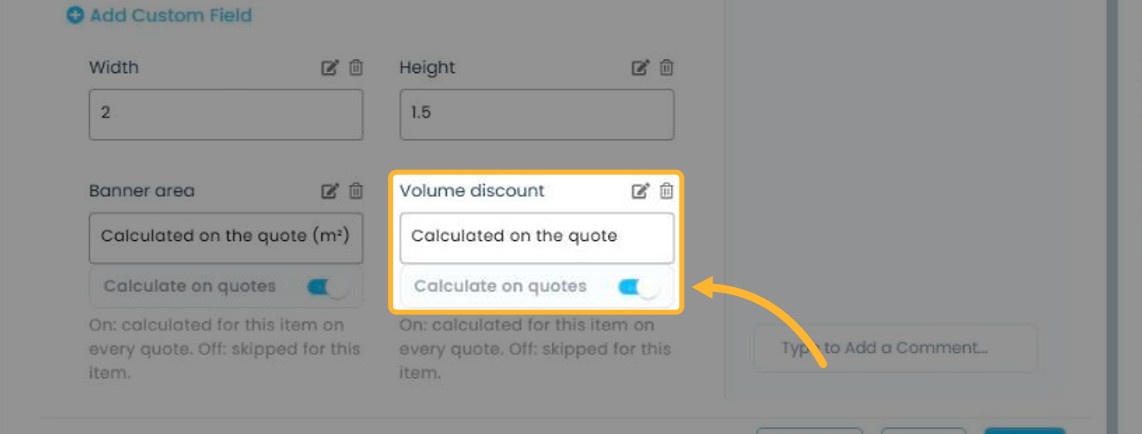
Back on the item, check that Calculate on quotes is switched on under Volume discount.
On: Osmos runs the rule for that item on every quote, and the discount applies to the line.
Off: the rule is skipped for that item.
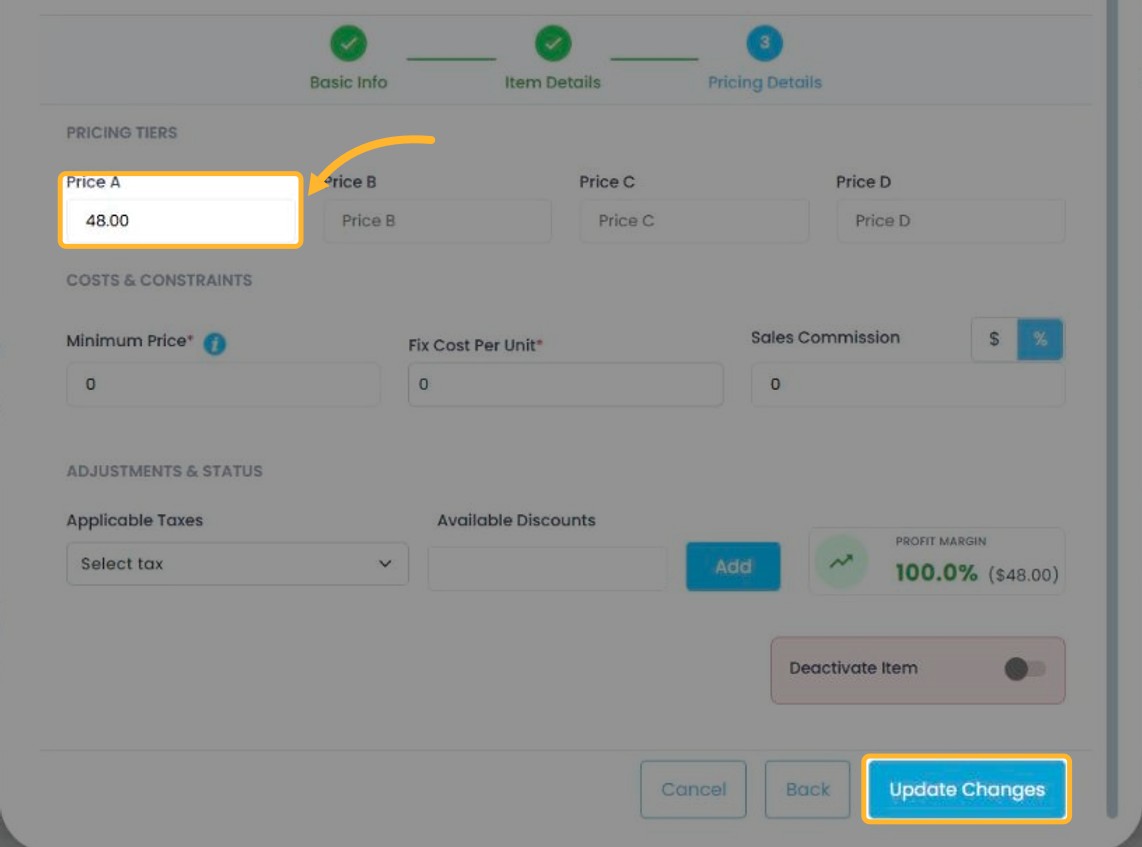
Click Next, enter Price A, then click Save Changes. If you are editing an item, the button reads Update Changes.
See it on a quote
7. Add the item to a quote
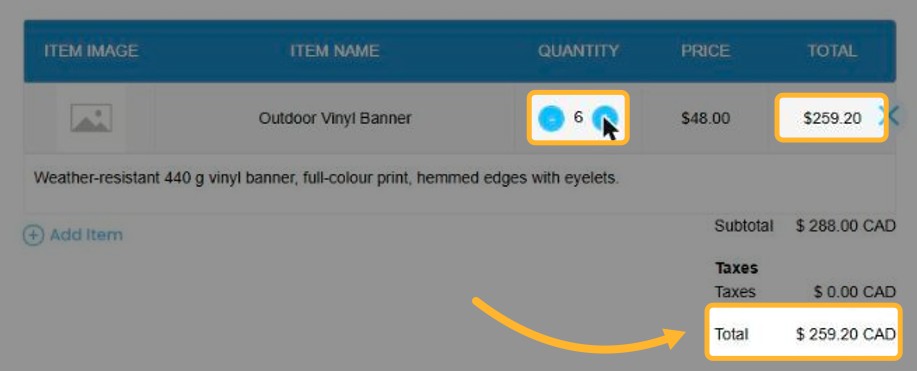
Create a quote, click Add Item and choose your item. Raise the quantity to 6 and the discount applies on its own: the subtotal is $288.00 and the total is $259.20.
8. Check the rule in “Item calculations”
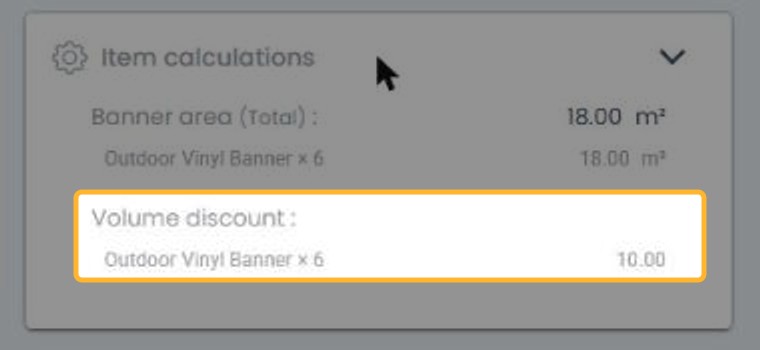
On the left of the quote screen, open Item calculations. Volume discount shows 10.00, which means 10%.
New items copy your calculations
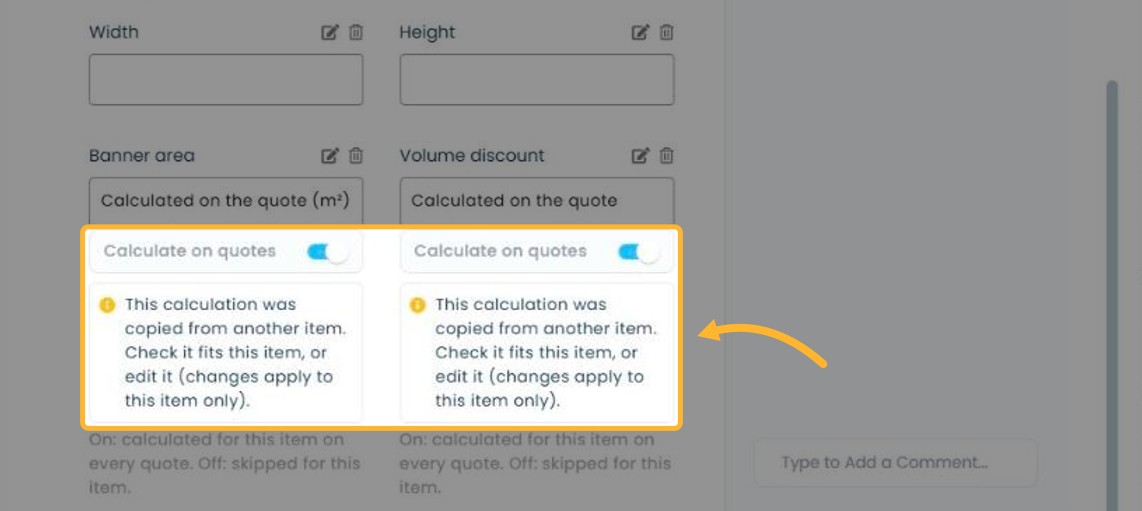
Once you have created a rule, new items receive a copy of it with Calculate on quotes switched on. Switch it off on any item that shouldn’t get the discount, or edit it. Your changes apply to that item only.
Related guides
Learn how to add items.