Quote tags are your own labels, such as Trade show, Rush order or VIP client. Use them to group quotes and find them quickly.
Anyone who can edit quotes can create tags and add them to quotes. Only super admins can rename or delete tags.
Create a Tag
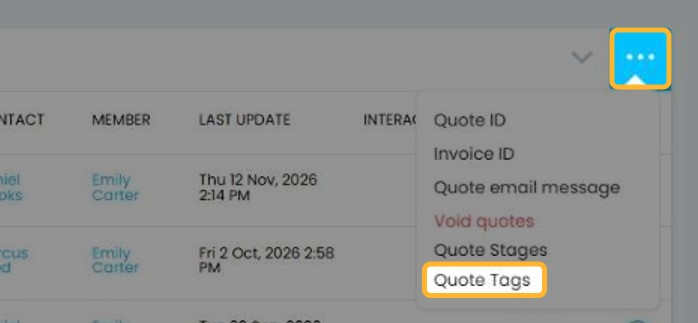
1. Go to “Quote Listing”, click the three dots above the list and choose “Quote Tags”
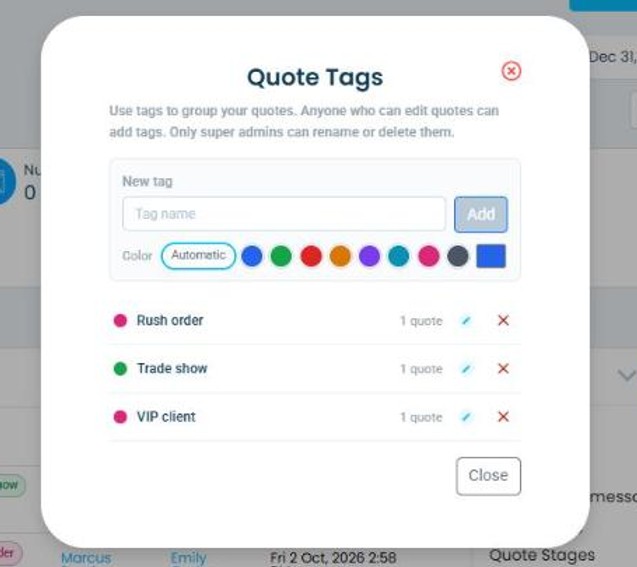
2. Under “New tag”, type a name, pick a color and click “Add”
Keep Automatic, pick one of the colors, or choose another one. A name can have up to 50 characters. A workspace can have up to 200 tags.
Add Tags to a Quote
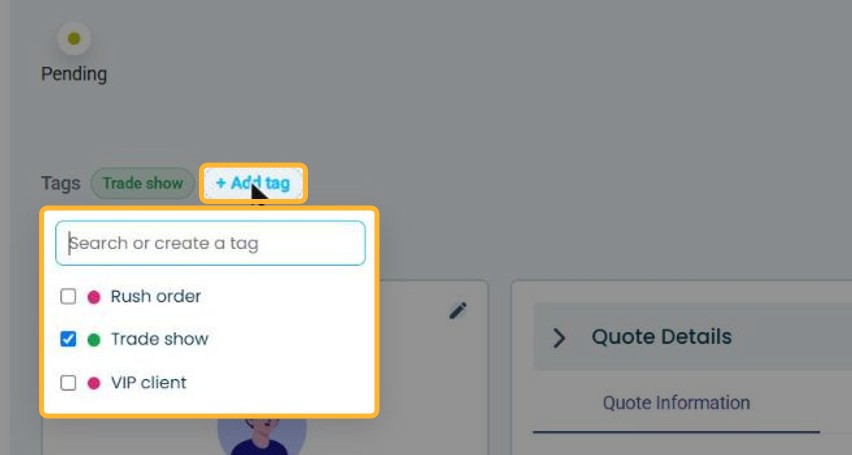
From inside the quote: click “Add tag”
Open a saved quote and click Add tag at the top. Tick the tags you want. To make a new one, type its name and click Create.
From the quote list: click “+” in the Tags column
If you don’t see the column, turn it on with the gear icon.
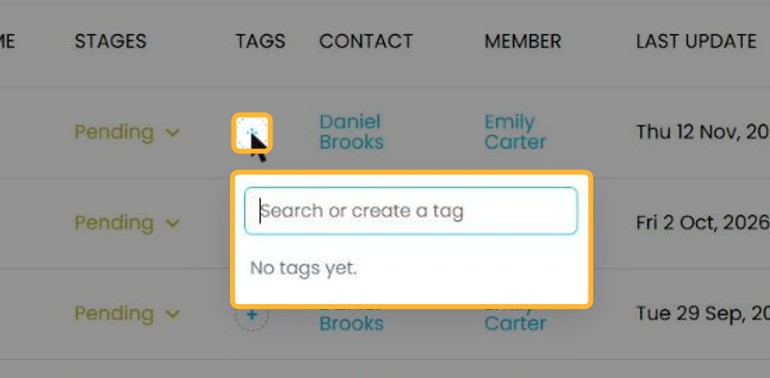
Type a new name and click Create, or tick tags you already have.
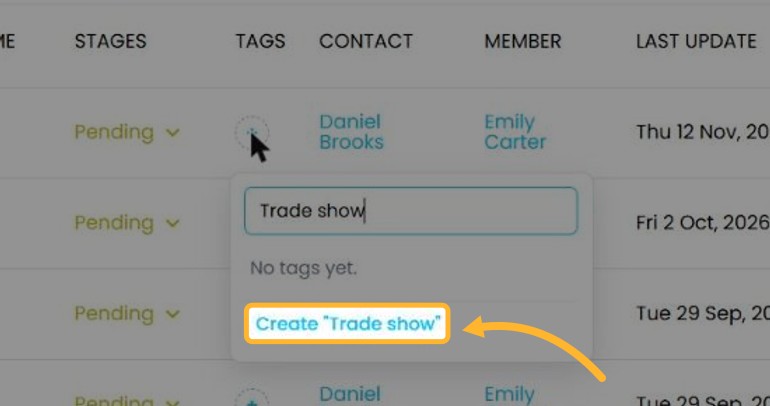
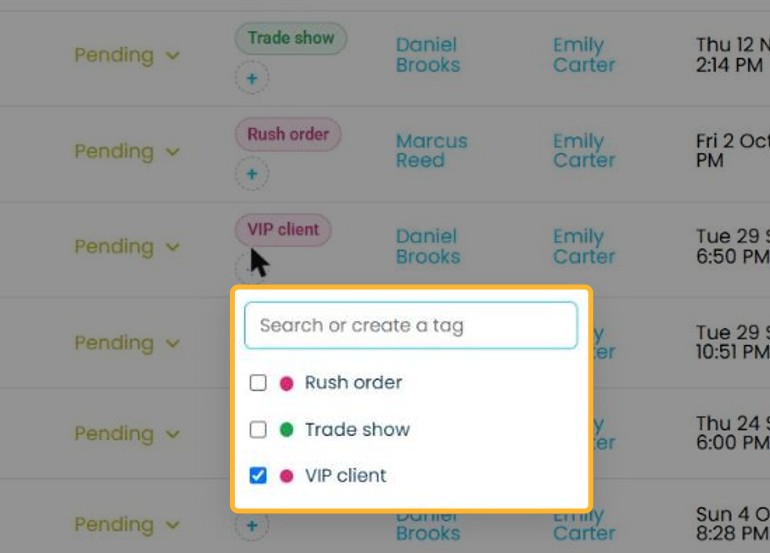
Changes are saved right away. A quote can have up to 20 tags. The list shows the first three and a “+” number for the rest. Cloned quotes and new versions keep the tags.
Filter by Tag
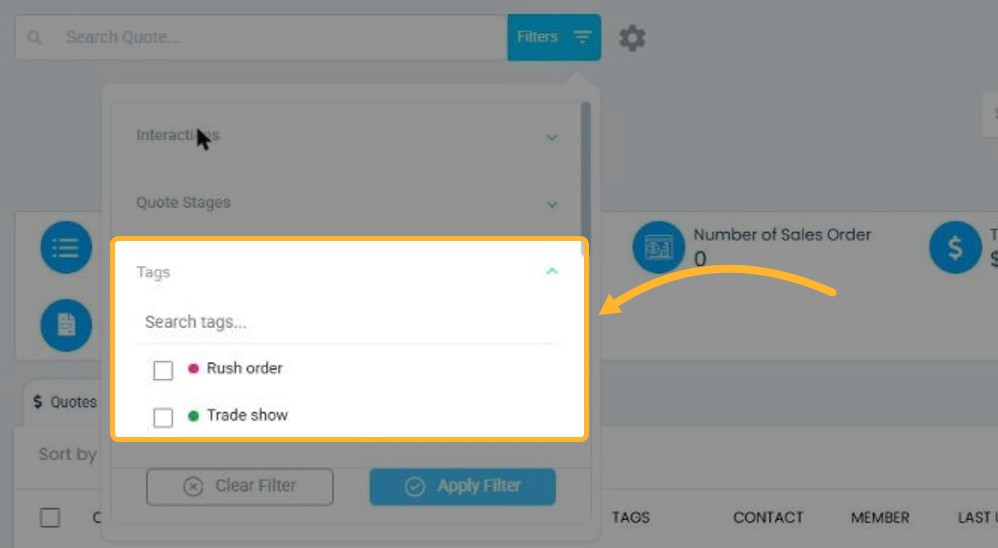
In “Quote Listing”, click “Filters”, open “Tags”, tick one or more and click “Apply Filter”
You see the quotes that have any of the tags you picked.
Tags on the Dashboard
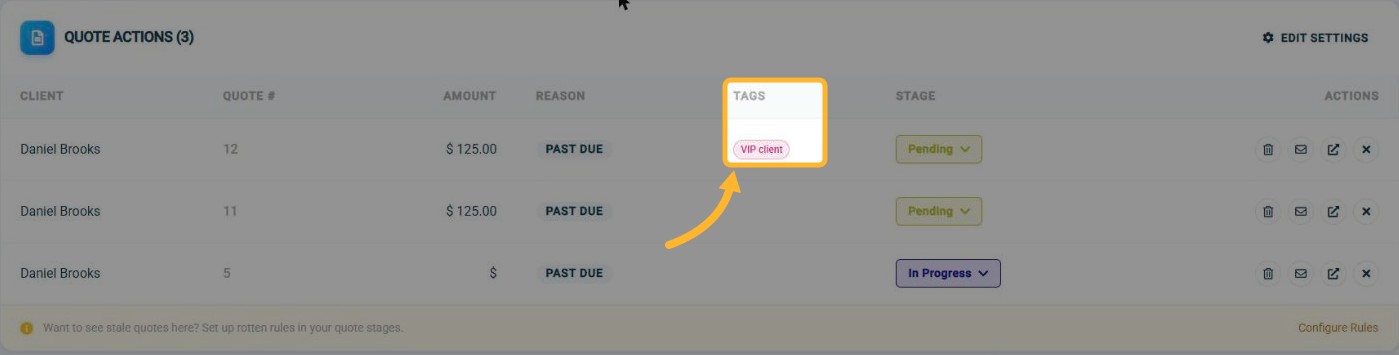
The Quote Actions box on your dashboard also shows each quote’s tags. See Your Dashboard.
Rename or Delete a Tag
Super admins only. In Quote Tags, click the pencil to change a tag’s name or color, then Save.
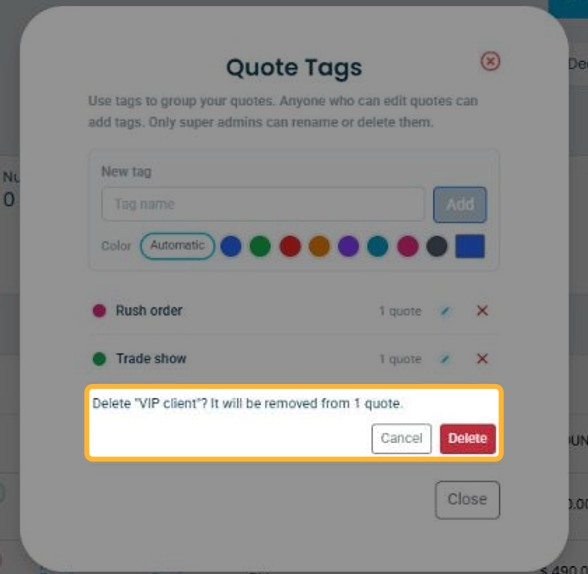
Click the ✕ to delete it, then confirm with Delete. Deleting removes the tag from the quotes that use it. The quotes themselves are not deleted.
Learn more about the quote list.