The Agenda is your Osmos calendar. It shows your bookings (sales orders), your quotes, your tasks and your reminders by day, week or month. You can also check how many of a service are still free on a date.
Opening the Agenda
1. Click “Agenda” in the left-hand menu
The Agenda opens on the Sales Order View, in the Month layout.
2. Move around the calendar
Use the arrows beside the month name to go back or forward. Click Day, Week or Month to change the layout. The week starts on the day set as First Day of the Week in your Workspace Profile.
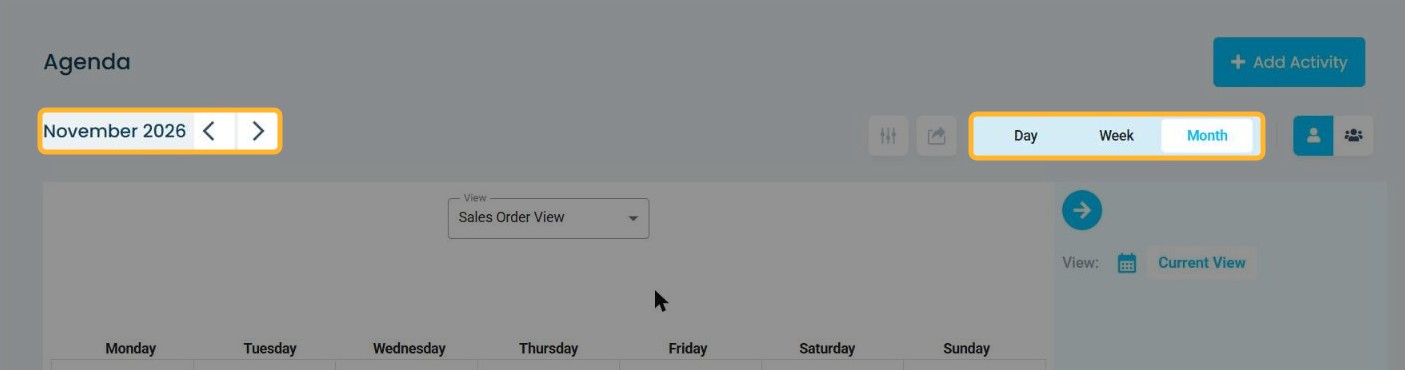
The Current View list beside the calendar shows what falls in the period on screen.
3. Choose what to see in the “View” list
Sales Order View: your bookings.
Quote View: your quotes.
Booked Items: which services are booked on each date.
Agenda View: your tasks and reminders.
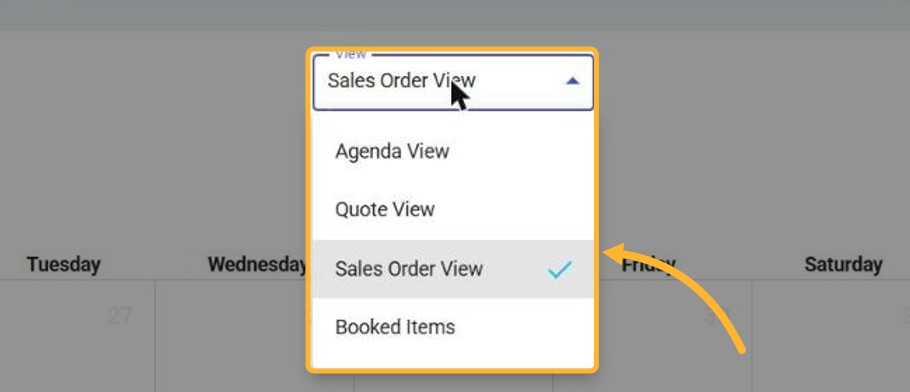
Sales Order View
Find a booking
Each sales order sits on its booking dates, with the client name, the order number or name, and the date range. A sales order with no booking date sits on the day it was last updated. Voided sales orders are not shown.
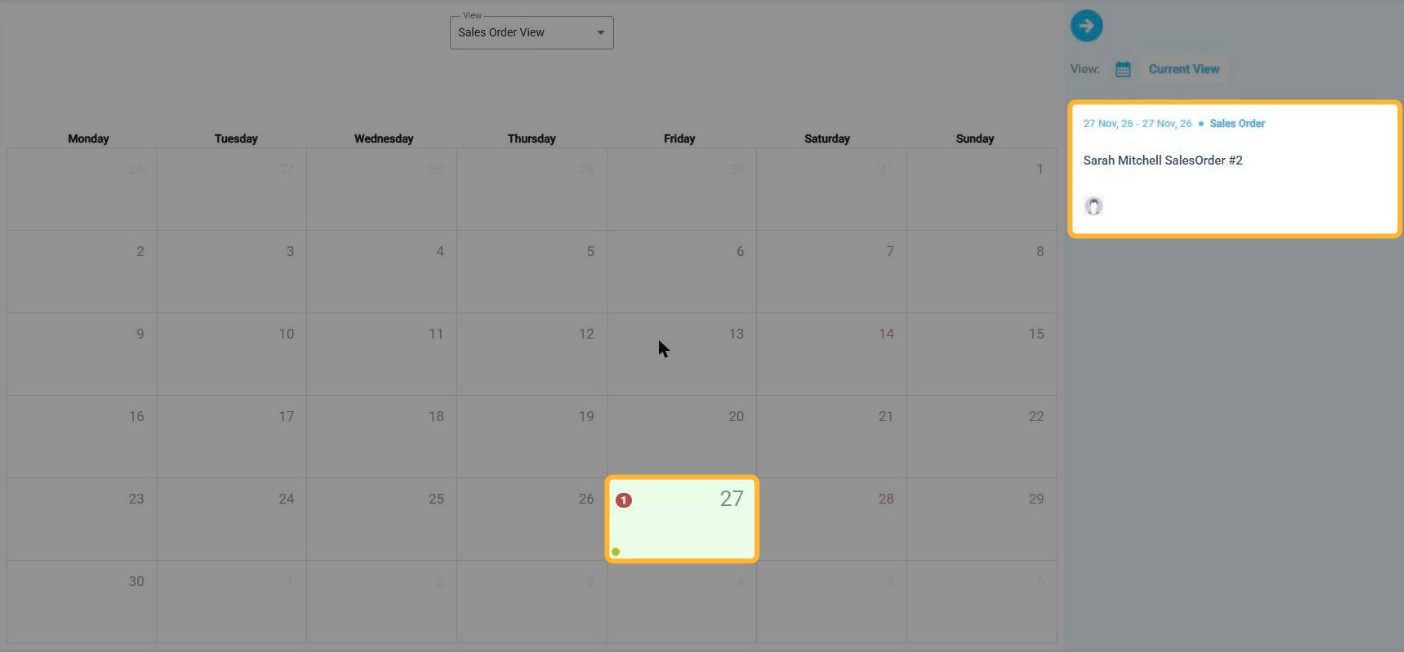
Open a sales order
In the Month or Week layout, click an event. The order opens in a new tab. In the Day layout, click an event to see a summary, then click the eye icon to preview the document.
Change a booking date
You cannot drag an event to another date. Open the sales order, change its start and end date, then save it. Osmos checks availability for the new dates. If an item is not free, Osmos shows a message and keeps the old dates. See Everything About Sales Orders.
Quote View
Each quote sits on the day it was last updated. To place quotes by another date, open Quote Custom Dates and pick a date, for example Booking Date. In the Month or Week layout, click a quote to open it in a new tab.
Booked Items: Check Availability
This view answers the question “Do we have it free on that date?” It counts sales orders, not quotes. Voided orders are not counted. Only services are booked by date. To see how many are free, set the Inventory number on each service. See Add Items.
1. Select “Booked Items” in the “View” list
In the Month layout, the number on a day shows how many different services are booked.
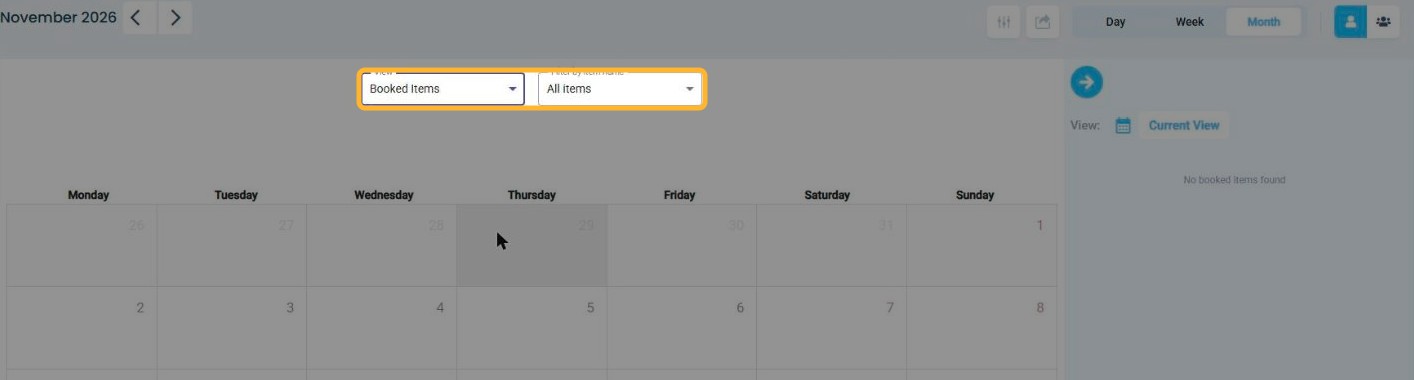
2. Check one item
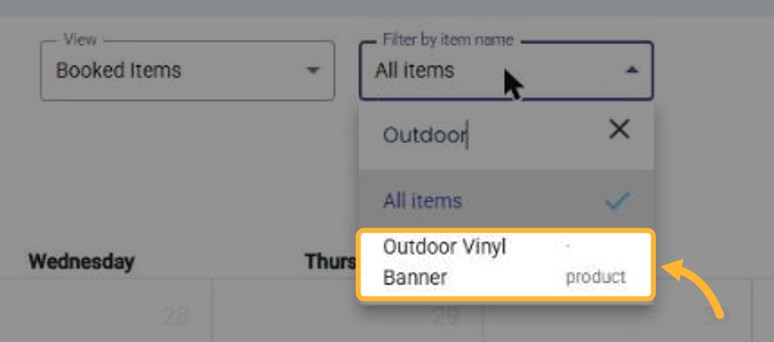
Open Filter by item name, type part of the name and pick the item. The number on each day now shows how many are still free.
Green: less than 60% booked.
Orange: 60% or more booked.
Red: none left.
Pick All items to go back. Products show the word product beside their name. When you pick one, Osmos shows how many are in stock.
3. Click a day to see the details
Availability by Item shows booked and total numbers, for example 2 / 5. No limit / Not tracked means the item has no inventory number. Open the contributing orders under an item to see which sales orders use it that day.
All sales orders count toward availability. If your role cannot view all quotes, orders from other people show Another salesperson, and their client names and links are hidden.
Agenda View: Tasks and Reminders
Tasks and reminders show on their dates. Completed ones, and tasks with no due date, are not shown. Click a type button above the calendar to show one type only, and All to see everything again.
Click a day, then an activity, to choose View activity, Edit info, Mark as completed or Delete activity. See Tasks and Reminders.
Adding a Task or Reminder
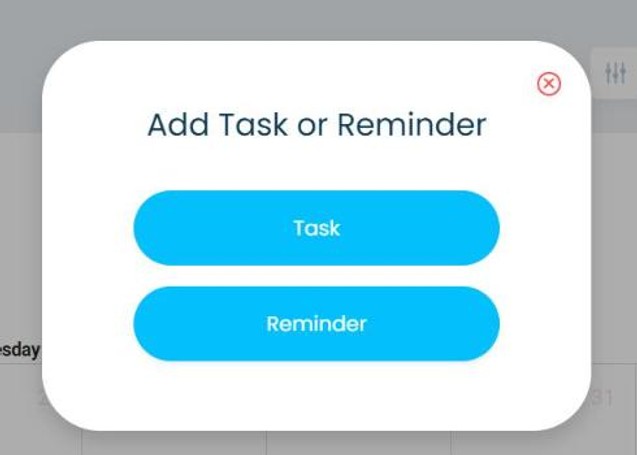
1. Click “Add Activity”
2. Choose “Task” or “Reminder”, fill in the form and save it
Downloading the Calendar
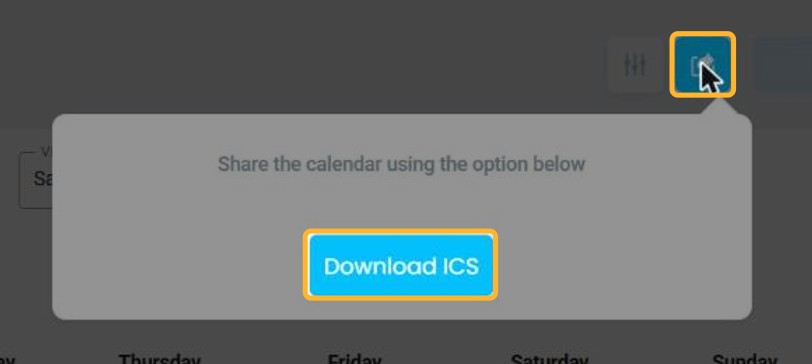
Click the share icon at the top, then “Download ICS”
Osmos downloads a calendar file with the events of the month on screen. You can import it into Google Calendar, Outlook or Apple Calendar.
Good to Know
Without the View All Quotes permission, you only see your own quotes and sales orders. See Roles.
A month view loads up to 2,000 records. If there are more, Osmos shows a warning.
Learn how to create a sales order.